What are super cookies? Types, risks, and removal steps



Most websites use cookies to function, but they can also be used to build detailed user profiles, which is why many people clear them regularly. However, deleting ordinary browser cookies doesn't always stop tracking. Some persistent trackers store identifiers outside the standard cookie jar or recreate them after deletion, allowing websites or third parties to keep recognizing a browser over time.
This guide explains what super cookies are, how they work, and what data they collect. It also covers how to spot persistent tracking, how to remove browser-stored identifiers, and how to reduce the chances of websites building a long-term profile of browsing activity.
What are cookies?
Cookies are small data files that websites store in your browser. When a browser returns to the same site, the site can read those cookies again. Sites use cookies to keep you signed in, remember your preferences, and support features like shopping carts.
There are two cookie types. First-party cookies come from the site you’re visiting. Third-party cookies come from a different domain, often through embedded content or services, and can be used for cross-site functions, including tracking.
What are super cookies?
“Super cookies” is an informal term for persistent tracking techniques that are harder to remove than ordinary cookies. Depending on the context, the term may refer to identifiers stored outside standard browser cookies, identifiers that are recreated after deletion, or other similar tracking methods. Because of that, “super cookie” is better understood as a general label than as one specific technology.
What makes these techniques a privacy concern is persistence. They can allow a website or third party to recognize the same browser over time and, in some cases, enable broader tracking when combined with other signals, such as web storage or fingerprinting.
Types of super cookies you might encounter
Super cookies have one thing in common: they can still identify a browser after standard cookie deletion, either by using other stored state or by reconstructing an identifier in another way.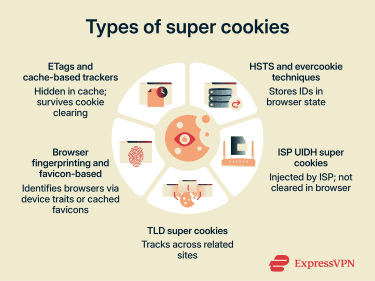
Entity Tags (ETags) and cache-based trackers
When visiting a site, your browser saves copies of files such as images and scripts so that pages load faster on return visits. This is called caching.
To manage cache, browsers and servers exchange metadata through Hypertext Transfer Protocol (HTTP) headers, which are short labels attached to requests and responses that carry extra instructions.
An ETag is one such label. Sites use it as a version tag for a cached file. Your browser stores it and sends it back on later visits so the site can check whether your cached copy is still current.
ETags can also be misused for tracking. A site can assign the browser a stable ETag-like identifier and use it to help recognize repeat visits even after ordinary cookies are cleared. Modern browsers such as Firefox and Chrome now use cache and storage partitioning, which makes this kind of tracking harder, especially across different sites.
HTTP Strict Transport Security (HSTS) super cookies
HTTP Secure (HTTPS) is the encrypted version of HTTP, the standard protocol browsers and websites use to communicate.
HSTS is a security rule that a site can send to your browser, instructing it to always use HTTPS for that site. Your browser stores this rule to protect you on future visits, even if you type the address without "https." Researchers have shown that stored HSTS state can also be abused to encode a tracking identifier, though it's better known as a research-demonstrated technique than as a mainstream tracking method.
Evercookie technique
Evercookie is a proof-of-concept tool that demonstrates how a tracking ID can be nearly impossible to remove. It writes the same identifier to multiple storage locations at once. If deleted from one location, it restores itself from another.
Although Evercookie was first demonstrated in 2010, the broader concept of respawning remains relevant because browsers still expose multiple storage and state mechanisms that can be combined to enable persistent tracking. These may include storage areas such as IndexedDB and other browser-managed state, though modern browser privacy protections have made this harder than it once was.
ISP Unique Identifier Header (UIDH) super cookies
This type of super cookie isn’t stored in a web browser. Instead, the internet service provider (ISP) injects a unique tracking identifier (ID) directly into the web requests as they travel across the network. The ID appears as an extra header attached to the request.
When a website or ad network receives that request, it can read the header and use the ID to recognize traffic associated with the same connection. Clearing browser cookies has no effect because the identifier is added at the network level rather than stored locally.
Note: UIDH is now largely historical. Verizon ended this practice without consent following the Federal Communications Commission (FCC) action in 2016, and widespread HTTPS adoption has made this kind of HTTP-header injection far less useful on the modern web. Similar network-level tracking risks can still exist in some environments, especially where traffic is not end-to-end encrypted.
Top-level domain (TLD) super cookies
A TLD is the last part of a domain name, like .com, .org, or .uk. The idea behind TLD super cookies is to set a cookie at a high enough domain level that it could be read across many unrelated sites sharing the same suffix.
Modern browsers block this using the Public Suffix List, which helps define cookie inheritance boundaries and prevents cookies from being shared across public suffixes.
Browser fingerprinting
A major evolution beyond traditional super-cookie techniques is browser fingerprinting. Instead of relying on ordinary cookies, it builds a profile from details a browser exposes, such as screen size, fonts, HTTP header information, and graphics-rendering characteristics. These signals can be combined to identify or single out a device or browser.
Because fingerprinting often works by reconstructing an identifier from browser characteristics, clearing cookies and cache may not stop it. The fingerprint can be rebuilt on later visits, which is one reason it is considered difficult to control.
Favicon-based trackers
Favicons are the small icons that appear in browser tabs. When you visit a site, your browser may cache these icons locally to avoid downloading them repeatedly.
Researchers have shown that trackers can abuse favicon cache behavior by assigning unique favicon patterns and checking which icons are already cached on later visits to reconstruct an identifier. Because favicon caching has at times been handled separately from ordinary cookies and cache, some standard data-clearing actions may not remove it, depending on the browser and version.
Why are super cookies hard to remove?
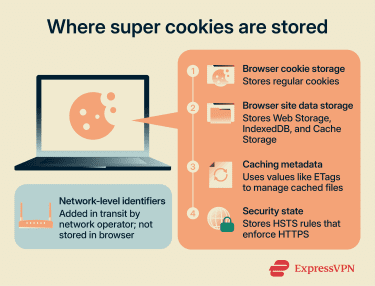 Super cookies can appear in several places depending on the type:
- Browser cookie storage: Where regular cookies live.
- Site data storage: Areas such as Web Storage (localStorage), IndexedDB, or Cache Storage that may persist if only cookies are cleared.
- Caching metadata: Values like ETags that help browsers manage cached files.
- Security state: Settings like HSTS that browsers save to enforce HTTPS rules.
- Network-level identifiers: Values injected in transit by a network operator, not stored in the browser at all.
Clearing cookies mainly affects the first category. If a browser action removes cookies only, other site data, cached state, or network-injected identifiers can remain.
How they reappear after deletion
A common super cookie pattern is respawning. A tracker saves the same ID in multiple locations, so when one copy is removed, another remains. The tracker then uses that surviving copy to restore the ID. This is where the term "zombie cookie" comes from.
ETag-based tracking can look similar from a user’s perspective because cached identifiers may remain after cookies are cleared. Fingerprinting goes further by deriving an identifier from device characteristics instead of relying on stored cookies.
How websites and networks use super cookies
Sites and third parties have used super-cookie-style techniques for cross-site tracking, measurement, and ad targeting. Third parties typically load tracking code across many sites, which may allow activity to be linked across domains and browsing patterns to be profiled over time.
Network-level tracking works differently. A carrier injects an identifier into web requests, making it independent of any one browser.
Are super cookies a privacy threat?
A super cookie usually works as a persistent identifier or recognition mechanism. Trackers use it to build a record each time they encounter it. That record can include:
- Pages you visit on sites that load the tracker.
- Timestamps, referral pages, and ad clicks.
- Technical details your browser sends automatically, such as an IP address, device type, browser version, and language settings.
- Inferred labels used in profiling, such as interest categories or purchase-likelihood segments.
Some trackers use this data for measurement and fraud prevention. Others use it to build advertising profiles, which can create privacy risks.
Signs you may be tracked
No single sign specifically confirms super cookie tracking. Many tracking methods look the same from the outside. These patterns can suggest tracking persists beyond regular cookies:
- You clear cookies or block third-party cookies, but cross-site ad targeting continues.
- You opt out of tracking on a site, but the same third-party trackers still load and appear to keep profiling your behavior.
- A site remembers choices you didn’t expect it to remember after cookie deletion, like previously viewed items or personalization settings.
- You still see ads that seem tailored to recent browsing, even after clearing cookies or using stronger privacy settings.
How to remove super cookies
Super cookie cleanup is mostly about managing stored browser data. Browser-stored super cookies and similar identifiers are usually managed separately by browser, profile, and device, so clearing one does not affect the others. If you use Chrome for work, Safari on your phone, and Edge for personal browsing, you need to clear data in each browser and on each device separately.
Note: These steps can remove many browser-stored super cookies and related identifiers, depending on the browser and the selected data categories. They won’t remove network-inserted identifiers or stop account-based tracking. For those, prevention matters more than cleanup.
Clear browser data
Start by clearing cookies, site data, and cache, rather than just cookies. A few things worth knowing before you start:
- Clearing cookies will sign you out of most sites. Plan for that if you rely on work apps or saved sessions.
- Browsing history clears your local record of visited pages. It doesn’t stop tracking on its own.
- Saved passwords and autofill data are also separate. Leave them unless you want a full reset.
- For the most thorough clean, set the time range to All time when available.
Chrome (desktop and Android)
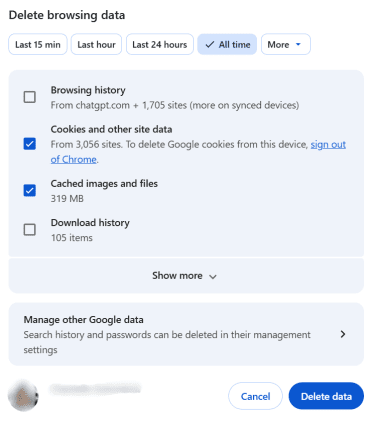
- Click the three dots at the top right of the page, and select Delete browsing data. If it's not listed, go to Settings > Privacy and security.
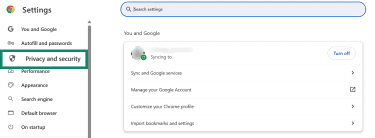
- Select Delete browsing data.
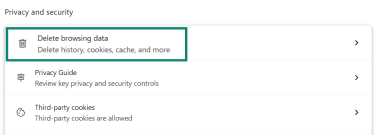
- Choose Time range (pick All time for a full clean). Check Cookies and other site data and Cached images and files, then click Delete data.
Edge (desktop)
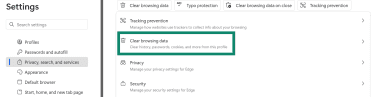
- Click the three dots in the top-right > Settings > Privacy, search, and services > Clear browsing data.
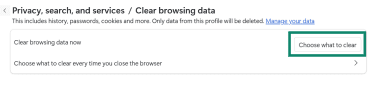
- Under Clear browsing data, click Choose what to clear.
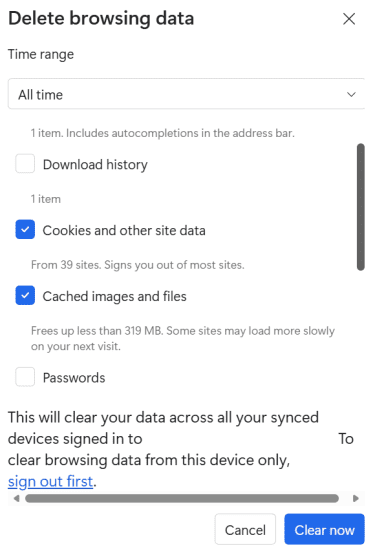
- Choose Time range (pick All time), check Cookies and other site data and Cached images and files, then click Clear now.
Firefox (desktop)
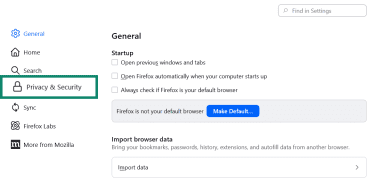
- Click the hamburger menu (☰) at the top right and go to Settings (or Preferences on macOS) > Privacy & Security.
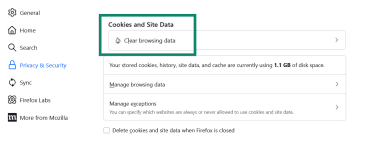
- Under Cookies and Site Data, click Clear browsing data.
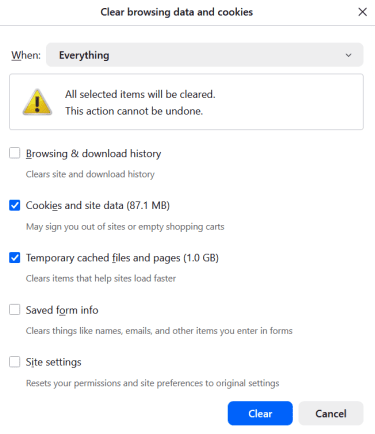
- Check Cookies and site data, and Temporary cached files and pages, then click Clear.
Safari (macOS)
- Open Safari.
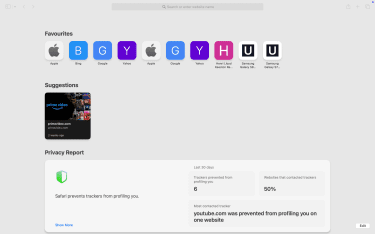
- In the menu bar, click Safari > Settings (or Preferences) > Privacy.
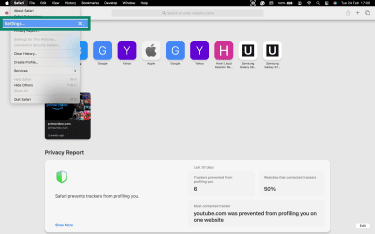
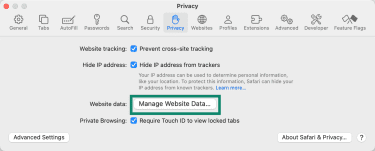
- Click Manage Website Data.
- Click Remove All, or select specific sites and click Remove.
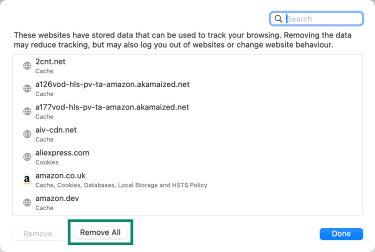
These steps remove cookies and website data; Safari handles browsing history separately under History > Clear History.
iOS Safari (iPhone/iPad)
- Open the Settings app > Apps.
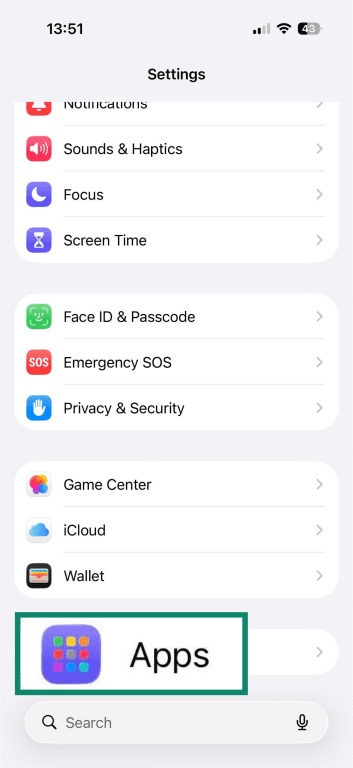
- Tap Safari.
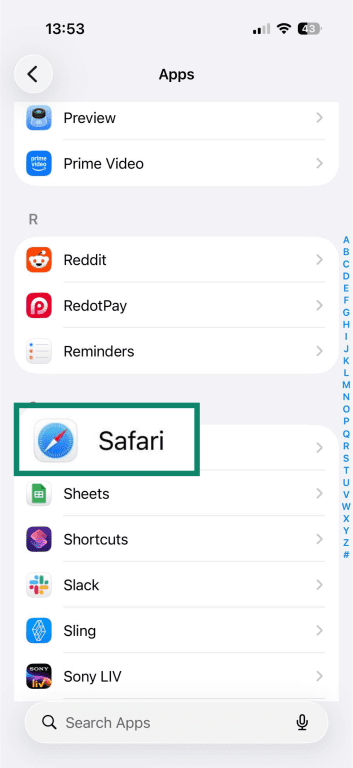
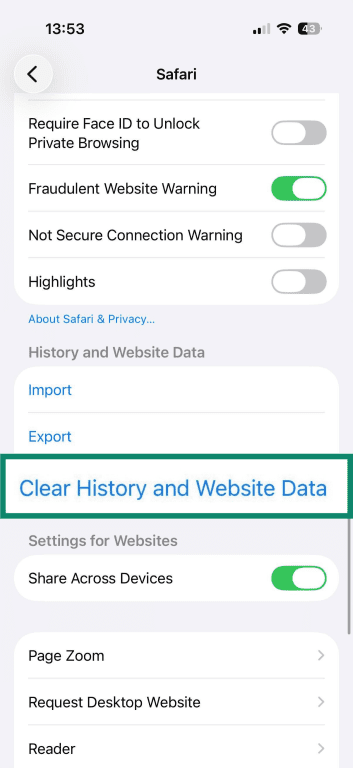
- Tap Clear History and Website Data.
- Choose a timeframe and tap Clear History to confirm.
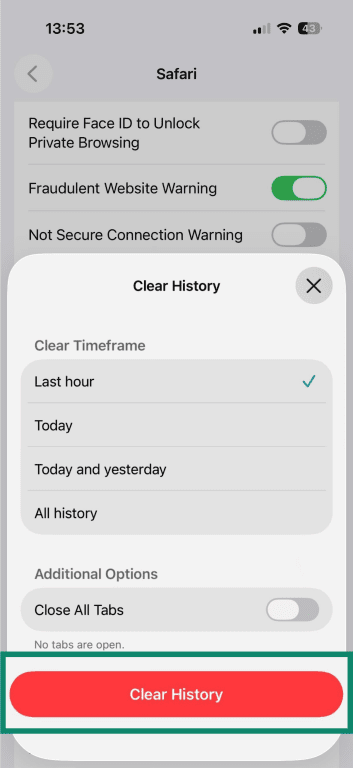
If the goal is to clear cookies and cache while keeping history, go to Settings > Apps > Safari > Advanced > Website Data > Remove All Website Data.
Clean cache
Some trackers, such as ETag-based trackers, can use browser caching to persist identifiers. To flush cache-based identifiers:
- Clear Cached images and files (Chrome, Edge) or Temporary cached files and pages (Firefox).
- Close the browser fully, then reopen it and reload the site.
If a site still recognizes you after clearing the cache, clear that site's stored data directly. For favicon trackers, ordinary cache clearing may not always remove favicon state, depending on the browser. In some browsers, removing it may require browser-specific steps.
Reset site permissions and storage
Clearing cookies clone may leave site data storage and site-level permissions untouched. Resetting these gives you a more complete wipe of a site's footprint in your browser.
For any site you want to reset, remove its entry from the site data list and reset its individual permissions, such as location, camera, notifications, and pop-ups. Chrome documents per-site permission controls and a view for stored site data; Safari documents per-site Website settings separately from website data; Firefox documents per-site cookie and site-data removal.
The exact location of these controls varies by browser and version. In general, look for sections labeled Privacy, Site settings, Cookies and site data, Website data, or Permissions.
How to prevent super cookie tracking in the future
Prevention starts with tighter browser privacy settings. You can also use tools that block known tracking domains before the connection is made, such as ExpressVPN's Threat Manager, though no single measure stops every form of tracking.
Use privacy-focused browser settings
Start with the controls your browser already includes.
Safari (Mac)
Safari > Settings > Privacy > turn on Prevent cross-site tracking.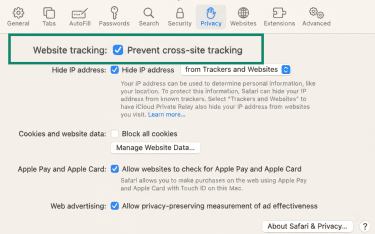
Firefox
Settings > Privacy & Security > turn on Enhanced Tracking Protection > choose Standard or Strict. Standard is the default; Strict may affect how some sites work.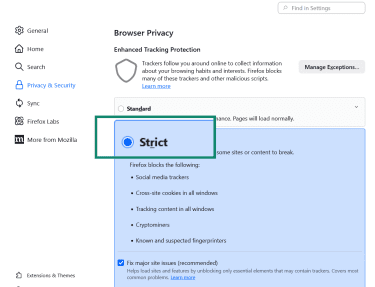
Chrome
Settings > Privacy and security > Third-party cookies, then select Block third-party cookies. Some sites may not work as expected when third-party cookies are blocked.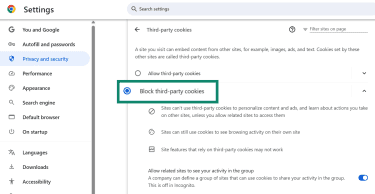
Block third-party tracking
Third-party cookies are only part of the picture. Many sites load third-party scripts for analytics and ad targeting that don't rely on cookies alone. Blocking known trackers at the browser level can reduce the number of tracking requests your browser makes.
Firefox and Edge both use tracker protections to identify and block known trackers. Safari supports content blockers that can filter tracking resources in the browser. Depending on your browser, these controls may appear under Privacy, Tracking protection, Third-party cookies, Content blockers, or Extensions.
Blocking trackers can sometimes break embedded widgets, comments, logins, or video players on some sites.
Disable or limit persistent storage
A lot of “super cookie” behavior comes from data stored outside the regular cookie jar. Sites can store data in browser APIs such as Web Storage, IndexedDB, and the Cache API. Two habits help here:
- Clear cookies and site data together, not just cookies.
- Use private browsing mode (Incognito) for sessions you don't want stored locally on a shared device. Private browsing limits what stays on the device after you close the window, but it does not make browsing anonymous online. Browsers like Brave and Tor also include anti-fingerprinting protections.
Use Domain Name System (DNS) and tracker blocking
Before your browser loads a site, it looks up the site's domain name through DNS. Encrypting that lookup helps protect it from interception, and filtering known tracking domains can stop some tracking requests before they connect. ExpressVPN’s DNS features can support this by encrypting DNS requests and helping block some trackers before they load.
To reduce tracking at the DNS layer:
- Enable secure DNS in your browser settings. Chrome and Firefox both support DNS over HTTPS (DoH), which encrypts DNS lookups over HTTPS.
- Use a DNS-based blocker or service that filters known tracking domains. Some DNS services and virtual private networks (VPN) apps offer DNS-based blocking across apps on a device, not just within a single browser. DNS blocking can reduce tracking, but it does not stop every ad or tracker
FAQ: Common questions about super cookies
Can super cookies be completely removed?
Do super cookies track you in incognito mode?
Can antivirus software remove super cookies?
Are super cookies illegal?
Do Flash super cookies still matter?
How often should I clear cookies and site data?
How can I tell if a site uses super cookies?
Take the first step to protect yourself online. Try ExpressVPN risk-free.
Get ExpressVPN















 Support Center
  FAQ
FAQ  VPN Setup Tutorials


