What is the SMTP protocol, and how does it work?



The Simple Mail Transfer Protocol (SMTP) is the standard protocol for sending and relaying email across the internet. When an email is sent, the email app (or webmail) submits the message to an outgoing mail server operated by the sender’s provider, which then forwards it to the recipient’s provider. In some cases, the message may pass through multiple servers before reaching its destination.
Even though delivery often takes only seconds, the transfer follows defined steps and rules that enable different email services to exchange messages reliably. This guide explains how email transmission works, how to configure SMTP settings, and what security limitations apply today.
Introduction to SMTP
Email relies on multiple protocols working together. SMTP handles one specific part of the system: sending messages from one server to another, and (in many setups) submitting outgoing mail from an email client to a provider’s submission server. Other protocols are used to retrieve and synchronize messages after they arrive.
What does SMTP do?
SMTP transfers outgoing messages from the sender’s mail system to the recipient’s mail system. When an email is sent from an app or website, the message is submitted to an outgoing mail server operated by the sender’s provider. That server then relays the message onward according to the SMTP standard, sometimes directly, sometimes through additional servers along the way.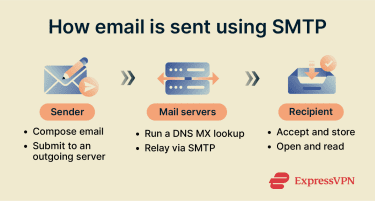
Because major providers follow the same standard, a message from a personal Gmail account can reach a corporate Outlook mailbox or a custom domain address. SMTP makes these services interoperable and allows email to function as a global communication network rather than a collection of isolated platforms.
SMTP runs over Transmission Control Protocol (TCP) / Internet Protocol (IP), which provides a reliable connection for exchanging commands and message data between mail systems.
How SMTP compares to IMAP and POP3
SMTP is often confused with the protocols used to access email. It works alongside the Internet Message Access Protocol (IMAP) and the Post Office Protocol 3 (POP3).
Here’s a quick overview of what each protocol does:
- SMTP: Sends/relays outgoing messages.
- IMAP: Lets a client access and synchronize messages stored on a server.
- POP3: Lets a client download messages from a server (often for local storage).
The difference between SMTP and IMAP is direction and purpose. SMTP pushes messages outward from a sender to the recipient’s provider. Once the message is accepted by the receiving side, SMTP’s role ends.
IMAP then allows a phone or computer to view the mailbox stored on the server, keeping mail synchronized across devices and webmail. IMAP is one of the most common standards-based retrieval methods today.
POP3 works differently. It downloads messages from the server onto a single device for local storage. In many configurations, the server copy may be removed after download (though some clients can be set to leave a copy on the server). This is why older setups might show an email on one computer but not another.
How SMTP works
Sending an email isn’t a single action but a short exchange between mail systems. Messages move across servers using a defined sequence of routing lookups, protocol commands, and server responses.
SMTP is also designed as a store-and-forward system. If the receiving side can’t accept a message temporarily, the sending server typically queues it and retries later. If delivery continues to fail, the message may be returned to the sender as undeliverable.
SMTP process flow explained
When a message is sent, the sending device first contacts the provider’s outgoing mail server. That server does not immediately deliver the message. Instead, it determines where the recipient’s email domain receives mail
Every email address contains a domain name, such as gmail.com. The sending server looks up the domain’s Domain Name System Mail Exchange (DNS MX) records, which indicate which mail servers accept messages for that domain (and then resolves those servers to network addresses as needed).
After the destination mail server is identified, the message is transferred to the recipient’s email provider. Sometimes the message travels directly; in other cases, it passes through additional systems responsible for filtering, security scanning, or routing.
During transfer, the sending and receiving servers run an SMTP session: they connect, identify themselves, declare sender and recipient addresses, transfer the message content, and close the connection.
Once the recipient’s provider accepts the message, it is stored so it can appear in the recipient’s mailbox. At that point, the SMTP transfer is complete.
SMTP client, server, and relay
Sending an email involves several systems working together. Although users interact only with an email app, the actual exchange happens between mail servers. This involves three major components:
- Client: The application or website that submits a message for sending.
- Server: The provider’s outgoing mail system that accepts and relays the message.
- Relay: Intermediate systems that forward the message toward the destination.
A mail relay forwards messages to the next hop based on routing information (including headers). In many environments, relays also apply filtering and policy checks before the message reaches the recipient’s provider.
Message format note: Attachments and formatted content require encoding. Email was originally designed for plaintext, so files and HTML content are packaged using Multipurpose Internet Mail Extensions (MIME), which allows images, documents, and styled emails to travel through systems built for text communication.
Common SMTP ports (25, 465, 587)
SMTP commonly uses different ports depending on the role:
- Port 25: Primarily server-to-server email relay.
- Port 465: Submission with implicit Transport Layer Security (TLS), which is widely supported.
- Port 587: Message submission, often with authentication.
Provider settings vary, so SMTP hostnames, ports, and security options are typically published in provider support documentation.
SMTP commands and responses
SMTP works because both servers follow a predictable dialogue. Instead of sending a single message, the systems exchange short instructions and confirmations. These instructions tell the receiving server who is sending the message, who should receive it, and whether the transfer should be allowed to continue.
Essential SMTP commands
SMTP communication is text-based. The sending system issues commands, and the receiving server replies with a status code. The most common commands are:
- HELO / EHLO: Starts the session and identifies the sending system.
- MAIL FROM: Declares the sender address.
- RCPT TO: States the recipient address.
- DATA: Transfers the message content.
- QUIT: Ends the connection.
Extended SMTP (ESMTP)
The original SMTP standard was designed primarily for sending text. As email use expanded, additional capabilities were needed, so a framework for extensions called ESMTP was introduced.
ESMTP allows servers to negotiate extra features during the initial greeting. Depending on the server, these can include extensions for TLS encryption, message size limits, and authentication.
One common extension is SMTP authentication (AUTH), which allows a client to authenticate before the server accepts a message for submission.
ESMTP also supports attachments and formatted messages by working alongside MIME, so non-text content can travel through mail systems built for text communication.
SMTP response codes
Every command receives a numeric reply from the receiving server. These codes indicate whether the message can proceed or whether the sending system must stop or retry.
Positive responses
Successful transfers commonly produce replies such as:
- 220: The server is ready to communicate.
- 250: The requested action succeeded.
- 354: The server is ready to accept message content.
- 221: The session is closing normally.
Error codes and troubleshooting tips
When delivery fails, the reply code usually identifies the problem:
- 500: The command was not recognized.
- 503: Commands were sent in the wrong order.
- 550: Mailbox unavailable (often user unknown) or message rejected permanently by policy.
Because these codes are standardized, administrators and mail systems can automatically diagnose issues. For example, a temporary failure may cause the sending server to retry later, whereas a permanent error results in a message being returned to the sender.
Setting up SMTP
 Most email clients handle SMTP without requiring any special configuration. Manual SMTP setup is usually required only in specific situations, such as adding an email account to a desktop mail application, connecting a custom domain, or configuring a device or service to send automated messages.
Email apps and servers need connection details so they know which outgoing mail server to contact and how to verify the sender. Without these settings, a system may still receive messages but will be unable to send them.
This commonly occurs when a work or school account is added to a mail client, when an email account is moved to a new device or application, when a website contact form needs to send notifications, or when a server is configured to send alerts and automated reports. In these cases, the correct outgoing mail settings must be entered using information provided by the email service.
How to configure SMTP on different platforms
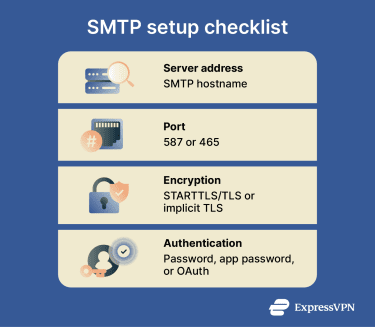
Most setups require the same information:
- Server address: The hostname of the provider’s outgoing mail server.
- Port number: The network port the server listens on (often 587, sometimes 465).
- Encryption method: The security type used for the connection, often Start Transport Layer Security (STARTTLS)/TLS on 587 or implicit TLS on 465.
- Account credentials: The authentication method required by the provider (password or Open Authorization (OAuth), depending on the account).
Entering these values connects the email app or server to the provider’s outgoing mail system. The main difference between platforms is simply where these settings are located and how much control you have over security and relaying.
SMTP on Windows
On Windows systems, SMTP may be configured through mail server software or an external SMTP service. The legacy Internet Information Services (IIS)/Windows SMTP service is deprecated and has been removed from Windows Server 2025.)
Relay restrictions can have an effect. If a server accepts and forwards mail from untrusted sources, it can be abused for spam, which often leads to the server’s IP being blocked by other providers.
SMTP on Linux
Linux environments typically use Postfix or Sendmail, with configuration stored in text-based settings files. Administrators define the hostname, enable TLS certificates for encrypted connections, and restrict relaying to trusted networks or authenticated users.
Linux servers often use SMTP for automated messages, such as monitoring alerts, system notifications, and application emails, rather than for personal communication.
SMTP in Gmail or Outlook
Email applications hide most of the technology that underpins the email system. Usually, they only ask for account details plus outgoing server settings. A typical SMTP server example looks like this:
| Provider | Server | Port |
| Gmail | smtp.gmail.com | 587 |
| Outlook | smtp-mail.outlook.com | 587 |
| Microsoft 365 (Exchange Online) | smtp.office365.com | 587 |
After you enter an email address, password, and encryption method, the app handles the connection and authentication in the background.
Common SMTP setup mistakes
Most configuration problems come from incorrect connection details or blocked connections rather than software errors. Typical causes include:
- Wrong server address, port, or network access: An incorrect hostname or port (or a firewall/network restriction) can cause connection timeouts or messages stuck in the outbox.
- Authentication failures: Incorrect passwords, disabled SMTP authentication, missing permissions, or provider requirements, such as app passwords/OAuth, can prevent the server from accepting outgoing mail.
- TLS/ Secure Sockets Layer (SSL) certificate issues: Encrypted connections may be rejected if the server certificate is invalid, expired, untrusted, or doesn't match the server hostname. TLS uses the same core security principles as HTTPS, even though SMTP often negotiates encryption using STARTTLS or implicit TLS.
SMTP security
Once email sending is working correctly, the next concern is the level of privacy and trustworthiness of the transfer.
SMTP was created in the early days of the internet, when networks were small and trusted. Modern email protections are part of broader internet security practices, including encryption and identity verification. However, these protections mainly apply to how messages travel between servers rather than to the privacy of the message itself.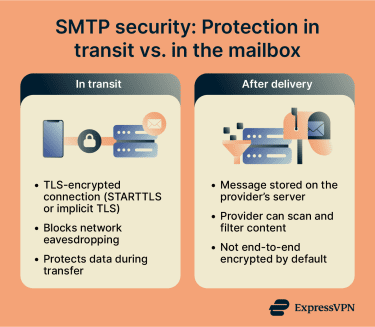
Understanding these limits helps explain both how email providers reduce abuse and why phishing and spoofed messages still exist.
What is SMTPS?
SMTP Secure (often called SMTPS) commonly refers to SMTP over an implicit TLS connection, where encryption starts immediately (commonly on port 465 for message submission).
The encryption helps protect mail in transit between the sending device and its submission server, and between mail servers when TLS is negotiated. It does not encrypt the message end-to-end after delivery, so providers and security systems can still process messages stored in their environments.
SMTP authentication methods
For message submission, most providers require identity verification before accepting outgoing mail. This process is often done using SMTP AUTH.
Typical authentication methods include:
- Account credentials: A standard username and password linked to the email account.
- Application passwords: Provider-generated passwords used by email apps or devices that cannot complete full web logins.
- Token-based authentication: Temporary authorization tokens issued after a verified login session.
Authentication helps prevent unauthorized use of a provider’s submission servers to send spam. However, authentication alone doesn’t guarantee that the sender's address displayed in the message is genuine.
Sender Policy Framework (SPF), DomainKeys Identified Mail (DKIM), and Domain-based Message Authentication Reporting and Conformance (DMARC) are three practices that providers typically use to combat email spoofing. They can help determine whether a message is authorized to use a given domain and whether it should be delivered, flagged, or rejected.
Secure connections (TLS, STARTTLS)
Modern servers often begin communication in plaintext and then upgrade the connection using STARTTLS. After this upgrade, the rest of the transfer is encrypted. Some submission services use implicit TLS from the start (commonly on 465).
This design maintains compatibility with older mail systems while still protecting data in transit. However, SMTP encryption is handled hop-by-hop. Each server decrypts the message, processes it, and then re-encrypts it when forwarding to the next server.
Because of this, email is not end-to-end encrypted by default. Providers can still access messages stored in inboxes, and security filtering systems routinely scan content for malware and phishing links.
Avoiding open relays and spam risks
An open relay is a mail server that forwards messages from any sender to any recipient without verification. Early email servers enabled this behavior, making large-scale spam easier to send.
Modern servers prevent this by requiring authentication and by limiting which systems may relay mail through them. Providers also maintain reputation tracking. If a server sends large volumes of suspicious traffic, other providers may reject its messages entirely or mark them as spam.
These controls do not eliminate abuse, but they significantly reduce automated bulk mail and help receiving providers decide whether to accept or filter incoming messages.
Use cases and applications
SMTP is used whenever a system needs to send email to another mail system, within an organization, or across the internet. While it's most visible in personal email, many automated and business processes depend on it.
SMTP in business email services
Organizations use SMTP for routine communication and automated system messages, including:
- Internal communication: Messages exchanged between employees and departments.
- System notifications: Alerts from monitoring tools, security systems, or software platforms.
- Transactional emails: Receipts, invoices, and account confirmations.
- Account actions: Password resets and verification emails.
In these cases, SMTP handles transfer to the receiving provider, which stores the message so it can be accessed in the mailbox.
SMTP relay services
Companies that send high volumes of email often rely on dedicated relay providers rather than operating their own sending infrastructure. These services accept outgoing messages and forward them to recipient providers, managing delivery attempts, queuing, and rate limits.
Relay services also help maintain sending reputation. Large volumes sent from an unmanaged server are more likely to be filtered or blocked by receiving providers.
Using SMTP with email APIs
Many websites and applications automatically generate emails, such as registration confirmations and alerts. Developers can send these messages either by connecting directly with SMTP credentials or by using email APIs offered by service providers.
Even when an API is used, the message typically still enters SMTP-based mail transfer at some point for delivery between mail servers.
FAQ: Common questions about SMTP
What is the SMTP protocol used for?
How does Simple Mail Transfer Protocol (SMTP) send email?
What is the difference between SMTP and SMTPS?
Which port should I use for Simple Mail Transfer Protocol (SMTP)?
Can I use Simple Mail Transfer Protocol (SMTP) without Secure Sockets Layer (SSL) / Transport Layer Security TLS?
How do I test Simple Mail Transfer Protocol (SMTP) settings?
Is Simple Mail Transfer Protocol (SMTP) secure?
What’s the best Simple Mail Transfer Protocol (SMTP) service provider?
Take the first step to protect yourself online. Try ExpressVPN risk-free.
Get ExpressVPN












 Support Center
  FAQ
FAQ  VPN Setup Tutorials


