How to set up a virtual machine safely and avoid common mistakes


Virtual machines (VMs) let one physical computer run multiple OSes. Setup requirements vary depending on the hypervisor and the isolation/networking choices, so it can feel complex.
This guide explains what a VM is, how it works, and how to set one up more safely, plus common mistakes to avoid.
What is a virtual machine?
A VM is a complete computing environment that runs inside a software layer on a physical machine (the “host”) rather than on its own dedicated hardware. The VM itself is referred to as the "guest." It shares the host's resources but can run a different OS or a different version of the same one.
Read more: Virtual server vs. physical server.
How virtual machines work
Virtualization simulates the hardware and software combination necessary to run an OS. For example, a VM's storage disk is often a file on the host machine that appears to the guest as a physical hard drive.
A hypervisor, also known as a virtual machine monitor (VMM), allocates resources such as CPU time, memory, and storage to each guest while keeping it isolated from the host and other VMs.
Virtualization often relies on hardware extensions such as Intel VT-x, which help the CPU run guest OSs efficiently with hypervisor-controlled isolation.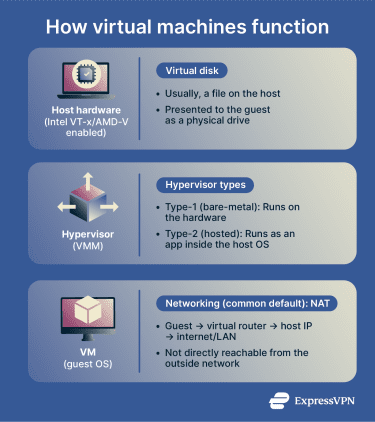
Hypervisors fall into two categories:
- Bare‑metal (type‑1) hypervisors: Run directly on hardware, for example, Hyper‑V. They deliver near‑native performance and strong isolation.
- Hosted (type‑2) hypervisors: Run as applications within a host OS, such as VirtualBox. They are easier to set up, but add an extra software layer between the guest and hardware.
When configuring a VM, you need to decide how it connects to networks. Network Address Translation (NAT) is a common VM networking mode that allows the guest to make outbound connections without being directly reachable from the outside network (unless port forwarding is configured). The VM sits behind a virtual router on a private subnet, with outbound traffic translated through the host.
Read more: Everything you need to know about a NAT firewall.
When to use a virtual machine (and when not to)
Virtual machines are useful when you need to separate tasks from your main system. Common use cases include:
- Testing and cross‑platform needs: Install applications or updates in a guest environment, or run a different OS to access tools unavailable on your host.
- Safer browsing: Because the VM behaves like a separate computer, visiting risky websites or opening unknown files is less likely to affect the host. However, this doesn’t eliminate the risk entirely. For stricter network isolation, some users run VMs on a dedicated home server, which can keep potentially risky activity more separated from the device used day to day, especially if file sharing and remote management access are tightly limited.
A VM might not be the right choice for resource-intensive tasks like 3D games or rendering applications, which can run poorly due to virtualization overhead. The exception is GPU passthrough, which often requires input–output memory management unit (IOMMU) support, such as Intel VT-d or AMD-Vi, plus compatible hardware and hypervisor features, delivering near-native performance, though the setup is considerably more complex.
For workloads where near-native performance matters, dual booting can be a better fit than a VM. It lets a machine run multiple OSes, with one selected at startup, though switching requires a reboot, and setup typically involves partitioning and changes to the bootloader.
What you need before you start
Hardware requirements
A VM shares your host machine’s resources, so your hardware needs to meet a few baseline requirements:
- 64‑bit CPU with virtualization support: Hardware virtualization (Intel VT-x or AMD-V) is typically required for 64-bit guests and for best performance, and it may be disabled in firmware. Enable it before you start. Some hypervisors (including VirtualBox) can run certain workloads without hardware virtualization, but with more limitations
- Sufficient memory and storage: Memory and disk needs depend on the guest OS. Lightweight Linux guests may boot with a few gigabytes of RAM, while Windows 11 requires at least 4GB (and more is often needed for smooth use), plus enough disk space for the OS and files. Insufficient resources can prevent a VM from running well, or at all.
- Compatible host OS: Some hypervisors only work on specific host OS editions. Check your hypervisor's requirements before proceeding.
Enable virtualization in BIOS or UEFI
Hardware virtualization is sometimes disabled by default. On Windows, firmware settings can be reached through the Unified Extensible Firmware Interface (UEFI). Go to Settings → System → Recovery → Advanced startup, then UEFI Firmware Settings.
In either Basic Input/Output System (BIOS) or UEFI, look for Intel VT‑x, AMD‑V, or Virtualization Technology and turn it on. On some systems (especially organization-managed devices), the option may be hidden or locked by firmware/policy.
On Linux, run lscpu or check /proc/cpuinfo for a virtualization flag. These flags indicate CPU support; if they’re missing, the CPU may not support virtualization extensions.
Choose a hypervisor
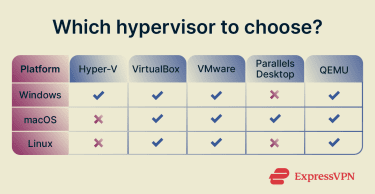 Several hypervisors are available, each with different strengths depending on your host OS and use case:
- VirtualBox: Free and open source, runs on Windows, macOS, and Linux. It commonly defaults to NAT networking for isolation and offers bridged mode for broader network access.
- Hyper‑V: Built into Windows Pro, Enterprise, and Education editions but unavailable on Windows Home. Supports checkpoints and virtual switching; live migration is a Windows Server feature.
- VMware Workstation/Fusion: Commercial products that offer high performance and a broad feature set. MacOS guests are permitted only on Apple‑branded hardware due to licensing restrictions.
- Parallels Desktop: Designed for macOS hosts with straightforward Windows or Linux setups; supports Apple silicon and Intel Macs (version requirements vary).
- Kernel-based virtual machine (KVM) / quick emulator (QEMU): KVM is built into the Linux kernel and enables Linux to function as a hypervisor. QEMU provides device emulation and can be managed with tools like virt-manager.
Pick an OS to install
Choose a guest OS that meets your needs. Windows and Linux run well as guests on major hypervisors. macOS virtualization is restricted by Apple’s license.
Before proceeding, confirm your software license permits virtualization. Most retail Windows licenses allow it, but some Original Equipment Manufacturer (OEM) licenses don’t. These are typically pre-installed on a device by the manufacturer and tied to that specific machine, meaning they cannot be transferred or used in a virtual environment.
Apple's license permits macOS guests only on Apple-branded hardware and limits you to two additional instances in virtual OS environments per Apple-branded computer.
Download the International Organization for Standardization (ISO) file
To install a guest OS, download an OS installation image (commonly an “ISO image”), which is widely used as an exact snapshot of installation media.
Always download OS images from official sites. Verify the SHA-256 checksum (and, where provided, a signature) to confirm the file hasn’t been tampered with or corrupted in transit.
Many Linux distributions publish checksums and cryptographic signatures alongside their ISO files. Use SHA256SUM to verify the checksum or GPG to validate the signature. Avoid torrents and unofficial mirrors where tampered images are more likely to circulate
How to create a virtual machine
Once your hardware and software are ready, follow these steps to create and configure your VM.
- Choose your hypervisor: Compatible with your host OS and system architecture.
- Create the virtual machine: Launch your hypervisor and open the new virtual machine wizard. Select the guest OS version so the hypervisor applies appropriate defaults, and choose UEFI firmware where supported (Generation 2 in Hyper-V) for modern guests.
- Acquire an ISO: Download the ISO file for your chosen guest OS from the official website and attach it to your VM.
- (Optional) Download a VM image directly: Some hypervisors let you download a prebuilt VM image and boot it without going through installation. This is faster, but use caution: images can include preexisting users, packages, misconfigurations, or known vulnerabilities, so prefer trusted publishers and verify provenance where possible.
- Allocate resources: Assign CPU cores, memory, and storage to the new VM. Choose between dynamically allocated disks, which start small and grow as needed, or fixed-size disks, which reserve the full amount immediately. Note that resource allocation is more involved on type-1 hypervisors, where hardware passthrough variables such as Input-Output Memory Management Unit (IOMMU) devices may need to be configured.
- Configure networking: Select a network mode that best suits your needs. NAT is a common default and typically limits inbound reachability by placing the VM behind a virtual router. Bridged mode gives the guest its own presence on the network. Host-only restricts traffic to the host and VMs. Some hypervisors also offer internal/private modes that isolate VMs from external networks entirely (terminology varies by product).
- Install the OS: With the OS attached, start the VM and follow the installation wizard in the guest OS. Set passwords, configure disk partitions, and select any additional packages as needed.
- Install guest tools and update: After installation, add the hypervisor's guest additions or integration services to enable graphics acceleration, shared clipboard, and time synchronization. Apply all available updates before using the VM, and treat sharing features (clipboard/shared folders/USB passthrough) as optional because they reduce isolation.
Note: Steps and their order may vary depending on your host OS, hypervisor, and VM application.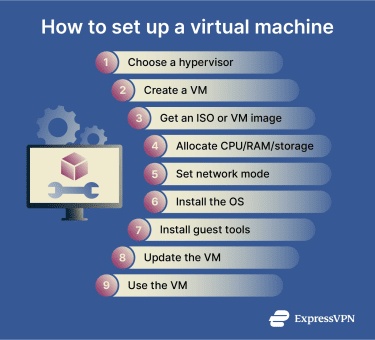
Set up integration features
Once your VM is running, you can configure optional features that improve guest and host interaction. Each one reduces isolation to some degree, so only enable what you actually need.
- Shared folders: By default, shared folders are not enabled, so the guest typically can’t access host files through a shared-folder bridge. Enabling shared folders creates a direct link between the host and the guest. Use read-only shares where possible, since writable shares mean malware in the guest could modify or delete host files. (VirtualBox supports read-only shared folders.)
- For one-off transfers, prefer temporary methods (and scan files) rather than leaving a persistent share enabled.
- USB passthrough: Passing a USB device directly to the guest gives direct access to that device. Avoid passthrough for USB storage devices that contain sensitive data.
- Display settings: Guest tools unlock full-screen and seamless modes, where the guest desktop blends into the host display. Learn the keyboard shortcut to release the mouse back to the host, as the guest can capture it. Allocate video memory based on your workload, as too little can cause slow rendering or resolution limitations, while larger allocations reduce memory available to the host.
Set up snapshots, clones, and multiple virtual machines
Once your VM is configured, you can use snapshots, clones, and multi-VM setups to manage, back up, and replicate environments without rebuilding them from scratch.
Create and restore snapshots
Snapshots capture a VM's state at a specific moment, typically its configuration and disk state (and, if taken while the VM is running or saved, they may also include memory state). Restoring a snapshot reverts the machine to its earlier state, discarding any changes made since. This is useful before installing unfamiliar software or making configuration changes you may want to undo. Keep in mind that snapshots are stored on the host, so creating many of them consumes significant disk space over time.
Clone a virtual machine
Cloning creates a separate copy of a VM. Most hypervisors offer two cloning modes:
- Full clone: Copies all virtual disks and operates completely independently of the original. Suitable for backups or moving a VM to another host.
- Linked clone: Shares the base disk with the parent to save storage space. Useful for short-term testing, but it depends on the parent’s base disk/snapshot chain.
When cloning, generate new Media Access Control (MAC) addresses (and accept any prompts to reinitialize unique IDs) to avoid network conflicts if both VMs run simultaneously.
Run multiple virtual machines
You can run several VMs simultaneously, but each guest consumes additional resources. In practice, the limit depends on your available CPU, RAM, and disk space. For example, a Windows host could run a standard Linux distribution and a privacy-focused OS such as Tails, each on its own VM.
Avoid over-allocating memory or CPU across your VMs. Always leave enough resources for the host OS to function normally. Monitor system load when adding VMs and reduce the number running if performance degrades.
How to improve virtual machine performance
Virtualization inevitably introduces performance overhead, but proper configuration can minimize it.
Speed up a slow virtual machine
- Use hardware virtualization and guest tools: Enable VT‑x/AMD‑V in firmware and use a CPU that supports second-level address translation (SLAT). Without hardware virtualization, performance and compatibility can drop sharply (and some hypervisors may not run). Guest tools such as VirtualBox Guest Additions, VMware Tools, or Hyper-V integration components improve graphics, input integration, and time synchronization (and may add optimized device drivers).
- Enable virtio and host‑passthrough CPU: On KVM, virtio drivers improve storage and network performance by reducing emulation overhead. Host-passthrough CPU mode exposes more of the host CPU feature set to the guest, which can improve compatibility and performance.
Reduce disk space usage
- Dynamic disks and compaction: Dynamic disks grow as you add data, but don’t shrink automatically when you delete it. Compacting them periodically can reclaim unused space. Fixed-size disks reserve the full allocation upfront provide more consistent input/output (I/O) performance in some setups.
- Prune snapshots and clones: Snapshots and test clones accumulate quickly and consume significant disk space. Removing or consolidating them when no longer needed keeps storage usage under control.
Fix lag and stuttering
- Manage host load: Lag is usually a sign that the host is running low on CPU or memory. Reducing the number of active VMs or closing resource-intensive applications on the host frees up capacity for the remaining guests.
- Adjust graphics and storage: Adequate video memory and 3D acceleration (where supported) can improve display performance. Storing VM files on an SSD rather than a hard drive reduces I/O latency.
Stay secure while using a virtual machine
Isolation improves security, but it's not absolute. Misconfiguration or malware can expose the host machine, so both guest and host require ongoing attention.
Keep the host and guest updated
A VM environment is often only as secure as its most outdated component. Timely updates across host, guest, and hypervisor software are a baseline requirement.
Outdated hypervisor components can contain vulnerabilities that enable guest-to-host escapes, allowing code running inside the VM to break isolation and affect the host or other VMs. This risk can increase when malware is designed to evade defenses and persist long enough to exploit unpatched systems (for example, polymorphic malware).
For example, Huntress reported a sophisticated intrusion chain designed to break VM isolation and compromise the underlying VMware ESXi hypervisor, highlighting why prompt patching matters.
Use safe network settings
NAT is a common default and typically limits inbound reachability by placing the guest behind a virtual router. Bridged networking places the guest on the same network as the host, increasing exposure and often requiring firewall rules on both systems. Host-only or internal/private networking can provide stronger isolation for lab environments, but restrict communication with external systems.
Protect shared folders and clipboard
Shared folders and bidirectional clipboard access are convenient but reduce isolation. It’s best to enable these features only when necessary, prefer one-way access (for example, host‑to‑guest), and disable them when finished. For occasional transfers, consider using a separate file-sharing method instead of a persistent shared folder (for example, OnionShare).
Back up and restore your virtual machine
Backups and clones help turn security incidents, such as malware infections or faulty updates, into recoverable events rather than permanent losses.
However, backups introduce their own risks. Attackers who steal a VM image can extract credentials, tokens, and sensitive data stored inside it. Restoring from a compromised or misconfigured backup can also reintroduce the same vulnerabilities that caused the original incident.
Because of this, it’s recommended to encrypt VM backups, restrict access to authorized users, store them off the primary network, and verify that they restore cleanly before an emergency occurs.
FAQ: Common questions about setting up a virtual machine
Is a virtual machine safe?
How much RAM should a virtual machine have?
Do virtual machines slow down your computer?
What is the difference between a Virtual Machine (VM) and dual boot?
Can you run Windows on a Mac in a virtual machine (VM)?
Take the first step to protect yourself online. Try ExpressVPN risk-free.
Get ExpressVPN







 Support Center
  FAQ
FAQ  VPN Setup Tutorials


