What is remote printing and how it makes printing from anywhere easy


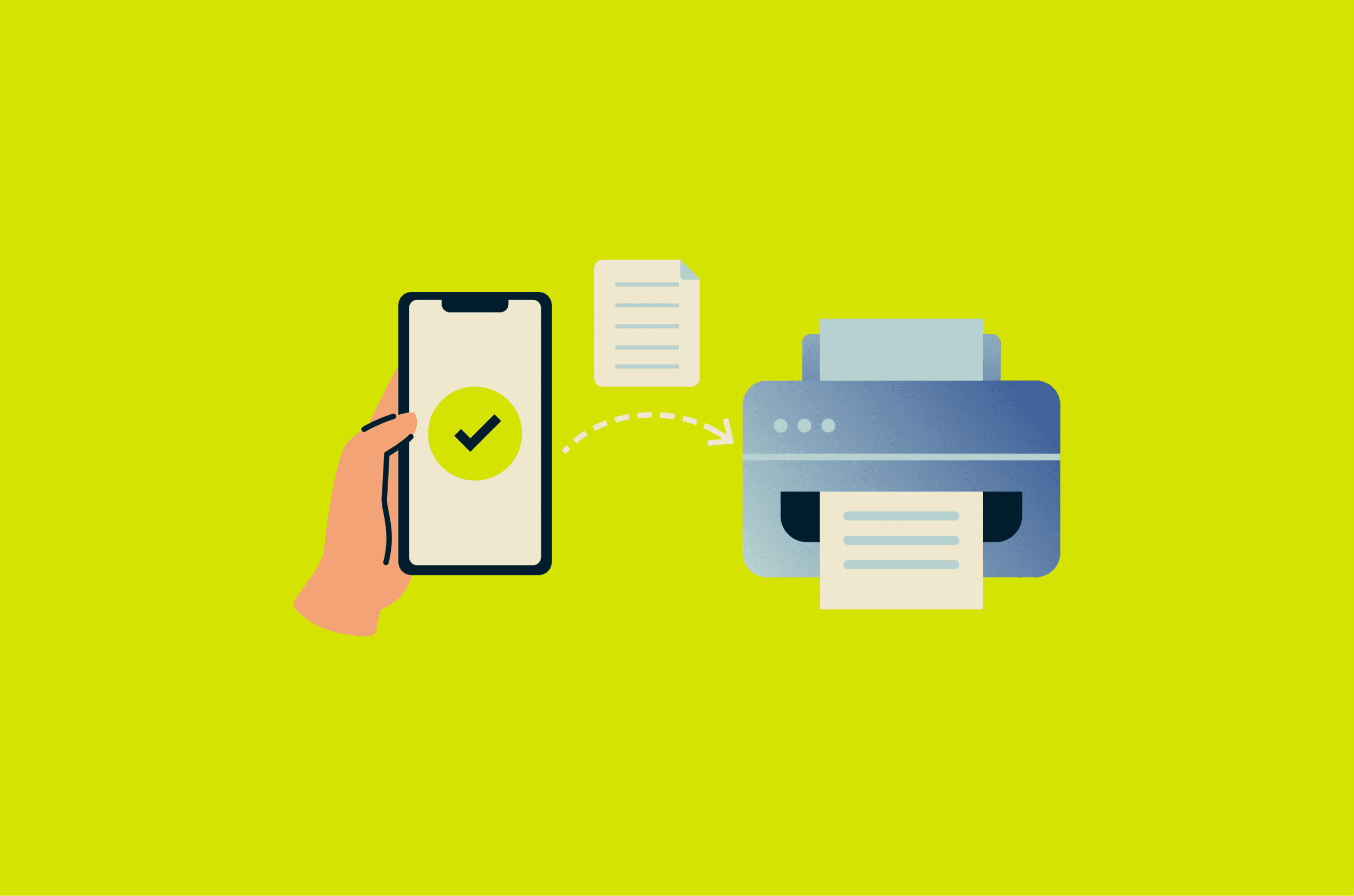
Printing used to mean connecting to a nearby printer, usually via a cable or over the same local network. Remote printing changed that: with the right setup, you can send documents from another room, another building, or, in some cases, another country.
Remote printing offers multiple approaches, each with different requirements for network access, security, and device compatibility.
What is remote printing?
Remote printing lets a computer, phone, or tablet send a print job to a network-connected printer, even when the device and printer aren't in the same place. For example, you might print a presentation to your office printer while working from home.
This can reduce the need to transfer files between devices or set up separate printers for each user. One networked printer can serve multiple people across different locations, reducing hardware and maintenance costs.
How does remote printing work?
First, connect your printer to a network. Many printers support Wi-Fi, though Ethernet provides a more stable connection. If your printer has a built-in screen, select the network from the control panel and enter the password. Some printers also let you complete setup through a mobile app or desktop software.
Note: Virtual private network (VPN) printing typically refers to enterprise remote-access VPNs that connect users to a workplace network. This differs from consumer VPN services, such as ExpressVPN, which are designed for individual privacy and security.
Once connected, most remote printing setups follow the same path:
- You choose a file and select a printer.
- Your device or print app prepares the file for printing.
- The job travels through the relevant connection, such as a local network, a cloud service, a remote desktop session, or an enterprise remote-access VPN.
- The printer receives the job, processes it, and prints the document.
Most modern driverless printing systems use the Internet Printing Protocol (IPP). When security is required, IPP can run over HTTPS, using the ipps scheme.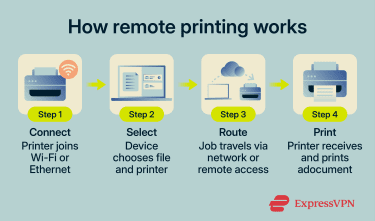
Remote printing methods
Printing from personal devices
The simplest way to print without a direct cable connection is to use a laptop or desktop on the same local area network (LAN) as the printer. In many home and office setups, printers connect to the network via Wi-Fi or Ethernet.
You can also add a printer manually by entering its printer name, hostname, or IP address. This approach is common in offices where IT prescribes printer access or multiple people share one device.
Mobile printing apps
Mobile printing apps let you print directly from your phone or tablet. Many phones and tablets include built-in features that can detect supported printers on the same network, and many printer brands also offer their own apps.
Some apps work only when your device and printer share the same network or support a direct connection, such as Wi-Fi Direct. Others let you print from outside the local network by routing jobs through the manufacturer's cloud service.
Cloud printing services
Cloud printing services can allow you to print from outside the local network, as long as the printer is online and connected to the service. Your device uploads the document to an online service, and the internet-connected printer retrieves and prints it.
Some printer manufacturers offer remote printing via an email address, an account-linked app, or an online dashboard. These setups usually require you to sign in, register the printer, and link it to your account.
Remote desktop and VPN printing
Remote desktop and enterprise remote access VPN printing are common in work environments.
With remote desktop printing, you connect to another computer, such as your office PC, and control it from your current location. Print jobs from that session can go to a printer attached to the remote computer or be redirected to a printer near you, depending on settings.
With VPN printing, your device connects to your workplace's private network via a remote-access VPN, allowing access to internal printers or print servers, if permitted by policy.
These setups are usually managed by IT teams. An administrator may need to register printers, configure user access, or set up remote access credentials before you can print.
Security risks of remote printing
Remote printing can expose data at multiple points: during network transit, at the printer, and within printer software.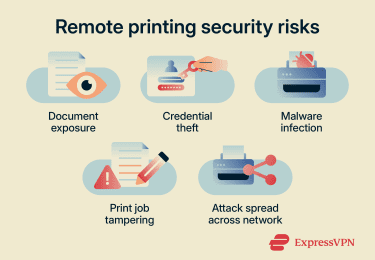
Data interception
Print jobs often contain sensitive information like contracts, invoices, IDs, medical forms, or internal business documents.
When these jobs travel across a network, attackers may intercept them using techniques such as packet sniffing or man-in-the-middle (MITM) attacks. If the print job isn't encrypted, attackers may be able to read the document content or metadata, such as file names, sender information, and timestamps.
This risk increases when print jobs cross external, public, or unmanaged shared networks. These networks may lack centralized security controls, allow connections from unknown devices, or fail to isolate traffic between users.
Physical access
Print jobs may sit in the output tray before the intended recipient collects them. In shared offices, coworking spaces, or homes where multiple people use the same printer, others may see or take documents that aren't meant for them. Users may also accidentally send jobs to the wrong printer, leaving sensitive documents in unexpected locations.
Some printers, especially enterprise printers and multifunction devices, may temporarily store completed jobs in internal storage or on hard drives. If the device isn't configured to clear or protect this data, someone with physical or network access may be able to retrieve previously printed documents.
Printer infrastructure exploits
Modern printers run network services, web interfaces, firmware, and sometimes store documents on internal drives. If these systems aren't updated or secured, attackers can exploit known vulnerabilities.
Attackers can target:
- Printer web interfaces: Many printers expose web-based admin panels for configuration. Weak default passwords or unpatched interface vulnerabilities may allow attackers to modify settings, access stored documents, or, on some devices, install unauthorized firmware.
- Print protocols and services: Flaws in protocols or related services, such as Line Printer Daemon (LPD), Server Message Block (SMB), or IPP implementations, can allow attackers to send malformed print jobs that trigger crashes, buffer overflows, or remote code execution. If compromised, the printer may become a foothold for lateral movement across the network.
- Firmware and embedded apps: Attackers may replace printer firmware with modified versions containing backdoors. Some enterprise printers also run third-party apps for scanning, document management, or cloud integration. If these apps have vulnerabilities, attackers may be able to execute code with device-level privileges, access connected cloud accounts, or intercept documents processed through the apps.
- Stored print jobs and logs: Printers with hard drives or persistent storage may retain copies of printed documents, user credentials entered at the control panel, or network configuration details.
The risk also runs in the opposite direction. In 2024, security researcher Simone Margaritelli disclosed a chain of vulnerabilities in OpenPrinting Common Unix Printing System (CUPS), including Common Vulnerabilities and Exposures (CVE)-2024-47076, CVE-2024-47175, CVE-2024-47176, and CVE-2024-47177. In affected configurations, attackers could advertise or add a malicious printer and execute arbitrary commands when a user sends a print job to it. Unlike attacks that target the printer itself, this chain targeted the computer connecting to the printer. Updates and mitigations were later released for affected systems, but unpatched or misconfigured systems may still be exposed.
Either way, compromised print infrastructure can expose documents, disrupt printing, or create a path into the wider network. Printers can be overlooked in security audits, may not support the same endpoint protection tools as laptops or servers, and can remain unpatched longer than other devices.
Print queue tampering
A print queue controls which jobs are waiting to print and when they're released. If someone gains access to a printer's queue or print-management settings, they may be able to view job details, release held jobs prematurely, delay time-sensitive prints, or redirect jobs to different printers.
In a home setup, this may only cause inconvenience or expose personal documents. In a workplace with centralized print management systems, queue tampering can expose confidential documents or disrupt operations.
Attackers may access queues through weak printer passwords, exposed network shares, or compromised user accounts with print server permissions.
How to secure your remote print network
A secure remote printing setup requires four elements: user authentication, encrypted connections, updated software, and controlled network access.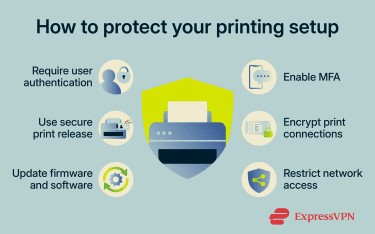
Authentication
In a home setup, set strong passwords on the printer app, cloud printing account, and admin panel. In a workplace environment, configure printers to allow access only from approved users or groups.
Multi-factor authentication (MFA) strengthens account-based printing by requiring a second verification step in addition to the password, typically a code sent to a phone or generated by an authenticator app. This makes it harder for attackers to access the printer even if they steal or guess the password.
Secure print release features help prevent unauthorized access to documents on shared printers. The system holds print jobs until the user authenticates at the printer, reducing the risk of sensitive documents sitting in output trays.
Encryption
Use encrypted connections whenever available. Encryption helps protect print data in transit, especially when jobs travel across shared, external, or workplace networks.
Avoid exposing older or unencrypted printing protocols, such as LPD or raw port 9100, directly to the internet. If remote access is required, route it through a controlled-access path, such as an enterprise remote access VPN, an approved print service, or a remote desktop connection.
Software updates
Keep printer firmware, drivers, apps, and print-management tools up to date. Printer software can contain security vulnerabilities that attackers exploit to gain network access or intercept documents. Updates can patch these flaws, improve reliability, and maintain compatibility with newer devices and services.
Check whether your printer supports automatic updates. If not, check the manufacturer's support page or app regularly for firmware and software updates.
Network access controls
Limit printer access to trusted users, devices, and networks. At home, secure the Wi-Fi network and restrict printer access from guest devices. In an office, implement user groups, managed printer shares, network segmentation, or remote access policies.
Don't expose printers directly to the public internet. If remote users need access, they should connect via an approved print service, a remote desktop environment, or a private network connection.
Common remote printing problems and fixes
Remote printing problems usually stem from the printer, the network, account permissions, or software settings. The troubleshooting steps below address the most common issues.
Printer not responding
If the printer isn't responding, verify that:
- The printer is powered on and not in sleep mode.
- Paper, ink, or toner levels are sufficient.
- The printer isn't showing an error message.
- The print queue has no stuck jobs.
- The printer can print a test page from its control panel or app.
- The wired or wireless connection is working.
If the printer works locally but not remotely, the issue likely stems from network access, permissions, or the remote printing service.
Slow print jobs
Slow printing typically results from network delays, large files, printer settings, or queue congestion.
To speed up printing:
- Reduce file size or image resolution before printing.
- Move closer to the Wi-Fi router or use a wired connection.
- Clear stuck jobs from the print queue.
- Lower print quality settings for drafts or internal documents.
- Update printer drivers, firmware, and print apps.
If smaller files print quickly but larger ones don't, the delay is due to file size, printer memory, or processing limits. If every job is slow, check the network connection, printer settings, and queue status.
Connection issues
Connection problems may prevent your device from communicating with the printer.
Try these fixes:
- Verify your device is on the correct network.
- Confirm you're signed in to the correct print account or service.
- Reconnect your remote access VPN or remote desktop session if applicable.
- Remove and re-add the printer.
- Check whether the printer's IP address or network configuration has changed.
- Restart the printer, router, or device.
If the printer doesn't appear at all, check for network discovery issues or verify you're on the correct network. If it appears but won't print, check user permissions, account access, or clear the print queue.
FAQ
Can you print if you are away from home?
What software is used for remote printing?
Is remote printing safe to use?
Do I need Wi-Fi for remote printing?
Can I print documents from my phone?
Why is my remote printer showing offline?
What is the difference between cloud printing and remote printing?
Can multiple users share one remote printer?