Is ChatGPT Atlas safe? What users should know before using it



ChatGPT Atlas can summarize webpages, compare information across sites, answer questions about page content, remember browsing context, and, in agent mode, complete certain web tasks on your behalf.
These features can make online research and everyday browsing more convenient, and they work best when users understand what information the browser can access and how to manage its privacy controls.
What is ChatGPT Atlas?
ChatGPT Atlas is OpenAI's Chromium-based web browser with ChatGPT built in. It lets you interact with web content directly through ChatGPT, so you can ask questions about a page, summarize information, compare details, or get help with tasks without switching between separate apps or tabs.
Atlas is currently available on macOS for Free, Plus, Pro, and Go users globally, and in beta for Business users. Enterprise workspaces can enable access to and manage Atlas settings separately. Support for Windows, iOS, and Android is planned for a later date.
Key features
Atlas is built around three core features that distinguish it from conventional browsers:
- Ask ChatGPT sidebar: The sidebar lets you ask questions about the current webpage, summarize content, compare products, and analyze data. You can also highlight text on a webpage, such as a document, email, or calendar event, and ask ChatGPT for contextual help.
- Browser memories: Atlas can remember useful details from websites you visit and retrieve them later, depending on your memory settings. For example, you could ask Atlas to compile a list of all hotels you viewed the previous week and highlight the best options based on your preferences.
- Agent mode: Agent mode allows ChatGPT to navigate websites and complete tasks on your behalf, such as comparing information across sites. This feature is available to Plus, Pro, and Business users, while Enterprise admins can control access.
Atlas also supports familiar browser features such as tabs, bookmarks, autocomplete, incognito browsing, and extension support.
How safe is ChatGPT Atlas?
ChatGPT Atlas can be safe for general browsing when used with appropriate privacy settings and normal security precautions. As with any browser, safety can vary depending on the sites visited, the sensitivity of the information involved, and the privacy controls enabled.
OpenAI has added safeguards and controls that help you manage what ChatGPT can see, remember, and do while browsing. Key safety and privacy features include:
- Agent mode limits: Agent mode can't run code in the browser, download files, install extensions, access other apps or files on your computer, use autofill data, or access saved passwords. It also pauses before taking actions on some sensitive sites, such as financial platforms.
- Page visibility controls: Users can control which sites ChatGPT can read. If page visibility is turned off for a site, ChatGPT can't use that page's contents in responses or browser memories.
- Incognito mode: Users can browse in incognito mode when they don't want browsing activity saved to history or linked to their ChatGPT account.
- Browser memory controls: Browser memories are separate from ChatGPT memories and can be managed independently. Users can view, archive, or delete browser memories through Atlas settings and browsing history controls.
- Logged-out browsing option: Users can use agent mode while logged out of websites to reduce access to sensitive account data and lower the chance of actions being taken inside personal accounts.
Even with these safeguards, Atlas is best used with caution on pages that involve sensitive personal, financial, medical, or professional information. In third-party testing by the browser security company LayerX, Atlas blocked fewer phishing attempts compared to Chrome and Edge. This doesn't prove that Atlas is unsafe overall, but it reinforces the idea that AI-browser features shouldn't replace standard phishing awareness or dedicated browser protections.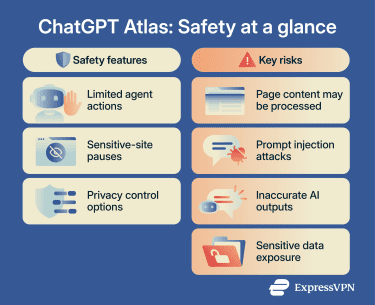
Main safety and privacy considerations to know
The sections below explain where extra care may be helpful and which settings can help reduce unnecessary exposure.
Data collection
When browser memories are enabled, Atlas summarizes web content on its servers and uses those summaries to remember useful details from browsing, such as topics researched, page details, or preferences inferred from activity.
Atlas deletes raw web content after summarization, while privacy-filtered summaries are removed within 7 days. However, it's still worth being mindful of sensitive information visible on pages or shared during browsing, since any system that processes browsing activity on remote servers can carry privacy and security risks if misconfigured, compromised, or accessed through valid legal processes.
OpenAI applies filters designed to keep sensitive information, such as government IDs, banking details, and medical records, out of browser memories. That said, these protections may not always work as intended. For instance, the Washington Post reported that in a test by the Electronic Frontier Foundation (EFF), Atlas kept memories related to registering for reproductive health services. OpenAI said it improved its systems after the issue was reported.
Also, as with other account-linked services, data associated with a ChatGPT account may be subject to legally valid requests.
Prompt injection
Prompt injection is a risk specific to AI systems that interact with external content, including websites, documents, or emails. It can involve hiding malicious instructions inside content that an AI assistant or agent can read.
When the agent processes that content, it may treat those hidden commands as legitimate instructions. For example, a page could contain instructions designed to:
- Alter how the AI summarizes content.
- Introduce misleading information.
- Attempt to override the user's original request.
- Attempt to share sensitive information.
- Navigate to harmful sites.
OpenAI has shipped security updates to address new classes of prompt-injection attacks and describes prompt injection as an open, long-term challenge for AI agent security.
AI hallucinations
AI hallucinations happen when a model generates information that sounds accurate but isn't fully correct or is entirely fabricated. This can happen even when the AI is analyzing real web content.
In a browser context, hallucinations may appear as:
- Incorrect summaries of a page.
- Missing or misinterpreted details.
- Confident answers that aren't supported by the source material.
Because Atlas presents information clearly and conversationally, it can be easy to assume the output is reliable. However, ChatGPT can still make mistakes, including overconfident answers or fabricated details, so important information should be checked against reliable sources. In a browser that can take actions on a user's behalf, inaccurate information could also lead to unintended or incorrect actions.
Risks of sharing sensitive information
Because Atlas connects browsing features to a ChatGPT account, it's important to understand when page content can be read, remembered, or used in responses.
When page visibility is enabled, ChatGPT can process content from the pages a user visits. Depending on the site and task, that could include sensitive information visible on the page or shared during the session, such as confidential work data, personal identification details, payment information, or private messages.
For sensitive tasks, consider turning off page visibility, using incognito mode, disabling browser memories, or using a separate browser when ChatGPT doesn't need to read the page. This can be especially useful for banking sessions, medical portals, confidential work documents, and personal communications.
Read more: Is ChatGPT safe? Risks, privacy, and how to use it safely.
Pros and cons of using ChatGPT Atlas
Like any AI-enabled browser, ChatGPT Atlas offers convenience alongside trade-offs in privacy settings, account-linked browsing context, and when agent mode is appropriate.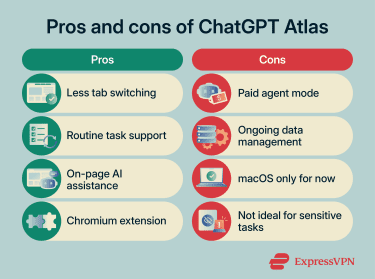
Major advantages
ChatGPT Atlas offers several practical benefits, especially for research, comparison tasks, and work across multiple tabs. These include:
- Reduces everyday browsing friction: Rather than keeping a separate ChatGPT tab open alongside your browser, the Ask ChatGPT sidebar brings both into a single interface.
- Handles multi-step tasks: For people who spend significant time on repetitive online tasks, such as comparing products, pulling data from multiple sources, or drafting follow-up emails, agent mode may offer practical value.
- Offers context-aware assistance: With page visibility and browser memories enabled, Atlas can use current page content and remembered browsing details to provide more relevant summaries, comparisons, and explanations.
- Supports familiar browser features: Atlas is built on Chromium, supports familiar browser conventions, and lets users import bookmarks, saved passwords, and browsing history from Chrome.
Main drawbacks
While ChatGPT Atlas adds convenience, it also comes with limitations that affect how and when it should be used, including:
- Agent mode is plan-limited: Agent mode is available in preview for Plus, Pro, and Business users. Enterprise and Edu access depends on administrator settings.
- Privacy settings need regular review: Some Atlas features, such as page visibility, browser memories, incognito mode, and history deletion, affect what ChatGPT can read, remember, or link to an account. When browser memories are enabled, web content may be summarized on OpenAI's servers to create user-controlled memories.
- macOS support only for now: Windows, iOS, and Android versions are planned but not yet available.
- Sensitive tasks need extra care: Activities involving personal data, financial details, medical information, or confidential work may be better handled with page visibility and browser memories turned off, in incognito mode, or in a separate browser when AI assistance isn't needed.
How to use ChatGPT Atlas more safely
You can use ChatGPT Atlas safely for many everyday tasks, provided you stay aware of how it handles data and interacts with web pages. Here are some practical tips that can help you improve your privacy and security when using Atlas.
Review browser memory settings
Browser memories are optional during setup, but if you want to confirm they're off, here's what to do:
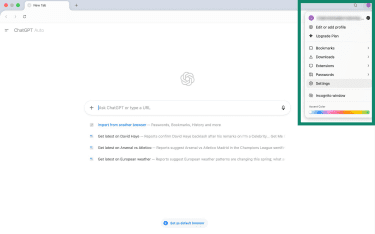
- Open ChatGPT Atlas, click the profile icon in the top-right corner, then select Settings.
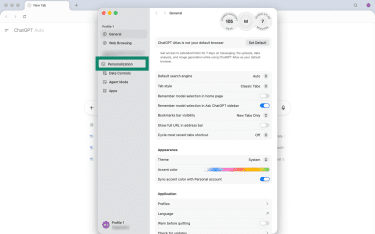
- Go to Personalization.
- Find Reference browser memories and toggle it off.
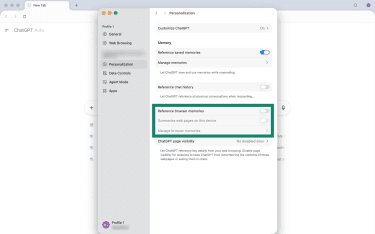
With browser memories off, Atlas won't summarize pages for browser memory purposes or store browsing details as browser memories. This is an important step toward limiting memory-related processing and reducing the amount of browsing context saved.
A separate data-control setting determines whether content browsed in Atlas can be used to improve OpenAI's models. It is off by default, but it's still worth checking under Settings > Data controls > Improve the model for everyone, to confirm it matches your preference.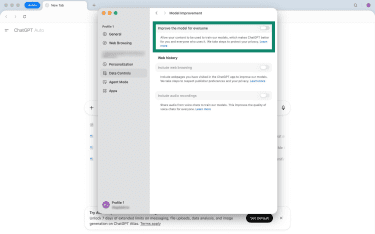
For browsing sessions that shouldn't be linked to your ChatGPT account or saved to your Atlas history, use an incognito window. Incognito signs you out of ChatGPT, so chats won't be saved to your account, create memories, or use custom instructions unless you sign back in. However, signed-out chats may still be retained separately for 30 days to detect and prevent abuse.
Limit sensitive use cases
Atlas is better suited to low-risk browsing, research, and comparison tasks than sessions involving sensitive data. Even with browser memories turned off, page content may still be processed when it's visible to ChatGPT or when information is entered into the Ask ChatGPT sidebar.
A few safer habits can help reduce exposure:
- Avoid typing passwords, payment details, medical information, or government ID numbers into the Ask ChatGPT sidebar.
- Avoid pasting confidential work documents into Atlas for summarization or editing unless the organization has approved it.
- Turn off page visibility, use incognito mode, or switch to a separate browser before accessing banking portals, healthcare platforms, work email, or other sensitive accounts when ChatGPT doesn't need access to the page.
Keep agent mode for low-risk tasks
Agent mode is best suited to low-risk tasks where mistakes are easy to spot and reverse, such as comparing public information or organizing research. Tasks that submit data, change account settings, send messages, or make purchases require more caution, especially on logged-in or sensitive sites.
Because prompt injection and AI errors can affect how an agent interprets a page, stay present when agent mode is active and, where possible, review actions before they're completed. For financial accounts, personal forms, work systems, or private communications, manual browsing or use by a logged-out agent may be safer when AI assistance is not needed.
Disable visibility for sensitive pages
Atlas lets you control page visibility on a per-site basis. When visibility is off for a site, ChatGPT can't read the page content, no browser memories are created for it, and it won't be used to generate chat responses.
To turn off visibility for a specific site:
- Navigate to the site you want to protect.
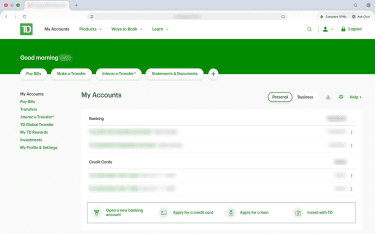
- Click the page settings button in the address bar.
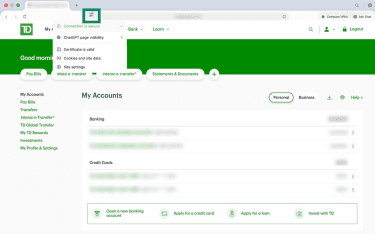
- Select ChatGPT page visibility and choose Not allowed.
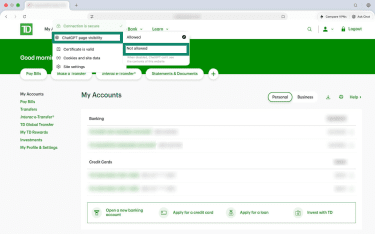
This is particularly useful for sites visited regularly that handle sensitive information, such as a bank, email provider, healthcare portal, or work tool. You only need to set it once for that site, and Atlas will remember the setting.
Verify important answers independently
Atlas can summarize pages, pull together information from multiple sources, and present answers in a clear, confident format, but AI responses should still be checked, even when they sound accurate.
For high-stakes topics, such as medical symptoms, legal questions, financial decisions, or anything where incorrect information could cause harm, Atlas is best treated as a starting point rather than a final authority. It can help explain basic concepts, organize questions, or find relevant sources, but important details should be confirmed with a qualified professional or an authoritative source before taking action.
Generally, the higher the stakes of acting on a piece of information, the more important it is to verify it independently. For low-stakes tasks, such as summarizing an article or drafting a routine email, the bar for verification can reasonably be lower.
Regularly clear stored data
Even with browser memories turned off, Atlas can still store other browsing data, such as browsing history, cookies, cached files, and site data. Clearing your browser cache can remove selected categories, including web history, chats, cookies, and other site data, and cached images and files. When Web history is deleted, any associated browser memories are also removed, though changes may take some time to take effect.
To clear your browsing data in Atlas:
- Click the profile icon in the top-right corner and select Settings.
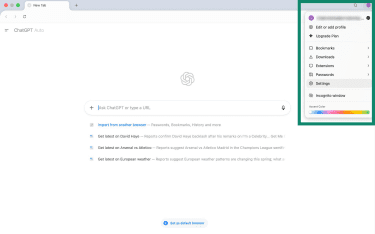
- Go to Web Browsing.
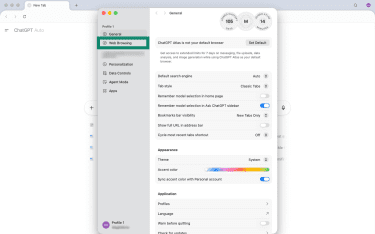
- Click Delete next to Delete history.
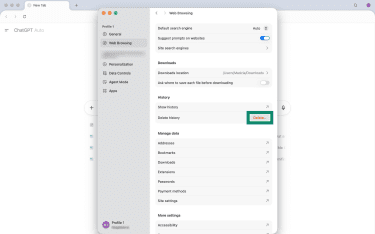
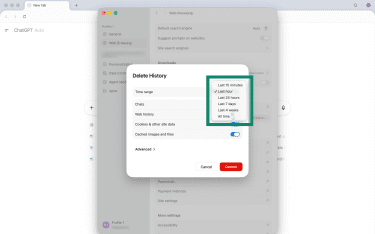
- Choose your preferred time range: Last 15 minutes, Last hour, Last 24 hours, Last 7 days, Last 4 weeks, or All time.
- Select what to delete: Chats, Web history, cookies and other site data, and/or cached images and files.
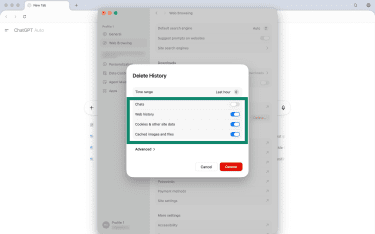
- Confirm the deletion.
From the Delete History screen, you can click Advanced for a more thorough clear. This lets you delete download history, saved passwords, autofill data, and site settings.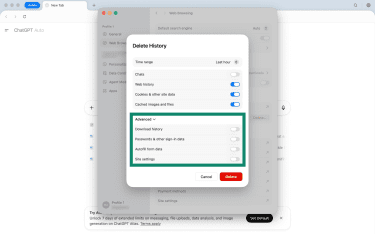
For sensitive browsing, consider using incognito mode first; clearing stored data afterward can further reduce the local browsing footprint.
Use a VPN on untrusted networks
When you use ChatGPT Atlas or any other browser on a public or shared network, such as in a café, hotel, or airport, the network itself may not be trustworthy. HTTPS protects much of today's web traffic, but a virtual private network (VPN) can add another layer of protection by encrypting traffic between your device and the VPN server.
This can be particularly relevant when using Atlas features that process browsing context, such as browser memories, sidebar queries, or account-linked activity. Encrypting network traffic helps reduce exposure in environments where the network itself can't be trusted.
That said, while a VPN protects network traffic, it doesn't prevent content shared with Atlas from being processed by OpenAI's systems.
Alternatives to ChatGPT Atlas
Atlas isn't the only option for AI-assisted browsing. For some users, particularly those on Windows, those with stronger privacy requirements, or those who prioritize cited research, an alternative may be a better fit. Below are some alternatives that might be more suitable in different scenarios.
Brave with Leo
Brave's built-in AI assistant, Leo, handles page summarization, question answering, text generation, translation, and content analysis. The key difference from Atlas is that Leo is designed with privacy protections, such as no required login, no chat retention, and no use of chats for model training. Brave also blocks many ads and trackers by default, which can reduce the data footprint of browsing sessions.
However, Leo is better framed as an on-page assistant than an agentic browser. It can help with what's being read, but it doesn't offer the same agent mode for taking actions across websites. The standard version of Leo is free, with a premium tier available for higher limits and access to additional models.
Perplexity Comet
Atlas is currently limited to macOS, which rules it out for many potential users. Perplexity Comet is an AI browser available for Windows and macOS, and it is free for all users.
Comet's main strength is its research capability. It provides summarized answers with source citations, making it easier to check claims against the original material rather than relying on an AI summary alone.
If your primary use case is research rather than task automation, that emphasis on citations can make Comet easier to verify, though citations do not eliminate the risk of hallucinations.
Microsoft Edge with Copilot
For users already in the Microsoft ecosystem, Edge with Copilot offers AI-assisted browsing in a familiar browser, though feature access can vary by market, account type, and subscription.
Edge with Copilot can summarize web content and provide contextual assistance, while Microsoft 365 Copilot offers deeper integration for organizations already using Microsoft 365.
The privacy considerations are broadly similar to those of other cloud-based AI assistants. Edge determines what data to send to Copilot based on the query and the user's consent to share data with Microsoft, so this is not necessarily a more private option. However, it's a familiar option for users already committed to Microsoft tools, and Edge is available on Windows and macOS.
Also read: ChatGPT alternatives: Options to consider for writing, coding, research, and images
FAQ
Is ChatGPT Atlas safe for work-related research?
If your research involves internal data, proprietary content, or client information, a more controlled approach is recommended. For non-sensitive topics, it can help speed up early-stage research, provided that key details are independently verified.
Can ChatGPT Atlas see passwords or payment details?
Is ChatGPT Atlas safe for banking or healthcare websites?
Does turning off memory fully protect your privacy?
Information typed into the Ask ChatGPT sidebar may still be processed by OpenAI's systems as part of the chat. Whether it's saved to the account or used for other purposes depends on settings such as incognito mode and data controls.
What permissions should you review before using ChatGPT Atlas?
Is ChatGPT Atlas safer on a personal device than a shared device?
What should you do if ChatGPT Atlas gives a risky or incorrect answer?