Linux security explained: A guide to protecting your system


Linux has a reputation for solid security, but the real story is more practical than that. Security on Linux comes from how the system is built, and from what you choose to run, expose, and update over time. If you use Linux on a personal laptop, your priorities look different from those of a Linux server that stays online and accepts remote connections.
This guide breaks Linux security into clear building blocks, then turns them into steps you can apply right away. You’ll see how Linux handles access and permissions, where common misconceptions lead people astray, and what to focus on for both desktops and servers.
Understanding Linux security
Linux security starts with a basic idea: the system is built to limit what a user error or system compromise can reach. It covers the practices and tools that protect the Linux kernel (the core of the OS) and the software running on it from unwanted access, malicious changes, and data exposure.
It includes choices you make in setup, like which services run, how accounts get access, what your system logs record, and how quickly fixes are applied when new Linux security vulnerabilities show up.
Comparing Linux security vs. Windows security
Linux security and Windows security both depend on the same basics: you patch known issues, you control access, and you keep unnecessary services off the network. Past that, the two systems differ in ways that affect day-to-day risk and how you manage it.
| Area | Linux | Windows | What this means |
| Code model | Open-source code allows external review. | Closed-source code primarily relies on vendor-controlled review processes. | Linux issues can surface through public review. Windows fixes depend on Microsoft’s internal process. |
| Updates and software install path | Updates and most software come through distro repos and a package manager. | Updates come through Windows Update, while apps may come from mixed channels. | Linux often centralizes patching and app updates in one workflow. Windows patching is centralized, app updating centralization varies by app and source. |
| Default user privileges | Standard users run with limited rights; admin tasks go through sudo. | Some setups grant broad rights, User Account Control (UAC) adds friction to admin actions. | Least-privilege setups reduce privilege escalation risks after a compromise. Both systems can run least-privilege, yet real-world configs vary. |
| Typical “fresh install” footprint | Many installs start lean, with fewer bundled background services. | Many installs ship with more bundled components and services. | A smaller default footprint can reduce the number of reachable entry points. Your installed apps and running services still set your real exposure. |
| Ecosystem and legacy support | Distros, packages, and defaults vary. | A more uniform desktop target with deep legacy compatibility. | Diversity can limit one-size-fits-all attacks on Linux desktops. Windows legacy support can keep older behaviors around longer. |
| Attacker attention | Desktop malware targeting is often less mass-market; servers get heavy attention. | Desktop targeting stays high since Windows dominates desktops. | Popularity influences attacker payoff. It doesn’t remove Linux security threats; it shifts what shows up most often. |
Comparing Linux security vs. macOS security
Linux and macOS both borrow from Unix-style design, yet they take different paths on how tightly they control software, system changes, and defaults.
| Area | Linux | macOS | What this means |
| Platform control | Many distros, many defaults. Your setup depends on the distro and what you install. | One vendor controls the OS, hardware targets, and many security defaults. | Linux gives you more variance. macOS gives you more consistency. |
| App trust checks | Most installs primarily lean on distro repositories and package signing. Some checks happen at install time. | Code signing checks can happen at install and first run. Gatekeeper blocks many unsigned apps by default unless overridden. | macOS can block more “random download” apps by default. Linux depends more on where you install software from. |
| System file protection | You can lock things down with tools like SELinux or AppArmor, yet defaults vary by distro and use case. | System integrity protection helps block changes to parts of the system, even from root. | macOS puts hard limits around some system areas. Linux can reach similar goals, though it often takes more configuration. |
| Sandboxing | Sandboxing exists, though it depends on the app packaging model and your setup. | Sandboxing is a core macOS pattern for many apps, which limits what a compromised app can reach. | Both can contain damage. macOS tends to push the pattern by default on consumer systems. |
| Patch cadence and variance | Patch speed and ease can vary by distro, even when the same bug exists upstream. | Apple ships updates through a single vendor channel. | Linux can move fast, yet the experience depends on the distro. macOS tends to look more uniform. |
| Attacker focus | Desktop Linux sees fewer mass-market malware campaigns, though targeted attacks show up, especially on servers. | macOS faces growing attacker attention, helped by a more predictable hardware and software target. | Popularity and predictability shape what shows up most often. Your settings and habits still matter. |
No OS wins by default. The out-of-the-box experience varies a lot across Linux distributions, and the “right” choice depends on how you use the machine and what risks you face.
Key built-in Linux security features
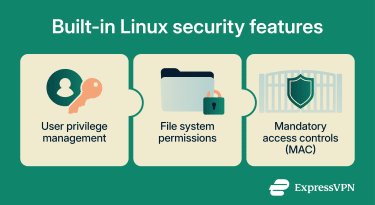 These controls form the base for securing Linux systems, before you add any extra tooling or hardening steps:
User privilege management
Linux uses a multi-user model. Each action runs under a user account, and that account carries a set of permissions. Admin work runs under root or through sudo, which helps limit the damage from a compromised user account or process.
Two built-in concepts matter here:
- Users and groups: Linux assigns user and group ownership to files and processes. Your group memberships shape what you can access.
- Linux capabilities: Instead of treating root as an all-or-nothing role, Linux can split some admin privileges into smaller pieces called capabilities (small, named privileges like binding to low-numbered ports). This can reduce privilege escalation risks when a network service gets compromised.
File system permissions
Linux permissions and access control show up most clearly in file permissions. Each file and folder has an owner, a group, and a permission set for owner, group, and everyone else. Permissions use three bits: read, write, and execute. On folders, “execute” controls whether you can enter the folder and access its contents.
Linux can add finer control through access control lists (ACL), which let you grant a user or group a special permission set on a file without changing basic ownership.
Mandatory access controls (MAC)
MAC uses system-wide policy rules that restrict what a process can access, even when file permissions look permissive. Think of it as “what this program is permitted to do,” not just “what this user can do.” It helps limit what a compromised service can read or change by restricting its permissions.
Many Linux systems rely on the following MAC frameworks:
- SELinux: Uses labels and policy rules to control how processes and files interact. It tends to support very granular policy, which can take more effort to tune.
- AppArmor: Uses profiles that describe what an application can access, usually by path. Many people find it easier to reason about since it ties rules to a specific program profile.
Both aim for the same outcome: to limit what a program can access if something goes wrong.
Other Linux security characteristics
- Open-source review: Much of Linux’s code is public. This lets maintainers and independent researchers review it, report issues, and spot weak design choices in plain view.
- Community-driven patching: When someone reports a vulnerability, maintainers can ship fixes through distro updates, and your package manager can install them without you hunting for installers.
- Modular installs and fewer moving parts: You can install only what you need. Fewer services and packages can potentially mean fewer places for mistakes and known bugs to hide.
- Kernel-level protections: The kernel provides isolation features and exploit mitigations that make certain attacks harder, such as process isolation and memory protections.
- Auditing and logging: Linux can maintain detailed logs of system and user activity. Plus, audit tools can capture security-relevant events in greater detail when enabled.
- Network controls: Linux ships with firewall tooling and supports secure remote access protocols like Secure Shell (SSH) and Transport Layer Security (TLS).
Note: Feature configurations vary by Linux distro. It’s important to assess the setup, data requirements, and intended use to select the most secure option.
Common misconceptions about Linux security
Linux security gets over-simplified in a few predictable ways. If you keep these misconceptions in check, managing Linux security becomes much more practical. You’re less likely to spend effort chasing threats and more time applying basic Linux security measures that actually change your risk.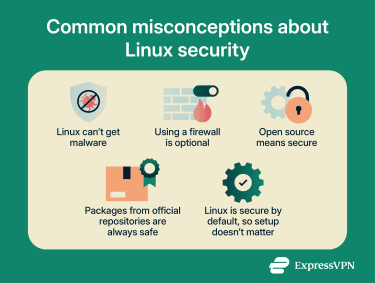
1. Linux can’t get malware
Traditional file-infecting viruses rarely target Linux. However, malware still targets Linux through other routes, including worms and ransomware. Linux security threats shift over time, and attackers follow the systems that run the most services and data.
2. Using a firewall is optional
Many distributions ship with fewer network services turned on by default than they used to. That helps, yet it doesn’t remove the need for filtering. A firewall gives you a second gate: it can block inbound traffic you never asked for, and it can be configured to limit outbound traffic when a program tries to phone home.
3. Open source means secure
Public code can be reviewed by more people, which helps issues surface. That alone doesn’t make software safe. Security still depends on the quality of the code, the skill of the maintainers, and whether people actually review the parts that matter. Treat “open source” as a visibility advantage, not a guarantee.
4. Packages from official repositories are always safe
Official repositories are the safest default source for most users. Risk still exists. Repositories hold thousands of packages, and some may contain vulnerabilities that are only discovered later.
Distros patch known issues over time, yet a package being “official” doesn’t mean “bug-free.” Be cautious with third-party repositories run by individuals, since maintenance practices and trustworthiness can vary.
5. Linux is secure by default, so setup doesn’t matter
Defaults can be solid, yet configuration and maintenance still decide the outcome. A misconfigured service, a weak login, or stale software can turn “good defaults” into real Linux security risks.
Best practices for Linux security
To ensure your Linux security is in top shape, following best practices is essential. Keep in mind that Linux desktops and servers require different security methods:
- Linux desktop: Runs a mix of apps, plugs into new networks, and stores personal files. For desktops, start with the basics that protect your account and data day to day, then layer on controls that fit how you use the machine.
- Linux server: Runs services for other machines, stays online longer, and often exposes ports to the internet. Linux security for servers puts more weight on service reduction, tighter Linux authentication methods, stronger logging, and repeatable configuration.
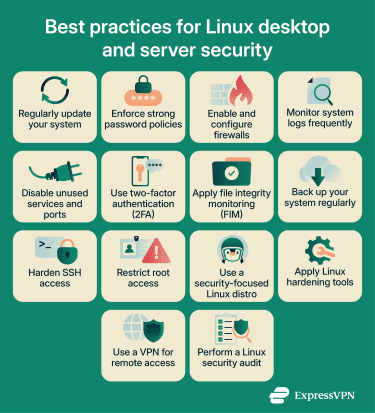 Here are some tips for securing your Linux desktop or server:
1. Regularly update your system
Linux desktop
Updates fix security holes in the core system, the desktop, browsers, and common libraries.
- Turn on automatic security updates if your distro supports it.
- Stick to your distro’s main software sources when you can. Extra third-party sources can lag or ship risky builds.
- Reboot after kernel updates when your update tool asks. Kernel patches often don’t take effect until a restart.
Linux server
Patch speed often matters more on servers since exposed services attract scans and exploit attempts.
- Track security advisories for your distro and key packages.
- Use a staging or test path for updates if uptime matters.
- Plan kernel update restarts. If you use live patching, treat it as one layer, not your whole plan.
2. Enforce strong password policies
Linux desktop
Weak passwords turn small mistakes into risks of malware gaining broader control of your computer. Desktop Linux often relies on sudo (run as admin for one command), so your login password matters.
- Use a long passphrase that you don’t reuse anywhere else.
- Set a short screen lock timeout.
- If you share the device, give each person their own account. Avoid shared logins.
Linux server
For servers, a password policy is more than just “pick a strong password.” It means fewer password entry points.
- Prefer SSH keys for admin access.
- Remove password login paths for remote admin when feasible.
- Use separate accounts for admins and automation. Rotate credentials used by automation jobs.
3. Enable and configure firewalls
Linux desktop
A host firewall gives you a backstop when you join public or shared Wi-Fi, or when an app creates an entry point for data you didn’t expect.
- Use a simple front end if you want fewer moving parts: Uncomplicated Firewall (UFW) on Ubuntu-family distros, firewalld on Fedora and Red Hat Enterprise Linux (RHEL) family distros.
- Use or confirm a default rule set that blocks unsolicited inbound traffic, then add narrow rules for the few services you actually use.
- Recheck firewall rules after installing tools such as Remote Desktop, file sharing, or game servers.
Linux server
Servers need deliberate Linux firewall configuration: only the ports your service uses, from the networks that need them.
- Block unsolicited inbound traffic by default, then open narrow service ports.
- If you host multiple services, group rules by purpose (admin access, app traffic, monitoring).
- Recheck rules after deployments. New containers and services can open listeners without obvious prompts.
4. Monitor system logs frequently
Linux desktop
Logs help you spot failed login attempts, repeated sudo prompts, and services that crash or restart in a loop. On many modern distros, systemd’s journal collects logs in one place. Learn two quick checks (for example, with journalctl):
- “What happened since the last boot?” (e.g., journalctl -b)
- “Show login and auth messages.” (e.g., journalctl -u ssh or auth logs)
If you see repeated authentication failures, change your password and review remote access settings for unauthorized access.
Linux server
Server logging needs routine review plus alerting. Systemd-journald collects logs, and many teams forward them to a central log system for searching and alerts.
- Watch authentication logs and sudo activity.
- Alert on repeated login failures, new services, and config file changes if your monitoring system allows it.
- Keep enough log retention to support incident review, then archive older logs.
5. Disable unused services and ports
Linux desktop
Fewer running services or applications mean fewer places for Linux security threats to land.
- Remove services you don’t use (remote desktop, file sharing, demo web servers).
- List which services are listening on network ports and ask, “Do I recognize this?”
- Turn off autostart services you installed “just to try” and forgot.
Linux server
Server hardening starts with removing what you don’t use.
- Start from a minimal install when possible.
- Remove demo services, unused language runtimes, and old admin tools.
- Audit listening ports after every major change. Treat “surprise listeners” as something to investigate until you understand them.
6. Use two-factor authentication (2FA)
Linux desktop
2FA means a second proof, like a one-time code or a security key, on top of your password. On Linux, you can configure 2FA for local logins or privileged actions using pluggable authentication modules (PAM), a system many distros use to plug authentication checks into login and sudo workflows.
- Use 2FA for the accounts that matter most first: email, password manager, and cloud storage.
- If you add 2FA to Linux logins, keep backup codes in a safe place. Plan for a lost phone.
Linux server
2FA on servers usually targets admin access paths: SSH, privileged commands, and control panels. PAM can plug 2FA into login flows, depending on your distro and setup.
- Add 2FA for the small set of admin accounts first.
- Keep emergency access documented and limited.
- Store recovery material (for example, backup codes or keys) offline.
7. Apply file integrity monitoring (FIM)
Linux desktop
FIM watches key files for unexpected changes. It’s more common on servers, though it can help on a desktop used for development or sensitive work. Advanced intrusion detection environment (AIDE) is a common option: it builds a database of file hashes (a digital fingerprint used to verify a file hasn't changed), then compares later runs against that baseline.
- Start small with system program files and configuration folders, not your whole home directory.
- Treat FIM alerts as “verify this change,” not as proof of compromise.
Linux server
FIM fits servers well since servers have more stable file sets. AIDE is a common option for this job.
- Cover system binaries, /etc, SSH config, and service config directories.
- Store the baseline database securely, not on the same server in plain form.
- Wire alerts into your monitoring so you see changes quickly.
8. Back up your system regularly
Linux desktop
Backups turn ransomware, disk failure, and accidental deletes into an annoyance instead of a disaster.
- Keep one backup offline or disconnected when not in use.
- Test a restore. A backup you can’t restore is just storage.
- If your backup includes personal documents, encrypt the backup disk or archive.
Linux server
Server backups need structure. Include data, config, secrets handling, and recovery steps.
- Back up configs plus data, not just database files.
- Encrypt backups and protect backup credentials.
- Practice restores on a schedule, not only after an incident.
9. Harden SSH access
SSH is a top admin entry point on Linux servers, so treat it as a first-class security surface. Many desktop users never run an SSH server. But if you do run SSH (or you turned it on for remote work), treat it like an internet-facing service even on a home network.
- Use SSH keys instead of passwords.
- Turn off password authentication for SSH if your environment supports it.
- Disable direct root SSH login.
- Add rate limiting with tools like Fail2ban.
A common baseline in sshd_config looks like: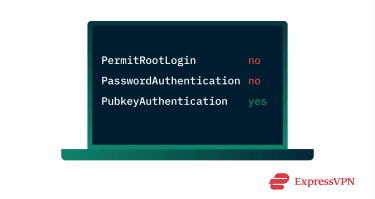
10. Restrict root access
Linux desktop
Root can change anything on the system. That’s why good Linux permissions and access control help keep admin access narrow and auditable.
- Use sudo for admin tasks instead of logging in as root.
- Keep the admin group small.
- Don’t run day-to-day apps as root, including browsers and email clients.
Linux server
Good Linux system security aims to keep root use rare and traceable. To do this:
- Use sudo with logging.
- Give admins only the commands they need, not blanket root.
- Separate human admin access from service accounts and automation.
11. Use a security-focused Linux distro
Linux desktop
Most mainstream distros can be locked down well. A “security-focused” choice usually means stronger defaults, faster security updates, or a design that limits what apps can touch. Options people often pick include:
- Fedora Workstation: Often ships newer security features quickly.
- Ubuntu LTS: Longer support windows for home and work machines.
- Debian Stable: Conservative package changes, predictable updates.
- Qubes OS: Isolates work into separate virtual machines, aimed at higher-risk use.
Linux server
For servers, focus on support lifespan, patch cadence, and hardening documentation. Common picks include:
- RHEL and SUSE Linux Enterprise Server: For enterprise support and hardening guides.
- Ubuntu LTS and Debian Stable: For long-lived, well-documented server deployments.
- Immutable variants (e.g., Fedora CoreOS, openSUSE MicroOS): For some workloads where you want fewer in-place changes.
12. Apply Linux hardening tools
Linux desktop
Think of hardening tools as guides and guardrails, not magic switches. Some guides take an aggressive stance and recommend many kernel and system tweaks. Apply changes you understand and can roll back.
- Run a baseline scanner and fix the findings you can explain.
- Turn on MAC policies (SELinux or AppArmor) if your distro supports or includes them, and you can test your apps after.
- Keep “advanced sysctl tuning” as optional. Kernel hardening can break app sandboxes and containers if you apply it blindly.
Linux server
Hardening tools help you turn “best practices” into repeatable checks.
- Run security baselines (OpenSCAP, CIS-style checks) and track drift over time.
- Use MAC enforcement (SELinux or AppArmor) for services that support it and test policy changes in staging.
- Use the Linux Audit framework for security-relevant events. Audit logs don’t stop attacks, though they help you spot policy violations and trace actions to accounts.
- Treat aggressive kernel-tuning hardening guides as advanced options. Apply changes you can validate in your environment.
13. Use a VPN for remote access
Linux desktop
A virtual private network (VPN) creates an encrypted connection between your device and a VPN server. On public or shared Wi-Fi, it helps protect your traffic from local network interception. It can help with remote access patterns too, like reaching a home server without exposing admin ports to the open internet.
Linux server
For servers, a VPN can reduce the number of admin services exposed to the public internet. You can route admin traffic through an encrypted tunnel, then keep management ports closed on the public interface. A VPN protects traffic between the admin device and the VPN server, which matters on shared networks.
14. Perform a Linux security audit
A desktop or server audit is a recurring routine, not a one-time checklist.
- Inventory accounts, SSH keys, and active services.
- Review patch status, firewall rules, and exposed ports.
- Review log retention and alert rules.
- Re-run baseline scanners after major changes, then track what changed and why (ideally for servers).
FAQ: Common questions about Linux security
Does Linux have good security?
Is Linux still safe compared to Windows and macOS?
What are the most common Linux security threats?
How do I make my Linux secure?
How often should I update my Linux system?
Can Linux get viruses or malware?
Take the first step to protect yourself online. Try ExpressVPN risk-free.
Get ExpressVPN