The importance of software updates: Why they matter for security and performance


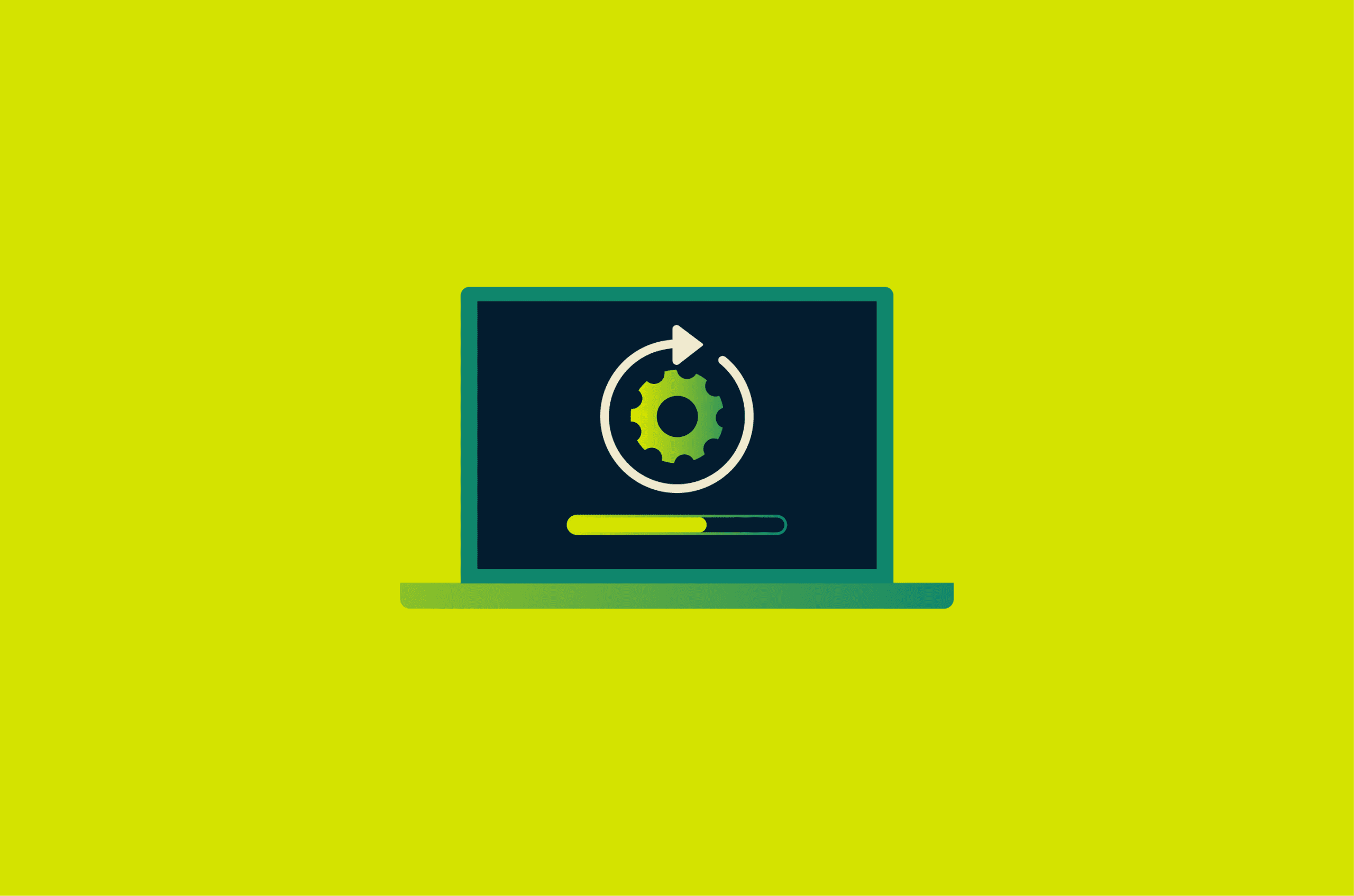
Software updates help keep phones, computers, and other connected devices secure, stable, and compatible over time. Released by developers, they can fix bugs, patch security vulnerabilities, improve performance, or add new features.
They’re easy to ignore when a device seems to work fine, but delaying them can lead to security risks, compatibility problems, or reduced reliability. In this guide, we’ll look at the main types of software updates, why they matter, and best practices for managing them.
Types of software updates
Not all updates serve the same purpose. Some address urgent problems, while others focus on gradual improvements over time. The most common types of updates include:
- Security updates and patches: These fix vulnerabilities that attackers could exploit. Teams often release them quickly when they identify a risk, though security fixes may also be included in broader software releases.
- Bug fixes: When software behaves unexpectedly, crashes, or glitches, bug fixes resolve those issues. They often ship as part of routine updates, though serious problems may also be fixed in separate releases.
- Feature updates: These add new capabilities, redesign the interface, or roll out larger version upgrades.
- Performance and stability updates: Instead of adding visible features, these updates focus on how smoothly the software runs. They can improve responsiveness, reduce crashes, and help maintain consistent performance.
- Driver updates: Hardware components like graphics cards, printers, and network adapters rely on drivers to communicate with the operating system. Outdated drivers can cause compatibility issues, security issues, or reduced performance.
- Firmware updates: Firmware is low-level software that runs closely with hardware. Updates at this level can affect how a device operates at a more fundamental level, including its startup behavior or interactions with other components.
Also read: How software updates can help fix "No internet, secured" error on Windows.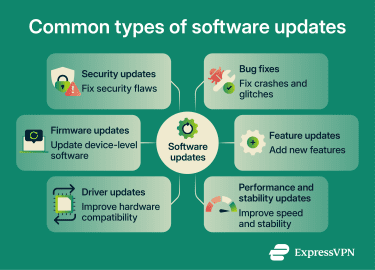
Why software updates matter for security
Many cyberattacks exploit known software weaknesses in outdated or unpatched systems.
When a cybersecurity vulnerability is discovered, developers may release a fix, but the risk often remains high until users install it. Once a vulnerability goes public, attackers may analyze the patch or related technical details to understand how the flaw works and target systems that haven’t been updated yet. In some cases, attackers exploit zero-day vulnerabilities before a fix exists. Cybersecurity and Infrastructure Security Agency (CISA) emphasizes installing updates promptly to reduce the window of exposure.
Over time, missed updates compound. Each unpatched issue becomes another possible entry point, making the system easier to exploit.
The risk grows when software reaches the end of its support lifecycle. At that point, the vendor stops releasing updates, including security patches. For example, Microsoft notes that unsupported Windows versions no longer receive security or feature updates.
Unsupported software becomes a more attractive target over time because attackers know newly discovered flaws may never be fixed. It also continues to interact with modern systems, networks, and services, which can increase the risk of compatibility issues and security weaknesses.
When it’s time to move to a supported version
Once software loses support, updating within the same version is no longer enough. The safer option is to move to a version that still receives updates or to switch to an actively maintained alternative. This doesn’t always need to happen immediately, but delaying increases exposure over time. Planning ahead helps avoid rushed decisions after a problem occurs.
Why software updates matter for performance
Software updates do more than patch security flaws. They also improve performance and reliability by addressing issues such as:
- Slowdowns and glitches: Some updates fix bugs that cause apps to freeze, crash, or behave unpredictably. Others improve overall stability or responsiveness, even when there is no single obvious fault.
- Compatibility issues: Apps, browsers, and operating systems don’t stand still. As platforms change, older software can fall out of sync. Regular updates help keep things working together, reducing the risk of broken features, errors, or connectivity problems.
- Resource inefficiency: Some updates refine how software uses memory, battery, storage, or processing power. Over time, these changes can improve responsiveness and background stability.
What can degrade over time without updates?
When updates are ignored for too long, performance issues can build gradually rather than all at once. A browser may struggle with newer websites, an app may crash more often after other software changes, or a device may feel less responsive because older software no longer keeps pace with the wider system.
That slow decline is one reason people often blame performance problems on the device itself when outdated software is part of the issue. This is especially true when software depends on a larger ecosystem.
Operating systems, third-party apps, browser extensions, drivers, and device-level software all change over time. If one part falls too far behind, reliability and compatibility can suffer even if nothing looks obviously broken at first.
How to manage software updates effectively
Managing updates requires consistency. The goal is to reduce the risk of missing important updates while still maintaining control over larger changes that could affect how your device works.
Here are a few best practices that help:
- Enable automatic updates: Most devices and apps support automatic updates, and turning them on is one of the easiest ways to avoid falling behind.
- Check for manual updates: Not everything updates automatically. Browser extensions, some third-party apps, drivers, and firmware may still need manual checks, depending on the device or platform. Most devices have a dedicated update section in settings where you can check for system updates, while app stores typically show pending app updates. This is especially important for devices you don’t use often, where updates can be missed for long stretches.
- Only update from official sources: Updates should come from trusted sources such as built-in system update tools, official app stores, or the software provider’s website. Fake update prompts and other untrusted download sources can be used to distribute malicious software, so it’s best to avoid downloading updates from pop-ups, ads, or unfamiliar websites.
- Back up before major updates: Large updates such as operating system upgrades don’t usually cause problems, but a recent backup makes it much easier to restore data or settings if something goes wrong.
- Know the update requirements: Updates may only be installed under certain conditions, such as a Wi-Fi connection, enough battery power, sufficient storage, or a device restart. If updates seem delayed, one of these requirements may not be met.
- Replace unsupported software: Update management also means knowing when updates stop altogether. If a device or system no longer receives updates, moving to a supported version is usually the safer long-term option.
Read more: How to update Mac, Linux, and Windows apps.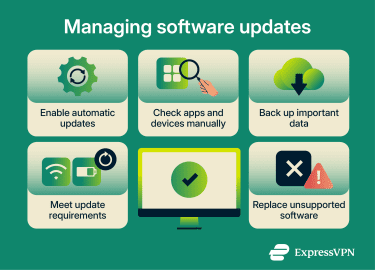
Common concerns about software updates
Software updates are usually a net positive, but not every concern about them is baseless. Ironically, updates meant to improve performance and reliability can sometimes introduce temporary slowdowns, compatibility issues, or new bugs.
Temporary slowdowns after an update
A device can feel different right after a major update. It may run warmer than usual, use more battery, or seem less responsive. That doesn’t always mean something's gone wrong.
In many cases, the system is still settling in after installation. Larger updates can trigger background activity, and older devices may feel those changes more sharply. Performance often improves after that post-update activity finishes.
Compatibility issues and post-update bugs
Another common concern is that an update might break something that was working fine before. That can happen, especially with major operating system upgrades.
A new release may expose compatibility issues in apps, extensions, drivers, or accessories that have not yet been updated to the latest version. Updates can also introduce bugs of their own, even after testing.
There have been real-world examples of this. In July 2024, a faulty CrowdStrike update caused widespread crashes on Windows devices, affecting around 8.5 million systems globally. Microsoft and CrowdStrike worked on recovery measures to help affected systems come back online.
More recently, Microsoft disclosed that some Secure Launch-capable PCs with Virtual Secure Mode enabled were unable to shut down or enter hibernation after the January 2026 Windows security update. The company later released out-of-band updates and broader fixes in February 2026. Releasing corrective patches is a common response when update-related issues are identified.
That said, these cases are exceptions rather than the norm. Most updates install without serious issues, and vendors usually move quickly when a problem is identified.
FAQ: Common questions about software updates
How often should you update your software?
Is it safe to use software that no longer receives updates?
What should you do if a software update causes problems?
Do software updates take up a lot of storage space?
Should you update apps and operating systems right away?
Take the first step to protect yourself online. Try ExpressVPN risk-free.
Get ExpressVPN