Is Google Drive secure? A practical guide to keeping your files safe


Google Drive is one of the most widely used cloud storage services, and many people rely on it to store documents, photos, and backups. But is Google Drive actually secure enough for the files people keep in it?
For most everyday use, the answer is yes. But the level of protection also depends on how the account is set up and how files are shared. For example, two-step verification (2SV) can help prevent unauthorized access to your account, while less secure practices like broad link sharing can expose files to more people than intended.
In this guide, we look at how secure Google Drive is, the main risks to stored files, and practical steps to help keep your data safer.
How Google Drive protects your files
Google Drive protects files using several security layers. These include encryption that protects data as it moves between devices and is stored on Google's servers, account protections that verify who's signing in, and access controls that determine who can open or share a file.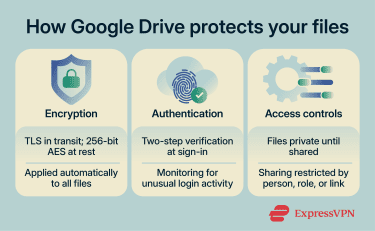
Encryption
Google Drive encrypts files at two stages. When a file moves between your device and Google’s servers, it’s protected using Transport Layer Security (TLS). This encrypts data while it’s being transmitted over the internet. Google also uses perfect forward secrecy for these connections. This means past encrypted connections remain secure even if encryption keys used later are compromised.
Once a file reaches Google’s infrastructure, it’s encrypted at rest using 256-bit Advanced Encryption Standard (AES). This protection applies automatically to every file stored in Drive and requires no configuration.
Authentication
Authentication checks that the person trying to sign in is actually the account owner. Google accounts support two-step verification (2SV) (also known as two-factor authentication (2FA)), which requires a second factor of authentication in addition to a password. This can include a code from an authenticator app, a prompt on a trusted device, or a physical security key.
2SV isn’t enabled by default on all accounts, so it’s worth checking whether yours is active.
Google also monitors sign-in activity for unusual patterns, such as logins from unfamiliar devices or locations. If a login attempt looks suspicious, the system may request additional verification or block it.
Access controls
Access controls determine who can view, comment on, or edit a file. By default, files in a personal Google Drive account remain private until the owner chooses to share them.
Files can be shared with specific people by email address or through a link. Link sharing is convenient, but its security depends on the permissions granted. If access is set to “Anyone with the link” can view, comment, or edit, access is controlled by possession of the link rather than identity.
Google Workspace accounts provide additional controls that aren’t available on free personal accounts. Administrators can restrict sharing to people within the organization, set expiration dates on shared links, and disable actions such as downloading or printing.
What Google secures vs. what you're responsible for
Google secures the infrastructure behind Drive. This includes encrypting stored files, running audited data centers, defending against network-level attacks, and scanning uploads for known malware.
You're responsible for the account side. That means using a strong password, turning on 2SV, and managing who has access to your files. These choices directly affect how well your data is protected.
By default, files in Google Drive are protected with server-side encryption. This means they’re encrypted on Google’s servers, and Google manages the encryption keys used to encrypt and decrypt them. According to Google’s documentation, the company only accesses private content with the user's permission or when required by law.
Google Drive's terms of service state that it may review content to check for policy violations or illegal material, but they add that such reviews are not guaranteed and users should not assume they occur. However, automated systems can process files for tasks such as malware scanning, virus detection, and spam filtering.
Because Google holds the encryption keys, Drive doesn’t use end-to-end encryption by default. End-to-end encryption means only the file owner and the people they share it with can read the data. With Google Drive's standard setup, Google retains the ability to decrypt files if compelled by legal process.
Related: Does Gmail support end-to-end encryption?
Google Drive security risks to know
Most security incidents result from how accounts and files are managed by users. This includes overly broad sharing permissions, phishing attacks, or third-party apps with too much access.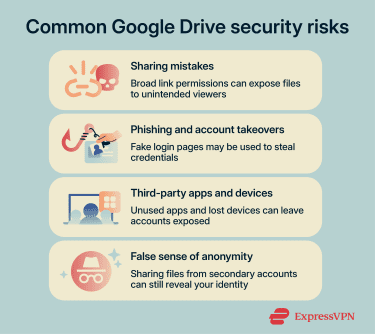
File sharing and permission mistakes
Choosing "Anyone with the link" when sharing a file means anyone with that link can open it, provided the permission level allows it. In organizations, this often happens when files are shared quickly without checking who actually needs access.
Over time, files with overly broad permissions can accumulate, especially in shared drives where files inherit the folder's permission settings. This concept, known as permission inheritance, can expose documents to more people than intended.
Phishing, malware, and account takeovers
Phishing is one of the most common ways attackers compromise Google accounts. A typical attack involves an email impersonating Google or a trusted contact that directs the target to a fake login page. If the target enters their credentials, the attacker may be able to use those credentials and gain access to the account and the files stored in Drive.
Google scans uploaded files for known malware and flags suspicious content, but this scanning has limits. Files larger than 100MB may not be scanned, and certain file types can't be analyzed.
Phishing messages have also become harder to recognize because they often avoid the spelling and grammar errors that used to be common warning signs. They may also come from legitimate-looking domains or compromised accounts. Learn more about how to recognize and protect yourself from phishing attempts in our dedicated guide to phishing email red flags.
Third-party apps and connected devices
Granting a third-party app permission to access a Google account may allow it to read, edit, or delete files stored in Drive, depending on the permissions granted. Many people approve app permissions during setup and never review them again. Over time, forgotten or unused apps can become a risk, especially if the app developer's own systems are compromised.
Connected devices can also create similar exposure. If a Google account is signed in on a device that's lost, stolen, or shared with others, those people may be able to access the files. Google provides a device management page in account settings where signed-in devices can be reviewed and signed out remotely.
Shared files may expose your identity
Sharing a file on Google Drive from a secondary or pseudonymous account can give the impression that the file is anonymous. However, that anonymity can be misleading.
Even if your identity isn’t visible in the Google Drive interface, the file may still include underlying metadata that identifies your account. This can include details such as the account’s email address, display name, and a unique Google account ID.
While this information isn’t typically exposed through normal use, it may be accessible through technical inspection or developer tools. In some cases, the account ID can also be correlated with activity on other Google services, increasing the risk of identifying you as the file owner.
Learn more in our guide to anonymous file sharing.
Is Google Drive safe for sensitive files?
Google Drive is generally safe for everyday files, but not all data carries the same level of risk.
Personal documents and everyday storage
For photos, notes, personal projects, and general documents, Google Drive’s default protections cover most everyday use cases. These files usually don’t contain sensitive information that requires stricter protection.
Related: Cloud services to store photos online
Tax documents, medical records, and legal files
Files like tax returns, medical records, legal contracts, and identity documents carry higher stakes. Google doesn't treat these files any differently at the storage level. The same encryption and access model described earlier applies.
For most people, this is adequate. But for anyone subject to regulatory requirements or handling highly confidential records, the fact that Google retains the ability to decrypt stored data may be a relevant consideration.
When Google Drive may not be enough
If you're working with regulated data or information that requires strict privacy controls, Google Drive's default setup may not meet those requirements.
Standard accounts don't give you control over how your files are encrypted. Features like end-to-end encryption, which allow only the file owner and those they share it with to read the data, aren't available. Neither is zero-knowledge encryption, where only the user holds the encryption keys, so even the service provider can't access stored files.
Google Workspace offers client-side encryption (CSE) on certain enterprise plans, including Enterprise Plus and Education tiers. When an admin enables CSE, the organization controls its own encryption keys, typically using an external key management system (KMS). This prevents Google from accessing the data.
For individuals or smaller teams, tools like Cryptomator or VeraCrypt can encrypt files before upload. The contents stay unreadable without a separate key, even if someone gains access to the account.
Learn more: How to back up files and encrypt them
Is Google Drive secure for businesses?
Google Workspace adds administrative and compliance controls that aren't available on personal accounts.
Workspace security features
Workspace lets administrators control how Drive is used across an organization. Admins can enforce 2SV for all users, restrict file sharing to internal accounts, and set up data loss prevention (DLP) policies. DLP scans files for sensitive content using pattern matching and classifiers, such as credit card numbers or tax identification numbers, and can restrict how those files are shared.
Workspace provides audit logs that show who accessed a file, what changed, and when it happened. An Alert Center flags potential security issues, such as suspicious sign-in attempts or policy violations, and notifies admins. On higher-tier plans, the security investigation tool lets admins search across Gmail, Drive, and device logs to investigate issues such as file sharing, suspicious emails, or unauthorized access.
Admins can require physical security keys during sign-in. These are hardware devices that must be plugged in or tapped to approve access.
Workspace also includes device management tools. On managed mobile devices, admins can require device encryption, enforce screen locks, and restrict features such as lock-screen notifications. If a device is lost or compromised, admins can remotely wipe work data from it. For Windows machines, admins can push security settings and configure drive encryption.
Common business risks and how to address them
Even with these controls, most business security incidents come down to how access is managed. Employees who share files with the "Anyone with the link" setting can expose confidential documents.
Former employees whose access isn't revoked may still be able to view or download files. Third-party apps available through Google's Marketplace can also serve as entry points if their security is weak.
How to make Google Drive more secure
These steps apply to both personal and Workspace accounts. In organizations, some may already be enforced by an admin.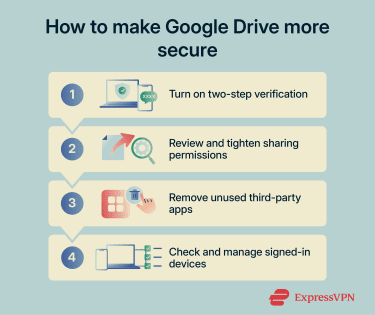
- Turn on two-step verification (2SV): Go to your Google Account, select Security, and enable two-step verification. Choose an authenticator app or physical security key instead of SMS when possible, because SMS codes can potentially be intercepted or redirected if someone takes control of your phone number.
- Check sharing permissions: In Google Drive, review files you've shared. Downgrade or remove access to anything that no longer needs to be shared, especially files set to "Anyone with the link."
- Remove unused third-party apps: Under Security in your Google Account, review which apps have access to your account. Remove any you don't recognize or no longer use.
- Review signed-in devices: Open Security Checkup from your Google Account settings. Sign out of any device you don't recognize and change your password if anything looks unfamiliar.
Google Drive vs. other cloud storage options
The two most common alternatives to Google Drive are Dropbox and Microsoft OneDrive. All three use similar encryption standards, but they differ in how they handle sharing, privacy, and enterprise controls.
Google Drive vs. Dropbox
Dropbox is a cloud storage and file sync service. Like Google Drive, it encrypts files in transit using TLS and at rest using 256-bit AES. Neither service offers zero-knowledge encryption on its standard plans, so both retain the ability to access stored data if required by law.
Dropbox offers what it calls zero-knowledge, end-to-end encrypted folders on its Advanced and Enterprise plans. In this setup, encryption keys are managed at the team level rather than by Dropbox. Google Workspace offers client-side encryption on certain enterprise tiers.
The main differences are in how controls are shared. Dropbox lets users set passwords on shared links and add link expiration dates on all paid plans. Google Drive doesn't support password-protected links on any plan. Paid Workspace accounts do let you set expiration dates on individual users' access to a file, but this applies per person rather than to the link itself.
Dropbox also uses block-level sync. This means it only uploads the parts of a file that have changed, rather than the entire file. This can speed up syncing and reduce the amount of data transferred.
Google Drive vs. OneDrive
OneDrive is Microsoft’s cloud storage service, included with Microsoft 365 subscriptions. It uses the same encryption approach as Google Drive, with TLS in transit and 256-bit AES at rest.
OneDrive includes a feature called Personal Vault. This is a protected folder that requires an extra verification step, such as a PIN or two-factor code, before files can be opened. Google Drive doesn't have an equivalent feature.
For enterprise use, Microsoft offers compliance tools through Microsoft Purview. These tools help organizations classify, label, and control sensitive data and enforce policies around how it’s shared.
Google Workspace offers comparable controls through features like data loss prevention, labels, audit logs, and investigation tools. Both platforms let organizations manage and monitor sensitive data, but they package these controls differently. The choice often depends on which ecosystem a team already uses.
When to consider a different provider
Google Drive, Dropbox, and OneDrive follow a similar model for personal accounts and standard plans. They encrypt your files, but the provider manages the encryption keys.
For most use cases, this setup provides strong protection against external threats. But if your priority is keeping data private even from the service provider, some alternatives take a different approach.
Services like Tresorit, Sync.com, and MEGA use zero-knowledge encryption. In this model, only you hold the decryption keys, so the provider can’t access your files. These services usually offer fewer collaboration features and a smaller app ecosystem than the major platforms.
FAQ: Common questions about Google Drive security
Can Google employees see your files?
Can someone hack your Google Drive?
Does Google Drive have end-to-end encryption?
Can you password-protect a Google Drive file?
Is Google Drive safe for confidential documents?
Does Google Drive protect against ransomware?
Take the first step to protect yourself online. Try ExpressVPN risk-free.
Get ExpressVPN