How to get your IP address on Linux: Methods and troubleshooting



Your IP address is a key part of how your Linux system connects to networks and the internet. Whether you are setting up a new connection, verifying network settings, or troubleshooting connectivity issues, knowing how to find your IP address is essential.
This guide explains how to get both your private (local) and public IP addresses on Linux using different methods, including graphical tools, terminal commands, and built-in utilities. It provides clear, step-by-step instructions for various distributions and common scenarios, helping you confidently manage and diagnose your network configuration.
Understanding IP addresses on Linux
An IP address is a unique number assigned to a device on a network. On Linux, it identifies your system on both local and external networks, allowing it to send and receive data. Linux uses this information to route traffic correctly, whether you’re accessing local resources or the internet.
Every Linux system connected to a network needs an IP address. This includes desktops, laptops, servers, and even virtual machines or containers. Linux supports two main versions of IP addresses:
- IPv4: This is the older and most common format. It looks like four numbers separated by dots, such as “192.168.0.1.”
- IPv6: This is the newer format, designed to support more devices. It uses longer combinations of numbers and letters separated by colons, such as “2001:0db8:85a3:0000:0000:8a2e:0370:7334.”
Both formats function the same way; IPv6 simply expands the address space to accommodate more devices.
Types of IP addresses explained
There are many types of IP addresses, which can be grouped based on where they’re used and how they’re assigned. Here are the most common ones:
| Type of IP address | What it means | Where it’s used |
| Public IP address | An address assigned to a network by an internet service provider (ISP). It allows communication with the wider internet. | Used for communication between a local network and the internet. |
| Private IP address | Also known as local IP addresses, these are used within a local network. Devices on the same network use it to communicate with each other. | Used inside homes, offices, and other internal networks. |
| Static IP address | An address that stays the same over time unless it’s manually changed. | Commonly used for servers, printers, or systems that need a fixed address. |
| Dynamic IP address | An address that changes automatically. Dynamic Host Configuration Protocol (DHCP) assigns it from a pool of available addresses. | Common in home and office networks where automatic configuration is preferred. |
Learn more: For more information, check out our guide to IP address classes.
Why knowing your IP is important
Knowing your private (local) or public IP address can help in several everyday situations. Each serves a different purpose when managing or diagnosing network connections:
- Verifying network setup: Checking your device’s private IP address confirms it has successfully connected to your local network, for example, your home Wi-Fi or office LAN.
- Identifying connection issues: If a system can’t access other devices on the same network, reviewing its private IP address can help troubleshoot local connectivity problems. If it can’t access the internet, checking the public IP address can help determine whether your router or ISP connection is functioning properly.
- Configuring network services: Some applications, servers, or devices on a local network require a specific private IP address to work correctly, for example, when setting up file sharing, hosting a local web server, or configuring port forwarding.
- Online security awareness: A public IP address is visible to websites and online services. It can reveal your approximate location and ISP, so understanding it helps assess privacy risks.
- Remote access and system management: Administrators may need a public IP address to access a system over the internet or a private IP address to manage devices on the same local network.
Methods for finding your private (local) IP address on Linux
Linux provides multiple ways to check your local IP address. Some methods use the terminal, while others rely on the graphical interface. Both approaches provide the same core information, just presented in different ways.
Using the terminal
The terminal is a text-based interface that allows direct communication with the system. It’s one of the most reliable ways to view network details, including your private IP address. To open the terminal in most Linux distributions:
- Press Ctrl + Alt + T or search for Terminal in the applications menu.
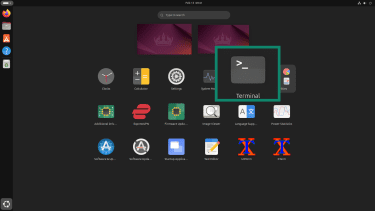
Once open, commands can be entered to display network information. The sections below explain the most common ones.
Common command: ip addr
The “ip addr” command is the standard way to view network details in modern Linux systems. To use it:
- In the Terminal app, type ip addr and press Enter.
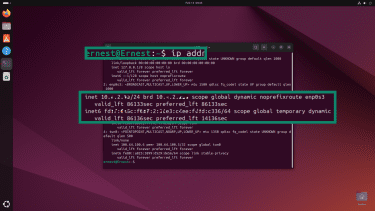
The system will display a list of network interfaces. An interface is simply a network connection, such as Wi-Fi or Ethernet. Look for:
- The “inet” followed by a number: This is the IPv4 address.
- The “inet6” followed by a longer string: This is the IPv6 address.
If you wish to determine what interface the connection uses, look for the following labels:
- “lo” for a loopback address.
- “eth0," "ens33," or “enp0s3” for Ethernet.
- “wlan0” for Wi-Fi.
Quick command: hostname -I
If a shorter output is preferred, the “hostname -I” command can help. It provides a simpler result by listing IP addresses without extra details. To use it:
- Open the Terminal app, then type hostname -I and press Enter.
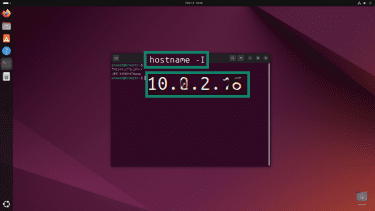
The system will return one or more IP addresses in a single line. Just bear in mind that it doesn’t show which interface the address belongs to.
Active interface IP: ip route get 1.1.1.1
Sometimes, multiple IP addresses appear, and it’s unclear which one is actively being used for internet traffic. The ip route get 1.1.1.1 command shows the IP address used for an outbound connection by displaying the route the system selects to reach an external host. Unlike ping, it doesn’t send any packets; it simply asks the kernel to simulate the routing decision and display the result.
To use it:
- Open the Terminal app, then type ip route get 1.1.1.1 and press Enter.
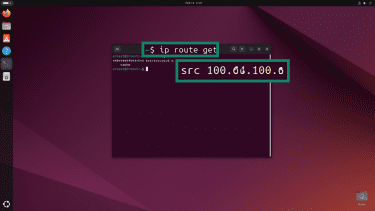
- Look for src followed by an IP address.
The “src” value shows the source IP address the system would use to reach that destination. This makes it easier to identify the active interface without manually reviewing every connection.
Alternative command (legacy): ifconfig
The “ifconfig” command was widely used in older Linux systems. It belongs to the net-tools package, which has been mostly replaced by newer utilities. To use it:
- Open the Terminal app, then type ifconfig and press Enter.
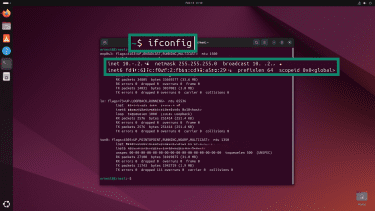
If the “ifconfig” command isn’t found, it usually means the net-tools package isn’t installed. The information it provides is the same as "ip addr,” showing all network interfaces and their assigned IP addresses.
Using the Linux GUI
For those who prefer not to use the terminal, most Linux distributions provide a Graphical User Interface (GUI). The GUI allows network details to be viewed through menus and settings panels.
Open network settings (GNOME/KDE)
In GNOME (Ubuntu):
- Access the Settings app.
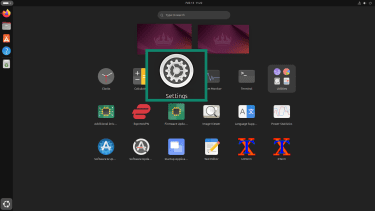
- Select the Network tab.
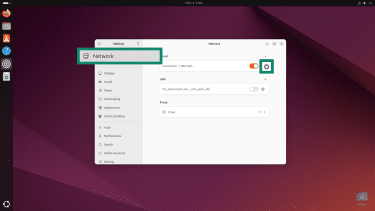
- View the IP address.
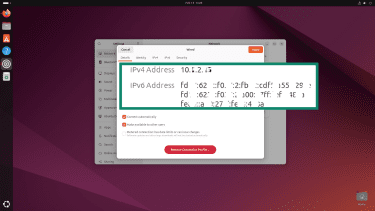
In KDE-based distributions:
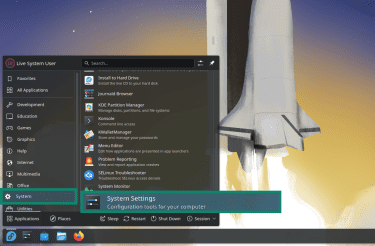
- Open the Start menu and select the System Settings tab.
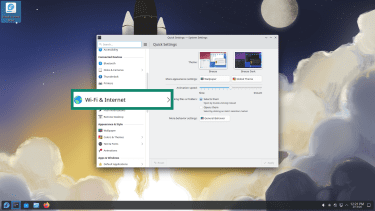
- Access the Wi-Fi & Internet tab.
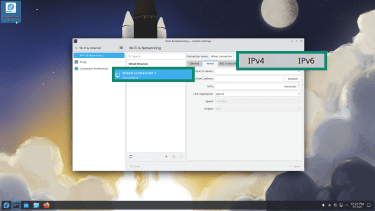
- Click your active connection, then select IPv4 or IPv6 to view your address.
View Wi-Fi vs. Ethernet IP addresses
If both Wi-Fi and Ethernet are available, each connection can have its own IP address, but only the active one handles traffic at any given time. To find the correct address, first identify which connection shows as connected, then open its details panel and look for the IPv4 or IPv6 entry.
Wi-Fi interfaces are typically labeled as wireless, while Ethernet appears as wired. Checking the details of the active connection ensures the IP address you see belongs to the currently active interface.
Displaying a public IP address in Linux
Your ISP assigns a public IP address to your network. It’s the address websites and online services see when you connect to the internet.
In most home and office networks, this works through Network Address Translation (NAT). Devices on the local network use private, non-routable IP addresses, while the router translates their traffic and presents a single public IP address externally.
On Linux, the public IP address isn’t directly assigned to your device in typical NAT setups, so it doesn’t appear in local network configuration files. Instead, you retrieve it by querying an external service that reports the public address your connection appears to come from.
Using online tools
One of the easiest ways to trace an IP address is to use an IP checking website. All you have to do is visit a website that displays the detected IP address, and you’re done. They do this by reading the incoming connection address as reported by your device. This approach is useful when:
- The system has a graphical interface.
- Terminal access isn’t preferred.
- A quick visual check is needed.
If a virtual private network (VPN) is active and functioning correctly, the site will show the VPN server’s IP address. This is because connecting to a VPN masks your ISP-assigned public IP address behind the VPN server’s IP address, helping limit IP address tracking.
Terminal commands for public IP
You can also use the terminal to check your public IP address. This method sends a request to an external service and displays the result. These commands are quick, lightweight, and don’t require opening a browser, which makes them especially useful on minimal or command-line interface (CLI) systems.
Command: “curl ifconfig.me”
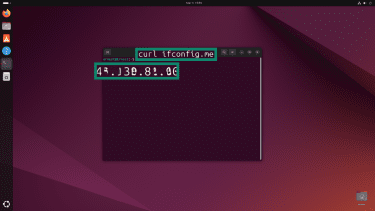
One of the most common commands for checking a public IP address is “curl ifconfig.me.” It works by sending a request to the ifconfig.me website, which then returns the IP address it detects from your connection. To use it:
- Open the Terminal app.
- Type “curl ifconfig.me” and press Enter.
Troubleshooting “curl” issues
Sometimes the curl command doesn’t work as expected. The system may return an error or say the command isn’t found. Common causes include:
- The “curl” command isn’t installed: Some minimal Linux distributions don’t include it by default. Install it using your system’s package manager (for example, “sudo apt install curl” on Debian/Ubuntu).
- No internet connection: If the system isn’t connected to the internet, the request can’t reach the external server. Check the connection and try again.
Linux IP address on servers and headless systems
Not all Linux systems have a desktop environment. Many servers run without a graphical interface. These are often called headless systems because they don’t use a monitor, keyboard, or mouse directly. Below are simple methods for finding your IP address.
How to get your IP on a headless Linux server
On a headless Linux system, the IP address must be checked using terminal commands since there’s no graphical interface. This requires logging into the server locally or remotely, running a command to display all network interfaces, and identifying which connection is active.
If physical access is available, the IP can be checked directly from the console. Otherwise, it may be necessary to review network settings through a hosting provider’s dashboard or the router interface.
Finding the IP of a remote server (SSH)
Secure Shell (SSH) is a protocol for securely connecting to another computer over a network. It allows remote command-line access. To connect via SSH, the remote server's IP address is required. If the address isn’t known, it can often be found through:
- A cloud hosting control panel.
- A router’s connected devices list.
- Network scanning tools within the same local network.
Once connected through SSH, standard terminal commands can be used to confirm the server’s internal IP address. If the server has both a public and a private IP address, the SSH address depends on the network setup. In cloud environments, a public IP is typically used. In local networks, private IP addresses are more common.
How VPNs or containers affect IPs
Network setups can become more complex when additional layers are introduced. Two common examples include:
- Virtual private network (VPN): A VPN creates an encrypted tunnel between your device and a VPN server. It routes your internet traffic through this tunnel, so external services (like website or app providers) see the VPN server's public IP address instead of your real public IP address. Learn more about this process in our guide to hiding your IP address.
- Containers: Tools like Docker create isolated environments with their own private internal networks. In the default bridge mode, each container is assigned its own private IP address within Docker’s virtual network. In host mode, the container shares the host machine’s network stack instead of receiving a separate private address. Containers typically do not have their own public IP addresses unless explicitly configured to expose services externally.
In these situations, the main system retains its private IP address on the local network, while the VPN assigns a different public IP address that websites see. At the same time, containers may have their own separate private IP addresses within virtual networks. This can make it appear as though multiple systems are running on a single machine, and it may not be immediately clear which network interface is handling outbound traffic.
Troubleshooting Linux IP address issues
Sometimes an IP address doesn’t appear, or the network doesn’t work as expected. When that happens, a few basic checks can help identify the problem.
What to do if your private IP address doesn’t appear
If no private IP address is listed for your network interface, start with simple checks before assuming there’s a serious problem. Begin by checking the network cable and making sure it’s firmly connected. If you’re using Wi-Fi, confirm that wireless networking is enabled and connected to a network.
Restarting the network service can sometimes resolve temporary glitches, and a full system reboot may also help. If a private IP address still doesn’t appear after these steps, the issue may be related to the network interface status or DHCP configuration.
Check interface status (link up/down)
To check the interface status (link up/down) on Linux, the recommended command is “ip link show.” In the output, look for “UP,” which indicates that the network interface is operational.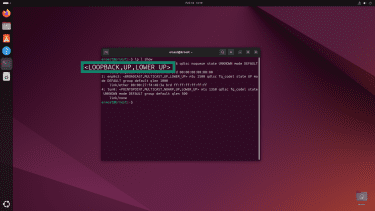
Check the DHCP or NetworkManager status
Dynamic Host Configuration Protocol (DHCP) automatically assigns IP addresses in most home and office networks. If the DHCP service doesn’t respond, the system won't receive an address. One way to confirm whether a request succeeded is to log in to your router or modem and check the DHCP client list for your device.
Alternatively, many Linux desktop distributions manage network connections with NetworkManager. You can verify that the service is running and that a connection is active using tools such as:
- nmcli: A command-line interface (CLI) tool that lets you view device status, manage connections, and troubleshoot networking directly from the terminal.
- nmtui: A text-based (curses) interface that provides a simple interactive menu for managing connections without a graphical desktop.
Why you see multiple private IP addresses
It’s common for a Linux system to show more than one private IP address when you inspect network interfaces. This doesn’t indicate a problem. Instead, it reflects how modern systems manage multiple network connections.
A Linux machine may have multiple private IP addresses because:
- It supports both IPv4 and IPv6.
- It has multiple network interfaces, such as Ethernet and Wi-Fi.
- Virtual machines or containers are running.
No internet after getting an IP
Sometimes a system successfully receives an IP address but still can’t access the internet. This usually means the issue isn’t the address itself, but another part of the network configuration. Below are some troubleshooting tips to help resolve the problem.
Check the gateway and routes
The default gateway acts as the exit point from the local network. If the gateway is incorrect or missing, traffic intended for external networks may not leave the local network. As a result, external websites won’t load, and connection attempts may time out.
Here are some quick tests you can try:
- Check your default gateway: Run the “ip route show” command and look for a line starting with “default via <gateway_IP>.”
- Ping the gateway: Use the “Ping <gateway_IP>” command. If this fails, your system can’t reach the gateway.
- Check the routing table: Use the “ss -r” command.
Routes determine how traffic moves between networks. If the routing information is wrong, the system may not know where to send outgoing data. Verifying the gateway and routing table helps confirm that traffic is being directed properly.
Check DNS settings
Even if the network connection is active, websites may fail to load if DNS settings are incorrect. DNS works like a phonebook for the internet: it translates domain names into IP addresses. Problems in this process can prevent access to websites and reduce privacy. When DNS is misconfigured:
- Websites may not resolve.
- Error messages may appear stating the server can’t be found.
- Queries may be sent to unintended servers, potentially exposing browsing activity.
To resolve it, try opening a terminal in Linux and running the following command to flush the DNS cache on systems that use systemd-resolved: “sudo resolvectl flush-caches.” Note that this command will not work on distributions that use a different DNS service.
This clears the local DNS cache and forces the system to retrieve updated DNS records, pulling fresh information from the internet. Doing this can help fix problems like websites not loading or errors that say “server not found.”
Changing your local IP address in Linux
There are two main ways to change a local IP address on a Linux system: temporarily (at runtime) or persistently (in configuration). Temporary changes are useful for testing, while persistent changes ensure the system retains the same IP after reboot.
Manual configuration steps (high-level)
Manually setting an IP address involves defining several pieces of information. These values must match the network’s structure. At a high level, manual configuration requires:
- An IP address: The unique address assigned to the system.
- A subnet mask: This defines which part of the address identifies the network and which part identifies the device.
- A default gateway: The router that directs traffic outside the local network.
- Domain Name System (DNS) servers: DNS translates domain names into IP addresses so websites can load correctly.
All of these settings must align with the local network. If even one value is incorrect, the system may not connect properly.
Temporary vs. persistent IP changes
- Temporary changes: These can be applied with commands like ip addr add <IP> or by requesting a new address via DHCP.
- Persistent changes: These require editing system configuration files or using network management tools like NetworkManager to assign a static IP. Learn more in our guide to configuring a static IP address on any device.
FAQ: Common questions about getting an IP address on Linux
How to get the IP address in Linux?
On systems with a graphical user interface (GUI), opening the network settings shows the private IP addresses assigned to Wi-Fi or Ethernet connections. To check your public IP address, you typically need to query an external service instead.
What is the ipconfig command in Linux?
How do I find my IP address in the terminal?
What to do if my IP address doesn't appear?
How to change my IP address in Linux?
How to find my public IP address in Ubuntu?
How to get my IP address on a headless Linux server?
Take the first step to protect yourself online. Try ExpressVPN risk-free.
Get ExpressVPN

















 Support Center
  FAQ
FAQ  VPN Setup Tutorials


