




Too frustrated to read this page?
Talk to a HumanIf you are unable to load various Google services while connected to ExpressVPN, this guide will walk you through troubleshooting the issue.
Note: Affected services can include Google Search, Gmail, Google Maps, Google Meet, G-Suite, and Android Notifications, as well as other Google services.
Jump to…
Google services not working in a browser
Every ExpressVPN server runs its own private, encrypted DNS, which keeps your DNS queries inside the same secure tunnel as the rest of your internet traffic. If your browser has its own DNS security settings enabled, this can interfere with the VPN connection and prevent Google services from loading.
To resolve this, disable encrypted DNS in your browser settings.
Here is how to disable encrypted DNS in different browsers:
Chrome
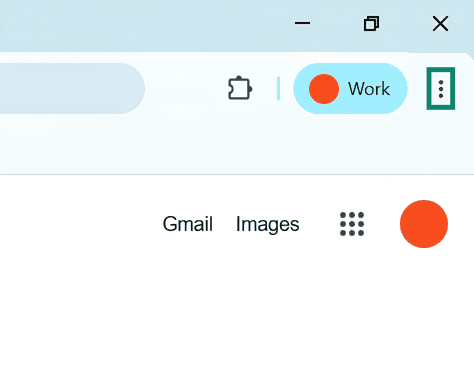
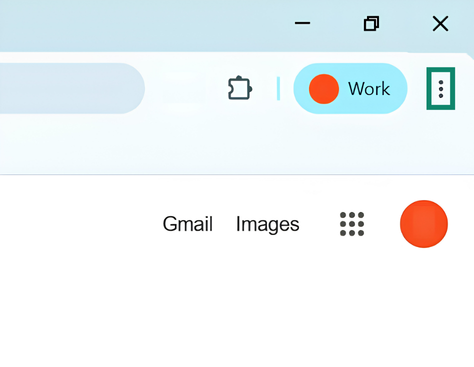
- Click the three-dot menu icon (⋮) in the top right corner.

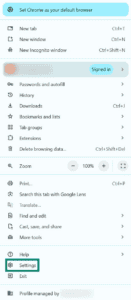
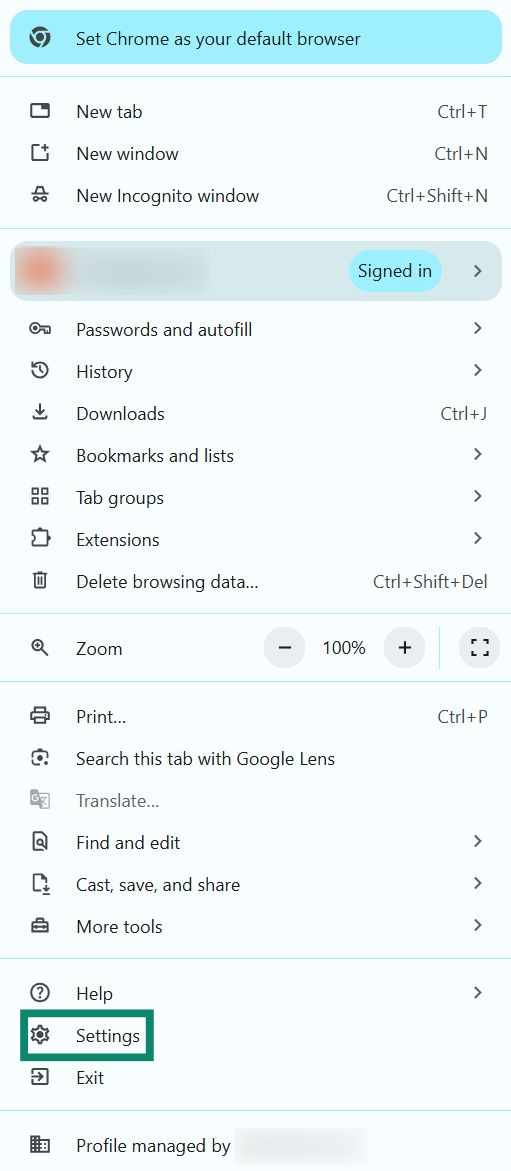
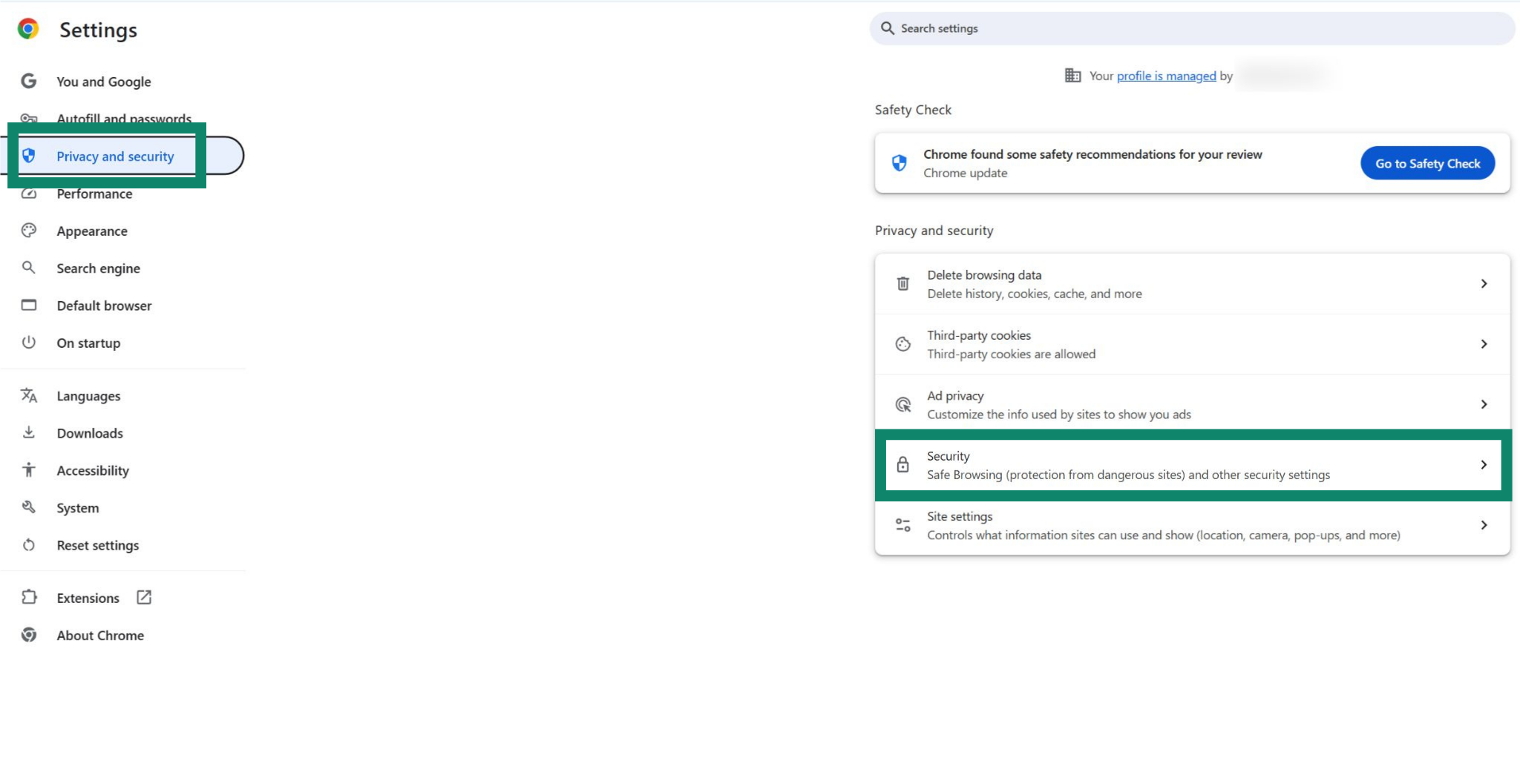
- Head to Settings > Privacy and security.

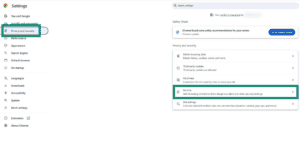
- Click Security.

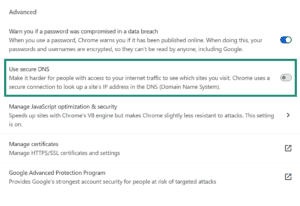
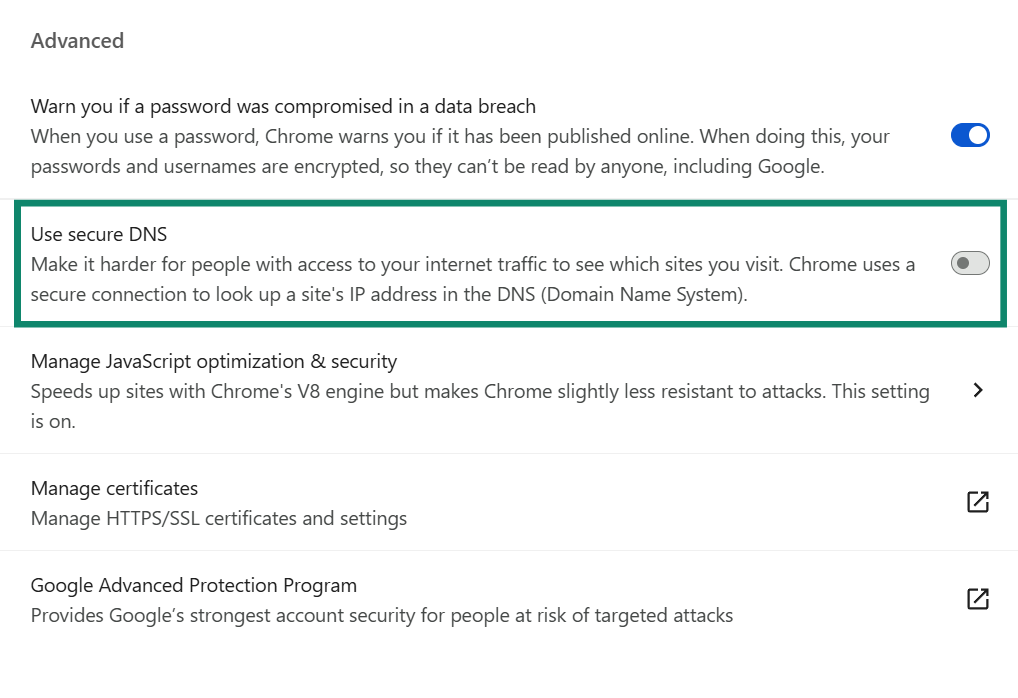
- Scroll down to the Advanced section and turn the Use secure DNS toggle off.

Note: The steps above should be the same or similar for other Chromium browsers, such as Opera, Microsoft Edge, Samsung Browser, Vivaldi, and Brave.
Firefox
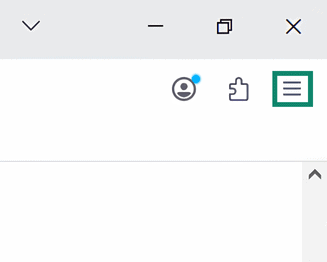
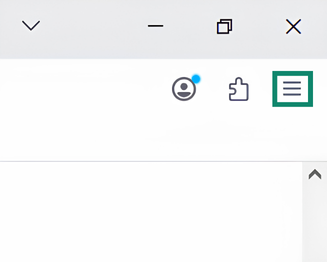
- Click the hamburger menu icon (☰) in the top right corner.

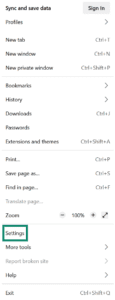
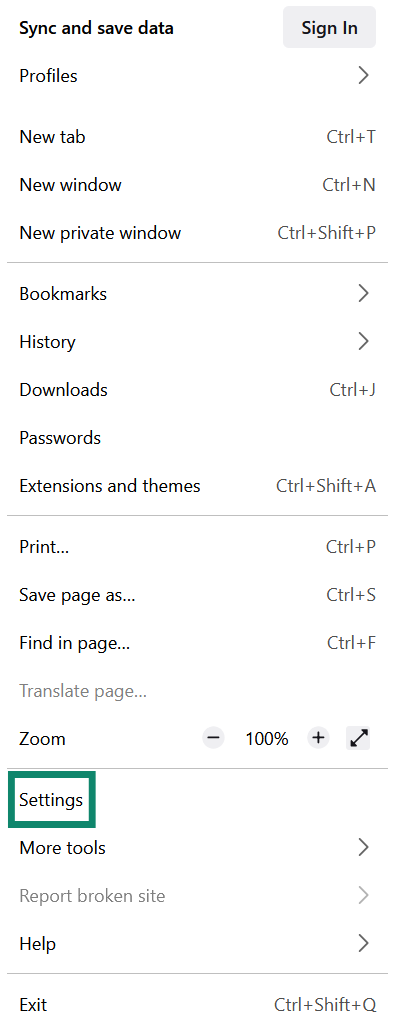
- Click Settings.

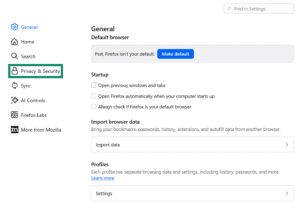
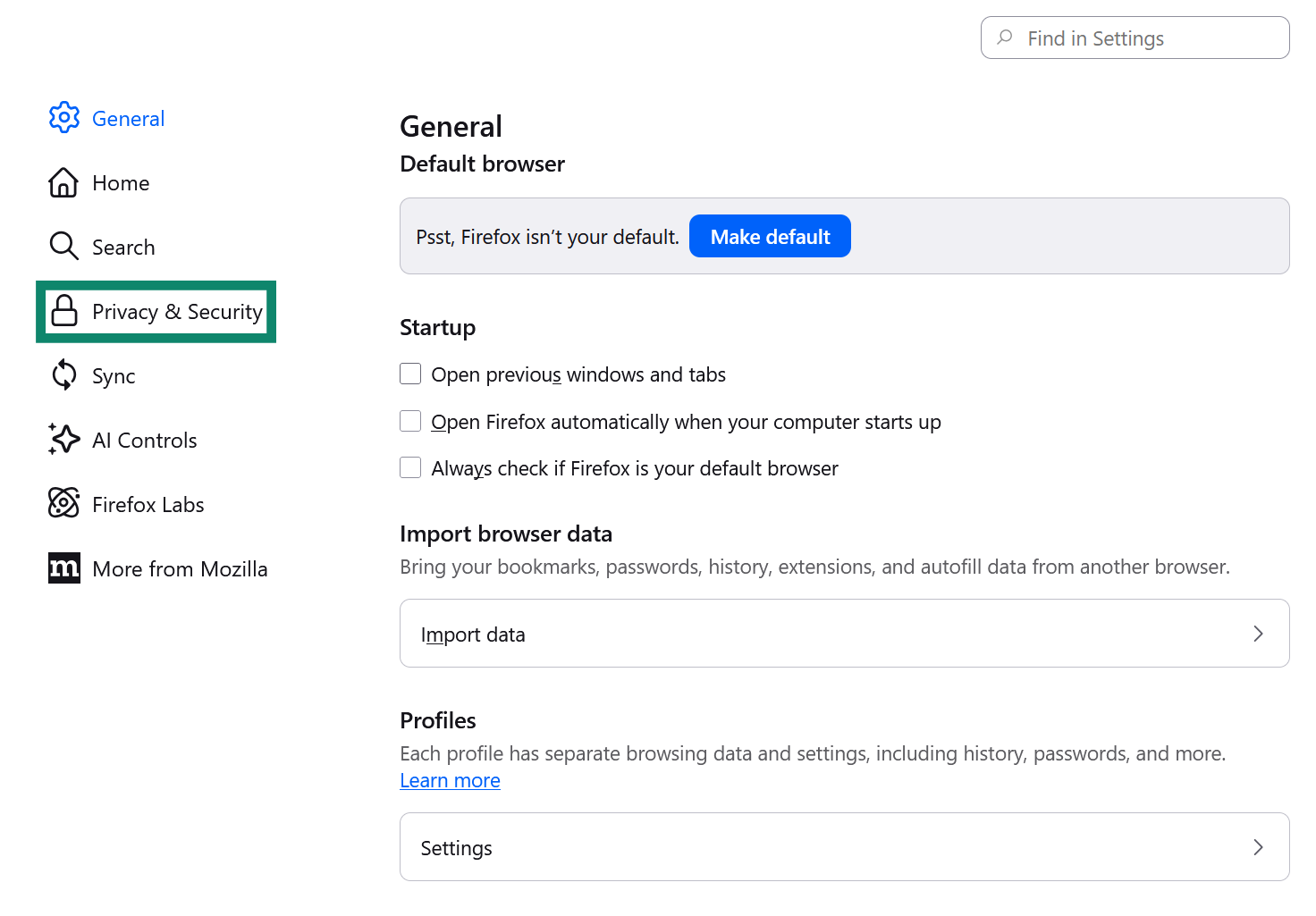
- Next, click Privacy & Security.

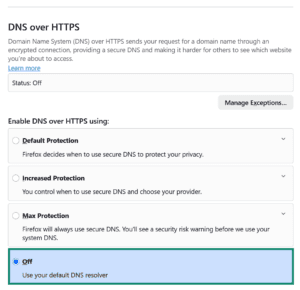
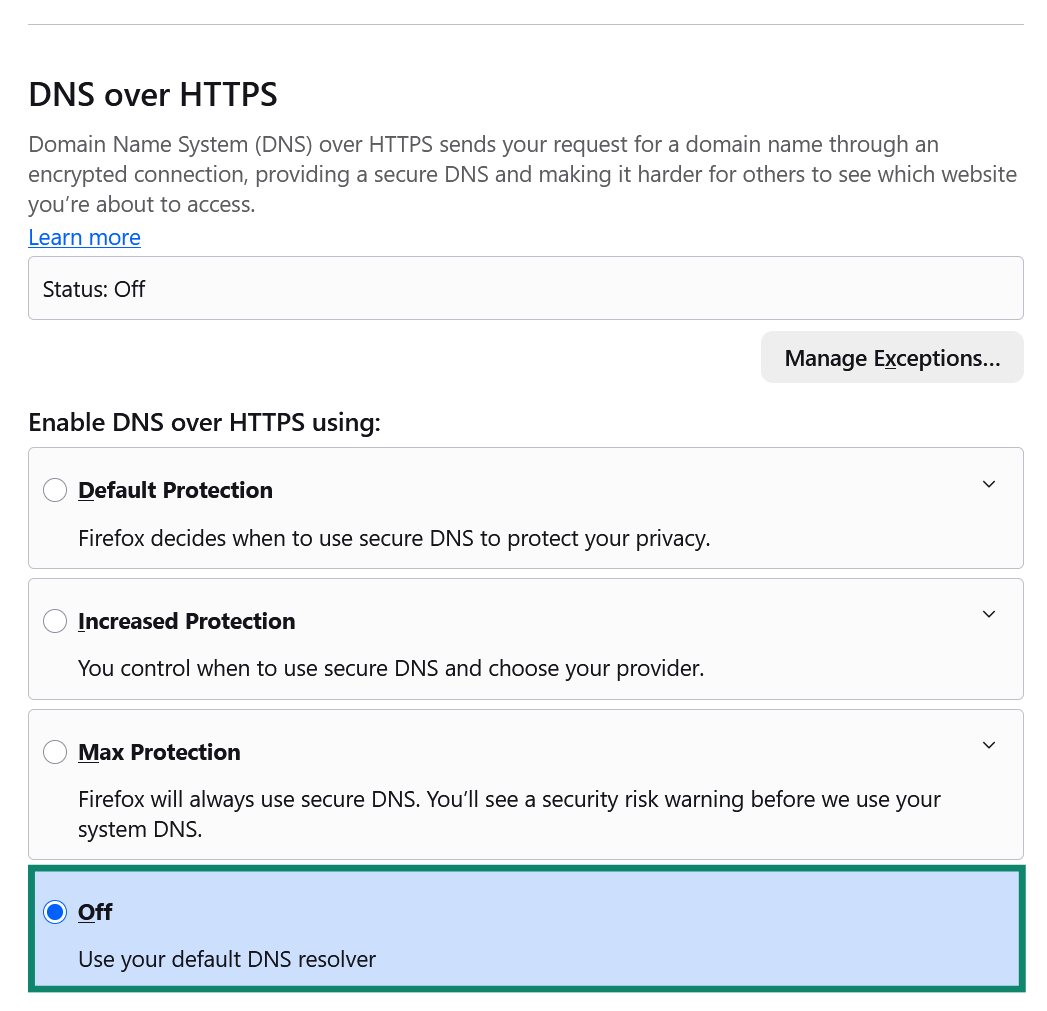
- Scroll down to Enable DNS over HTTPS using: and select the Off option.

Safari
The Safari browser uses your Mac’s DNS settings. To turn off encrypted DNS:
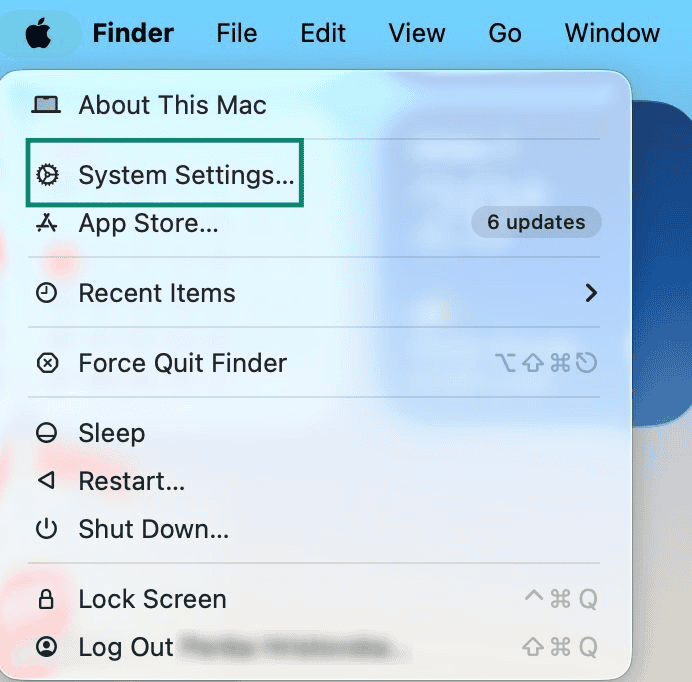
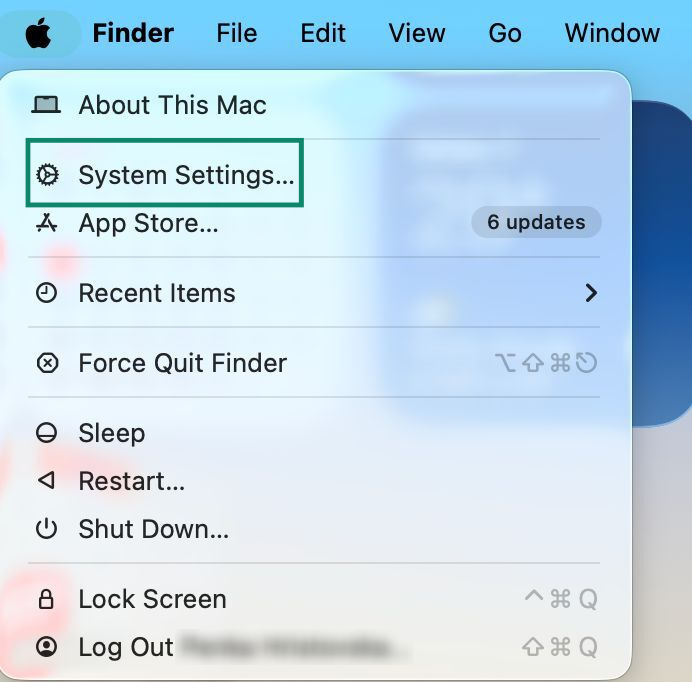
- Click the Apple menu and select System Settings.

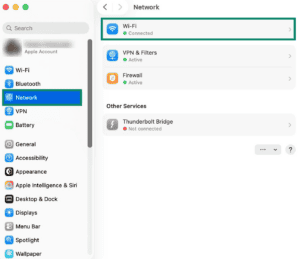
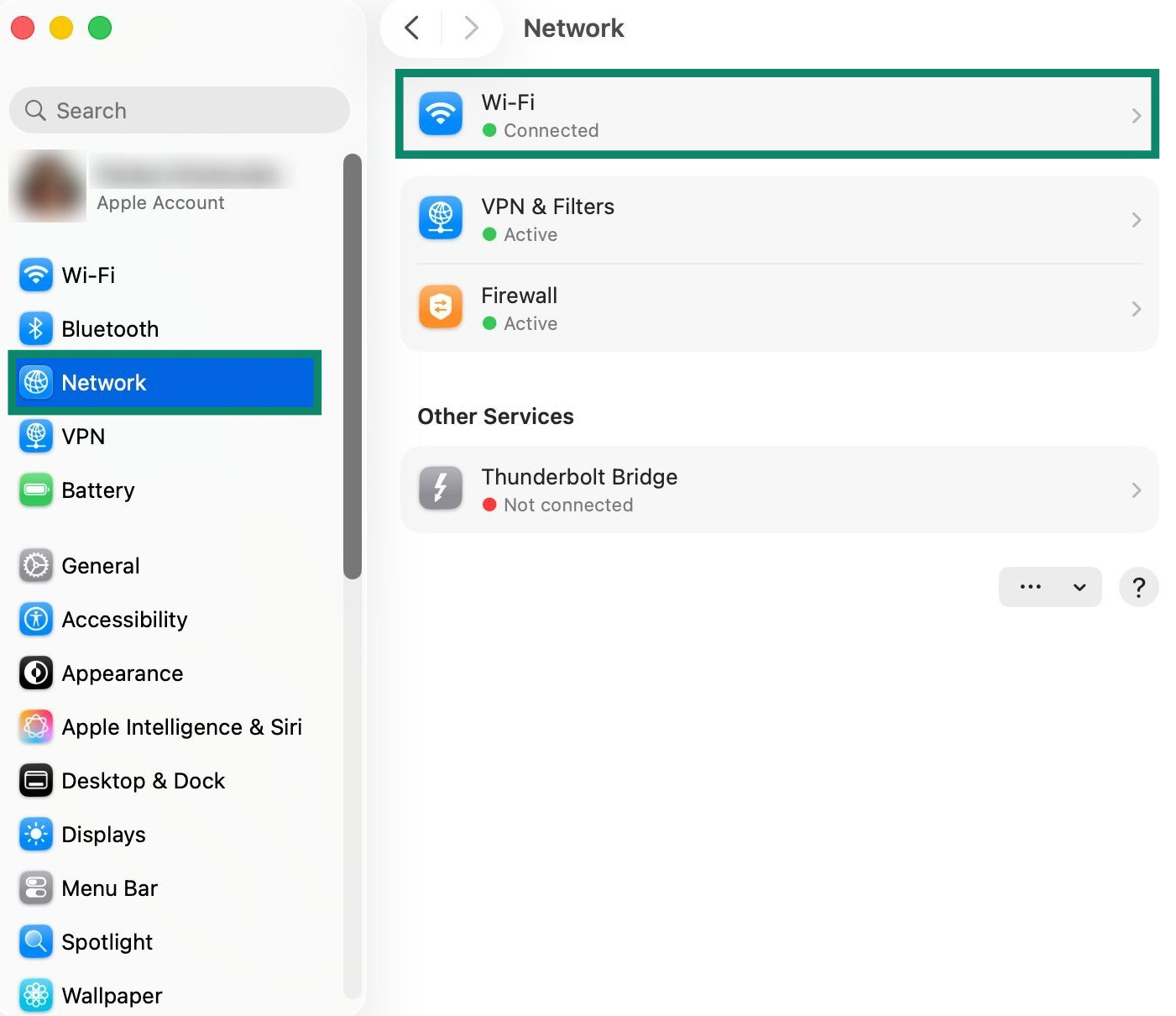
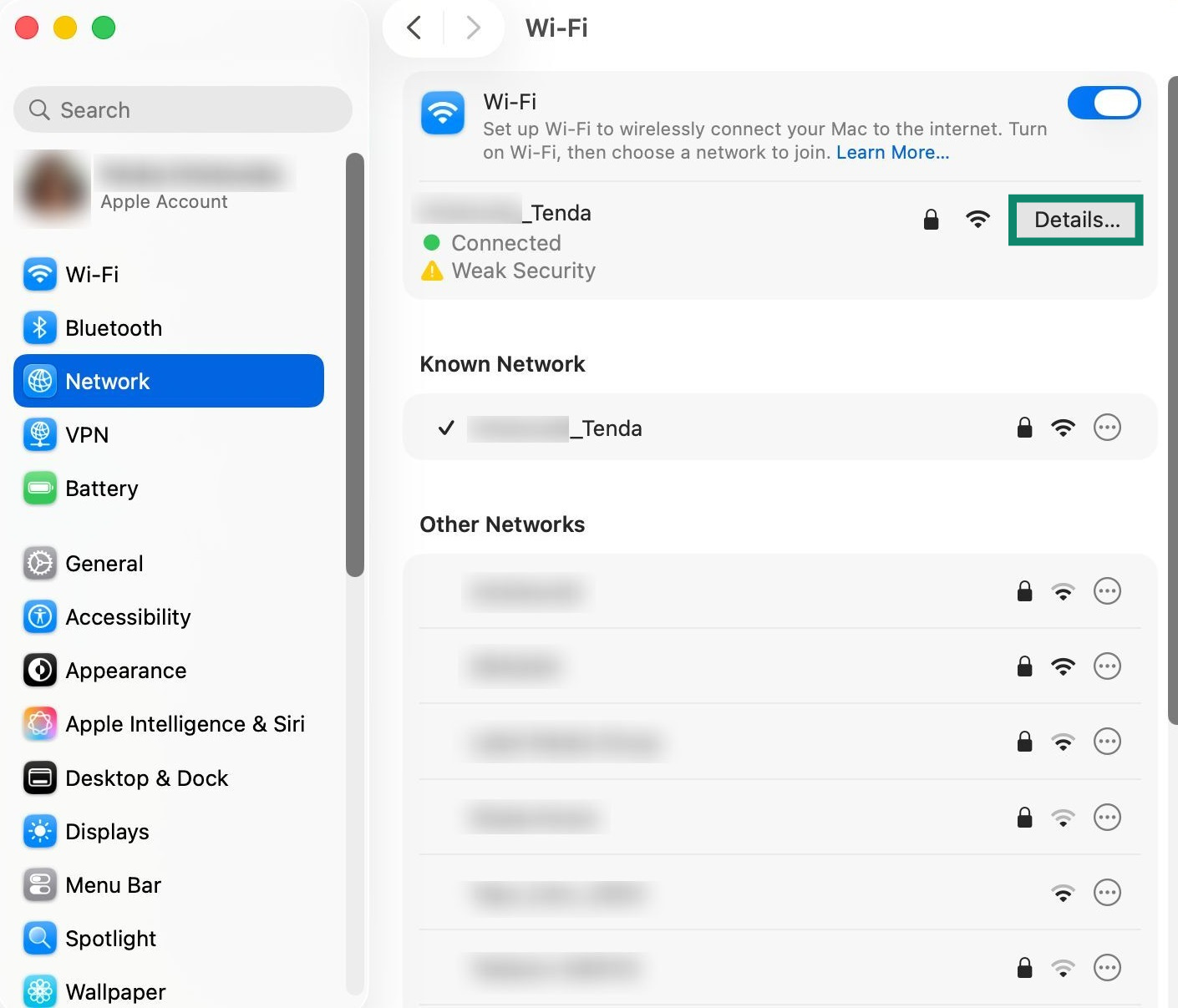
- Click Network and select your connection, like Wi-Fi for example.

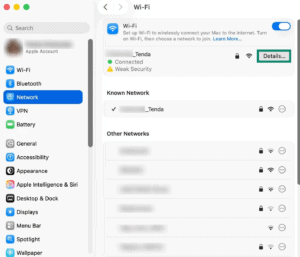
- Click Details.

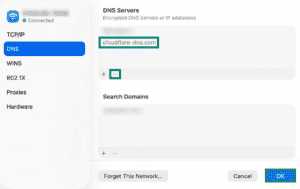
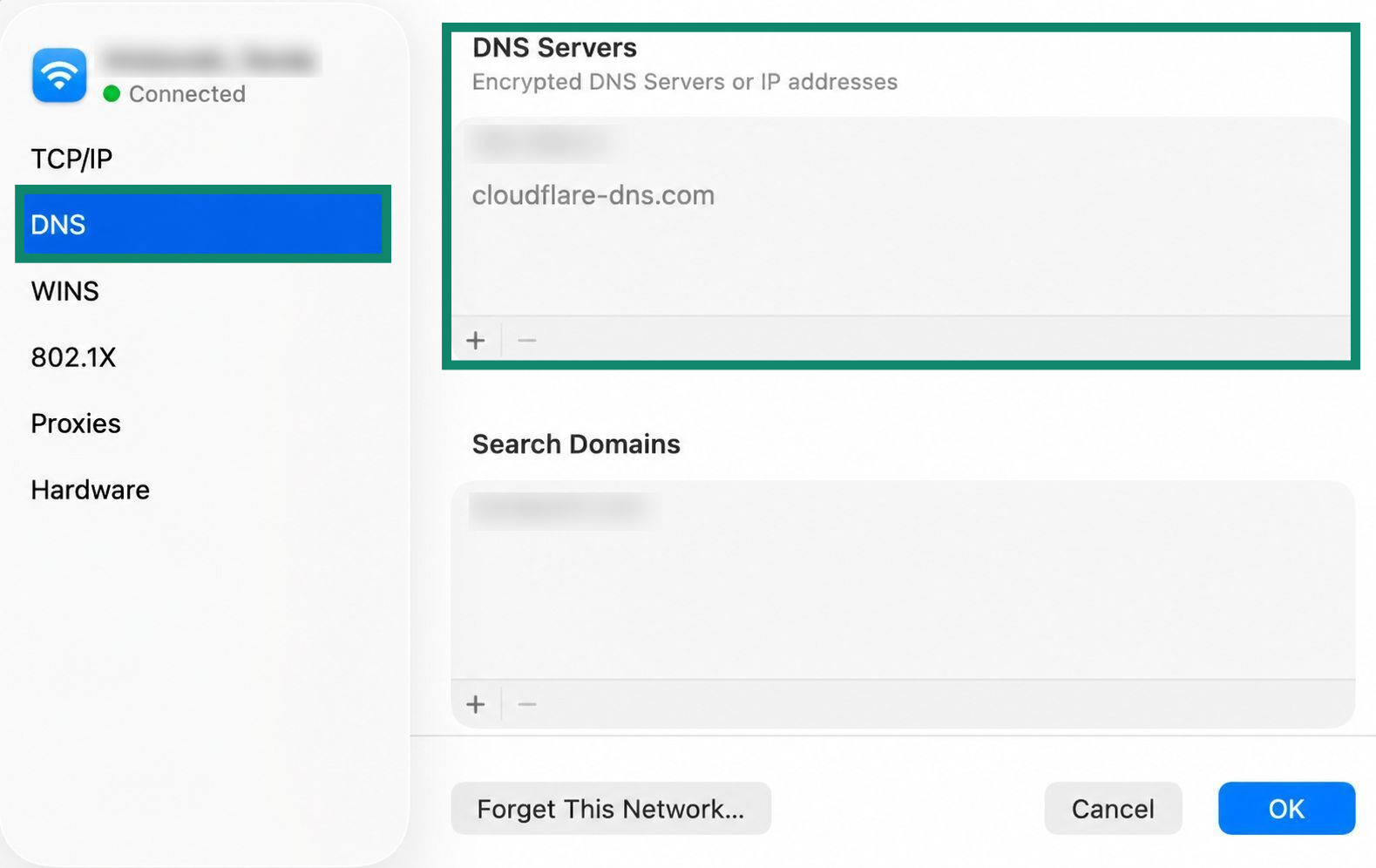
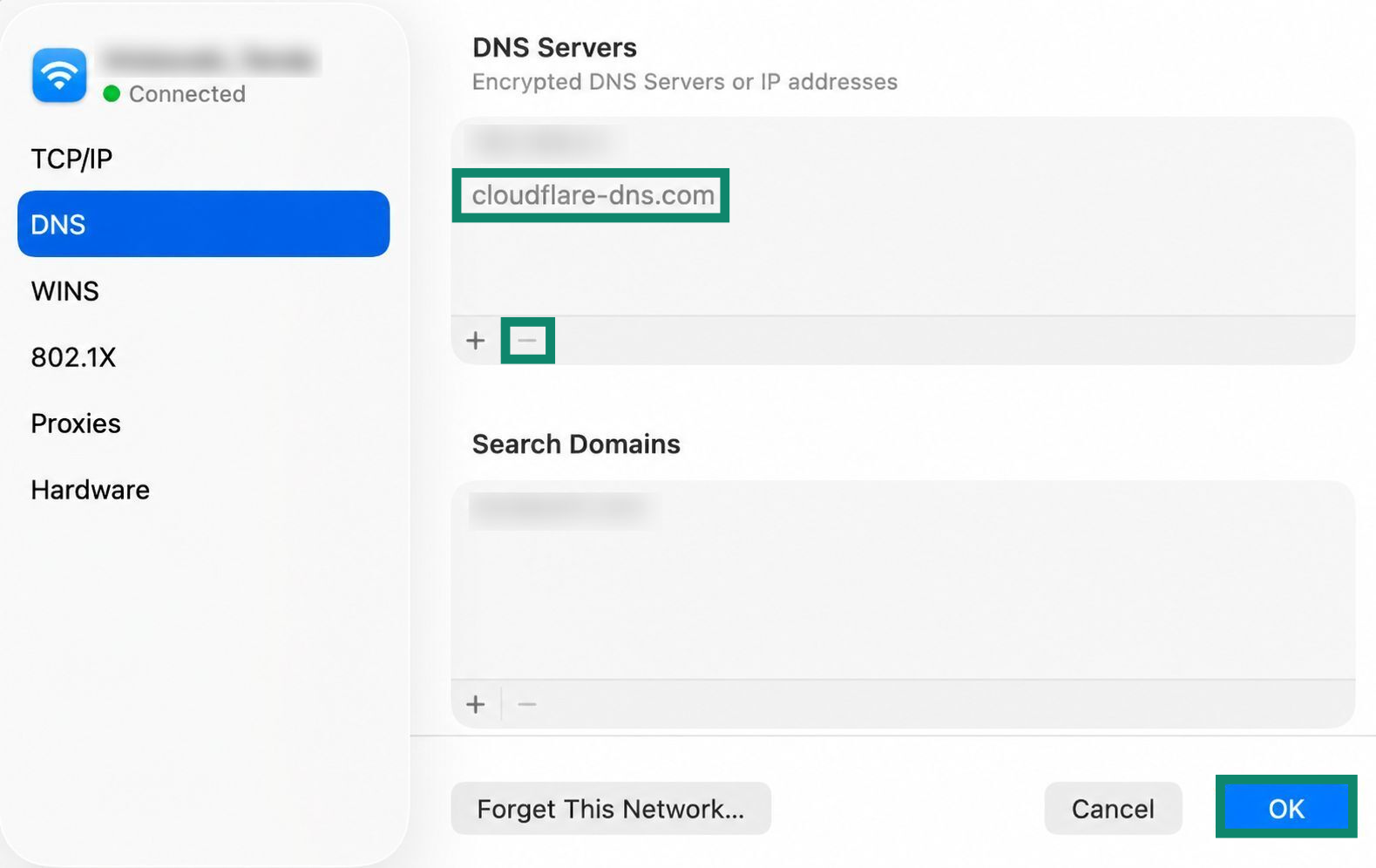
- Select the DNS tab and check the DNS Servers table for any DNS server addresses.
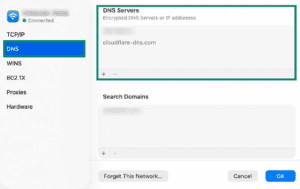

- Select the DNS server from the list, click the minus (-) button, then click OK.
Need help? Contact the ExpressVPN Support Team for immediate assistance.
Google services not working in an app
If you are accessing Google services through a desktop or mobile app rather than a browser, try connecting to a different VPN server location. Follow the steps for your device:
- ExpressVPN Windows app
- ExpressVPN Mac app
- ExpressVPN Linux app
- ExpressVPN iOS app
- ExpressVPN Android app
If this does not resolve your issue, contact customer support for further assistance.
Need help? Contact the ExpressVPN Support Team for immediate assistance.