



This guide will show you how to find your private IP address and router’s default gateway address.
Jump to…
Find your private IP address
Find your default gateway address
Find your private IP address
When you are connected to the internet, your device is assigned a private IP address by the router in your local network. In other words, different devices connected to the same local network have different private IP addresses. A device’s private IP address is not the same as its public IP address, which is used to address it by devices outside your local network.
Knowing your private IP address is helpful for configuring network-related settings.
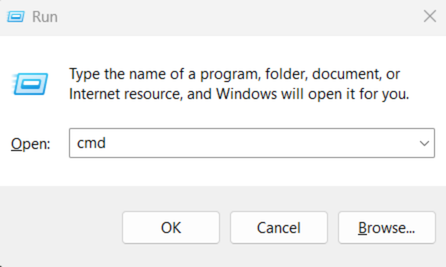
1. Press  on your keyboard and the R button to open the Run dialog box. Type cmd and click OK.
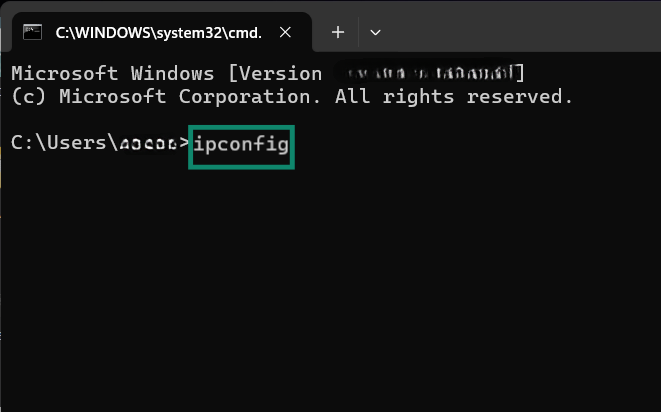
 2. In the Command Prompt, type ipconfig and hit Enter.
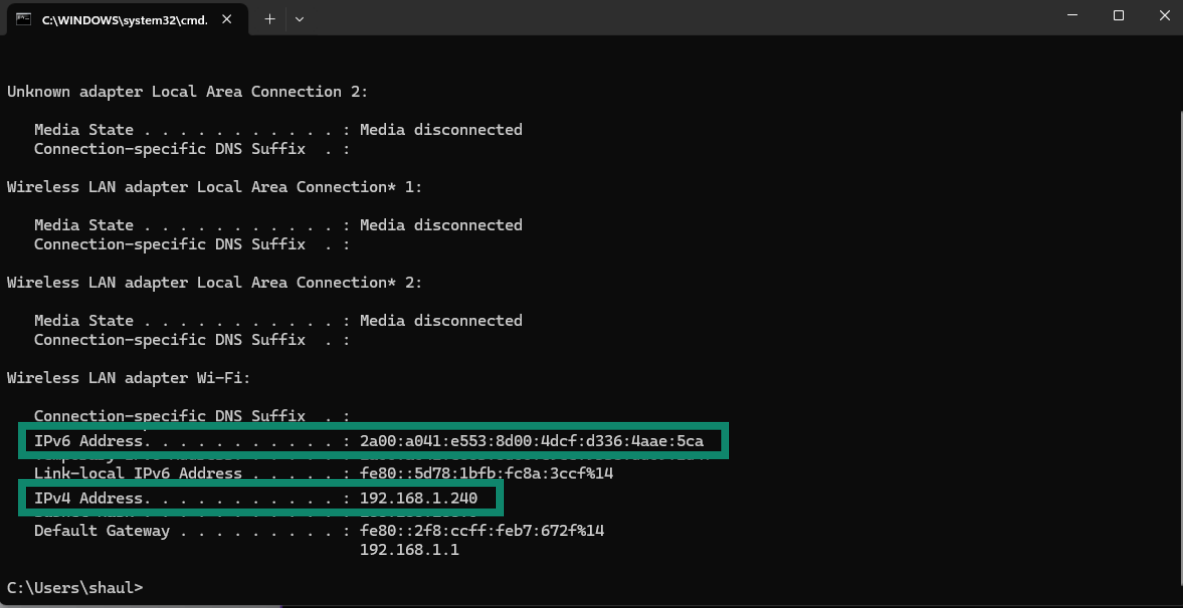
 3. Your device’s private IP address will appear next to IPv4 Address. If your device uses IPv6, your IPv6 address will appear next to IPv6 Address.
 Need help? Contact the ExpressVPN Support Team for immediate assistance.
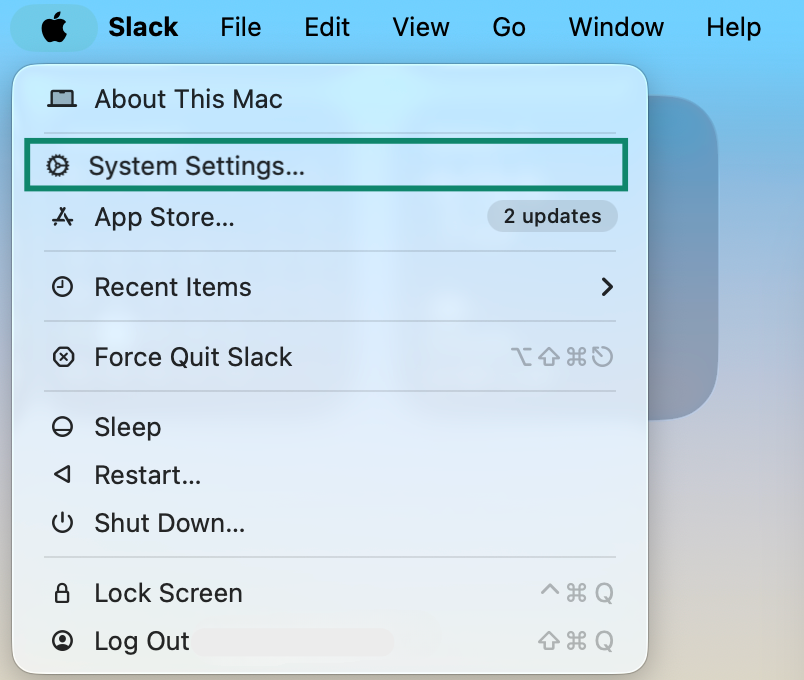
- Click

 in the upper-left corner of the screen. Then select System Settings.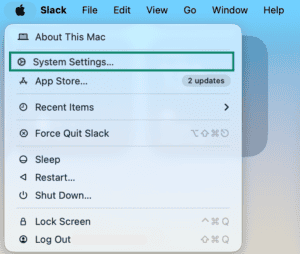

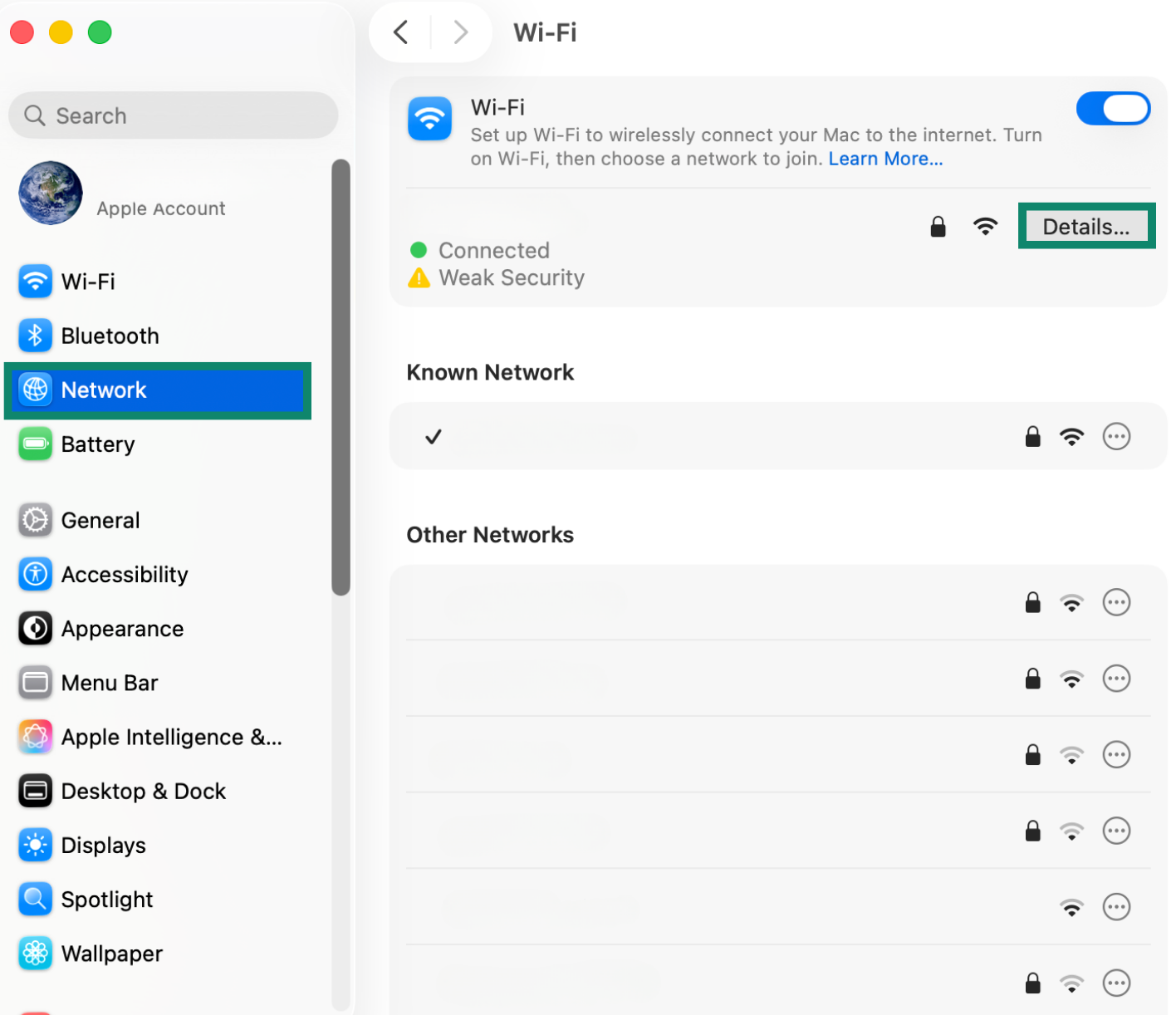
- Select Network > Wi-Fi, and click Details under your current Wi-Fi connection.
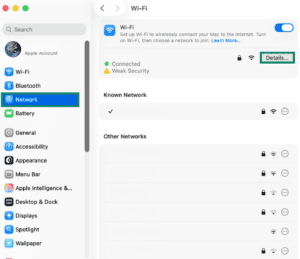

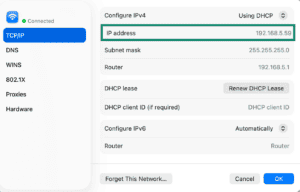
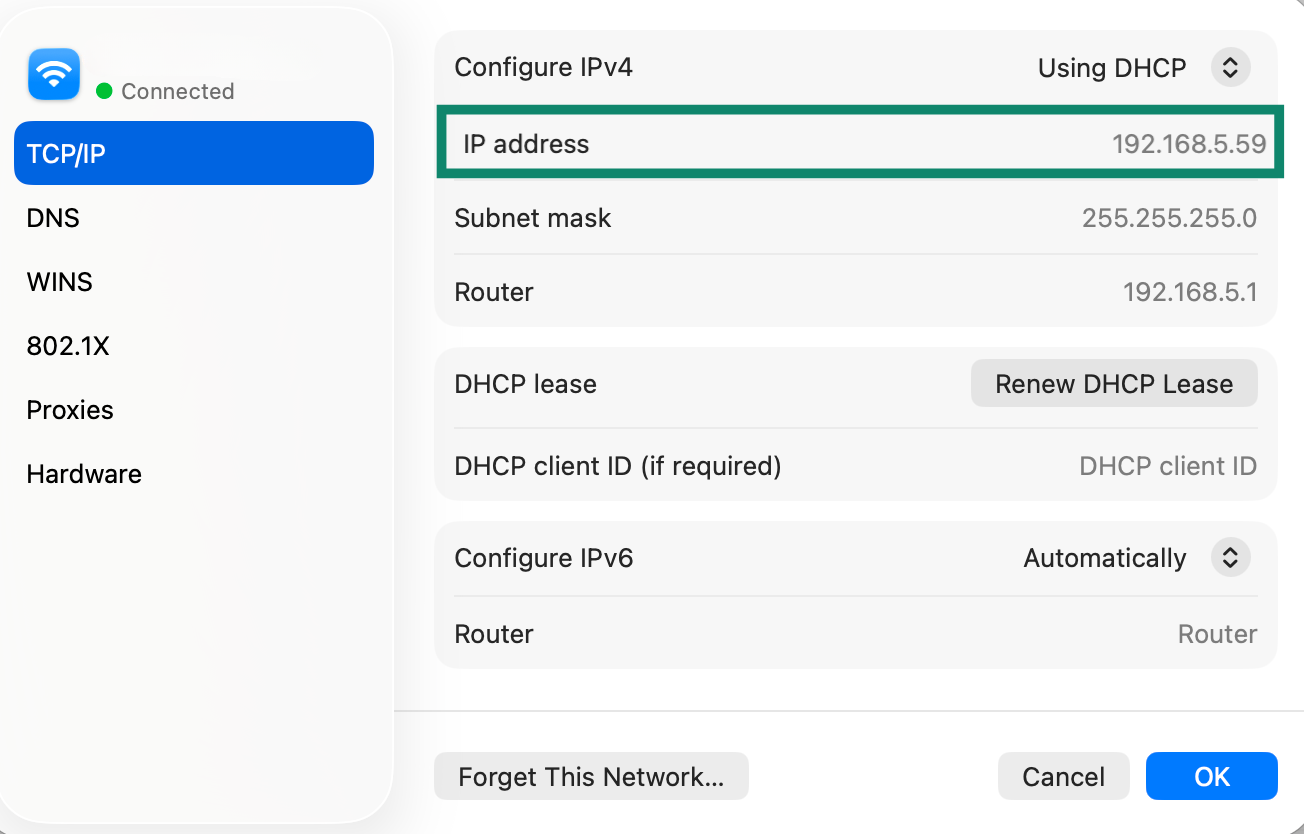
- Click the TCP/IP tab. Your device’s private IP address will appear next to IP Address.

Need help? Contact the ExpressVPN Support Team for immediate assistance.
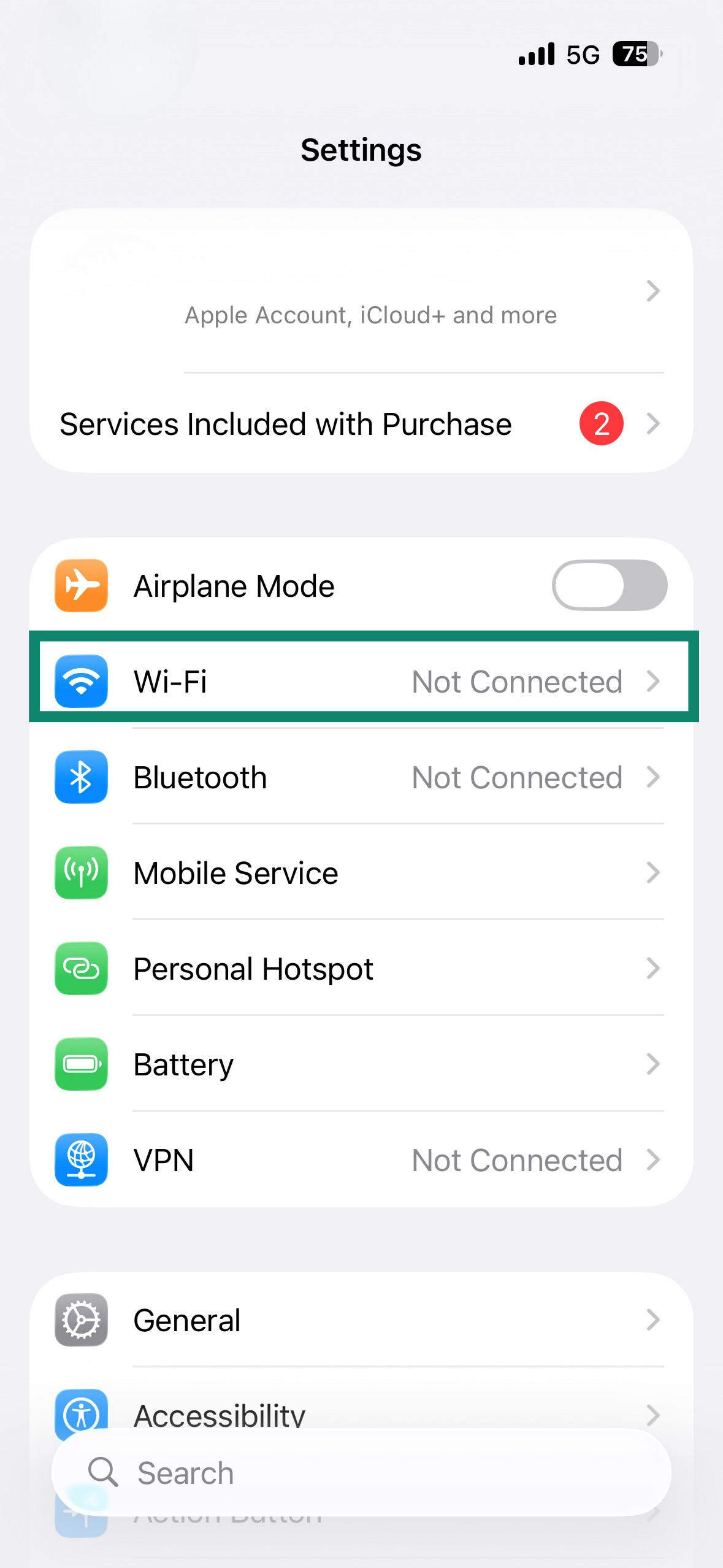
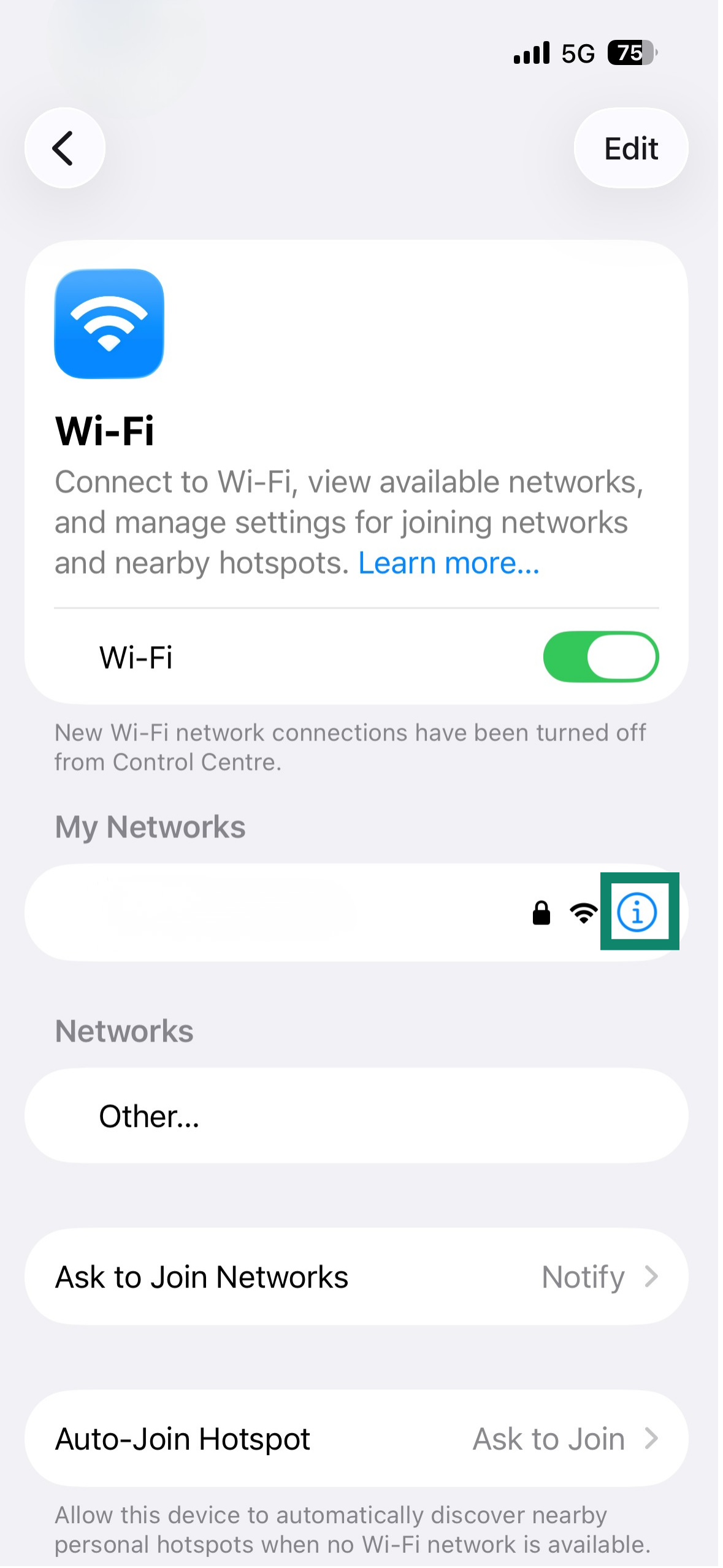
- Go to Settings and tap Wi-Fi.
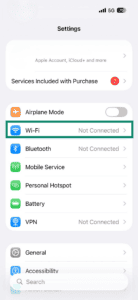

- Tap the name of the Wi-Fi network your device is connected to.
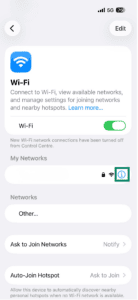
- Your device’s private IP address will appear next to IP address.

Need help? Contact the ExpressVPN Support Team for immediate assistance.
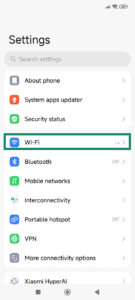
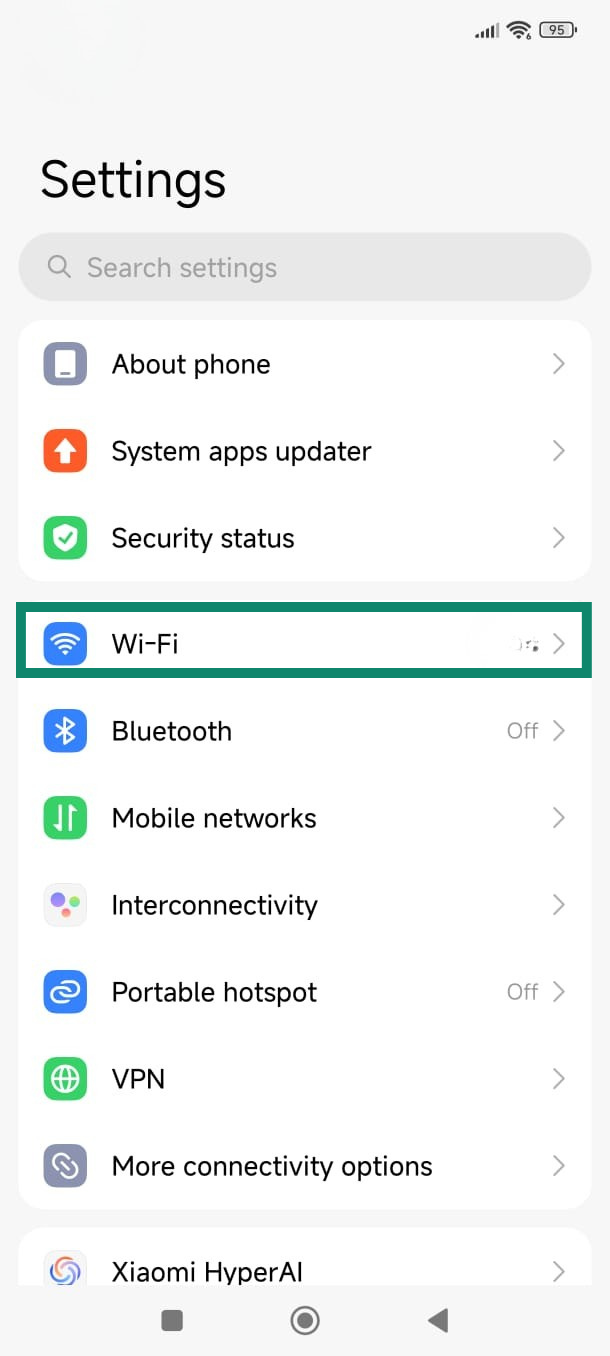
- Open the Settings menu and tap Wi-Fi.

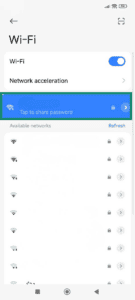
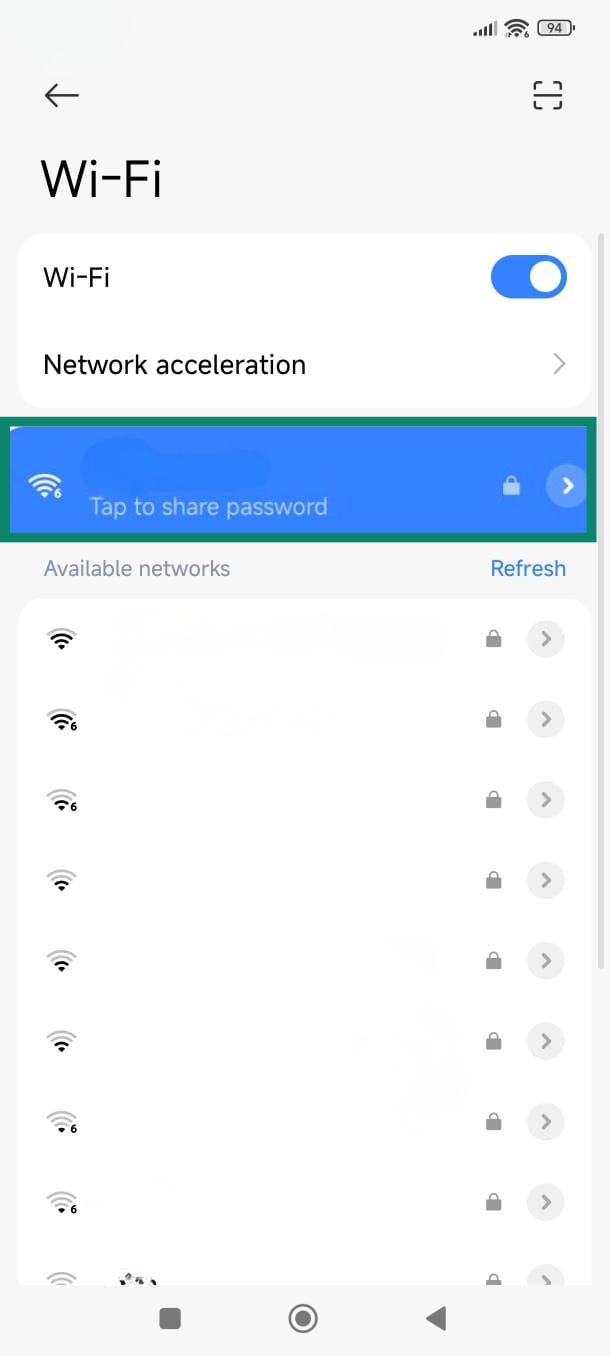
- Tap your current active Wi-Fi network.
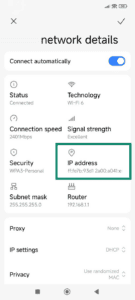
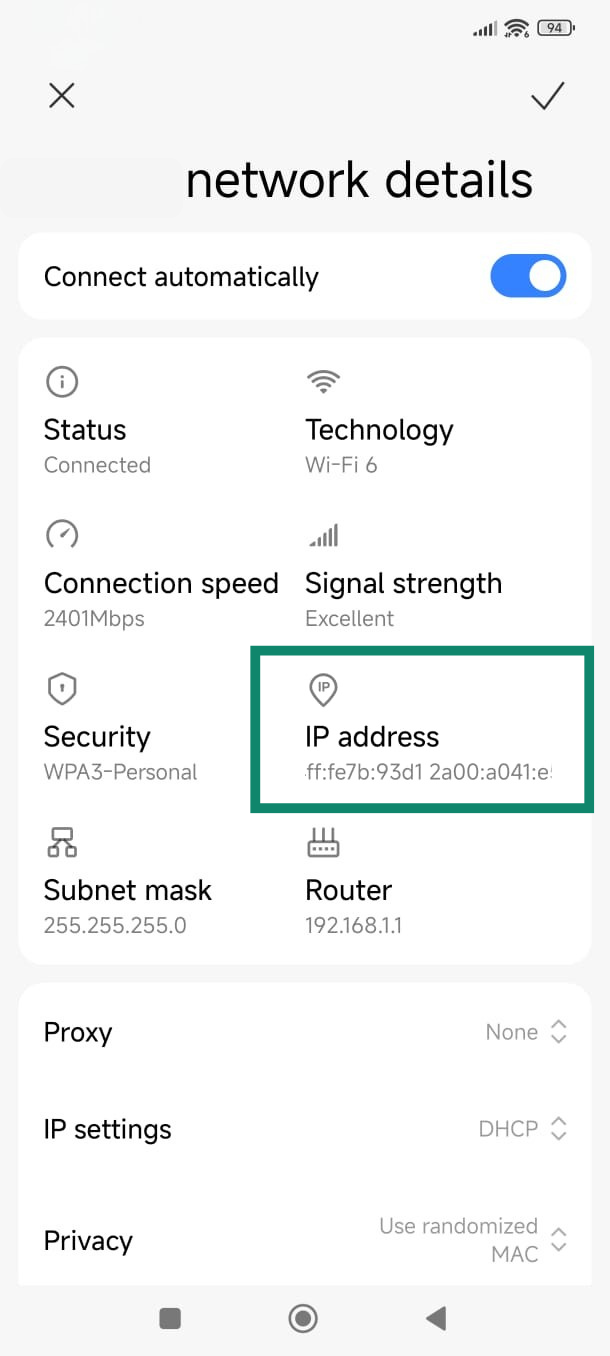
- Your device’s private IP address will appear under IP address.
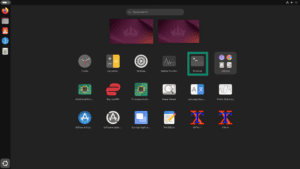
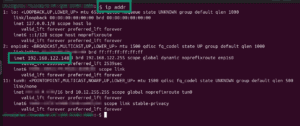
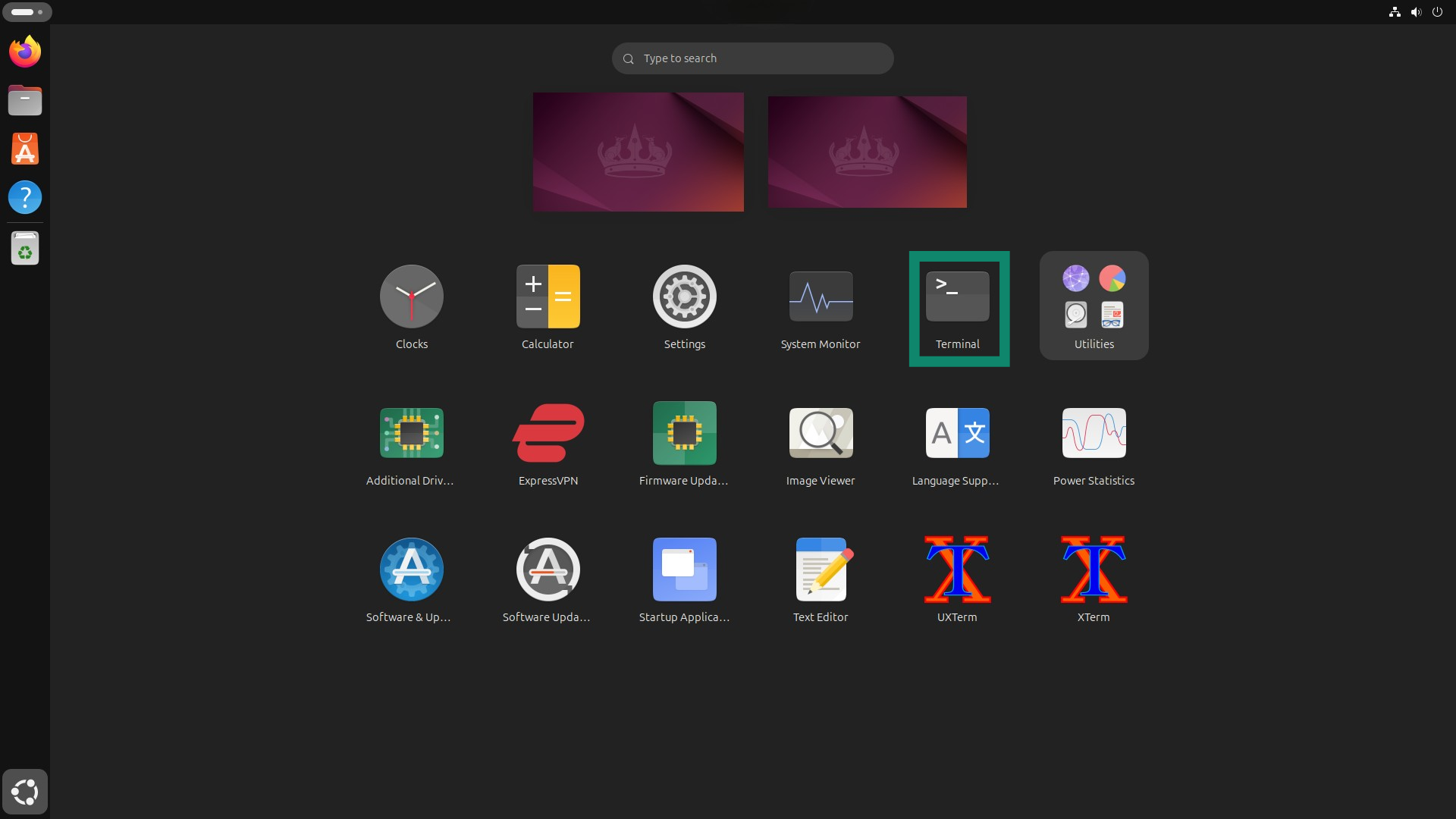
- From the app menu, open the Terminal.

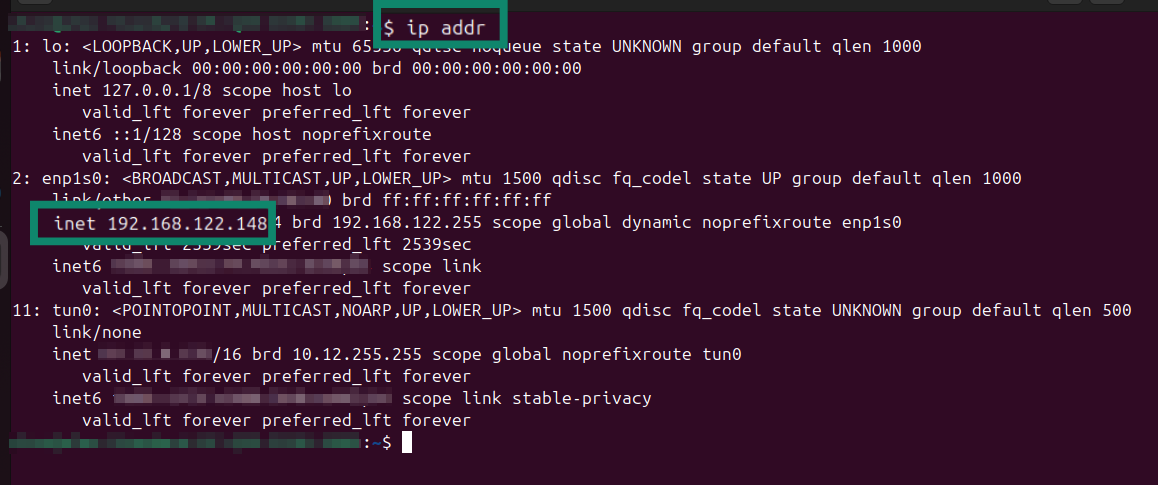
- Type ip addr and find the line that starts with inet. The numbers next to it are your private IP address.

Find your router’s default gateway address
When you are connected to the internet, your router (often called the default gateway) has an IP address. Your default gateway transfers traffic from your local network to other networks or the internet and back to you.
Knowing how to access your default gateway is helpful for troubleshooting network issues and accessing your router’s settings.
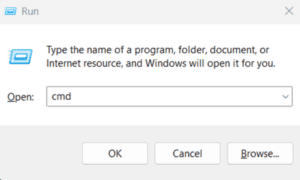
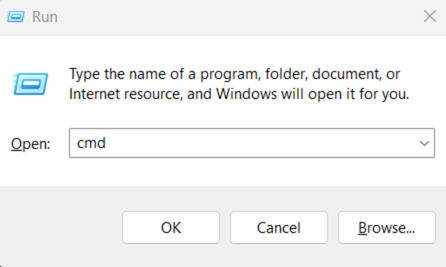
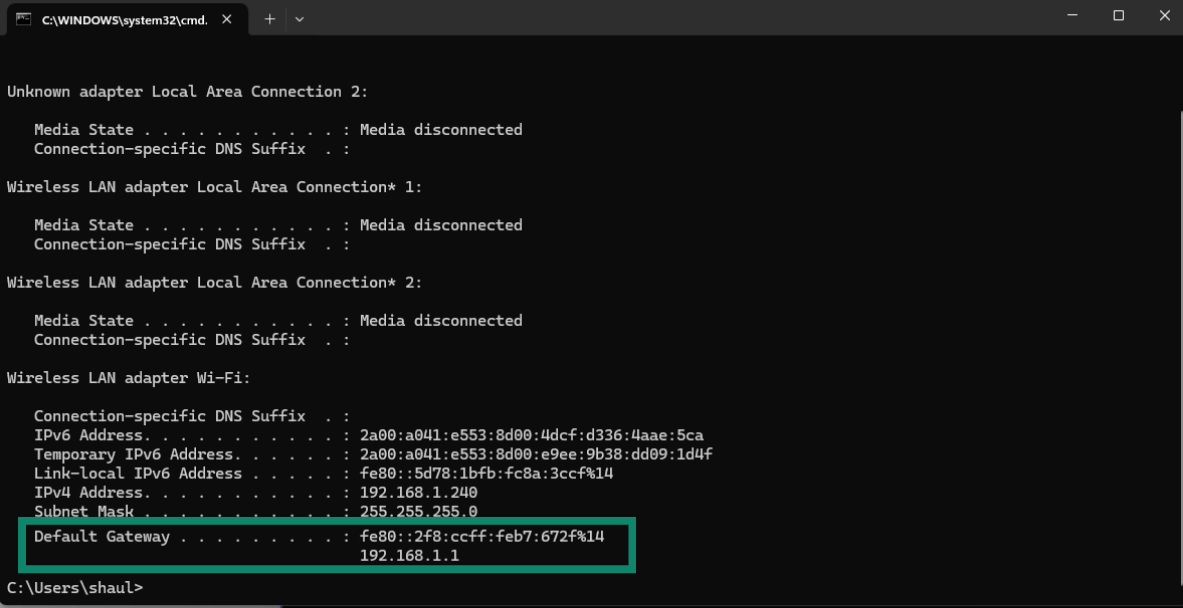
- Press the Windows icon and the R button to open the Run dialog box. Type cmd and click OK.

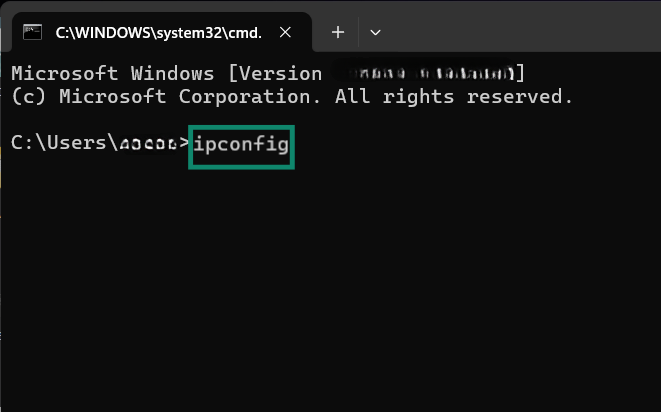
- Type ipconfig in the Command Prompt window and press Enter.
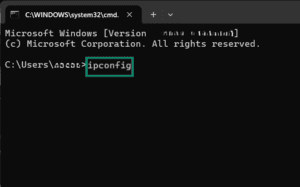

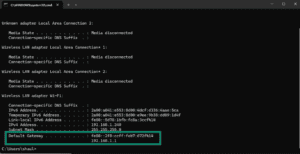
- Your default gateway will appear in the bottom line.

Need help? Contact the ExpressVPN Support Team for immediate assistance.
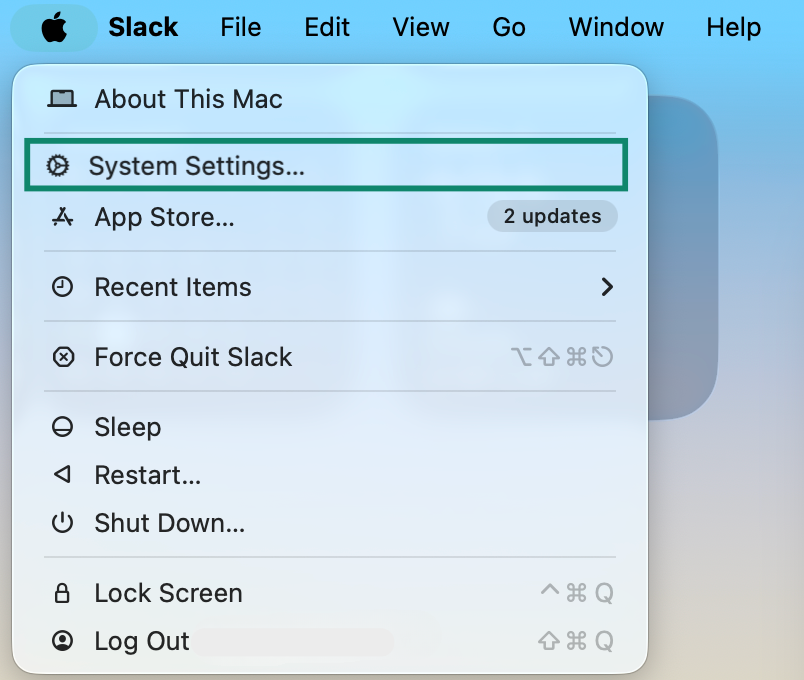
- Click in the upper-left corner of the screen. Then select System Settings.
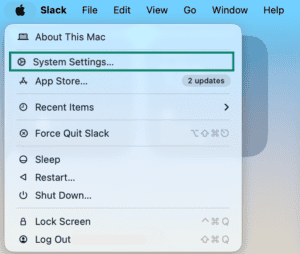
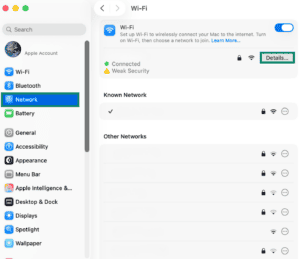
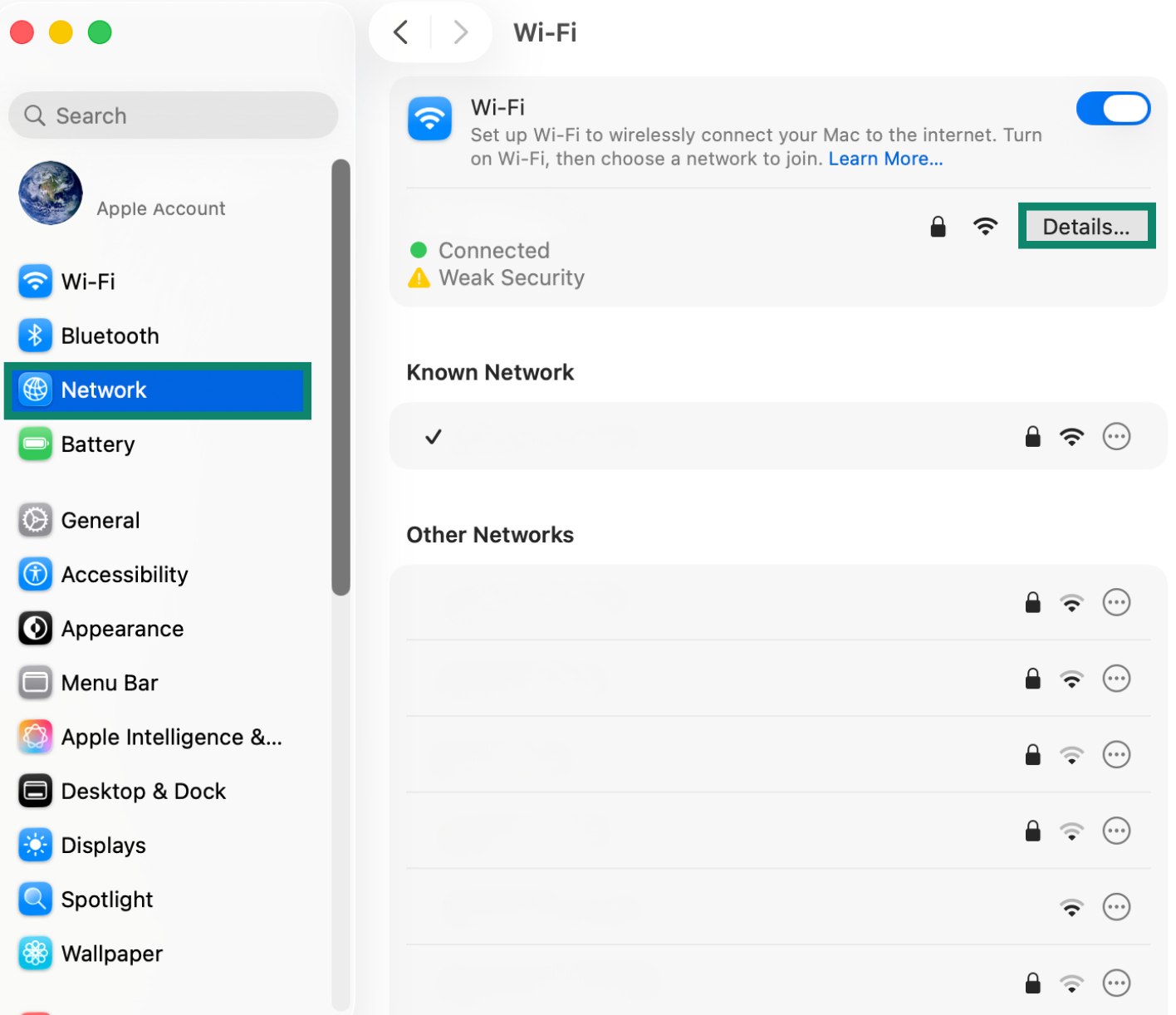
- Select Network > Wi-Fi, and then click Details next to your current Wi-Fi connection.
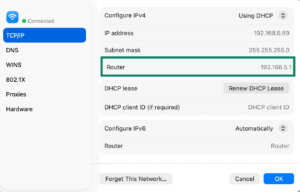
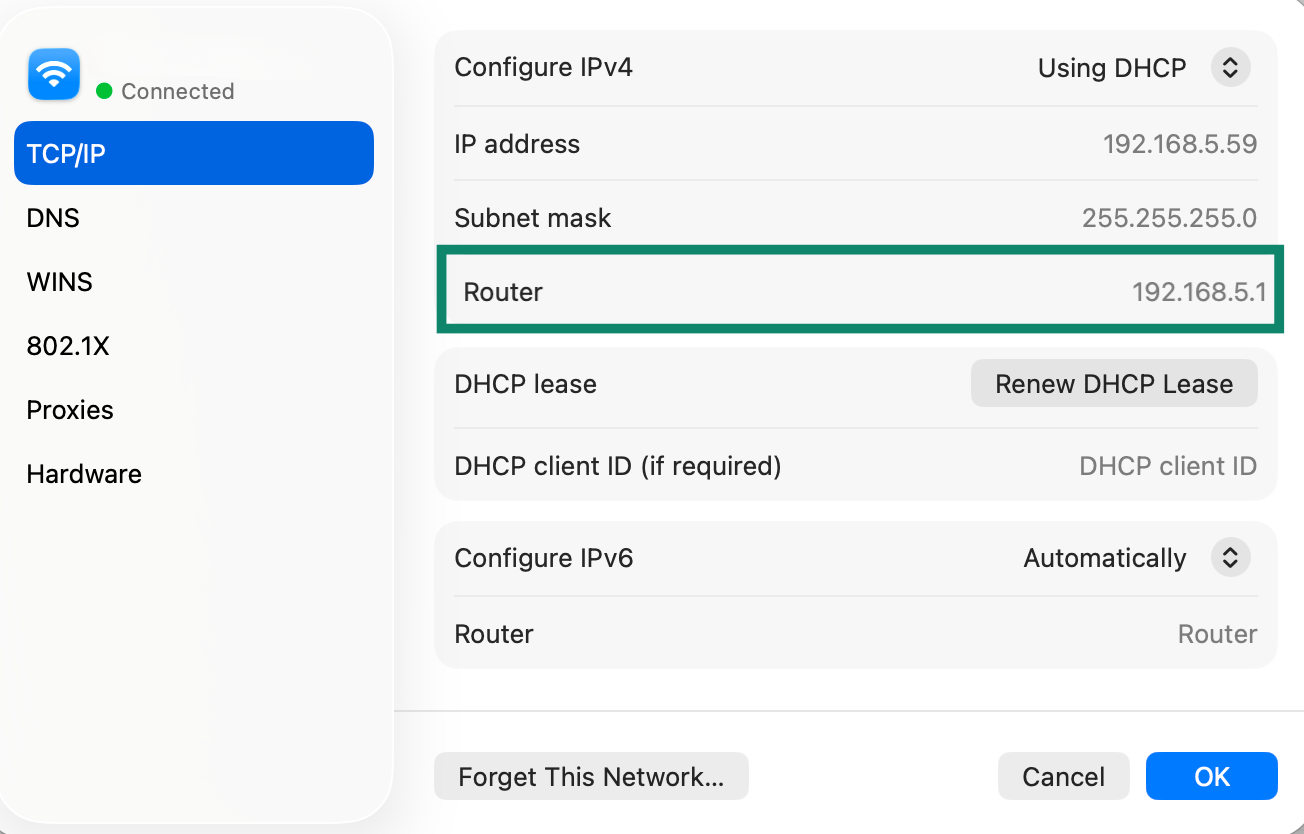
- Click the TCP/IP tab. Your router’s gateway will appear next to Router.
Need help? Contact the ExpressVPN Support Team for immediate assistance.
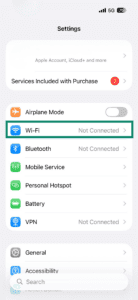
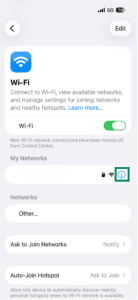
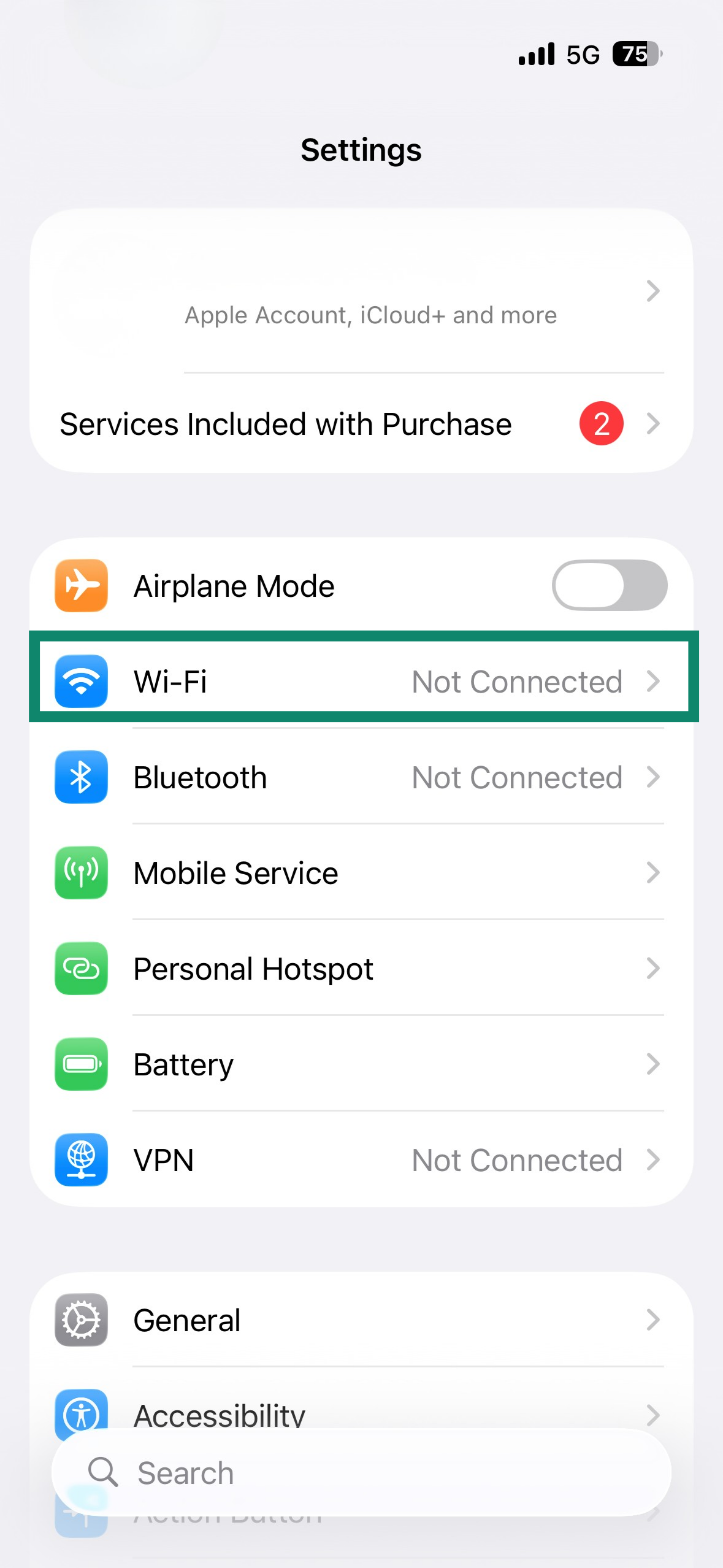
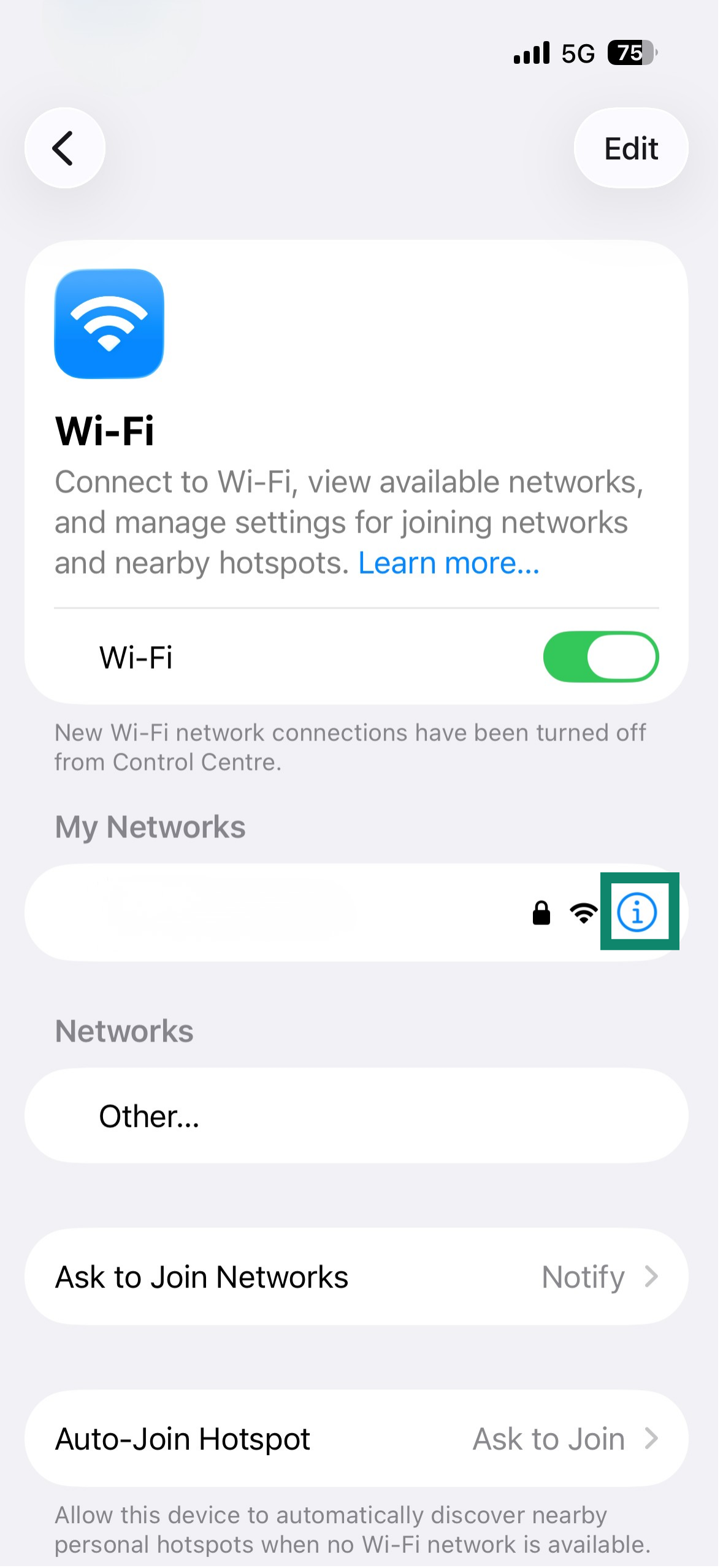
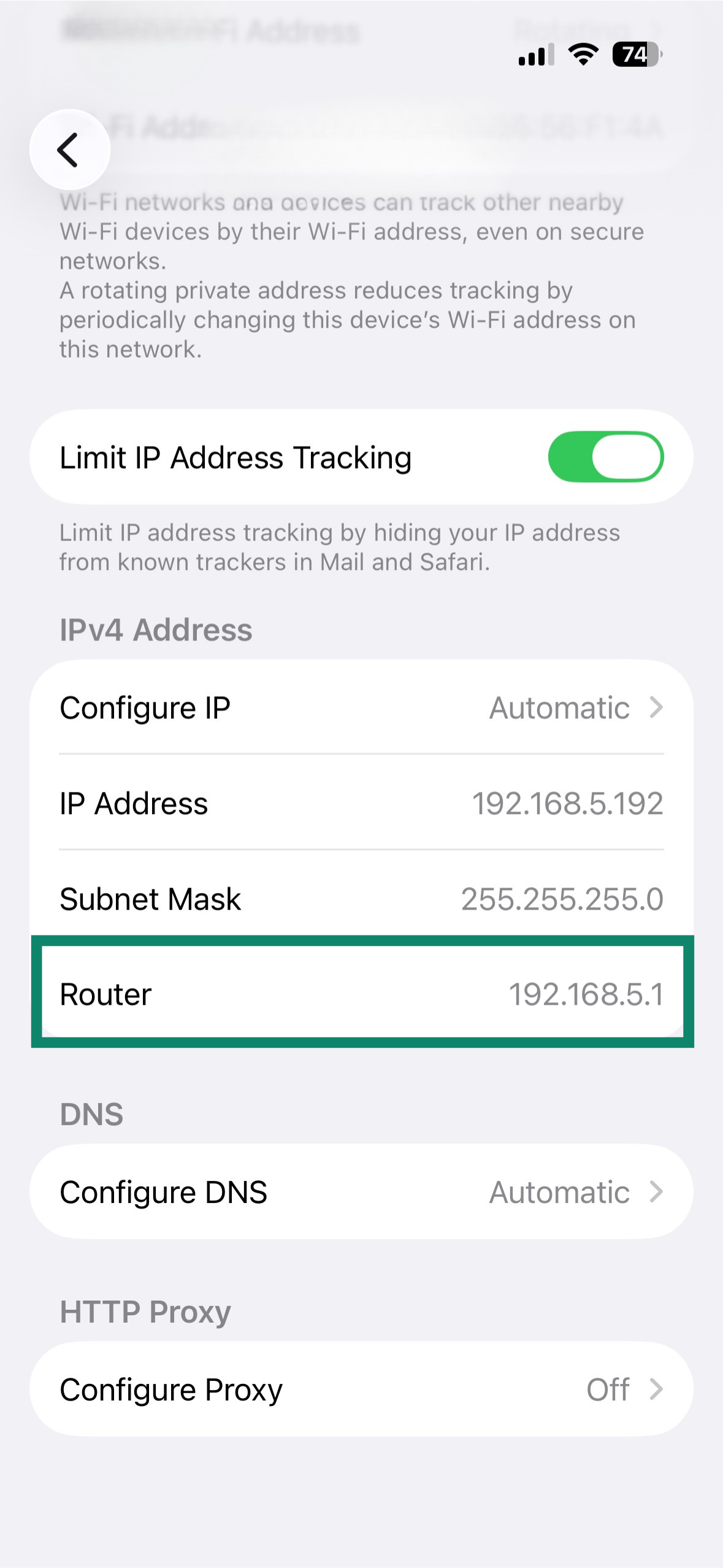
- Go to Settings. Tap Wi-Fi.
- Tap the info (i) icon next to the network name.
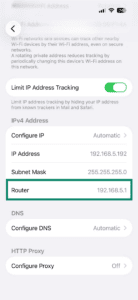
- You’ll find the default gateway next to Router.
Need help? Contact the ExpressVPN Support Team for immediate assistance.
- Open the Settings menu and tap Wi-Fi.
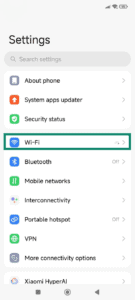
- Tap the current Wi-Fi network connection.
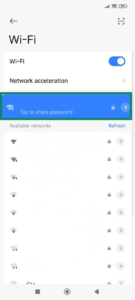
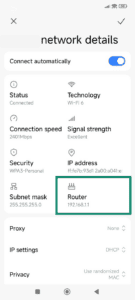
- The default gateway is listed under Router.
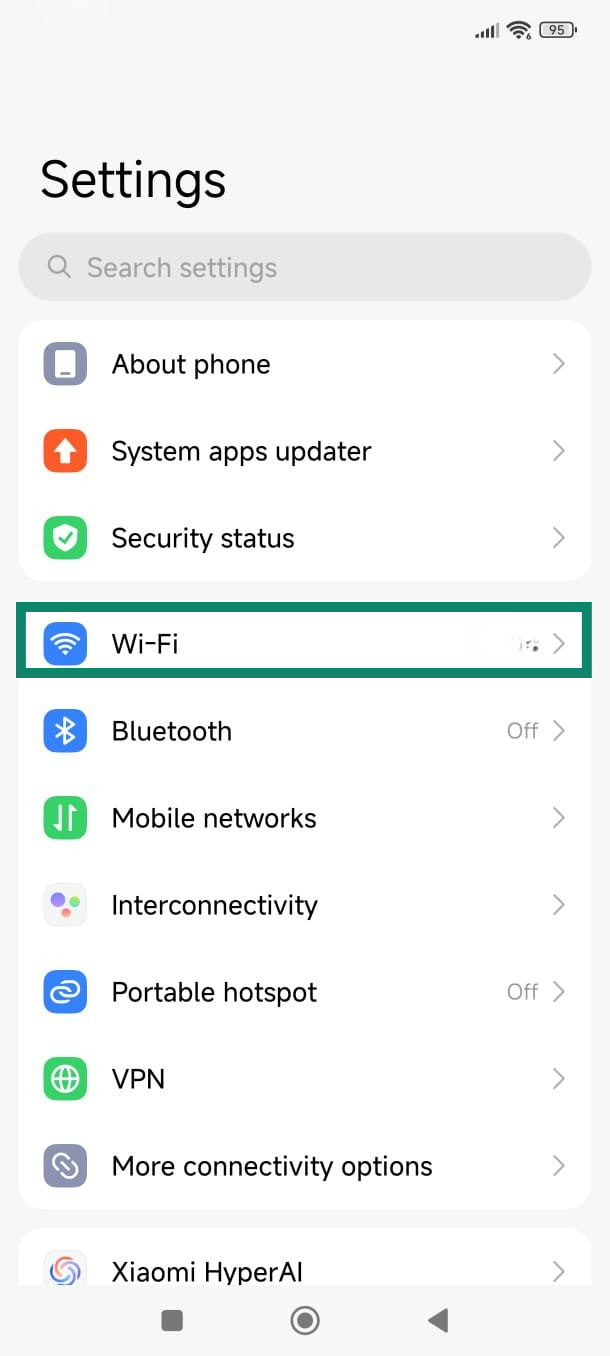
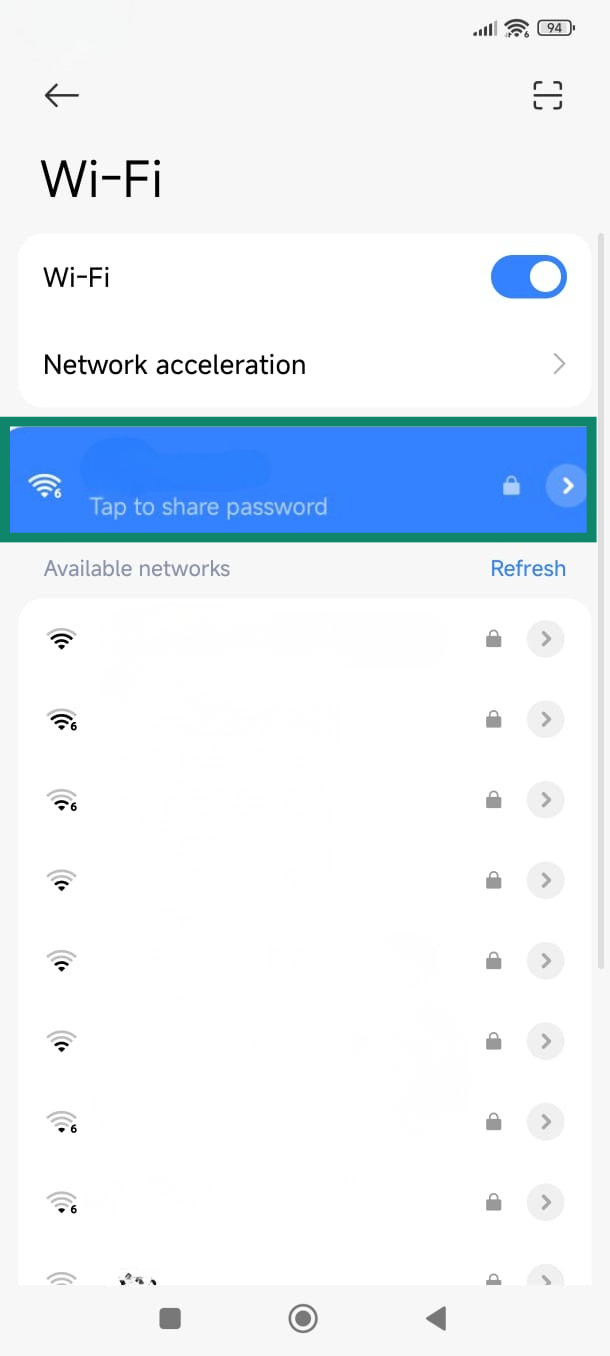
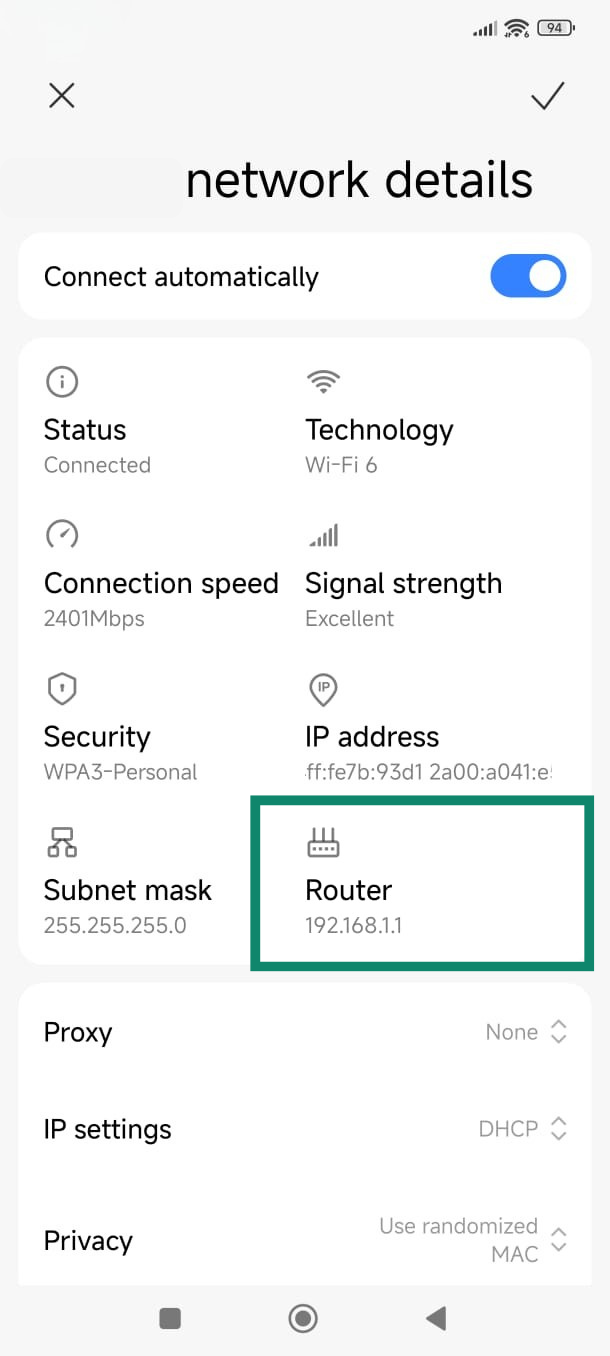
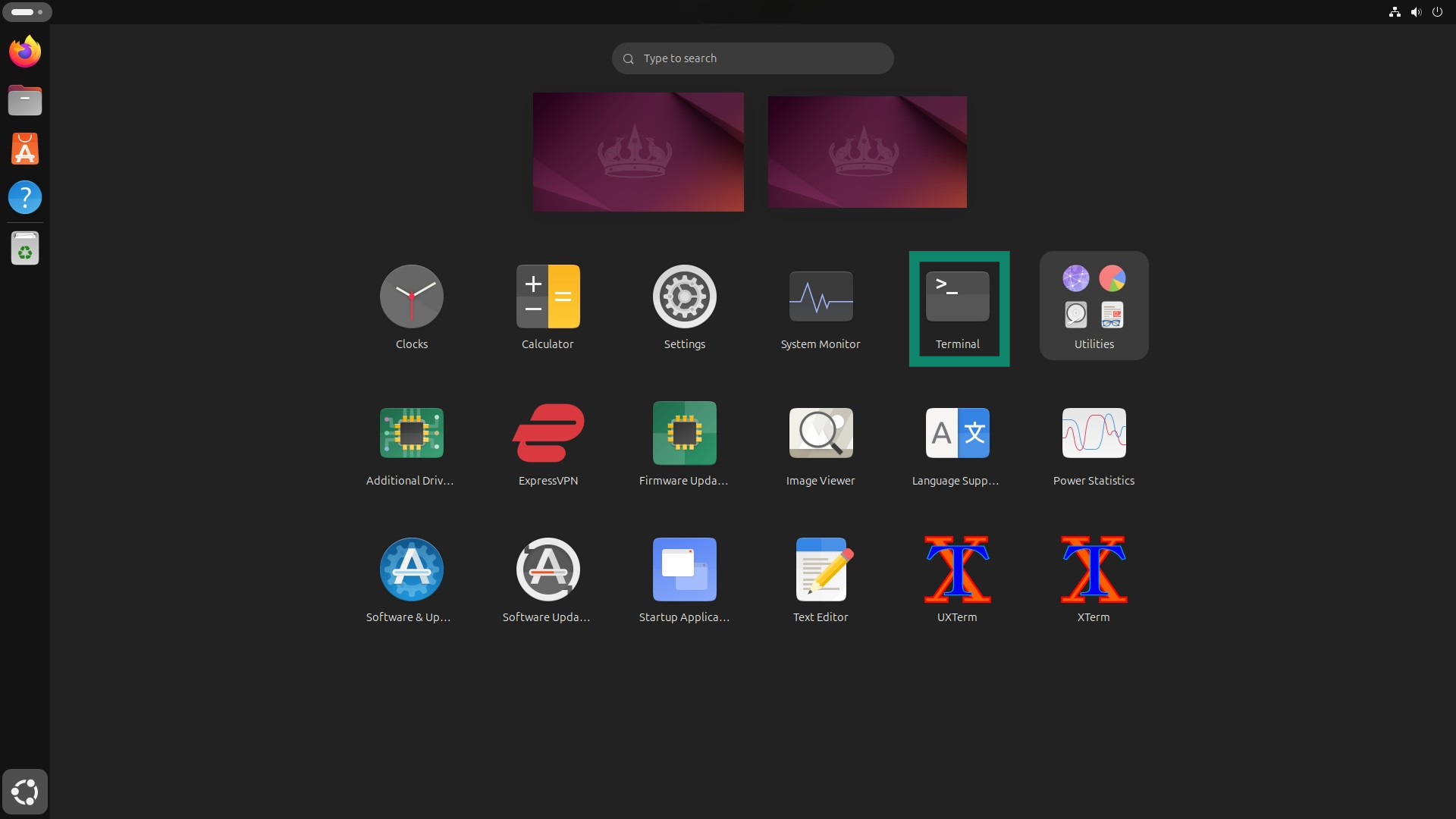
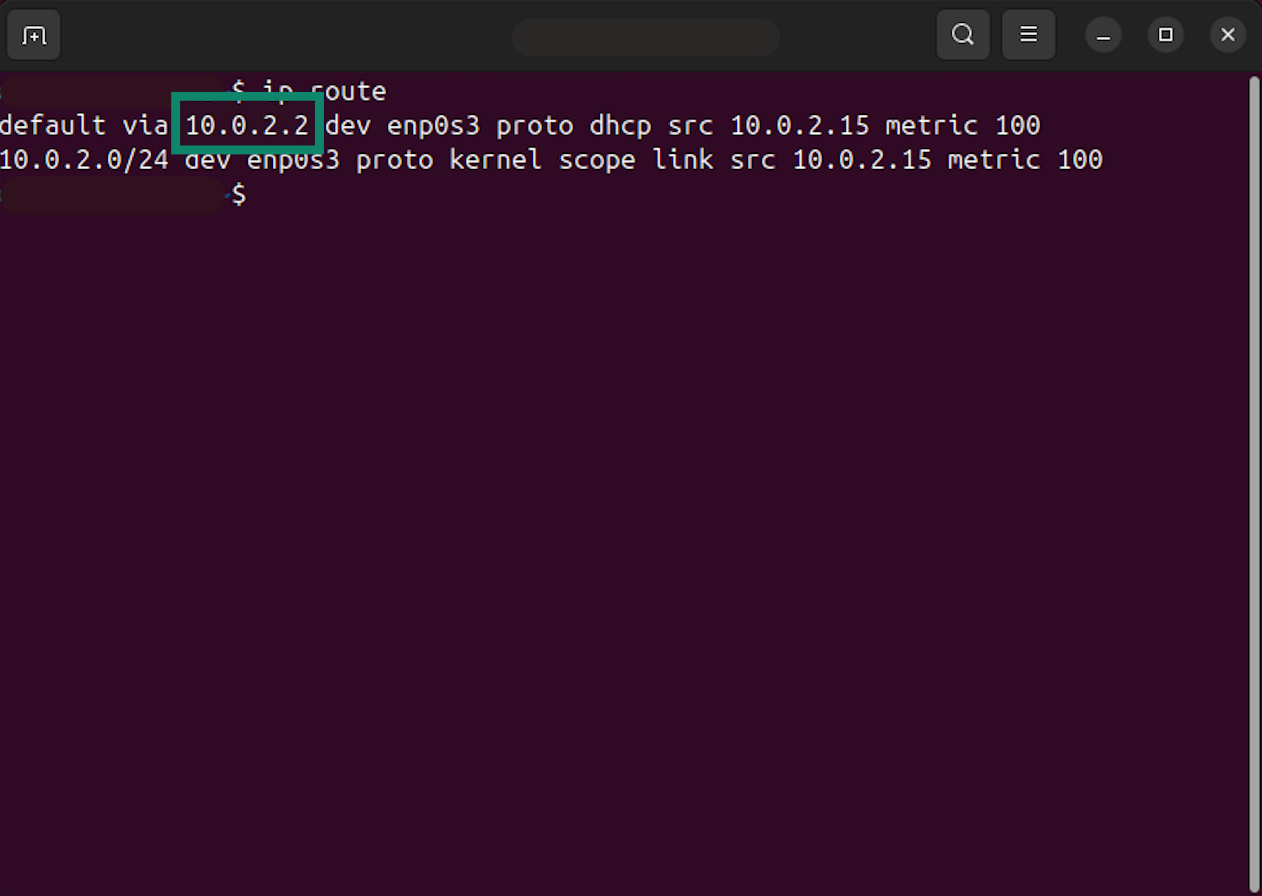
- Open the Terminal from the app menu.
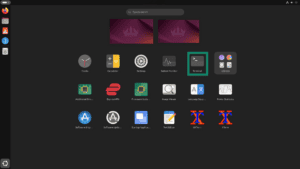
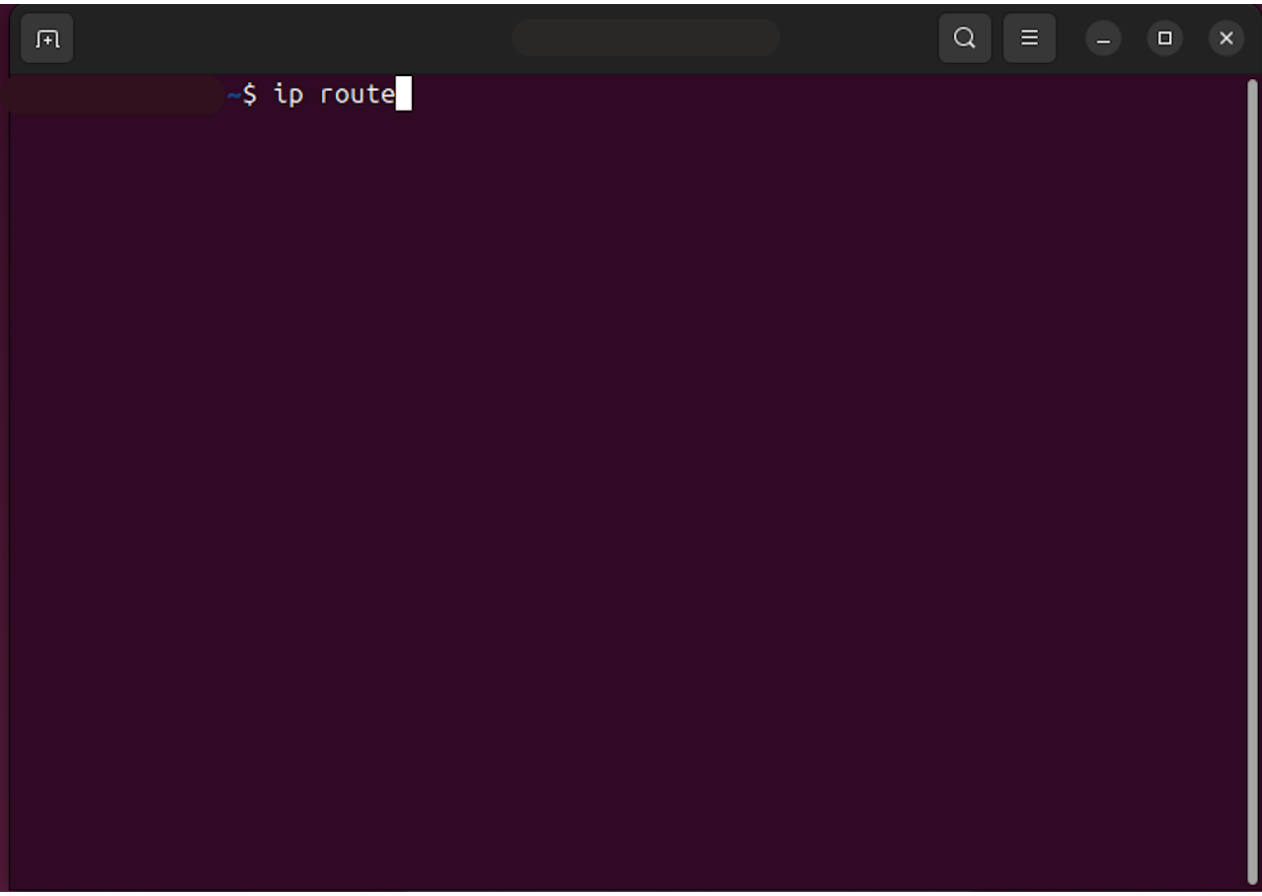
- Type ip route.
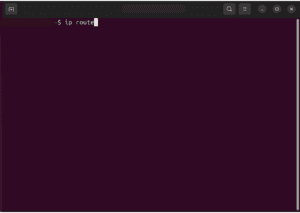

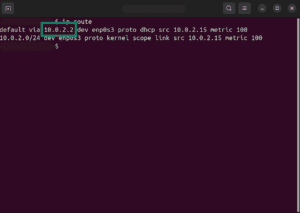
- Look for the line that starts with default via. The numbers next to it are your default gateway address.
Need help? Contact the ExpressVPN Support Team for immediate assistance.