



This guide explains how to purchase an ExpressVPN subscription directly in the mobile apps on iOS and Android.
When you purchase a subscription through the ExpressVPN app, you will get access to the Basic plan, which includes ExpressVPN and ExpressMailGuard (limited).
If you purchase a subscription in the ExpressVPN iOS and Android apps, your subscription and billing are managed through your app store account, either the Apple App Store or Google Play. Note that subscriptions purchased through the Apple App Store or Google Play Store are not covered by the ExpressVPN 30-day money-back guarantee. Refunds are issued solely at the discretion of Apple Support or Google Play Support.
For full details on subscription terms, payment, and refunds, refer to our dedicated articles for iOS in-app purchases and Google Play subscriptions.
Jump to…
How to purchase an ExpressVPN subscription on iOS
How to purchase an ExpressVPN subscription on Android
How to set up your ExpressVPN account after in-app purchase
How to use your subscription on other ExpressVPN apps and services
How to purchase an ExpressVPN subscription on iOS
There are different ways to purchase an ExpressVPN subscription on iOS depending on your location.
If you’re in the U.S., you can choose between purchasing a subscription via Web Offers or through the App Store. If you’re outside the U.S., you can purchase a subscription through the App Store only.
1. Download the ExpressVPN iOS app
Before you subscribe, you first need to download the ExpressVPN iOS app.
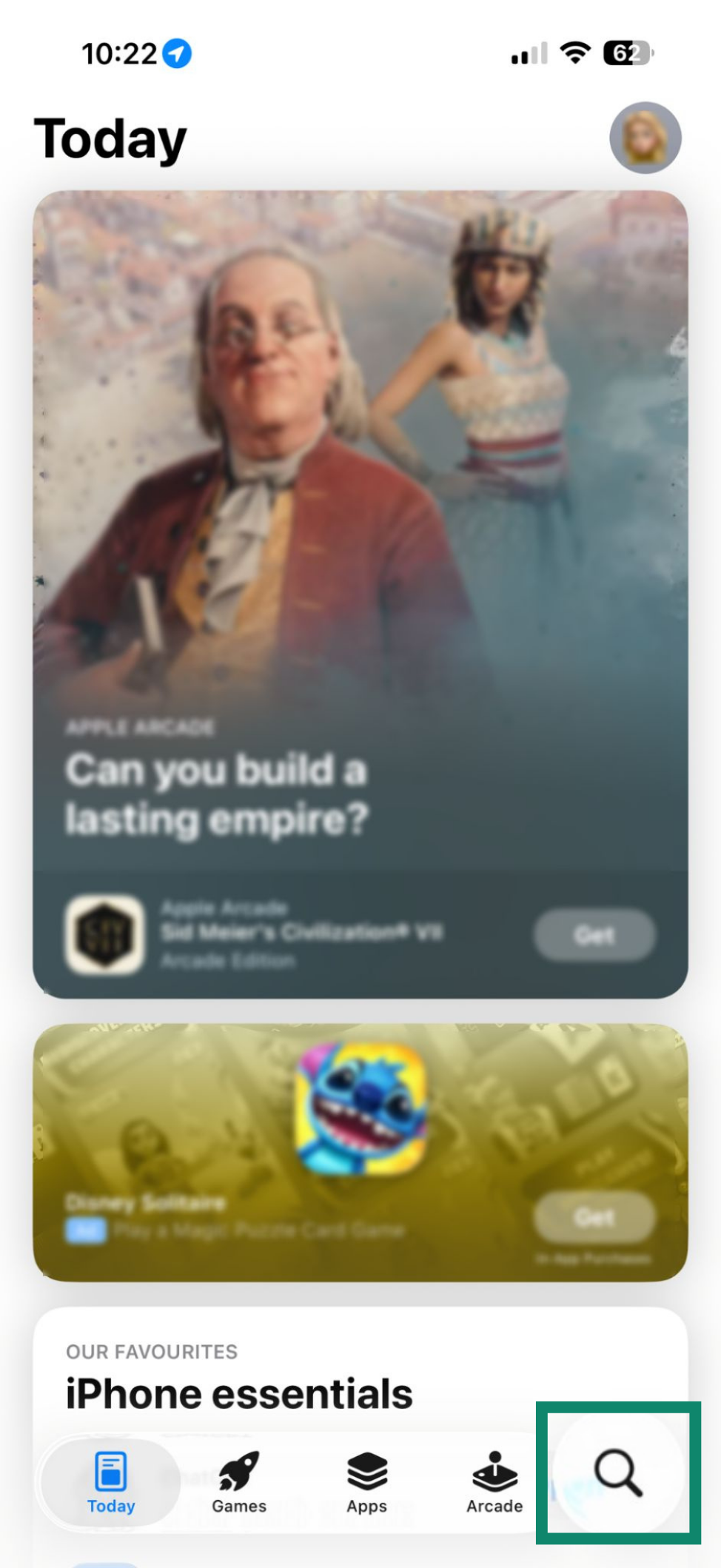
- Open the App Store on your iOS device, tap Search, and search for “ExpressVPN.”

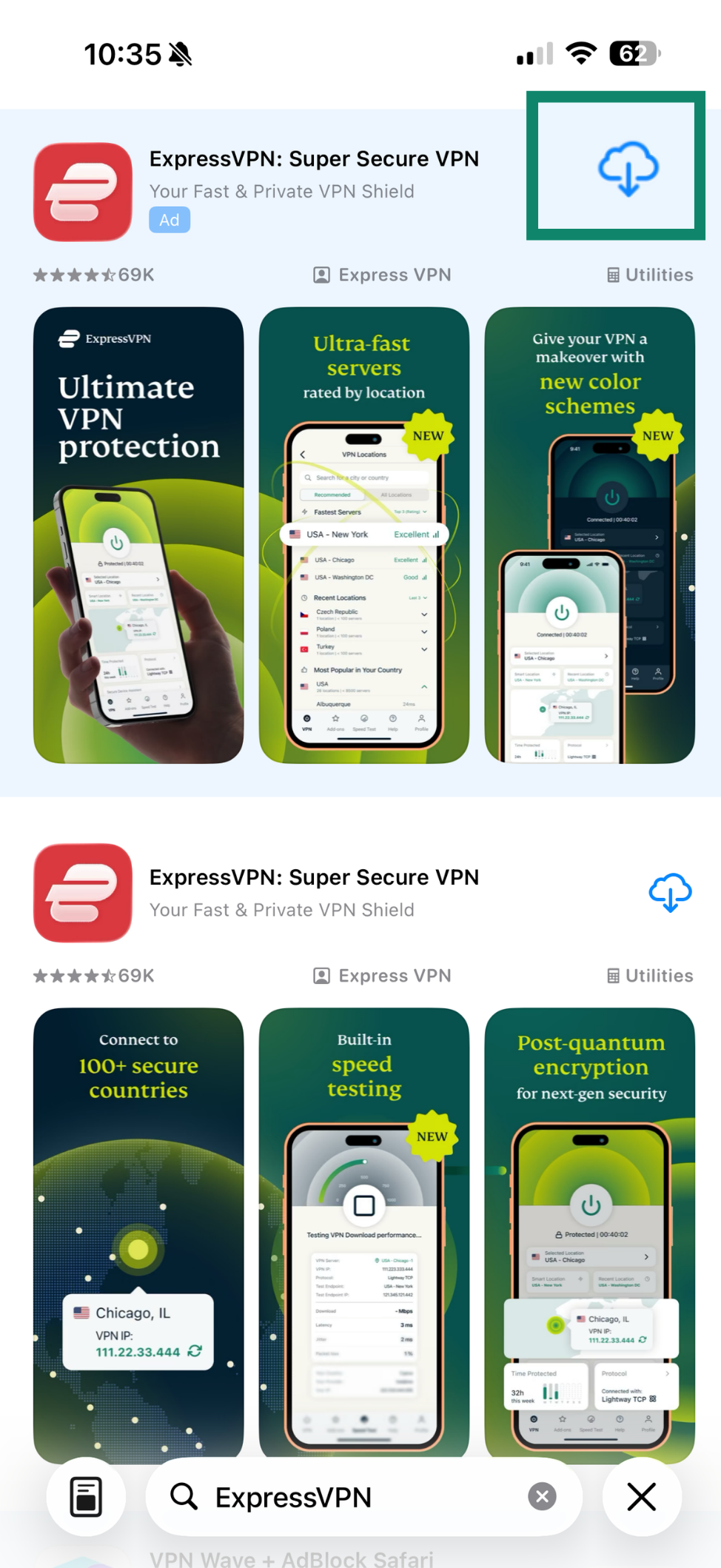
- Tap Get or the Cloud icon.
- The ExpressVPN iOS app will be downloaded to your device.
2. Purchase ExpressVPN on iOS (users in the U.S.)
If you’re outside the U.S., skip to the instructions for users outside the U.S.
Users in the U.S. have two options for purchasing a subscription on iOS: Web Offers and App Store offers. If you decide to subscribe via Web Offer, you must set up your account after purchasing.
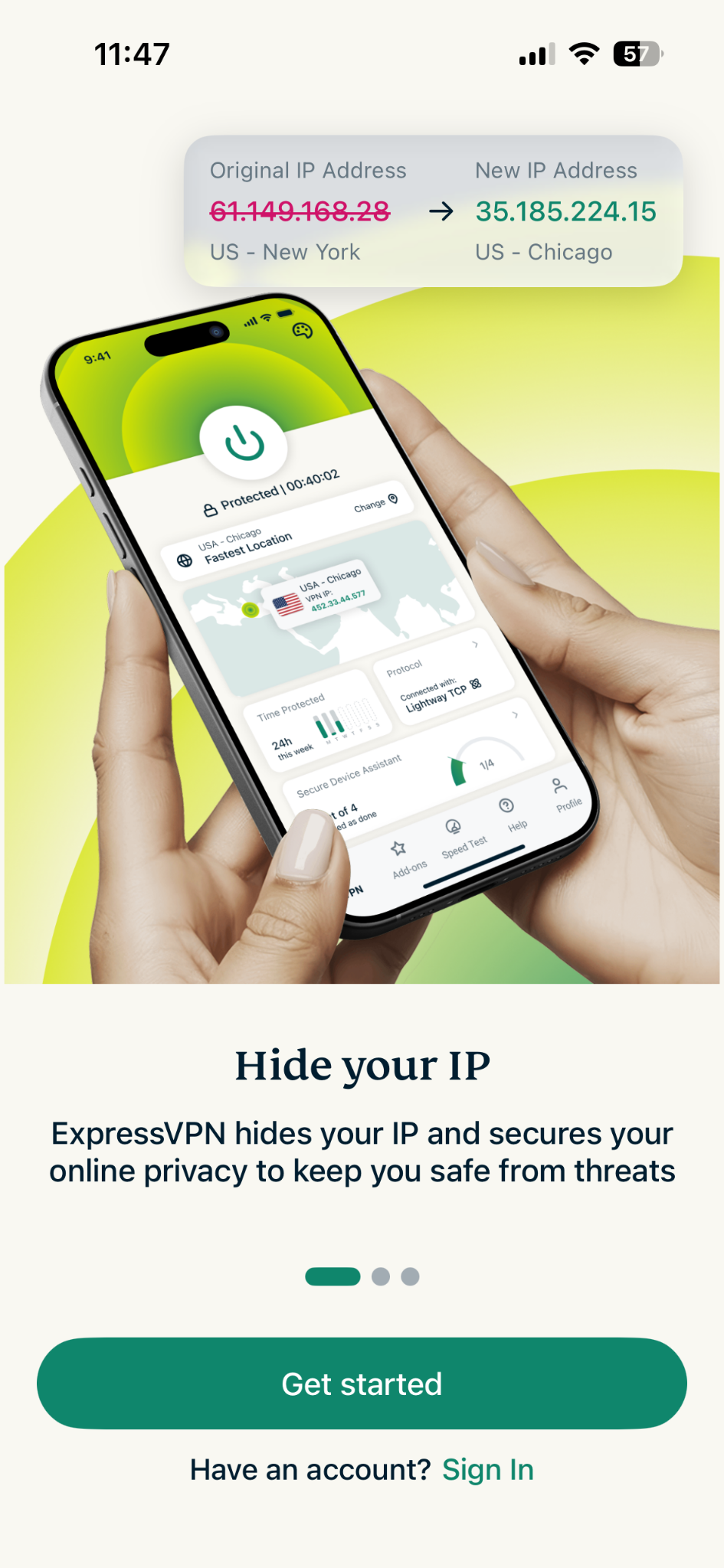
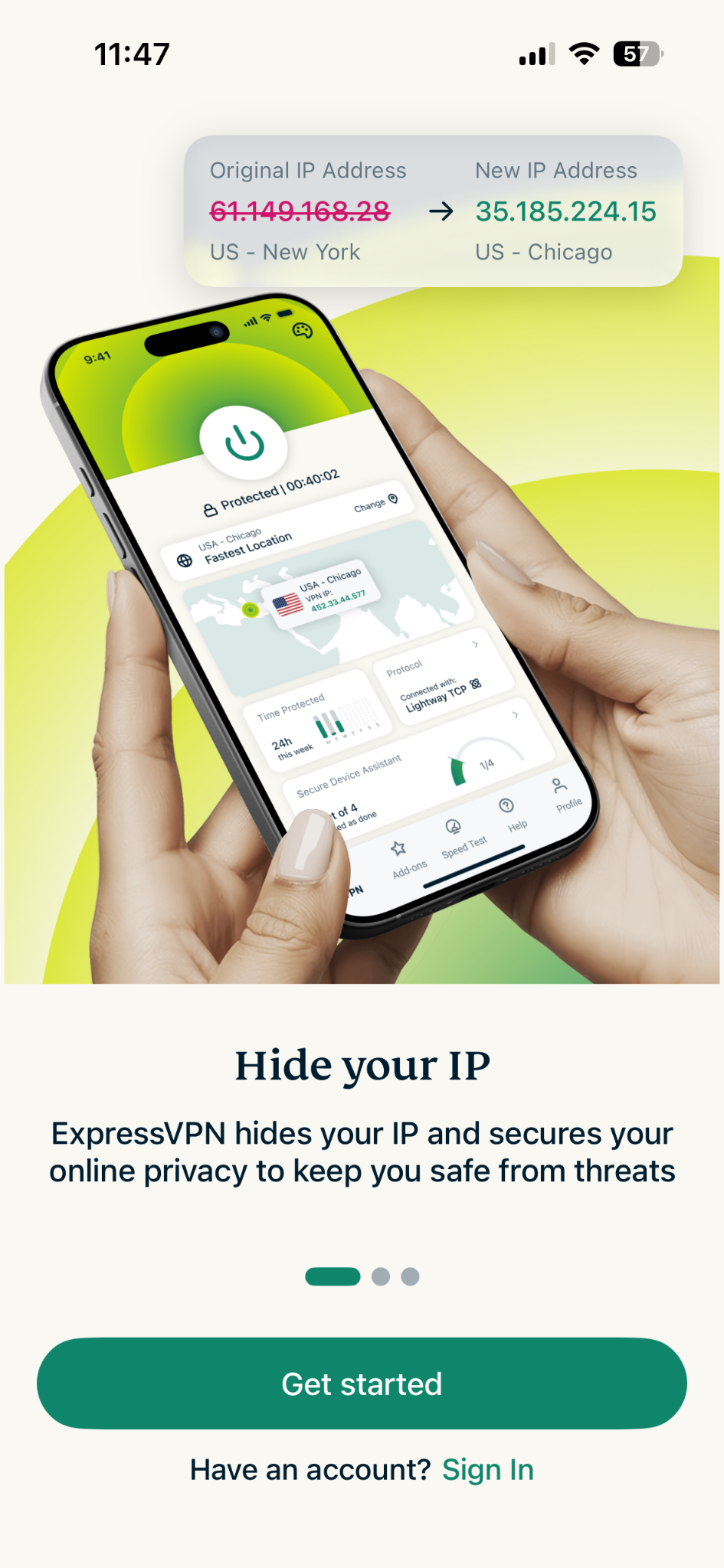
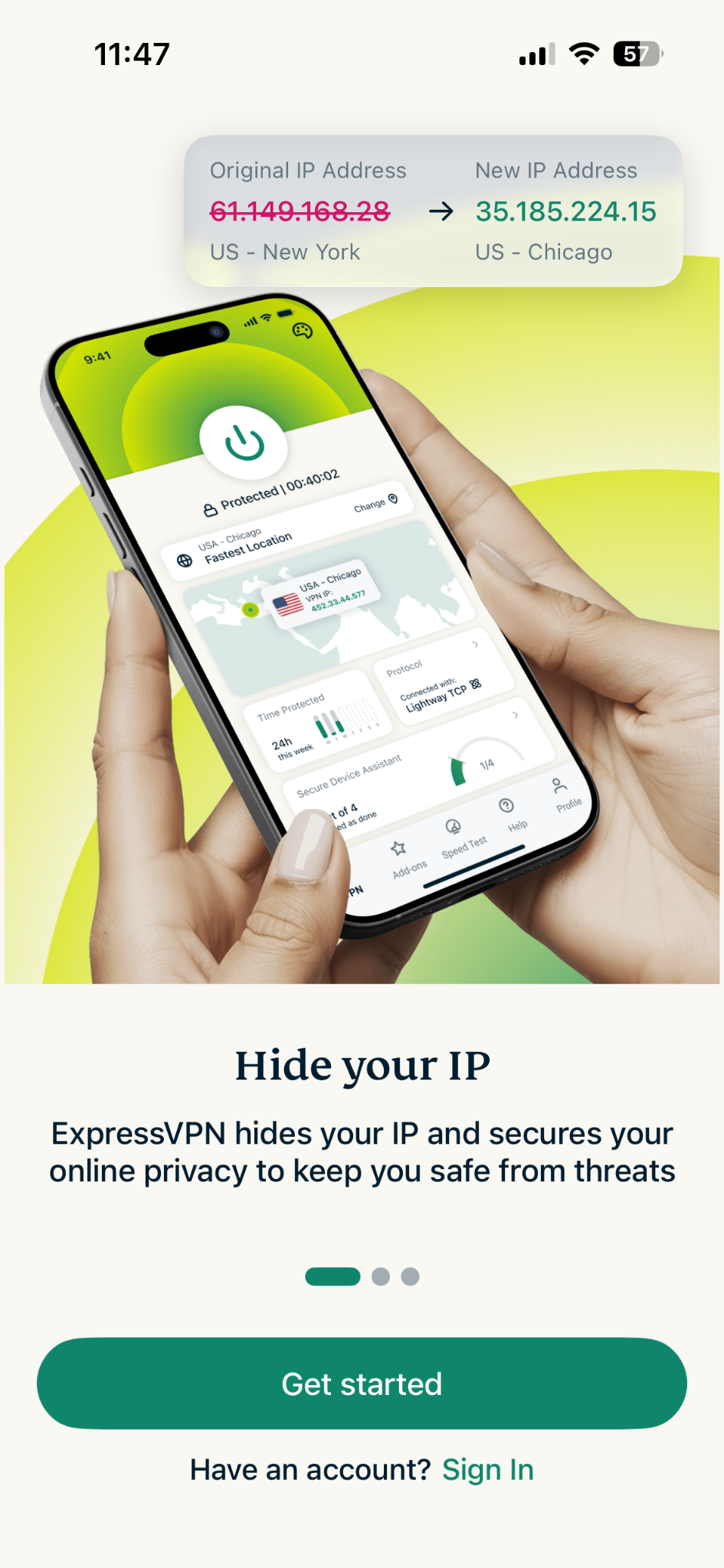
- Open the ExpressVPN app. Tap Get started.
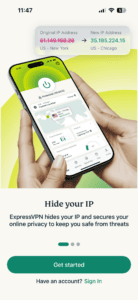

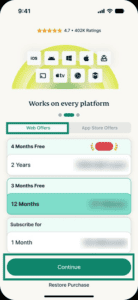
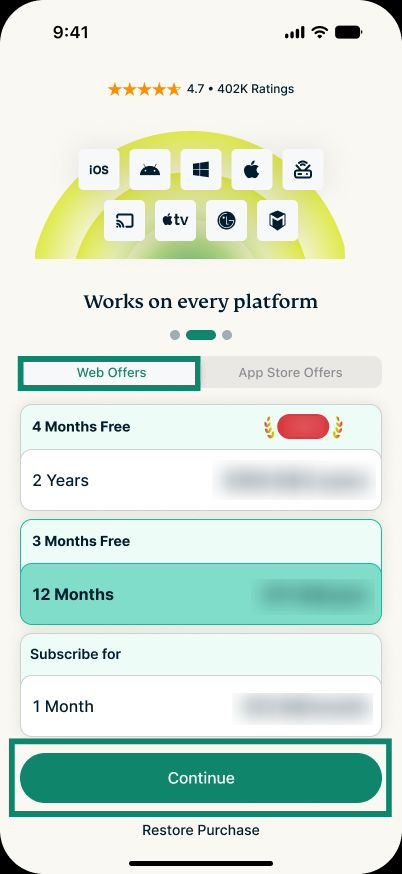
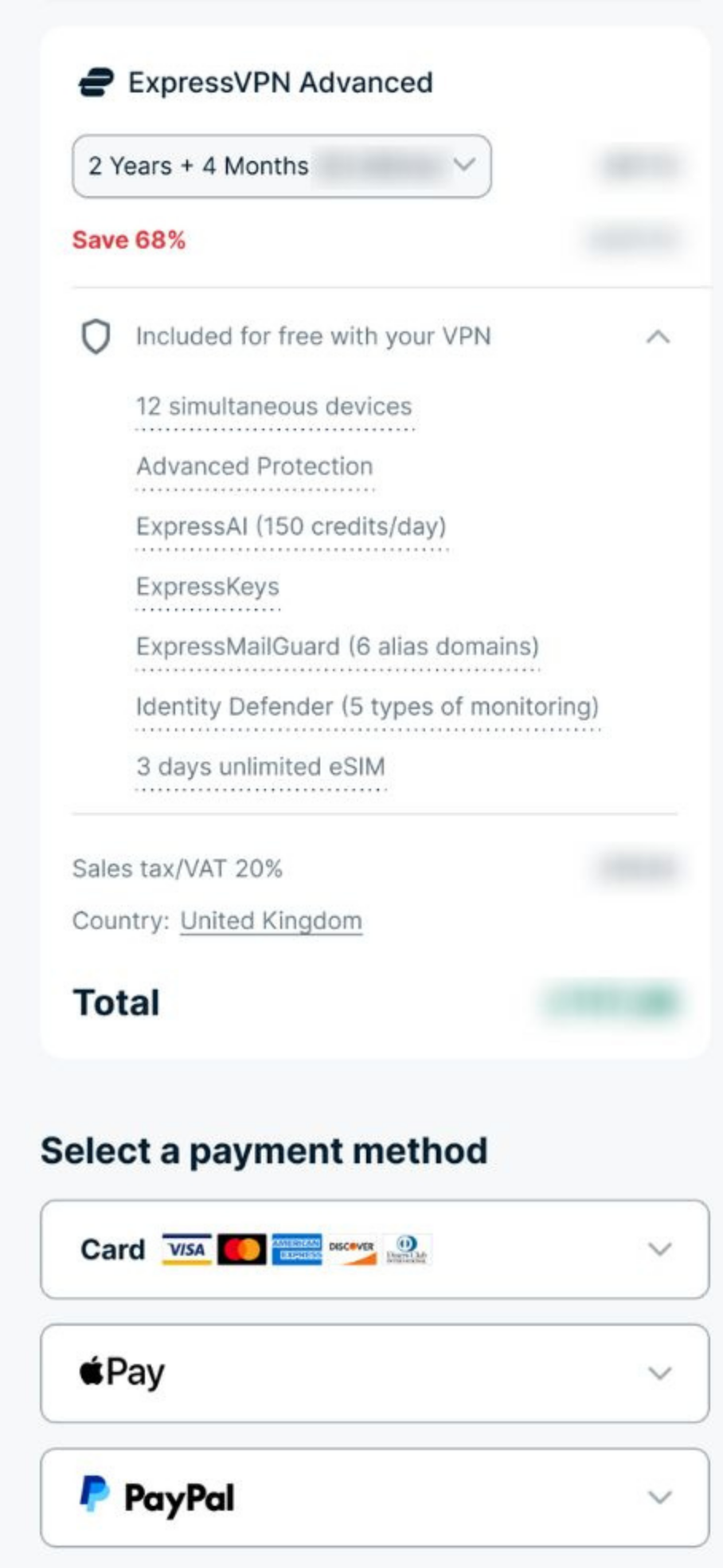
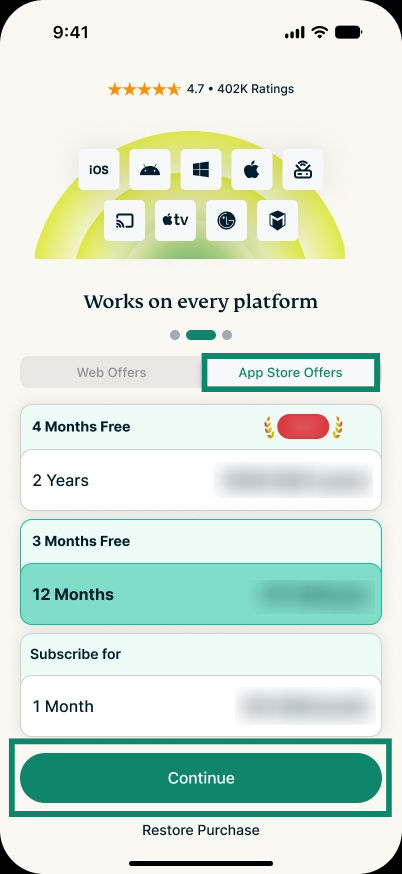
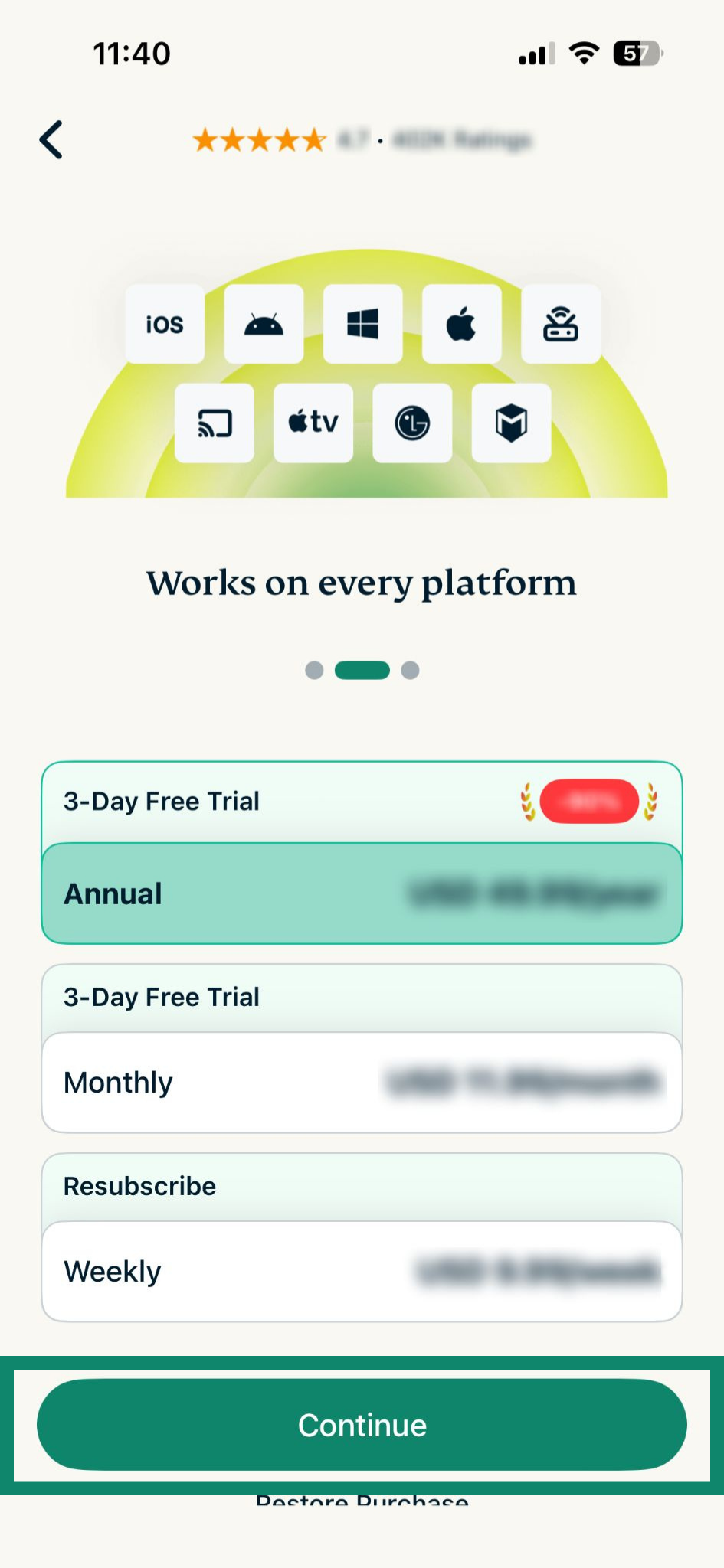
- In the Web Offers tab, select a subscription and tap Continue.
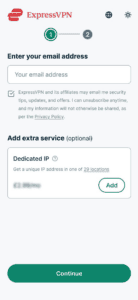
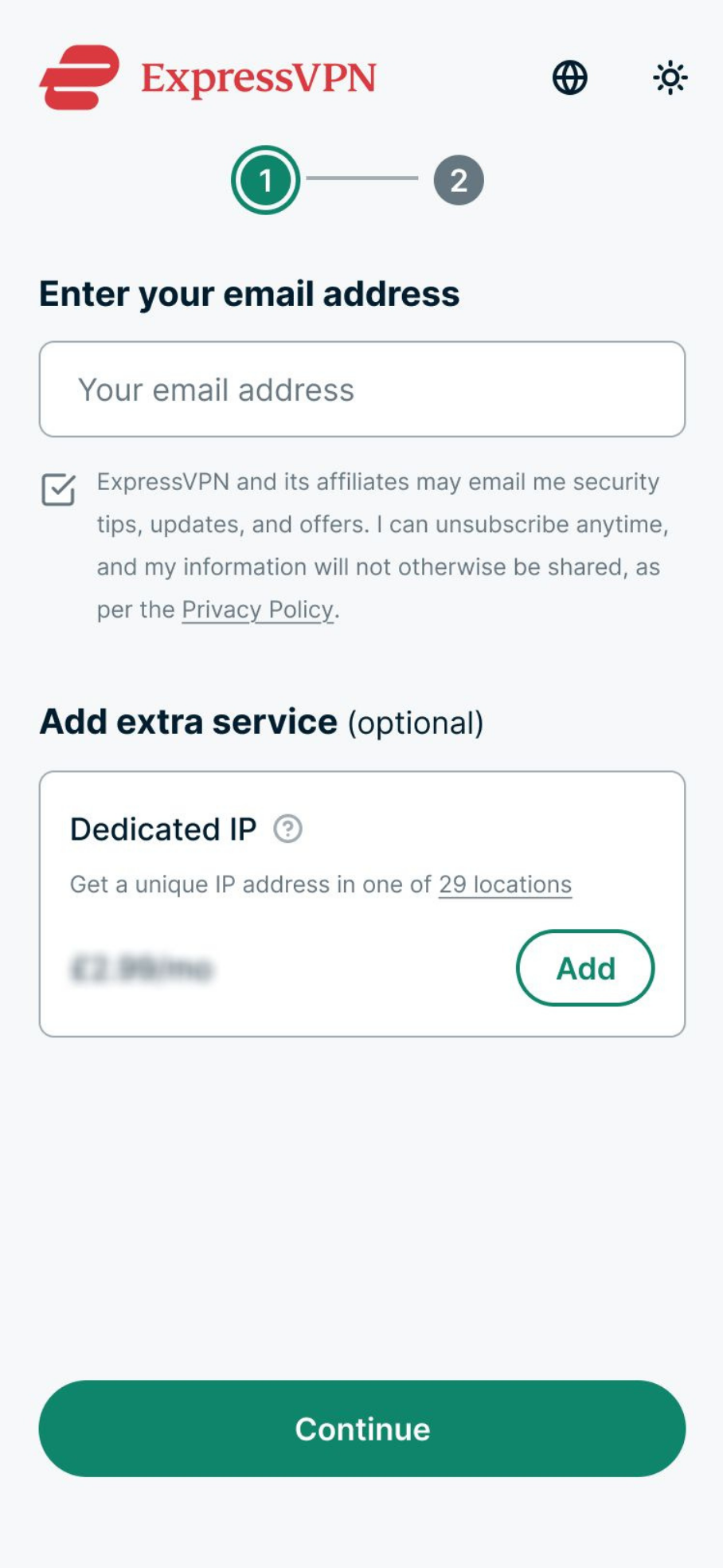
- Enter your email address, then tap Continue.
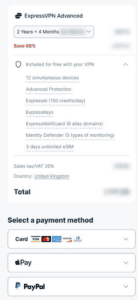
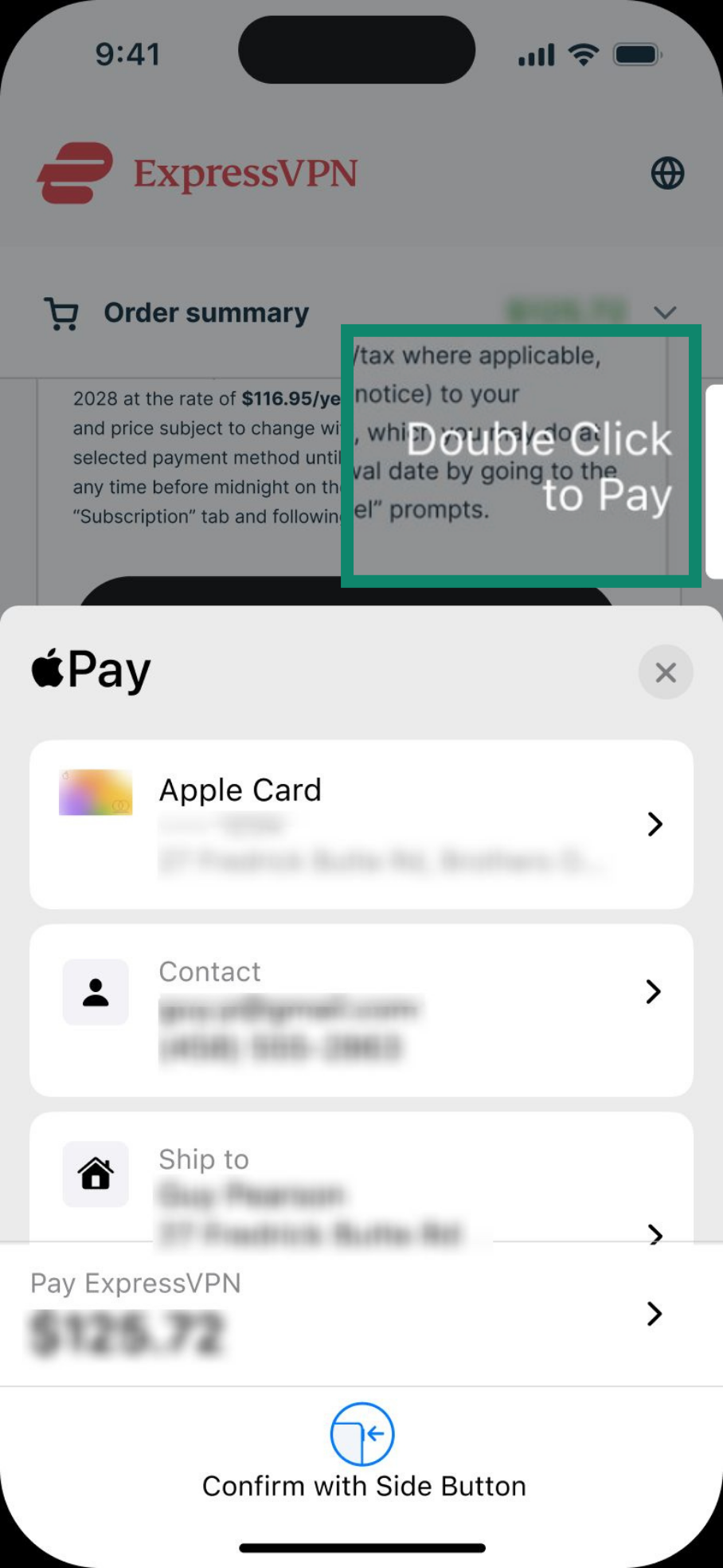
- Select a payment method.
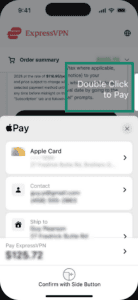
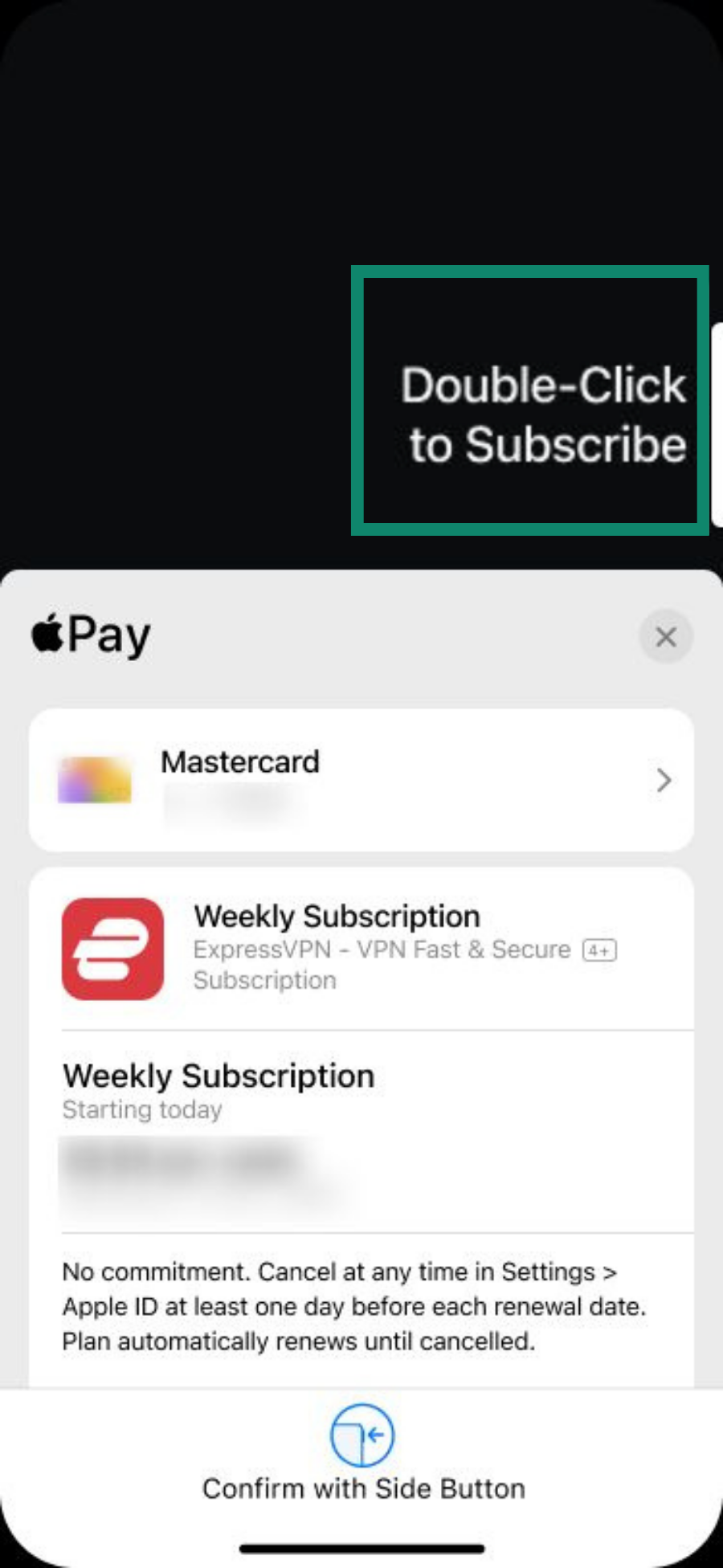
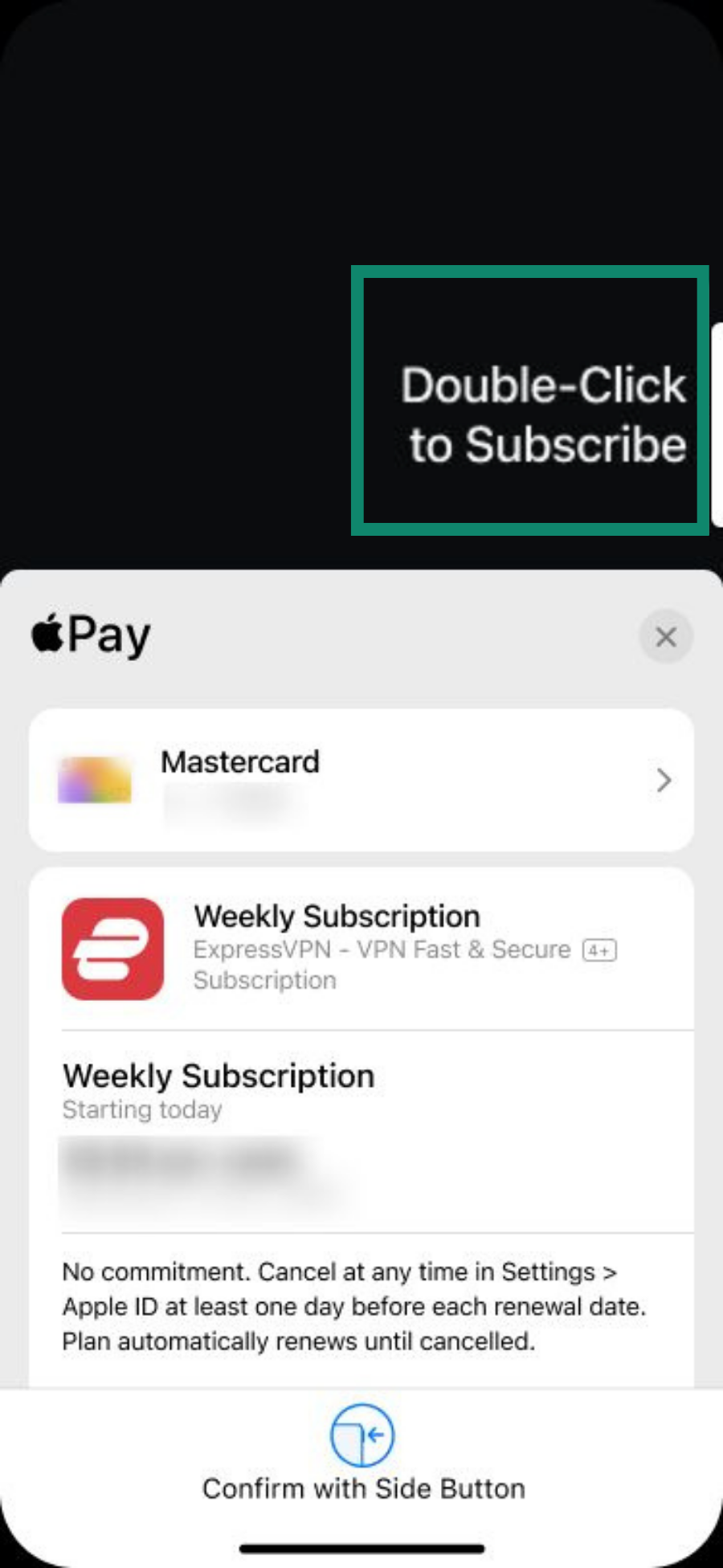
- Double click the side button on your iOS device to confirm your subscription.
- You should receive an email to set up your account. Open the email and follow the instructions to complete your account setup.
- Open the ExpressVPN app. Tap Get started.
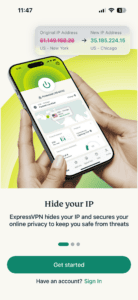
- In the App Store Offers tab, choose a subscription and tap Continue.

- Double-click the side button on your iOS device to confirm your subscription.
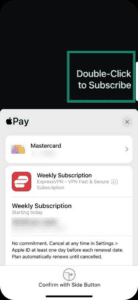
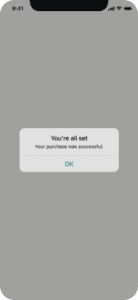
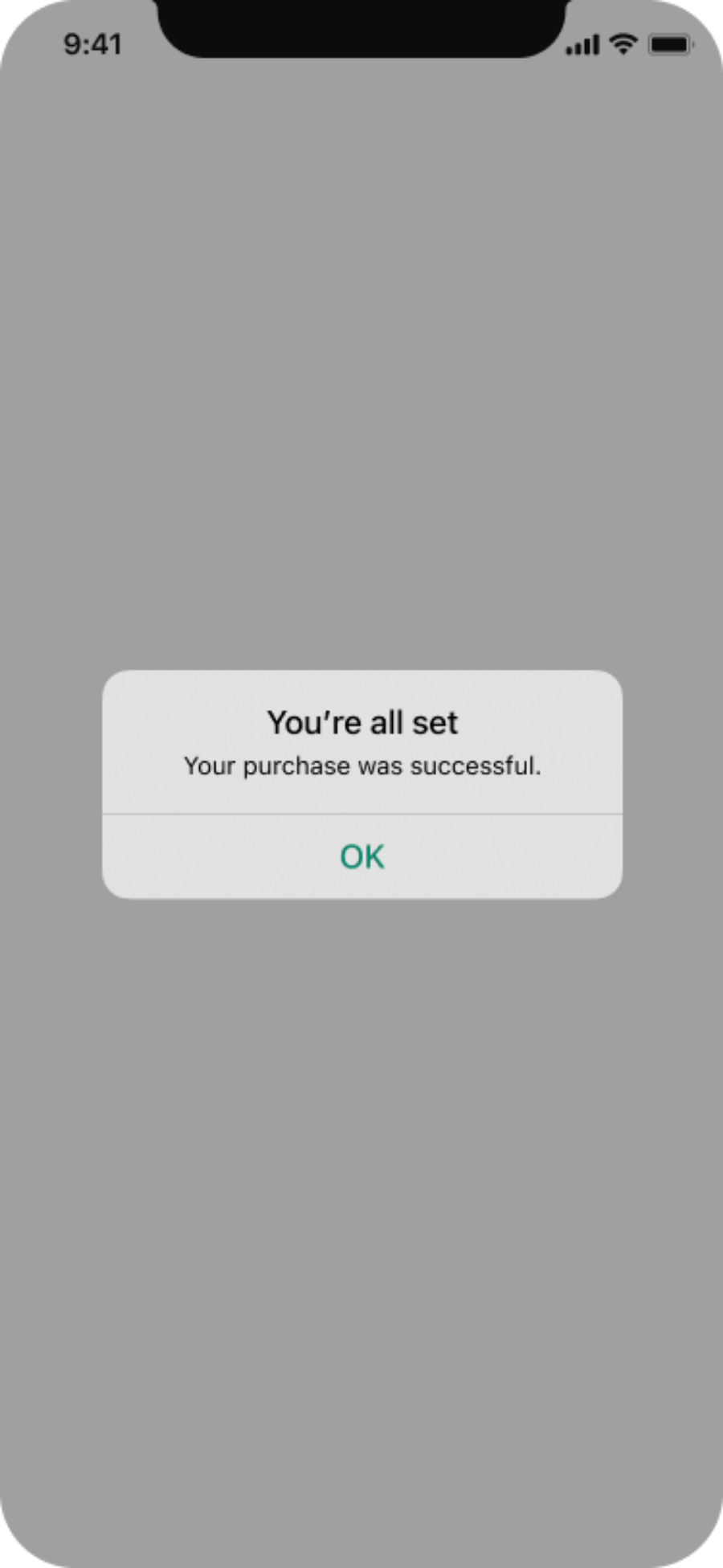
- You should see a confirmation screen if your subscription was successful.
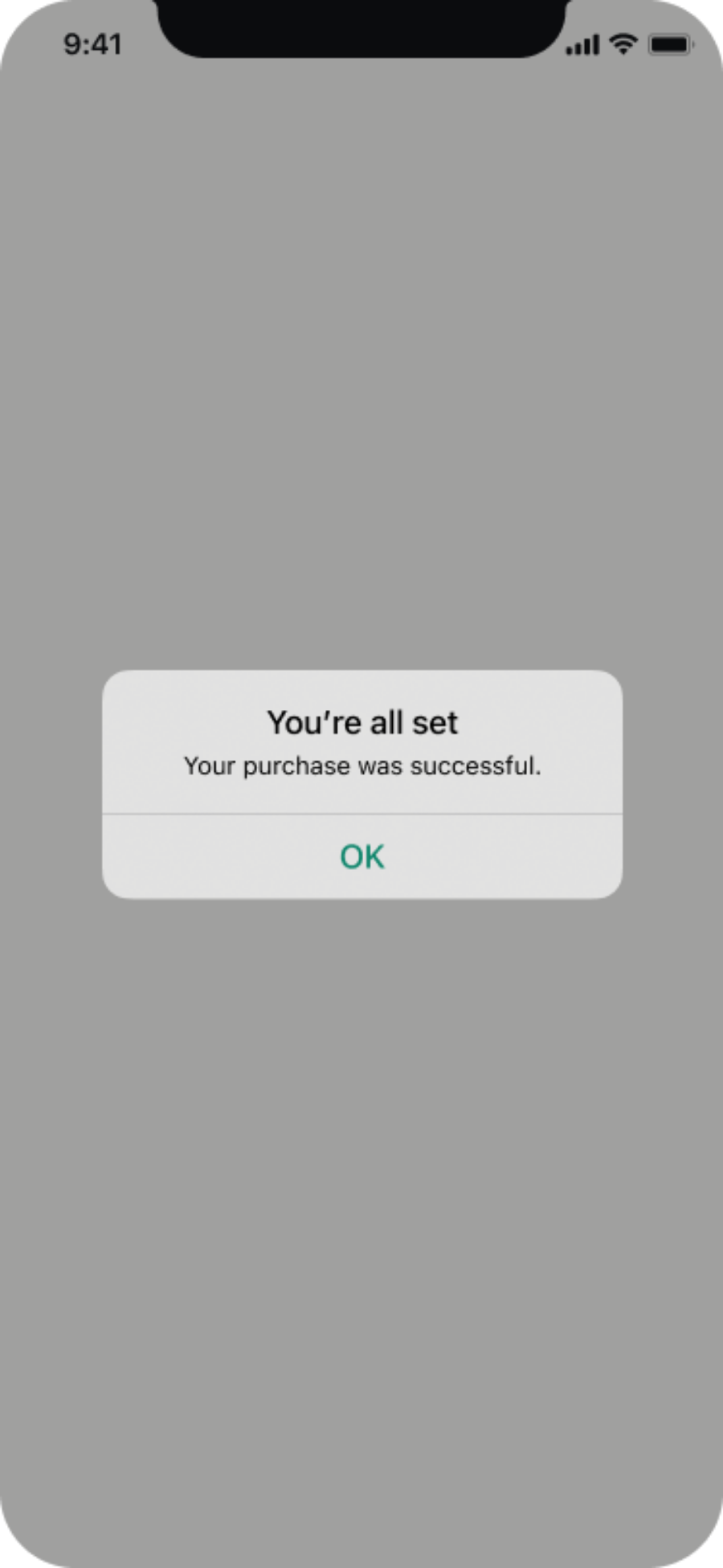
Once subscribed, you can follow the steps below to set up your account.
3. Purchase ExpressVPN on iOS (users outside the U.S.)
If you’re outside the U.S., you can subscribe to ExpressVPN via the App Store.
- Open the ExpressVPN app and tap Get started.

- Choose a subscription and tap Continue.
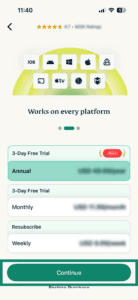
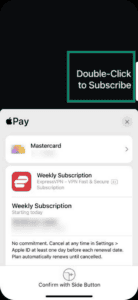
- Double-click the side button on your iOS device to confirm your subscription.
- You should see a confirmation screen if your subscription was successful.
Once subscribed, you can follow the steps below to set up your account.
Need help? Contact the ExpressVPN Support Team for immediate assistance.
How to purchase an ExpressVPN subscription on Android
1. Download the ExpressVPN Android app
Before you subscribe, you’ll first need to download the ExpressVPN Android app.
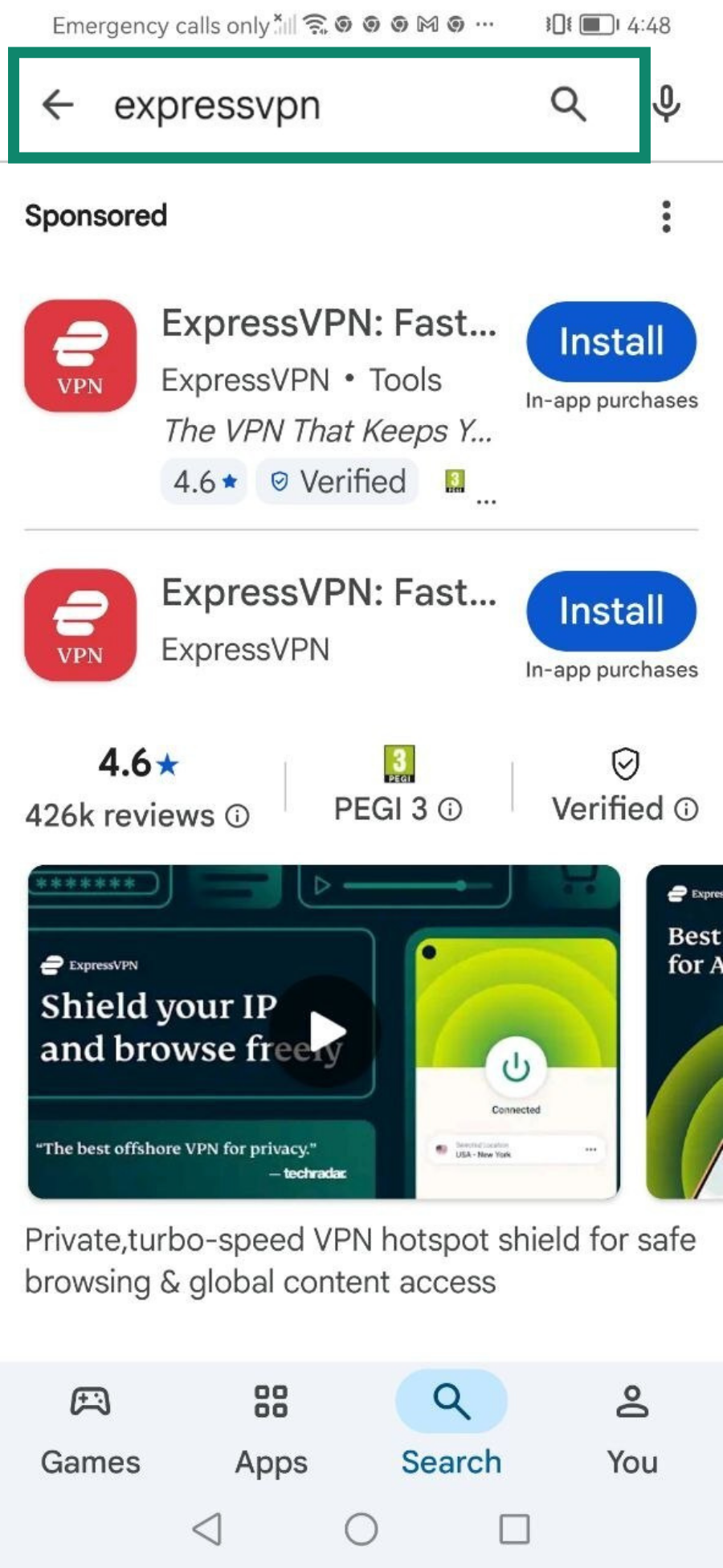
- Open Google Play on your Android device and search for “ExpressVPN.”
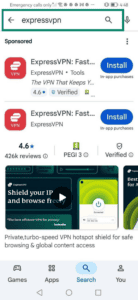
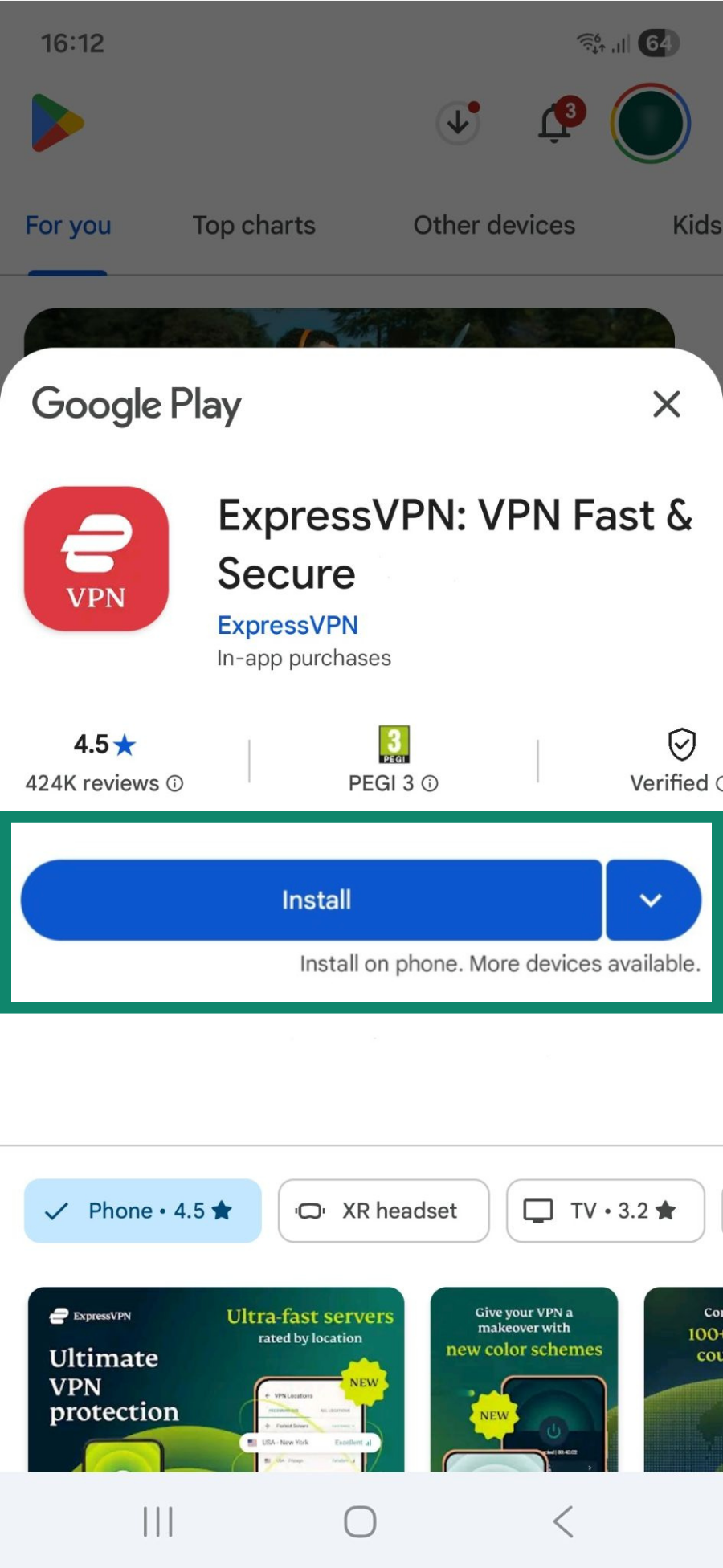
- Tap Install.
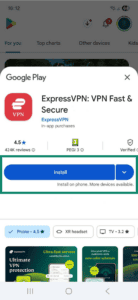
- The ExpressVPN Android app will be downloaded to your device.
2. Purchase ExpressVPN on Android
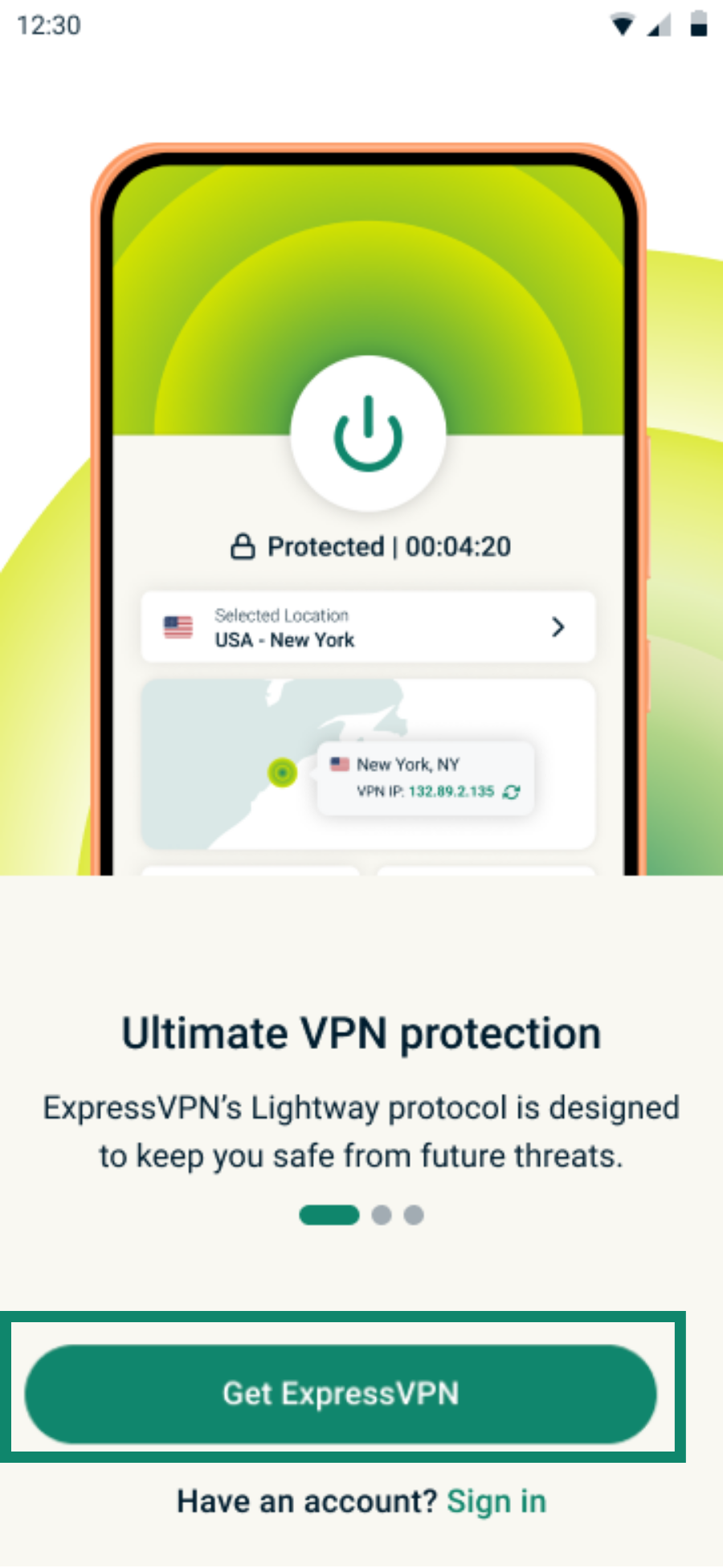
- Open the ExpressVPN app and tap Get ExpressVPN.
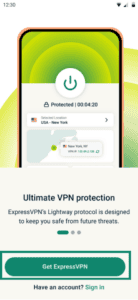
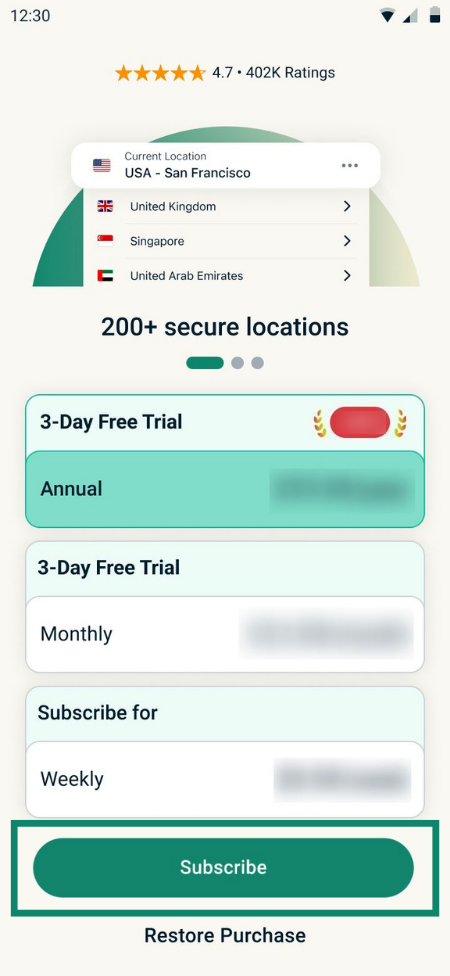
- Choose a subscription and tap Subscribe.
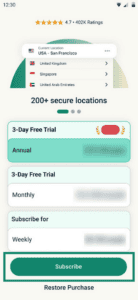
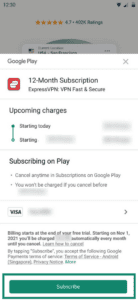
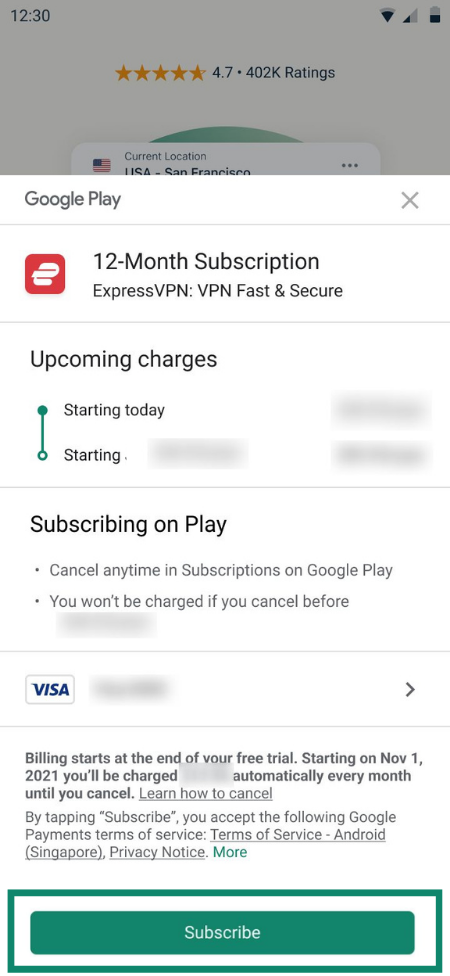
- Check the subscription details and tab Subscribe.
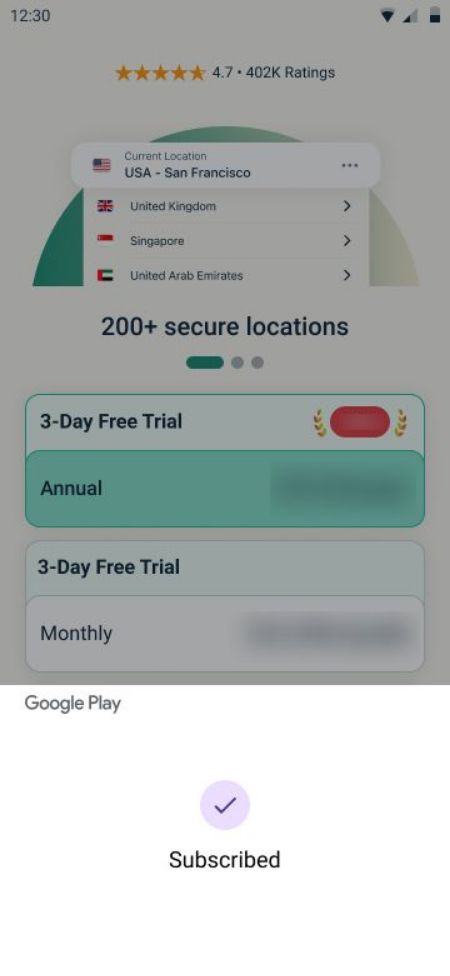
- You should see a confirmation screen if your subscription was successful.
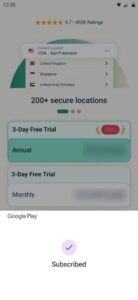
Once subscribed, you can follow the steps below to set up your account.
Need help? Contact the ExpressVPN Support Team for immediate assistance.
How to set up your ExpressVPN account after in-app purchase
If you purchased your subscription via your device’s app store, you have two options: set up your account right away or return and set it up later.
1. Set up your account during purchase (recommended)
After you purchase your subscription, you’ll see a prompt to set up your ExpressVPN account. It’s worthwhile completing your account setup immediately after purchasing so you can start using your subscription across your devices.
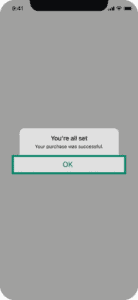
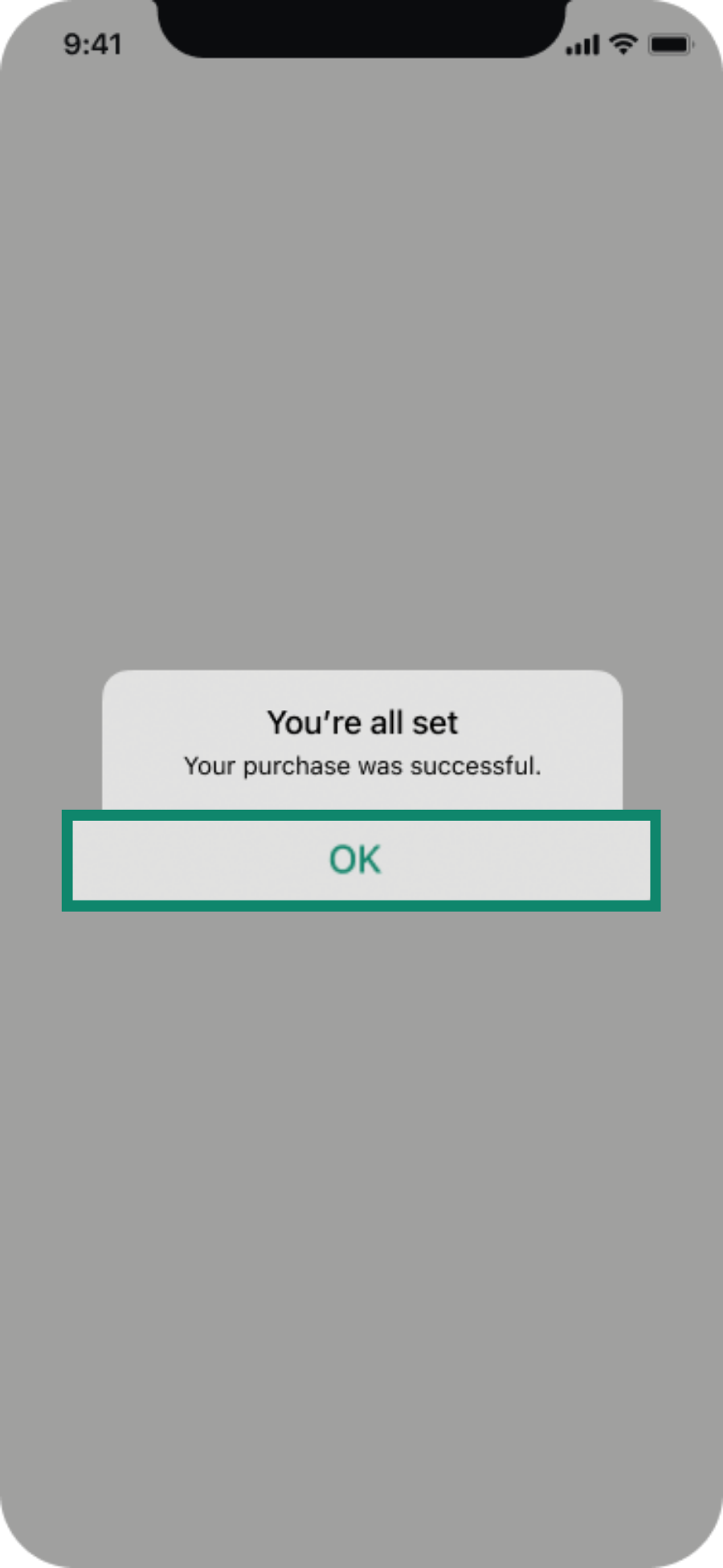
- On the confirmation screen, tap OK.
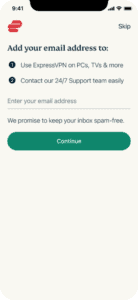
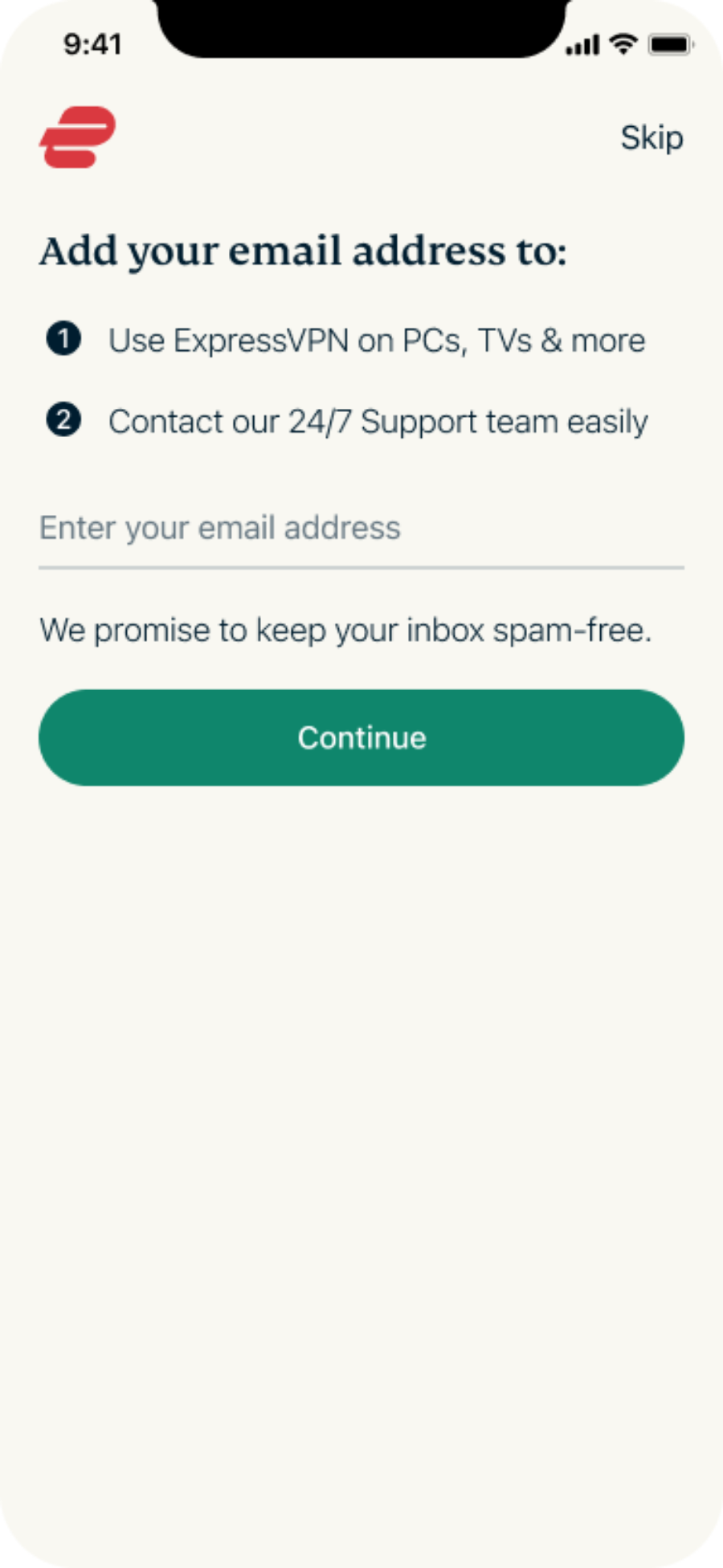
- Enter your email address, then tap Continue. You’ll receive a confirmation email, which includes a link for setting a password. Tap Set Password and follow the prompts to complete your account setup.
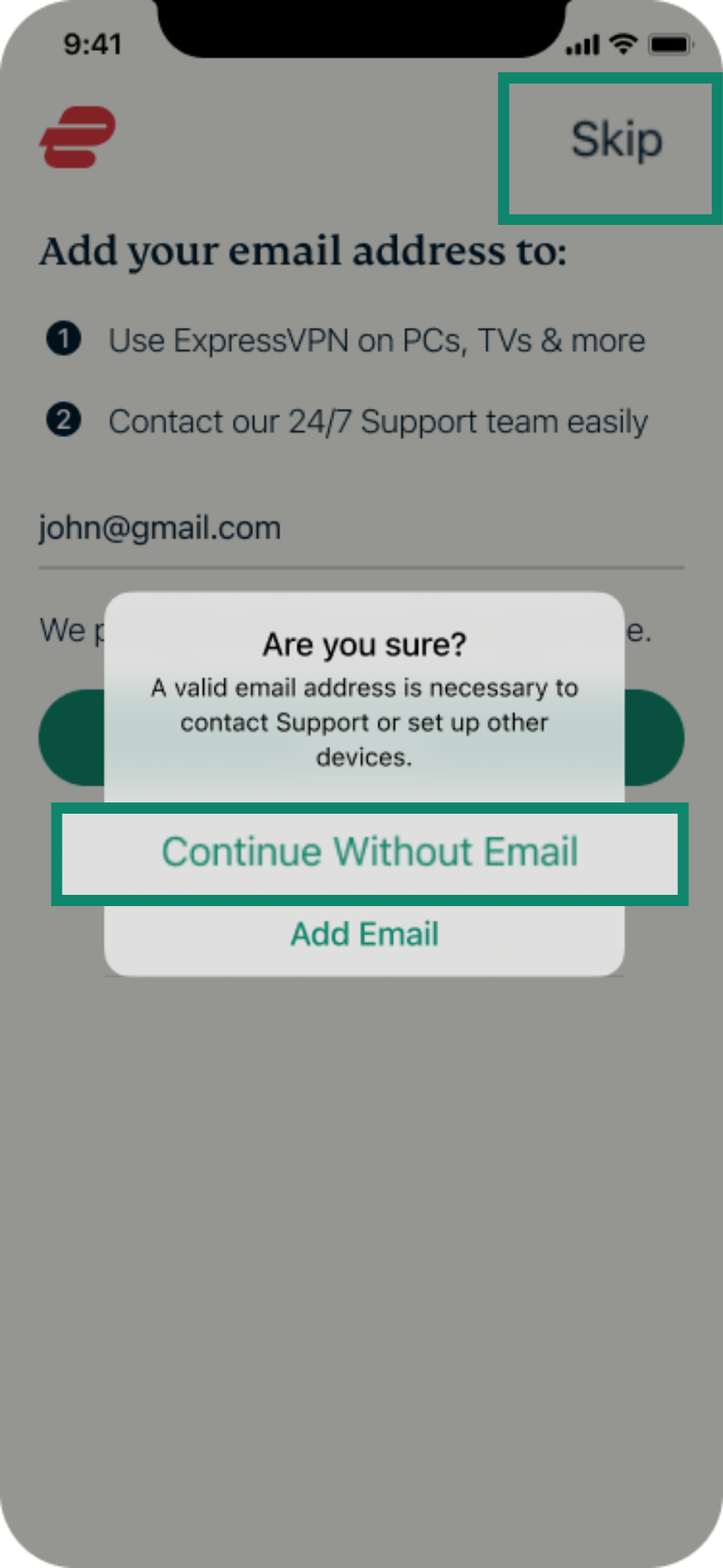
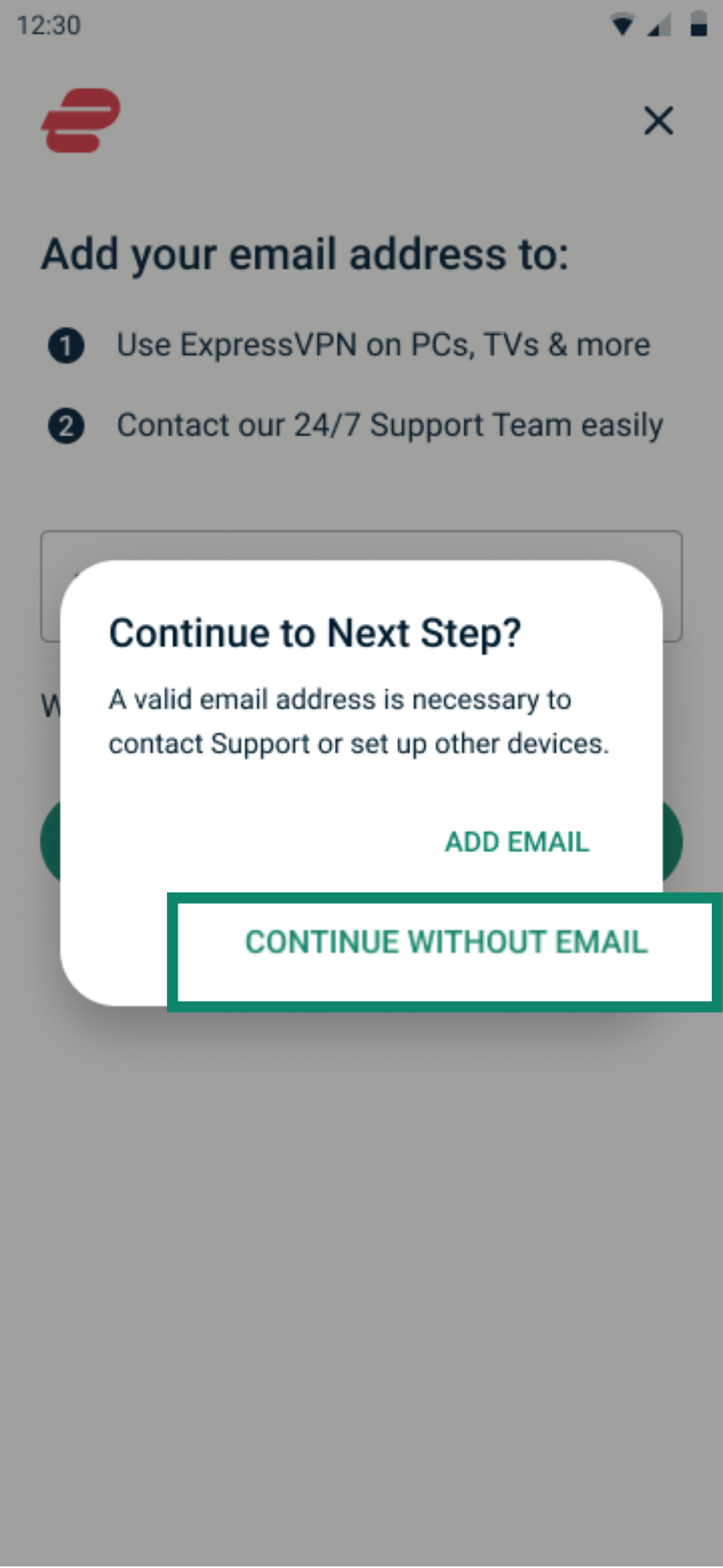
- You can also add your email address later. Tap Skip > Continue Without Email.
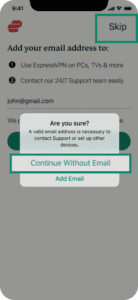
- You can also add your email address later. Tap Skip > Continue Without Email.
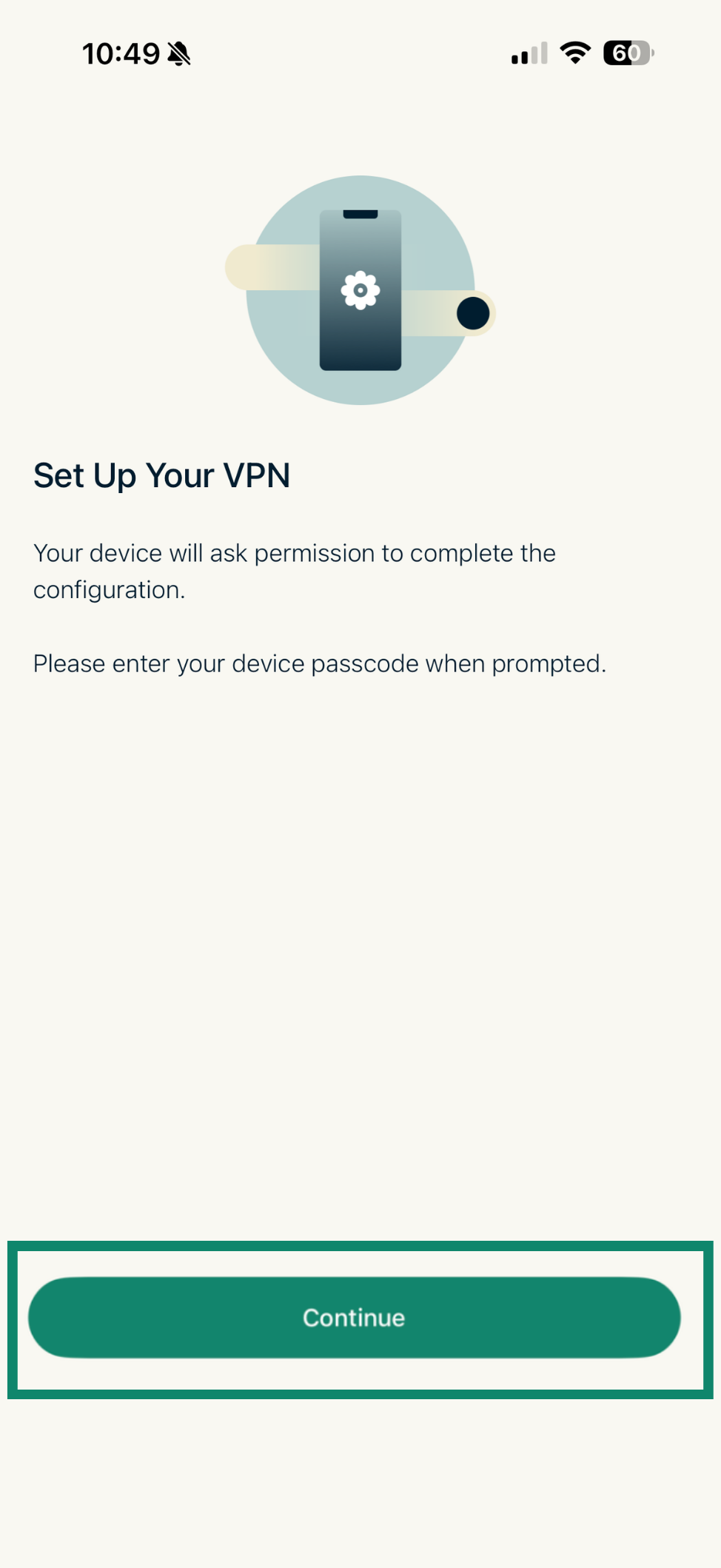
- Back in the app, you’ll see the device configuration screen. Tap Continue and follow the on-screen prompts to finish setting up the app.
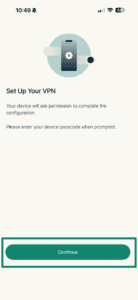
For next steps on getting started with ExpressVPN, read our guide on setting up and using the ExpressVPN iOS app.
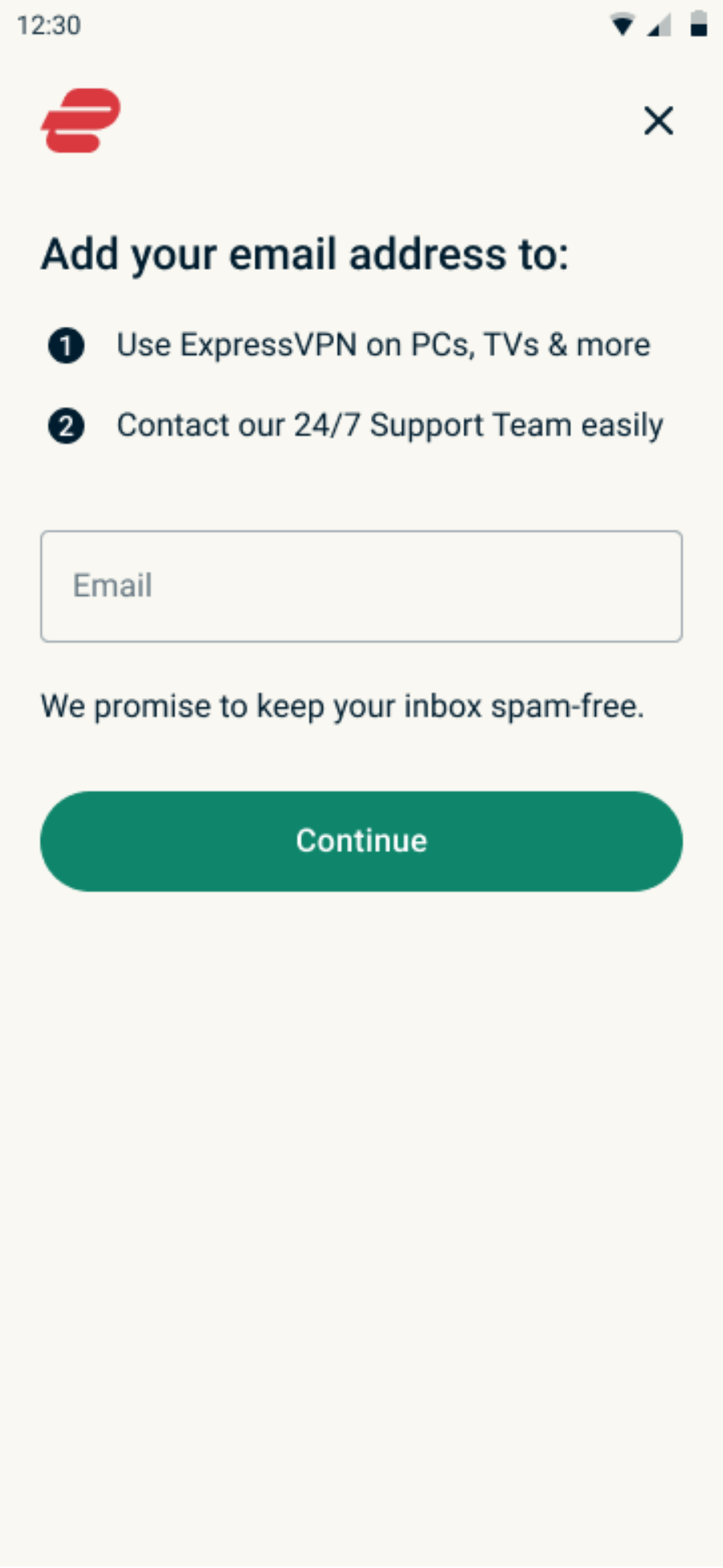
- After the confirmation screen, enter your email address and tap Continue. You’ll receive a confirmation email, which includes a link for setting a password. From the email, tap Set Password and follow the prompts to complete your account setup.
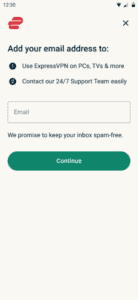
- You can also add your email address later. Leave the email address field blank, then tap Continue > Continue without email.
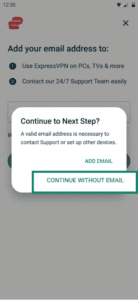
- You can also add your email address later. Leave the email address field blank, then tap Continue > Continue without email.
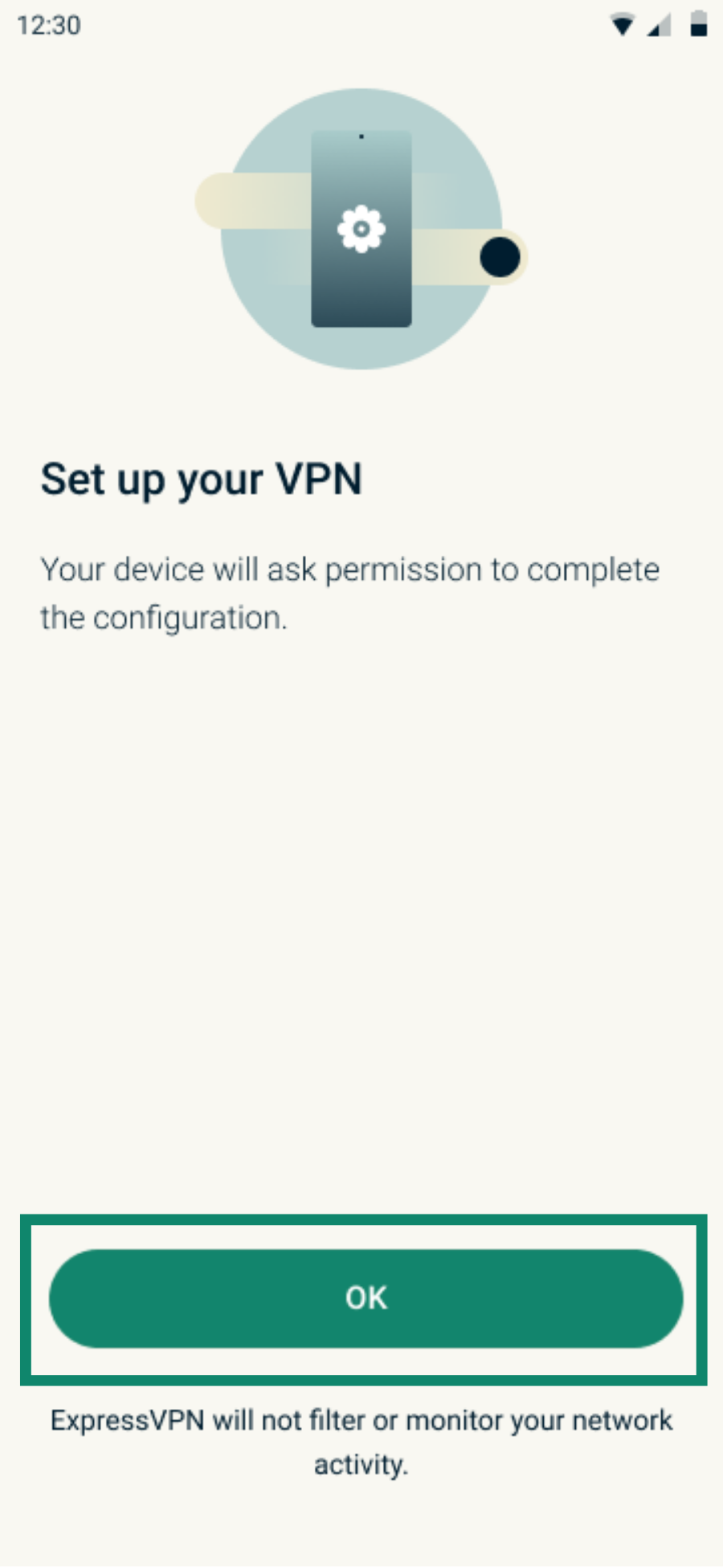
- Back in the app, you’ll see the setup screen. Tap OK and follow the on-screen prompts to finish setting up the app.
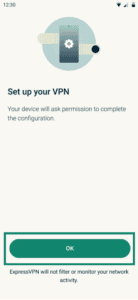
For next steps on getting started with ExpressVPN, read our guide on setting up and using the Android app.
2. What to do if you skipped the initial account setup
If you dismissed the initial account setup and didn’t add your email, you can easily add the address later in the app. The steps are the same on iOS and Android.
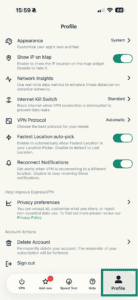
- Open the ExpressVPN app and tap Profile.
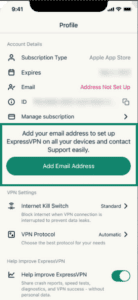
- Tap Add Email Address.
- Tap Confirm.
- A confirmation pop-up saying “Email Updated” will appear. Tap OK.
- You’ll receive a confirmation email, which includes a link for setting a password. Tap Set Password and follow the prompts to set up your account.
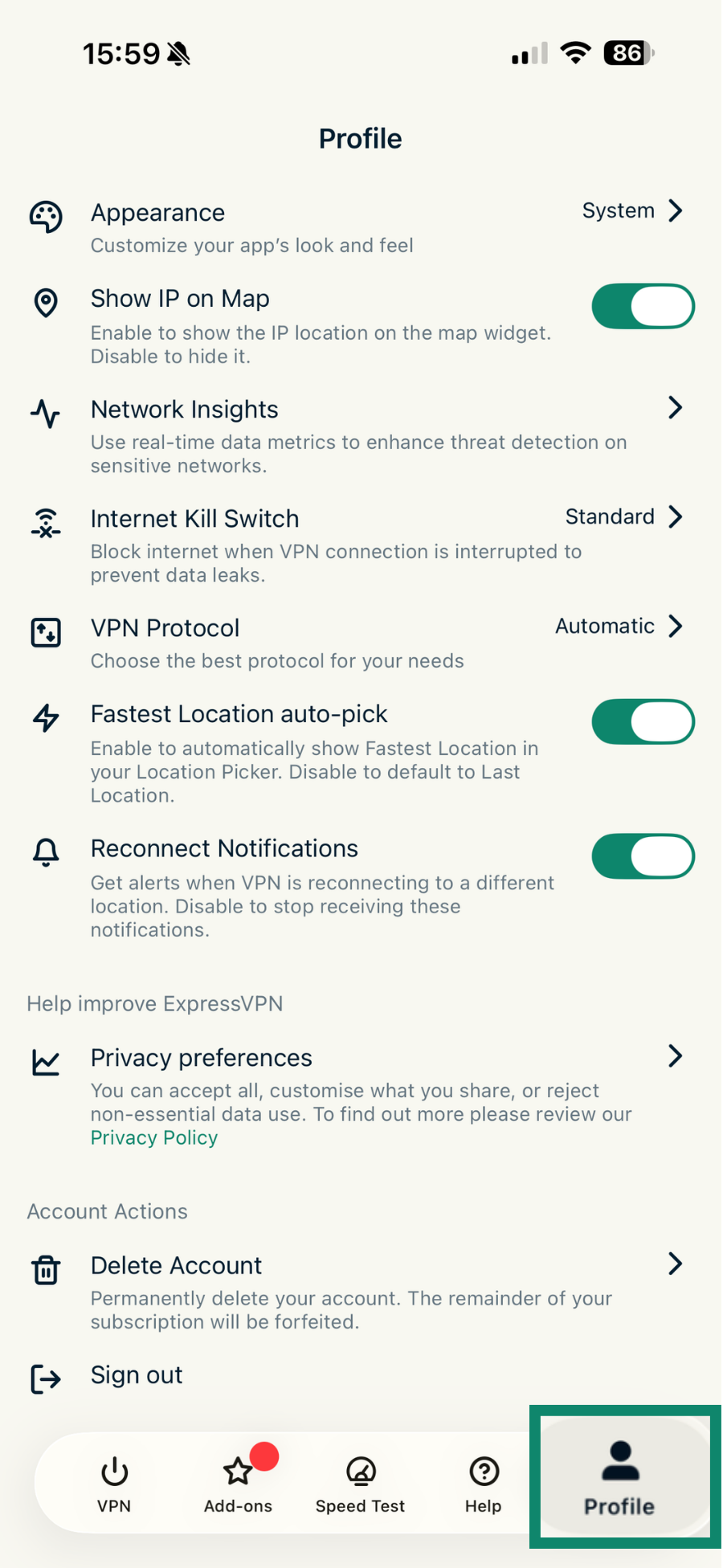
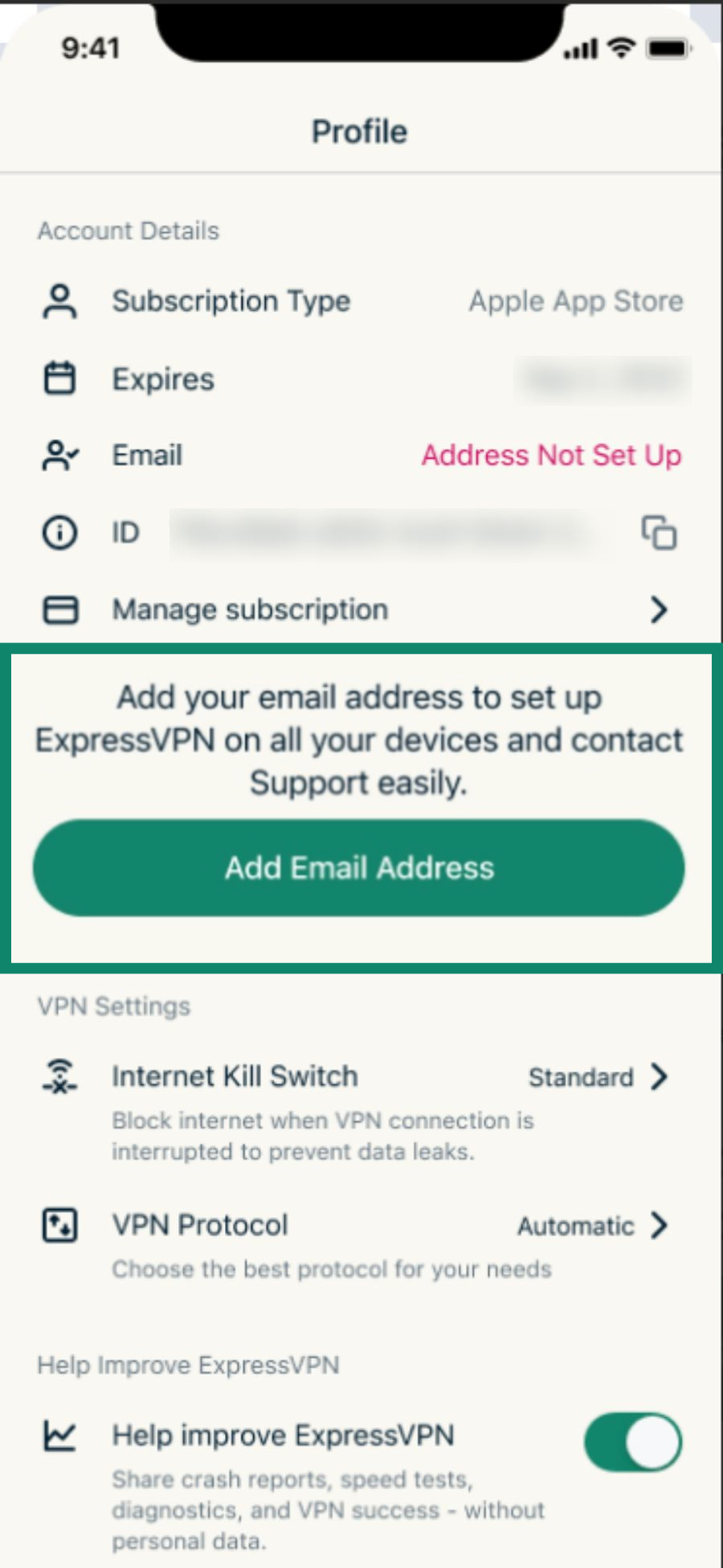
If you don’t see the Add Email button, you may already have an email address and account set up. To check:
- Go to the Profile tab and locate Account Details.
- If you see an Email field, select the eye icon to reveal the email address associated with your account.
If you still can’t locate your email address or add one to your account, please contact the ExpressVPN Support Team for immediate assistance.
3. What to do if your subscription isn’t showing in the app
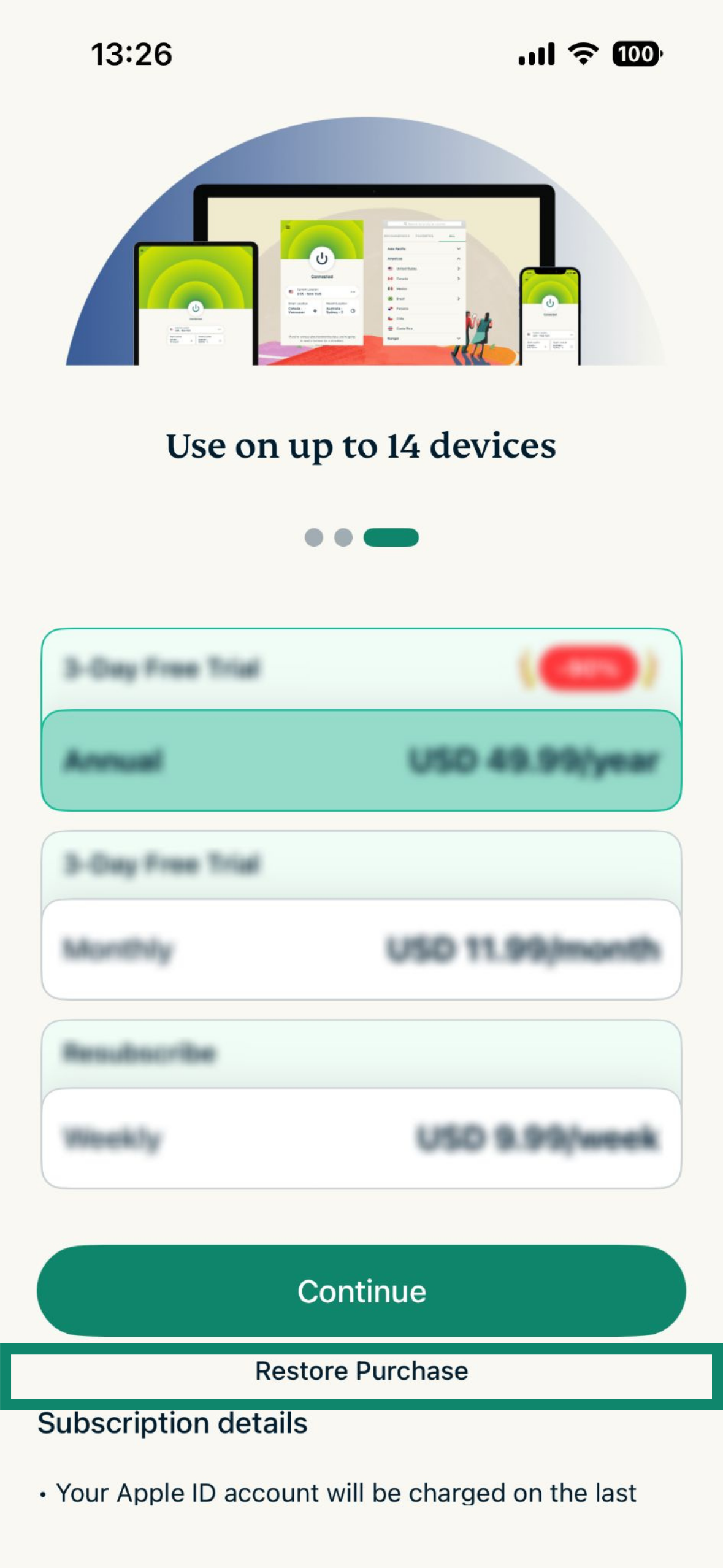
If you’ve switched to a new device, you can restore your existing subscription without purchasing again.
- Open the ExpressVPN app and tap Get started or Get ExpressVPN.
- On the subscription screen, tap Restore Purchase.

- The app store will check your purchase history and restore your subscription automatically.
Need help? Contact the ExpressVPN Support Team for immediate assistance.
How to use your subscription on other ExpressVPN apps and services
In addition to the ExpressVPN app, your Basic plan also includes access to ExpressMailGuard (limited). This is a private email forwarding service that helps reduce spam and protect your inbox by generating email aliases. You can use the same ExpressVPN account credentials you created during setup to sign in. Read our guide to getting started with ExpressMailGuard to set it up.
Need help? Contact the ExpressVPN Support Team for immediate assistance.