ExpressVPN
    • No-Logs Policy
    • Servers in 105 Countries
    • Use on Multiple Devices
    • High-Speed VPN
    • Access Online Services Securely
    • VPN for Gaming
    • 30-Day Money-Back Guarantee
    • Explore All Features
    • About ExpressVPN
    Sign Up For Expressvpn

    One subscription gives you access to a fast-growing suite of privacy and security tools that work seamlessly together to improve your digital life.

    View all products
    • Lightway VPN Protocol
    • Internet Kill Switch
    • Split Tunneling
    • Private, Encrypted DNS
    • Avoid ISP Throttling
    • Threat Manager
    • Ad Blocker
    • Parental Controls
    • Dedicated IP
  • Download VPN
    • Windows new
    • MacOS new
    • Linux new
    • iPhone / iPad
    • Android
    • Apple TV
    • Fire Stick
    • Android TV
    • VPN for Routers
    • Aircove Routers
    • Chrome
    • Firefox
    • Edge
  • Pricing
    • What Is a VPN?
    • VPN for Beginners
    • How To Use a VPN
    • VPN Encryption Explained
    • Blog
    • Glossary
    • IP Address Checker
    • DNS Leak Test
    • WebRTC Leak Test
    • Password Generator
    • Support Center
    • FAQ
    • Live Chat
    • VPN Setup Tutorials
    • Redemption Code
  • Icon10VPN for Teams
  • Products
    Icon11

    ExpressVPN for Teams Get fast, secure VPN protection for growing teams. Easy to deploy, simple to manage, built to scale.

    Img2
    • ExpressVPN

      ExpressVPN Industry-leading, ultra-fast VPN with secure servers in 105 countries.

    • ExpressMailGuard

      ExpressMailGuard Private email relay service to protect your inbox and identity.

    • ExpressKeys

      ExpressKeys Secure password management, multi-factor authentication, and more.

    • ExpressAI

      ExpressAI The first consumer AI powered by confidential computing for privacy-led intelligence.

    • Identity Defender

      Identity Defender Powerful suite of ID protection, monitoring, and data removal tools

    Other products from the family behind ExpressVPN

    • holiday.com eSIM

      holiday.com eSIM Unlimited data with a single eSIM across 150+ destinations.

    • Intego

      Intego Award-winning macOS antivirus, firewall, system tools, and more.

  • My Account
Get Started
ExpressVPN
    • No-Logs Policy
    • Servers in 105 Countries
    • Use on Multiple Devices
    • High-Speed VPN
    • Access Online Services Securely
    • VPN for Gaming
    • 30-Day Money-Back Guarantee
    • Explore All Features
    • About ExpressVPN
    Sign Up For Expressvpn

    One subscription gives you access to a fast-growing suite of privacy and security tools that work seamlessly together to improve your digital life.

    View all products
    • Lightway VPN Protocol
    • Internet Kill Switch
    • Split Tunneling
    • Private, Encrypted DNS
    • Avoid ISP Throttling
    • Threat Manager
    • Ad Blocker
    • Parental Controls
    • Dedicated IP
  • Download VPN
    • Windows new
    • MacOS new
    • Linux new
    • iPhone / iPad
    • Android
    • Apple TV
    • Fire Stick
    • Android TV
    • VPN for Routers
    • Aircove Routers
    • Chrome
    • Firefox
    • Edge
  • Pricing
    • What Is a VPN?
    • VPN for Beginners
    • How To Use a VPN
    • VPN Encryption Explained
    • Blog
    • Glossary
    • IP Address Checker
    • DNS Leak Test
    • WebRTC Leak Test
    • Password Generator
    • Support Center
    • FAQ
    • Live Chat
    • VPN Setup Tutorials
    • Redemption Code
  • VPN for Teams
  • Products
    • ExpressVPN

      ExpressVPN Industry-leading, ultra-fast VPN with secure servers in 105 countries.

    • ExpressMailGuard

      ExpressMailGuard Private email relay service to protect your inbox and identity.

    • ExpressKeys

      ExpressKeys Secure password management, multi-factor authentication, and more.

    • ExpressAI

      ExpressAI The first consumer AI powered by confidential computing for privacy-led intelligence.

    • Identity Defender

      Identity Defender Powerful suite of ID protection, monitoring, and data removal tools

    Other products from the family behind ExpressVPN

    • holiday.com eSIM

      holiday.com eSIM Unlimited data with a single eSIM across 150+ destinations.

    • Intego

      Intego Award-winning macOS antivirus, firewall, system tools, and more.

    Icon11

    ExpressVPN for Teams Get fast, secure VPN protection for growing teams. Easy to deploy, simple to manage, built to scale.

    Img2
  • My Account
Get Started
Home Home » How to manage Device Groups on a router running ExpressVPN

Knowledge Hub

How to manage Device Groups on a router running ExpressVPN

Last updated: May 24, 2026

Share in FacebookShare in TwitterShare in WhatsappShare in TelegramShare by email

This guide will explain how to use and manage Device Groups. With Device Groups (available on ExpressVPN for routers v3.2.0 and above), you can sort your devices into groups, each connected to a different VPN location.

Jump to…

When to use Device Groups
Add new device groups
Change default group
Add devices to (or remove devices from) a device group
Rename device groups
Change device names and IP addresses
Delete device groups


When to use Device Groups

Device Groups allow you to place your devices into different groups—each connected to its own VPN location. You can create up to five different groups. This enables multiple users or devices to use the VPN for different purposes without compromising the activity of one another. For example:

  • You want to stream shows from a foreign location on your laptop without compromising the speed of other devices in your household.
  • Your family wants local search results but you want to use a different VPN location for gaming.
  • Your partner wants to access a foreign bank account while you want to connect your tablet to Smart Location for faster speeds.

Note: All device groups will use the same VPN protocol. To change the VPN protocol, refer to this guide.

Need help? Contact the ExpressVPN Support Team for immediate assistance.

Back to top


Add new device groups

By default, you will only have one device group. To add a new device group:

  1. Sign in to your router running ExpressVPN.
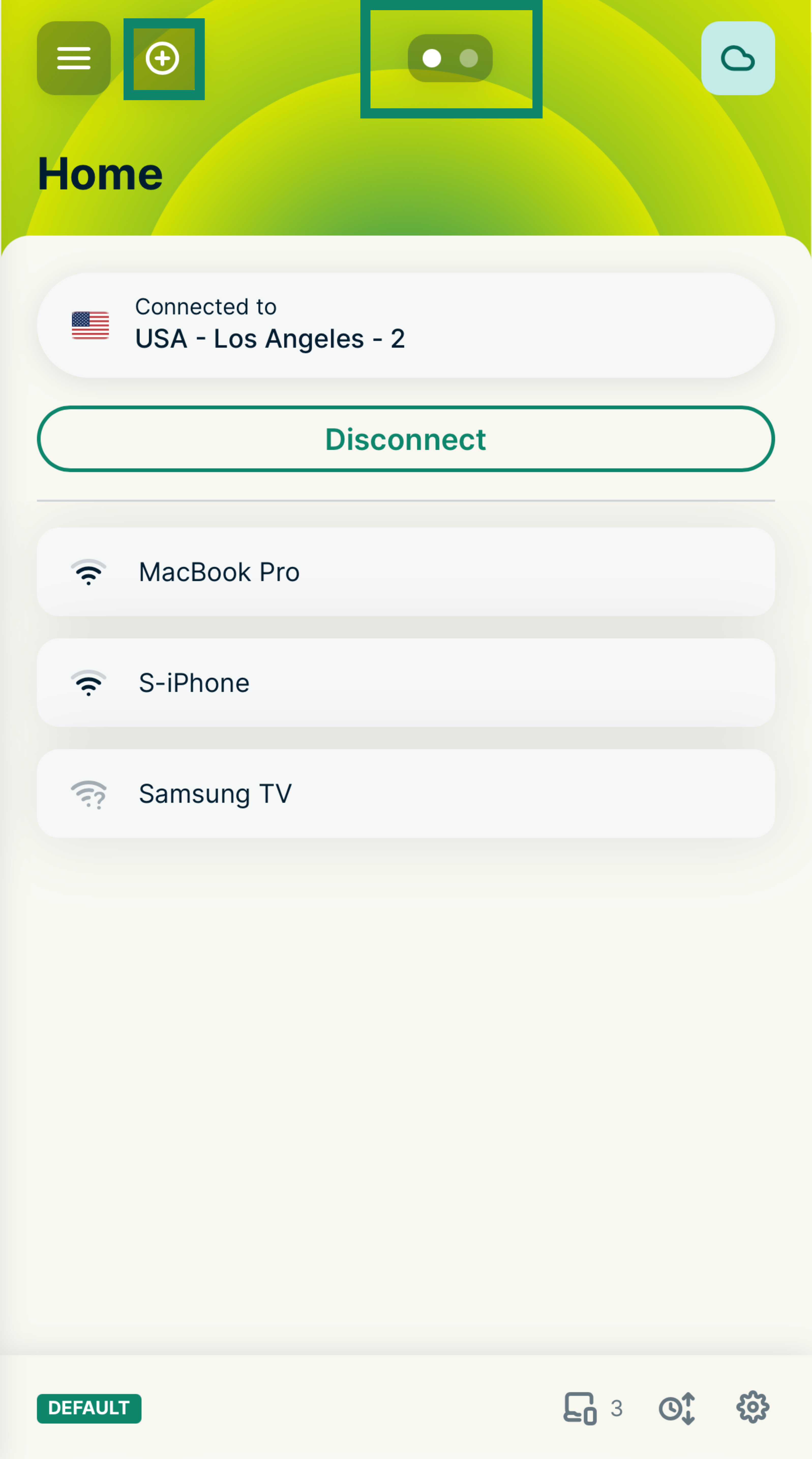
  2. Select theAdd icon.(Plus) icon at the top of the dashboard, or swipe to the Create a new group screen.The ExpressVPN router dashboard showing the Home group, with green boxes highlighting the plus icon for adding a group and the group navigation dots at the top of the screen.
  3. Select ADD GROUP, or select one of the SUGGESTED GROUPS (such as Streaming, Privacy, or Child Safe).The Create a new group screen on the ExpressVPN router dashboard, with a green box highlighting the Add Group button.
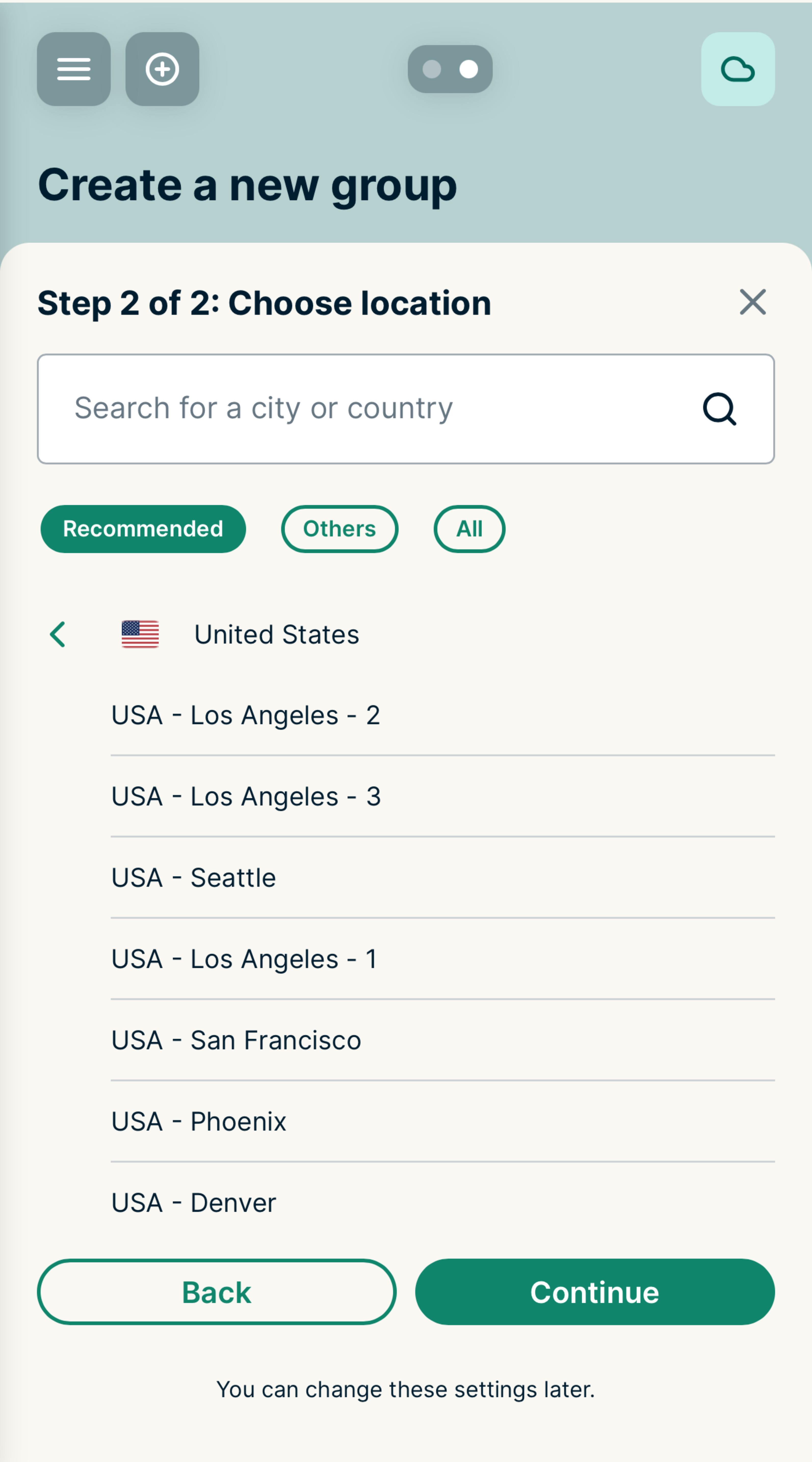
  4. If creating a custom group, enter a group name.The Step 2 Choose location screen on the ExpressVPN router dashboard, showing a list of recommended VPN locations.
  5. You will be prompted to choose a location for this group. Select a VPN location from the list, then select Continue.
The new device group will automatically connect to Smart Location.

For any device group, you can tap the current location to set it to use a different VPN location. You can also set it to not use a VPN connection or to not connect to the internet. You can have up to five device groups, including the Home group that appears by default.

Need help? Contact the ExpressVPN Support Team for immediate assistance.

Back to top


Change default group

Any devices that are connected to the router for the first time will appear in the designated default group called the Home group. To set a different default group:

  1. Sign in to your router running ExpressVPN.
  2. Swipe to the device group you want to set as your new default.
  3. Tap the gear icon Settings icon. at the bottom right of the group screen.
  4. Select Set as Default.

Note: If you chose No Internet on the default group, all new devices added to that group will be unable to connect to the internet. If you want new devices to connect to the internet, move them to a different device group.

Need help? Contact the ExpressVPN Support Team for immediate assistance.

Back to top


Add devices to (or remove devices from) a device group

To add devices to (or remove devices from) a device group:

  1. Sign in to your router running ExpressVPN.
  2. Tap on the device you want to move to open the Edit device details screen.
  3. Tap the Device group dropdown menu and select the new group.
  4. Tap Save. (Alternatively, you can drag and drop the device from one group to another on your dashboard).

You can add an unlimited number of devices to a device group. Any connected devices must belong to a device group.

If you do not want your device to use a VPN, you can create a group and set it to not use a VPN:

  1. Sign in to your router running ExpressVPN.
  2. Tap the current location on the group you want to change to open the location picker.
  3. Select the Others tab.
  4. Select No VPN.
  5. Drag a device to this group.

Note: You can quickly move devices between groups using the keyboard shortcuts. Use Tab to select a device and press Shift + Left or Right to move it between groups. Press Shift + ? to view a full list of shortcut commands.

Need help? Contact the ExpressVPN Support Team for immediate assistance.

Back to top


Rename device groups

  1. Sign in to your router running ExpressVPN.
  2. Swipe to the device group you want to rename.
  3. Tap the gear iconSettings icon. at the bottom right of the group screen.
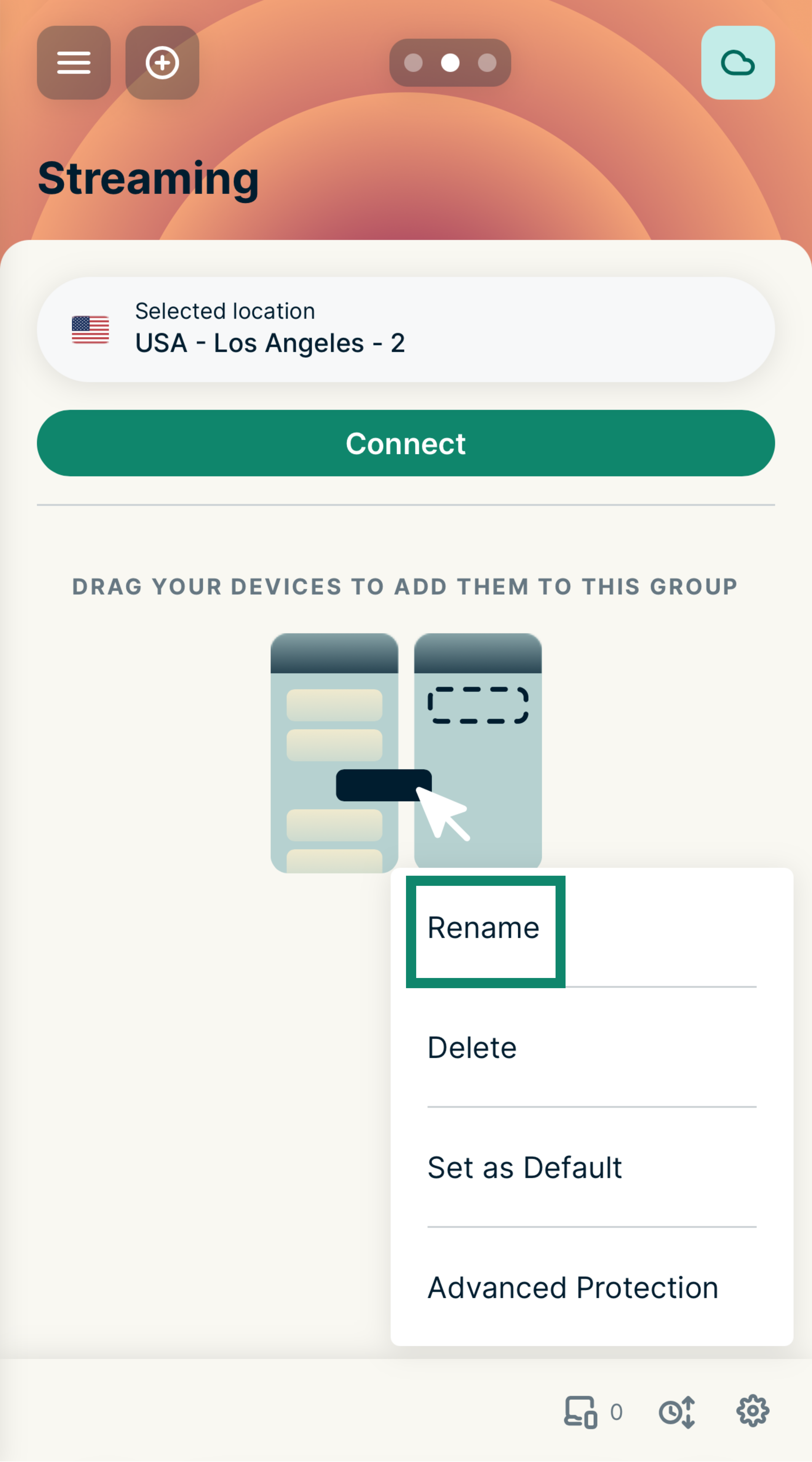
  4. Select Rename.The options menu for the Streaming device group on the ExpressVPN router dashboard, with a green box highlighting the Rename option.
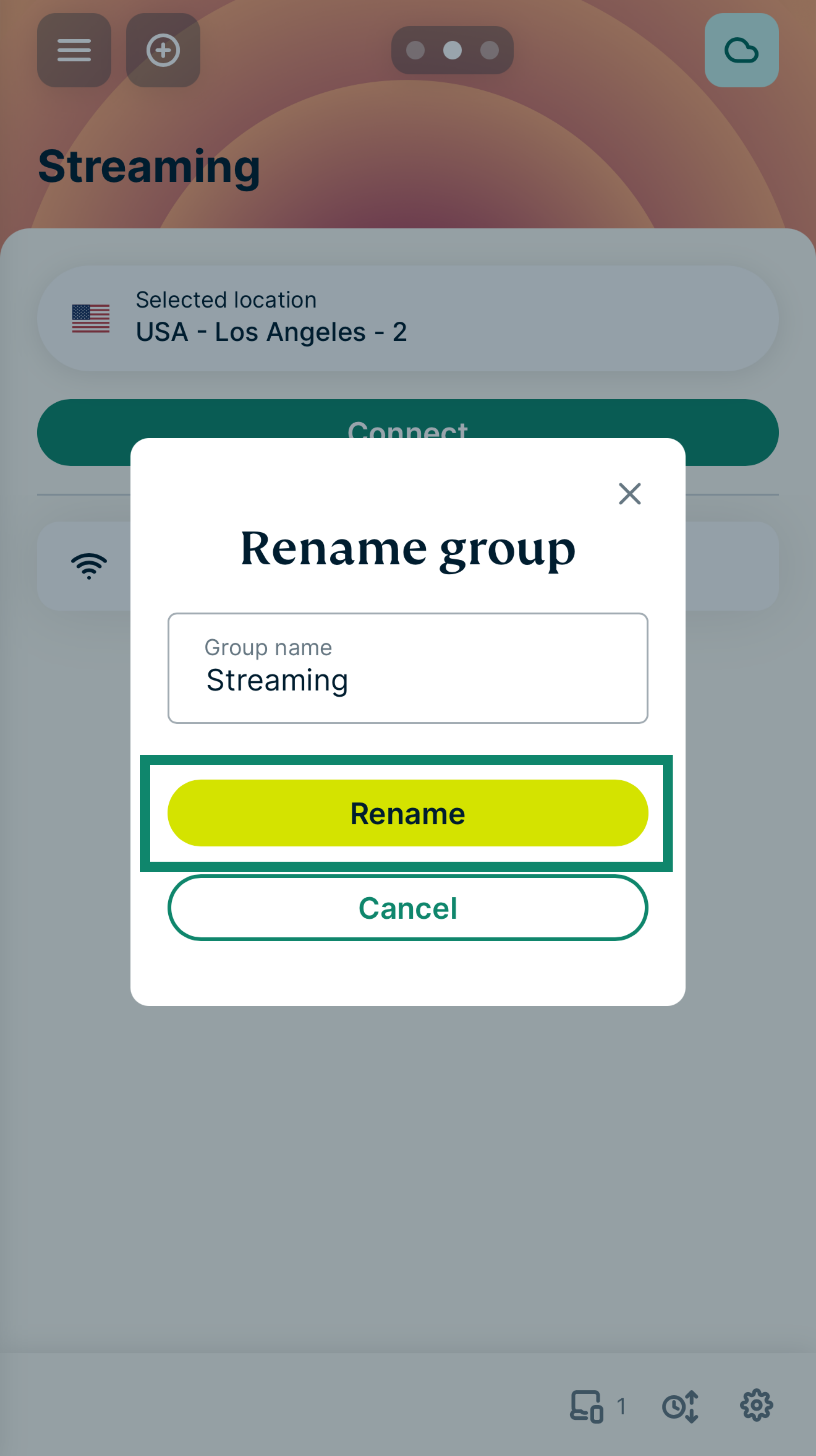
  5. Enter a new name and select Rename.The Rename group pop-up on the ExpressVPN router dashboard, with a green box highlighting the yellow Rename confirmation button.

Need help? Contact the ExpressVPN Support Team for immediate assistance.

Back to top


Change device names and IP addresses

  1. Sign in to your router running ExpressVPN.
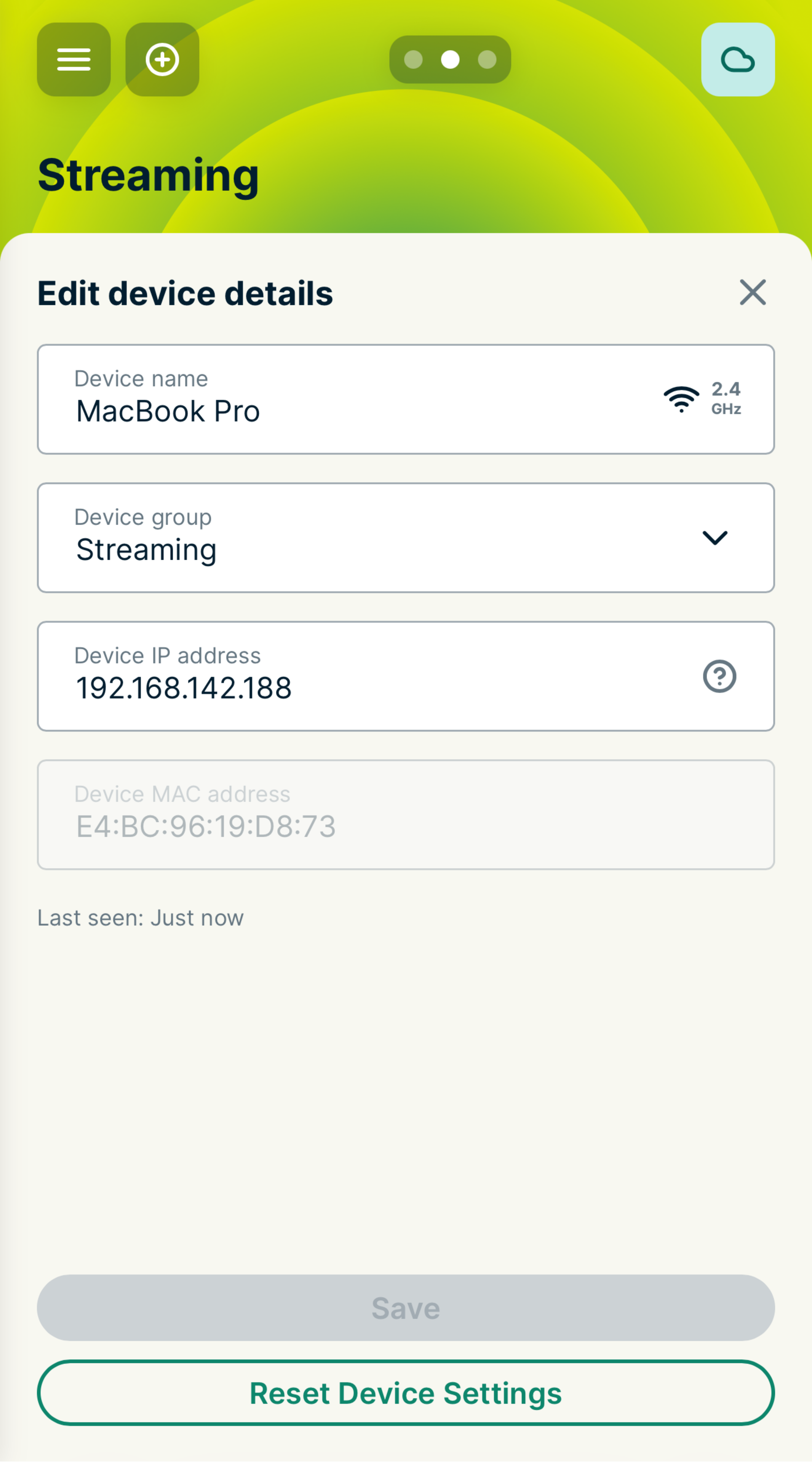
  2. Select any device name to open the Edit device details screen.
    The Edit device details screen for a connected device on the ExpressVPN router dashboard, showing the Device group dropdown menu set to the Streaming group.
  3. You can edit:
    • Device Name: Enter a new device name.
    • Device IP address: You can change the IP address for the device within the DHCP range (see Local Network Settings).
  4. Select Save.

Need help? Contact the ExpressVPN Support Team for immediate assistance.

Back to top


Delete device groups

Note: You cannot delete the Home group.

  1. Sign in to your router running ExpressVPN.
  2. Swipe to the device group you want to delete.
  3. Tap the gear iconSettings icon. at the bottom right of the group screen.
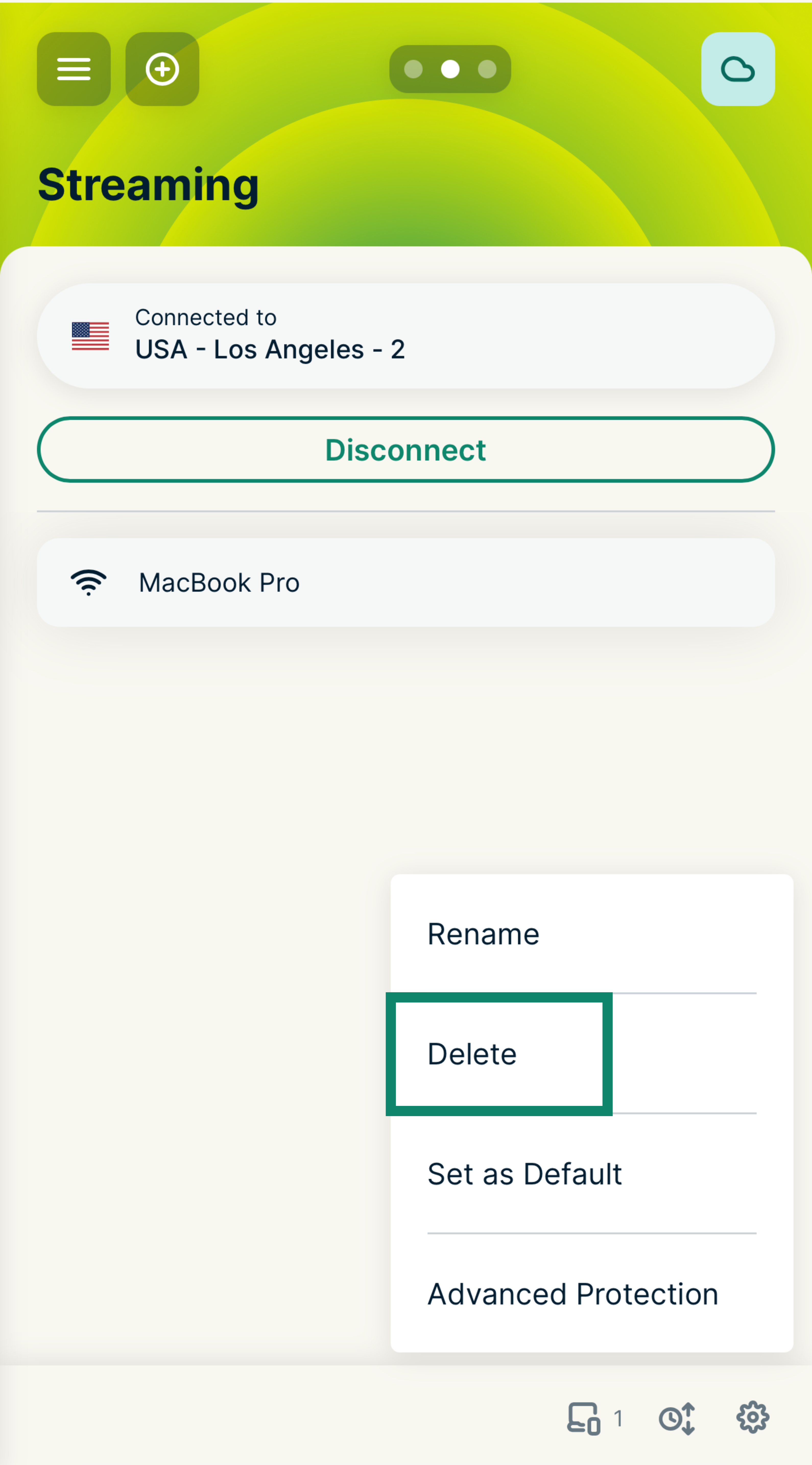
  4. Select Delete, then confirm by selecting Delete.

The device group is now deleted from your dashboard. All the devices from the device group you just deleted will return to your set default group.

Need help? Contact the ExpressVPN Support Team for immediate assistance.

Back to top

Share in FacebookShare in TwitterShare in WhatsappShare in TelegramShare by email
Was this article helpful?

We're sorry to hear that. Let us know how we can improve.

Please enter a valid email address.

A member of our Support Team will follow up on your issue.

Share in FacebookShare in TwitterShare in WhatsappShare in TelegramShare by email
  • What is malware?
  • What is a network security key?
  • Are VPNs legal?
  • How to change the location on your iPhone
  • What is a digital footprint?
  • How to combine a VPN and Tor for online anonymity
  • Get the best VPN for multiple devices
VPN for All Devices
  • Download ExpressVPN
  • MacOS
  • Windows PC
  • iOS (iPhone & iPad)
  • Android
  • Linux
  • Routers
  • Apple TV
  • Fire Stick
  • Android TV
  • Chrome Extension
VPN Server Locations
  • Servers in 105 Countries
  • US VPN
  • UK VPN
  • Canada VPN
  • Australia VPN
Features
  • Explore All Features
  • Risk-Free VPN Trial
  • Plans and Pricing
Products
  • ExpressKeys
  • ExpressMailGuard
  • eSIM
  • Identity Defender
  • ExpressAI
About ExpressVPN
  • About Us
  • Trust Center
  • Rights Center
  • Security Audits
  • ExpressVPN Reviews
  • Our Experts
  • Press
  • Careers
Programs
  • Tottenham Hotspur
  • Brooklyn Nets
  • Partner with Us
  • Affiliates
  • Influencers
  • Student Discount
Get Help
  • VPN Setup Tutorials
  • FAQ
  • Buy VPN
Learn More
  • What is a VPN?
  • What Is My IP?
  • Hide My IP
  • Top 5 VPN Uses
  • Blog

© 2026 ExpressVPN. All rights reserved.

  • Privacy Policy
  • Terms of Service
  • Cookie Preferences

Choose language

  • Dansk
  • Deutsch
  • Español
  • Français
  • Italiano
  • Nederlands
  • Norsk
  • Polski
  • Português
  • Suomi
  • Svenska
  • Türkçe
  • Русский
  • ภาษาไทย
  • 한국어
  • 日本語

Live chat

Need help? Chat with us!

Online