



This guide shows you how to save your login details in the ExpressKeys mobile apps and browser extension so you can use them to sign into your accounts.
Note: To import your logins in bulk from another password manager or browser, follow our guides on how to import your existing data into ExpressKeys.
Jump to…
How to save a login to the ExpressKeys app (iOS and Android)
How to save a login to the ExpressKeys browser extension (Chrome)
How to save a login to the ExpressKeys app (iOS and Android)
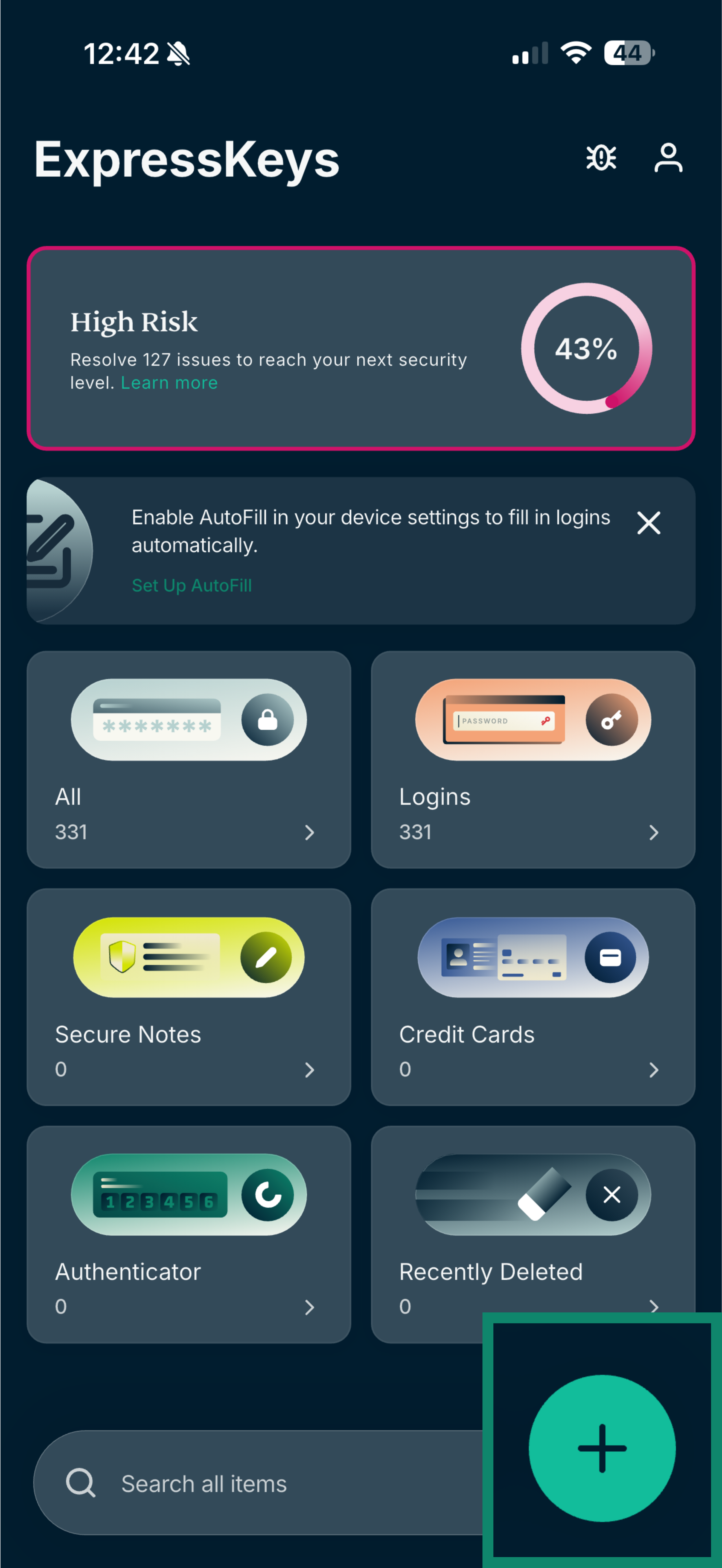
- Open the ExpressKeys app and tap the plus (

 ) icon.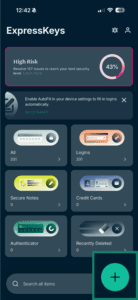

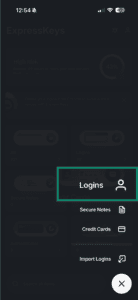
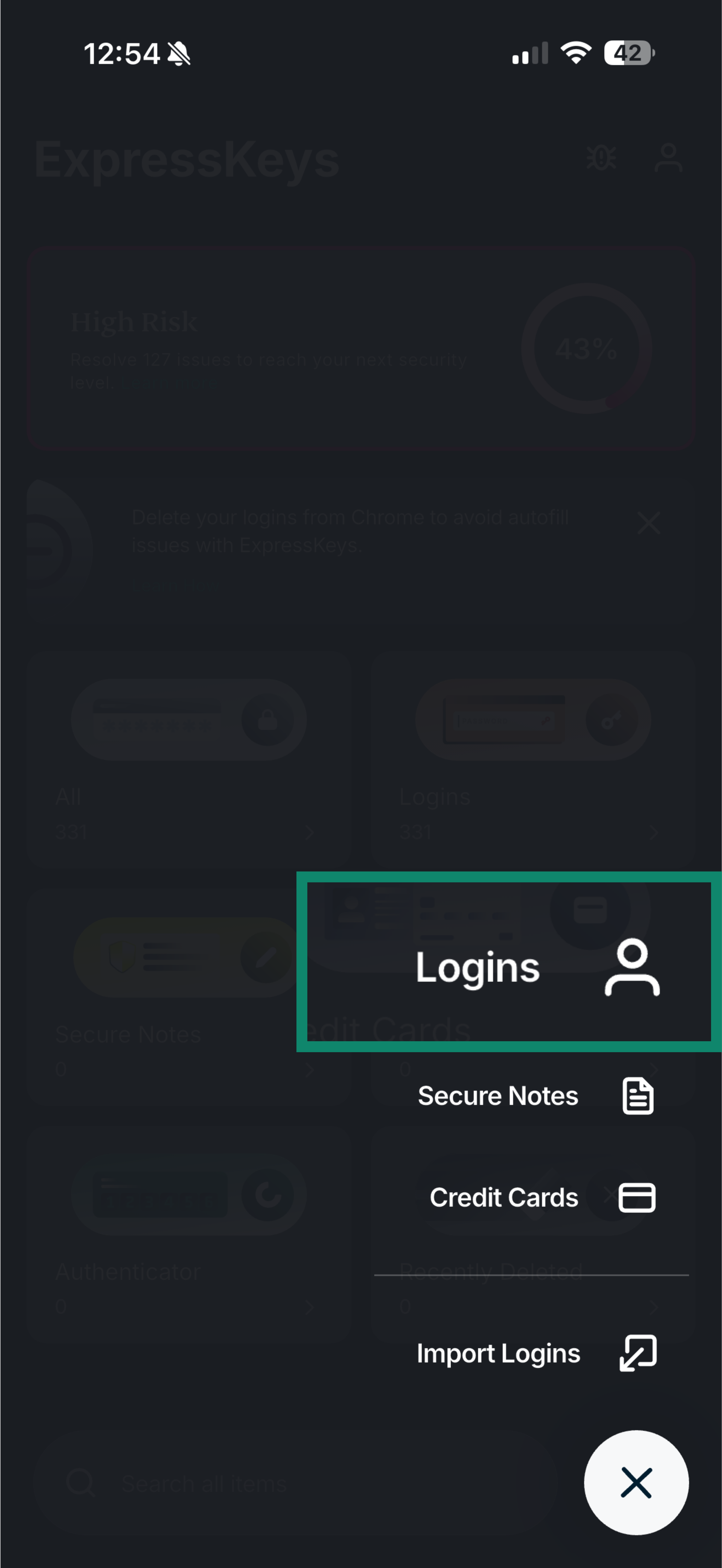
- Tap Logins.
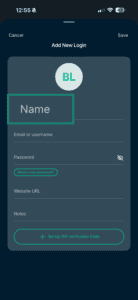
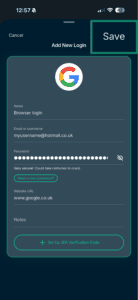
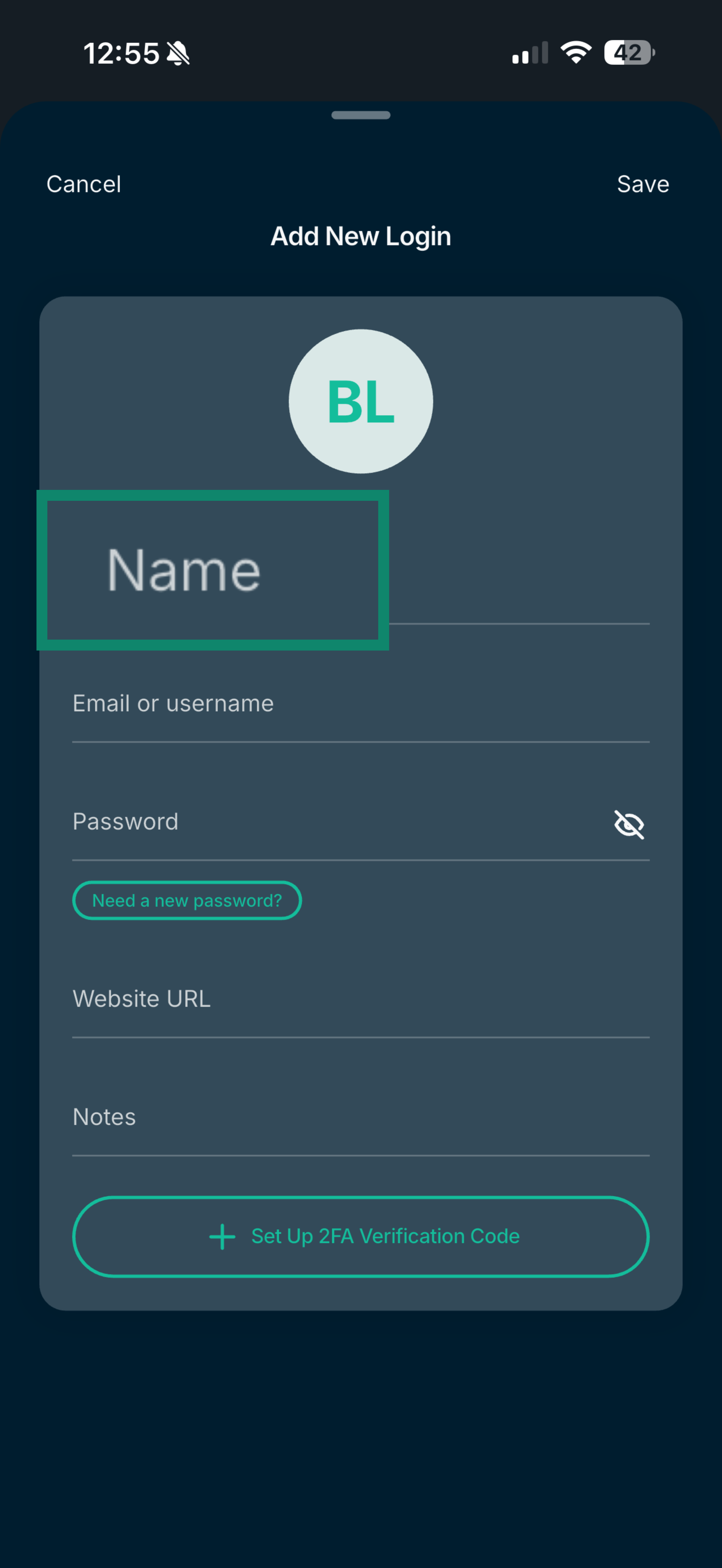
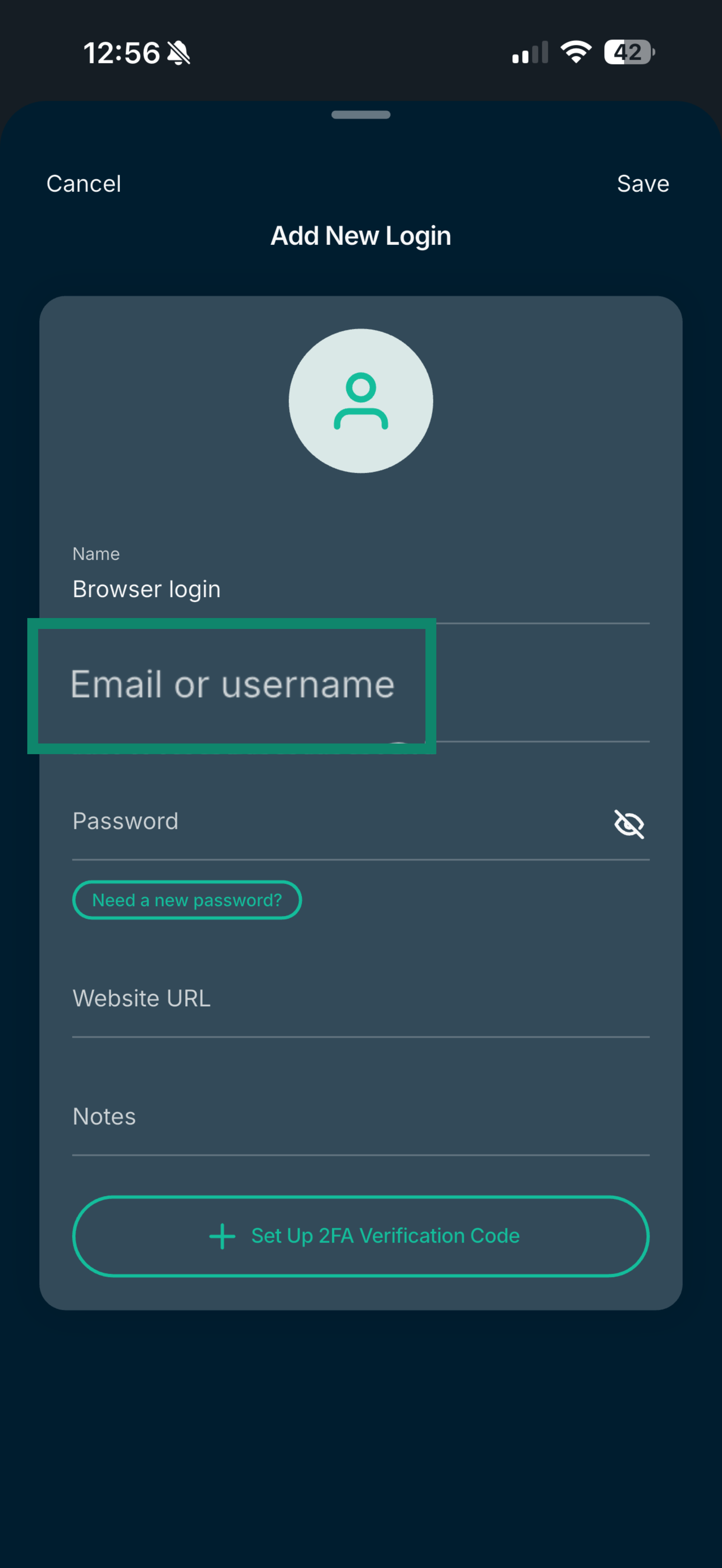
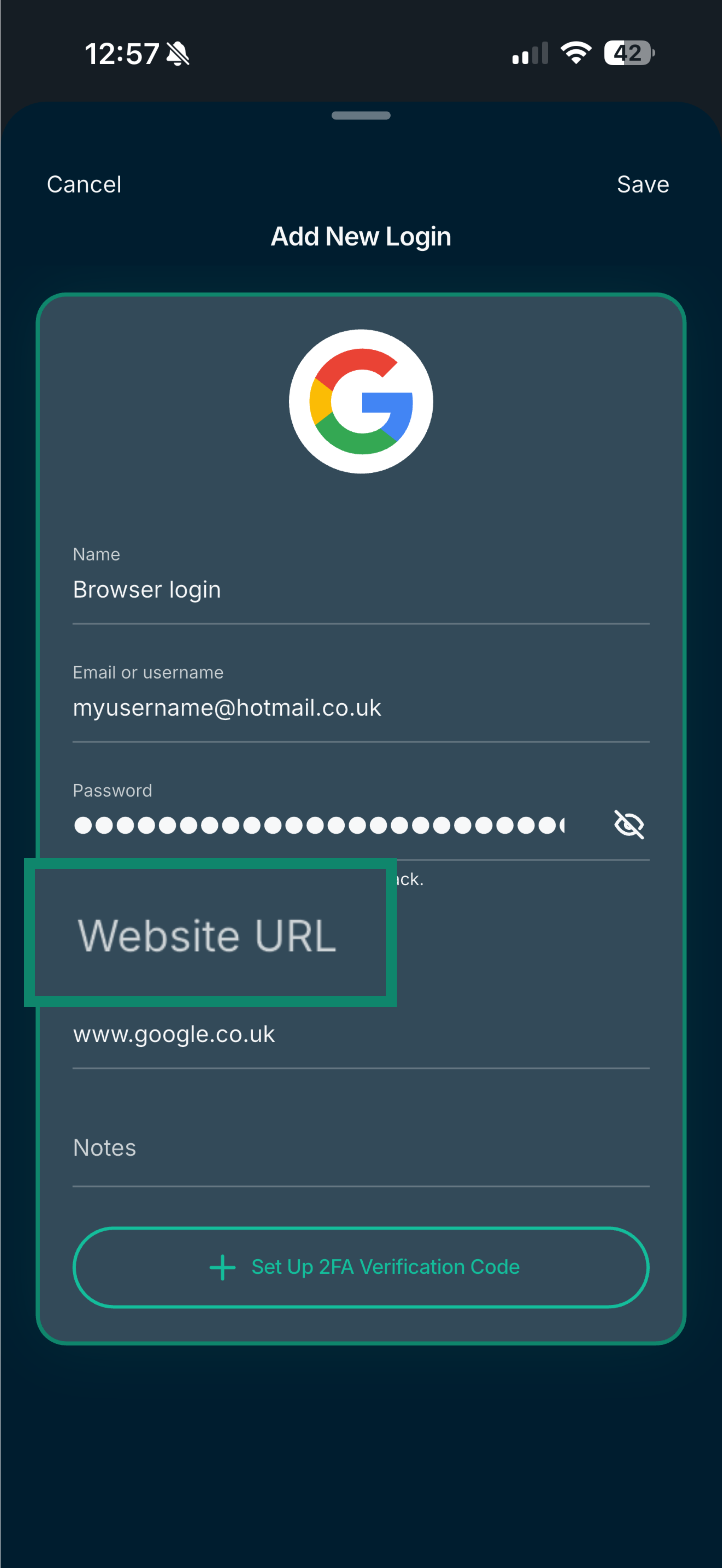
- Enter the Name of your login, e.g., browser login.
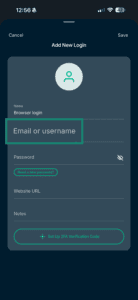
- Fill in the Email or username field.
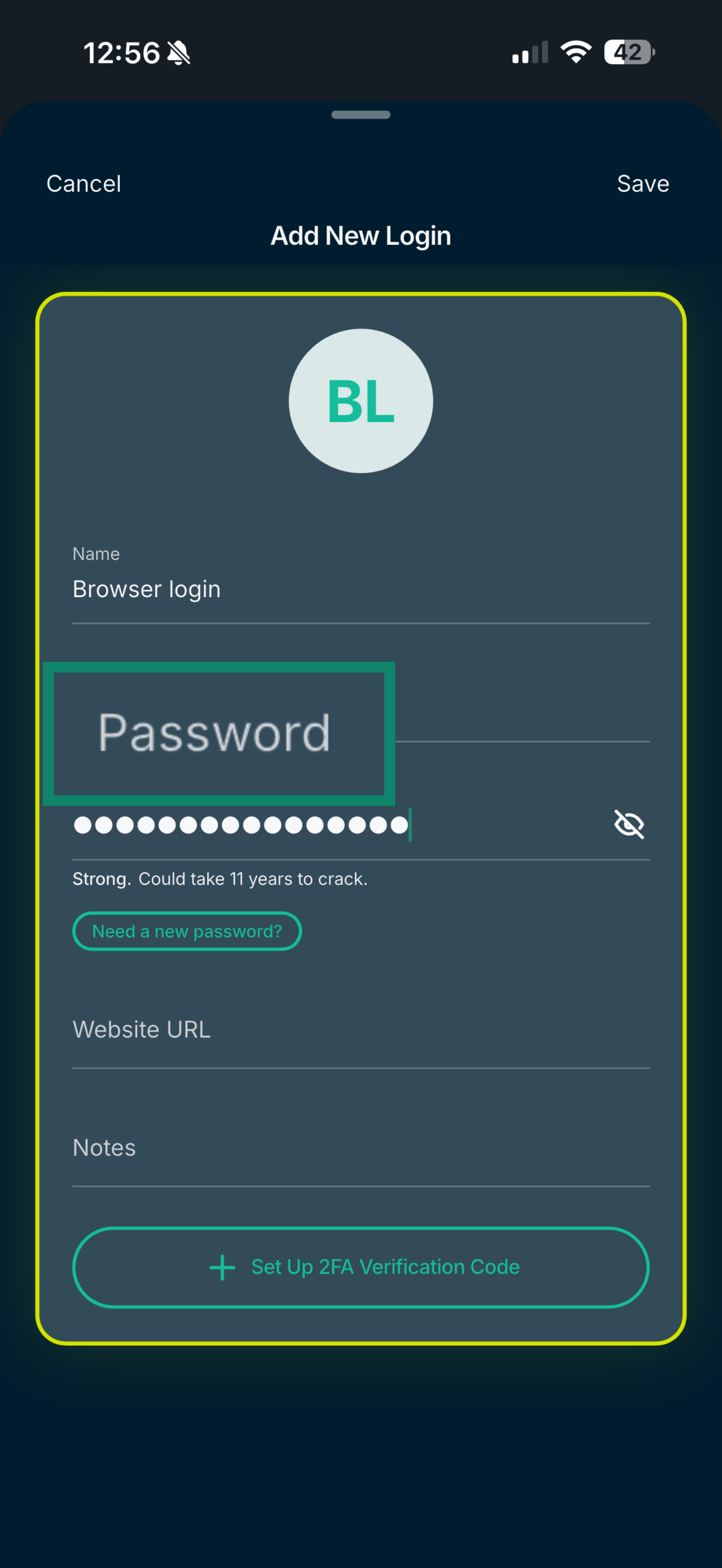
- Enter the Password.
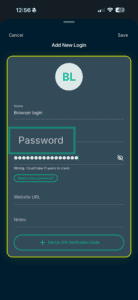
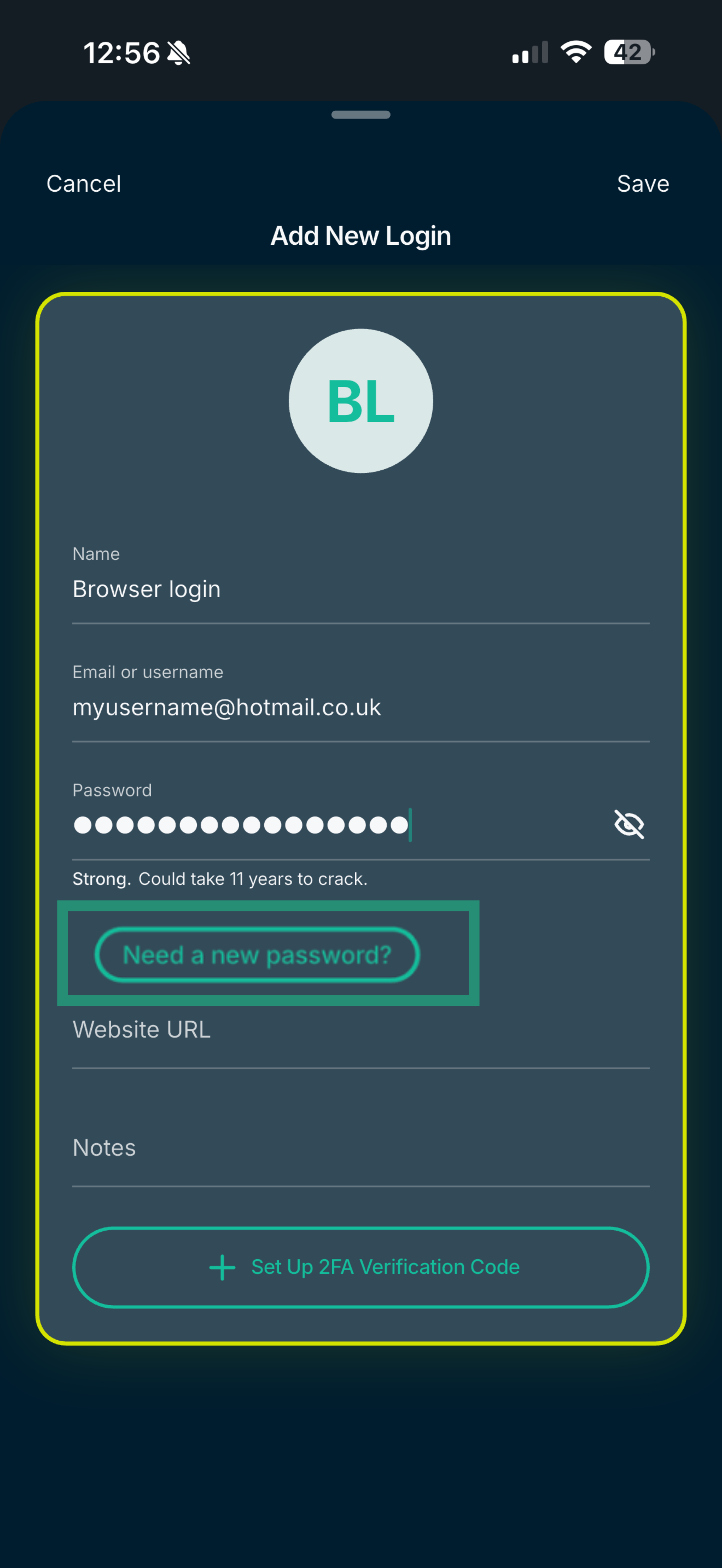
- If you want to generate a new, random password, tap Need a new password.
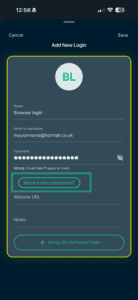
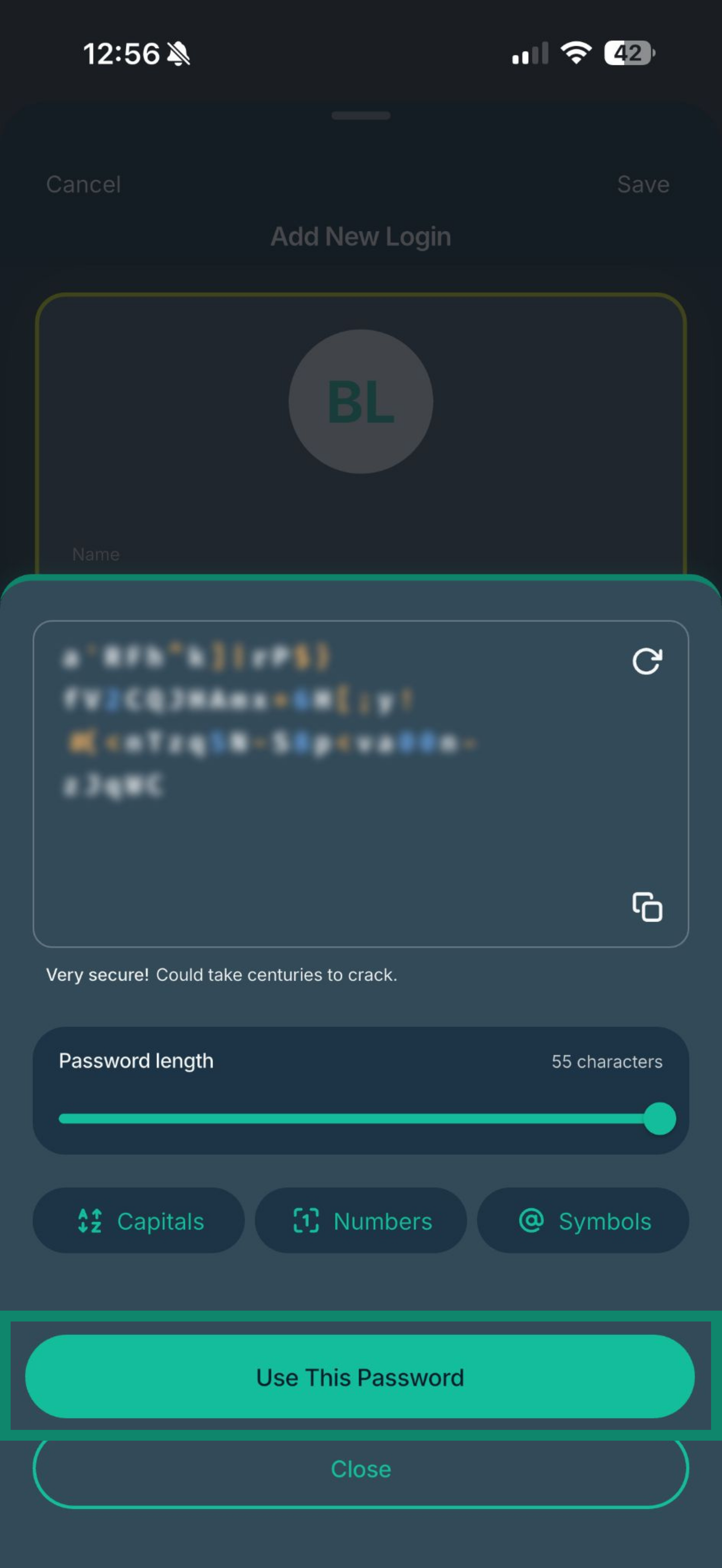
- Tap Use This Password.
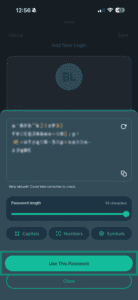
- If you want to generate a new, random password, tap Need a new password.
- Fill in the Website URL field and any notes you want to add about the login.
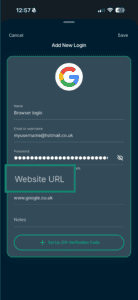
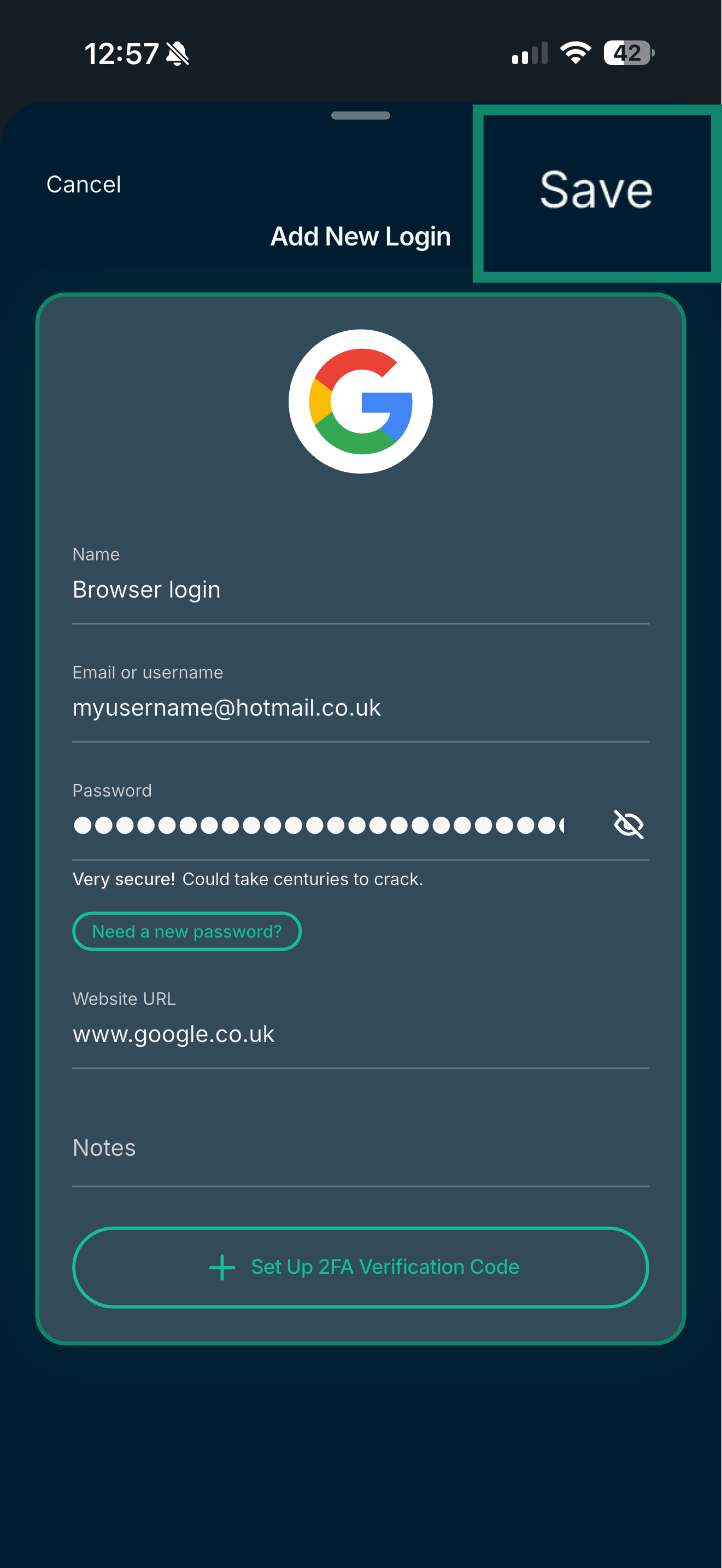
- Tap Save.
After entering your login details, you can enable autofill so ExpressKeys automatically fills in your information when you sign in to apps and websites.
You can also add and generate two-factor authentication (2FA) codes in ExpressKeys for your logins.
Need help? Contact the ExpressVPN Support Team for immediate assistance.
How to save a login to the ExpressKeys browser extension
Note: The ExpressKeys browser extension is available for Chrome and is compatible with other Chromium-based browsers, including Edge, Brave, Vivaldi, and Opera.
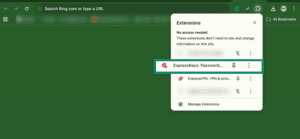
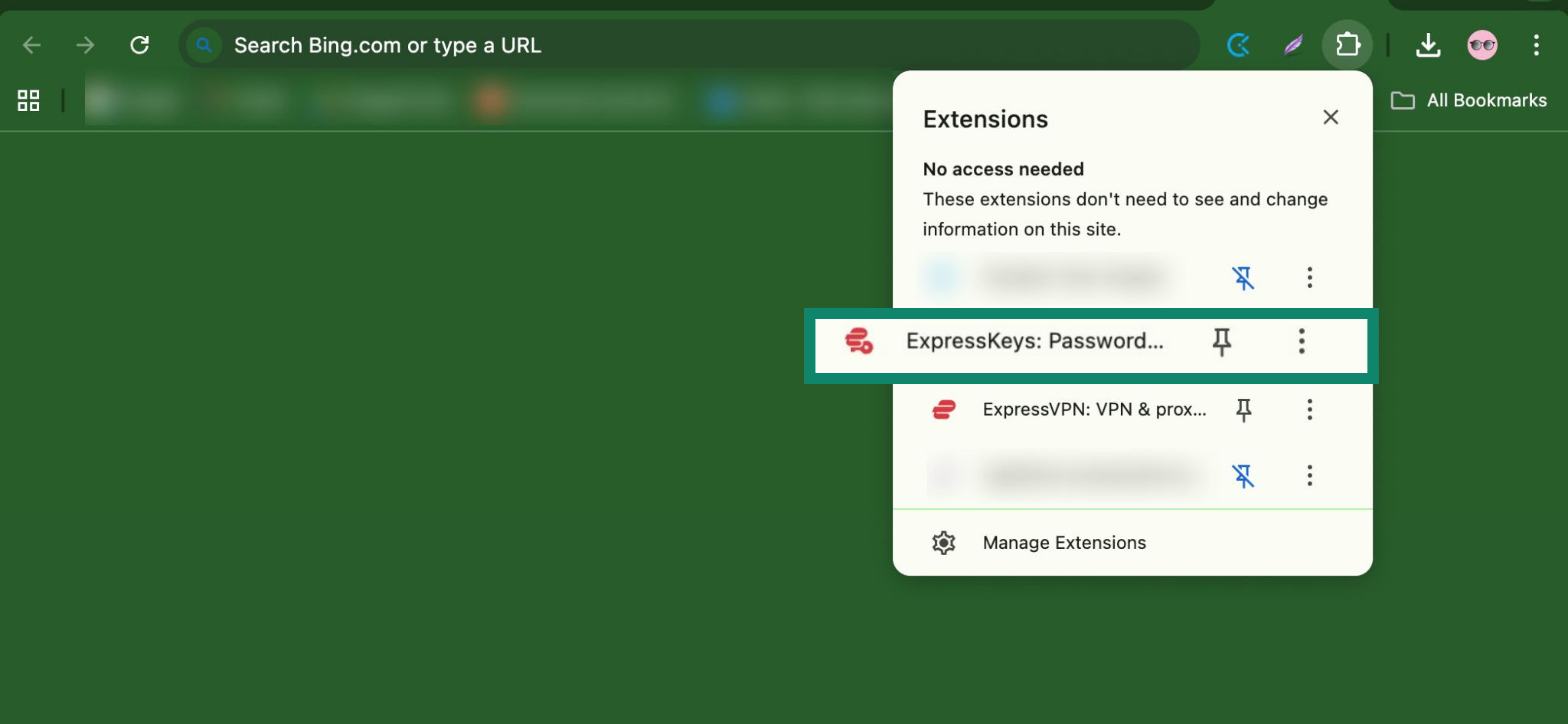
- In the Google Chrome toolbar, open Extensions (jigsaw icon) and click ExpressKeys.

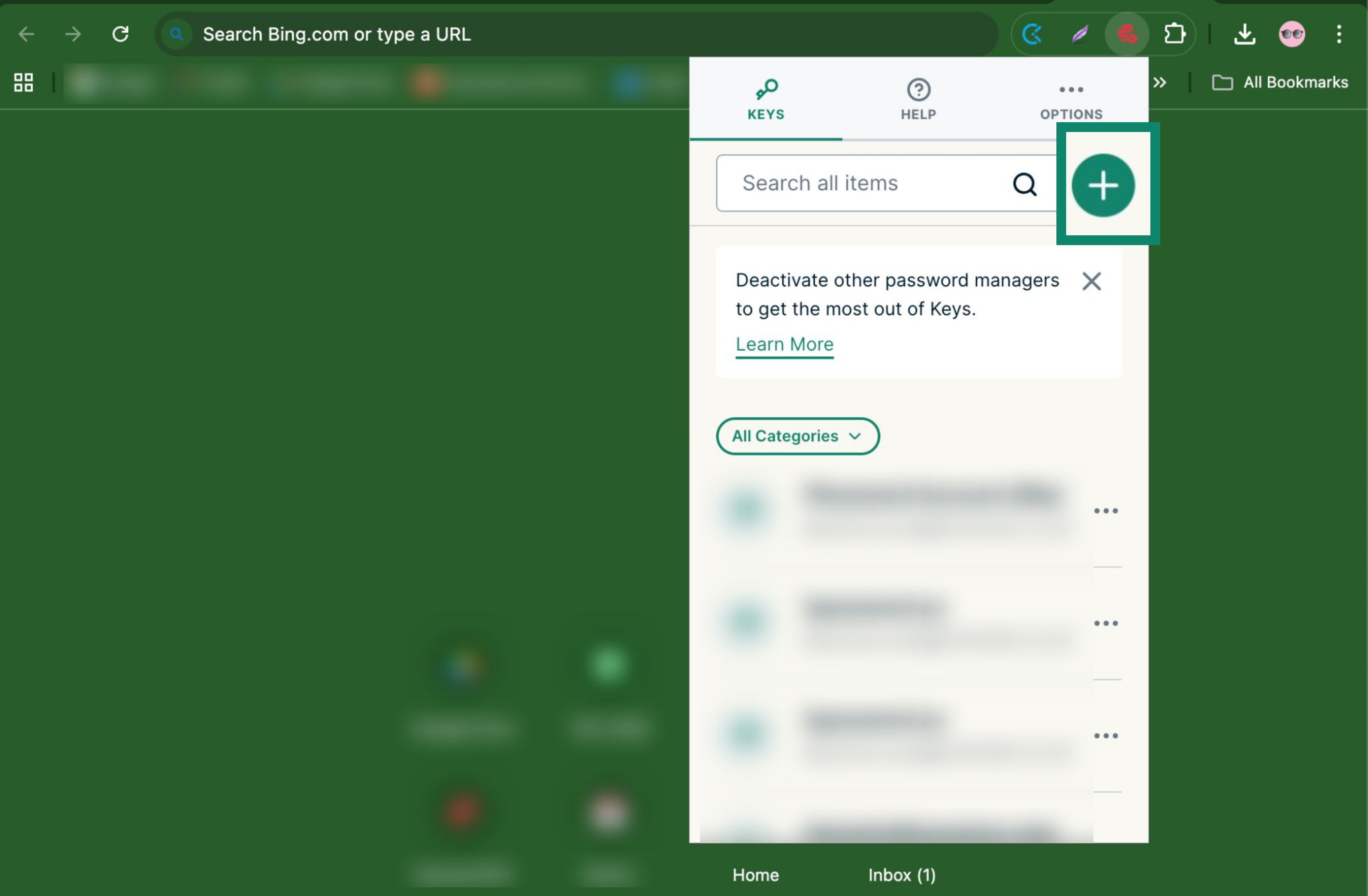
- Click the plus () icon.
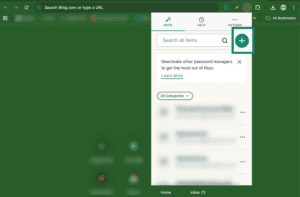

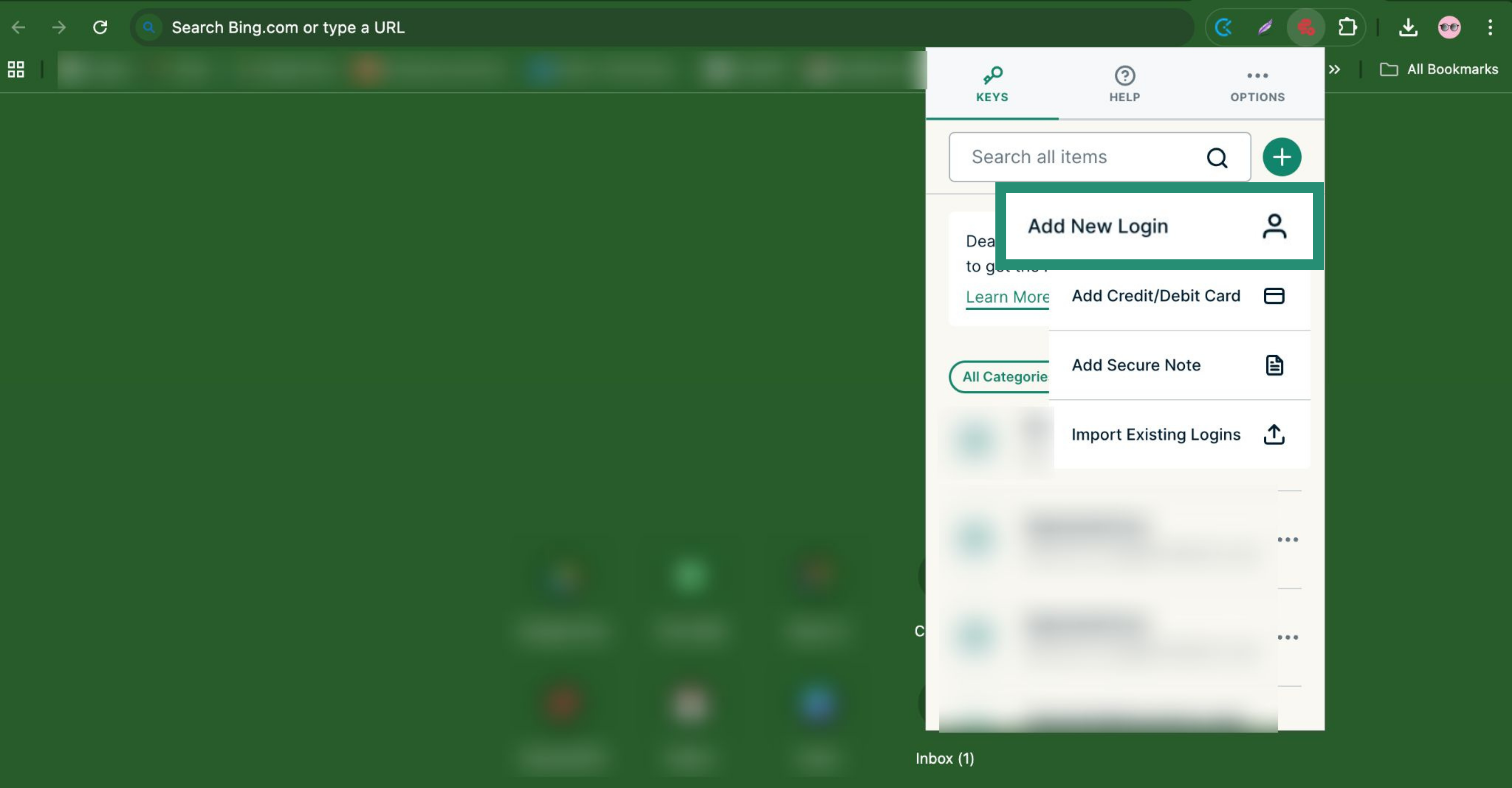
- Click Add New Login.
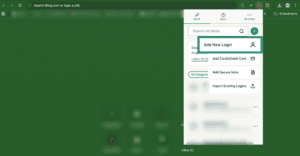

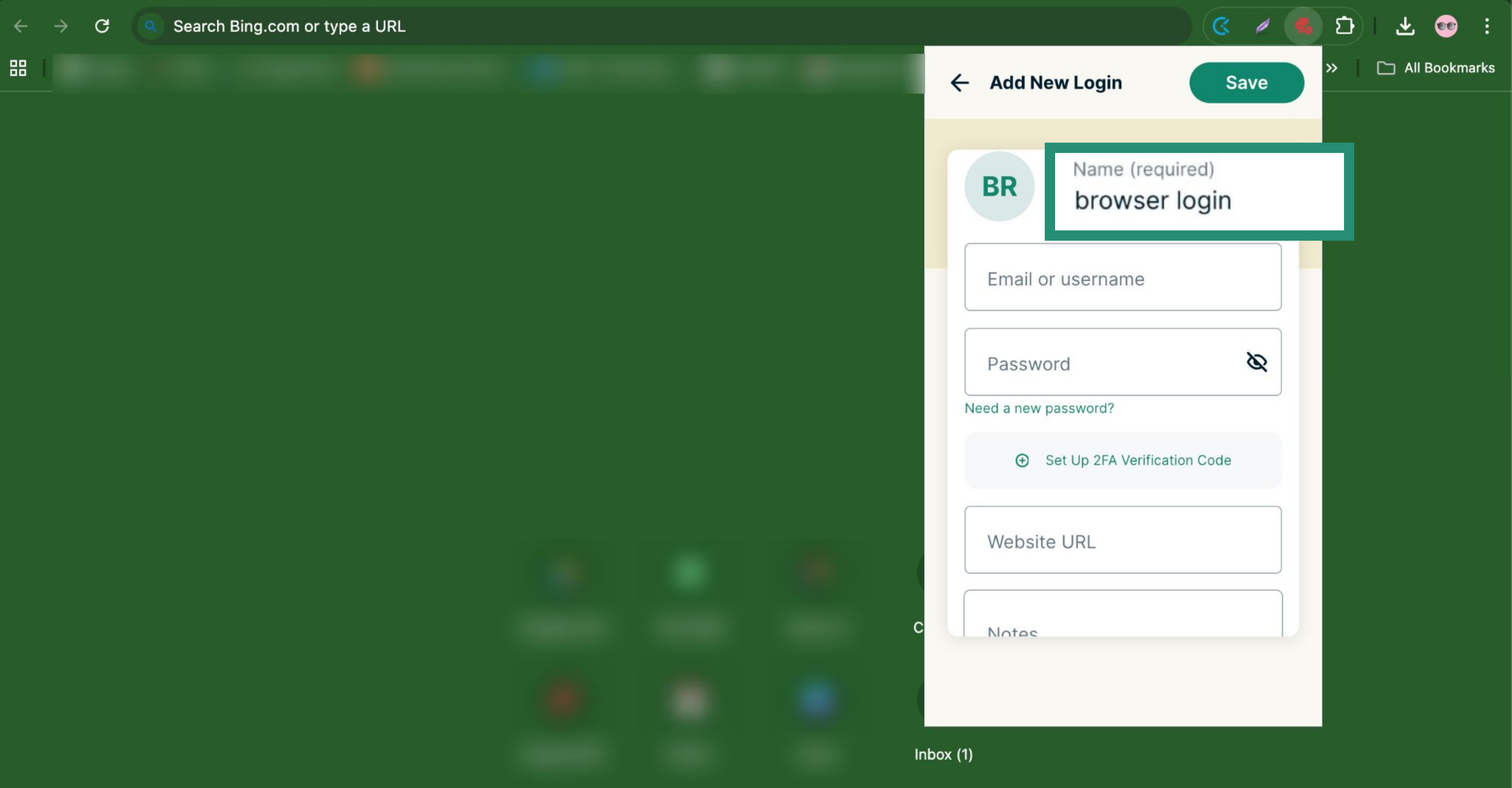
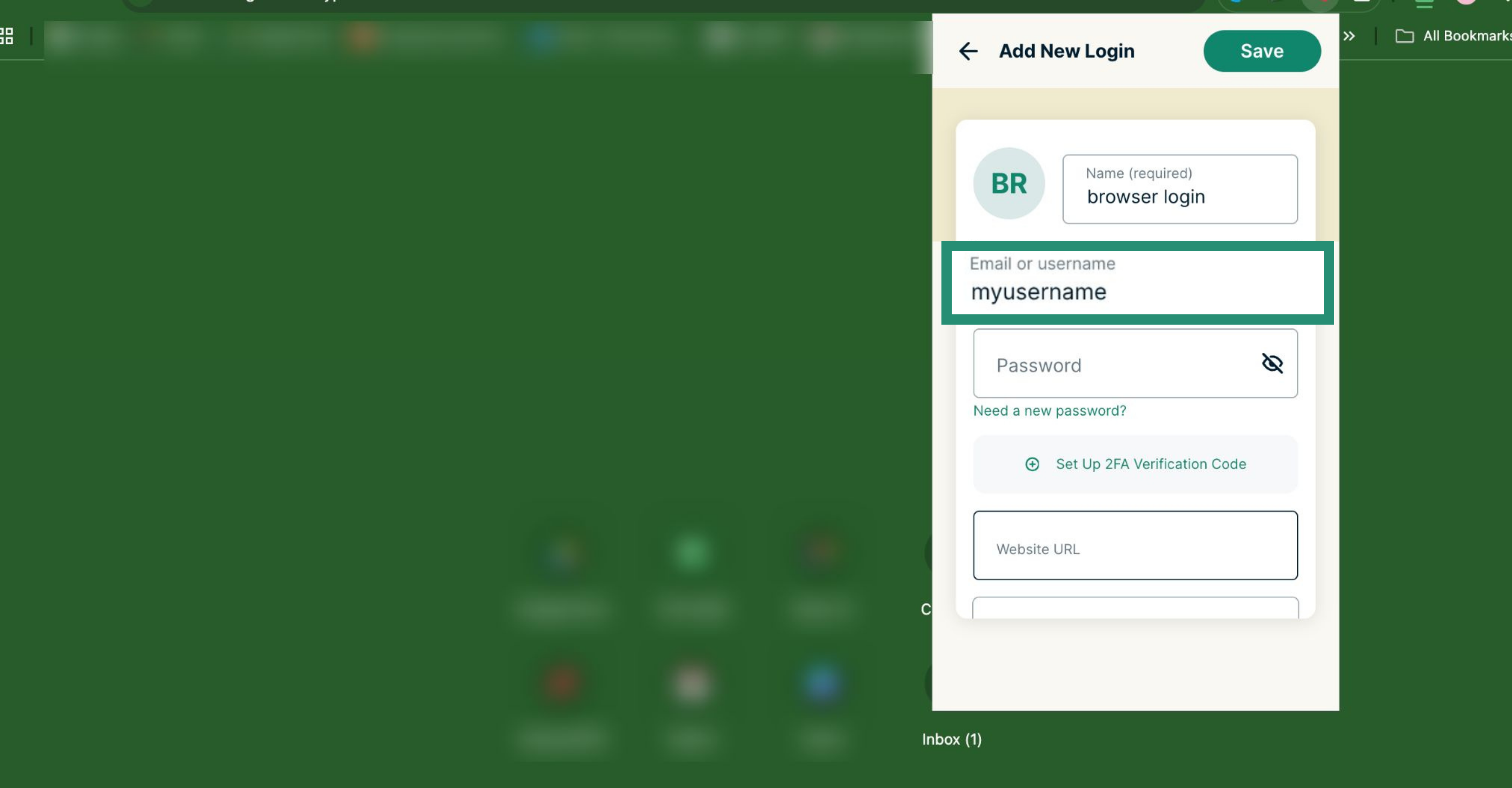
- Enter the Name of your login, e.g., browser login.
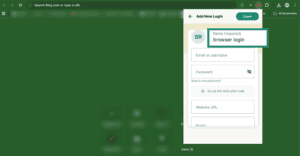
- Fill in the Email or username field.
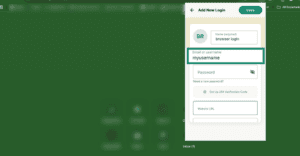
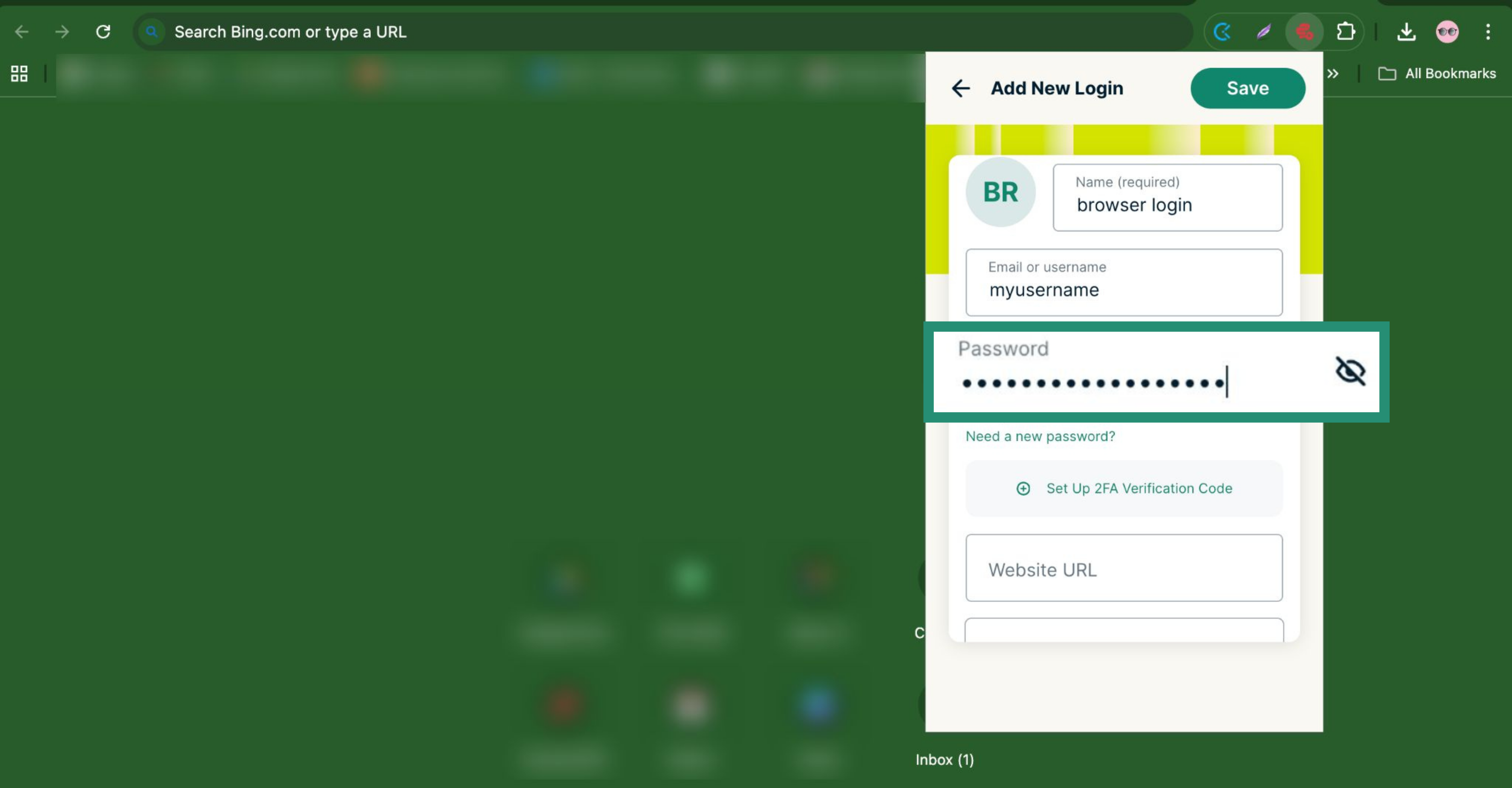
- Enter the Password.
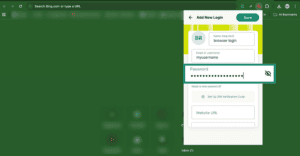
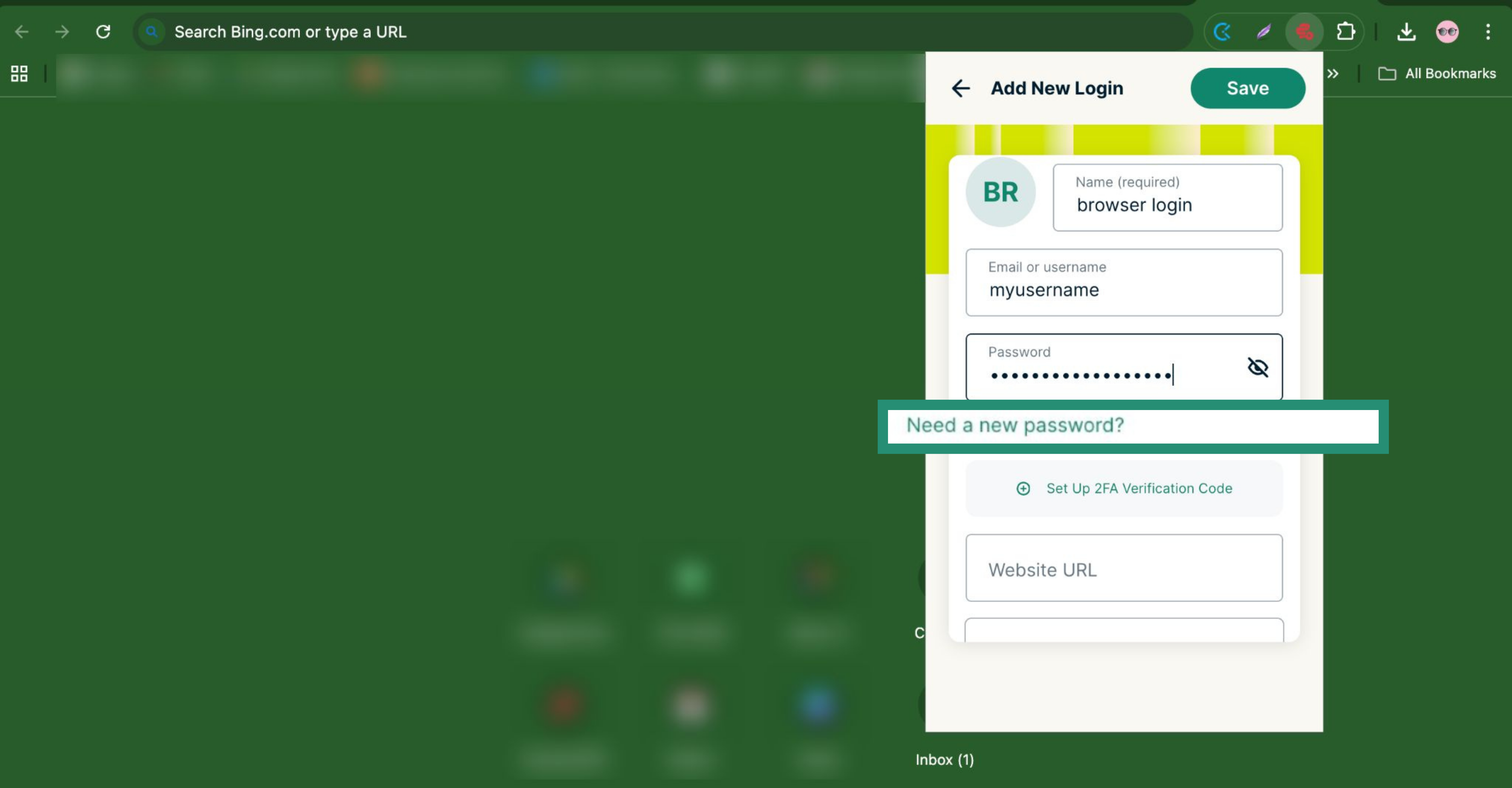
- If you want to generate a new, random password, tap Need a new password.
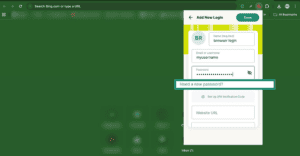
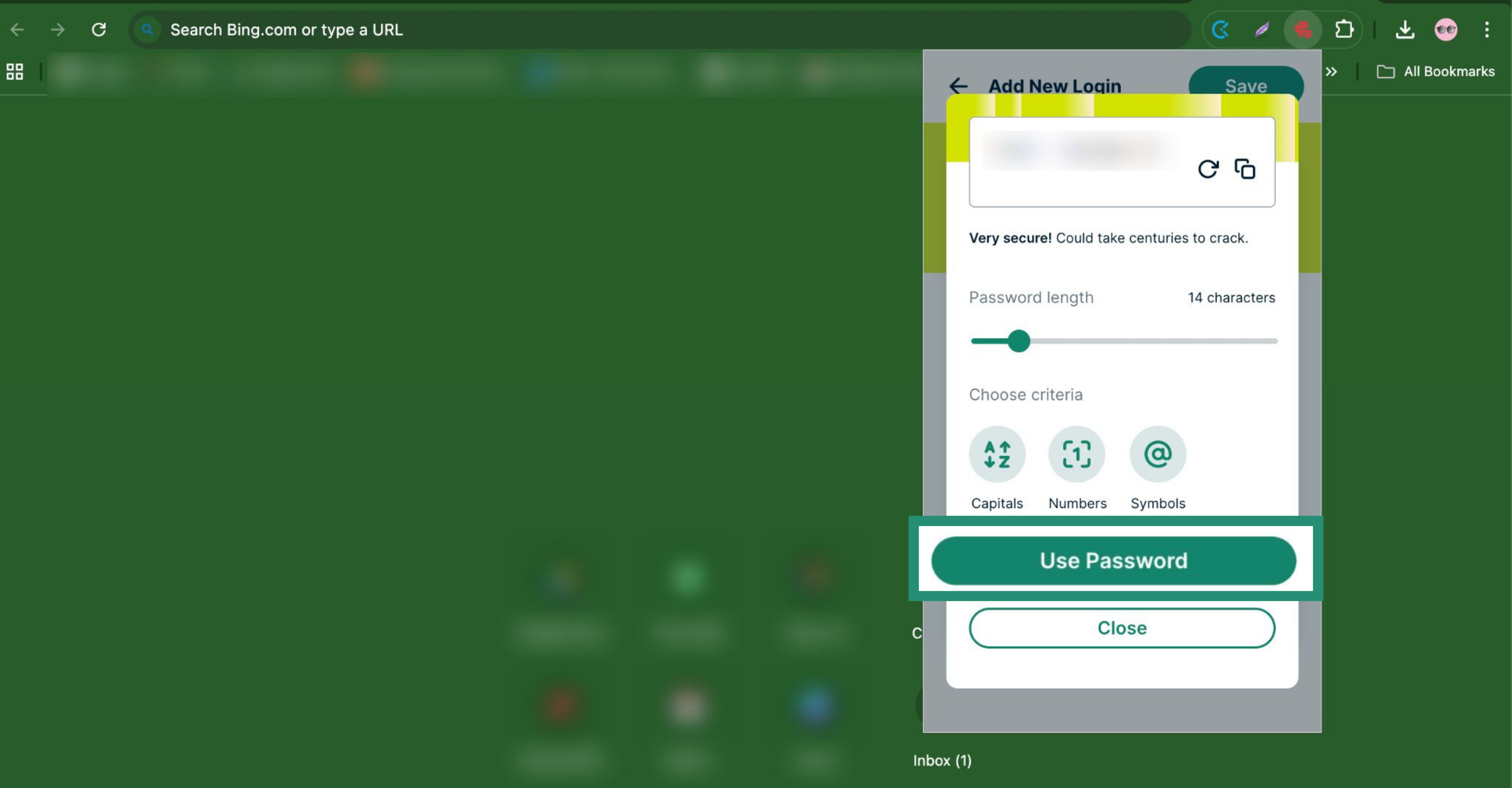
- Tap Use Password.
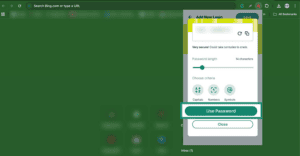
- If you want to generate a new, random password, tap Need a new password.
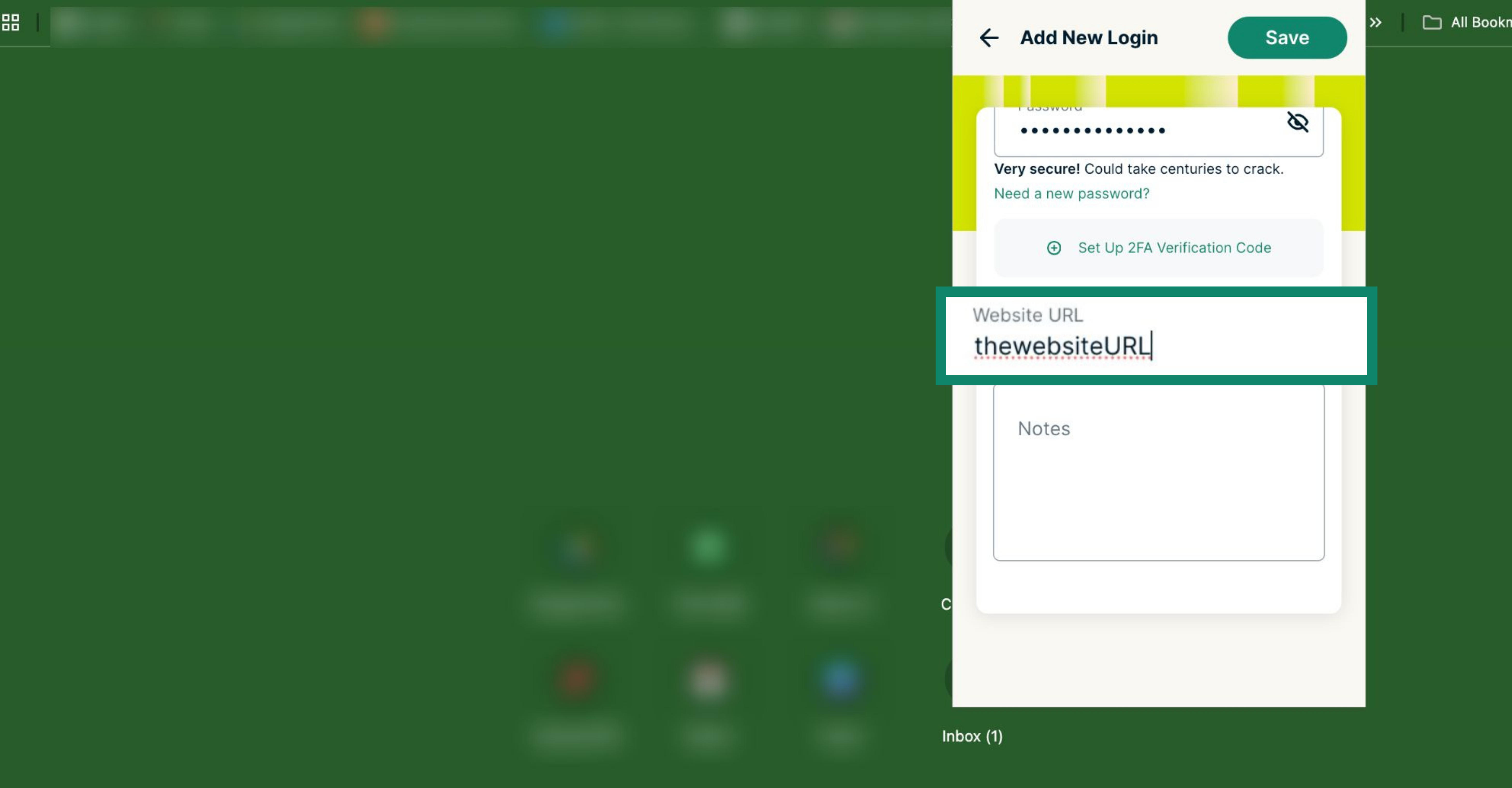
- Fill in the Website URL field and any notes you want to add about the login.
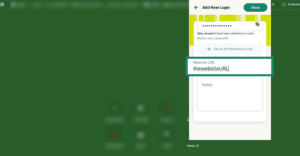
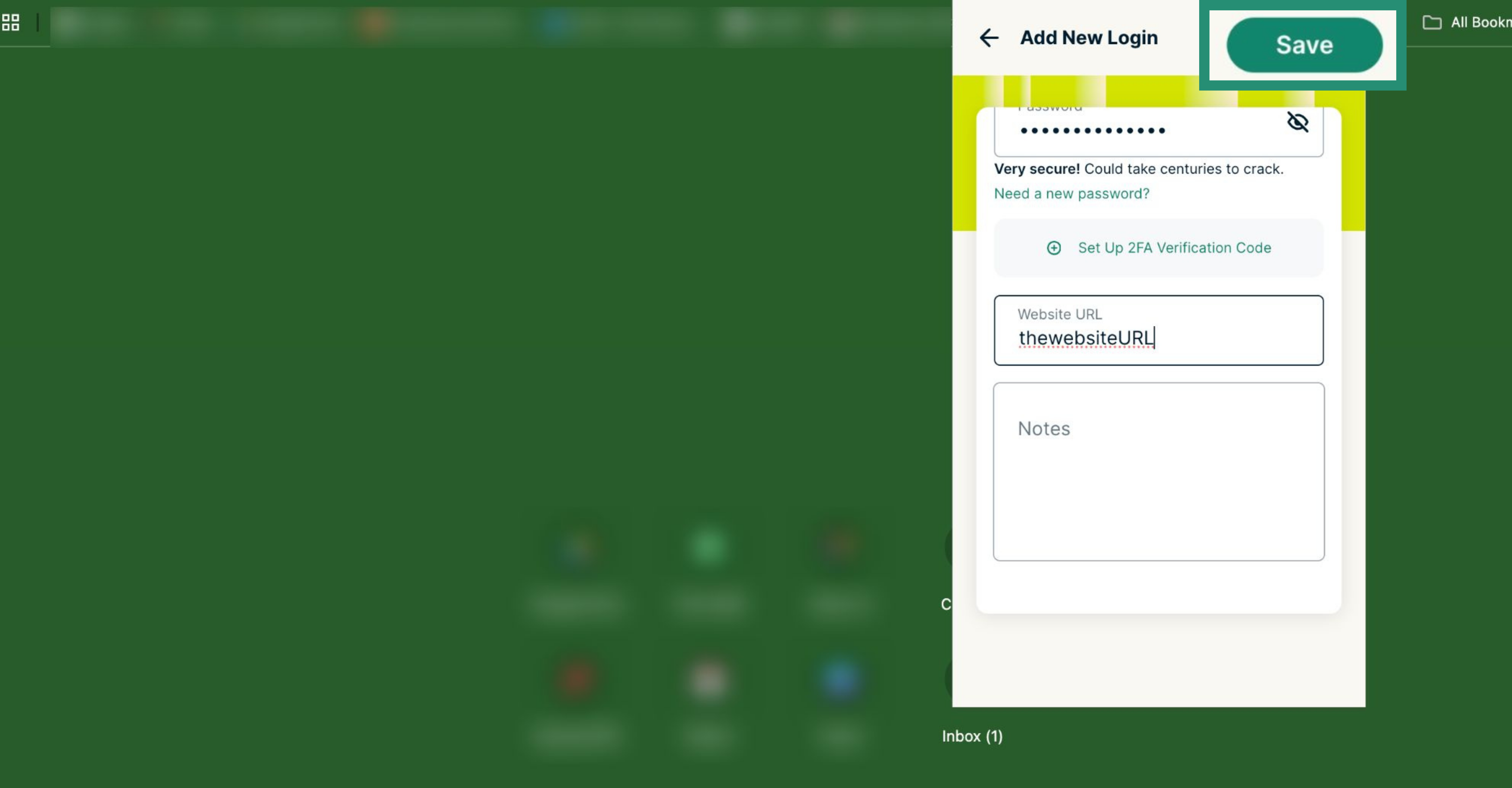
- Click Save.
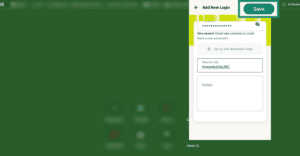
After entering your login details, you can enable autofill so ExpressKeys automatically fills in your information when you sign in to apps and websites.
You can also add and generate two-factor authentication (2FA) codes in ExpressKeys for your logins.
Need help? Contact the ExpressVPN Support Team for immediate assistance.