Seeing “Your IP has been temporarily blocked”? Here’s how to fix it


One moment, a website loads normally; the next, it refuses to connect, often with little explanation of what went wrong. That’s usually when you see the “Your IP has been temporarily blocked” message, or even “Access denied” and “403 forbidden." The wording varies depending on which site or service you’re using, but the result is the same: you’re locked out.
Usually, an IP block typically isn’t permanent. It’s often an automated response triggered by security rules, traffic limits, or network conditions.
This guide explains what an IP block is, why it happens, and how to check whether your IP address is affected. We’ll also cover when you might be able to restore access and prevent it from happening again.
What is an IP block?
An IP block is a method websites and online services use to restrict access from a specific IP address. Every device that connects to the internet uses an IP address, which acts like a routing label for network traffic. When a site blocks an IP address, it refuses connections from that address, so the page content doesn’t load.
Usually, IP blocking is automated and used to manage traffic, reduce spam, or prevent attacks such as denial-of-service (DoS) attempts, rather than to target individuals.
How does an IP block work?
In short, a website checks your IP address against security rules before deciding whether to show you any content.
When you visit a website, your device sends a request that includes your IP address. Before the site displays any content, it checks the IP address against its security rules or blocklists, which might flag things like high traffic volume, repeated failed logins, or unusual request patterns.
If the IP matches one of those rules, the site blocks the request and stops the page from loading. You might see a message that says, “Your IP has been temporarily blocked.” Sometimes, it may be something more generic like “403 forbidden” or “Access denied."
The block can happen at different points, which can affect how easy it is to resolve. For example, it can occur on the website itself, at the hosting provider, or through network security systems such as firewalls, traffic filters, or rate-limiting tools that control how many requests an IP address can make.
The block applies to the IP address itself, not to a specific person. This means a single block can potentially affect multiple devices if they share the same IP address, such as phones and laptops on a home or office network. So, even if you refresh the page or switch browsers, you may struggle to get around it while using the same network.
Temporary vs. permanent IP blocks
Websites don’t all block IP addresses in the same way. There are two main types of IP blocks:
- Temporary IP blocks: These are time-limited and usually triggered automatically, such as after too many requests or failed login attempts. They often expire on their own once the activity stops.
- Permanent IP blocks: These don’t expire automatically and are often linked to repeated violations or long-term restrictions. Permanent blocks often remain in place until the website or service reviews them, rather than lifting on their own.
Reasons your IP may be blocked
A block can be triggered by a network's behavior, a connection's configuration, or an IP address’s location. Let’s go through some of the most common reasons why your IP may be blocked.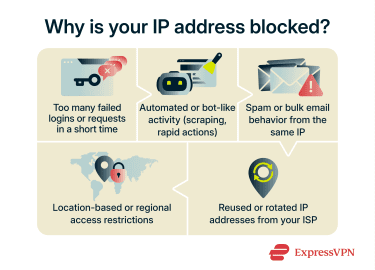
Excessive login attempts and rate limiting
Websites often block an IP address after too many failed login attempts in a short period. This can happen even unintentionally, such as when entering the wrong password several times.
This behavior can look like someone trying to guess passwords or attempting a brute-force attack. Systems may automatically block requests to reduce the risk of account compromise.
Many services also use rate limiting, which caps the number of requests an IP address can make within a given time window, such as limiting login attempts per minute or per hour. It can also apply to loading pages repeatedly, submitting forms, or making API requests.
When an IP address exceeds those limits, the site may temporarily block it and return errors such as "Too Many Requests" (often shown as a 429 code). These blocks are usually automated and time-limited to prevent brute-force attacks and the use of stolen credentials.
Suspicious or automated activity
Websites may block an IP address when traffic doesn’t look like it’s coming from a real person. This can include a large number of requests in a short time or the same action repeated many times. It can also include requests sent at regular intervals, such as every few seconds, which might indicate bot behavior.
Security systems often flag activity such as web scraping, which is when software automatically collects data from a website instead of a person browsing it page by page. For example, loading many pages quickly or copying product lists in bulk. Many websites restrict or prohibit this in their terms of service and may automatically block traffic that appears automated to protect their content, servers, or performance.
Automated form submissions can also look suspicious, so sites might automatically block this kind of traffic. Similarly, if an IP sends a large number of emails through an email service, repeatedly submits contact forms in quick bursts, or behaves like a known spam source, email providers may reject those messages or send them to spam folders.
Connection issues with your ISP
Most consumer internet service providers (ISPs) assign temporary IP addresses to home connections rather than giving each household a permanent one. As devices disconnect and reconnect, ISPs reuse and rotate IP addresses across customers to help them manage a limited pool of available addresses.
Because of this, the local IP address you’re using may have been associated with someone else’s activity in the past, even if you haven’t done anything wrong. If that address has been used for spam, automated requests, or repeated login attempts, some websites may already consider it risky and block it.
Traffic can also appear unusual due to how it passes through the ISP’s servers. This relates to traffic patterns, such as timing and volume, rather than the content you’re looking at.
For example, they may flag traffic that shows sudden spikes after little activity or repeated requests sent immediately after one another. Security systems watch for these patterns because they’re common during abuse or attacks, so they may block the IP as a precaution.
Location-based or geo-blocking restrictions
Some websites limit access or block websites based on geographic location. Instead of checking individual connections in detail, they might block traffic from entire countries, regions, or groups of IP addresses linked to a specific location.
These restrictions are often because of licensing agreements, legal requirements, or regional service policies. For example, a streaming site may be allowed to operate only in certain regions or may need to restrict access to comply with copyright regulations. When this happens, access can be blocked at the IP level even though no unusual activity or rule violation has occurred on your network.
How to check if your IP address is blocked
IP blocks don’t always come with clear or consistent error messages. A site may simply fail to load, show a generic access error, or behave differently from one visit to the next. Here are some tips to help you identify whether your IP address is blocked.
How to tell if your IP is blocked
The signs your IP address might be blocked include:
- You see error messages like “access denied,” “403 forbidden,” or warnings about firewall rules or suspicious activity.
- One website won’t load, even though other, unrelated sites work normally.
- You can’t access the same site, even when you try a different browser or device on the same network.
- The problem keeps happening after you refresh the page or restart your browser.
- The site loads normally when you switch to a different network or connection.
- Emails sent from your network bounce back or land in spam folders unexpectedly.
Keep in mind that some of these can also be caused by general connection problems.
Many sites use CAPTCHA challenges to check whether you’re human.
For example, you might be asked to tick a checkbox, complete a puzzle, or select images from a grid. If you see these repeatedly, it can be a sign that your IP is close to being blocked.
Seeing a CAPTCHA doesn’t necessarily mean your IP address will be blocked, but it does mean the site is applying an extra check. If unusual activity continues after that, the site may slow down requests, temporarily restrict access, or block the IP entirely.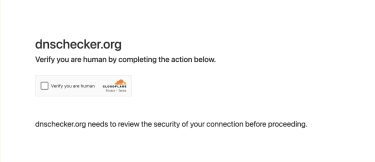
Check your IP against blocklists
To find your public IP address, open a browser and visit an online IP address checker. You’ll see your IP address in the results.
You can use online IP-checking tools, such as the What Is My IP Address blacklist check or DNSChecker blacklist check, to see whether your IP address appears on known blocklists. These lists track IPs associated with spam, abuse, or automated traffic, and websites often use them as part of their filtering rules.
Blocklist checks can be helpful, but they aren’t definitive. Results can vary depending on which blocklists a tool checks. An IP address may appear on one list but not another, leading to a false positive. Likewise, a clean result doesn’t always mean your IP isn’t blocked.
However, remember that some websites rely on their own traffic rules and security checks, which means they might block an IP at their discretion, even if it doesn’t show on a shared list.
Learn more: If you want more context on how IP addresses are identified and linked to networks or locations, learn how to trace an IP address.
Manual checks using different devices or networks
Trying the same website on a different device can help rule out browser- or device-specific issues. If the problem occurs on multiple devices on the same network, the cause is more likely the connection.
You can also try accessing the same website from a different network to see if that helps. For example, switching from home Wi-Fi to mobile data changes your public IP address, which can help you determine whether the issue is tied to your network.
If a site fails to load on one network but works on another, the problem could be related to Domain Name System (DNS) issues rather than an IP block. DNS is the system that translates website names into IP addresses. When DNS isn’t working properly, your browser may not be able to find the site at all, even though your IP isn’t blocked.
How to unblock an IP address
Some blocks resolve on their own, but others might require some manual checks to help you restore access. That said, you may not be able to fix every IP block yourself. Some IP blocks, especially permanent ones, rely on the website or service provider to remove them.
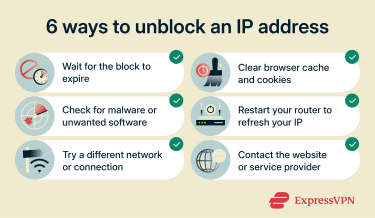
Wait for the block to expire
Many IP blocks are temporary, so they’ll lift on their own after a set period. The length of the block can range from a few minutes to several hours or days, depending on what triggered it.
If the block is time-based, you usually don’t need to take any additional steps beyond stopping the activity that caused it. For example, avoid repeated login attempts or rapidly retrying requests while the block is in place. Waiting is often the safest first option, especially when the block was triggered by automated security or traffic limits.
Clear browser cache and cookies
Clearing your browser’s cache and cookies can help when a site links a temporary block to your browser session rather than your network. It can help with session or account-level restrictions, rather than full IP blocks. This sometimes happens after repeated failed logins, form submissions, or repeated refreshes during a short visit.
For example, if a site blocks access after several sign-in attempts and continues showing the same error even after some time has passed, clearing stored session data can reset that interaction. This won’t change your IP address, but it can help with site-specific issues rather than network blocks.
To clear your browser cache and cookies, follow these steps.
Google Chrome
- Open Settings, then go to Privacy and security.
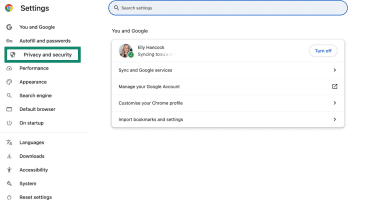
- Select Delete browsing data.
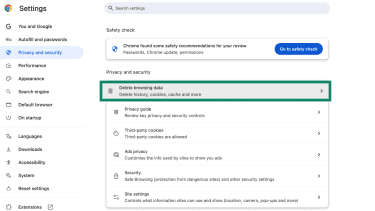
- Choose Cookies and other site data, and Cached images and files.
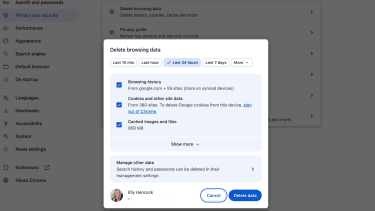
- Click Delete data, then reload the website.
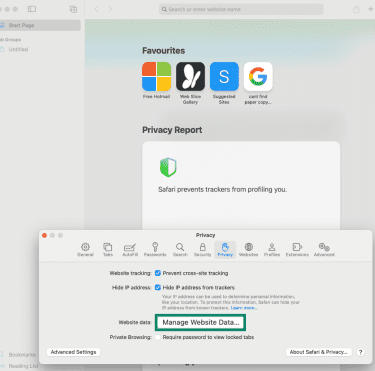
Safari (on macOS)
- Open Safari, then select Settings (or Preferences) from the menu.
- Go to the Privacy tab.
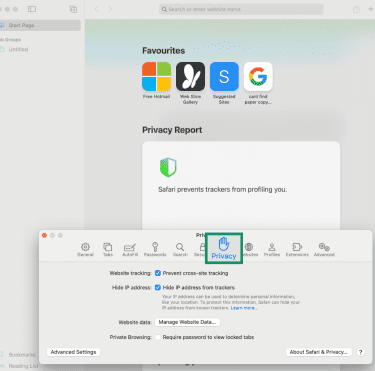
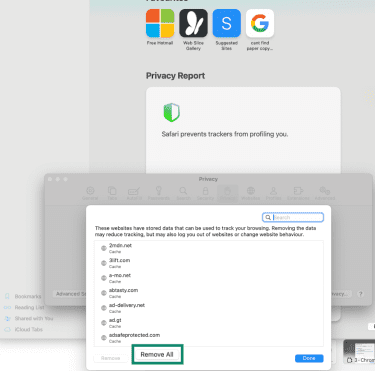
- Click Manage Website Data.
- Select Remove All, then reload the website.
Check for malware or unwanted software
Checking for malware is important if your IP address was blocked without an obvious cause. Although this is less common on personal devices than on servers or shared networks, some malicious or unwanted programs send repeated requests or background traffic that you may not notice.
For example, adware or compromised browser extensions can repeatedly contact websites, which may trigger automated security systems.
Use a reliable antivirus to scan your device for malware. Remove anything that looks suspicious to help prevent the block from happening again.
Restart your router
Restarting your router can help if your internet service provider assigns IP addresses dynamically. When the connection resets, you may receive a different IP address, although this depends on how your ISP manages IP leases and how long they assign them for.
This can work if you’re using a dynamic IP address and your previous IP was temporarily blocked due to traffic limits or earlier activity on the same connection. That said, if your ISP uses a fixed (or static) IP address, restarting the router won’t change it, so you may want to contact your ISP to request a new IP address.
Contact the website or service provider
Contacting the website can be helpful when a block doesn’t lift on its own or keeps returning. For example, if your IP was blocked after repeated login attempts caused by a syncing app or shared network activity, the site may be able to review and remove the block manually.
You might also be able to request IP whitelisting, though this is more common for business or managed accounts than consumer IP addresses. This is an approval process where the website allows connections from your IP address after it is reviewed. The decision is made by the website owner, not automatically, but it can help you avoid future blocks if they decide to whitelist your IP address.
How to prevent your IP from being blocked again
You can’t prevent every IP block, but a few habits can reduce the chances of being flagged by automated systems. In general, prevention focuses on reducing flags from automated systems, rather than eliminating blocks entirely.
Avoid repeated failed logins and automated requests
Many websites monitor for patterns that appear to be password-guessing or automated access. Entering the wrong login details several times in a row, refreshing pages repeatedly, or retrying the same action too quickly can trigger these security systems.
Try taking a short pause between attempts and limit the number of retries to reduce the chance of being flagged. This gives security systems time to reset and reduces the likelihood that your activity will be mistaken for automated or spam-like behavior.
Secure your device and browser extensions
Malware or poorly behaved browser extensions can send repeated requests, pop-ups loading content in the background, or automated connections to websites you’re not actively using.
This activity doesn’t always have to be malicious. Even poorly coded or outdated extensions can unintentionally send excessive requests. Since all of that traffic comes from your IP address, it can affect how websites judge your connection.
Make sure to keep your device, browser, and any extensions up to date to limit this kind of activity. Updates can patch security loopholes and reduce the chance of unwanted background activity triggering blocks.
Use stable, trusted networks
Shared or public networks, such as those in cafés, airports, or hotels, are flagged more frequently because many people use the same IP address. If a single person on that network sends suspicious traffic, the shared IP address can be blocked.
Frequent network switching can also trigger security checks. For example, requests that suddenly appear from different locations or network types within a short time can look unusual to automated systems.
Where possible, use a regular home or work connection that you trust. This helps keep your traffic patterns consistent, making it easier for systems to recognize them as normal and reducing the risk of being flagged.
If you need to use public Wi‑Fi, consider additional security measures. Public networks are more exposed to monitoring and interference, and traffic may be shared across many users. Using a virtual private network (VPN) can help encrypt your internet connection and protect your data on unsecured networks.
FAQ: Common questions about IP blocking
How long do IP blocks last?
How can I unblock my IP address?
What does it mean when a phone call says my IP address has been compromised?
What happens when your IP is blocked?
What steps can I take to prevent my IP from being blocked in the future?
What is the difference between a temporary block and a permanent block?
How can I check if my IP is on a blacklist?
Take the first step to protect yourself online. Try ExpressVPN risk-free.
Get ExpressVPN







 Support Center
  FAQ
FAQ  VPN Setup Tutorials


