What is Wi-Fi 6? A complete guide to the next-gen wireless standard



Wi-Fi 6 is a wireless standard designed to handle modern home networks where many devices are connected at the same time. These can include phones, laptops, smart TVs, cameras, and other always-connected devices.
While most of these devices don’t require high speeds, managing many simultaneous connections can create bottlenecks that affect overall performance. When a network struggles with congestion, users may notice buffering video, lag during gaming, pixelated video calls, dropped connections, or Wi-Fi that feels inconsistent throughout the day.
All of these issues can be caused by an outdated Wi-Fi router that isn’t designed to manage heavy, shared network traffic efficiently. Wi-Fi 6 solves this problem and improves how wireless networks manage traffic, devices, and interference in high-demand environments.
This guide explains what Wi-Fi 6 is, how it works, how it compares to earlier standards, and whether upgrading makes sense for a typical home setup.
What is Wi-Fi 6? Understanding the basics
Wi-Fi 6 launched in 2019 and is now a mainstream standard. Most new routers, smartphones, laptops, VR headsets, and smart home devices support it by default, making it the baseline for modern wireless networking.
The technical name for Wi-Fi 6 is IEEE 802.11ax, which succeeded IEEE 802.11ac. The Wi-Fi Alliance (the industry organization responsible for Wi-Fi standards and device certification) adopted a numbered naming system, branding these standards as Wi-Fi 6 and Wi-Fi 5 to make generations easier to recognize and compare.
The standard is backward compatible, meaning Wi-Fi 6 routers work with older devices that use previous Wi-Fi generations.
How does Wi-Fi 6 work? Key benefits explained
Wi-Fi 6 is faster than previous generations and can also handle more devices simultaneously, which is ideal in homes and offices with many Internet of Things (IoT) devices.
Older Wi-Fi standards were designed for a small number of connected devices taking turns using the network. Wi-Fi 6 coordinates traffic so multiple devices can transmit and receive data simultaneously, rather than constantly competing for access to the wireless channel.
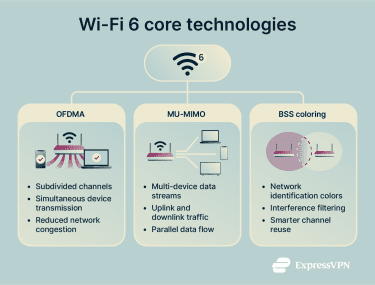
This behavior is driven by three core technologies:
- Orthogonal Frequency Division Multiple Access (OFDMA).
- Multi-User, Multiple-Input, Multiple-Output (MU-MIMO).
- Base service station (BSS).
Orthogonal Frequency Division Multiple Access (OFDMA)
OFDMA works by subdividing wireless channels into smaller subcarriers and allowing data to be transmitted to multiple endpoints at the same time.
In earlier Wi-Fi generations, routers could handle multiple devices, but they were less efficient at doing so simultaneously. Even small data requests from devices like smart home hubs could experience delays when many devices were active at once. As more devices connected, networks were more likely to experience slowdowns.
With OFDMA, a Wi-Fi 6 router can send different data streams to multiple devices in a single transmission window, instead of serving them sequentially. This reduces delays, improves efficiency, and prevents slower devices from holding up faster ones.
MU-MIMO improvements
MU-MIMO was introduced with Wi-Fi 5, but Wi-Fi 6 significantly expands its capabilities. In Wi-Fi 5, MU-MIMO only supported downlink traffic, allowing routers to send data to multiple devices at the same time, but not uplink traffic, so devices couldn’t transmit to the router simultaneously.
With Wi-Fi 6, MU-MIMO works in both directions, enabling multiple devices to send and receive data at the same time. This prevents a leading cause of major bottlenecks in busy networks, where upload traffic from devices such as phones, cameras, and cloud apps previously slowed everything else down.
In practical terms, it’s upgrading the infrastructure from a one-way street to a highway with traffic flowing in both directions.
The result is smoother performance, better responsiveness, and fewer slowdowns in environments with heavy simultaneous usage, such as homes with many connected devices or shared workspaces.
Basic service set (BSS) coloring
BSS coloring is a Wi-Fi 6 feature that reduces congestion and interference in crowded wireless environments. Older Wi-Fi standards used a “listen before talk” model, where devices paused transmission whenever they detected activity on a channel, even if the signal came from a distant, unrelated network.
BSS coloring assigns each network a digital “color” identifier. Devices can distinguish between their network traffic and traffic from neighboring networks. If activity is detected on the same channel but it belongs to a different “color,” the device can continue transmitting instead of waiting unnecessarily.
It’s similar to being in a busy room where multiple conversations are happening at once. Instead of stopping every time you hear a voice, you only pay attention to the conversation you’re part of. By filtering out irrelevant signals, Wi-Fi 6 networks avoid unnecessary pauses, improving reliability and reducing latency in dense environments.
What is Wi-Fi 6E?
Wi-Fi 6E is an extension of Wi-Fi 6 that adds support for the 6GHz frequency band. The “E” stands for Extended, meaning Wi-Fi 6E takes the same core technologies as Wi-Fi 6 and expands them into new spectrum rather than introducing a new wireless standard.
The 6GHz band expansion is significant because it represents the largest allocation of unlicensed spectrum in Wi-Fi history. In the U.S. and many other regions, this adds up to 1,200MHz of clean spectrum, while much of the EU provides nearly 500MHz. In practical terms, this increase nearly triples the amount of spectrum available for Wi-Fi, creating far more space for devices to operate without interference.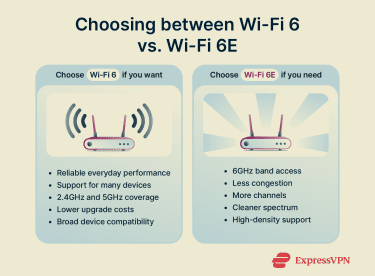
Another benefit of the expansion is it provides more contiguous spectrum and wider channel availability, allowing for larger channels and less overlap between networks. This dramatically reduces congestion in dense environments like offices, apartment buildings, campuses, and enterprise spaces.
With fewer competing signals, devices experience more stable connections, more consistent throughput, and fewer interruptions.
There are, however, some device compatibility considerations for potential users of Wi-Fi 6E:
- Requires a Wi-Fi 6E–enabled router.
- Requires devices with 6GHz radio support.
- Only Wi-Fi 6E devices can access the 6GHz band.
- Wi-Fi 6 devices can connect but remain on 2.4GHz and 5GHz.
- 6GHz benefits only apply when both the router and device support Wi-Fi 6E.
Key benefits of Wi-Fi 6: Why it matters for you
Wi-Fi 6 changes how wireless networks behave in everyday use. From fast speeds and simultaneous connections to stronger security and lower latency, it’s improving how we use our devices at home and work.
Faster throughput
Wi-Fi 6 can send more data across the network than its predecessors. The theoretical maximum speed reaches 9.6Gbps, which is a significant upgrade from the 6.9Gbps on Wi-Fi 5. However, this figure assumes ideal lab conditions. In real-world home networks, performance gains are mainly seen as better stability, not dramatic speed increases for a single device.
This improvement is noticeable on busy networks where multiple people are doing high-bandwidth activities, such as streaming, gaming, and making video calls. Wi-Fi 6 keeps performance stable instead of letting the network slow down under load.
Improved battery life
Wi-Fi 6 has a power management feature called target wake time (TWT) that reduces unnecessary battery drain on connected devices. Instead of devices constantly staying active and searching for signals, TWT allows the router and device to coordinate when the Wi-Fi radio should sleep and when it should wake. The device only activates its wireless connection when it actually needs to transmit or receive data.
This is useful for portable devices such as phones, laptops, and IoT devices like sensors, cameras, and smart home equipment. By limiting idle communication and unnecessary signal scanning, Wi-Fi 6 helps devices conserve power and operate more efficiently over time.
Stronger security
Wi-Fi 6 devices are designed to support Wi-Fi Protected Access 3 (WPA3), which has stronger encryption and more authentication methods than the previous version, WPA2, although many also support WPA2 for compatibility with older devices.
One of the biggest improvements is the addition of the Dragonfly Key Exchange system, also known as Simultaneous Authentication of Equals (SAE). It makes password-based authentication more resistant to brute-force attacks by strengthening the handshake process between the device and the network.
Wi-Fi 6 routers can also integrate security directly into the network layer. Routers like Aircove combine modern Wi-Fi standards with security features like built-in VPN protection, allowing all connected devices to benefit from encrypted traffic without needing individual app installs.
Lower latency
Lower latency is one of the most noticeable benefits when using Wi-Fi 6, especially for gaming, video calls, cloud applications, and virtual or augmented reality environments.
For gamers and remote workers, the result is the real “holy grail” of Wi-Fi connection: faster response times, fewer interruptions, and more reliable performance during real-time activities.
Wi-Fi 6 vs. Wi-Fi 5 vs. Wi-Fi 4
Wi-Fi standards have evolved over the years to keep up with the demands of the device types and use cases.
- Wi-Fi 4 focused on basic wireless connectivity.
- Wi-Fi 5 prioritized speed improvements.
- Wi-Fi 6 introduced large-scale efficiency and multi-device performance.
| Wi-Fi 4 (802.11n) | Wi-Fi 5 (802.11ac) | Wi-Fi 6 (802.11ax) | |
| Launch era | 2009 | 2013 | 2019 |
| Max theoretical speed | ~600Mbps | ~6.9Gbps | ~9.6Gbps |
| Frequency bands | 2.4GHz and 5GHz | 5GHz (primary) | 2.4GHz and 5GHz |
| Channel width | Up to 40MHz | Up to 160MHz | Up to 160MHz |
| Multi-device handling | Limited | Improved | High efficiency |
| MU-MIMO | No | Downlink only | Uplink and downlink |
| Interference handling | Basic | Limited | Advanced (BSS coloring) |
| Latency | High under load | Moderate under load | Low under load |
| Device capacity | Low | Moderate | High |
| Security standard | WPA/WPA2 | WPA2 | WPA3 supported |
| Range and coverage | Moderate | Good | Improved efficiency in dense areas |
| Best suited for | Small home networks | Speed-focused home use | Smart homes and multi-device environments |
Do you need Wi-Fi 6?
There are several advantages to Wi-Fi 6, but these are typically in environments with many connected devices. If your current setup with Wi-Fi 4 or Wi-Fi 5 is fast and stable, there’s no need to upgrade just for the sake of upgrading.
Key considerations
- Current internet speeds: If your internet connection is already faster than what your current Wi-Fi can reliably deliver to your devices, upgrading to Wi-Fi 6 can make your Wi-Fi feel more stable and responsive. If, on the other hand, your internet plan is relatively slow and already stable, upgrading your Wi-Fi router won’t suddenly make your internet much faster, because the bottleneck is your internet connection, not your Wi-Fi.
- Number of connected devices: Homes with many phones, laptops, TVs, consoles, cameras, and smart devices benefit far more than households with fewer devices.
- Types of activities: Heavy streaming, online gaming, video calls, cloud apps, and shared usage put more strain on networks than basic browsing and messaging.
- Cost-benefit balance: Upgrading to Wi-Fi 6 usually means replacing existing hardware, most often your router or mesh system. While Wi-Fi 6 devices are now widely available, they still cost more than older-generation equipment, and Wi-Fi 6E models sit at a higher price point.
That being said, even if these considerations aren’t that relevant to your current setup, if you’re already planning to replace aging equipment, experiencing congestion, or dealing with reliability issues, choosing Wi-Fi 6 is a smart long-term strategy.
Wi-Fi 6 device compatibility
Upgrading to Wi-Fi 6 depends on both your network hardware and your connected devices.
Which devices support Wi-Fi 6
Wi-Fi 6 is now standard in many modern devices, especially newer models released in recent years. Support is common across:
- Smartphones
- Laptops and desktops
- Tablets
- Smart TVs
- Gaming consoles
- VR headsets
- IoT devices and smart home equipment
- Routers and mesh systems
Backward compatibility with older devices
Wi-Fi 6 routers are fully backward compatible with older Wi-Fi standards, including 802.11ac (Wi-Fi 5), 802.11n (Wi-Fi 4), 802.11g (Wi-Fi 3), 802.11b (Wi-Fi 2), and 802.11a (Wi-Fi 1). Older devices will connect and function normally on a Wi-Fi 6 network.
However, devices that don’t support Wi-Fi 6:
- Don’t benefit from speed improvements.
- Don’t gain efficiency or power-saving features.
- May not support newer security features such as WPA3.
- Operate using older Wi-Fi behaviors even on a Wi-Fi 6 network.
This means mixed-device networks are normal, but only Wi-Fi 6-capable devices experience the full benefits of the standard.
How to check if your device has Wi-Fi 6
If you’re not sure if your devices were built for Wi-Fi 6, you can quickly find the answer either online or by checking the device specs.
How do I know if my router is Wi-Fi 6?
There are a few options you can try to find out if your router is Wi-Fi 6:
- Check the router box or user manual for Wi-Fi 6 or 802.11ax support.
- Look up the router model number online to view specifications.
- Log into the router admin panel using the IP address listed on the back of the device.
- Open the Wireless or Network settings and check the supported Wi-Fi standard.
How to check on Android
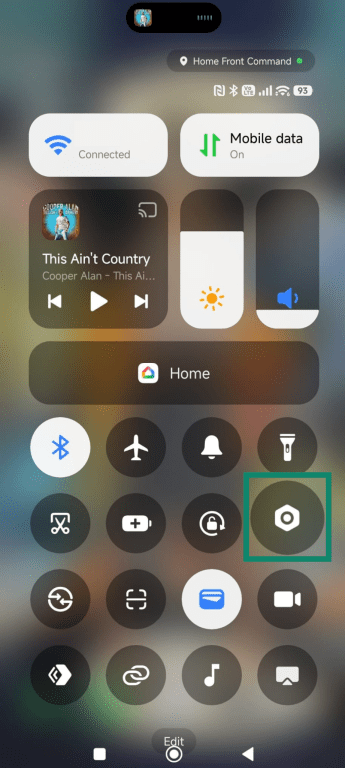
- Tap on the Gear icon to open the Settings menu.
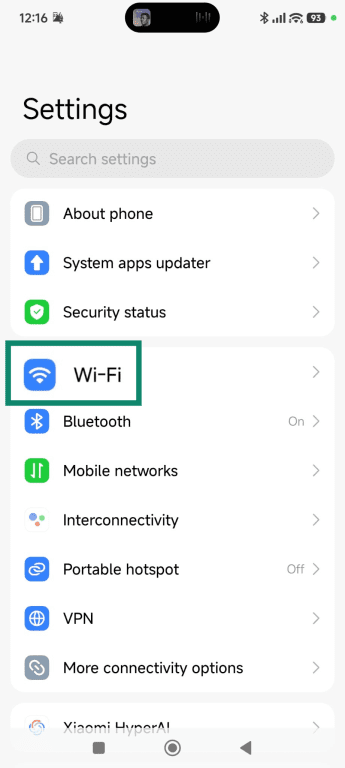
- Tap Wi-Fi.
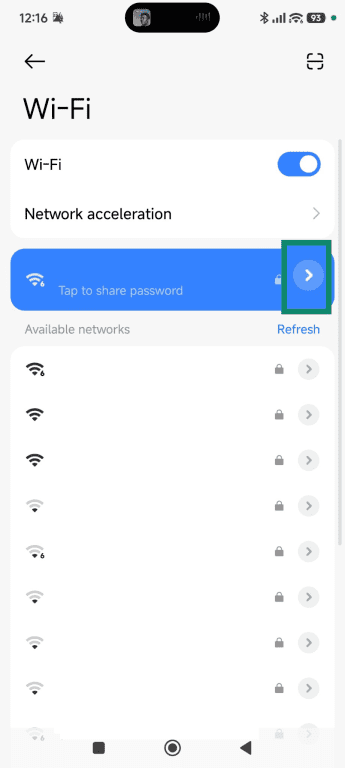
- Tap the connected network.
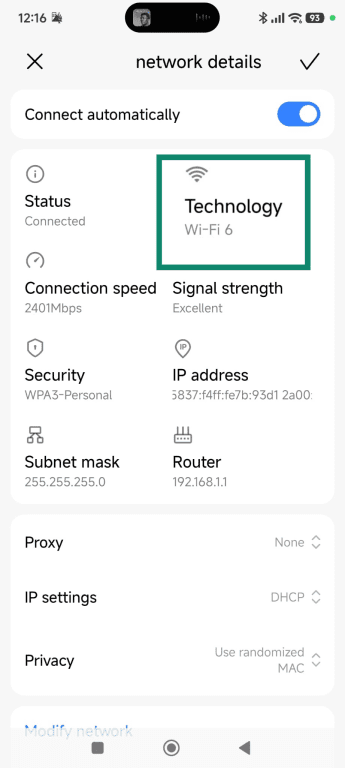
- View the Technology.
How to check on iPhone
iPhone 11 and newer models are Wi-Fi 6 compatible. They’ll automatically switch to that standard when connecting with a Wi-Fi 6 router. The iPhone 15 Pro, iPhone 15 Pro Max, all models of iPhone 16 (except iPhone 16e), or later have the additional capabilities for Wi-Fi 6E.
How to check on Windows
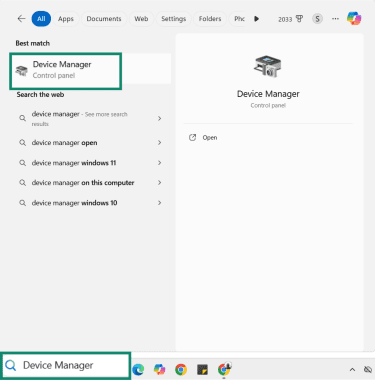
- Type Device Manager in the search bar and it will appear in the menu. Click on it to open it.
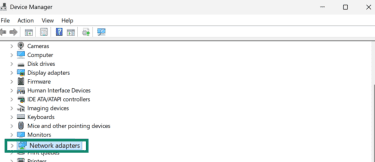
- Locate Network adapters and click it to view the properties listed.
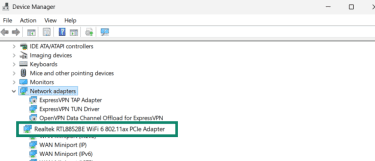
- Find your Wi-Fi adapter and check the Wi-Fi type.
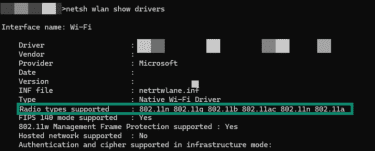
- (Optional) If the adapter name doesn’t say Wi-Fi 6, open a command prompt by clicking Start > Command Prompt and enter: “netsh wlan show drivers.” Check for 802.11ax next to Radio types supported to see if a Wi-Fi network is Wi-Fi 6 compatible. The below image shows an unsupported router, as 802.11x is not listed:
How to get Wi-Fi 6
Getting Wi-Fi 6 is primarily a hardware upgrade decision. While devices increasingly support the standard, your network can only use Wi-Fi 6 if the router or access point supports it. How you upgrade depends on your home size, device count, and network complexity.
The easiest way to upgrade your Wi-Fi is to get a router that’s Wi-Fi 6 compatible. This immediately enables Wi-Fi 6 features on all devices that have Wi-Fi 6 capabilities, and it’s still backward compatible with older hardware.
Many internet service providers (ISPs) include a router, or give router options, when they set up your home or office internet. Let them know what you need, if you’re doing a lot of streaming and gaming, and whether you have a lot of Wi-Fi 6 compatible devices, and see if they have a router that can be included in your package.
Mesh system options
Mesh Wi-Fi systems are ideal for larger homes or spaces with weak signal coverage. Instead of relying on one router, mesh systems use multiple nodes to create a single, unified network.
Wi-Fi 6 mesh systems are a good fit for:
- Large homes
- Multi-floor layouts
- Thick walls or structural interference
- High device density
- Consistent coverage needs
They provide more stable coverage than traditional extenders and simplify network management across large spaces.
Installation and setup basics
Setting up a Wi-Fi 6 connection is pretty straightforward, and you typically don’t need to have a technician come to do it:
- Replace or connect the new router to your modem.
- Configure network settings through a web interface or app.
- Set up security options.
- Connect devices to the new network.
- Optimize placement for coverage and performance.
Once the setup is complete, your Wi-Fi 6 devices will automatically use the standard when connected to a Wi-Fi 6 network.
FAQ: Common questions about Wi-Fi 6
Is Wi-Fi 6 the same as 5G?
Wi-Fi 6 and 5G are completely different technologies. Wi-Fi 6 is a local wireless networking standard used for home, office, and enterprise networks. 5G is a cellular network technology used by mobile carriers to deliver internet access over wide areas. They solve different connectivity problems and operate on different infrastructures.
What are the disadvantages of Wi-Fi 6?
There’s no real disadvantage from a technology perspective. You get faster speeds, more connected devices, and strong security. However, if you don’t need Wi-Fi 6 because your home or office network runs smoothly on the current Wi-Fi router, then spending money to upgrade for the sake of upgrading can feel like a waste of money.
How do I know if I have Wi-Fi 6?
You can check your router model number and look up its specifications to see if it supports Wi-Fi 6 or 802.11ax. You can also check your device specs to confirm support. Both the router and the device must support Wi-Fi 6 for the connection to use the standard.
What is the difference between Wi-Fi 6 and regular Wi-Fi?
Wi-Fi 6 is a newer generation of Wi-Fi designed for modern multi-device environments. Older Wi-Fi standards focused mainly on speed, while Wi-Fi 6 focuses on efficiency, capacity, and stability when many devices are connected at the same time.
How much faster is Wi-Fi 6 compared to Wi-Fi 5?
When comparing Wi-Fi 5 to Wi-Fi 6, you can see a significant increase in speeds with the next-gen Wi-Fi reaching max speeds of up to 9.6Gbps as opposed to 6.9Gbps for Wi-Fi 5. In everyday use, the biggest improvement isn’t peak speed but performance stability on busy networks with many connected devices.
What devices support Wi-Fi 6?
Wi-Fi 6 compatibility is standard for most newer phones, laptops, tablets, gaming consoles, routers, mesh systems, and smart home devices. The good news is that it’s backwards compatible, meaning even if you have an older device, it will still connect to the internet without a problem.
Can Wi-Fi 6 work with older devices?
Wi-Fi 6 routers are fully backward compatible with older Wi-Fi devices. Older hardware will connect and function normally, but it won’t benefit from Wi-Fi 6 performance, efficiency, or power-saving features.
Take the first step to protect yourself online. Try ExpressVPN risk-free.
Get ExpressVPN