What are email aliases? A complete guide to email alias management


Your email address gets shared more than you realize. You use it for online shopping, social media, newsletters, work tools, and free trials. Over time, that exposure adds up. More companies have your details. More companies store it. More marketing databases circulate it. And if one service suffers a breach, your address can quickly spread further.
Email aliases help reduce that exposure. Instead of giving out your primary address everywhere, you create alternative addresses that all deliver to the same inbox. You can organize messages more easily, track which services have your email address, and disable individual addresses if they start receiving spam.
This guide explains what an email alias is, how it works, the main types available, and the practical limits you should understand before relying on them.
What is an email alias?
A traditional email alias is simply an additional address connected to the same mailbox. Messages sent to the alias arrive in your primary inbox, and when you reply, the message can be sent from either the alias or the main address. Email providers like Gmail or Outlook often allow users to create several aliases tied to a single account.
There’s no separate login, no separate storage, and nothing extra to check. You manage it from the same account settings as your primary email address.
For example, you can create an alias just for online purchases. Every email sent to that alias arrives in your regular inbox, but the retailers you shop with never see your actual address.
Email alias vs. separate email account
A separate account stands on its own. It has its own login, storage quota, inbox, and recovery settings.
A separate account offers stronger protection but increases complexity. It means another password to remember, another inbox to check, and another set of recovery details to maintain. However, tools like email forwarding can help consolidate messages into a single inbox (we’ll explain the difference a bit later in this guide).
An alias adds flexibility without that overhead, but it doesn’t strengthen the security of your account login because all aliases for the same inbox use the same credentials and authentication settings.
Email alias vs. email masking
Email masking tools are used to create email aliases, but these aliases work differently from email aliases attached directly to your main inbox (provider-based aliases).
Instead of creating a permanent alternate address attached to your mailbox, the masking service generates unique, disposable addresses that forward messages to your real inbox(es). The service sits between you and the sender, hiding your actual email address.
Services such as ExpressMailGuard make this easy to manage. From a single dashboard, you can generate a new alias for every website you sign up for, see which services use each one, and instantly disable any address that starts receiving spam without affecting your other accounts. This approach keeps your primary email address private while still letting you manage everything from a single dashboard.
Email alias vs. email forwarding
Email aliases and email forwarding both let you use multiple email addresses that ultimately deliver messages to one main inbox, but they work in different ways.
With traditional email aliases, when a message arrives at the mail server, the server checks whether the recipient address is an alias. If so, the message is delivered to the linked mailbox as part of the same delivery process. The message isn’t redirected elsewhere; it simply lands in the same inbox as the primary address.
Email forwarding, on the other hand, sends a message from one mailbox to another address. After the mail server receives the message for the original address, it automatically forwards a copy to a different email address. This means the message goes through two delivery steps: first arriving at the forwarding account and then being sent again to the final destination.
Forwarding typically means two inboxes or accounts are involved: the original receiving address and the final destination inbox. In some setups, the message may also remain stored in the original inbox, depending on how the forwarding rule is configured.
To sum it up, with aliases, multiple addresses point to the same mailbox. With email forwarding, messages sent to one address are automatically redirected to a different address, which may belong to another mailbox or even another provider.
| Feature | Email alias | Email forwarding |
| Delivery stage | Routed during initial processing | Sent onward after first delivery |
| Server movement | Stays within the same mail system | Can be sent to a different server or domain |
| Message handling | Single delivery process | Two-step process (receive, then resend) |
| Common use | Managing multiple addresses under one account within the same mail system | Consolidating mail from different addresses |
Types of email aliases and how they work
Email aliases can be created in several ways depending on how the email system generates and manages the addresses. Some aliases are built directly into an email provider, while others are created through dedicated alias or email masking services.
The main difference is where the alias exists and who manages it: your email provider, your own custom domain, or a separate relay service.
Provider-based aliases
These aliases are created directly inside an email account, such as Gmail, Outlook, or iCloud. The email provider handles the routing internally and delivers the messages directly to the linked inbox.
The whole process happens within your email provider’s infrastructure: your provider knows both the alias and the real address it points to, and the message is handled entirely within their ecosystem.
To send and reply with a provider-based alias, you need to configure your email client to use the alias as the sender address, which means adding it to your “Send as“ settings and, in many cases, verifying that you own it. The alias then appears in the “From” field of the message header.
Because the aliases are built into the email platform itself, they typically only work within that provider’s ecosystem.
Plus addressing (subaddressing)
Plus addressing is the simplest version of provider-based aliases. You add a tag (label) to your email address using a plus sign. For example, if your address is janedoe@gmail.com, you can use janedoe+shopping@gmail.com or janedoe+news@gmail.com.
Most major providers ignore everything after the plus sign when delivering the message, so all variations still land in the same inbox.
Plus addressing is useful for setting up automatic filters or tracking which services have your address. The downside is that your base address is still visible. Anyone can see that janedoe@gmail.com is the real address behind it. Some websites also refuse addresses that contain a plus sign, and some systems strip the tag before storing it.
Domain-based aliases
If you own a custom domain, you have more control over how you create and manage aliases. You can create multiple addresses under it and link them all to the same mailbox. For instance, contact@example.com and press@example.com can both route to a private email address that you don’t want to share publicly.
This approach works well for professional branding and for keeping your real address out of directories, contact forms, and public listings. Because you control the domain, you have more flexibility over how those addresses are used compared to relying on a single email provider.
ExpressMailGuard also lets you create masked aliases under a custom domain, allowing you to combine relay-based privacy with your own domain name.
Functional aliases
Functional aliases are a specific type of domain-based alias used for role-based addresses, such as support@, billing@, info@, or jobs@, under a custom domain. Organizations use them to represent a role rather than a specific person and can be reassigned without changing the public-facing address. For example, if your billing manager changes, the address billing@yourcompany.com can stay the same.
They’re usually permanent and useful for shared responsibilities, customer-facing communication, and maintaining continuity over time.
Catch-all aliases
Catch-all aliases are a domain-based feature and aren’t available on standard personal accounts. They accept messages sent to any address at that domain, even if the specific address was never created. For example, if someone types suport@ instead of support@, you’ll still get the message.
They’re useful for catching typos, but they come with a significant downside. Spammers can send to randomly generated addresses at your domain, and all of it lands in your inbox.
Most providers advise against using catch-all addresses unless you have a specific reason to and a plan for managing the volume.
Relay aliases
Email masking services generate random, unique aliases that sit outside your email provider and forward messages to your real inbox through a relay server.
Your email provider doesn’t manage the alias. Instead, they live on the email masking service’s servers. When someone sends a message to your alias, the service’s infrastructure receives it first and forwards the message on to your inbox.
Because these aliases operate outside the email provider, they can forward messages to any inbox and work across different email providers.
Temporary or disposable aliases
Temporary aliases are a subset of relay aliases designed for short-term use. Some services generate random addresses that forward to your inbox and expire automatically after a set period. You might use them for one-time downloads, free trials, or low-trust websites.
Once the address expires, messages sent to it stop arriving. That makes them unsuitable for long-term accounts such as banking or government services.
Why use an email alias?
Email aliases give you more control over exposure, organization, and identity management without requiring multiple separate accounts.
Reduced data exposure
Every time you enter your email address on a website, it goes into another database. Some companies handle that data carefully. Others don’t. If one is breached, your primary email, the one tied to your bank, work, and personal life, may end up in a list that gets passed around or sold.
An alias limits what’s exposed. The breached service only holds the alias, not your real address. If that alias is compromised, the damage stops there. You can disable it, update the linked account, and continue without your main address ever being involved.
Easier tracking of data sharing
Using a different alias for each service turns your inbox into a paper trail. Dedicated alias services help automate this tracking process. Tools such as ExpressMailGuard show which website each alias was created for. If spam begins arriving at a specific address, you can quickly see which service had that contact information and decide whether to keep using it.
Reducing and managing spam
When a particular alias starts attracting junk mail, you don’t need to unsubscribe from dozens of lists or train a spam filter. All you have to do is disable the alias. New messages sent to it stop arriving immediately, and your main inbox is unaffected.
By using a unique alias for every service you sign up with, you contain any spam to a single address rather than letting it reach the inbox your daily life depends on.
Protecting yourself from phishing
When a company appears to email you directly, but the message arrives via an alias you never gave them, something is wrong. Either the alias was leaked or sold, or the message is a spoofing attempt. Aliases create an early warning system: if the sender doesn’t match the service that alias was created for, you know before you’ve even opened the message that it deserves extra scrutiny.
Signing up for trials and one-off services without consequences
Free trials, one-time downloads, event registrations, and competitions almost always require an email address and almost always result in marketing you didn’t ask for.
Using a disposable or dedicated alias for these means you get what you wanted without permanently adding another company to your inbox. Once the trial is over or the event has passed, you disable the alias and the marketing stops.
Clearer professional identity
Aliases let you present multiple points of contact, such as support@yourbrand.com, press@yourbrand.com, or billing@yourbrand.com, while managing everything from a single inbox.
Externally, each address signals a clear purpose. Internally, the address tells you what kind of request to expect before you open the message and helps you sort requests by type.
How to create email aliases
The exact steps depend on your email provider. Some platforms let you create aliases instantly. Others require changes in account or admin settings.
In Gmail
Gmail supports two types of aliases: plus addressing, which requires no setup, and Workspace aliases, which require administrator access.
Plus addressing
Plus addressing works immediately. Any variation of your address with a plus sign and label (janedoe+shopping@gmail.com, janedoe+newsletters@gmail.com) delivers to your main inbox.
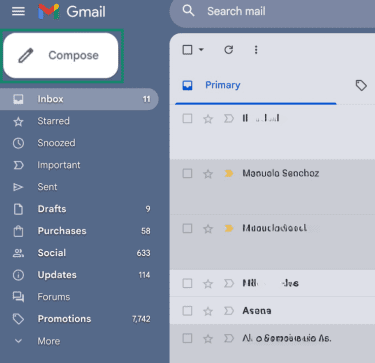
- Go to Gmail and sign into your account. Click Compose in the top-left corner to open a new message.
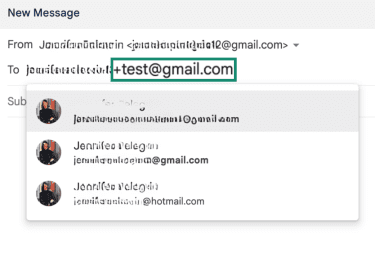
- In the To field, type your Gmail address, and add a plus sign (+) and label before @gmail.com.
To filter messages by alias, click the filter icon in the Gmail search bar, enter the full alias address in the To field, click Create filter, then choose what should happen to those messages.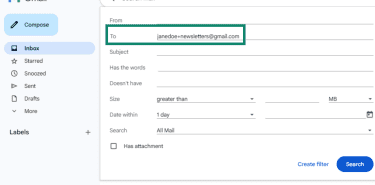
Google Workspace
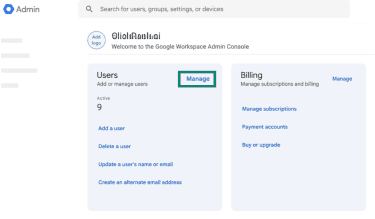
If you have a custom domain (like you@yourcompany.com), an administrator creates aliases in the Google Admin console, not inside Gmail itself.
- Go to admin.google.com and sign in with your administrator account. Click Manage in the Users section.
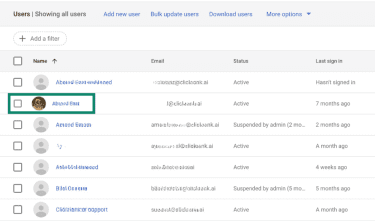
- From the list, select the user you want to add the alias to.
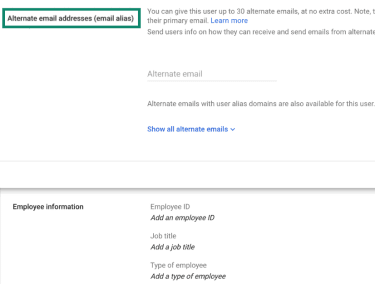
- On their profile page, scroll to Alternate email addresses (email alias).
- Enter the alias name (for example, support) and click Save.
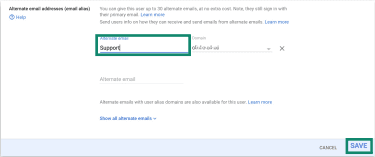
Changes can take up to 24 hours to take effect, though they typically happen sooner.
In Outlook (Microsoft account)
Outlook lets you create additional addresses that share your existing inbox, contacts, and account settings. All aliases use the same password, and you can sign in with any of them.
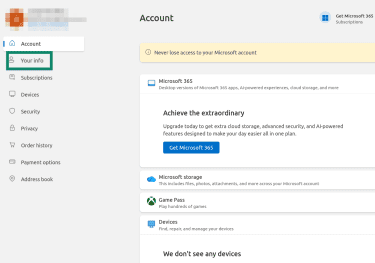
- Sign into your Microsoft account. Click Your info in the left menu.
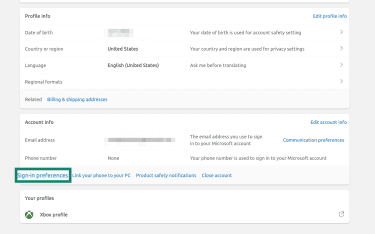
- Click Sign-in preferences.
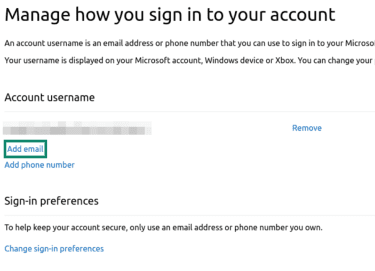
- Click Add email.
- Choose whether to create a new email address or add an existing one. Then click Add a username.
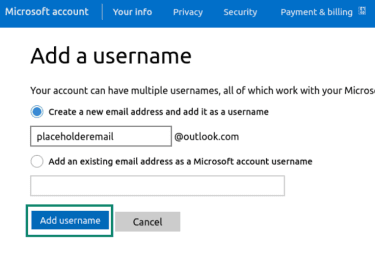
A few limitations you should know: you can’t add a work or school email address as an alias; alias names can only contain letters, numbers, dots, underscores, or hyphens, and you can’t add an email address that's already associated (as an alias or the primary address) with another Microsoft account. You also can’t generate Hotmail, Live, or MSN addresses as alias domains.
In Apple iCloud
iCloud offers two alias options: standard aliases and Hide My Email.
Standard aliases are available on all iCloud accounts, with a limit of three per customer.
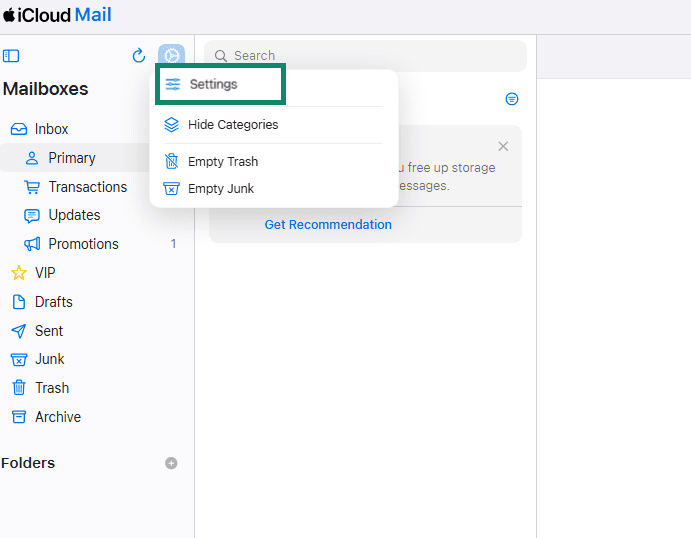
- Open Mail on iCloud and go to Settings.
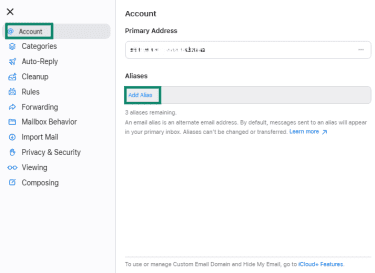
- Select Account, then Add Alias.
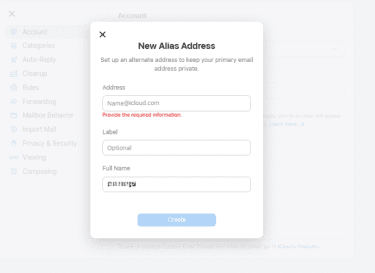
- Enter a name between 3 and 20 characters and click Create.
Hide My Email is available to iCloud+ subscribers. It generates a random, unique address for each service you sign up with, then forwards messages to your real inbox. You can manage and disable each one from your iCloud settings.
In ExpressMailGuard
ExpressVPN subscribers can use ExpressMailGuard to create and manage aliases. Here’s how:
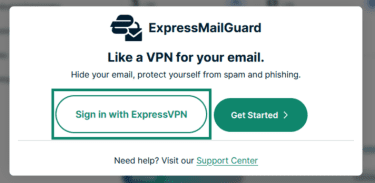
- Go to app.expressmailguard.com and select Sign in with ExpressVPN. Enter your ExpressVPN account credentials and sign in. A verification code will be sent to your email. You don’t need to create a separate ExpressMailGuard account. Your ExpressVPN login is all you need.
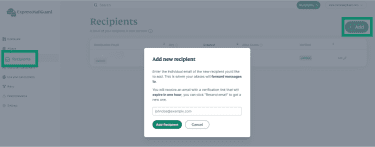
- Before creating an alias, you need to tell ExpressMailGuard where to forward the incoming mail. Click Recipients in the sidebar, select Add, enter your primary email address, and click Add Recipient. You’ll need to verify it via a verification link sent to your email. Once verified, you’ll see a green “verified” badge next to it in the dashboard.
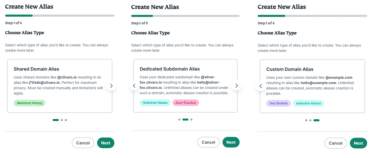
- Click Aliases in the dashboard, then Add. ExpressMailGuard offers three types, depending on your needs:
- Shared Domain Alias: Uses a domain shared with other users, such as @idaro.io, resulting in addresses like j86gh5@idaro.io. These offer the most privacy, but you have to create them manually. For most people, this is the simplest option.
- Dedicated Subdomain Alias: Uses a subdomain you create yourself to create aliases such as test@travel-bug.idaro.io. You can create unlimited aliases, and aliases can also be created automatically.
- Custom Domain Alias: Uses a custom domain you already own and have added to ExpressMailGuard. Again, you can create unlimited aliases and have the option of automatic alias creation.
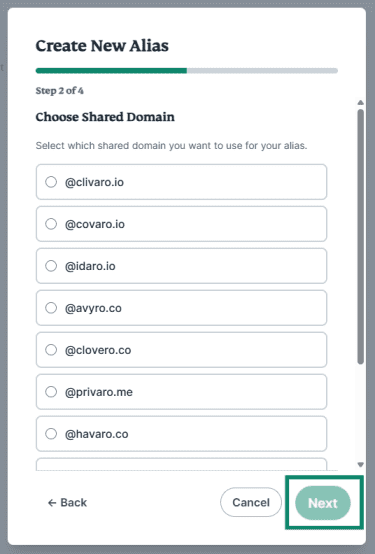
- For a straightforward shared domain alias, after selecting that option, you’ll see a list of available shared domains to choose from. Select the domain you want and click Next.
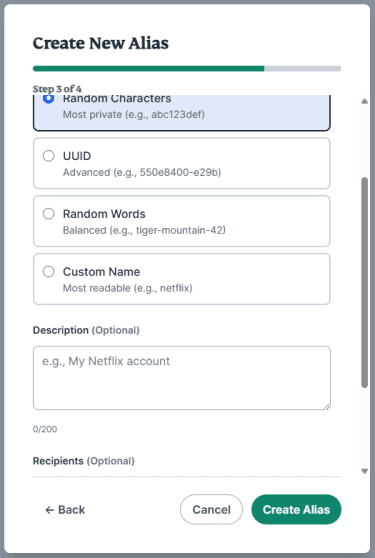
- You can then choose your alias name: either randomly generated characters, numbers, or words, or write your own. You can also optionally assign a recipient address at this stage. Then click Create Alias.
Best practices for managing email aliases
Aliases are easy to create, but without a system, they can become difficult to track.
- Establish a clear naming convention: Group by category (shopping@…, newsletters@…) or service names, or add a date or event marker for short-term aliases (event-2026@…). The goal is to choose a format that will still make sense months later. Also, using one alias per service improves traceability. That said, completely random characters provide more privacy.
- Pair aliases with filters: You can set up rules so messages route where you want them: a separate folder, a label, or a priority inbox. Otherwise, everything just piles into the same view.
- Keep your recovery address separate: Use aliases for sign-ups and day-to-day communication, but treat account recovery differently. If you lose access to your main inbox, you need a backup that doesn’t depend on an alias that may be disabled.
- Retire compromised aliases: If an alias appears in a data breach or starts receiving suspicious activity, update the linked account with a new address and deactivate the old one.
- Watch for phishing: Aliases reduce exposure, but they don’t prevent phishing. Attackers can still impersonate services, especially if your aliases include the company name. Check sender domains carefully, and don’t act on unexpected security alerts without first going to the official website.
- Track where you've used each alias: As your list grows, memory becomes the weak point. Store the exact alias used for each account in your password manager so the address and login details stay connected. If you use a dedicated alias service, review the dashboard regularly to retire addresses you no longer need.
Limitations and disadvantages of email aliases
Email aliases are useful, but they don’t solve every problem.
- You can’t have separate passwords: Provider-based aliases share the same login credentials as the main account. If someone gains access to your main account, all your aliases are exposed, along with everything else. That said, with relay-based alias services like ExpressMailGuard, your aliases are managed through a separate account (your ExpressVPN login), so access to your inbox doesn’t automatically expose your aliases.
- Aliases don’t prevent other forms of tracking: Changing the email address a company sees doesn’t stop them from identifying you through cookies, browser fingerprinting, device data, or your IP address. An alias limits email exposure but doesn’t provide full anonymity.
- Provider limits can be restrictive: Many email providers cap how many aliases you can create, especially on free plans. If you want a unique address for every service you use, custom domains or dedicated alias services like ExpressMailGuard remove this ceiling, offering unlimited aliases* alongside features like routing rules and multi-inbox support that standard providers don’t offer.
- Critical accounts need stable addresses: For anything you can’t afford to lose access to, such as banks, government services, or tax portals, use an address you control long-term. If the alias is misconfigured, deleted, or temporarily unavailable, you could miss password reset links or security alerts. Some high-security sites also block known relay or forwarding domains at signup, treating them as higher-risk addresses.
*Unlimited aliases apply to aliases created on your Dedicated Subdomains or Custom Domains. Caps apply to Shared Domain aliases. Availability of specific features varies by subscription tier.
FAQ: Common questions about email aliases
What is an example of an email alias?
What is the difference between an email address and an email alias?
How do I set up an email alias?
Can you reply from an email alias?
Do email aliases stop spam?
Take the first step to protect yourself online. Try ExpressVPN risk-free.
Get ExpressVPN








 Support Center
  FAQ
FAQ  VPN Setup Tutorials


