How to unsync Google accounts the right way and fix common issues


If your Google account is connected to multiple devices, you may want to stop certain devices from sharing updates with one another to protect your privacy or reduce data clutter. Alternatively, you might just want to maintain control over what kinds of data are synced.
This guide explains how to unsync your Google account, turn off sync on Google Chrome, and unlink a Google account, as well as covering common issues that may arise during the process.
What is Google account sync?
Google account sync keeps your data consistent across devices connected to your Google account. When sync is enabled, changes you make on one device appear on your other devices as well. For example, updates to emails and contacts can appear across all connected devices.
Sync can happen frequently, so your devices usually have the latest version of your data. Google gives you the option to sync everything or only specific types of data, depending on your preferences. This lets you control which information appears across your devices.
However, you may want to turn off sync completely in certain situations. For example, if syncing is enabled, sensitive data such as saved passwords, browsing history, or bookmarks may automatically appear on every device logged into the account, even if that information was never used on that device before.
Background syncing can also increase network usage and may affect responsiveness or battery life, particularly on older or lower-power devices.
Types of data that Google can sync
Google account sync can keep several types of information consistent across your devices, depending on your settings and the services connected to your account. Google account sync (Android and Google services) may include:
- Calendar
- Contacts
- Keep notes
- Google Drive files
- Gmail emails
- Google Play purchases and media
Chrome sync (browser data) is different and can include:
- Extensions
- Open tabs
- Bookmarks
- Browser history
- Browser settings and preferences
- Saved passwords and autofill data
Depending on your Android device’s settings, other system data (like device settings or app data) can also sync with your Google account.
Syncing vs. backups vs. cloud access
Syncing, backups, and cloud access are different processes that serve different goals. Here’s what they mean and how you can best use them:
- Syncing: Keeps data updated across devices. When you change something on one device, the update appears on all devices synced to the same account.
- Backup: Stores a copy of your data in the cloud or in a local environment (like another drive) that can be restored later. Backups are not continuously mirrored across devices, unlike syncing.
- Cloud access: Lets you open data stored online without syncing it between devices. For instance, viewing a file in Google Drive, opening a document in Google Docs, or reading email in Gmail are examples of accessing data from the cloud.
Unsync vs. unlink vs. sign out
Unsyncing from Google means your devices will no longer synchronize Google data between them. For instance, bookmarks saved in Google Chrome on your phone won’t be copied over to Chrome on your computer. However, this won’t delete the data from your Google account.
Unlinking devices goes one step further, as it removes a Google account from your device, which is essentially the same as signing out. You’ll no longer have access to services that require a Google account until you link it back (or sign back into it). This also doesn’t delete any data. If you want to actually delete data, you’ll need to delete your Google account or remove sync data from the cloud.
There are important distinctions when it comes to unsyncing and unlinking:
- Unsyncing a Google account usually refers to turning off account data syncing on a mobile device. This means certain types of Google account data will stop automatically updating on that device, such as contacts, calendar events, or Gmail messages.
- Unsyncing a Google Chrome profile works on all devices. A Chrome profile stores data such as bookmarks, extensions, and settings. When you turn sync off, changes to this data stay on that device instead of updating across other devices. Note that while Chrome sync uses a Google account to connect devices, the Chrome profile itself is separate: it’s the local browser profile that holds your browsing data.
- Unlinking devices removes a Google account from your device, which is similar to signing out. Once removed, Google services linked to that account will no longer work on that device until you sign in again. In some cases, some data (like bookmarks stored locally on a browser profile) may remain on the device even after the account is unlinked.
How to unsync a Google account
To unsync your Google account from your mobile device, follow the steps below.
Unsync a Google account on Android
For this guide, we’ve used a Samsung Galaxy S23; note that the steps might vary slightly depending on your model and OS.
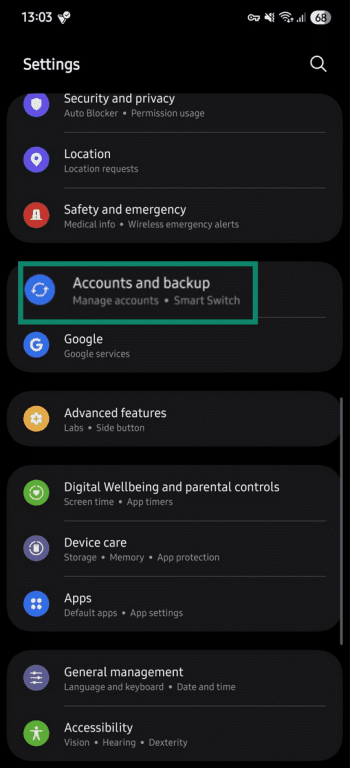
- In your Settings, select Accounts and backup.
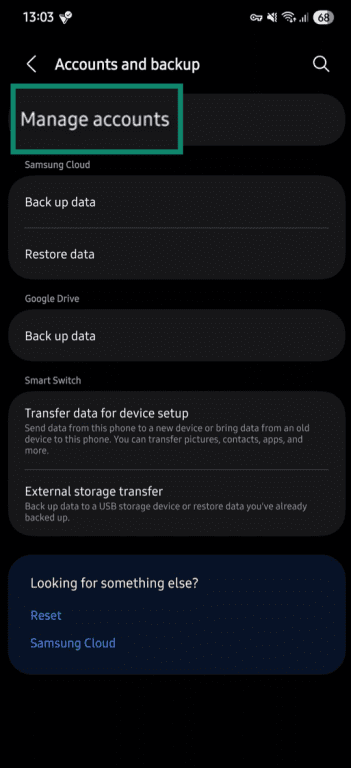
- Tap Manage accounts.
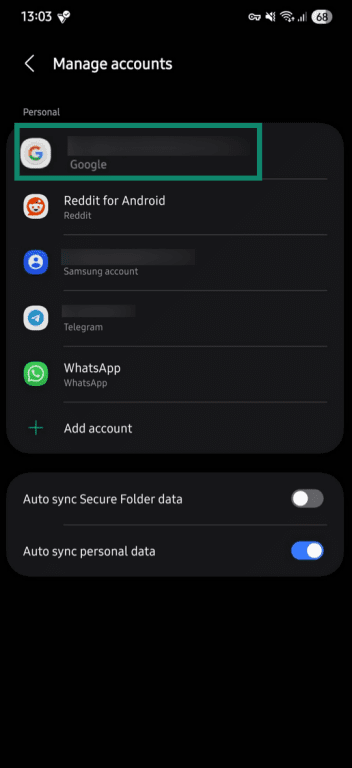
- Select the Google account you want to unsync. If you’re connected to multiple Google accounts and you want to unsync from all of them, repeat these steps for all accounts.
- Select Sync account.
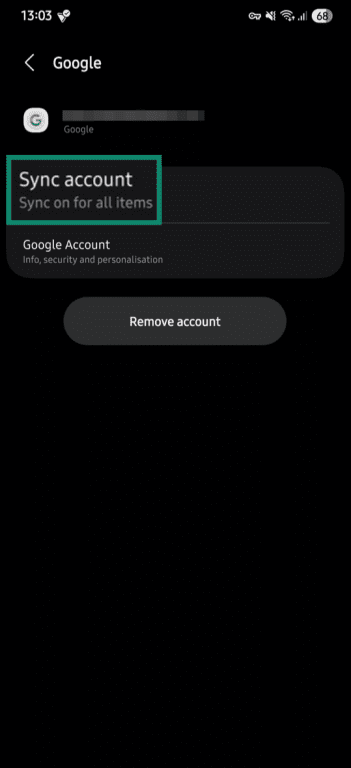
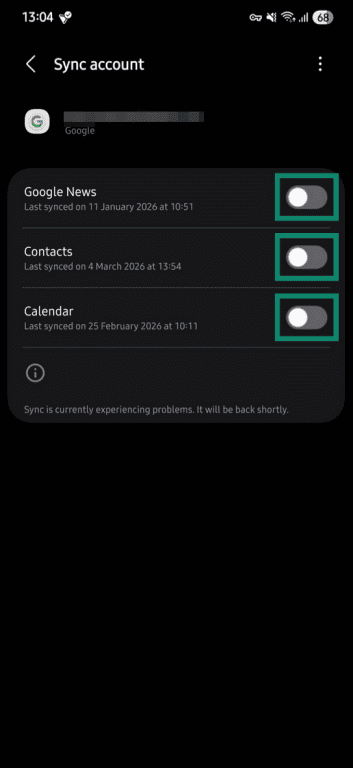
- Turn off every option here to completely unsync your Google account on Android. Alternatively, you can uncheck only those options you don’t want to sync.
How to unsync a Google account on iPhone
For this guide, we used an iPhone 15 Pro Max; steps may vary slightly depending on your model.
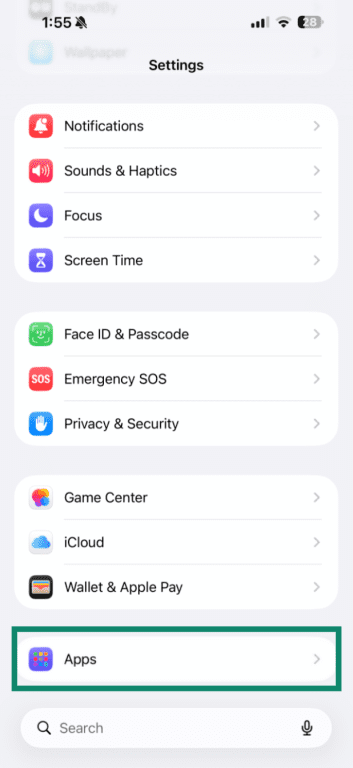
- Select Apps.
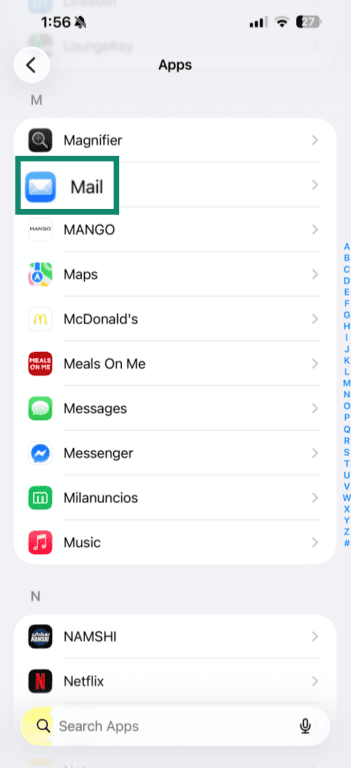
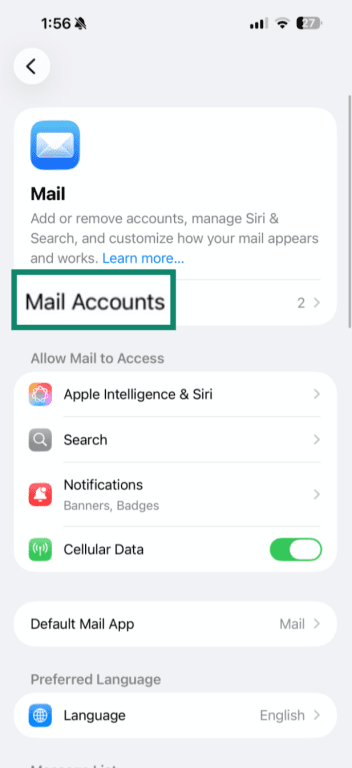
- Tap on Mail.
- Select Mail Accounts.
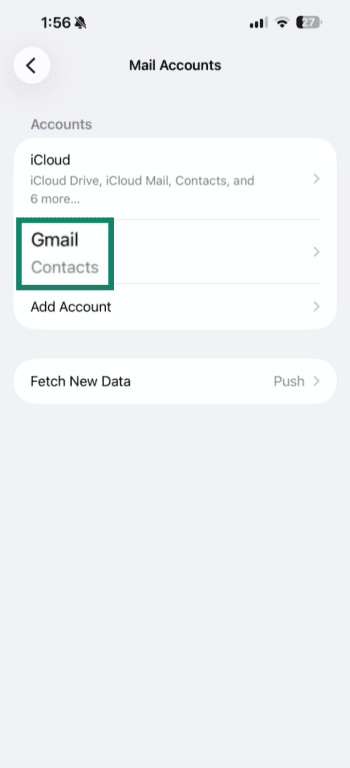
- Select Gmail.
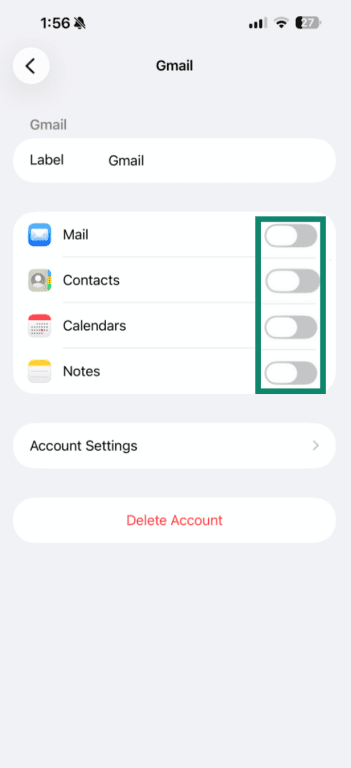
- Uncheck all the sync options to completely unsync from Google, or selectively uncheck the options you don’t want to sync.
Manage Chrome sync
Your Google account can also connect to your Chrome profile, either on your computer, laptop, or mobile device.
Chrome Sync shares browser data across devices, which can expand the potential impact if a malicious Chrome extension or compromised site interacts with your browser data. For example, an extension with broad permissions could access certain browsing information and sync that data across all devices connected to your account.
Here’s how you can turn off Chrome sync completely or choose what syncs and what doesn’t.
Turn off Chrome sync
To turn off Chrome sync, follow these steps:
On Android
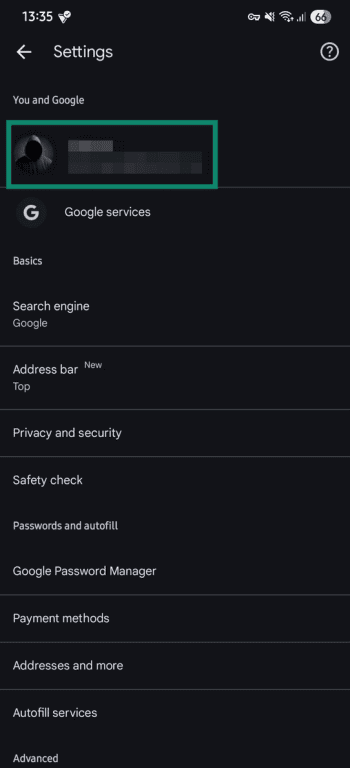
- Tap your profile picture in the top-right corner.
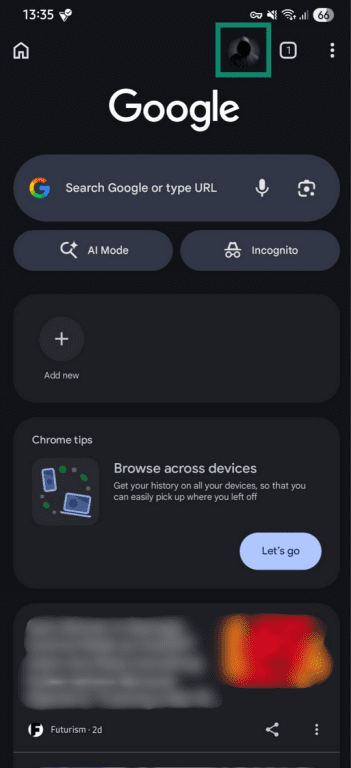
- Select your profile picture in the new window.
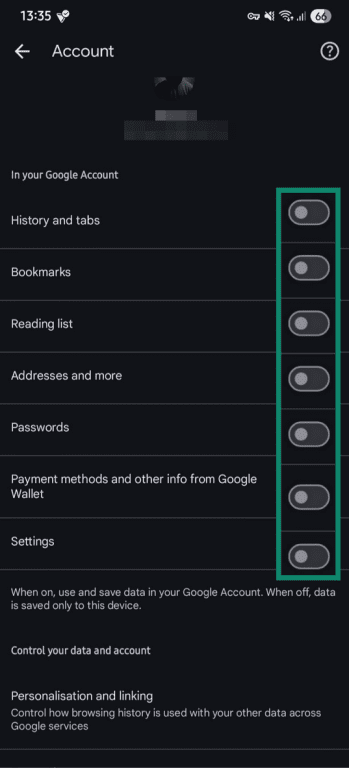
- Uncheck all options to completely turn off Chrome sync, or leave only the elements you want to sync checked.
On iPhone
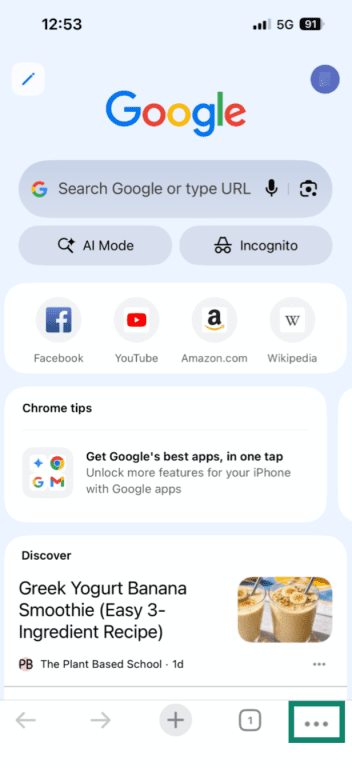
- Tap the three-dot icon in the bottom right of your Chrome browser.
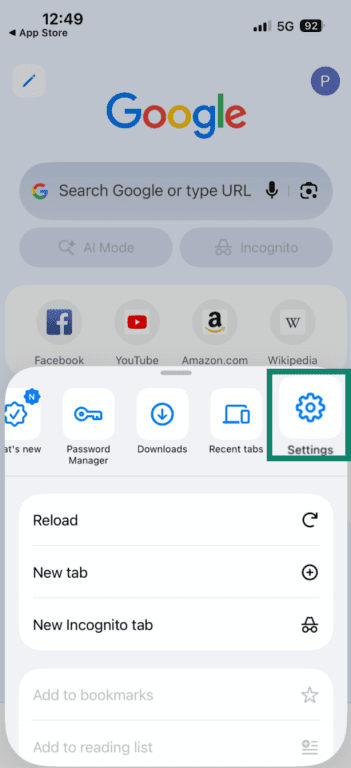
- Select Settings in the new menu.
- Tap your profile name.
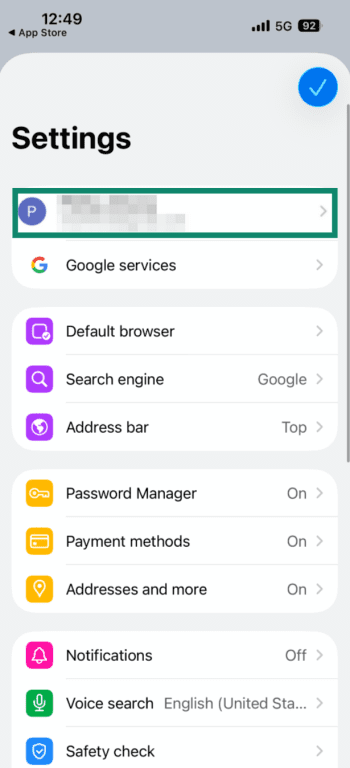
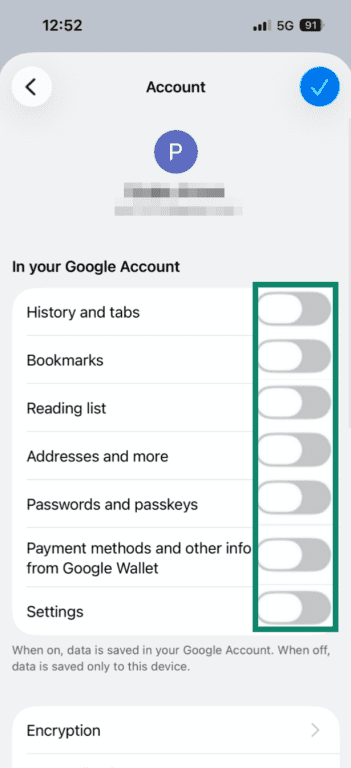
- Uncheck all the sync options to completely unsync your Google account from Chrome on your iPhone. Alternatively, you can select which elements to unsync to customize your experience.
On Windows and Mac
- Click your browser profile picture in the top-right corner. Then, select your profile picture in the settings menu, and click Sync is on.
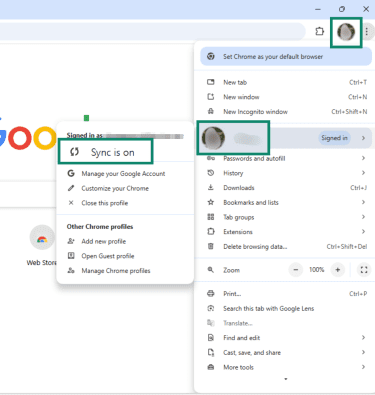
- Make sure this is the Google account you want to unsync from Chrome and select Turn off under Sync and Google services, next to your profile picture.
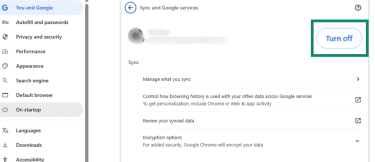
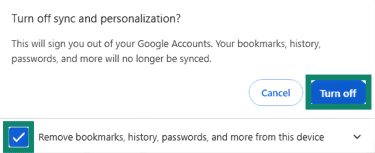
- Check the Remove bookmarks, history, passwords, and more from this device box, and then select Turn off. Your browser will restart on a new session, with none of the synced Google elements.
Choose what Chrome syncs on a computer
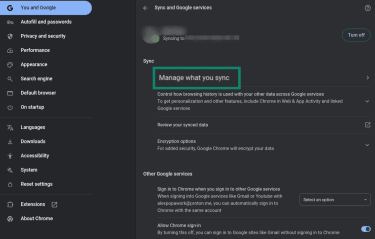
- In your Chrome sync settings, instead of selecting Turn off to turn off sync completely, select the Manage what you sync option.
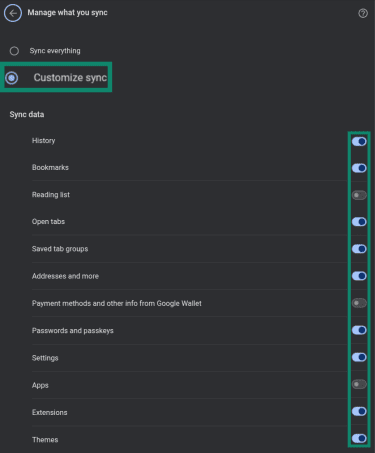
- Check the Customize sync option at the top, and then check or uncheck elements under Sync data to select what to sync and what to turn off in your Chrome browser.
How to unlink a Google account
Unlinking a Google account, sometimes described as unlinking Gmail accounts or removing an account from a device, stops the account from syncing and removes its data from that device. You’ll need to sign back in to recover them. If you're unlinking devices because of a security concern, you may also want to change your Google password.
Here’s how to unlink your Google account.
On Windows and Mac
On any browser, go to google.com, and you’ll see your Google account profile picture in the top-right corner. Click on it and select Sign out. This will unlink your Google account from your browser, which should also pause Chrome syncing until you sign back in. If it doesn’t, you’ll need to unsync manually.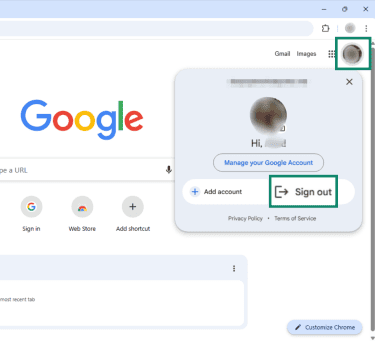
If you're signed into several accounts in the same browser, you may need to sign out of all Google accounts and then sign back into the account you want to keep.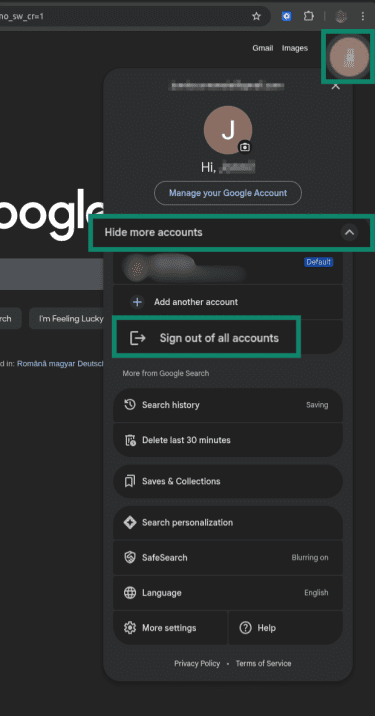
On Android
In the Manage Accounts menu in your Accounts and backup settings, select Remove account to unlink your Google account from your phone.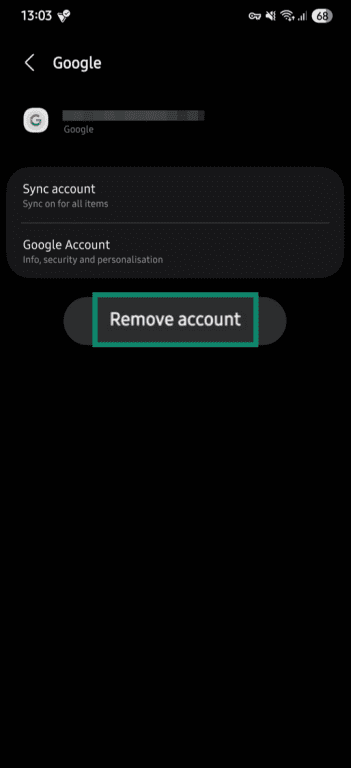
On iPhone
In the Mail Accounts menu under Mail settings, select Gmail, and then select Delete Account to unlink your Google account from your iPhone.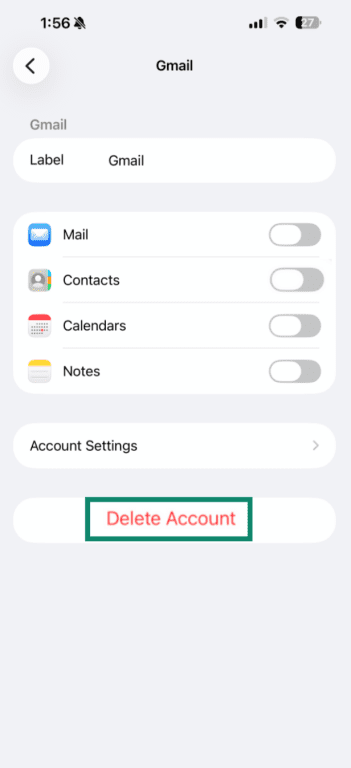
Disconnect third-party apps and devices
Reviewing connected apps can help improve Google account privacy and reduce the number of external services that access your account. Disconnecting third-party apps doesn’t affect device syncing, but it limits how external services access your Google data.
Here’s how to disconnect third-party apps and devices from your Google account.
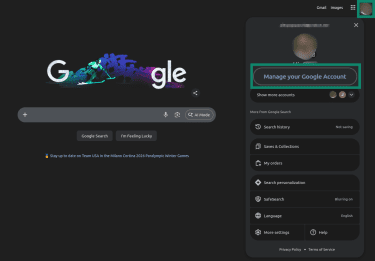
- Select your profile picture in the top-right corner of your browser, then select Manage your Google Account.
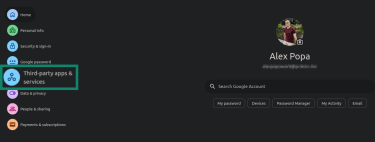
- Select Third-party apps & services in the menu on the left.
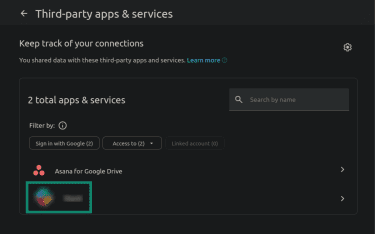
- Click any app you want to disconnect from your Google account.
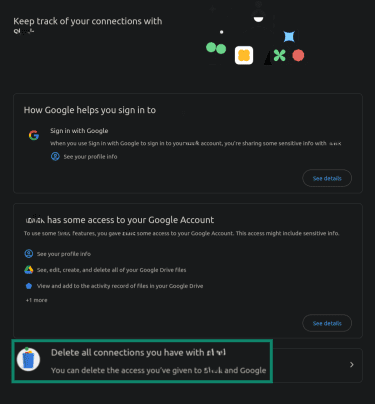
- Select Delete all connections you have with the app at the bottom of the next screen.
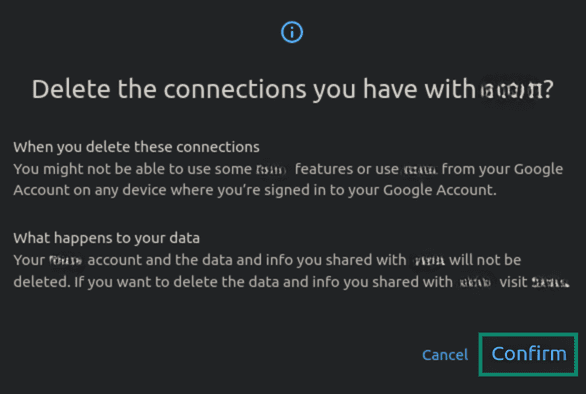
- Click Confirm to unlink the service from your Google account.
Clear synced data on devices
Unsyncing your Google account or Chrome profile from a device doesn’t remove any of the data from the device. To achieve that, you need to remove locally stored Google data when you unsync Google Chrome.
On a computer, open your Chrome browser settings, go to “You and Google,” select “Turn off,” and check the box that says “Remove bookmarks, history, passwords, and more from this device.” Click “Turn off” to confirm.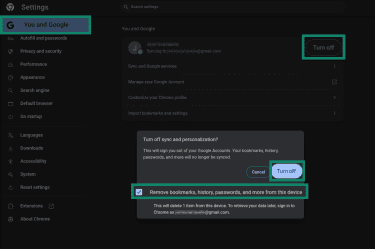
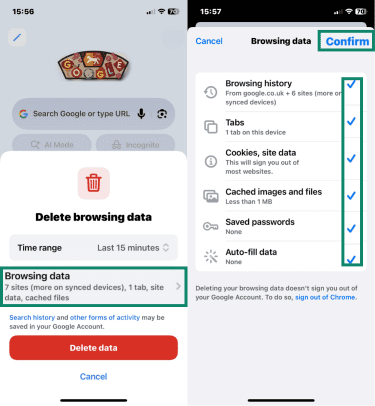
On mobile devices, you need to unsync from Chrome and delete the browsing data (which includes history, saved passwords, and cookies). Here’s how to delete the data after unsyncing.
On Android
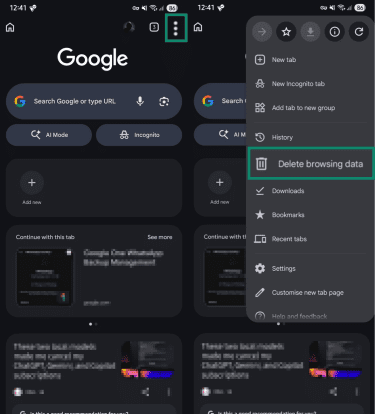
- Tap the three-dot icon in the top-right corner of your Chrome browser. Then, select Delete browsing data.
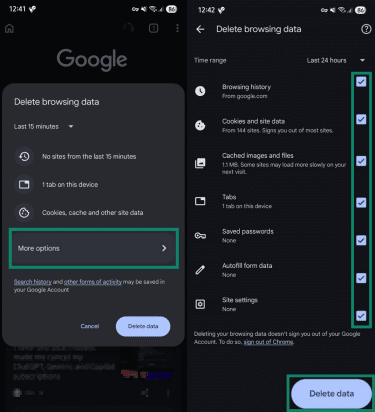
- Tap More options, and check the boxes corresponding to the data you want to delete locally. Select a time range, and tap Delete data.
On iPhone
- Tap the three-dot icon in the bottom-right corner of your Google Chrome app. Then, select Delete browsing data.
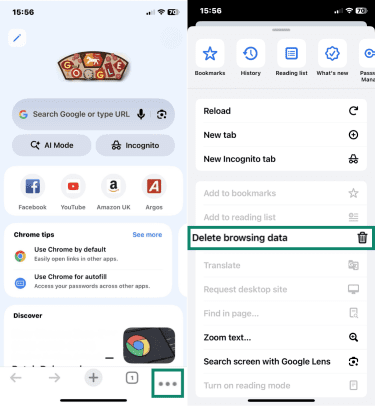
- Select Browsing data in the new window, and then check the boxes that correspond to the synced data you want to clear. Tap Confirm to delete the data.
Common issues with unsynchronizing
Unsynchronizing a Google account from your device may not always produce the results you expect. Here are several common issues you may encounter and suggestions on how to fix them.
What to do if syncing doesn’t stop
If you’ve unsynced your Google account from a device but you can still see synced elements, that’s because unsyncing a Google account doesn’t remove the data already stored on the device. It only stops your Google account from syncing future updates across devices connected to your Google account.
To remove synced data from a device, follow the steps above to clear synced data or unlink the Google account (or sign out). This removes the account connection and may remove synced data from the device, depending on the service and settings used (you may have to select “Remove data from this device” to delete data such as bookmarks or history).
However, if data keeps being synced across devices after unsyncing a Google account, it could be because of incomplete unsyncing. Both the Google sync (on Android and iOS) and the Chrome sync settings (across all devices) have multiple sync options. Managing your Chrome sync and unchecking specific elements you don’t want synced may help.
Fixing problems with multiple accounts
Problems often occur when multiple Google accounts are connected to the same device or browser profile. If you’re connected to multiple Google accounts, then unsyncing or unlinking one doesn’t stop sync for the other account.
Under your “Manage accounts” settings on Android (and “Mail Accounts” on iPhone), see if you’re connected to multiple Google accounts. You need to go through and stop syncing for all of them if you want to stop Google syncing completely on your mobile device.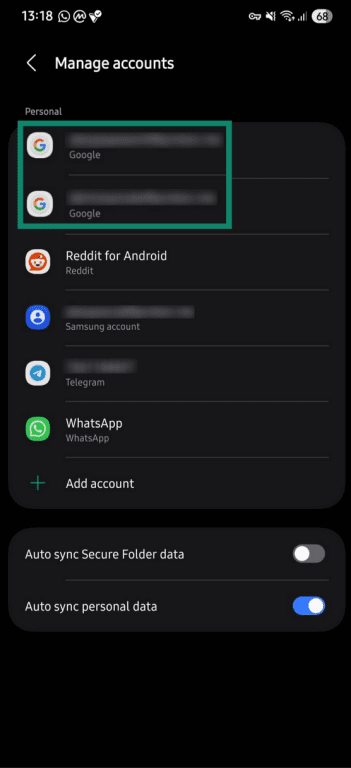
The same applies to a computer or laptop, where you can be connected to multiple Google accounts. You’ll either need to unsync for each account individually or sign out of all accounts (via Google account management) and sign back into the Google account you want to keep.
Another potential issue is having multiple Google Chrome profiles, with each connected to a different Google account. Unsyncing a Google account on one profile doesn’t affect the other profile, which remains synced to the other Google account.
In Google Chrome, click your profile picture in the top-right, then look for the “Other Chrome profiles” section in the new window. If you have multiple Chrome profiles, you’ll see all of them listed there. Switch to each of them and unsync from Google, if you need to. To stop syncing data, you can disable Google account synchronization on your phone in the account settings. You can also turn off Chrome sync in your browser settings to stop bookmarks, tabs, and other browser data from syncing across devices connected to that account.
On iPhone, open Mail Account > Gmail and turn off the sync options. You can also turn off Chrome sync in your browser settings to stop syncing bookmarks, history, and other Chrome data.
Unlinking the account signs you out and may remove synced data depending on the service. In Chrome on a computer, you can also turn off sync and check “Remove bookmarks, history, passwords, and more from this device” to delete locally stored synced browser data. On a mobile device, you have to manually delete the browsing data after unsyncing.
FAQ: Common questions about unsyncing a Google account
How do I unsync my Google accounts from each other?
How do I stop my Google account from syncing?
How do I remove Google synced data from my device?
Can I unsync my Google account without losing data?
What are the benefits of unsyncing a Google account?
Take the first step to protect yourself online. Try ExpressVPN risk-free.
Get ExpressVPN











 Support Center
  FAQ
FAQ  VPN Setup Tutorials


