How to turn off safe mode on Android (complete guide + fixes)


When Android boots into safe mode, it can disrupt everyday workflows, block key apps, and interfere with security tooling. This guide walks through the most reliable methods for exiting safe mode, explains why devices get stuck in it, and outlines how to re-enter safe mode if you ever need to again.
What is Android safe mode and why does it exist
Safe mode is a restricted boot state that loads only core Android processes and pre-installed system apps. Everything else, like downloaded apps and services, and most background activity, is isolated. This gives you a controlled environment for checking whether a problem originates from third-party software rather than the operating system (OS) or firmware.
Benefits and limitations of safe mode
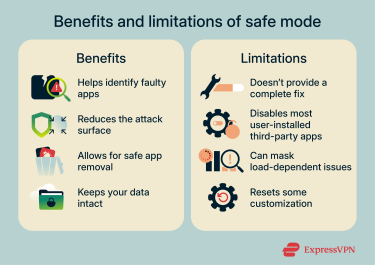
The benefits of safe mode include:
- Helps identify faulty apps: With Android safe mode, you can check whether an app is causing crashes, freezes, or slow performance.
- Reduces the attack surface: Safe mode can temporarily prevent potentially harmful third-party apps from running, which may reduce interference during troubleshooting, but it is not intended as a security feature.
- Allows for safe app removal: Provides a more stable environment for removing apps that repeatedly cause instability during everyday use.
- Keeps your data intact: Safe mode doesn’t erase personal data or change your settings. Some widgets or launcher customizations may temporarily disappear, but they typically restore after returning to normal mode.
Some drawbacks include:
- Doesn’t provide a complete solution: Helps identify possible causes of an issue, but it doesn't fix deeper system or hardware problems.
- Might disable security and management tools: Safe mode disables most user-installed third-party apps, which can include antivirus apps, monitoring tools, or enterprise agents unless they’re installed as system apps or device-owner–level management tools.
- Can mask load-dependent issues: Some bugs or malicious activities only trigger under full load or real-time conditions, which safe mode suppresses.
- Resets some customization: Some manufacturers' launchers may temporarily revert your wallpaper, themes, or icon packs while in safe mode, but this behavior is not consistent across all Android devices.
How to turn off safe mode on Android
There are several ways to exit safe mode on your Android device.
Restart your device
Restarting your Android is the most reliable way to exit safe mode. If the phone restarts normally, the safe mode label will disappear.
Using the power button
The easiest way to restart your phone is to press and hold the Power button. On some models, this immediately turns the device off. On others, you might see a power menu on the screen showing a Restart option that you need to tap to restart the Android device.
Using the power + volume key combination
Certain devices open the power menu only when you press Power + volume up or Power + volume down. From the menu, choose Restart.
Restart from the notification panel
Some Android phones display a “Safe mode is on” notification, so if the physical buttons are unresponsive, you can restart the device from the notification panel.
- Swipe down from the top of the screen and open the full menu if needed. Tap the notification that says Safe mode is on to turn it off, then restart the device.
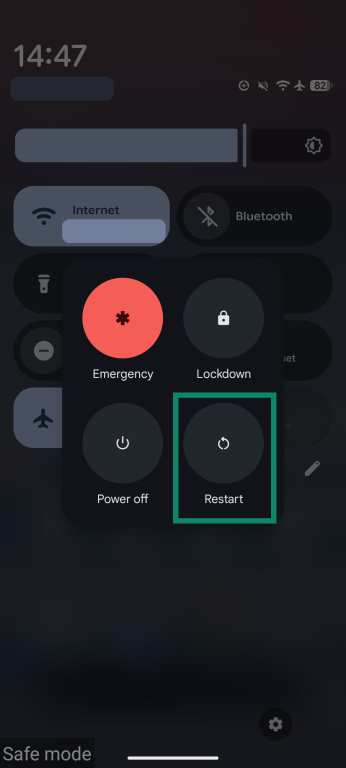
- Tap the Restart icon to reboot your device.
Factory reset
If restarting the device doesn’t work, and you can’t turn off safe mode from the notification panel, you might have to do a factory reset. Resetting will erase all personal data and restore the phone to its original state, so you should treat it as a last resort. It’s best to back up your data before moving forward with the steps. Once done, follow these steps:
- Turn off your device.
- Press and hold the Power button and the volume down or volume up button. This will put the device into recovery mode. However, the button combination to enter recovery mode varies by manufacturer and model.
- Use the volume keys to navigate to the Factory Reset option, then press the Power button to select it.
- Confirm the selection with the power button and follow any on-screen instructions as the device resets.
Why is my phone stuck in safe mode?
Safe mode is usually enabled manually, but your device may remain in this state for several reasons.
System errors or OS bugs
A system glitch, incomplete update, or broken configuration can cause Android to start in safe mode after boot. These issues may require a restart or a factory reset.
Stuck hardware buttons (power/volume)
Safe mode can be triggered when the device detects the volume down button being held during startup. A dirty or tight phone case, or a failing button, can make the phone think the button is pressed, keeping safe mode active.
Ways to improve security after exiting safe mode
Once your device is back in normal mode, take steps to improve its security and prevent future problems:
- Update software: Always keep the Android OS and apps up to date with the latest patches. Most vulnerabilities are fixed through security updates.
- Review app permissions: Regularly audit the permissions of installed apps. Remove any that request more access than needed. This minimizes the risk of spyware or ads.
- Avoid sketchy apps: Only download apps from Google Play or trusted sources. Avoid third-party app stores. Before installing new apps, check reviews and developer info.
- Install a trusted mobile antivirus: A good Android antivirus app can help detect and block malicious apps, warn you about unsafe links or downloads, monitor for unusual device behavior, and provide extra protection against phishing attempts.
How to turn on safe mode on Android (if you need it later)
Safe mode can be activated in different ways depending on your device. Most Android phones support one of the following methods.
Using power and volume buttons
- Press and hold Power (or Power + volume combination). When the power menu appears, tap and hold Power off.

- A pop-up will appear asking if you want to reboot into safe mode. Tap OK to enter safe mode.

Through the settings menu
Some manufacturers include a Power menu shortcut in Settings or Quick Settings, but this is not available on all Android devices (e.g., Google Pixel).
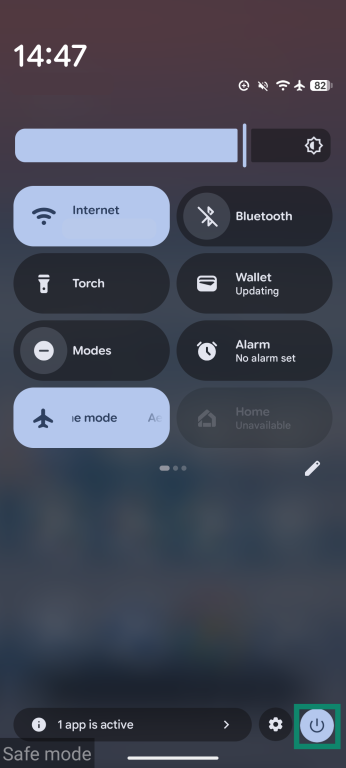
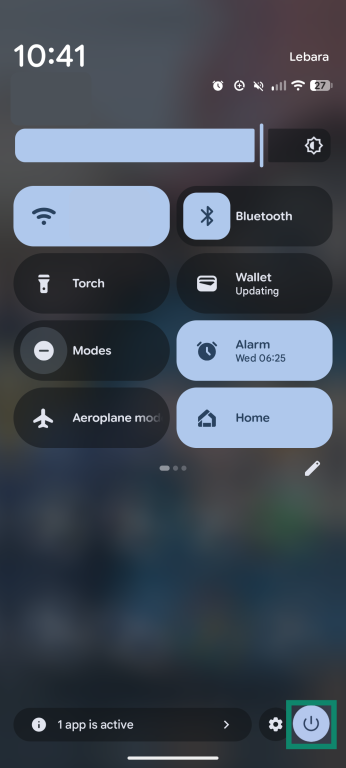
- Swipe down to open Quick Settings. You might need a second swipe to open the panel fully, then tap the Power icon in the bottom-right corner.
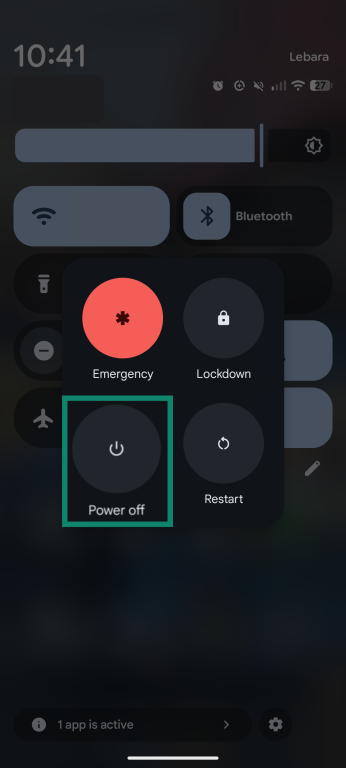
- Tap and hold the Power off icon until a safe mode prompt appears.
- Tap to confirm that you wish to reboot in safe mode.
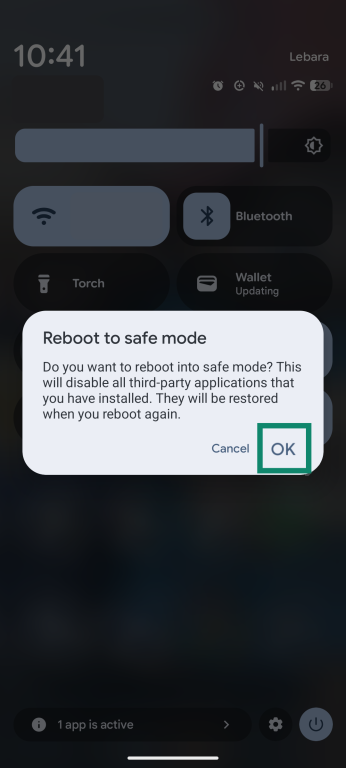
You’ll know the device is in safe mode when a safe mode label appears, and third-party apps turn grey. Once in safe mode, use the phone normally to see if the issue is gone. If problems persist, uninstall suspected apps one by one (starting with the most recently installed) and reboot normally after each removal.
Powering into safe mode when your device is switched off
It’s also possible, on most Android devices, to power directly into safe mode from an off state. To do this, you usually just need to hold the Power button to power up your device as you normally would. Then, when you see your device manufacturer’s logo (e.g., Samsung, Google), press and hold the volume down button to enter safe mode.
FAQ: Common questions about Android safe mode
How do I disable safe mode without restarting?
It’s not possible to disable Android safe mode without restarting your device. No matter which method you choose, your phone or tablet will need to reboot to exit safe mode and return to normal mode.
Why does safe mode turn on automatically?
Safe mode may activate automatically due to a technical issue during the boot process or hardware problems, such as stuck buttons.
Will I lose my data when exiting safe mode?
No, you shouldn’t lose any data when exiting safe mode. Leaving this mode simply restores your device to normal operations and re-enables third-party apps and functions that were temporarily disabled while safe mode was active. The only way you would lose data is if you performed a factory reset, which is a last resort to escape safe mode if all else fails.
Can I disable safe mode permanently?
No, it’s not possible to disable Android safe mode permanently, as this is a core component of the Android system recovery, built into all devices to help users uninstall problematic apps or fix issues affecting their phones or tablets.
How can I tell which app caused safe mode to activate?
It can be tricky to tell which specific app caused the technical issues that may have triggered your device to boot into safe mode. However, the most logical and practical course of action is to focus on apps you recently installed or updated, or those you installed from unofficial sources (not the Google Play Store). You will need to remove these apps one by one in safe mode, then reboot your device to normal mode to check whether it’s working again.
Is safe mode the same as recovery mode?
No, safe mode and recovery mode are two different features of the Android operating system. Safe mode disables third-party apps for troubleshooting purposes. Recovery mode offers a deeper level of system controls, including the option to restore your device to its factory settings if you’re dealing with major technical issues or a “bricked” (unusable) device.
Does safe mode delete my apps?
No, safe mode doesn’t delete any of your apps; it simply temporarily disables third-party apps so you can access your device’s core features and pre-installed applications. This allows you to potentially address any issues caused by problematic apps and manually uninstall them.
Take the first step to protect yourself online. Try ExpressVPN risk-free.
Get ExpressVPN



















 Support Center
  FAQ
FAQ  VPN Setup Tutorials


