How to delete your Microsoft account: A step-by-step guide



If you no longer use your Microsoft account, or you have privacy concerns and want to reduce your digital footprint, deleting it may be the right step. If you decide to do so, it’s important to understand what data will be removed and which services will be affected.
This guide explains how to delete your Microsoft account, what to back up beforehand, and what happens when the account is permanently closed.
What to consider before you delete your Microsoft account
Deleting your Microsoft account means you’ll lose access to Microsoft apps and accounts, such as OneDrive, Outlook, and the Microsoft suite (like Office and Excel products), as well as subscriptions and external accounts linked to Microsoft. As such, it’s best to plan ahead and take some preliminary steps to prevent any business or personal interruptions before deleting the account.
Back up your OneDrive and email data
If you have important data in your OneDrive account, it’s best to download and save it externally (either to a different cloud account or on your computer). Here’s how to do that.
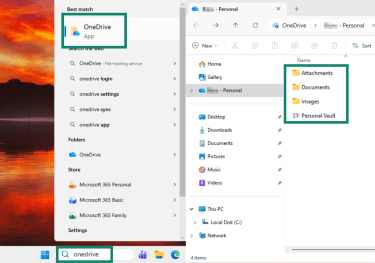
- Open your OneDrive folder from the Start menu. Save your important documents from OneDrive onto your desktop or into a different cloud storage option. Drag-and-drop or copy-paste should work. It’s a good idea to check for large files and folders to ensure everything is transferred, as there are limits on file and folder download sizes.
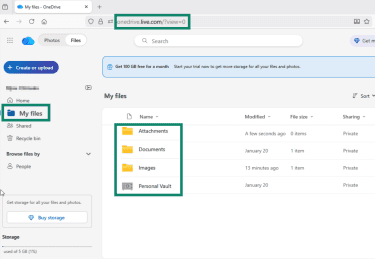
- Alternatively, visit the Microsoft OneDrive website and download all your files from there. For large accounts, you may need to download in batches or use the OneDrive sync app to preserve your folder structure.
If you’ve used an Outlook.com mailbox, stored email contacts only in Outlook, or created local calendars, then you may also want to back up your Outlook data.
Note that the steps can vary depending on your Windows version, Outlook version, or subscription status. The instructions here reflect how it worked on our Windows 11 system.
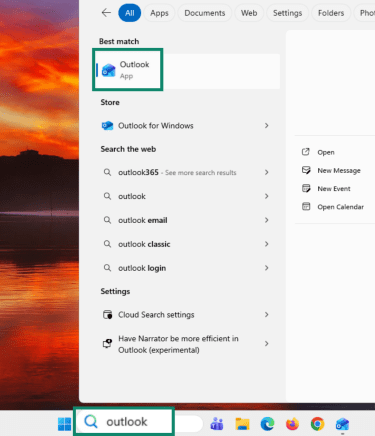
- Open the Outlook app on your desktop through the Start menu.
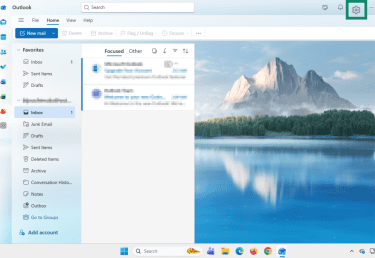
- Once you log into your Outlook account, use the gear icon in the top-right corner to access the settings.
- Select Files, then Export, and then click Get started. Export in the PST format, which you can import into Outlook linked to another Microsoft account.
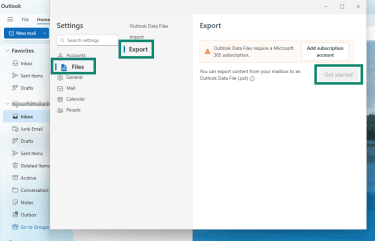
Note that the new Microsoft 365 version of Outlook (used in the screenshots above) will require a Microsoft 365 subscription to export your files. If you don’t have a Microsoft 365 subscription, you can download and install Outlook Classic and follow these steps to back up your data for free:
- Open Outlook (classic) and log into your account. Select File in the top-left corner.
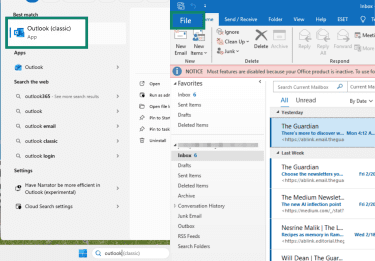
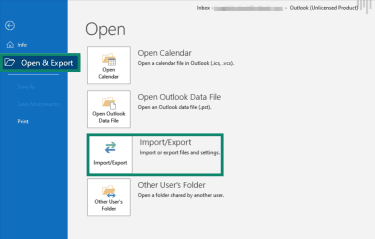
- Select Open & Export and then click Import/Export.
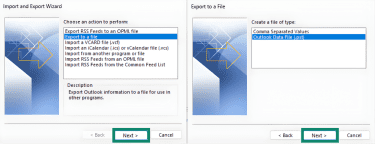
- Select Export to a file and click Next. Select Outlook Data File (.pst) and click Next.
- Select your Outlook email address at the top if you want to back up all your data. To only back up your inbox or Calendar, select the appropriate option from the list. Then, click Next. Select Replace duplicates with items exported, remember the location where the exported files will be saved, and click Finish.
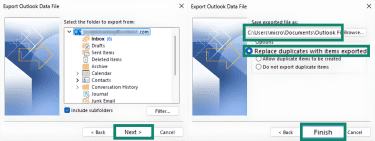
You can import the saved .pst file to an Outlook account connected to another Microsoft account. Alternatively, if you want to manually migrate your Outlook inbox to an email provider like Gmail, you can do that via IMAP sync. If you’re switching for privacy reasons, you may want to consider using one of these secure email providers.
Here’s how to migrate your Outlook inbox via IMAP:
- In Outlook Classic (logged into the account you want to back up), select File in the top-left corner.
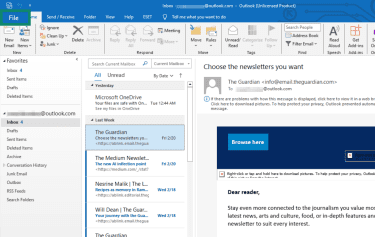
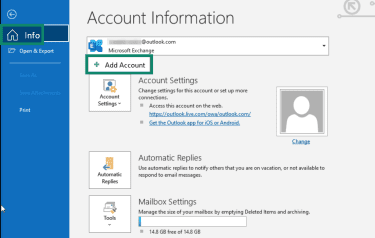
- In the Info menu, click Add account.
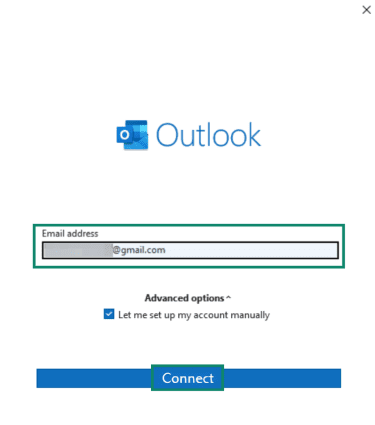
- Add the Gmail address you want to back up your Outlook to, check Let me set up my account manually, and click Connect.
- Select Google.
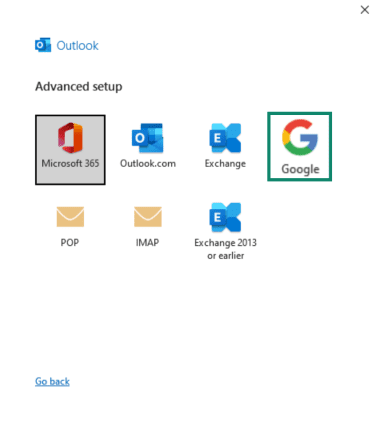
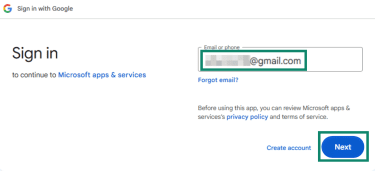
- An internet browser window will appear (we recommend Microsoft Edge, as it integrated better with the Outlook–Gmail syncing process in our case). Log into your Gmail account with your email address and password.
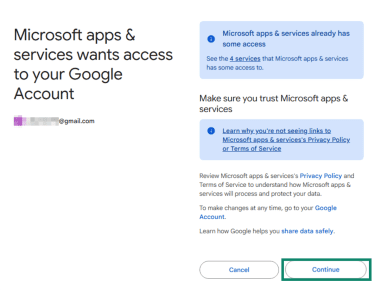
- Click Continue.
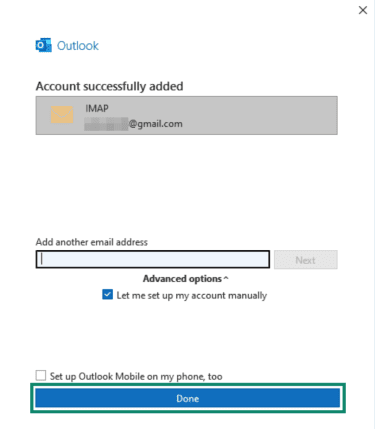
- Your Gmail address should have been added to Outlook Classic via IMAP. Select Done.
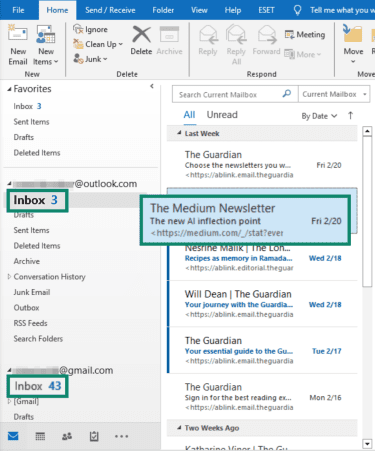
- You’ll find your Gmail inbox next to your default Outlook inbox on the left menu, in the Home section. Drag and drop an email from your Outlook inbox into the Gmail inbox.
- Wait for the Synchronizing inbox message at the bottom to disappear (it should only take a few seconds).
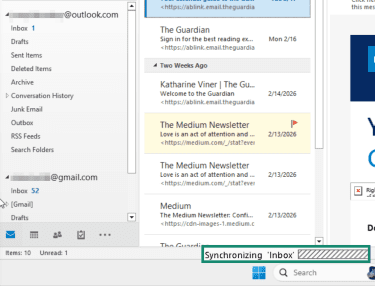
- Click on the Inbox option for your Gmail address and double-check that the email you migrated is there. If it is, repeat step 8 for all Outlook emails you want to back up. This will only work for emails, not calendars, tasks, or other elements saved to your Outlook account.
Note that, for large mailboxes, IMAP migration can take a long time and may fail if you hit Gmail’s upload or storage limits. It’s best to migrate in batches and leave Outlook open until syncing finishes.
Set automatic replies to emails
Before you delete your Microsoft account and Outlook inbox, you may want to set up automatic replies to emails on your Outlook email address. During the 30–60-day period before Microsoft completes the deletion process, anyone contacting you on your Outlook email can receive an automatic reply directing them to your new email address. Here’s how to do that:
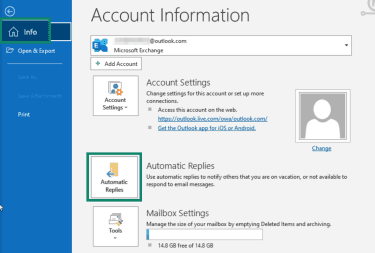
- In the File menu option in Outlook, select Info and Automatic Replies.
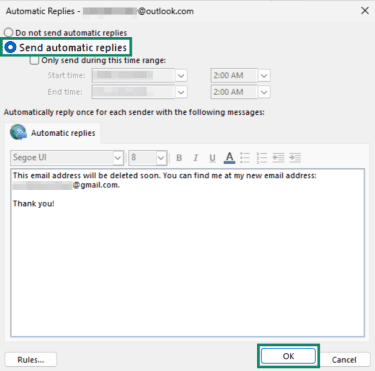
- Check Send automatic replies and click OK.
Cancel Microsoft and third-party subscriptions
Deleting your Microsoft account will also cause you to lose access to all subscriptions made under the account. These can include Microsoft 365, OneDrive, Xbox Game Pass, or any perpetual licenses for things like Office 2019. Other examples can include non-Microsoft apps paid for through the Microsoft Store, which is attached to your Microsoft account.
Canceling your subscriptions is also a good idea to avoid being charged for products you can no longer use after deleting your account. You can do this from the “Subscriptions” section in your Microsoft account. Look for any active subscriptions and cancel them accordingly.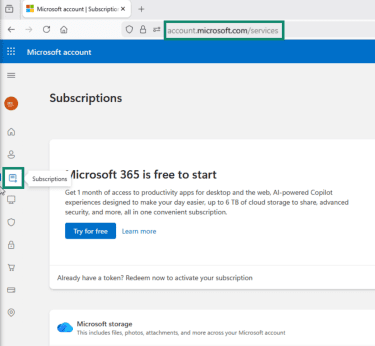
Check your remaining account balance and credit
Your Microsoft balance can’t be transferred between accounts or withdrawn to a credit or debit card, and it generally can’t be transferred to another Microsoft account. If you delete your Microsoft account, you’ll no longer be able to use any remaining balance: Microsoft may refund it only where required by law, and promotional balance isn’t refundable in most cases.
To check your remaining balance and credit, open the Payment Options section in your Microsoft account. You’ll find the balance in the top-right, and to see more details, you can click on Manage. You’ll have to use the remaining balance if you don’t want to let it go to waste.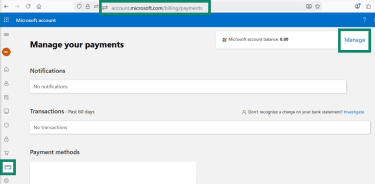
Switch to a local account on Windows
Switching to a local account before deleting your Microsoft account ensures you retain access to your computer and prevents Windows from relying on an account that no longer exists. It also avoids sign-in, sync, and permission issues.
Compared to an online Microsoft account, which is associated with your Microsoft email address and connects you to Microsoft’s cloud service, a local account is device-only. You don’t need an internet connection to sign into the local account, and it’s not connected to Microsoft’s cloud services.
However, some features in Microsoft Office apps become read-only without a Microsoft 365 license. Outlook itself still requires signing in to access and sync mail accounts, though you can use Outlook on the web without a subscription.
Here’s how to create a local account:
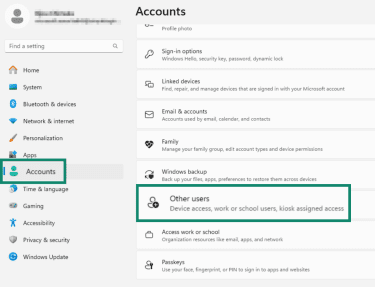
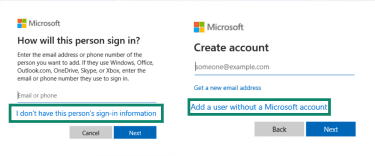
- In your Settings, select Accounts and click on Other users.
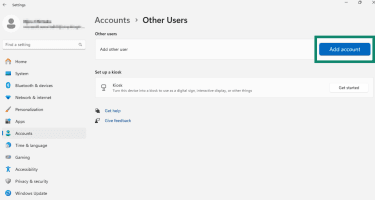
- Select Add account.
- Select I don’t have this person’s sign-in information and Add a user without a Microsoft account.
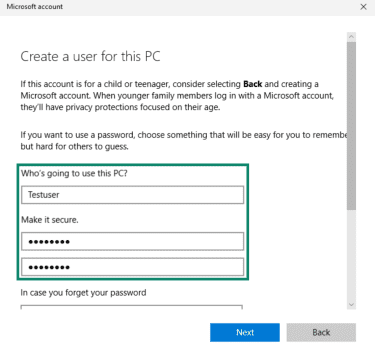
- Add a username and password, and click Next.
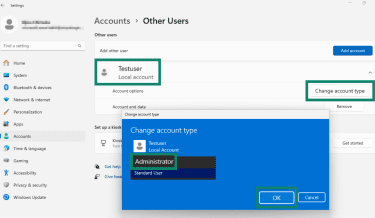
- In the Other Users menu, select your newly created local account and select Change account type. Switch it from Standard User to Administrator, and click OK. This will ensure persistent access even after you delete your Microsoft account.
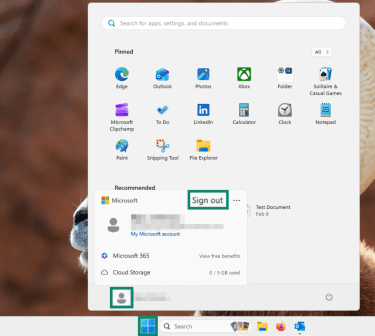
- Click the Start button on your taskbar, select your profile picture, and click Sign out to go to the login screen. Once you’re there, select your newly created local account and log into it.
Unlink external accounts from your Microsoft account
Any websites where you logged in via the “Sign in with Microsoft” option will be in danger of becoming inaccessible after you delete your Microsoft account. This can include forums, productivity tools, games, or work and school tools that use Microsoft single sign-on (SSO).
It’s a good idea to access your most important accounts and make sure that your primary login email address isn’t a Microsoft one. If it is, you should change it to a non-Microsoft one. This process depends on the platform, but you’ll usually find the option to change your email address either in the account information or security sections.
Outlook and Hotmail accounts vs. Microsoft accounts
Outlook is both an email app and email service, while Hotmail was Microsoft’s original webmail service and is now part of Outlook.com. Basically, if your email address ends in “@outlook.com” or “@hotmail.com,” (or “@live.com” or “@msn.com”, which are other Microsoft legacy addresses), then it’s hosted by Microsoft and will be deleted when you close your Microsoft account.
How to delete your Microsoft account
You can delete a Microsoft account from your internet browser (including Microsoft Edge), either via your computer or from a mobile phone (the process is identical either way). Here’s how to delete a Microsoft account from your computer.
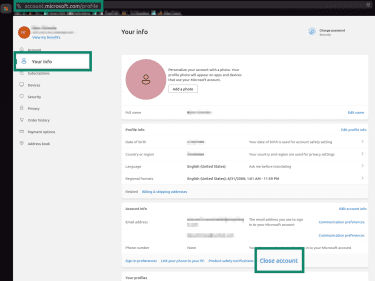
- Log into your Microsoft account, select the Your info tab on the left, and click Close account.
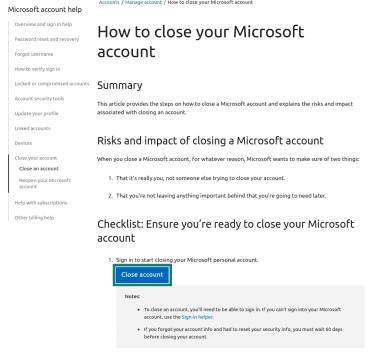
- Select Close account.
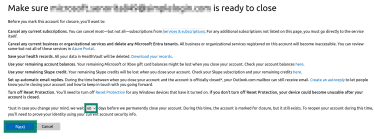
- Select Next after reading through the list and selecting between 30 and 60 days before permanent account removal.
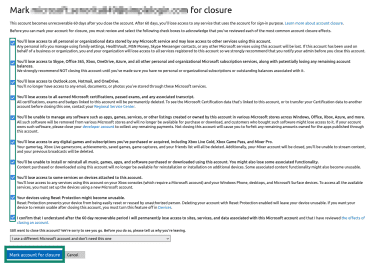
- Check all the boxes (after reading through them), and then select Mark account for closures after selecting a reason for deletion.
Remove a Microsoft account from a device without deleting it
In case you want to keep your Microsoft account active for when you may need it, Windows allows you to remove the online account and switch to a local account instead. Here’s what you have to do after creating a local account.
From desktop
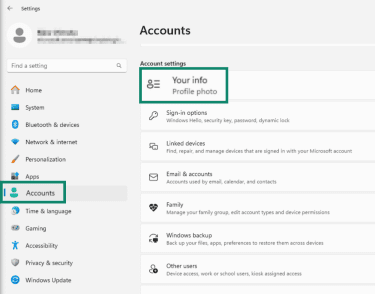
- From Settings, go to Accounts > Your info.
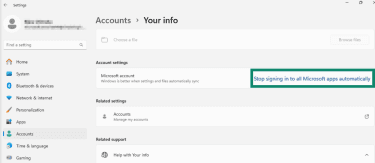
- Select Stop signing in to all Microsoft apps automatically (if available). A work or school account might show a different option.
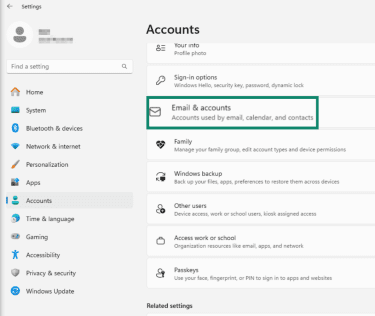
- Go to Email & accounts.
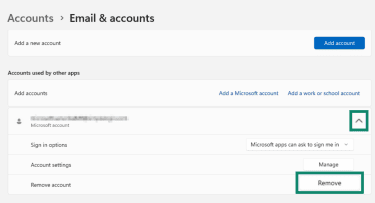
- Find your online Microsoft account, and click Remove.
From iPhone or Android
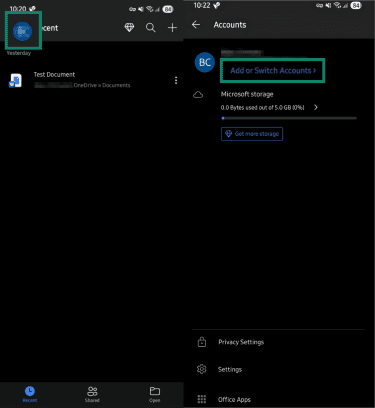
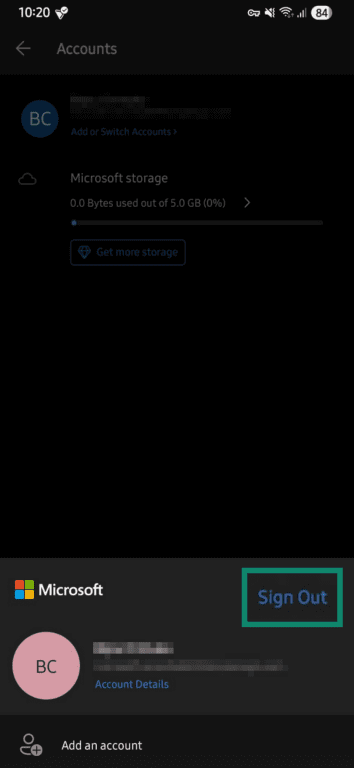
To remove a Microsoft account from iPhone and Android, you need to open all your installed Office apps (like Word and Excel) and sign out of the account on each app. For this guide, we’ll use Android, but the steps to remove a Microsoft account are identical on an iPhone.
- Open any Office app, such as Word, and tap on your profile picture. Select Add or Switch Accounts.
- Tap Sign out.
Privacy and data concerns
If the reason you want to delete your Microsoft account is privacy, then it’s best that you know what data Microsoft collects, how long it’s stored for, and how you can remove data before you close your account.
- Data Microsoft collects: Includes account-linked personal information, such as contact details, name, credentials, payment details, device and usage data, and interests for service personalization. Your Windows account may also sync (via cloud) language settings, passwords, app preferences, search history, device history, and location history (if enabled).
- Data stored after a deletion request: After you initiate an account deletion, Microsoft will keep all the data associated with the account intact for 30–60 days (depending on which option you choose). If you don’t recover your account before this grace period ends, Microsoft will delete all this data.
- Linked services and external apps: If you used your Microsoft account to sign in to third-party services, those services may retain the account data they collected independently. Deleting your Microsoft account doesn’t remove that data from their systems.
- Optional cleanup before account deletion: You can download files you wish to keep from your Microsoft account and remove them from the cloud, review and remove connected apps and third-party permissions, unlink services that use your Microsoft account for sign-in, and clear account activity manually.
Microsoft’s Privacy Dashboard can help you review what data Microsoft is collecting, allowing you to remove things like browsing and search history, download important data, and clear activity history with Microsoft services.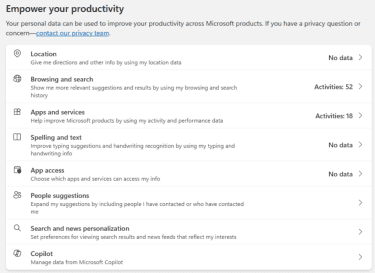
What happens after you delete your Microsoft account?
After deleting your Microsoft account, you’ll receive a 30- or 60-day grace period (you get to choose which) during which the account is deactivated but not permanently deleted. You’ll have time to change your mind and reactivate the account, canceling the deletion request and recovering your data.
During the grace period:
- You can’t use any of the services associated with the Microsoft account.
- Your data (OneDrive files, email, and subscriptions) is inaccessible.
- You can reactivate your account at any time by signing back in, which cancels the deletion and restores full access to your data.
After the grace period ends:
- Your Microsoft account is permanently deleted, with no way to recover it.
- All associated account data, such as OneDrive files, Outlook.com and Hotmail.com, Xbox profile, achievements, purchases, and Microsoft 365 subscriptions, is permanently removed.
- The Microsoft email address (e.g., @outlook.com or @hotmail.com) that was tied to your account can’t be reused or recovered.
- All third-party logins that depended on that Microsoft account for sign-in will stop working. As such, it’s strongly advised to unlink all external services (such as your EA account) from the Microsoft account you want to delete.
How to cancel remaining linked services
If you still have services linked to your Microsoft account (perhaps through a two-factor authentication (2FA) confirmation code) after initiating an account deletion request, you have two options at your disposal, depending on whether the grace period has passed or not.
- If you’re in the 30–60-day grace period, you can recover your Microsoft account by signing back into it, unlink your services from it, and initiate another deletion request.
- If the grace period has passed, contact the customer support for the third-party service linked to your Microsoft account and explain the issue. Recovery may be possible if the service supports alternative login methods or can verify your identity, but access isn’t guaranteed.
Troubleshooting common issues
During the removal process, you may come across several common problems, such as:
- Not being able to sign in: If you can’t sign in to the Microsoft account you want to delete, you’ll need to use Microsoft’s Sign-in helper to regain access to the account and then initiate a deletion request. There’s no way to delete a Microsoft account without verifying ownership (by signing in), which is why account recovery is necessary.
- Recently resetting your security info: If you’ve recently reset security info for your Microsoft account (like recovering an account you couldn’t access), you’ll need to wait 60 days before you can initiate an account deletion request.
- Account tied to an organization: If you get the “You need to leave your work organization” notification when trying to delete your account, it could be because your account was previously linked to a work or school organization. You may need to contact the organization’s administrator or, if that doesn’t work, Microsoft support might be able to help.
FAQ: Common questions about deleting your Microsoft account
How do I delete a Microsoft account permanently?
Is closing a Microsoft account the same as deleting it?
Can I delete my Microsoft account from a device?
What subscriptions should I cancel first before deleting my Microsoft account?
What happens to my data after deleting my Microsoft account?
However, once the grace period has passed, the account will be permanently deleted (including from Microsoft’s servers, unless otherwise required by law), and all the data associated with it will become unrecoverable.
How can I recover my Microsoft account after deletion?
Is it okay to delete a Microsoft account?
How to delete a Microsoft account you can’t access?
How to back up BitLocker recovery keys before deleting a Microsoft account?
Take the first step to protect yourself online. Try ExpressVPN risk-free.
Get ExpressVPN














 Support Center
  Live Chat
  FAQ
FAQ 


