How to change your location on Tinder: A complete guide


If you want to expand your dating options, the fastest and easiest way to change your location on Tinder is to use its built-in Passport™ Mode feature. With it, you can find matches outside your current location, plan meetups before you travel, or continue matching in a city after you’ve moved or spent time abroad.
This guide walks you through using Tinder Passport step by step, what to expect from it, and how to fix common location issues.
What is Tinder Passport?
Passport is a premium Tinder feature that lets you search by city or drop a pin on the map to set your location to any city in the world. Once you’ve set your location, you can swipe through profiles from people in your selected area and connect with them.
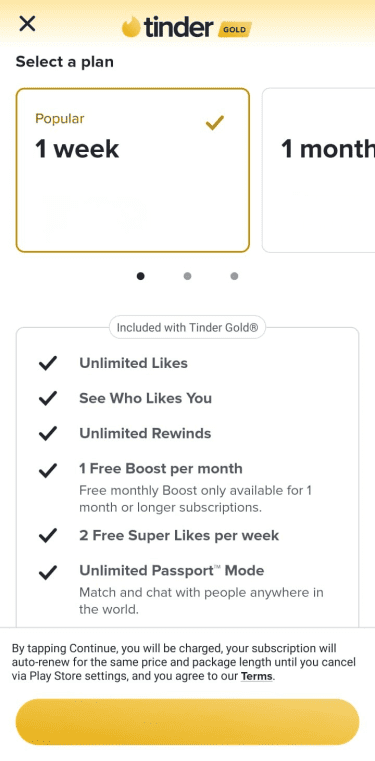
You can use Passport on both the mobile and desktop versions of Tinder with a Tinder Plus, Gold, or Platinum subscription.
To subscribe to a paid Tinder plan:
- Open your Tinder app and tap the Profile icon.
- Go to Settings.
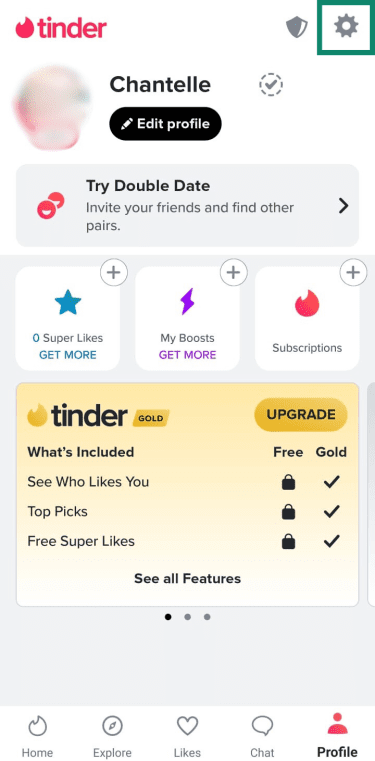
- Select either Tinder Plus, Tinder Gold, or Tinder Platinum.
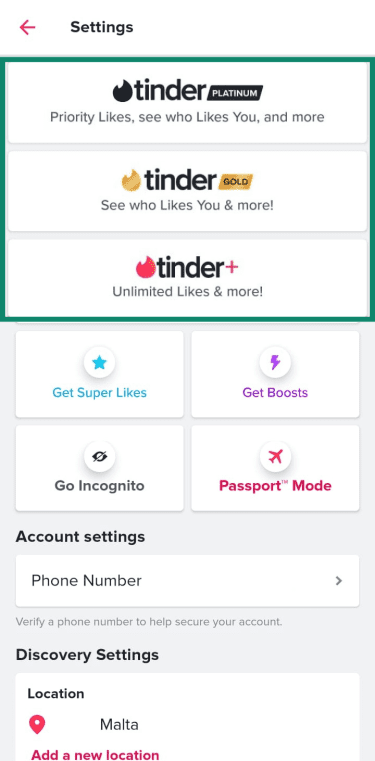
- Choose a plan duration and follow the on-screen prompts to purchase the subscription of your choice.
How to use Tinder Passport
You can find the Passport feature in Tinder's location settings. The exact wording can vary depending on the app version and device used, but the flow is similar.
To use Tinder Passport on your mobile phone:
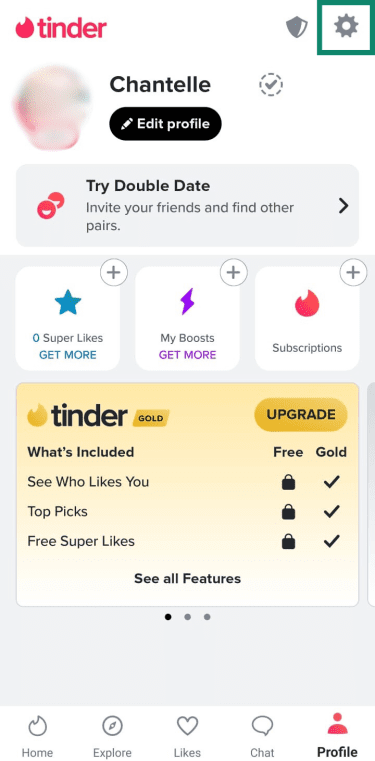
- Open the Tinder app and tap the Profile icon.
- Tap the gear icon to go to Settings.
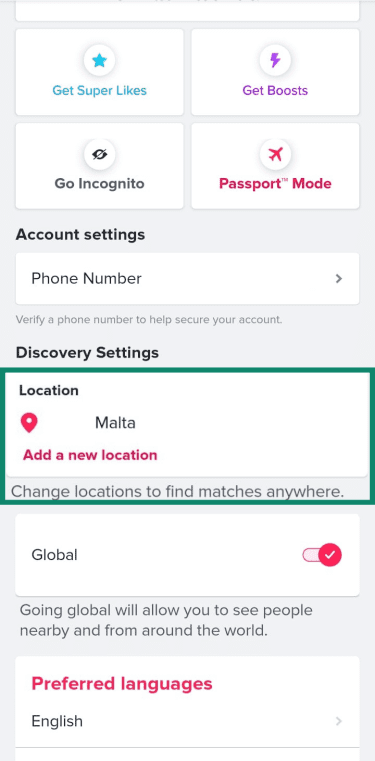
- Tap the Passport™ Mode button or tap Location under Discovery Settings.
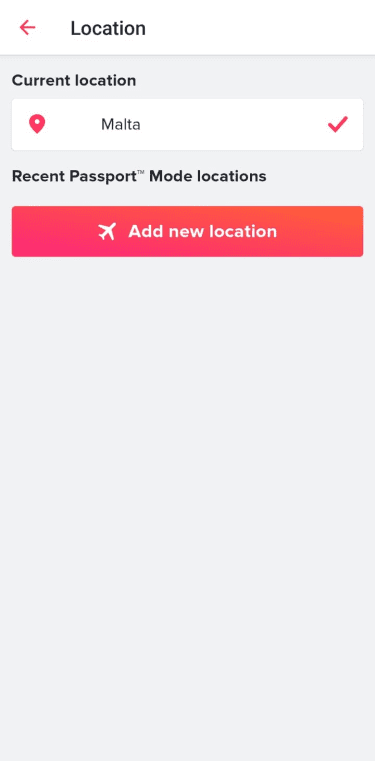
- Tap Add new location.
- Type the city name in the search box and select the desired result to add a new location. You can also use the map to find and pin the location.
- Return to Tinder’s main screen to start swiping through profiles in the new location you chose.
Limitations of Tinder Passport
Passport moves your profile to a new city to find remote matches, but it comes with limitations you may need to consider, including:
- It requires a paid subscription: Passport is exclusively available to paid subscribers. Free users can’t currently use this feature to change their location.
- Users can tell you’re far away: Tinder usually shows your distance by default, so Tinder users in your chosen city can see how far away you are if you’re using Passport. If you don’t want other users to see how far away you are, as a paid subscriber, you can turn on the “Don’t Show My Distance” setting to hide your distance information.
- You can only set one city at a time: You can change your location at any time with Passport, but you’ll only see profiles based on the current city you’ve selected.
- Match visibility window: After changing your location, people you’ve already liked may continue to see your profile for up to 24 hours. This can create confusion if you switch cities, since people in your previously selected location may still see and match with you for a day after you’ve changed your Passport location.
How Tinder identifies your location
Tinder uses your device’s precise location to recommend you to nearby users and show you profiles in your area. To use the app and its built-in features like Passport, Tinder typically asks for your permission to collect your geolocation data. According to its privacy policy, Tinder uses your longitude and latitude to pinpoint your location; however, the accuracy depends on your device, your settings, and your surroundings.
Although Tinder doesn't specify which methods it uses to collect geolocation data, here are some common methods other apps use:
- GPS signals: Your phone receives signals from satellites to calculate your latitude and longitude. It’s the most accurate method that gives location-based apps the precise data needed to measure the distance between users. It works best outdoors.
- Wi-Fi networks: When GPS signals are weak, like when you're inside a building, your device scans for nearby Wi-Fi networks. It compares the unique names of these networks against a global database to identify your location.
- Cell tower triangulation: Your phone uses signal strength from nearby cell towers to determine its location. By measuring how far your phone is from three or more towers, it estimates your location.
- IP address: Your internet connection has a unique address that points to a general geographic area. Services may rely more on your IP address for desktop versions or as a fallback to other geolocation methods.
Is Tinder tracking you even when not in use?
If you’re worried that Tinder is following your movements 24/7, the reality is less intrusive.
By default, Tinder updates your location when you open and use it. If the app is allowed to access your location only when it’s in use, it will stop updating your location as soon as you close it (not minimize). It stays at the last logged-in location until you open the app again.
Reasons your Tinder location might change
If you’ve noticed your Tinder location is wrong or showing people from a different city, state, or country, the first thing you can check is whether the app is in Passport Mode. If it’s not, common causes for a Tinder location change may include: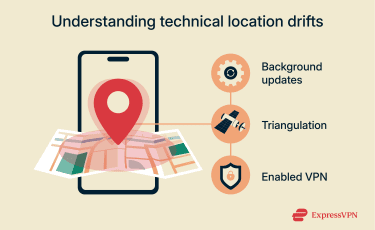
1. GPS or device triangulation
Tall buildings, metal roofs, or heavy cloud cover can block or bounce GPS. In those cases, your phone may rely on Wi-Fi and cell tower positioning, which can affect the precision of your location on Tinder.
2. App or device background updates
After a big iOS or Android update, location permissions can reset. Battery saver modes can also pause background refresh. If your phone stops background activity to save power, Tinder may not update your location until you open the app again.
3. Enabled virtual private network (VPN)
As mentioned, Tinder primarily uses GPS signals from your phone via its location permissions and may also refer to your IP address as a secondary signal to estimate and verify your approximate location.
Connecting to a VPN server changes your IP address, which can influence the location Tinder sees, especially when using its desktop site or when your phone can’t access GPS data.
Troubleshooting location issues on Tinder
Because Tinder relies on communication between your device's operating system and its own servers, inaccurate location issues often lie in your device’s permissions or data caching rather than the app itself.
GPS not updating on Tinder
If you move to a new part of town or travel to a different city and Tinder isn’t updating your location, your phone may not be sending your new location data. You have several ways to fix these issues:
Close and relaunch the app
To restart the app, you can force stop it from running entirely, including its background tasks like updating your location or sending push notifications. Here’s how to do it:
On Android: Go to Settings > Apps > Tinder > Force Stop.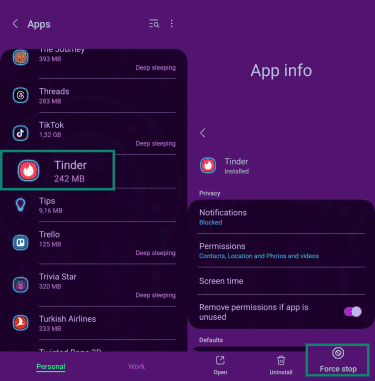
On iOS: Swipe up from the bottom of the screen (or double-press the home button) to view the list of open apps. Then swipe the Tinder app preview up to close it completely.
Check permissions
On Android: Go to Settings > Location.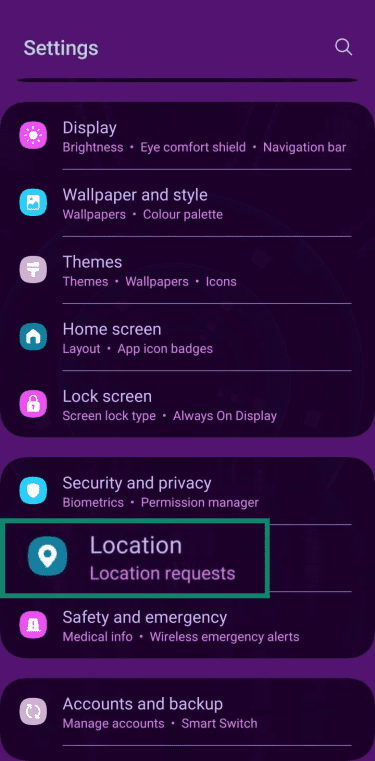
Then go to App Permissions > Tinder. Verify that While using the app is selected.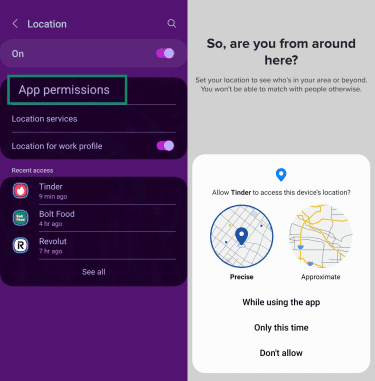
On iOS: Go to Settings > Apps > Tinder > Location. Ensure it’s set to While Using or Always. If it’s already on, toggle it to Never, wait ten seconds, and switch it back.
Toggle airplane mode
Sometimes your phone’s GPS radio gets stuck. Turning on airplane mode for 30 seconds disconnects all radios. When you turn it off, your phone will need to reconnect to local cell towers and GPS satellites.
Switch from Wi-Fi to mobile data
Turn off Wi-Fi and let Tinder find you using cellular data, which is often more accurate for real-time positioning.
Reinstall Tinder
If none of that helps, you can delete and reinstall the app. Then sign back in, grant permissions again, and test with Wi-Fi off to force GPS and mobile data.
Tinder Passport not working
Passport issues usually trace back to one of four things: plan status, app version, a stuck cache, or permissions. Here are ways to fix them:
- Check if you’re subscribed to a plan: Confirm that you’re a Tinder Plus, Gold, or Platinum subscriber to be able to use Tinder Passport.
- Update Tinder: Install the latest app version from the App Store or Google Play.
- Clear app cache: Uncleared outdated cache might be causing Tinder Passport to malfunction. To clear cache on your mobile device:
- On Android: Go to Settings > Apps > Tinder > Storage > Clear cache.
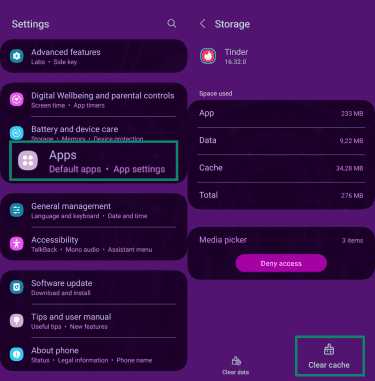
- On iOS: Go to Settings > General > iPhone Storage > Tinder > Offload App.
- On Android: Go to Settings > Apps > Tinder > Storage > Clear cache.
- Reselect your city: In Passport Mode, select a new city, then reselect the location you want to use and confirm.
- Confirm permissions: If location access is set to Never, Tinder won’t be able to detect your location, and its Passport Mode feature will remain disabled. Verify if location permissions are enabled.
Tinder is showing the wrong city
If the profiles you’re seeing aren’t from your selected location, try the following steps. You can also apply the GPS fixes suggested earlier if needed.
- Check your current location in Passport Mode: Make sure Passport shows the city you chose. Select the location again if needed.
- Review your distance settings: If Tinder has been showing people outside your preferred distance, you can try reducing the distance radius. To do this, tap the profile icon, go to Settings, then scroll down to Discovery Settings and drag the Maximum Distance slider to the left.
- Turn off other network tools: Proxies or VPNs can hide your IP address and make it appear as if you’re in a different location. Try turning off these network tools temporarily and restarting the app.
FAQ: Common questions about Tinder location changes
Can I change my Tinder location for free?
You can’t change your Tinder location for free, as Passport is a paid feature.
Does Tinder update your location automatically?
It depends. With location permissions on, Tinder updates your location either when you open it or continuously in the background, depending on the level of access you grant. You can switch those permissions off if you want more control over your data privacy.
How accurate is Tinder’s location?
Tinder provides precise location tracking most of the time, as it primarily uses GPS, which can be accurate outdoors in clear sky conditions. If the GPS signal is weak, such as when the device is indoors or in dense areas, the app may use other geolocation methods like Wi-Fi and IP addresses to estimate your location.
Is it safe to change your Tinder location?
If you want to change your Tinder location without traveling, using Tinder’s Passport Mode feature is the safest option, as it complies with Tinder’s guidelines.
Take the first step to protect yourself online. Try ExpressVPN risk-free.
Get ExpressVPN