How to change location on Facebook Marketplace for better results


Facebook Marketplace usually shows listings near your selected area, but that may not always match what you need. Maybe there aren’t many relevant items nearby, you’re moving soon, or Facebook has detected the wrong location.
This guide covers how to change your Facebook Marketplace location in the app and browser, whether a virtual private network (VPN) may help, and how to troubleshoot common location issues.
Why change your Facebook Marketplace location?
Facebook Marketplace uses your selected location and other location signals to show nearby listings, but you can manually change the area you want to browse.
- See more listings: If there aren't many relevant listings nearby, switching to another city or region can broaden your options.
- Compare prices: Browsing similar listings in different locations can help you understand typical pricing and decide whether a local deal is worth considering.
- Plan ahead: If you’re moving or visiting another city, updating your Marketplace location lets you check what’s available there before you arrive.
- Reach buyers in the right area: If you’re selling, setting the listing location accurately can help your item appear to buyers near the pickup or selling area.
Also read: What is geotargeting? How location tracking impacts privacy and security.
How to change Facebook Marketplace location in the app
The steps are broadly similar on iOS and Android, though some icons or menu placements may vary by device and app version.
- Open the Facebook app and tap the Menu icon.
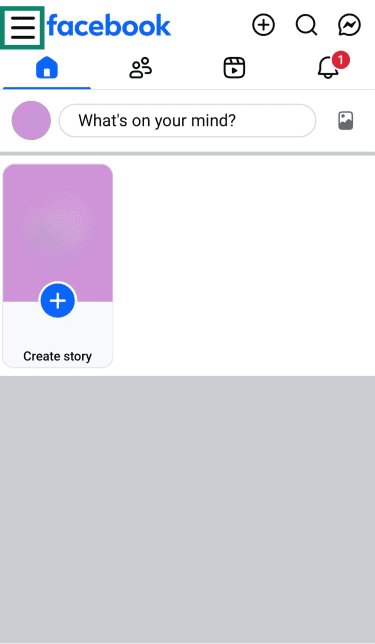
- Tap Marketplace. If you don’t see it, tap See more.
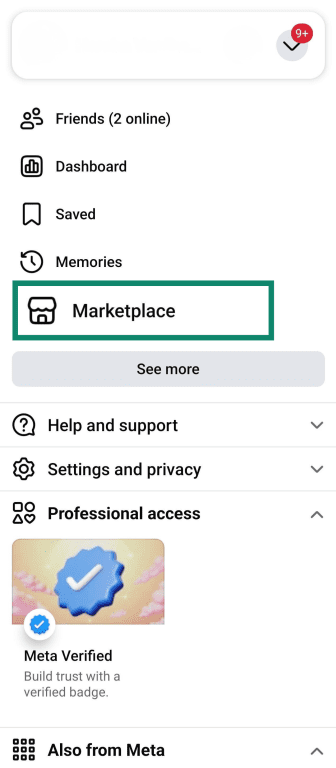
- Tap your current location, the location pin, or the location option near the top of Marketplace.

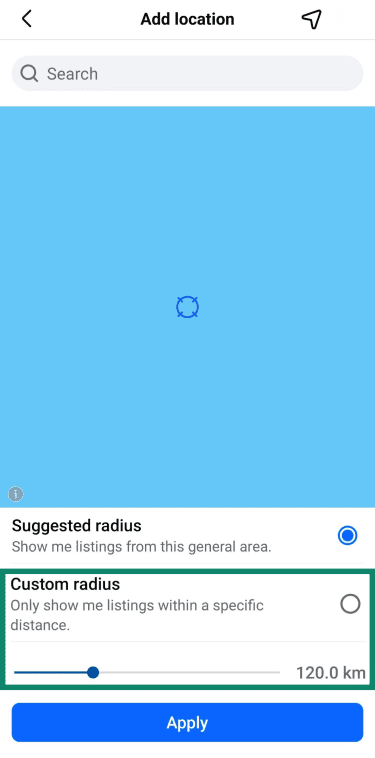
- Use the search icon to find a new location, or move the map to your preferred area. If available, choose Suggested radius or Custom radius to adjust the search area.
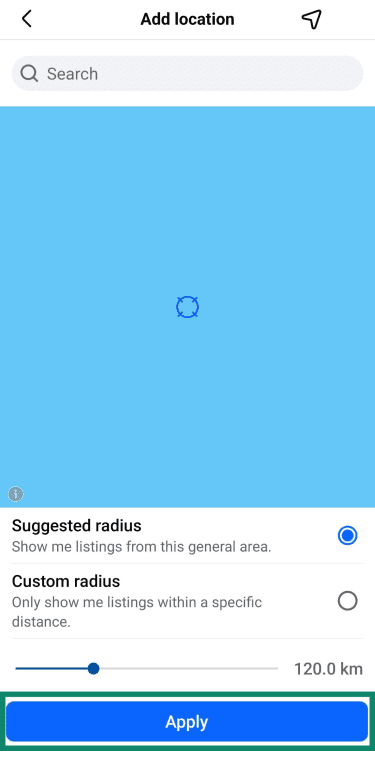
- Tap Apply to confirm.
How to change Facebook Marketplace location in browser
The steps are generally the same across desktop browsers, though the layout may vary slightly.
- Open Facebook in your browser and click the Marketplace icon.
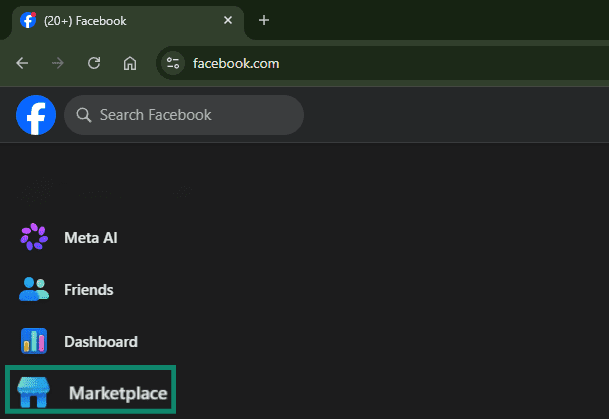
- In the left-hand Marketplace menu, click your current location or the location shown under Location.
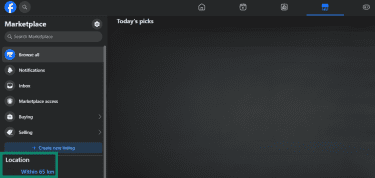
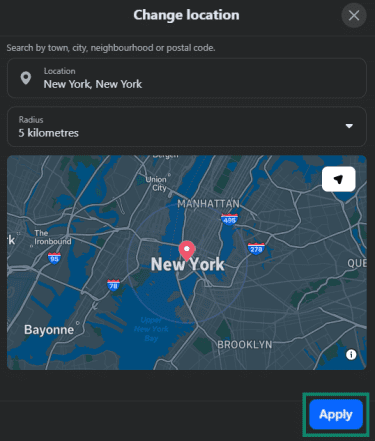
- Enter your preferred location, select a radius from the dropdown menu, then click Apply.
Why Facebook Marketplace shows the wrong location
Facebook Marketplace may be showing listings from the wrong area if the location selected in Marketplace doesn’t match other location signals Facebook uses, such as device location, IP address, or activity tied to places.
- Your device location settings: If Facebook has access to your phone’s location, it can use GPS and other location data to estimate your location.
- Your IP address: Your network provides a general location based on your IP address. If you’re traveling, using a different network, or connected through a VPN, this can affect the location Facebook detects.
- Your Facebook activity: Check-ins, events, saved places, or other activity tied to locations can influence how Facebook understands where you are or what areas may be relevant. Past Marketplace activity may also affect the listings Facebook recommends.
Also read: Location services explained: How they work and how to protect your privacy.
Do you need a VPN to change Facebook Marketplace location?
A VPN changes your IP address, making it appear as though you're browsing from a different location. This may help if Facebook is detecting your location incorrectly based on your IP address, but it may not override your device location permissions, Facebook location settings, or the location selected in Marketplace.
A VPN can add privacy and security by encrypting your internet connection and hiding your real IP address from Facebook and other sites. However, it doesn’t replace Facebook’s own privacy controls. Facebook may still use account activity, profile information, device permissions, cookies, and Marketplace settings to personalize what you see.
It’s still worth reviewing what's publicly visible on your profile and tightening your broader Facebook privacy settings, especially if your personal information has appeared in a Facebook data breach.
Also read: Is Facebook Marketplace safe? How to avoid scams and stay protected.
How to fix Facebook Marketplace location problems
Location changes don’t save
If your Marketplace location doesn’t save after you change it in the app, make sure you tap Apply or the final confirmation button before leaving the screen.
If the issue persists, try the following in order:
- Log out and log back in: This refreshes your session and can clear outdated or stuck settings.
- Update the Facebook app: App updates can include bug fixes that may resolve display or settings issues. Check for updates in the App Store or Google Play Store.
- Clear the app cache on Android: Go to your device's Settings and clear the Facebook app cache. This removes temporary data that may interfere with saved settings.
- Try changing the location in a browser: If the app still doesn’t apply the change, update your Marketplace location from the desktop version instead.
Location keeps reverting to your GPS location
If your selected Marketplace location saves but keeps reverting to your current area, your device's location settings may be overriding your manual selection. First, disable Facebook’s access to your location in your phone settings.
If the location still reverts, try changing it in a browser on a computer instead. A desktop browser may rely less on your phone’s GPS, so changing the location there can help if the mobile app keeps reverting to your current area.
Listings in your selected location don’t show up
If you’ve changed your location but aren’t seeing the listings you expected, the issue is usually with search radius, filters, or availability rather than the location setting.
If the radius is too small, nearby listings may not appear. If it’s already wide and the results are still limited, try entering another nearby city instead.
Next, make your query more specific, for example, “desk chair” instead of “furniture.” Broad categories can return too many irrelevant results, making it harder to find relevant items.
You can also widen your filters for price, category, or condition. If your filters are too narrow, you may be excluding listings that would otherwise match your location and search terms.
Marketplace not available in your location
If you can’t access Facebook Marketplace at all, the issue usually stems from account eligibility, regional availability, or account restrictions.
Check that:
- Marketplace is available where you are: Facebook Marketplace is only available in supported countries and regions. Changing your IP address may not restore access if the feature isn’t available to your account or location.
- You’re using your main Facebook profile: Marketplace is designed for personal Facebook accounts. If you’re using a Page, business account, or another profile type, switch back to your personal profile and check again.
- Your account is eligible: Newly created accounts may need to build some activity, such as adding friends, posting, or engaging with content, before Marketplace becomes available. Access can also be removed or limited if an account violates Facebook’s Commerce Policies or Community Standards.
FAQ: Common questions about Facebook Marketplace
How do I change my Marketplace location on iPhone or Android?
Can I change my Marketplace location to another country?
Can I change the location of a Facebook Marketplace listing?
How can I stay safer when buying or selling on Facebook Marketplace?
What’s the maximum search radius on Facebook Marketplace?
Can you browse multiple locations at once on Facebook Marketplace?
Does Facebook Marketplace remember your last location?
What happens to your listings when you change your browsing location?
Take the first step to protect yourself online. Try ExpressVPN risk-free.
Get ExpressVPN