How do privacy screens work, and which one should you choose?


When you’re working in a café, commuting, or sitting in an open office, anyone nearby can glance toward your screen. It might seem harmless, but it can turn into a privacy risk if you’re handling sensitive information. A privacy screen doesn’t stop people from looking, but it does make sure that anyone viewing from the side can’t actually see what’s on your display.
This article explains how privacy screens work, the types available, and when they are most effective. It also covers installation steps, limitations, alternatives, and how to choose the right privacy screen for a specific device.
What does a privacy screen protector do?
A privacy screen protector limits the visibility of a display to a narrow, front-facing angle. It reduces screen clarity when viewed from the side and provides a physical layer of protection for the screen’s surface. Some versions can also reduce fingerprints, minimize minor scratches, and offer varying levels of glare reduction depending on the material used.
Types of privacy screen protectors and how they differ
Privacy screens can differ in how they attach to the device, how the privacy filter itself behaves, and what material or construction they use. In terms of attachment style, there are:
- Non-adhesive: These screens attach to laptops or monitors via built-in magnets, tabs, or clips. There are also slip-on and slide-in variations that attach using a frame on the bezel of a monitor. They are removable and let you switch between private and open viewing modes more easily.
- Adhesive-backed: These privacy filters use a thin adhesive layer to attach directly to the display surface. They provide a stable, semi-permanent fit but may leave residue when removed.
Filter behavior determines how much privacy the screen actually provides, and in this category, there are two options:
- Two-way privacy filters: Block visibility from the left and right or top and bottom only. The screen typically appears dark or black from those side angles.
- Four-way privacy filters: Block visibility from left, right, top, and bottom, offering stronger protection in higher-risk environments.
When considering the materials used to build the filter layer, you can most commonly choose between the following:
- Tempered glass: These privacy screens come with drop resistance and often include anti-scratch or anti-smudge coatings.
- Film: These are thin sheets that come in many attachment styles and finishes and are easier to remove and replace than glass.
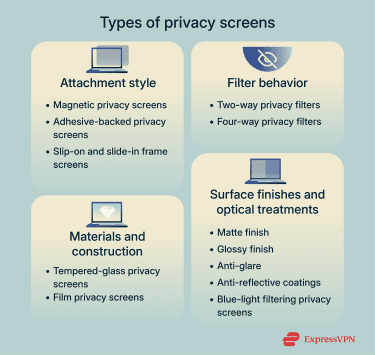
Some privacy screens include extra optical treatment to improve readability, and they can also differ by their surface finish:
- Matte: Matte finishes reduce glare and soften reflections, which improves visibility in bright or high-glare settings.
- Glossy: Glossy finishes keep colors and details sharper but reflect more ambient light.
- Anti-glare: Anti-glare coatings scatter reflected light to make harsh reflections less noticeable.
- Blue-light filtering: Blue-light reduction can lower exposure to high-energy visible light for added visual comfort during extended use.
How do privacy screens work?
Privacy screens work by controlling the direction of the light coming from your display. Instead of letting the screen’s brightness spread evenly in all directions, the filter narrows the viewing angle so that most of the light travels straight ahead. From wider angles, much less light is visible, which is why the screen appears dimmed or completely dark to someone viewing it from the side.
How micro-louver technology blocks side views
Most privacy screens use micro-louver technology to achieve this directional control. Inside the screen, there are rows of extremely small vertical louvers that work like tiny window blinds. They let light pass straight through toward the person directly in front of the screen, while limiting the light that escapes at an angle.
The density, thickness, and orientation of the louvers determine how aggressively the screen blocks side views. When the louvers are packed more tightly or made thicker, they create a narrower viewing window. Anyone off to the side sees almost nothing, but this can make the screen appear dimmer to the viewer as well.
If the louvers are spaced farther apart or made thinner, more light passes through at wider angles. That keeps the screen brighter for you when looking straight at it, but it also makes it easier for someone nearby to catch part of the image. Manufacturers adjust these elements depending on whether the filter is intended for mobile devices, work laptops, or large monitors.
Where privacy screens are most commonly used
Privacy screens are commonly used in open or shared environments. This can include offices, co-working spaces, airport lounges, cafés, classrooms, libraries, and public transport. In these settings, screens may be visible to people sitting nearby or passing behind the user.
They are also common in roles that handle sensitive or regulated information, such as finance, healthcare, legal work, education, and corporate roles involving confidential documents. Privacy screens help reduce casual observation of emails, documents, dashboards, and login screens, adding a layer of physical privacy that complements digital security tools.
Benefits of using a privacy screen
A privacy screen offers more than just restricted viewing angles. It combines visual privacy with physical protection and improved usability under certain conditions.
Preventing visual hacking
Privacy screens significantly reduce the risk of “shoulder surfing” or “visual hacking,” where a bystander glances over a person’s shoulder to view sensitive information on-screen. By limiting the viewing angle, only someone sitting directly in front of the display can see its contents.
Protecting against scratches and impact
Some privacy screen protectors are built using materials that also shield the display from physical damage. This is especially useful for devices that travel with you, like phones, tablets, and laptops that are more likely to bump against other items or pick up scratches during everyday use.
Reducing eye strain and glare
Privacy screens may also include finishes that cut down on reflections, which helps reduce glare and makes the display easier to read. This can make longer screen sessions more comfortable, particularly in environments with strong or uneven lighting.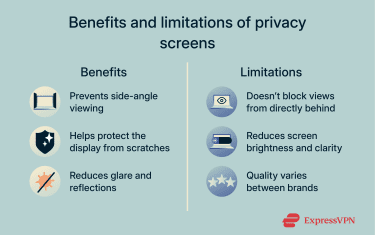
Limitations of privacy screen protectors
While they improve visual privacy and protect device surfaces, privacy screen protectors also impose limitations on how the screens are viewed and used.
Inability to block views from behind
Privacy screens primarily restrict side-angle visibility: left to right, and sometimes above to below. However, they don’t prevent someone positioned directly behind the device from seeing the screen. This limitation is inherent to the design and applies to all privacy-filter implementations, making the technology less effective in environments where people may approach directly from behind (e.g., rows of sets, shared desks without separation).
Effects on screen clarity and brightness
Privacy filters often reduce overall brightness and can affect clarity and color accuracy for the user. The image may appear dimmer, with reduced contrast or slight shading when viewed through a privacy filter. Under direct sunlight, when displays already struggle with glare, the dimming effect can make it harder to read or force users to increase screen brightness. This, in turn, can accelerate battery drain and reduce battery life.
Variable quality depending on brand
Not all privacy screens are created equal. Differences in manufacturing quality, material, filter density, and adhesive mechanics lead to noticeable variation in how well different products perform. Lower-quality filters may deliver weaker privacy protection, more severe brightness reduction, poor alignment, or even degrade touch sensitivity on smartphones.
Are privacy screens worth the cost?
The value of a privacy screen depends on how and where you use your device. If you often work on a laptop in shared spaces, travel regularly, or bounce between public and semi-public environments, a privacy screen offers reliable protection for a relatively small price.
The cost makes less sense for users who work primarily at a desk, in a home office, or in spaces with controlled seating and limited foot traffic. Privacy screens also come with trade-offs such as lower brightness and reduced color accuracy. Those issues matter more to people who rely on consistent display quality, such as designers, photographers, or anyone who performs detailed visual work.
How to install a privacy screen protector
What to do before you apply the screen
Preparing the display correctly reduces the chance of dust, misalignment, and clarity issues. Before applying a privacy screen:
- Choose a low-dust environment: Applying the screen in a place with minimal airflow, like a bathroom after a warm shower, reduces the likelihood of dust settling on the display mid-installation.
- Turn off the device: A dark screen makes dust and fingerprints easier to see, which helps you clean the surface thoroughly so no debris gets trapped under the filter.
- Remove any case that touches the screen edges: This gives you full access to the display and prevents the case from pushing or shifting the privacy filter during alignment.
Step-by-step: How to properly install a privacy screen
Privacy screen manufacturers generally follow the same installation principles. Below is a simplified walkthrough that works for both adhesive-based and tempered-glass privacy protectors:
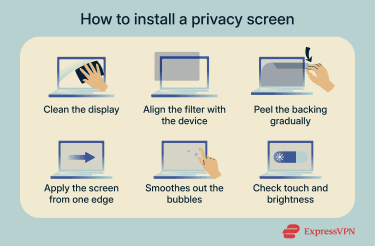
- Clean the screen thoroughly: Use the provided alcohol wipe to remove oils, then dry the surface with a microfiber cloth. If the kit includes a dust-removal sticker, use it to lift any remaining particles that could cause bubbles or uneven adhesion.
- Align the privacy screen before applying it: Hold the screen above the device and line it up with key features, like camera cutouts, bezels, and speaker openings. Some products include alignment frames to make this easier.
- Expose the adhesive side gradually: Peel back only a small portion of the backing film at first. This lets you anchor the top edge cleanly without trapping air under the rest of the protector.
- Apply the screen slowly from one edge: Once the top edge is aligned, lower the rest of the screen in a controlled motion. Use gentle, even pressure to help the adhesive spread smoothly.
- Remove bubbles and secure the edges: Use a soft card or microfiber cloth to push any air toward the edges in steady, straight motions. Larger tempered-glass protectors often settle naturally as the adhesive bonds.
- Check touch sensitivity and brightness: Test scrolling and typing to ensure normal responsiveness. If brightness looks uneven, you can lift and reseat the protector, but only if the adhesive is designed to allow repositioning.
If you’re installing non-adhesive privacy screens, the process is much easier:
- Magnetic filters: Align the filter with the laptop’s bezel and let the built-in magnets snap it into place.
- Slide-in filters: Attach the tabs or frame to the monitor bezel once, then slide the filter in and out as needed.
- Clip-on filters: Secure the small clips along the bezel so the filter sits in front of the screen without touching it.
How to remove a privacy screen without damaging your device
The safest way to remove a privacy screen depends on how it attaches to the device. Adhesive-backed privacy protectors can usually be lifted by gently raising one corner with a fingernail or a thin plastic card. Peel the screen away slowly using steady, even pressure to avoid bending or cracking the filter. If you notice any adhesive left behind, wipe it off with a microfiber cloth lightly dampened with water or a screen-safe cleaning solution.
Magnetic or slide-in privacy filters detach more easily. You can lift magnetic versions straight off the bezel without touching the display, and slide-in designs let you pull the filter out of its frame without pressing on the screen. Use only soft, non-metallic tools during removal to avoid scratches and keep the display protected.
Can you put a privacy screen over a regular screen protector?
You can layer a privacy screen over a standard screen protector in some cases, but compatibility depends on the device and the materials involved. Thin film protectors usually pair well with a privacy filter because they don’t interfere with alignment or attachment. Problems show up when both layers are rigid glass. Stacking two glass protectors can reduce touch sensitivity, create edge gaps, or keep the privacy filter from bonding correctly.
Magnetic and clip-on privacy filters avoid those issues because they don’t rely on adhesive bonding. If you prefer an adhesive privacy screen, using just one protector, either a regular one or a privacy-focused one, usually delivers the best fit and clarity.
How to choose the best privacy screen
Choosing a privacy screen depends on the device you use, where you work, and how much clarity or protection you expect. The right filter should match the device’s size, fit securely, and provide the level of privacy needed for daily use.
Matching a privacy screen with your device
A privacy screen must fit the exact dimensions and layout of the device. For laptops and monitors, this includes the visible screen area and the bezel shape. For phones and laptops, the filter needs to align with camera cutouts, sensors, and touch-edge tolerances.
Magnetic privacy filters usually work best for laptops because they attach cleanly and can be removed without residue. Adhesive glass filters are more common for phones, where precise alignment and screen responsiveness matter most.
Larger desktop monitors often use slide-in or frame-mounted filters since they support thicker materials and don’t rely on adhesives. When selecting a filter, checking the device model number or diagonal measurement helps ensure a secure fit and consistent visibility.
What viewing angle and material are best?
Viewing angles determine how aggressively the filter blocks side visibility. Typical commercial filters limit clear visibility to a central range, often between 30 and 60 degrees (measured from the screen’s centerline).
Different filters target different environments. For example, wider angles favor users who need more flexible seating positions, while narrower angles are designed for high-privacy settings where reducing side visibility is the priority.
Material plays a role, too. Tempered-glass filters offer durability and a smooth surface but add noticeable thickness. Film filters are thinner, lighter, and better for people who remove or replace the filter often. Surface finish matters as well. Choose a matte option if you work in bright or reflective environments and want to cut down on glare. Go with a glossy finish if preserving color accuracy and sharpness is more important than reducing reflections.
Alternatives to privacy screens
If privacy screens aren’t an option, there are several practical, non-hardware approaches that can reduce the chance of someone viewing sensitive information when a physical filter isn’t available.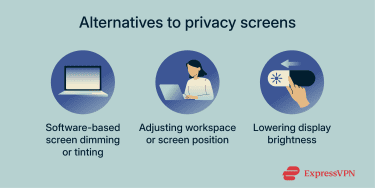
Software-based filters
Operating systems offer built-in display adjustments that can reduce visibility and contrast, which may discourage casual viewing. Features such as dark mode, high-contrast themes, and tinted overlays reduce overall screen brightness or shift color output. Some applications also include partial on-screen privacy tools, like dimming inactive areas, hiding messaging previews, or blurring sensitive information.
Workspace positioning
Adjusting where the device is placed can limit how easily others see the screen. Positioning the display so it faces a wall, reducing the side-angle exposure, or selecting seats that prevent foot traffic from approaching can all reduce visual access.
Reducing screen brightness
Lowering the screen’s brightness can make side-angle viewing more difficult because off-axis contrast drops at lower output levels. While this isn’t a replacement for a physical privacy filter, it can reduce how visible the content appears to someone glancing from the side.
Brightness adjustments are especially useful in dim environments, such as airplanes, cafés, or nighttime workplaces, where a bright display would otherwise stand out.
Other ways to protect your online privacy
A privacy screen reduces visual exposure, but it doesn’t address digital tracking, data collection, or online threats. Several device-level and network-level practices help improve overall privacy and limit what can be accessed when using the internet.
Use a VPN
A virtual private network (VPN) encrypts internet traffic between the device and the VPN server. This prevents local networks, public Wi-Fi operators, and other intermediaries from seeing the websites you visit. It also hides your IP address from websites and apps, making it harder for others to see your physical location.
For example, ExpressVPN strengthens digital privacy by combining several technologies designed to limit how much information anyone can collect from your device. Its Lightway protocol establishes encrypted tunnels quickly and delivers fast performance.
Combined with anti-tracking technologies, ad-blocking, and a kill switch that prevents data exposure, ExpressVPN makes it harder to observe or intercept your information online.
Use a privacy-focused browser
Privacy-focused browsers offer built-in tracking protection, stronger cookie controls, and tools that reduce digital fingerprinting. They limit how websites collect behavioral data and help block third-party scripts that track browsing across different sites.
Remove any unused apps
Removing unused or outdated apps reduces unnecessary data collection, background permissions, and potential security risks. Many apps continue to access location, contacts, or system data even when rarely used, and outdated apps may contain unpatched vulnerabilities.
Check and adjust your device privacy settings
Most devices include granular privacy controls for location services, camera and microphone access, advertising IDs, app permissions, and diagnostic data. Reviewing these settings helps limit how much information apps can collect and prevents unnecessary access to sensitive data.
Use strong passwords and multi-factor authentication (MFA)
Strong, unique passwords reduce the likelihood that accounts can be accessed through credential guessing or database leaks. You can automate creating strong passwords and storing them in a dedicated password manager. MFA adds an additional verification step each time you log in, protecting accounts even if passwords are compromised.
FAQ: Common questions about privacy screens
When should you use a privacy screen?
You should use a privacy screen if you often work or handle sensitive information in places where other people can easily look at your display. That includes public places like cafés, airports, trains, and coworking spaces, as well as open offices or shared desks where coworkers pass behind you.
Do privacy screens block blue light?
Some privacy screens include coatings that reduce exposure to blue light, but this varies by model. The filtering effect depends on the material and surface treatment rather than the privacy function itself. Matte or treated PET and tempered-glass protectors may reduce some high-energy visible light, while basic privacy filters focus only on restricting viewing angles.
Can privacy screen protectors be reused?
It depends on the type of filter. Magnetic and slide-in privacy screens can be reused indefinitely as long as the surface remains clean. Adhesive-based film protectors can sometimes be reapplied if the adhesive is designed for repositioning. However, tempered-glass protectors usually lose adhesion or trap dust once removed.
Are privacy screens compatible with phone cases?
Most privacy screen protectors work with standard phone cases, but compatibility depends on the thickness and edge design. Thicker tempered-glass privacy filters may lift around the edge if paired with tight-fitting cases, while thinner film protectors usually avoid that issue. Cases with raised lips can also press against glass protectors and reduce adhesion.
How can I tell if my privacy screen is working?
You can test a privacy screen by slightly rotating the device left, right, upward, and downward. The display should darken or distort as soon as it moves outside the filter’s viewing cone. High-quality filters restrict visibility sooner, while lower-density models may show dim but still readable content at wider angles.
Do privacy screens affect touch sensitivity?
Most thin, film privacy screens maintain normal touch responsiveness, but thicker versions may reduce sensitivity on devices with edge-to-edge touchscreens. This is due to the added thickness, not the privacy feature itself. Touch issues are especially common when stacking multiple protectors.
Take the first step to protect yourself online. Try ExpressVPN risk-free.
Get ExpressVPN






 Support Center
  FAQ
FAQ  VPN Setup Tutorials


