How to find your Roku IP address in seconds


If you want to connect your Roku TV to another device or app on your local network or troubleshoot Wi-Fi and streaming issues, knowing your Roku’s local IP address can be helpful.
In this article, we explain how to find the IP address on a Roku TV, with or without a remote, and how you can use it for troubleshooting.
Why you might need to find your Roku IP address
Your Roku’s IP address is a unique identifier assigned by your router that helps other devices on your local network communicate with it. It can help identify the TV on your local network, which is helpful when the Roku device is having connection issues. In more advanced setups, such as router-level virtual private network (VPN) configurations or custom Domain Name System (DNS) filtering, the device’s local IP address may also be used to apply specific routing or filtering rules.
Troubleshooting connectivity issues
When your Roku TV is losing signal, buffering constantly, or not connecting, troubleshooting the issues often requires the TV’s IP address. This lets you confirm whether the Roku is properly connected to your router. Here are several ways you can use the IP for troubleshooting:
- Review router settings: Locate the Roku TV in your router’s device list, which allows you to inspect its connection status, signal strength, or Dynamic Host Configuration Protocol (DHCP) settings (these settings deal with dynamic IP addresses).
- Confirm network connection: Check if the Roku has an IP address at all; if it doesn’t have one, it means it hasn’t connected to the network successfully.
- Check for IP conflicts: Compare the Roku’s IP address with that of other devices on the network to see if the TV is competing with other devices for the same address. If that’s the case, it might explain the connection drops.
- Test local connectivity: In some network setups, you can use the Roku’s IP address to check whether the device is reachable on your local network (for example, by checking whether it appears as “online” in your router’s device list). This can help narrow down whether connection issues are happening on your local network or upstream with your internet connection.
- Verify the correct network: Ensure that the Roku TV is connected to the correct Wi-Fi network in cases where you have multiple networks available.
Setting up VPN services
Roku TVs don’t support VPN apps directly, so any VPN protection has to be configured at the router level. If you do use a VPN on your router (or a custom DNS setup), however, your Roku’s local IP address can help you control how the device’s traffic is handled on your home network.
By using the Roku’s IP address, you can set routing rules on your router that include or exclude the TV from the VPN connection (often called policy-based routing). This can be useful, for example, if running all traffic through a VPN slows down streaming or causes certain apps and services to stop working. To make sure these rules continue to apply over time, you can also set up an IP (DHCP) reservation so your Roku always gets the same local address.
You can also adjust your router’s Quality-of-Service (QoS) settings (on supported routers) to give Roku higher priority on your network. This can help reduce buffering or playback issues when multiple devices are competing for bandwidth.
How to find your Roku IP address using the remote
To find your Roku IP address using the remote, follow the steps below:
- From your Roku home screen, which you can access by pressing the Home button (with a house icon) on your remote, select Settings.
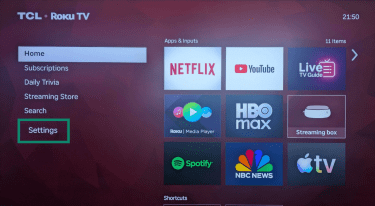
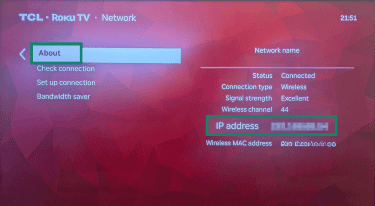
- Select Network, then About.
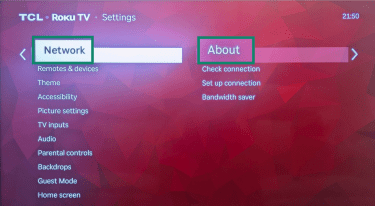
- Check the About section for the IP address.
How to find your Roku IP address with the mobile app
Here’s how you can use the Roku mobile app (available for Android and iOS) to find your TV’s IP address without using the physical remote.
Note: The Roku TV must be powered on and connected to the same Wi-Fi network as the phone. Otherwise, the phone might not detect the TV. The TV must also allow control by mobile apps. Here’s how to enable it with your remote and then find your IP from the mobile app:
- From your Home screen, go to Settings > System > Advanced system settings.
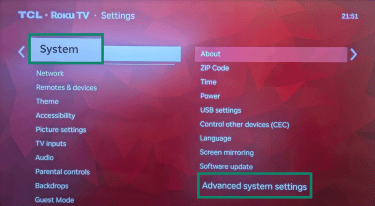
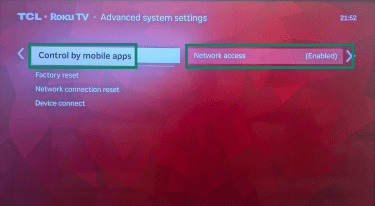
- Select Control by mobile apps and make sure that Network access is Enabled.
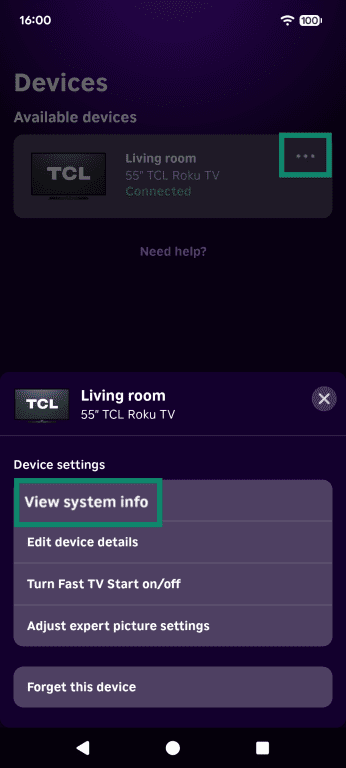
- From your Roku mobile phone app, go to Devices > View System Info.
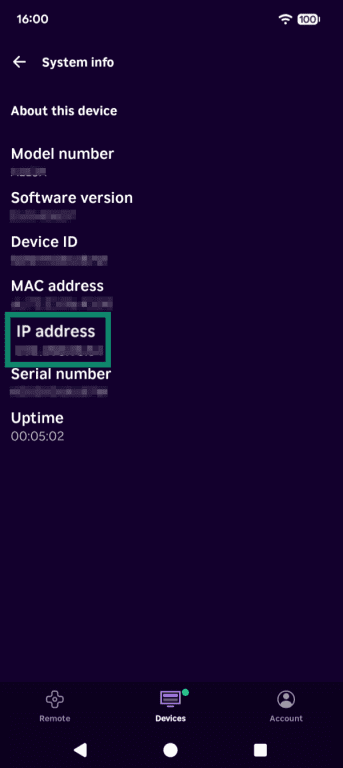
- You’ll find the device’s IP address on the System Info page.
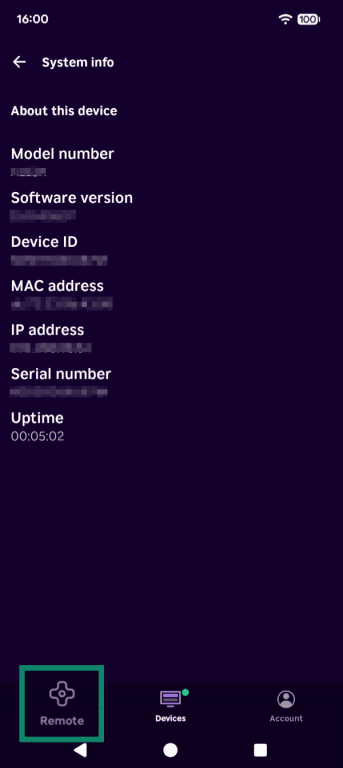
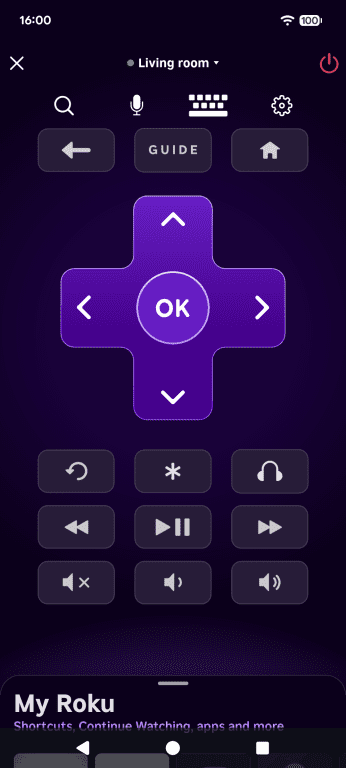
If your remote isn’t working, you can also use the Roku mobile app’s “Remote” mode.
- From the previous window, select Remote.
- Use the remote to control your Roku TV and follow the instructions above.
Finding your Roku IP address through your router
If neither your remote nor the Roku mobile app is working, you can find your TV’s IP address in your router settings (note that the TV must be powered on and connected to the network). To find the TV’s IP using this method, you’ll first need your router’s IP address, which is usually written on the back of the device or included in the router’s documentation.
If this isn’t the case, here’s how you can find your router’s IP:
Windows
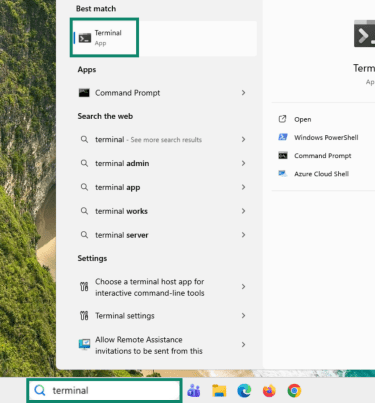
- Open Terminal or Command Prompt from the Start menu.
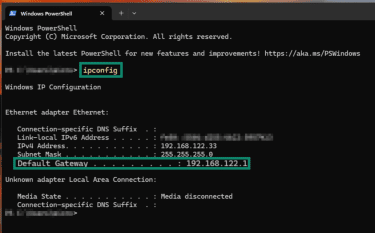
- Enter the ipconfig command in the window and press Enter on your keyboard. Then, find the Default Gateway entry in the results. To the right of it, you’ll see your router’s IP address.
Mac
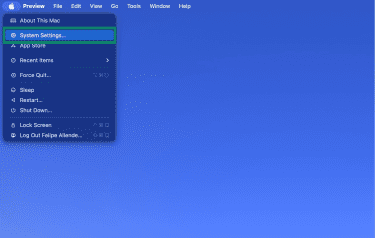
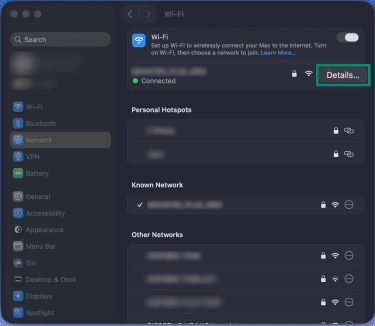
- Open System Settings.
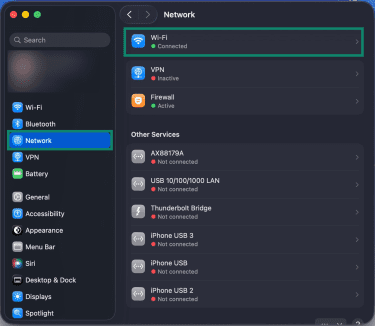
- Click Network and select your Wi-Fi network or Ethernet connection.
- Click Details.
- Click TCP/IP to find the IP address of your router.
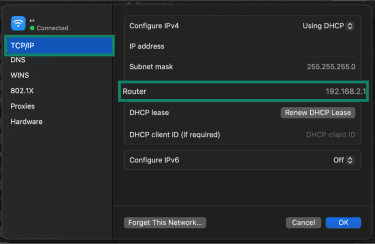
By default, many routers use addresses like 192.168.1.1 or 192.168.0.1 for their admin interface. The login credentials vary by manufacturer and are often printed on the router label or set during initial setup. Many internet service providers (ISPs) also require custom passwords.
Once you have the IP address, enter it into a new browser window. This will take you to your router settings, where you can look for the local area network (LAN) or wireless LAN (WLAN) (for Wi-Fi networks) sections, as well as the Connected Devices, Devices List, or DHCP Clients List. You’ll know you’re in the right place when you see a list of all devices connected to your network.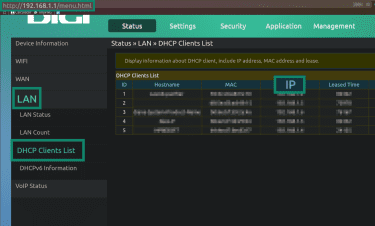
Other ways to locate your Roku on your network
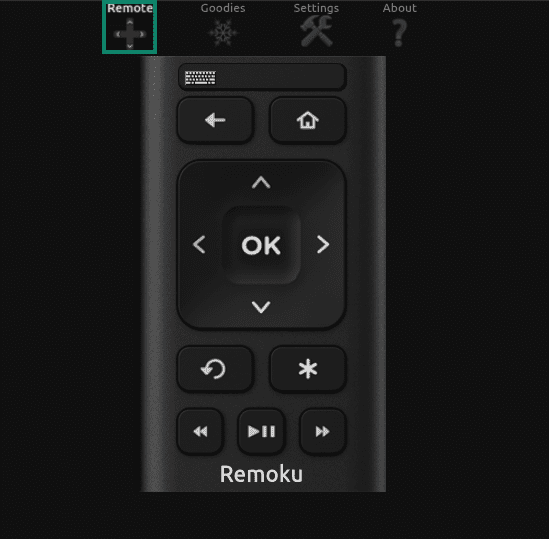
An alternative to using your Roku remote or the Roku mobile app is the Remoku app, which is a third-party remote control app for Roku devices. Keep in mind that Remoku isn’t developed or supported by Roku, and third-party remote apps may request additional permissions or network access. Only install such apps from trusted app stores and review their privacy policies carefully.
Here’s how to connect your Roku to the Remoku app:
- Select Settings and add your Wi-Fi network, or manually add the Roku TV’s IP address. Then, tap Scan to find the Roku TV.
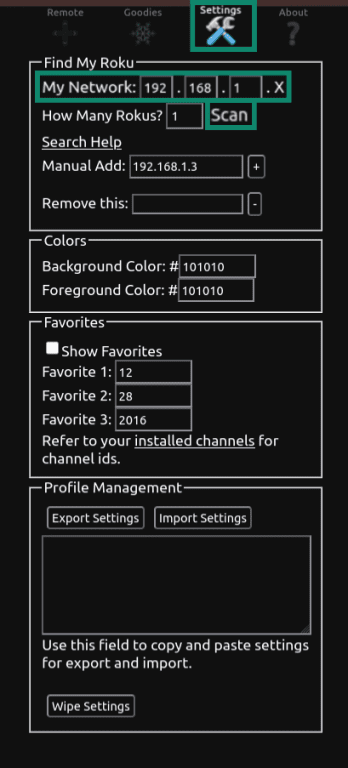
- Select Remote at the top and use the digital remote to control your Roku TV.
Can the serial number help you find the IP address?
While the Roku’s serial number can help you identify the specific device model, which can be useful for model-specific instructions or customer support, it doesn’t help you find the TV’s IP address.
That’s because your Roku’s local IP address (not the public IP assigned by your ISP) is assigned by your router, and it might change over time (for instance, if you reboot the router). It’s also private to your home network, and different users can have different IP addresses for the same Roku model.
Simply put, your Roku TV doesn’t come with a preconfigured IP address, which is why knowing the serial number doesn’t help you.
FAQ: Common questions about finding your Roku IP address
How do I find my Roku IP address without a remote?
To find your Roku IP address without a remote, you can use the official Roku mobile app (if your Roku is already connected to the same local network) to connect to your Roku TV and find the IP address in the settings. Alternatively, you can open your router’s dashboard (accessible through a browser) and look under Clients list or DHCP Clients List for your Roku TV’s IP address.
Where's the IP address on my Roku device?
You can find your IP address in your Roku device’s Network settings by opening the current connection details. You’ll then be redirected to the About page, where you can find the IP address of the device. Alternatively, you can use the official Roku mobile app to find the IP address of your Roku TV.
How can I connect my Roku to Wi-Fi without a remote?
In some Roku TV models, you can temporarily connect the TV to your router with an Ethernet cable and then switch to Wi-Fi from the settings menu. However, not all Roku TVs support Ethernet connections. If your model doesn’t, you’ll likely need a physical remote to complete setup.
Why isn’t my Roku showing up on my TV?
Roku isn’t available as an installable app on most smart TVs. But if you’re using a Roku streaming stick on a regular smart TV, Roku might not boot because the HDMI input that matches your Roku streaming stick hasn’t been selected.
Your remote should have an HDMI Input or Source button; press it until you find the right HDMI input for Roku. If this doesn’t work, unplug the streaming stick and plug it in again, as the connection may be loose.
Can my Roku IP address change?
Yes, your Roku IP address can change, typically if you restart your router or if the network connection drops and comes back on again. That’s because Roku devices typically use dynamic IP addresses. Disconnecting and reconnecting your TV to the Wi-Fi network may also change its IP. The IP address can be found in the TV’s settings.
How do I reset my Roku network settings?
To reset your Roku network settings, navigate to Settings, select System, then choose Advanced system settings. You’ll find a Network connection reset option there, and this should erase your wired and wireless network settings.
What to do if the Roku app doesn’t detect my device?
The reason the Roku mobile app doesn’t detect your device is either that they’re not connected to the same local network or the Roku TV isn’t connected to the internet (Wi-Fi or cable). You should make sure both devices are connected to the same Wi-Fi network and that the TV is powered on and not stuck on the setup screen.
You may also have to enable mobile app control on the Roku TV by using the remote and going to Settings, then System, followed by Advanced system settings, and Control by mobile apps.
What are some common Roku connection issues?
Common Roku connection issues include the TV not connecting to the Wi-Fi at all or it constantly disconnecting. In these cases, it may help to double-check the Wi-Fi password, bring the TV closer to the router, or reboot your router.
Take the first step to protect yourself online. Try ExpressVPN risk-free.
Get ExpressVPN