How to delete YouTube search history and protect your privacy



Your YouTube search history shapes your recommendations and autocomplete suggestions, but it also builds a detailed picture of your interests that's visible to anyone with access to your account. Clearing it helps reset what the platform shows you and keeps your activity more private.
This guide walks you through how to delete everything at once, remove individual searches, or clear activity from a specific timeframe on both desktop and mobile. It also covers how to pause or auto-delete your history and adjust your privacy settings so fewer searches are saved going forward.
Understanding YouTube search history
Before you delete anything, it helps to understand what YouTube actually stores and what changes when you remove this information.
What YouTube saves and where
Your YouTube search history is a record of every search you’ve made while logged into your account, including both typed searches and voice searches made using the YouTube app's microphone feature.
YouTube saves the text of each search query along with a timestamp to your Google account, and this data is visible in two places: directly within the YouTube app under History and in your Google account’s My Activity. This means the searches sync across all devices where you use YouTube while signed into your Google account, so a search made on your phone will appear when you browse YouTube on desktop.
Note: YouTube doesn't save your search history if you're not logged in. However, if you're using YouTube in a web browser, your browser may still store autocomplete suggestions locally. To clear these, you'd need to clear your browser history separately.
Why deleting search history matters
Your search history directly influences what YouTube shows you. Old or irrelevant searches can skew your recommendations by surfacing content that no longer reflects your interests. Clearing them gives the algorithm a cleaner slate to work with.
There's also a privacy angle. If you share a device or account with others, your search history is visible to those people, if they look for it. Deleting it, or pausing it altogether, prevents past searches from being seen and stops YouTube from using that data to build a profile of your interests.
How deleting search history affects recommendations
Deleting your YouTube search history can change:
- Autocomplete suggestions
- Search-based recommendations
- Some homepage suggestions
However, it doesn’t instantly reset your entire YouTube experience. Recommendations are influenced by multiple factors, like your watch history, subscriptions, liked videos, and overall activity patterns. If you want to reduce personalization further, you may need to manage your watch history or adjust your activity controls.
Search history vs. watch history
YouTube also keeps logs of your watch history, which includes every video you've actually played. Both your search history and watch history influence YouTube’s recommended algorithm, but in different ways: watch history tends to have a stronger effect on what videos are suggested to you, while search history shapes autocomplete suggestions and search results.
They’re also semi-independent: while clearing your entire YouTube history clears both lists, clearing an individual item from your search history won't remove related videos from your watch history, and vice versa. Other data connected to your Google account remains, too, unless you manage it separately; you can learn how in our guide on permanently deleting your Google history.
How to delete all YouTube search and watch history
Deleting all YouTube search history removes every search query tied to your account. This affects autocomplete suggestions and search-based recommendations across devices.
The steps below show how to delete all search history on desktop, iPhone, and Android.
Important: There's no option to bulk delete search history only. Deleting all history removes both your search and watch history. If you want to keep your watch history or selected items from either history, you can clear individual searches.
Delete all search history on desktop
- Visit youtube.com and click History in the menu bar on the left of the screen.
Note: If you're not seeing the option, make sure you're signed into your Google account: search history is tied to your account and won't be accessible if you're signed out.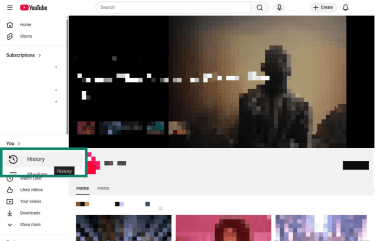
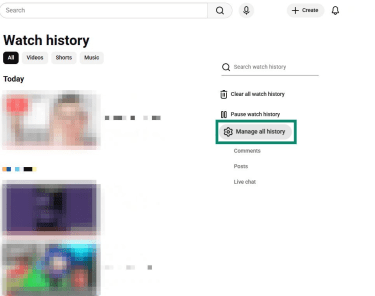
- Click Manage all history next to the cog icon.
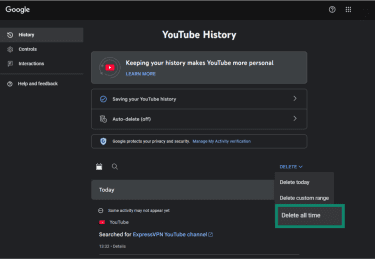
- Select the DELETE button and, in the dropdown menu, choose Delete all time.
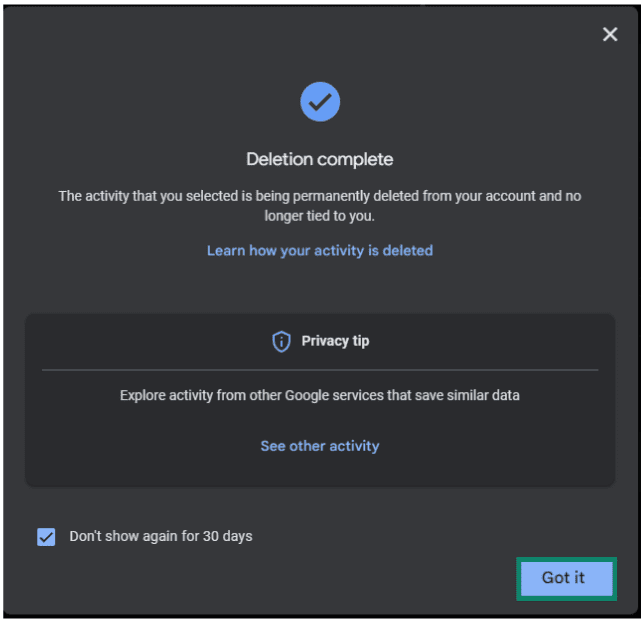
- You’ll get a confirmation that all of your search and watch history has been deleted. You can click Got it to exit the screen.
Delete all search history on iPhone and Android
- Open the YouTube app and make sure you’re signed in. Tap You in the bottom-right corner.

- Tap the Settings cog icon.
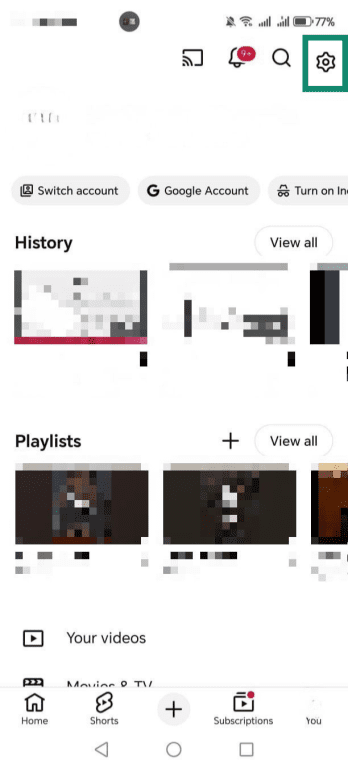
- Tap Manage all history.
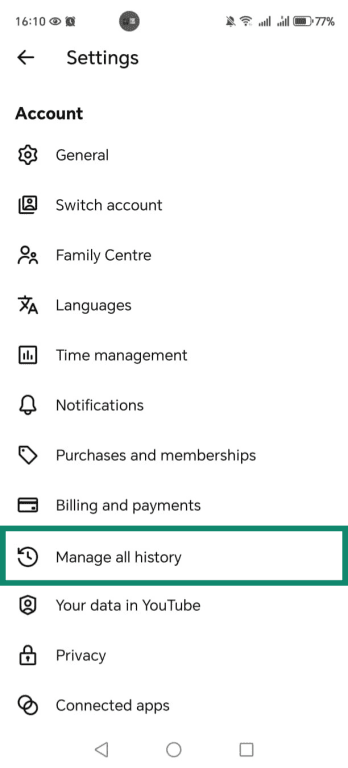
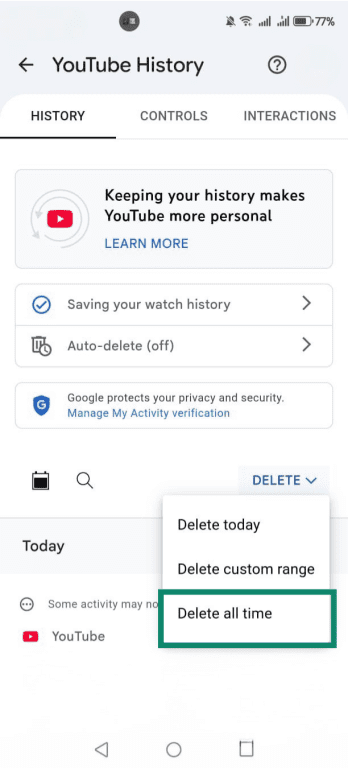
- Tap the DELETE option and, in the dropdown menu, tap Delete all time.
How to delete individual YouTube searches
If you don't want to erase everything, you can remove specific searches instead. This is useful for tidying up particular queries without resetting your entire search history.
The steps below show how to delete individual searches on desktop, iPhone, and Android.
Delete individual searches on desktop
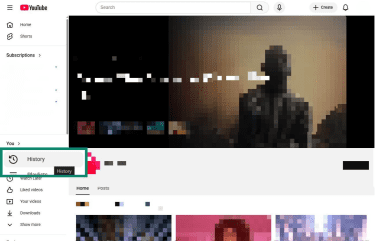
- Sign in to YouTube on your browser and click History in the sidebar on the left.
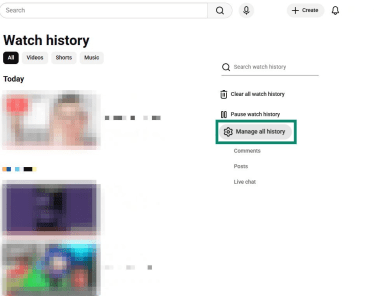
- Click Manage all history.
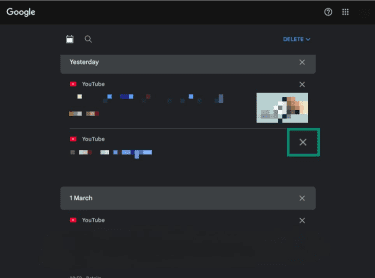
- In your YouTube History page, scroll down to find the search entry you want to delete and click the X next to it.
Delete individual searches on iPhone and Android
- Open the YouTube app and tap You in the lower-right corner.

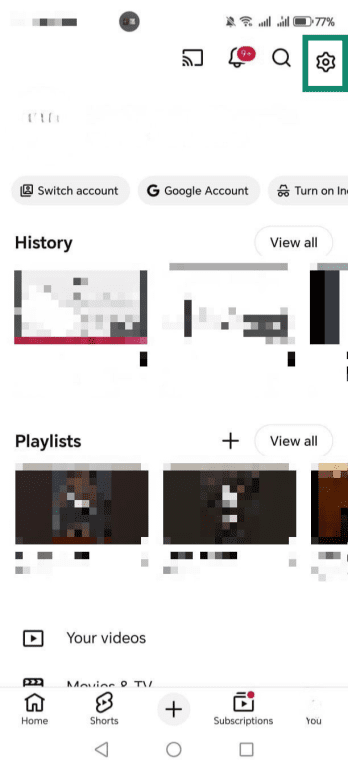
- Tap the cog icon to open Settings.
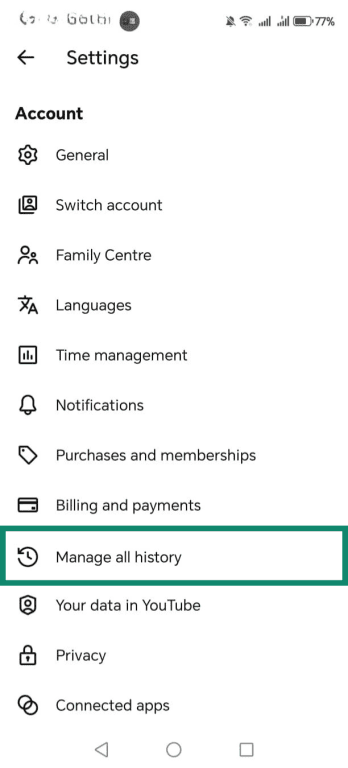
- Tap Manage all history.
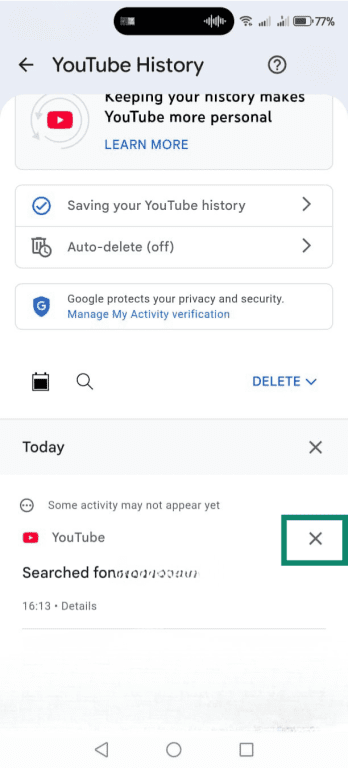
- Scroll down to find the search entry you want to delete and click the X next to it.
How to delete YouTube search history by time range
If you don't want to delete everything or remove items one by one, you can clear search history from a specific period. This is managed through your Google account activity controls, so the deletion applies to your account and is reflected across all your devices.
Use Your data in YouTube
"Your data in YouTube" is a dedicated page within YouTube that gives you an overview of your account activity, including your search and watch history. It links directly to your Google account controls, where you can delete or manage your history by date range. To find it and access the deletion controls:
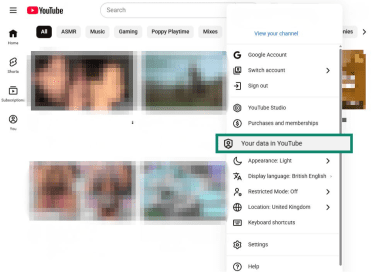
- Open YouTube in your browser or app, click or tap your profile picture, and choose Your data in YouTube from the dropdown menu.
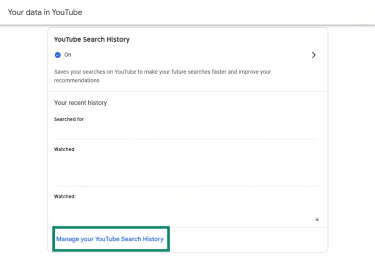
- Scroll down to YouTube Search History and choose Manage your YouTube Search History.
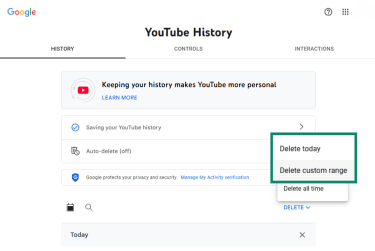
- Click or tap DELETE and choose Delete today or, if you want to delete entries from a specific time frame, Delete custom range.
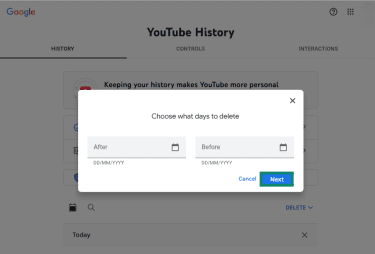
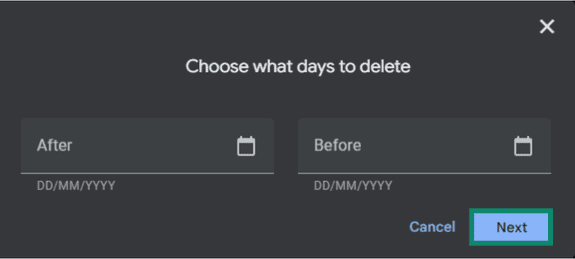
- If you chose Delete custom range, enter the dates within which you want to delete your history and select Next.
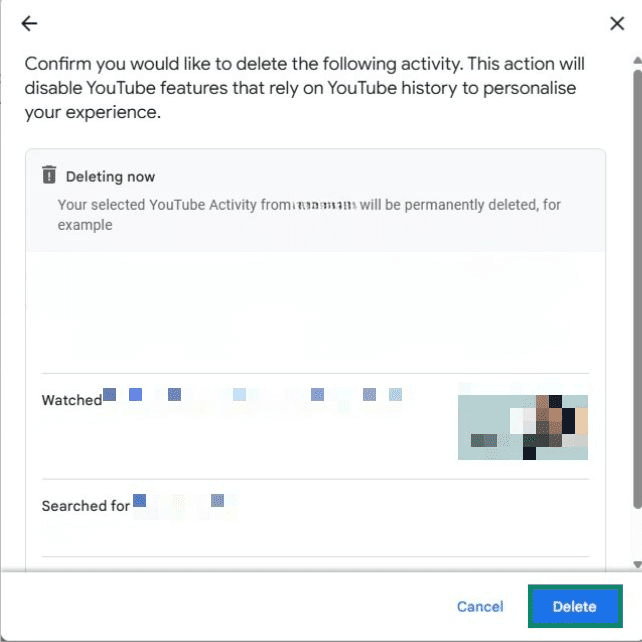
- You’ll see a pop-up confirmation that you want to delete that time range of search and watch history. Click or tap Delete.
Use Google My Activity
You can access the same controls directly through your Google account.
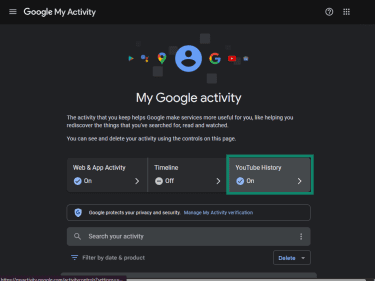
- Visit My Activity and select YouTube History.
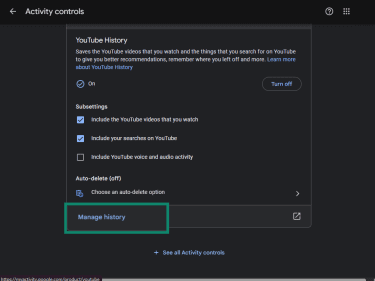
- Scroll down to click on Manage history.
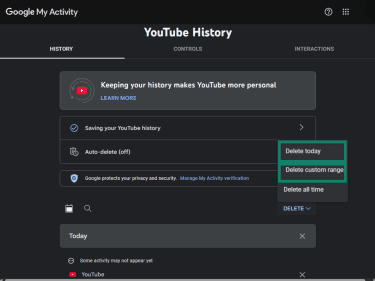
- When YouTube History opens, click DELETE and choose Delete today or select Delete custom range.
- If you chose Delete custom range, enter the dates within which you want to delete your history and select Next.
Pause and auto-delete YouTube history
You can stop YouTube from saving new searches by pausing your history or set it to auto-delete so older searches are removed automatically after a set period. Both settings are managed through your Google account's YouTube history controls.
How to pause YouTube search history
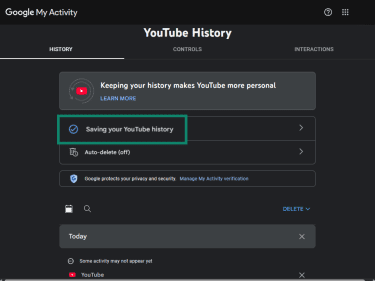
- In your YouTube History controls, select Saving your YouTube history.
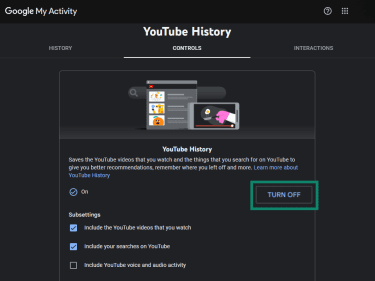
- Select TURN OFF.
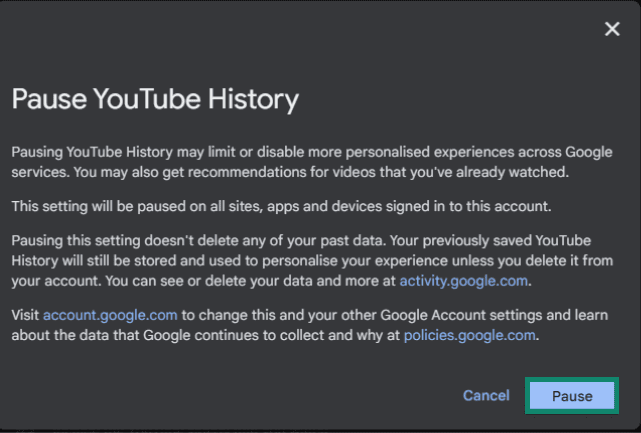
- You’ll see a pop-up detailing what happens when you switch YouTube history off. Click Pause to confirm.
How to turn on auto-delete
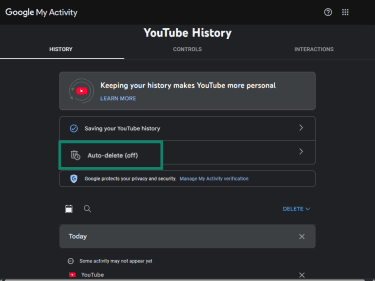
- In your YouTube History controls, select Auto-delete.
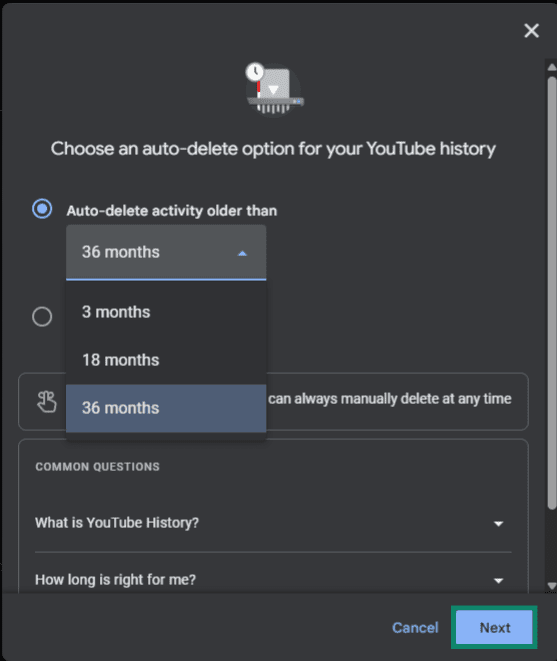
- The pop-up menu will give you time range options for auto-deletion. Choose the best option for you and click Next.
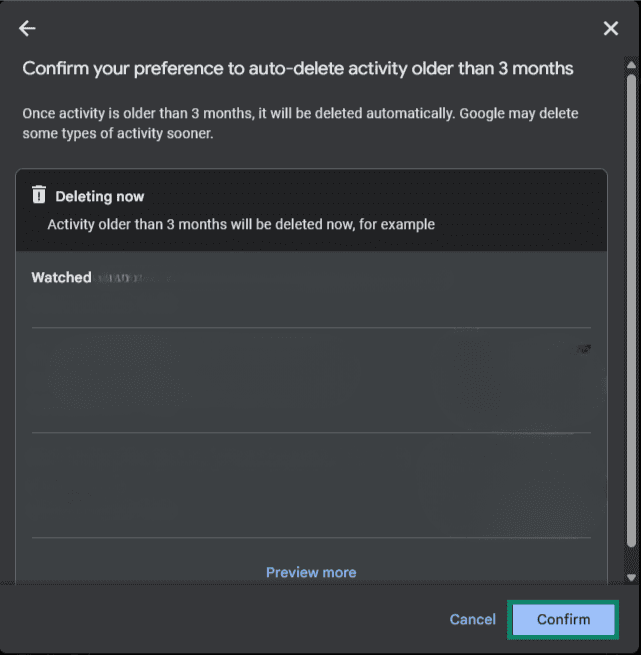
- You’ll see another pop-up asking you to confirm your auto-deletion. Click Confirm.
Further steps to manage your privacy on YouTube
Deleting your search history is a good start, but there are a few additional steps worth taking if you want more control over what YouTube and Google store about you.
Review your Web & App Activity
Web & App Activity is a broader Google-level setting that controls what activity is saved across Google's services, including YouTube. Even if you've paused your YouTube history, Web & App Activity can still capture YouTube searches and views independently, so it's worth checking both.
You can find it in the Data and privacy tab in Google My Account. From here you can pause the setting, delete existing activity, or set it to auto-delete after a chosen period.
Use Incognito or Guest mode
YouTube offers two ways to browse without saving activity to your account: Incognito mode and Guest mode. Incognito mode is available in the YouTube mobile app and lets you search and watch without logging any activity to your Google account.
To use it on the mobile app:
- Open the YouTube app and tap You.
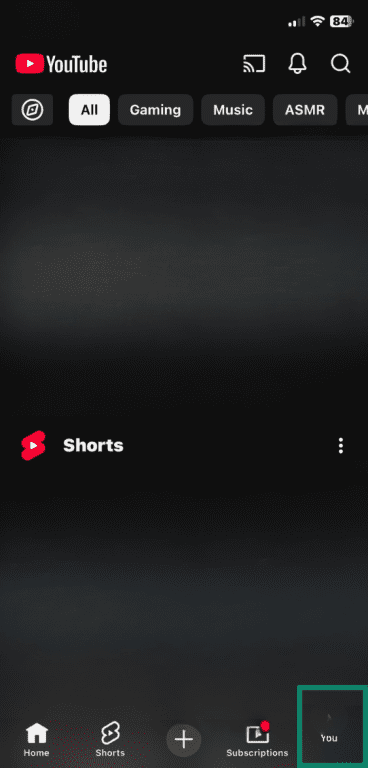
- Select Turn on Incognito.
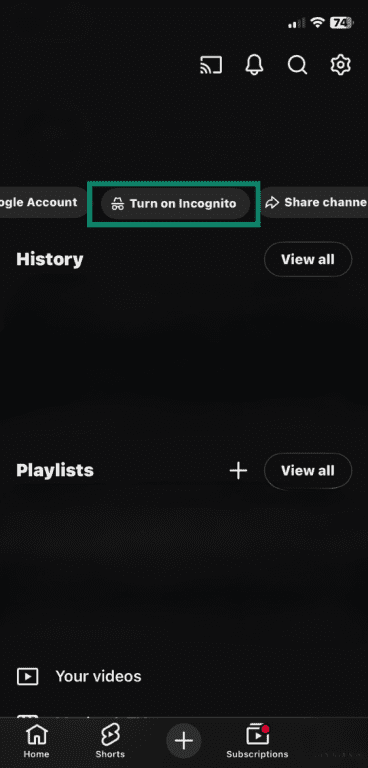
- You can begin viewing videos and conducting searches without storing any data.

Guest mode is available on smart TVs and works similarly: Your activity isn't linked to a Google account, so nothing is saved, and recommendations will be less personalized. To watch as a guest on your smart TV, simply select Watch as a guest instead of selecting a signed-in profile.
If you're using YouTube in a browser rather than the app, your browser's built-in private or incognito window achieves the same result.
Troubleshooting
Sometimes your search history doesn't clear the way you expect it to, or old searches keep appearing even after deletion. Here are some common causes.
Why search history isn’t clearing
If you delete your search history but still see entries, check the following:
- You’re signed into multiple Google accounts: Make sure you’re deleting history from the same account where searches were made. Switching between accounts can make it seem like deletion didn’t work.
- The deletion hasn’t synced yet: Changes made to your account can take a little while to update across your devices. Refresh the app or browser and check again.
- You only deleted part of your history: If you used “Delete today” or a custom range, older searches may remain.
Why old searches still appear
If you see previous searches in the search bar even after deletion, it may be because:
- Cached app data hasn’t refreshed: Close and reopen the YouTube app, or restart your device.
- Autocomplete suggestions are based on trends: Some suggestions may appear because they’re popular searches, not because they’re stored in your history.
- You deleted the search history but not the watch history: Watched videos still influence your recommendations, even if your search history has been cleared.
FAQ: Common questions about deleting YouTube search history
How do I delete all my YouTube search history?
How do I delete YouTube search history on my iPhone or Android?
How do I delete individual searches on YouTube?
Can I pause my YouTube search history?
How do I set YouTube history to auto-delete?
What is the difference between search history and watch history on YouTube?
Does deleting YouTube search history delete recommendations?
Will clearing YouTube search history also clear Google Search history?
How often should I clear my YouTube search history?
Take the first step to protect yourself online. Try ExpressVPN risk-free.
Get ExpressVPN