How to delete your Google Play account safely and protect your data



Your Google account and Play Store profile are important hubs for managing many of the services and apps you use on a daily basis. However, for various reasons, you may wish to decouple a Google account from your device or delete it entirely.
Removing a Google account from your device and Play Store only takes a few minutes. But before doing so, it’s worth exploring the ways that a Play Store account affects a device. In this guide, we’ll explain how removing a Google account affects your access to apps and services and show you how to do it properly.
Understanding Google Play accounts
A Google account can cover a broad ecosystem of online services, so it’s important to understand the implications before deleting or removing it. Otherwise, you may inadvertently lose access to important data, services, or purchases.
What is a Google Play account?
Technically speaking, there’s no such thing as a Google Play account. There are only Google accounts.
You need at least one Google account to sign up for and use the Google Play Store. The Play Store is just another Google service, such as Gmail, Google Drive, and YouTube. A single Google account may be linked to all of these services.
Alternatively, it’s also possible to create a Google account that you use exclusively for the Play Store, separate from your accounts with other parts of the broader Google ecosystem. You can also have multiple Google accounts linked to a single Google Play Store app.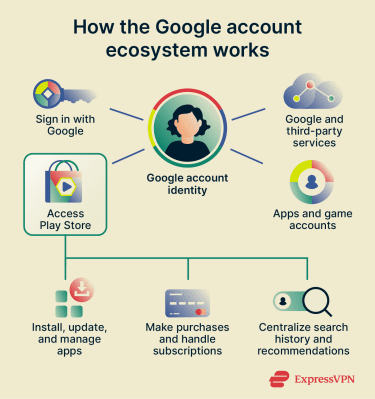
What deleting means for apps and purchases
There isn’t a separate Google Play Store account to delete. Google Play uses your Google account, so you generally can’t delete “just” Google Play without deleting the Google account itself. What many people actually want instead is to remove the Google account from their Android device.
Removing a Google account from an Android device
Decoupling a Google account from an Android phone will remove the option to automatically sign in to the Play Store or other apps using the account.
However, installed apps will remain on the device, and you won’t lose your accounts or subscriptions tied to those apps or services. You should still be able to log into services by manually entering your Google credentials through their respective apps or websites.
Deleting a Google account completely
Completely deleting a Google account is more complicated. Going through with this may disrupt access to platforms where you sign in through a linked Google account. You also lose subscriptions you bought with that Google account, including those bought via Google Play. Additionally, personal data such as stored files, emails, and preferences will be deleted.
It may be possible to recover a Google account after requesting that it be deleted. However, this may not be possible in all circumstances. Even if an account is recoverable, you may lose personal information or access to purchased services.
Before deleting the account, review and cancel subscriptions manually if needed.
Once the deletion process is complete, you will no longer be able to access the Play Store or other Google services using the account.
Read more: It’s easy to reverse most consequences of removing a Google account from a device by simply signing back in. However, if you plan to delete the account entirely, this article explains in detail the steps you should take beforehand.
How to remove your Google account from Google Play
Below we’ll cover how to remove your Google account (as opposed to deleting it) directly on your Android device or remotely via your Google Account dashboard. We’ll also provide steps for removing Google account access from Play Store apps.
Remove account on Android
This is a device-wide process that will remove the option to automatically log into apps or the Play Store using that account on an Android device. Depending on the type of Android operating system on your device, the process may look slightly different:
- Open the Settings app.
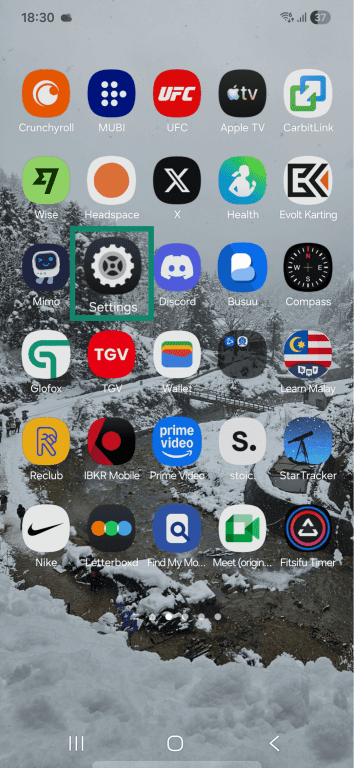
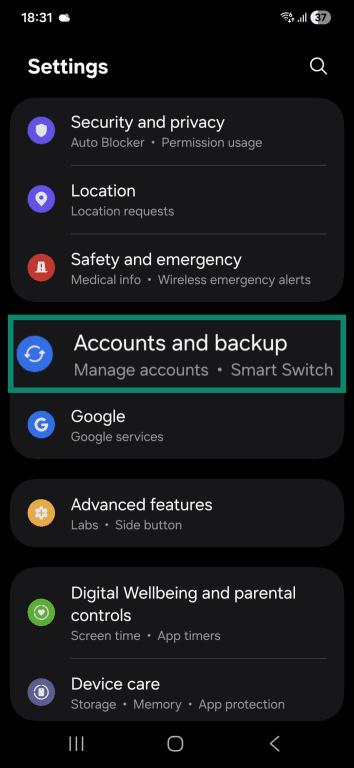
- Scroll down and tap on Accounts and backup. On other devices, the proper setting may be labeled Passwords and accounts, Users & accounts, or something similar.
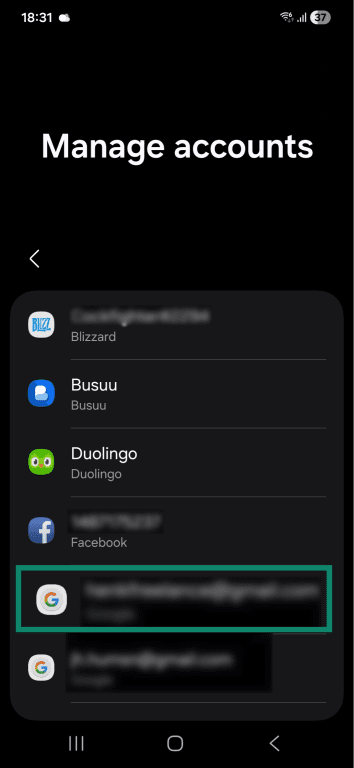
- Tap on Manage accounts.
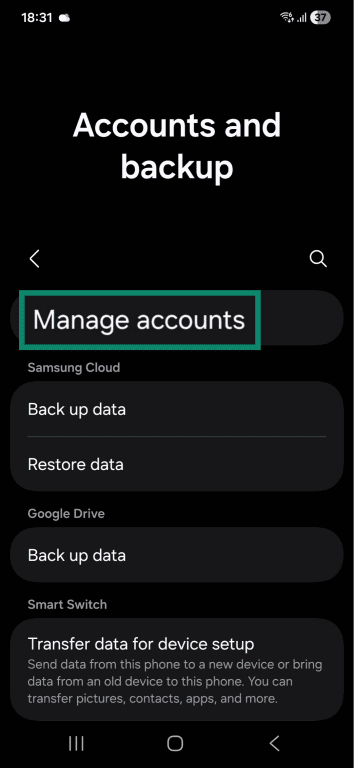
- Find the Google account you want to remove and tap on it.
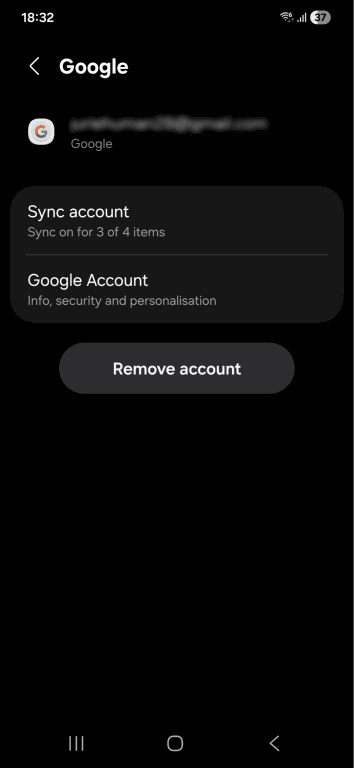
- Tap the Remove account button.
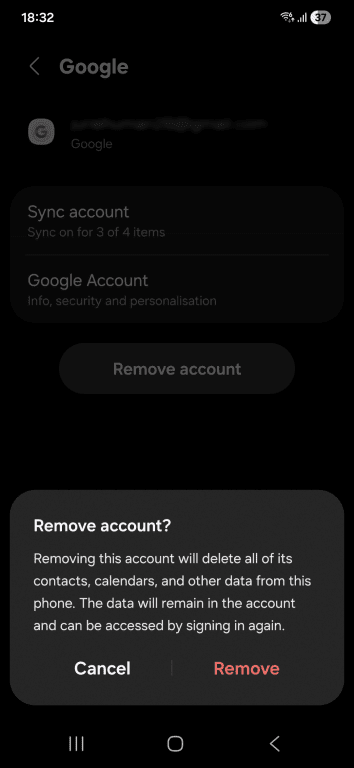
- Tap Remove in the confirmation pop-up.
Unlink devices from your Google Account dashboard
If you don’t have physical access to the device, you can also unlink your Google account from it using the website dashboard. Here’s how:
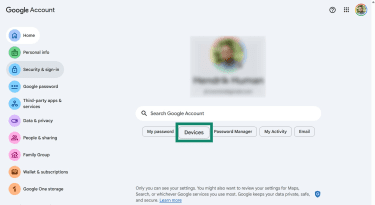
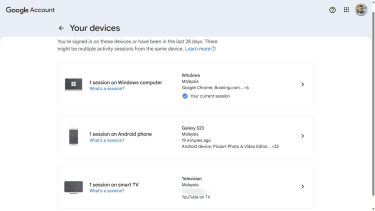
- Log into your Google account using a web browser by clicking your profile picture > Manage your Google account. Click the Devices button.
- Select the device you want to unlink from the list. You may need to authenticate using a passkey, password, or recovery email.
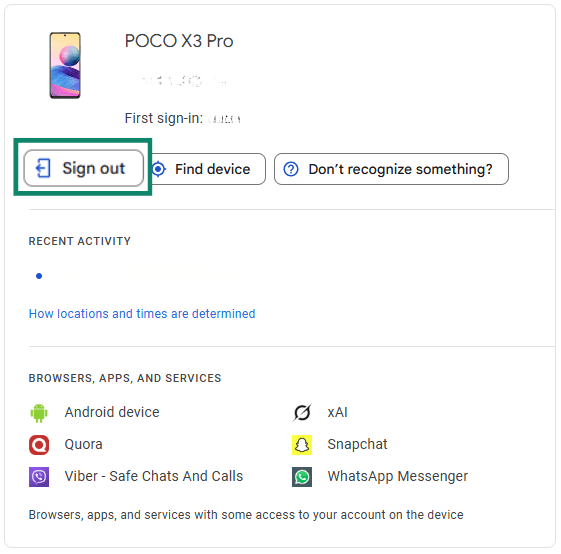
- Click the Sign out button and confirm your decision on the pop-up.
Remove Google account access from Play Store apps
Another way to limit your digital exposure is to decouple your Google account from specific apps installed via the Play Store. This will prevent data sharing between your Google account and apps.
Unless you intend to stop using the third-party service entirely, it’s highly recommended that you set up new login credentials first. Otherwise, you may completely lose access to your account after unlinking it from Google.
To remove an app’s access to your Google account:
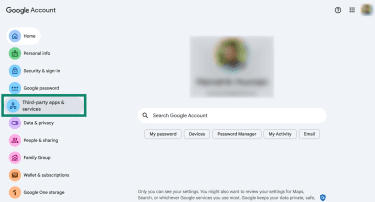
- Log into your Google account dashboard using a browser. Alternatively, launch the Play Store, select the Google account you want to remove, and tap the Manage your Google Account button. From here, the steps are essentially the same whether you use the Play Store app or a web browser. Find and select Third-party apps & services.
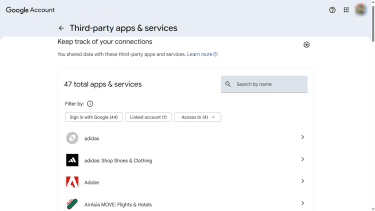
- Look through the list of connections and select the one you want to remove. Consider using the filter options to locate accounts based on how they’re connected to your Google account.
- Press the See details button to choose the degree to which you want to decouple the platform from your Google account.
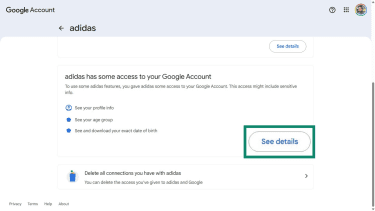
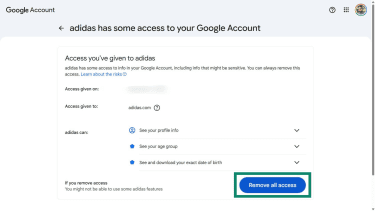
- Scroll down and select Remove all access.
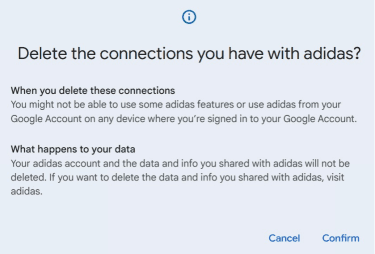
- To completely unlink the service from your account, confirm your decision by selecting the Delete all connections you have with “service” option. Confirm your decision when prompted.
Manage multiple Google accounts in Google Play
As mentioned above, it’s possible to link multiple Google accounts to the Play Store app on a single device simultaneously.
It’s also possible to create a separate Google account for Play Store purchases and app management. This keeps app downloads, subscriptions, or activity separate from other Google services like Gmail or Drive.
Google requires that you link a new account to a physical device as an identity verification and anti-abuse measure. If you create an account on an Android phone, it will automatically link the new profile to the Play Store on that device.
It’s also possible to add a Google account manually through the Play Store app. Here’s what to do:
- Launch the Google Play Store app and tap the profile icon in the top-right corner.
- Press Switch account to access a dropdown list and select Add another account. Sign into the Google account.
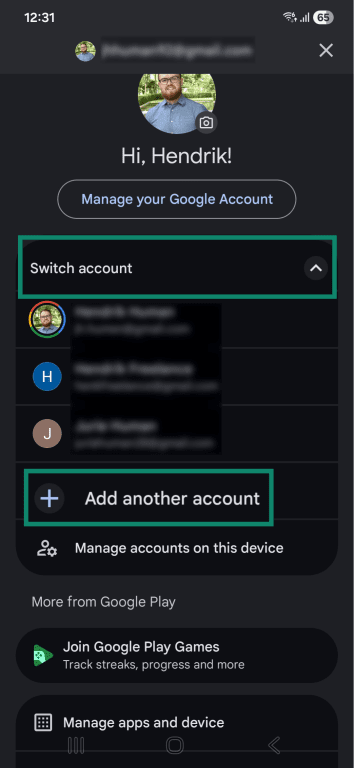
To switch between active accounts in Google Play, use the same Switch account option.
Deleting Play Store search history
There are a few reasons you may want to clear your account’s Google Play Store search history. Most of these relate to privacy and usability. Common motivations include:
- Reduce personalized recommendations based on user profiling.
- Remove searches that you don’t want others with device access to see.
- Reset Play Store suggestions to view a depersonalized feed.
How to clear Google Play search history
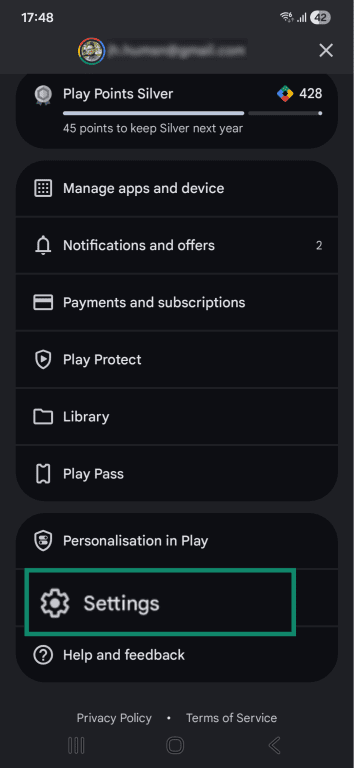
- Open the Google Play Store and tap the profile icon > Settings.
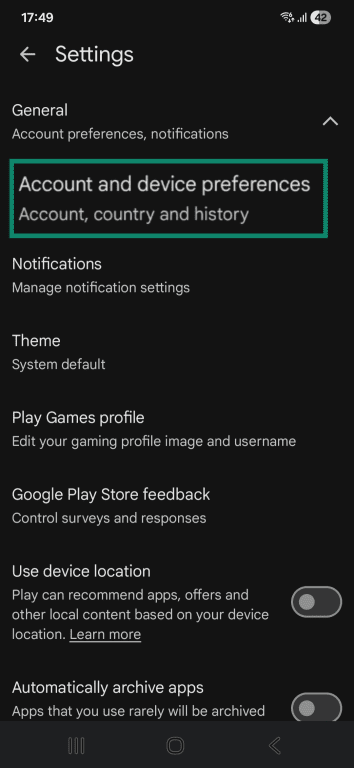
- Expand General and tap Account and device preferences.
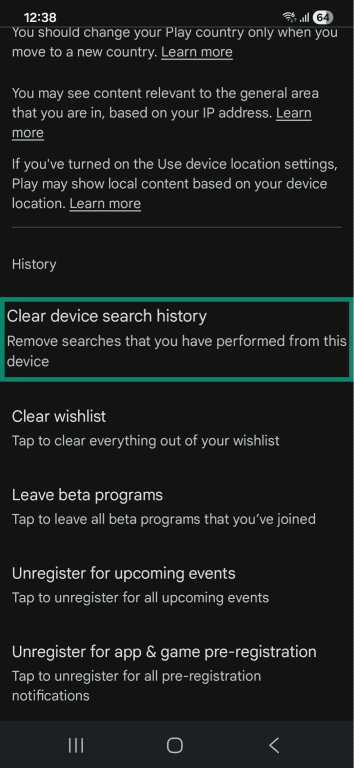
- Scroll down to History and tap Clear device search history. You can also clear the wishlist and unregister from other Play Store enrollments.
Troubleshooting common problems
A Google account's influence usually spans across multiple online services and devices, while a single device may also have more than one account. This interplay can cause a Google account to behave in unexpected ways.
Why you can’t remove a Google account
There are various reasons why you can’t remove a Google account. It usually comes down to a lack of user permissions, conflicting ownership rights, or device restrictions.
Work devices often have restrictions on who can perform administrative actions like removing or managing accounts on a device. The device may have a pre-installed work profile to enforce certain security measures and prevent installing non-work-related apps. It’s usually not possible to change this unless you get special permission from whoever has admin privileges.
A child’s device may also have similar restrictions on it thanks to Google’s Family Link parental controls. The owner of such a device will need to ask the person in charge of the Family Link to remove these restrictions.
FAQs: Common questions about deleting a Google Play account
Can I delete Google Play without deleting my Google account?
How do I remove a Google Play account from Android?
How do I remove a payment method from Google Play?
Can I recover a deleted Google Play account?
How do I manage subscriptions before deleting my account?
Take the first step to protect yourself online. Try ExpressVPN risk-free.
Get ExpressVPN