How to clear cache in Firefox on desktop and mobile


As Firefox is used to browse the web, it stores temporary site resources over time. In some cases, these stored files become outdated, which can contribute to slow loading, display glitches, or older content showing on a page.
Clearing Firefox’s cache removes stored web content that can help resolve these problems. This guide explains how to clear the cache on desktop and mobile, what changes to expect afterward, and when it may (or may not) be worth doing.
Understanding the Firefox browser cache
Before clearing the cache, it helps to know what it does and why removing it can sometimes improve browsing issues.
What is a browser cache?
A browser cache stores temporary copies of web content, such as images and scripts, so Firefox can reuse them when the same page is opened again. Reusing local copies can reduce network traffic and help pages load faster.
A cache is not the same as a cookie. Cookies are small files that websites store to remember things like preferences and login status. Clearing cached files removes cached web content, but cookies are only removed if the cookies options are selected during the clearing process.
How cache affects speed and errors
Reusing locally stored resources can reduce network traffic and improve load times. However, cached data can become outdated. If a website changes its code or content, Firefox may continue using older cached files, which can lead to display issues or outdated content appearing on the page. Clearing the cache forces Firefox to fetch fresh copies of site resources the next time the site is loaded.
Over time, cached data can also take up storage space. Clearing the cache removes the stored web content and may help restore normal behavior when problems are caused by stale files.
How Firefox's cache works
Firefox uses multiple cache locations, including memory and disk storage. The disk cache stores web content (written to local storage) so it persists between sessions, while the memory cache stores content temporarily for faster reuse during the current session.
Firefox also manages cache behavior automatically, including storing and removing entries as needed. Because cache management is built in, most people do not need to adjust it manually, though advanced settings exist for specific requirements.
Will clearing cache delete passwords?
Removing cached files doesn’t erase saved passwords, bookmarks, or browsing history when only the cache option is selected. Passwords (saved logins) are stored separately from cached web content.
However, if cookies (or site data) are also deleted, websites may sign you out because the login state is often stored in cookies. To keep the sign-in state where possible, select only the cache web content option when clearing browsing data.
Similar “clear cache” options are available in some apps (for example, social media apps). Those options clear temporary data for that specific app, not Firefox’s browser cache.
Read more: How to clear cache on Twitter (X), Instagram, and TikTok.
How to clear cache in Firefox
Most users only need to clear the cache when something seems off, for example, when pages load slowly or display incorrectly. The steps vary slightly by device.
Clear cache on desktop
Desktop users can clear cached files from Firefox’s Settings menu. The steps below work on Windows, macOS, and Linux.
- Open Firefox, select the Menu button (three horizontal lines), and choose Settings.

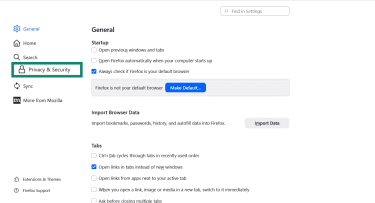
- Click Privacy & Security in the sidebar.
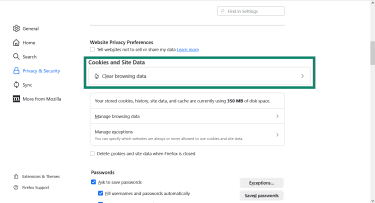
- In Cookies and Site Data, click Clear browsing data (or Clear Data…).
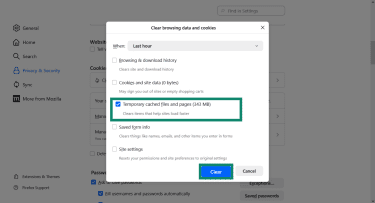
- Next to When: choose a time frame based on the issue, for example, Last hour or Everything. Then, make sure only Temporary cached files and pages are selected. Leave cookies and site data unchecked if you want cookies kept. Click Clear and confirm to remove the cached files.
Clear cache on Android
In Firefox for Android, the cache is cleared through the app's settings.
- Open Firefox and tap the Menu (three dots).

- Tap Settings.
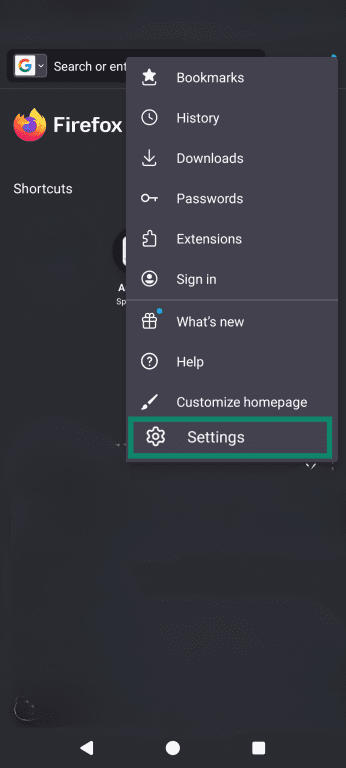
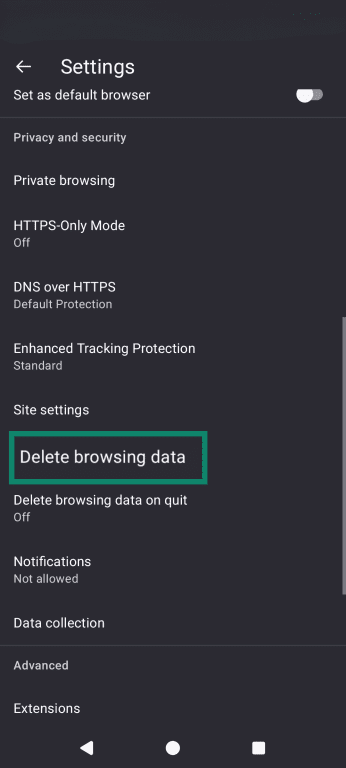
- Select Delete browsing data.
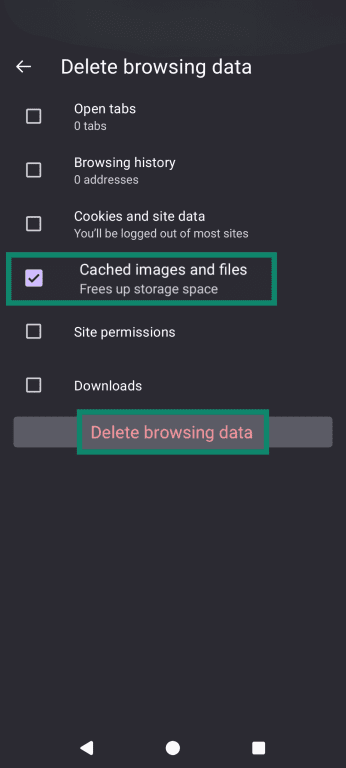
- Select Cached images and files, and uncheck other items if they should be kept. Tap Delete browsing data to clear the selected items.
Clear cache on iPhone and iPad
On iOS devices, Firefox stores cached data alongside other site data. Clearing the cache requires using the Data Management section.
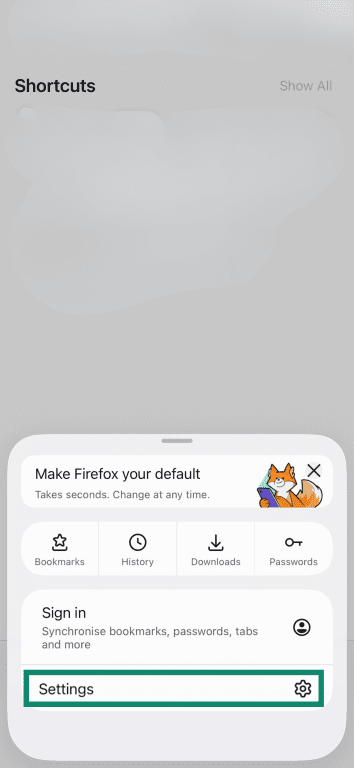
- Open Firefox and tap the Menu button.
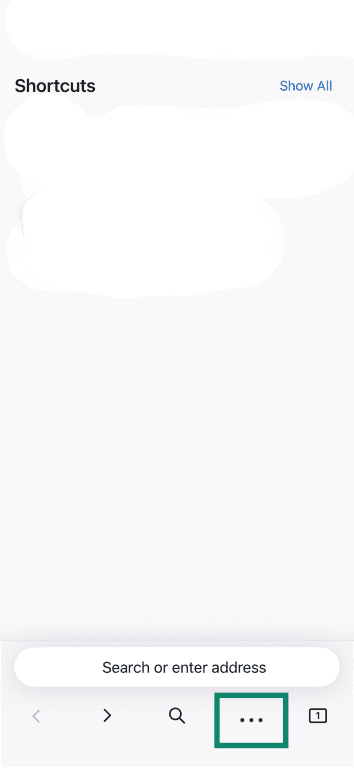
- Tap Settings.
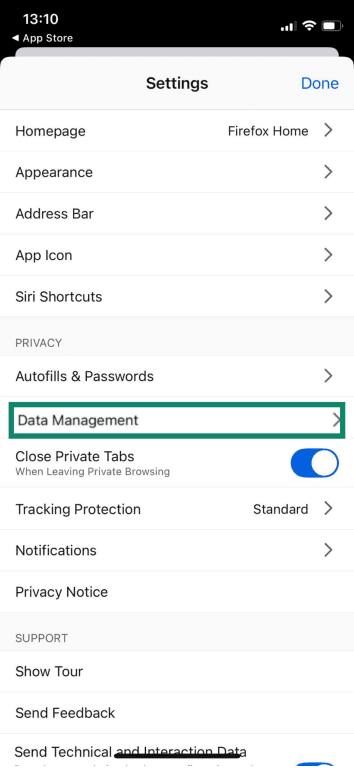
- Under Privacy, select Data Management.
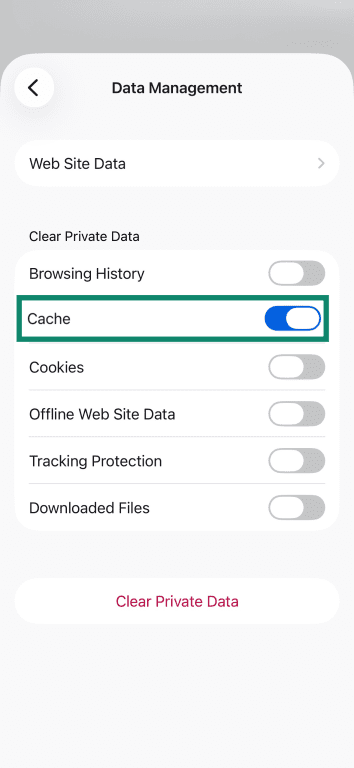
- Turn on the toggle next to Cache.
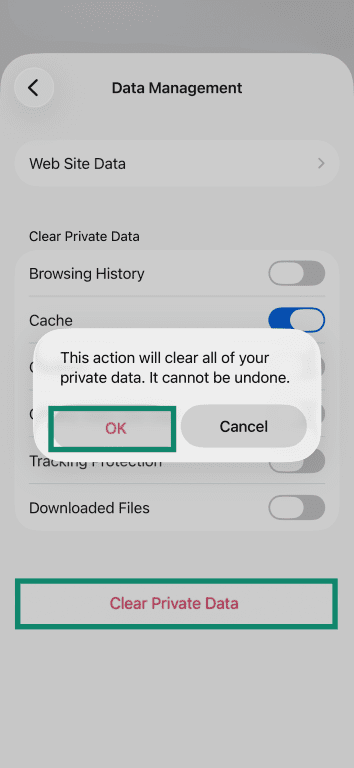
- Tap Clear Private Data to remove cached files and confirm with OK.
Clear cache for one site in Firefox
If only one website is causing problems, its site data can be cleared without affecting other sites. Firefox clears the site’s cookies, site data, and temporary cached files and pages together.
- Open Firefox on the desktop and go to the website that is causing problems.
- Click the padlock icon in the address bar and select Clear cookies and site data…, then click Remove to confirm.

- Reload the page.
Clear cache automatically in Firefox
You can configure Firefox to clear cached files automatically when the browser closes.
- Open Firefox and select the Menu button.
- Choose Settings > Privacy & Security.
- Under History, pick Use custom settings for history.
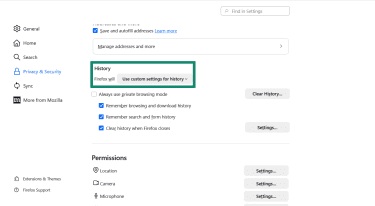
- Check Clear history when Firefox closes and click Settings… next to that option.
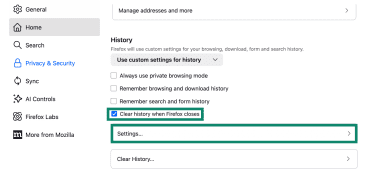
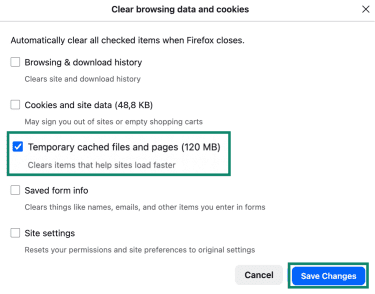
- Check Temporary cached files and pages (and leave other items unchecked if the goal is cache-only). Click Save Changes.
Note: If the “Use custom settings for history” option is unavailable, make sure the Firefox settings are not being restricted by policy (work/school or managed installs). A quick check is to open about:policies and see whether any policies are active.
Troubleshooting after clearing Firefox cache
Clearing the cache often helps with website errors, but problems can sometimes persist (or manifest in a different form). The tips below cover common issues that may appear after clearing the cache.
Websites look broken, won’t load, or keep redirecting
If a site still looks incorrect after clearing the cache, it may help to clear both the cookies and the cache for that site, then reload the page. Mozilla’s troubleshooting guidance commonly recommends clearing cookies and cache together when a website loads incorrectly or fails to work properly, since either stored content can cause issues after site updates.
In some cases, redirect loops or loading failures can also be caused by issues outside the cache (for example, DNS caching, site configuration issues, network/security interception, or connection settings). If the behavior is unexpected and persists across multiple sites (or across browsers), consider checking security software and running a malware scan. Reinstall Firefox only from official sources if needed.
Firefox is still slow after clearing cache
If Firefox is still slow after clearing the cache, the cause is often unrelated to cached data. High resource usage from many open tabs, extensions, themes, or other settings can affect performance. One way to test this is Firefox Troubleshoot Mode, which temporarily disables extensions, uses the default theme, and turns off hardware acceleration. If the issue disappears in Troubleshoot Mode, one of the disabled items is likely involved.
If problems persist, Firefox’s Refresh feature can restore default settings while keeping important data, such as bookmarks and saved passwords.
If performance is still poor after that, compare the system with Firefox’s system requirements to rule out hardware or OS limitations.
Logins, video, or downloads not working
After clearing the cache, some sites may behave differently until they reload fresh files. If a login, video player, or download feature still doesn’t work, the issue is often due to cookies or site data rather than the cache. In that case, signing in again may help, and it may be necessary to clear the site’s cookies/site data for that website.
If problems continue, check whether JavaScript is blocked or whether an extension (such as a content blocker) is interfering with the site’s scripts or media player.
How often should you clear Firefox cache
There is no universal schedule for clearing the cache. Firefox’s cache is designed to speed up browsing, and clearing it is most useful as a troubleshooting step when specific problems appear.
Signs it’s time to clear cache
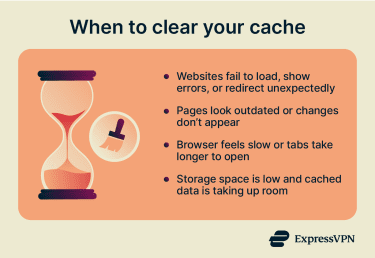
If any of the following symptoms occur, clearing the cache may help:
- Pages load incorrectly: If a website looks broken or shows outdated elements, Firefox may still be using older cached files after the site updates.
- Browser feels sluggish: If Firefox feels slower than usual and other quick checks (for example, closing heavy tabs) don't help, clearing the cache can be a reasonable troubleshooting step.
- Storage concerns: Cached files take up space on the device's storage, so clearing the cache can free up storage capacity.
When you should not clear cache
Avoid clearing the cache too frequently. Firefox uses cached files to reduce repeated downloads and improve load times, so clearing them can make subsequent visits to sites temporarily slower until the cache is rebuilt.
Manage Firefox cache settings
Firefox lets you adjust some cache-related behavior, but changes should be made cautiously. For most use cases, Firefox manages the cache automatically, and unnecessary changes can create new issues.
Change cache storage settings
In older Firefox versions, a setting labeled “Override automatic cache management” allowed a manual limit on cached data. Firefox normally manages cache size automatically, so this option is usually unnecessary and is mainly relevant in special cases where a fixed limit is needed. In the current Firefox, cache limits are more commonly adjusted through about:config (advanced).
View cached information in Firefox (desktop)
Firefox includes an internal page that can be used to review cache details. Type about:cache into the address bar to open the cache information page. This page can show cache locations and provide links to list cache entries, which can be helpful for troubleshooting and verifying that caching is working as expected.
Learn more: Read our detailed guide on Firefox privacy settings and find out advanced tweaks for maximum privacy.
FAQ: Common questions about clearing cache in Firefox
What is the difference between cache and cookies?
Can clearing cache fix Firefox errors?
Why does Firefox feel slower after clearing cache?
How much cache should Firefox keep?
Will clearing cache delete bookmarks or history?
Is it safe to clear cache on Firefox?
Take the first step to protect yourself online. Try ExpressVPN risk-free.
Get ExpressVPN













 Support Center
  FAQ
FAQ  VPN Setup Tutorials


