Apple Pay scam: How to detect, prevent, and respond


Millions of people use Apple Pay every day for its convenience and strong mobile wallet security. That’s also why scammers focus on the people using it rather than the system itself. They often try to send convincing alerts, create fake payment requests, or pretend to be Apple Support in an attempt to get information or take over your accounts.
The good news is that most of these scams share predictable patterns, and when you know what they look like, they’re far easier to avoid. In this guide, we’ll cover the most common Apple Pay scams, how to identify them, and what you can do to protect yourself while continuing to use Apple Pay for your everyday purchases.
Please note: This information is for general educational purposes and not financial or legal advice.
What is an Apple Pay scam?
An Apple Pay scam is any attempt to trick an Apple Pay user into sharing information, approving a payment, or taking an action that benefits the scammer.
Apple Pay is highly secure. It uses hardware-based tokenization and cryptographic protections that keep your real card numbers out of transactions. Transactions are authorized only on the device using biometric authentication (Face ID, Touch ID, or Optic ID) or your passcode plus a deliberate user action (such as a double-click). No email or text message can approve or trigger a payment; actual payment approvals happen only on the device itself.
Because of these strong built-in protections, most scams that mention Apple Pay don’t involve breaking Apple’s payment infrastructure. Instead, scammers rely on social engineering, which means manipulating people into revealing sensitive information, visiting a fake website, or taking an action the scammer can exploit.
The most common tactic is phishing: scammers send messages posing as Apple, using a trusted and familiar brand name to make their requests appear legitimate.
Apple Pay scams are becoming increasingly common, with financial institutions reporting a rising trend in fraud involving digital wallets. According to The State of Fraud and Financial Crime in the U.S. report by data analytics platform PYMNTS Intelligence, large financial institutions experiencing fraud linked to Apple Pay increased from 33.1% in 2022 to 59.9% in 2023.
Types of Apple Pay scams
Apple doesn’t send unsolicited messages asking you to approve payments or provide passwords. Any unexpected texts, emails, or calls about Apple Pay issues are almost certainly scams trying to trick you into sharing sensitive information or taking unsafe actions. Here are some of the most common Apple Pay scams to watch out for.
Apple Pay “suspended” or “disabled” scams
Scammers may send texts or emails claiming your Apple Pay has been suspended or disabled for security reasons.
These messages are designed to create a sense of urgency so you act before checking whether the message is real. They can look familiar, usually copying Apple’s style and wording. Many of them also include a link that leads to a fake Apple website that asks you to enter your Apple Account password or card details to restore access.
Fake Apple Pay charges
You might receive a text message or email about an Apple Pay transaction you don’t recognize. These messages often mention a high-value purchase and include a phone number to call if you didn’t approve it.
If you call the number, you’ll typically reach someone who may sound professional and claim to be from Apple. They might tell you your account is at risk and ask for personal information, card details, or verification codes. Scammers sometimes spoof Apple’s name on caller ID, which makes the call feel more legitimate.
Fake transaction alerts asking for verification codes
Some scams rely on messages that say a payment is pending and needs a verification code to be approved or canceled. The message may seem urgent and may even mention a device you don’t recognize.
Behind this, if the scammer is trying to sign into your Apple Account, they’ll trigger an “Allow” or “Don’t Allow” prompt on your device. If you click “Allow” and share the two-factor authentication (2FA) code in response to their messages, the scammer may be able to access your Apple Account, which would allow them to access your iCloud data, access passwords in your iCloud Keychain, potentially use your saved cards for unauthorized payments, and more.
“Your card was added to Apple Pay” scam
You might receive a message saying your card was added to Apple Pay on a new device. These alerts often try to create urgency by asking you to secure the card or remove it through a link. Scammers use this urgency to direct you to a fake website that asks for your card details or your Apple Account password.
Fake refund
Scammers may claim a refund is waiting for you, or a previous Apple Pay transaction failed and needs confirmation. The message includes a link to a fraudulent site where you’re asked to enter your Apple ID credentials or payment information. This kind of “refund release” messaging is a common hook for many payment-related scams (like PayPal scams), because it encourages quick action.
Ghost tapping or overpayment scams
The concept of “ghost tapping” is not unique to Apple Pay; it’s a scam that can affect any contactless payment method, relying on deception at the point of sale. It happens when scammers exploit tap-to-pay systems to charge you more than expected. This can happen in busy places like festivals and markets, where scammers could pose as legitimate vendors or charity collectors and rush you into tapping without showing what you’re paying for (or how much).
Marketplace buyer fraud
Scammers sometimes target sellers on online marketplaces by claiming they want to pay with Apple Pay. They might say they’ve already sent a payment or that you need to complete an extra step before the money can go through.
These scams often rely on messages or screenshots that are designed to look like legitimate Apple Pay transactions but do not correspond to actual payments. If the payment doesn’t appear in your Apple Pay or bank activity, it’s safest to assume it hasn’t been sent.
Common signs of this scam include:
- Screenshots that claim a payment was made.
- Requests to verify your Apple Pay account through a link.
- Messages claiming that Apple Pay is holding funds until you cover a shipping fee.
Some scammers also say they’re overseas and offer to pay extra while urging you to send the item before you’ve received anything.
Apple Cash scams
Some scams focus on Apple Cash, which lets you send money directly to other people through the Messages app or Wallet. These scams often appear in personal conversations, marketplace listings, or unexpected messages that ask you to send money quickly. They might claim they sent you money by mistake or need urgent help.
Scammers often take advantage of the fact that Apple Cash is a direct transfer you send to someone, which can make it harder to recover the funds if the request turns out to be fake.
How to protect yourself from Apple Pay scams
Here are some tips to prevent phishing and help keep your Apple Pay and associated accounts secure.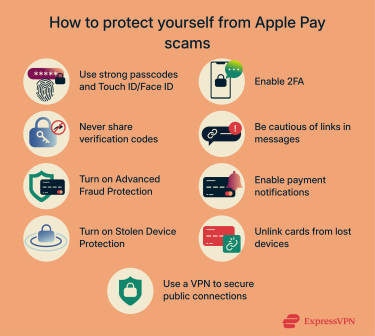
Use strong passcodes and Face ID/Touch ID
Apple Pay requires you to authenticate payments using biometrics (Face ID, Touch ID, or Optic ID) or your device passcode. This means even if someone has your device, they can’t approve payments without your face, fingerprint, or passcode.
Keeping biometrics enabled makes it easier to use Apple Pay day-to-day while still ensuring that only you can approve payments or add new cards to your device.
That said, it’s also important to ensure you’re using a strong passcode. By default, iPhones use a 6-digit numeric passcode, but you can increase your security by switching to a longer alphanumeric passcode. Apple lets you customize the length and complexity of your passcode in your device settings, under Face ID & Passcode. A longer and more complex passcode makes it significantly harder for attackers to guess or brute force your device access if it’s lost or stolen.
Enable two-factor authentication (2FA)
Two-factor authentication (2FA) adds an extra layer of security by requiring not only your password but also a one-time verification code sent to your trusted Apple devices whenever you sign in on a new device or browser. This makes it much harder for scammers to break in, even if they’ve somehow obtained your password.
Apple delivers these verification codes through “Allow” or “Don’t Allow” prompts on your trusted devices, followed by verification codes, ensuring that only you can approve access.
2FA is enabled by default on most Apple Accounts, but it’s a good idea to confirm that it’s active by logging into your Apple Account and checking your Account Security settings.
Never share verification codes
Verification codes are meant to be used only by you. Apple will never ask you to allow access or share these codes via email, text, phone, or third-party websites. If someone asks for your 2FA code, especially in connection with Apple Pay, it’s almost certainly a scam, so it’s safest to ignore it and end the conversation.
Be cautious of messages and links
Most Apple Pay scams start with messages that look like they’re from Apple, your bank, or another trusted source. If you get a message you weren’t expecting, take a moment to check it carefully for warning signs of a phishing attempt:
- The sender’s email doesn’t end with @apple.com or match your bank’s official contact information.
- Urgent or threatening language pushing you to act immediately.
- Requests to approve payments via email, text, or phone (Apple Pay only approves payments on your device).
- Messages asking for verification codes, passwords, or other personal information.
- Spelling and grammar mistakes or awkward phrasing.
- Links that don’t match the official apple.com or icloud.com URL.
- Unexpected attachments or prompts to download files.
If you receive a message about an Apple Pay payment or account issue, avoid responding or clicking any links. Instead, open the Wallet app or log into your Apple Account directly to verify the issue.
Enable notifications for every payment
Switching on notifications for all payments gives you an alert each time your Apple Pay card is used. That way, it’s easier to spot unusual activity. If you see a notification for a payment you didn’t make, you can check the details right away and contact your bank or Apple Support if needed.
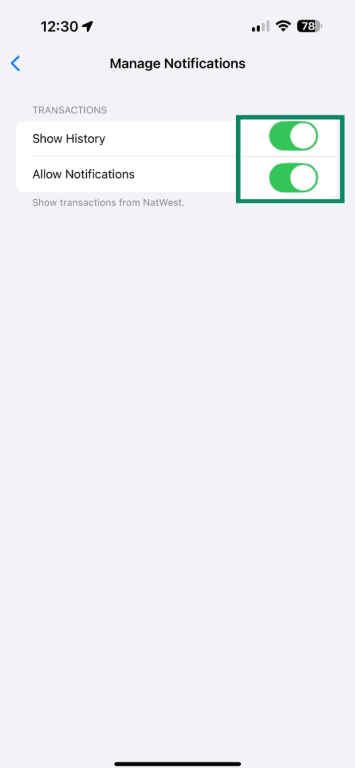
To turn on transaction notifications:
- Open Wallet and click on the debit or credit card you want to enable notifications for.
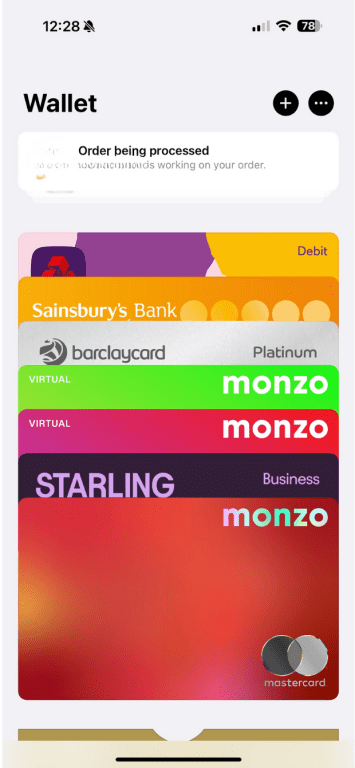
- Click on the three dots (...) in the top right-hand corner.

- Tap Notifications.

- Turn on the toggle buttons for Allow Notifications. You can also enable Show History to see a record of your transactions.
Turn on Stolen Device Protection
Stolen Device Protection adds extra security checks when your iPhone is away from familiar locations, like home or work. When enabled, it prevents access to stored passwords and credit cards without biometric verification and requires you to wait an hour and perform additional biometric authentication when performing certain actions, like changing your Apple account password.
This helps prevent someone who has your device and knows your passcode from accessing sensitive information or making changes to your account without permission.
To enable it, you’ll need 2FA, a device passcode, Face ID or Touch ID, and Significant Locations turned on. You’ll also need to enable Find My so that you can see where your device is at all times.
To turn on Stolen Device Protection:
- Go to Settings and tap Face ID & Passcode.
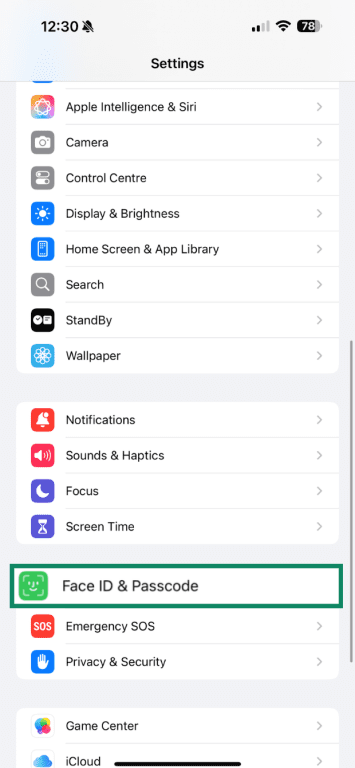
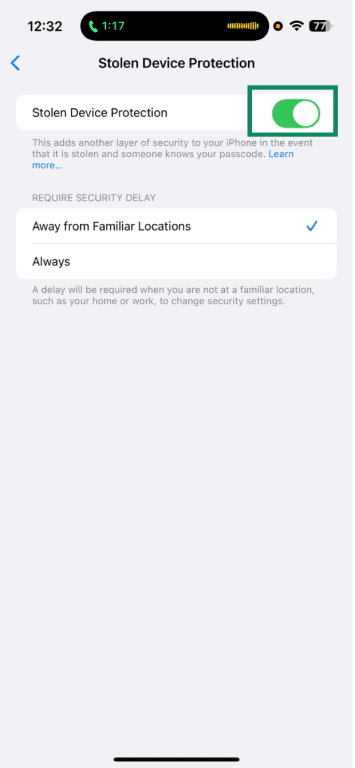
- Enter your device passcode, then tap Stolen Device Protection.

- Turn on Stolen Device Protection. You can select to receive notifications when Away from Familiar Locations or Always.
Unlink cards from lost devices
If you lose your device, you can use Lost Mode in Find My to stop anyone from using Apple Pay on it. Lost Mode locks your device and blocks Apple Pay temporarily without canceling your physical cards. If you find your device, you can easily enable Apple Pay again.
You can also remove cards from the device by signing into your Apple Account. This blocks any credit, debit, or prepaid cards stored in Apple Pay on that device from being used.
If you can’t locate the device, you can also erase it remotely using Find My. Erasing the device also removes your cards from Apple Pay, and your bank or card issuer will suspend them even if the device is offline. If you get the device back, you can add your cards again in the Wallet app.
How to turn on Lost Mode in Find My
- Open the Find My app on your iPhone.
- Tap the Devices tab and select the device you’ve lost.

- Scroll down and tap Lost Mode, then follow the on-screen prompts.

How to erase your device remotely
- In Find My, open the Devices tab and select the device you want to erase.
- Scroll down and tap Erase This Device.

- Follow the on-screen steps to confirm.
Enable Advanced Fraud Protection (Apple Card)
If you have an Apple Card (Apple’s credit card, issued by Goldman Sachs), you can turn on Advanced Fraud Protection to help protect your card details. This feature automatically rotates your three-digit security code, changing it after you view it in the Wallet app or after it’s auto-filled in Safari.
This means even if someone obtains your card details, the security code they might have is likely to be invalid the next time it’s used, helping prevent fraudulent charges with stolen information.
Use a virtual private network (VPN) to secure public connections
Apple Pay uses strong encryption and tokenization to protect your card details during transactions, so your actual card numbers are never shared with merchants or transmitted over the network. When you access your Apple Account or bank online, HTTPS encryption secures the communication between your device and the website, helping keep your login data safe.
However, public Wi-Fi networks can still expose you to risks such as fake hotspots, malicious redirects, or attackers trying to intercept your traffic before it reaches the encrypted site. These kinds of attacks can lead to phishing attempts, identity theft, or unauthorized access.
A VPN adds an extra layer of protection by encrypting the internet traffic between your device and the VPN server. This means that even on unsecured networks, your data (including passwords, emails, and account activity) is better protected from interception or manipulation.
What to do if you’ve been scammed on Apple Pay
If you think you’ve been scammed, there are a few steps you can take to protect your accounts.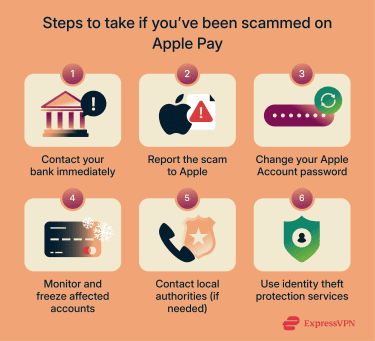
Report the fraud to your bank and Apple
It’s a good idea to contact your bank or card issuer as soon as possible. Because Apple Pay uses your credit/debit cards, your bank is the one that can block the card, investigate the charge, and help you dispute it.
Apple also has various emails you can report scams to, depending on the nature of the fraud:
- Phishing emails or texts: If you get a suspicious email or SMS that looks like it’s from Apple, forward it or take a screenshot and email it to reportphishing@apple.com.
- FaceTime call: If you receive a suspicious FaceTime call (for example, from someone claiming to be a bank or Apple) or a suspicious FaceTime call link in Messages or Mail, take a screenshot and send it to reportfacetimefraud@apple.com.
- iCloud harassment: For harassment, impersonation, or other abuse in iCloud Mail, forward the messages to abuse@icloud.com.
Additionally, you can flag emails as spam in your iCloud.com, me.com, or mac.com inbox by marking them as Junk, which can help improve Apple’s spam filtering.
Secure your Apple Account password
If you think someone else might have access to your Apple Account, it’s a good idea to change your password straight away. This helps stop anyone from viewing your payment information or making changes to your account.
To change your Apple Account password on iPhone:
- Go to Settings and tap your name.
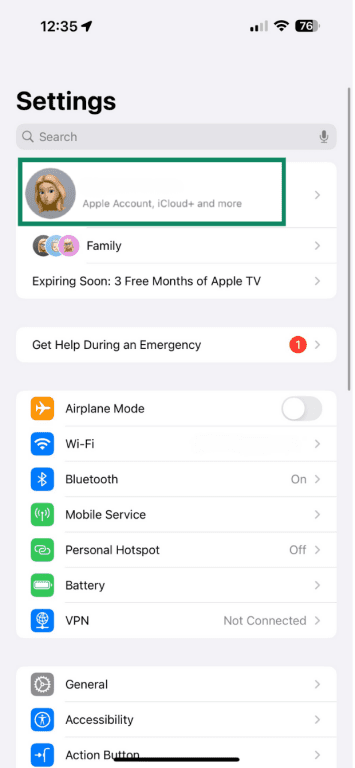
- Tap Sign-In & Security.

- Tap Change Password.

- Follow the on-screen steps to create a new password.
Monitor and freeze affected accounts
If you think you’ve been scammed, it’s helpful to keep an eye on your bank and credit card activity for a while. New charges can appear after the first one, especially if your card details were stolen or shared on the dark web.
Most banks allow you to freeze a card temporarily through their app or online banking. This helps stop new payments while keeping your account open, which gives you time to double-check transactions and speak to your bank’s fraud team. If needed, your bank can cancel the card and issue a new one.
Use identity theft protection services
If you’ve shared personal information with a scammer, it can help to use an identity-theft protection service. These tools monitor your details and alert you if they appear in data breaches or places they shouldn’t be, so you can act quickly.
ExpressVPN’s Identity Defender (available to U.S. users on select subscriptions) includes a range of identity monitoring services, including credit monitoring and dark web monitoring. This can make it easier to spot early signs of identity theft, update passwords, and secure any affected accounts before the situation gets worse.
Identity theft protection doesn’t undo a scam, but it can help you stay ahead and stop scammers from misusing any more of your information.
Contact local authorities (if needed)
If you’ve lost money or shared personal information in an Apple Pay scam, it may be worth reporting it to your local authorities. This helps create an official record of the incident, which can support your bank’s investigation and assist law enforcement in tracking similar scams.
In the U.S., you can report scams to the Federal Trade Commission (FTC), and in the U.K., you can report them to the police’s Report Fraud service.
FAQ: Common questions about Apple Pay scams
Is Apple Pay safe to use?
Generally speaking, yes. Apple Pay is designed with strong security features like hardware-based tokenization and biometric or passcode authorization, which keep your real card details private and ensure payments are approved only on your device. Most scams involving Apple Pay target users through phishing and social engineering tactics rather than weaknesses in Apple Pay itself.
Can Apple Pay transactions be reversed?
Your bank or card issuer typically handles refunds and disputes, not Apple. If you spot a payment you don’t recognize or think you’ve been scammed, it’s best to contact your bank right away so they can review the charge and decide whether it can be reversed.
What signs indicate a phishing message from Apple?
Phishing messages often look convincing but contain red flags. A message might come from an email address that doesn’t end in @apple.com, include spelling or formatting errors, or ask you to click unexpected links. Scammers often use urgent language to push you into acting quickly. If anything seems unusual, avoid clicking links and go straight to Apple’s official website or check your Wallet app.
How can I verify a legitimate Apple support call or email?
For emails, check the sender, as legitimate Apple emails come from an address ending in @apple.com. For calls, be extremely cautious: Apple generally doesn’t initiate unsolicited support calls. Apple won’t ask for your password, verification codes, or payment details over email, text, or phone. If someone asks for this information, end the conversation and contact Apple Support directly.
Can scammers access my card if I lose my phone?
Not easily. Apple Pay requires Face ID, Touch ID, or your passcode to make payments. If you lose your iPhone, you can put it in Lost Mode using Find My, which locks the device and suspends Apple Pay.
What happens if I approve a payment by mistake?
Contact your bank or card issuer as soon as you realize what happened. They’ll typically review the transaction and let you know if they can refund it. Apple generally can’t reverse payments, but you can still report suspicious messages or calls to Apple.
Take the first step to protect yourself online. Try ExpressVPN risk-free.
Get ExpressVPN









 Support Center
  FAQ
FAQ  VPN Setup Tutorials


