How to fix “Apple could not verify app is free of malware”


You’ve downloaded an app, double-clicked it, and macOS stops you with a message: “Apple couldn’t verify the app is free of malware.” You might also see variations like “Apple cannot verify the developer” or “macOS cannot check this app for malicious software.” The interruption can be frustrating, but this is a normal part of how macOS handles apps it can’t verify.
This warning doesn’t mean your Mac is infected. It can appear on apps downloaded outside of the official App Store when Gatekeeper, a built-in security feature, couldn’t confirm that the app has a valid Developer ID signature and Apple notarization. When that verification check fails, macOS blocks the app from opening, even if the software itself is legitimate.
This guide explains why the warning appears, how to open the app safely, and how to distinguish a legitimate macOS security alert from a fake or malicious pop-up.
When is it safe to bypass the verification warning?
There’s no way to know with certainty that an unverified app is safe. The warning means Apple couldn’t verify the app’s developer or confirm it passed Apple’s security checks. Because malware is often distributed by modifying legitimate apps and redistributing them with hidden code, bypassing the warning means proceeding without a key layer of protection.
If you still plan to proceed, you can reduce your risk by checking a few basics first:
- Source: Downloading directly from a developer’s official website is safer than using file-sharing sites, third-party download pages, or “mirrors,” which often bundle software with unwanted additions.
- Developer: Look for a real website for the company behind it, clear documentation, and a way to contact them. If you can’t tell who made the app, there’s no clear party to hold accountable and no reliable way to judge their track record.
- Reputation and user reports: If users have reported security issues or deceptive behavior, you'll usually find forum threads or reviews describing it. Online feedback isn’t perfect, especially for new or niche apps, but repeated complaints are a strong reason to stop and think twice.
Even if these checks look reassuring, understand that you are bypassing Apple’s built-in safeguards. If anything about the app’s origin, behavior, or reputation seems unclear, the safest choice is to remove it.
How to open an unverified app on Mac
If you’re confident the app is legitimate, you can manually approve it. The steps depend on which version of macOS you’re running.
Note: For security reasons, we did not use unverified or potentially unsafe apps to capture screenshots of this process. As a result, this section does not include step-by-step images. However, the instructions below reflect the exact prompts and options you’ll see on your Mac.
macOS Sequoia (15) and later
Starting with macOS Sequoia (15), Apple changed how Gatekeeper approval for unverified apps works. Instead of bypassing the warning through Finder, approval happens through System Settings:
- Double-click the app to open it. You’ll see the verification warning.
- Click Done. Don’t click Move to Trash.
- Open System Settings and go to Privacy & Security.
- Scroll down to the Security section. You should see a message saying the app was blocked.
- Click Open.
- When the confirmation dialog appears, click Open Anyway.
- Enter your administrator password when prompted.
The app will open, and macOS will remember your approval for future launches.
Keep in mind that the “Open Anyway” option only appears for a limited time after you first try to open the app. If you don’t see it, double-click the app to trigger the warning again, then return to System Settings.
macOS Sonoma (14) and earlier
On older versions of macOS, you can bypass the warning directly from Finder.
- Locate the app in Finder. This won’t work from Launchpad.
- Control-click (or right-click) the app icon.
- Select Open.
- When the warning appears, click Open to confirm.
macOS will allow the app to run and won’t show the warning again for that app.
Bypass app verification using Terminal
When you download an app from the internet, macOS marks it with a quarantine attribute. Removing that attribute allows the app to open without going through the usual verification step.
This method works on all recent versions of macOS. It's useful if you're dealing with multiple unverified apps or if the System Settings option isn't available.
- Open Terminal.
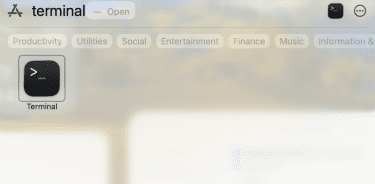
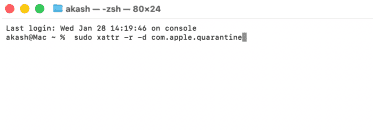
- Type the following command, but don't press return yet: sudo xattr -r -d com.apple.quarantine (the -r flag ensures the attribute is removed from the entire app bundle).
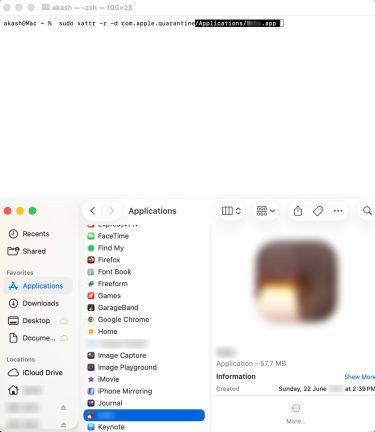
- Drag the app from Finder into the Terminal window to insert its file path and press return.
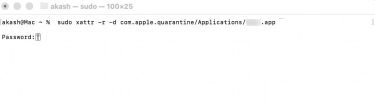
- Enter your Mac's administrator password when prompted. Nothing will appear as you type.
If Terminal returns no output, the attribute was removed, and the app should now open normally.
Why disabling Gatekeeper entirely isn’t recommended
Disabling Gatekeeper system-wide turns off macOS’s app verification checks. After that, macOS no longer checks whether new apps have been signed or notarized by Apple before opening them.
This increases the likelihood that unwanted or malicious software (malware) will run without warning. Apps that would normally be blocked or flagged at first launch may open immediately, including Trojan installers, adware, or other software you didn’t intend to install.
The change applies to all future downloads, not just the app you’re trying to open now. If you later download something unintentionally or reuse an old installer, macOS won’t prompt you to review it before it runs.
For most users, this trade-off isn’t necessary. The per-app methods described earlier let you open specific apps you trust while keeping Gatekeeper enabled to protect you against accidental or unexpected installs.
Why this warning appears
To understand why this message appears, it’s important to understand how macOS evaluates apps downloaded outside the App Store. The decision happens automatically and is based on a few specific checks.
How Gatekeeper decides whether an app can open
When you open an app downloaded from outside the App Store, Gatekeeper checks whether it meets the requirements for apps distributed outside the App Store. If it doesn’t, the warning appears.
Gatekeeper checks two specific things. First, whether the app is signed with a Developer ID. This confirms that the app was created by a developer registered with Apple and that the app hasn’t been changed since it was signed.
Second, whether the app has been notarized. Notarization means Apple has run an automated malware scan and attached a notarization ticket. It doesn’t mean Apple has reviewed or endorsed the app’s functionality.
If both checks pass, the app opens normally. If either one fails, Gatekeeper blocks the app, and macOS shows the verification warning.
Why some legitimate apps don’t pass this check
Not all developers sign and notarize their apps. Doing so requires a paid Apple Developer account and submission to Apple’s notarization service. Some developers choose not to participate.
This is often common with:
- Independent or small developers
- Open-source projects
- Academic or research tools
- Older apps released before notarization became standard
When an app hasn’t been notarized, Gatekeeper treats it as unverified. That reflects Apple’s verification status, not a value judgment about the app.
If you suspect malware on your Mac
Not every verification warning involves a harmless app. Below are steps to take to protect your Mac from potentially malicious software.
What to do if the app seems unsafe
If the app itself raises doubts, it’s better not to bypass the warning. Remove the app from your Applications folder and empty the Trash. If it came with a separate installer file, delete that as well so it can’t be opened again later.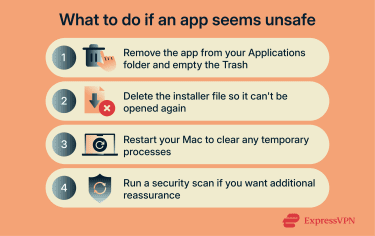
Restart your Mac after removal as a precaution. This resets any processes that may have started during the initial launch attempt.
MacOS already includes built-in protections such as XProtect and the Malware Removal Tool (MRT) that scan for known malware. If you still want extra reassurance after a suspicious download, you can run a one-time malware scan using a reputable security app to check that nothing unwanted was installed. If you do this, make sure to download the scanner directly from the Mac App Store or a reputable developer’s official website.
Related: How to check if your computer has a virus or malware
How to handle virus pop-ups after downloading an app
You may encounter browser pop-ups that appear to be security warnings while visiting or downloading from deceptive websites. These messages don't come from macOS.
Virus or security alerts that appear inside a browser, claim your Mac is infected, urge immediate action, or display phone numbers are typically scams. macOS doesn't report malware through browser windows. If you see these pop-ups, close the tab without interacting with the message.
If similar pop-ups keep appearing even after closing the tab, you may have granted notification permissions to a deceptive website. Check your browser's notification settings and remove any sites you don't recognize.
Related: How to stop virus pop-ups
Protecting your Mac from malware
Adopting a few practical habits can lower the risk of downloading unsafe software or triggering security warnings.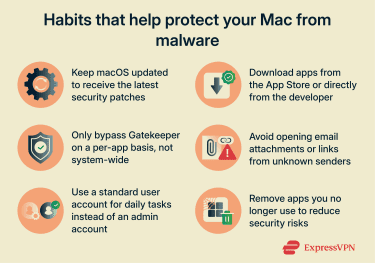
- Keep macOS updated: Apple regularly patches security vulnerabilities and updates its built-in malware protections, which Gatekeeper relies on. An outdated system may miss threats that a current one would catch.
- Download apps from official sources: The App Store is the lowest-risk option because Apple applies automated and policy checks before listing apps. When an app isn't available there, download directly from the developer's website rather than third-party sources or file-sharing platforms.
- Don't disable Gatekeeper permanently: The verification process exists to protect you. Bypass it on a per-app basis when needed, but leave the system-wide setting intact.
- Be cautious with email attachments and links: Malware often spreads through phishing. Don't open attachments or click links from senders you don't recognize.
- Use a reputable DNS blocker: Many fake virus alerts and deceptive download buttons originate from malicious ads or compromised websites. An ad and malicious site blocker can reduce exposure to scam pop-ups and known harmful domains.
- Use a standard user account for daily tasks: Admin accounts can make system-wide changes. A standard account requires admin approval for those changes, which limits the impact if malicious code runs.
- Remove apps you no longer use: Outdated apps can pose a security risk if their developers stop releasing updates.
Related: Learn how to improve MacBook security and privacy Then check your browser's notification permissions and remove any unfamiliar websites. Review installed extensions and remove anything you don't recognize. If the alerts persist, resetting the browser to its default settings usually stops them.
FAQ: Common questions about Apple malware warnings
How do I get past "Apple could not verify it is free of malware"?
How do I get rid of a Mac virus alert pop-up?
What safety precautions should I take before downloading an app?
How can I check if an app is from a trusted source?
How do I know if a virus warning is fake?
How do I avoid getting malware in the future?
Take the first step to protect yourself online. Try ExpressVPN risk-free.
Get ExpressVPN