How to transfer files from Android to PC (full guide)


Transferring files from an Android phone to a PC isn’t always as straightforward as it should be. Computers sometimes fail to recognize the device, transfer speeds vary, and certain methods can compress files or struggle with large videos. Choosing the right approach depends not only on convenience but also on the size, quality, and type of files you’re moving.
This guide explains every major transfer method and outlines clear step-by-step instructions. It also highlights which options work best for large videos, high-quality photos, documents, or bulk transfers, so you can pick the one that fits your workflow without guesswork.
Note: If you need to transfer files across smartphones, check out our Android and iOS data sharing guide.
How to transfer files from Android to PC using a USB cable
Best for: Large files, full folders, and bulk photo or video transfers. A wired connection is the fastest and most reliable option, with speeds that can reach up to 480Mbps for USB 2.0, or higher on newer USB versions if your phone and cable support it.
Moving files from your phone to a computer using a USB cable is straightforward on Windows and Chromebooks, but it requires additional steps on a Mac.
Windows
These screenshots in this section were taken on a Galaxy S21 FE 5G running Android 16. Your own device may look a little different depending on the phone model and Android version, but the steps follow the same general flow.
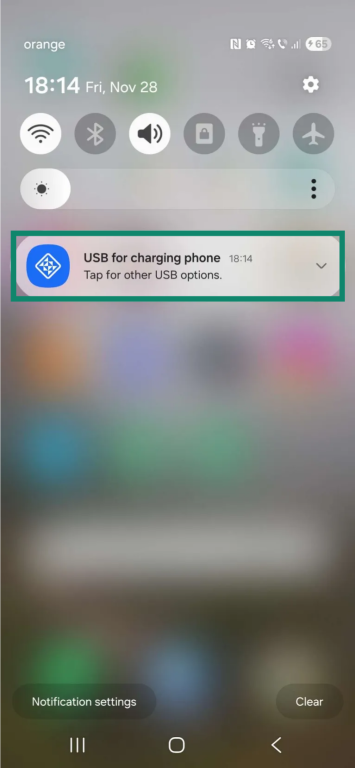
- Connect your Android to your PC with a USB cable and tap the USB for charging phone notification.
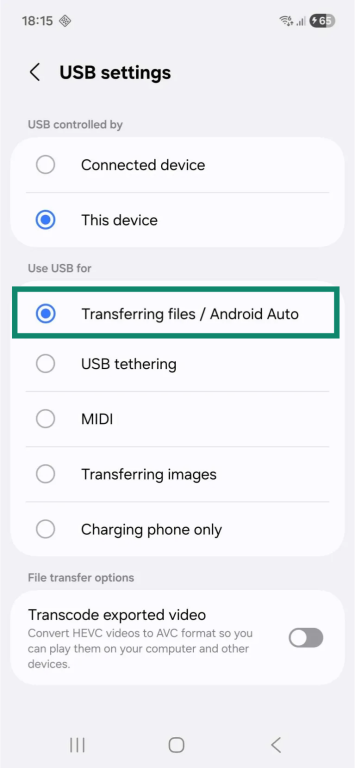
- Select the Transferring files / Android Auto option.
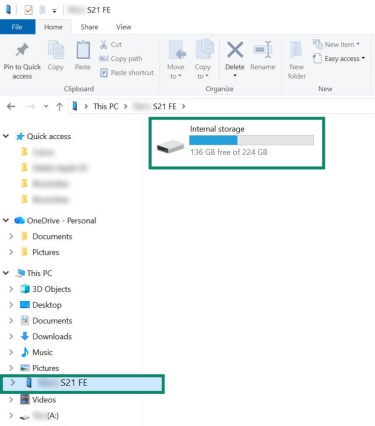
- Access your phone using File Explorer and copy the desired files to your PC.
macOS
If you have a Mac, one of the easiest ways to transfer files from Android is with the MacDroid app. Its free plan supports Android-to-macOS transfers over USB, and you can choose between two connection modes: MTP or ADB.
- Media Transfer Protocol (MTP) is the simpler option. It exposes your phone’s media and storage folders so you can move photos, videos, and documents, and it doesn’t require enabling developer options.
- Android Debug Bridge (ADB) offers broader access to your phone’s file system and can feel smoother and more stable. That said, it requires turning on USB debugging in Android’s developer settings, so it’s better suited for users who are comfortable with that.
After installing MacDroid, follow the steps below depending on which mode you want to use. Note that the screenshots in this section come from a Galaxy A20 with Android 11. The Developer Options menu can vary slightly between different Samsung models and other manufacturers, so your layout might not match exactly, even though the steps remain the same.
MTP file transfers
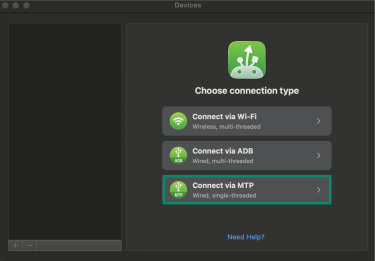
- Launch the MacDroid app and select Connect via MTP.
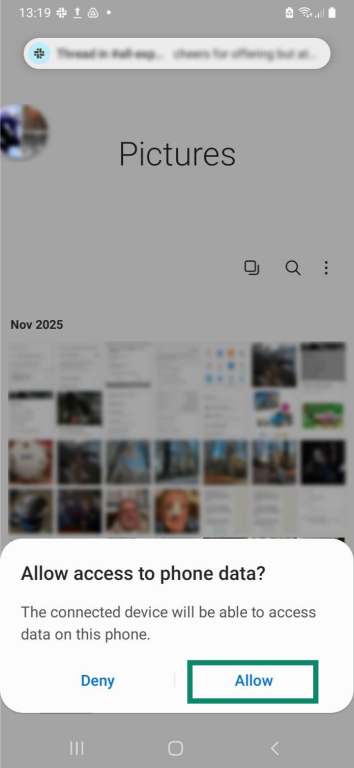
- Connect your Android to your Mac with a cable, then tap Allow on the prompt you receive on your phone.
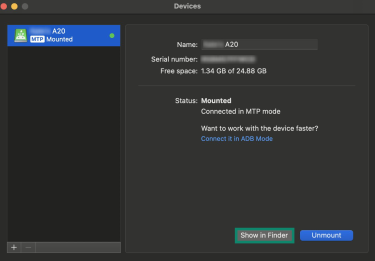
- Your device will be automatically paired. Click Show in Finder in the MacDroid app to start transferring files.
ADB file transfer
To use ADB, you must enable USB debugging mode on your Android, which first requires you to turn on your phone’s developer options. Here’s how to do that:
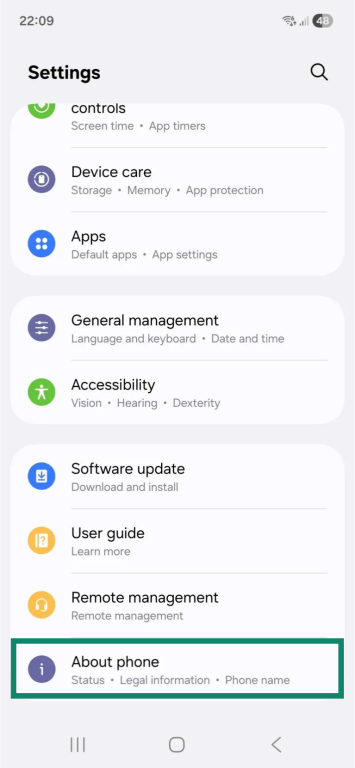
- Open the Settings app, scroll to the bottom, and select About phone.
- Choose the Software information option.
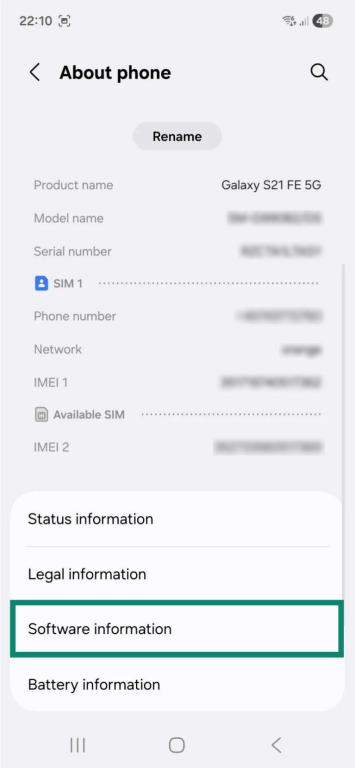
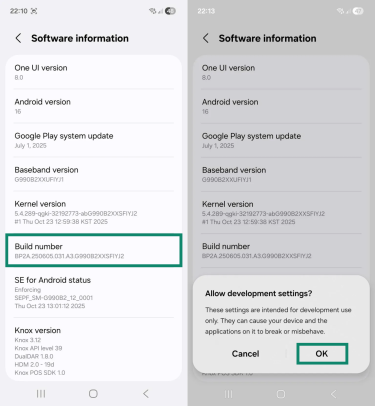
- Tap Build number seven times, enter your screen lock if asked, and select OK when you receive a prompt.
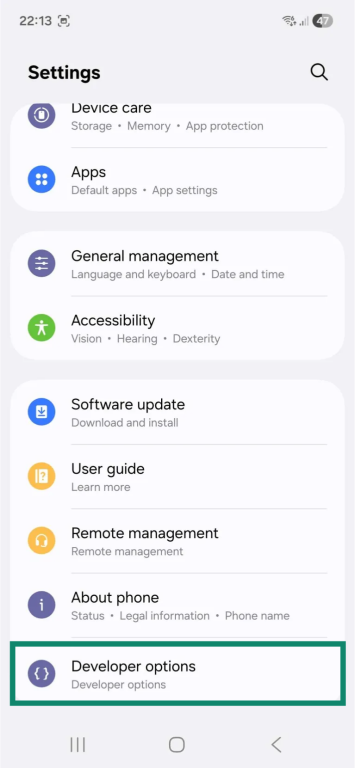
- Head back to Settings and tap Developer options, which is located at the bottom.
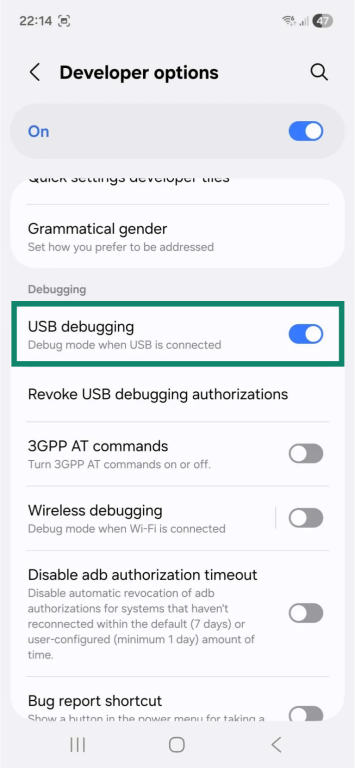
- Locate the USB debugging option and use the toggle to enable it.
When you’re done, follow these steps:
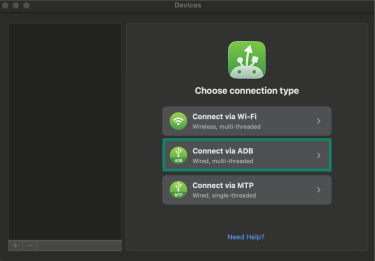
- Open the MacDroid app and select Connect via ADB.
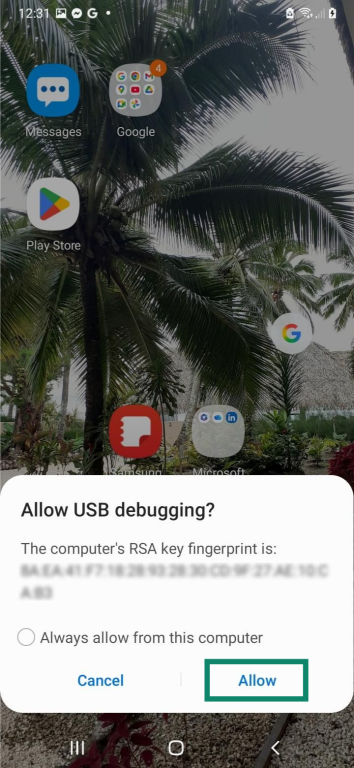
- Connect your Android to your Mac. When you get a prompt, tap Allow.
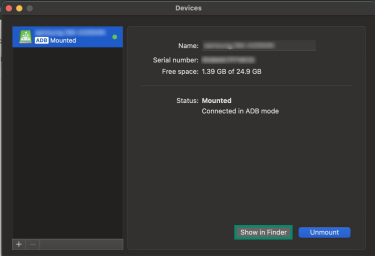
- The app should link both devices automatically. To transfer files between them, click Show in Finder.
Chromebook
Connect your phone to your Chromebook, unlock it, and then do the following steps. These screenshots were taken on a Samsung Galaxy S21 FE 5G running Android 16. Your phone’s menus may look slightly different depending on your model and Android version, but the USB options you need will appear in the same general area.
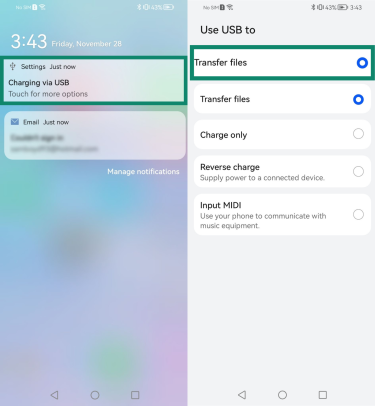
- Tap the Charging via USB notification on your Android and select the Transfer files option.
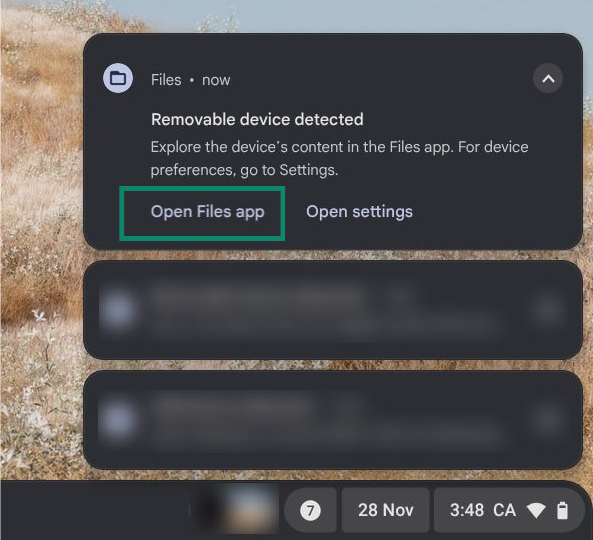
- Click Open Files App on the Chromebook when prompted.
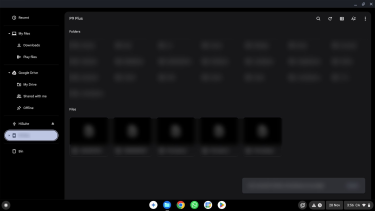
- You can now move files between devices by copying from this folder and pasting them into your Chromebook.
How to transfer files from Android to PC wirelessly
You have several options to transfer files wirelessly between your phone and computer: using Bluetooth, file transfer apps, cloud storage services, or email.
Bluetooth
Best for: One-off transfers of documents or a few photos when convenience is a priority, and you don’t want to deal with apps.
Bluetooth can be a convenient option if your computer supports it. The feature is built into most modern Windows PCs and all recent Macs, but it’s not a very fast option.
Windows
We used a Galaxy S21 FE 5G running Android 16 for the steps. The menus on your own Android device may look slightly different.
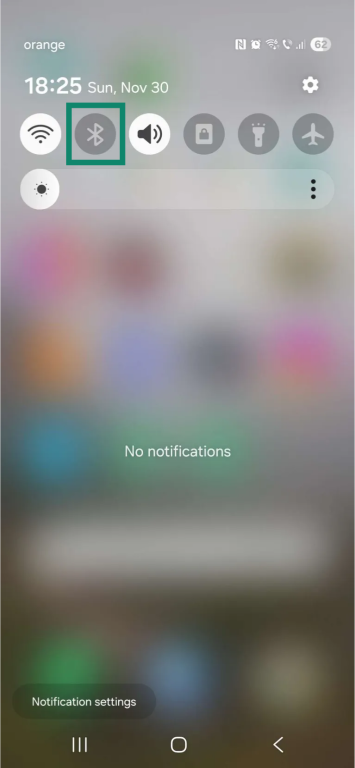
- On your Android, swipe down on the home screen and tap the Bluetooth icon to turn it on.
- On your Windows computer, go to Settings > Bluetooth & devices, and toggle Bluetooth on.
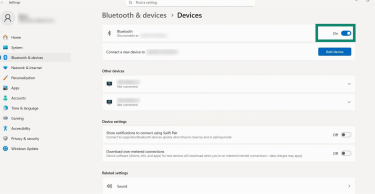
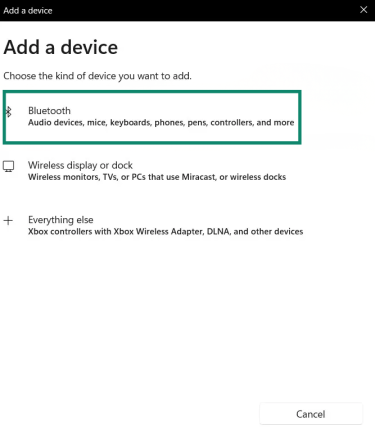
- Next, click the Add device button and select Bluetooth in the next window.
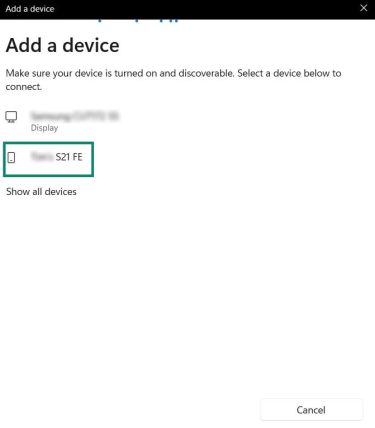
- Choose your Android device from the list.
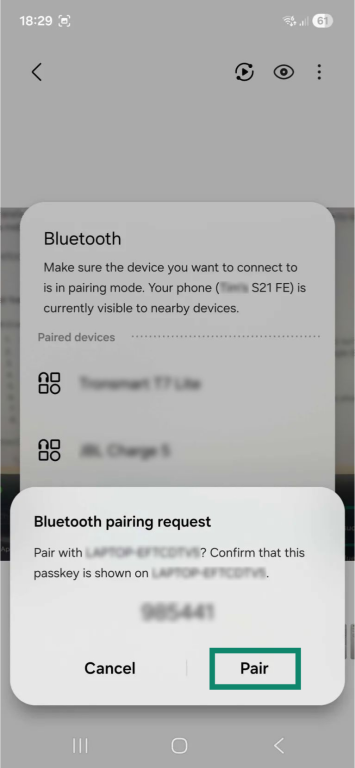
- Pair the devices by clicking Connect on your computer and tapping Pair on your phone.
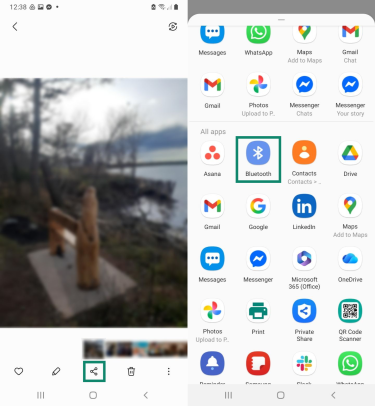
- On your Android, choose the desired file, tap the share icon, and select the Bluetooth option.
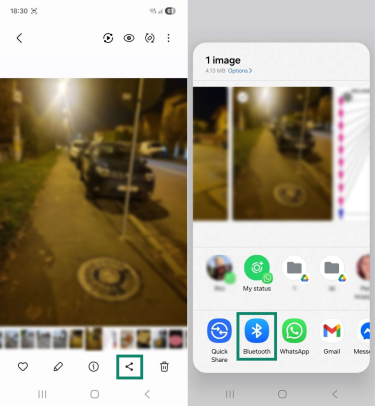
- Choose your Windows computer and the transfer should start automatically, though some devices may require you to accept the transfer first.
macOS
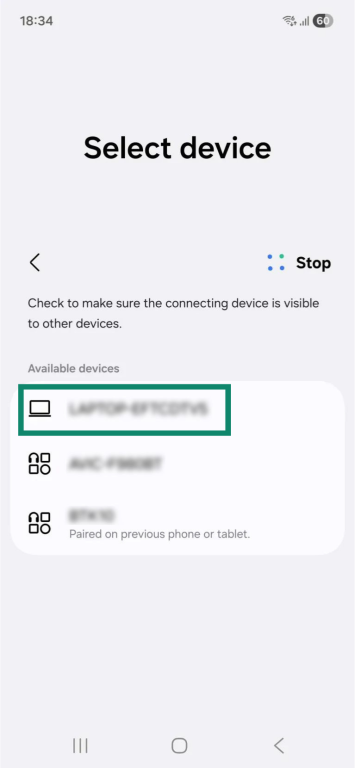
These Android steps are shown using a Galaxy A20 with Android 11. Your Android device may arrange Bluetooth settings a bit differently, but the process is still the same.
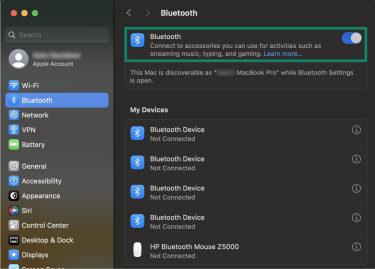
- Open the System Settings menu, select Bluetooth, and turn it on.
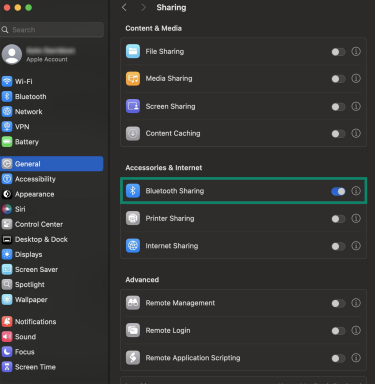
- Next, navigate to the General tab, scroll down until you find Bluetooth Sharing, and toggle it on.
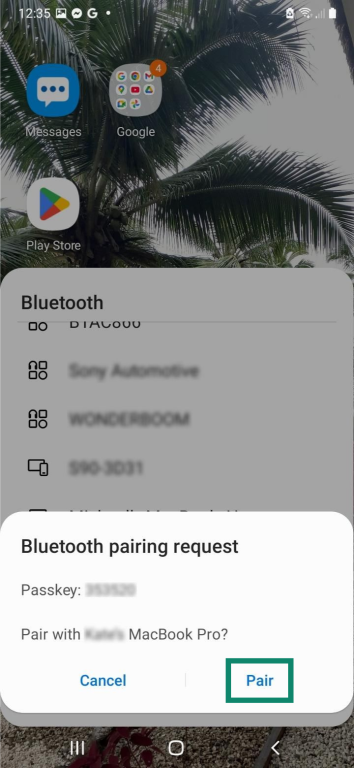
- Enable Bluetooth on your Android, select your Mac from the list of available devices, then tap Connect on your Mac and Pair on your phone to accept the pairing request.
- Open the file you want to transfer on your Android, tap the Share icon, select the Bluetooth icon, then select your Mac device from the list. The transfer usually starts automatically, but some devices may ask you to approve it first.
File transfer apps
Best for: Moving large videos, full folders, or batches of photos quickly when both devices are on the same network.
There are dozens of apps that let you share files between your Android device and your computer. To keep things simple, we covered one option for Windows and one for Mac.
Windows: Quick Share
The Quick Share app is convenient to use because it’s already built into Android as a feature, and it’s free to download and use on Windows. Download and install the app, turn on Bluetooth on your Android phone, and make sure both devices are on the same Wi-Fi network. Next, follow the steps below.
Note that the Android screenshots were taken on a Samsung Galaxy S21 FE 5G running Android 16. Your own Android device may present the Quick Share menus a little differently, but the steps follow the same pattern.
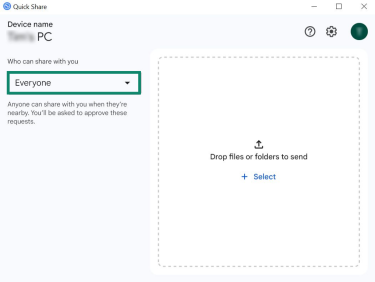
- Open Quick Share, log into your Google account (you can also use the app without an account), and choose the appropriate setting for Who can share with you.
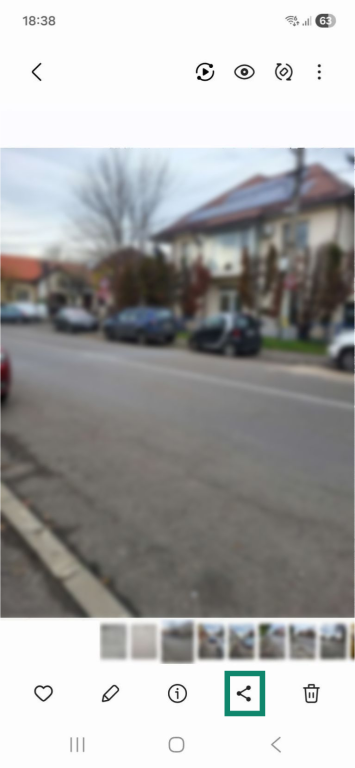
- Find the file you want to transfer on your Android phone and tap the share icon.
- Select the Quick Share option.
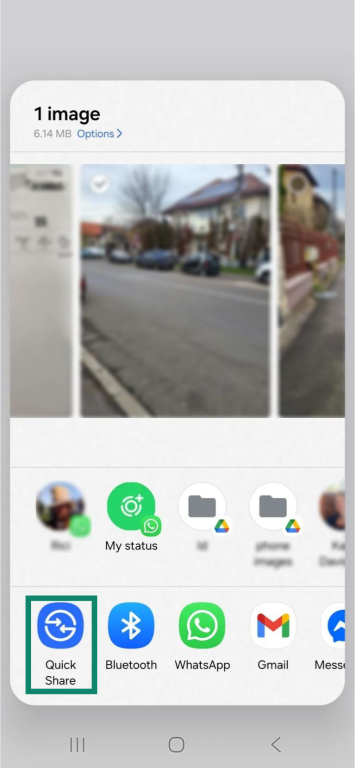
- Choose your PC, which should show up under Share to devices nearby.
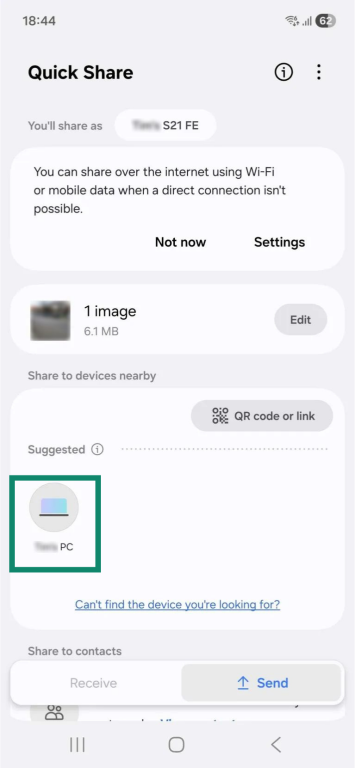
- The transfer should happen automatically, but you may also be asked to approve it. The files are stored in the Downloads folder by default.
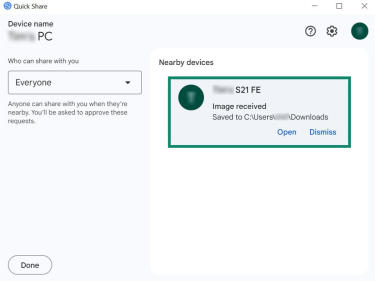
macOS: MacDroid
MacDroid also supports wireless transfers through its free plan, but your Android and Mac need to be on the same network. Follow these steps to use it.
The Android steps in this section show the menu from a Samsung Galaxy A20 running Android 11. The layout of Developer Options and wireless debugging settings can vary between Android devices, so your menus may not match exactly, though the steps remain the same.
- In the MacDroid app, select Connect via Wi-Fi.
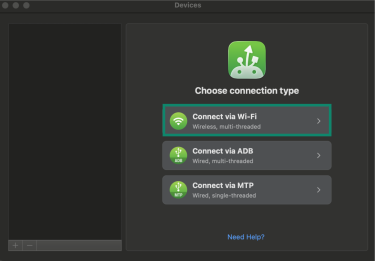
- Enable USB debugging on your phone, then choose one of the following options on MacDroid: Android 11+ or Android up to 10.
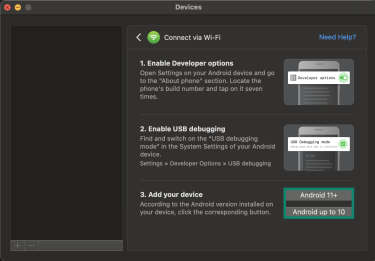
- If you choose Android 11+, you also have to enable Wireless debugging, which is located just below USB debugging.
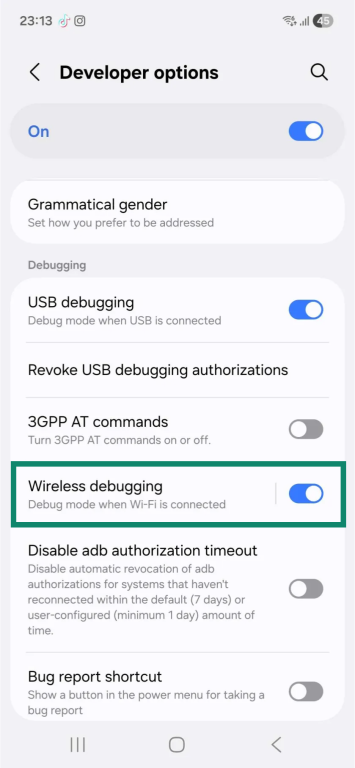
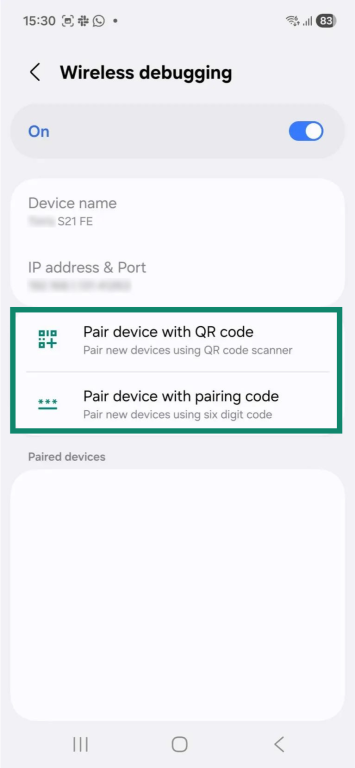
- MacDroid lets you connect the devices using a QR code or a pairing code. Whichever you choose, you must open the Wireless debugging settings and select the appropriate pairing method. After that, your phone will automatically pair with your Mac and you can start transferring files from there.
Cloud storage
Best for: Files you want synced and available across all your devices. Works well for big media libraries if you have sufficient cloud space; free tiers are better for documents and smaller batches.
Cloud storage platforms make it easy to transfer files by uploading them from your Android device and then downloading them on your computer. The process is straightforward, and many services work the same way. Below, we’ll walk through how to use some of the most popular options: Google Drive, Dropbox, and OneDrive.
We used a Samsung Galaxy S21 FE 5G running Android 16 to show the Android steps in this section. Your own Android device’s layout on your device may look a little different, but the process remains unchanged.
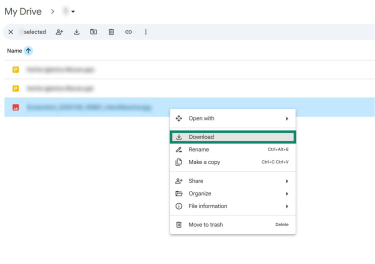
Google Drive
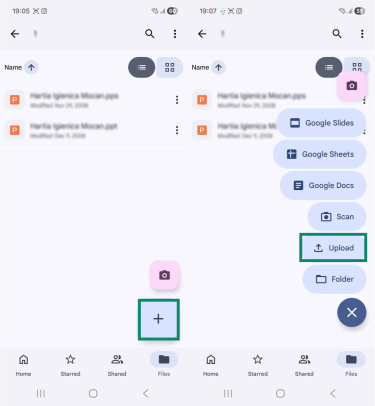
- Open the Google Drive app on your Android, tap the large + button, and choose the Upload option.
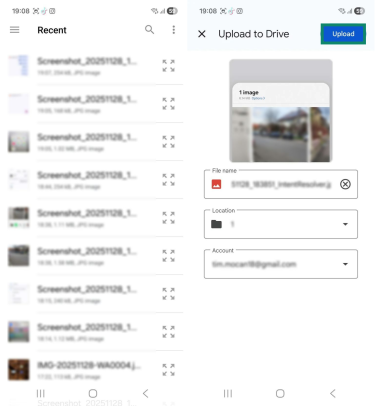
- Select your desired file, then tap Upload.
- Access Google Drive on your computer, select the uploaded file, and download it.
Dropbox
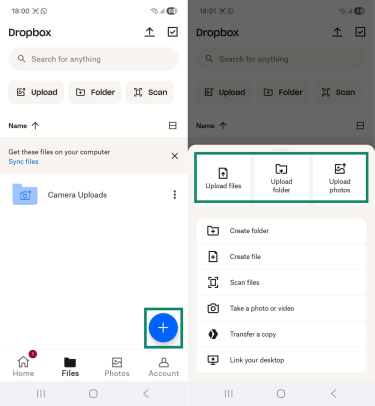
- Open the Dropbox app on your phone and tap the + button. Select the upload option, then choose the desired file. The upload will start automatically.
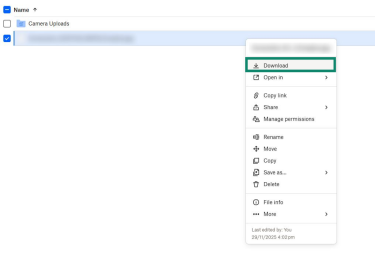
- Access Dropbox on your computer and download the file.
OneDrive
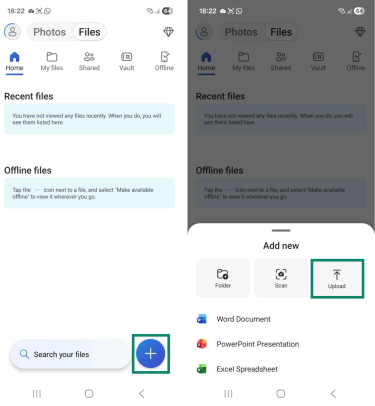
- Launch the OneDrive app on your Android device and tap the + button. Tap Upload, then select which files you want to add.
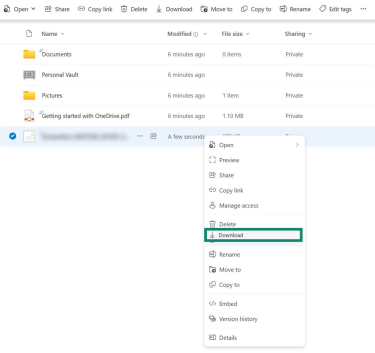
- Wait for the upload to finish, then access OneDrive on your computer and download the file.
Email services
Best for: Occasional transfers of small files when convenience matters more than speed. Email services cap attachment sizes: for example, Gmail only lets you send up to 25 MB in attachments.
You can use your email service to send files between your Android and computer as attachments. You have to open the email app on your phone, compose a new message, add the desired files as attachments, and then send it to yourself. After that, you can open the email on your computer and download the attached files.
Additional methods
Some people also use SD cards or other removable storage, which can support large file transfers depending on the device’s capacity. However, these methods are less convenient than the previous options, since they require extra hardware.
Using an SD card
Best for: Moving files when you don’t have a cable or Wi-Fi available. Ideal for large files, but the amount of storage is based on the type of SD card your phone can use.
If your Android phone supports external SD cards, insert one into the device and copy the files you want to save onto it. Then remove the card and place it into a card reader connected to your computer. From there, you should be able to copy the files directly or through a file manager app.
Using an OTG cable with removable media
Best for: Large files, full folders, and offline transfers. It’s also often faster than Bluetooth.
You can use a USB On-The-Go (OTG) cable to connect your Android phone to removable storage, such as a flash drive or external hard drive. Use a file manager app to move the files you want onto the external device, then connect that device to your computer and transfer the files.
Troubleshooting: When Android file transfer doesn’t work
Android file transfers may fail due to various problems, such as device recognition issues, USB-related errors, or outdated systems and drivers. If you experience any connectivity issues, try the following:
- Check the USB cable: Make sure the cable you’re using is in good condition. Look for signs of damage, such as fraying, exposed wires, or splits.
- Confirm the cable supports data transfers: Some USB cables are charge-only. If your phone is charging but isn’t appearing on your computer, try a different cable.
- Verify your USB ports: If the cable seems fine, try a different USB port. If the connection still doesn’t work, check the port for visible damage or dirt and dust buildup.
- Enable USB settings: Choose the correct file transfer option on your Android phone and check that USB debugging is enabled if the transfer requires it.
- Update your software: Make sure your Android device and computer are running the latest version of their operating systems. Also, check that your device drivers are up to date.
- Reboot your devices: Restart both your phone and computer, as this can often resolve issues that interfere with file transfers.
- Verify device battery settings: Check the power settings on your phone and computer, and turn off Battery Saver mode on your PC, if it’s enabled, as it can affect USB performance.
- Connect devices to the same network: Some wireless transfer methods only work if your Android device and computer are connected to the same Wi-Fi network or hotspot.
- Double-check Bluetooth settings: If sharing files over Bluetooth, make sure the feature is enabled and that both devices are paired.
- Bring the devices closer: For wireless transfers, keep your Android device and PC near each other to maintain a stable connection.
- Unlock your phone after connecting: Some devices won’t let you transfer files if your phone is locked.
- Temporarily disable your antivirus: Security software may interfere with the transfer. Check your settings and try pausing it first. As a last resort, you can try turning it off, but if you do, remember to enable it again once you’re done copying your files.
Is it safe to transfer files from Android to PC?
Sharing files between your Android device and computer is generally safe, but there are a few risks you can avoid with simple precautions. For example, you improve your PC and mobile security by checking for malware on each device before connecting them. If one device is compromised, it can put the other at risk.
Furthermore, if you plan to transfer files using third-party services, make sure you only use legitimate apps and platforms. Giving access to an untrusted or potentially malicious service can expose your stored data.
When should you use a VPN for file transfer?
You don’t need to use a virtual private network (VPN) if you’re transferring files using a cable or an SD card. However, it’s a good idea to use a VPN to keep file transfers private while you’re transferring them over the internet on networks you don’t fully trust, such as public or hotel Wi-Fi.
It’s especially important on public Wi-Fi networks, which often lack encryption and are frequent targets for cybercriminals. A VPN encrypts your internet traffic, making it much harder for anyone to monitor, intercept, or tamper with your connection.
FAQ: Common questions about Android file transfers to PC
Can I transfer files without internet or USB?
Yes, there are two methods you can use: SD cards or removable storage. SD cards can work well, but the size of the files you can transfer depends on your phone’s SD capabilities, and you may need a card reader if your computer doesn’t have one built in. Removable storage, such as a flash drive or external hard drive, works without internet, but requires a USB On-The-Go (OTG) cable to connect to your Android device.
Why is my Android not recognized by my PC?
Your computer may fail to detect your phone for several reasons. This can happen if the USB cable or port is damaged, if your phone’s USB settings are set incorrectly, if either device is running outdated software, or if certain connectivity features, such as Bluetooth, are turned off when you’re trying to connect wirelessly.
Can I use Quick Share with all Windows PCs?
Quick Share is compatible with the 64-bit version of Windows 10 and higher, and also support Bluetooth and Wi-Fi.
What is the fastest file transfer method?
Sharing files from your Android to a computer with a USB cable should provide the fastest transfer speeds. Depending on the USB version, you may get speeds up to 480Mbps or higher.
Should I use a VPN when transferring files from Android to PC?
You may want to use a VPN on public Wi-Fi, since these networks often lack encryption, which can allow malicious actors to spy on your activity. Some people also use a VPN when transferring files on secured networks they don’t fully trust, such as hotel Wi-Fi, or when they want to make it harder for network administrators to see their connections.
Are there privacy risks in file transfer apps?
Legitimate file transfer apps are generally safe to use, but you’re still trusting them to handle your files and device data, so you should read their permissions and privacy policies before installing. It’s best to avoid unknown or questionable services with unclear or non-existant privacy policies.
Take the first step to protect yourself online. Try ExpressVPN risk-free.
Get ExpressVPN









 Support Center
  FAQ
FAQ  VPN Setup Tutorials


