



If you can’t connect to the internet, it is possible that you are using a proxy server. This guide will show you how to disable proxy settings for Opera.
A proxy server is an intermediary between your computer and the internet, often used to hide your real location and allow you to access websites that would otherwise be blocked. However, proxies do not offer the same privacy protections as a VPN. If you are using ExpressVPN, there is no need to run a proxy on top of the VPN connection.
I am on…
Disable proxies in Opera on Windows
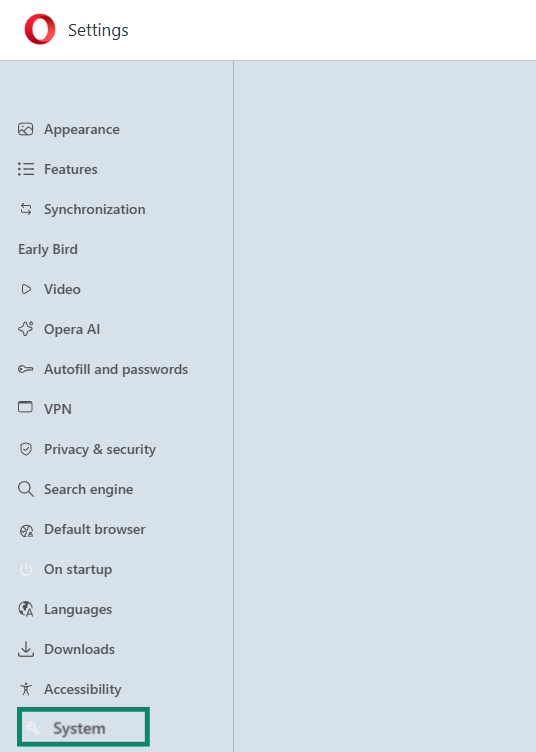
- In the Opera browser, click

 in the left sidebar, then click System.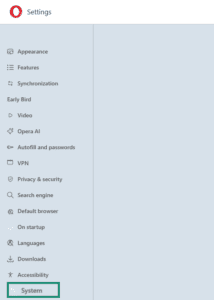

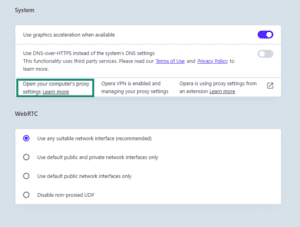
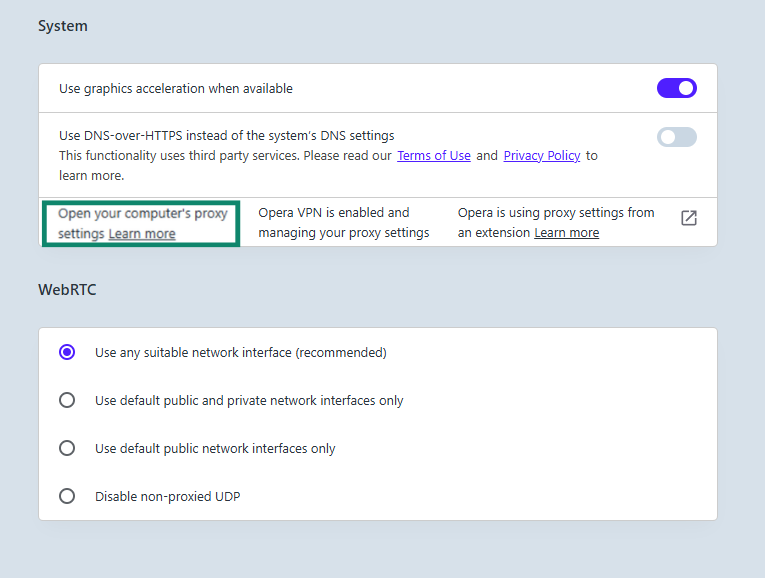
- Select Open your computer’s proxy settings.

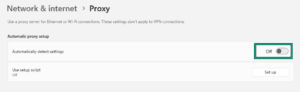
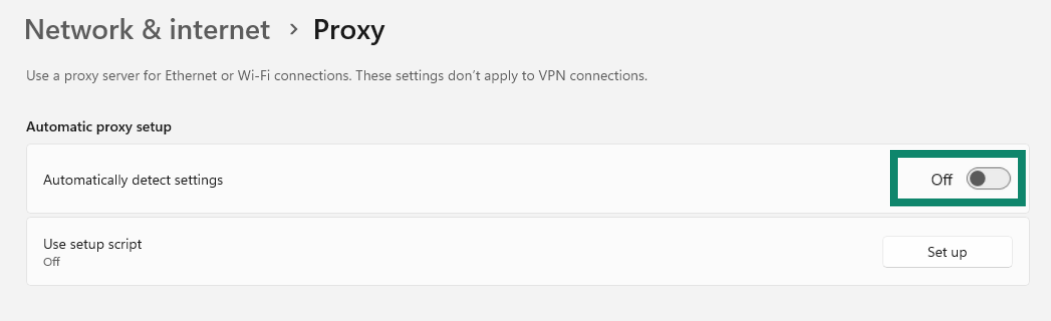
- Under Automatic proxy setup, click Set up, then toggle Use a proxy server off.

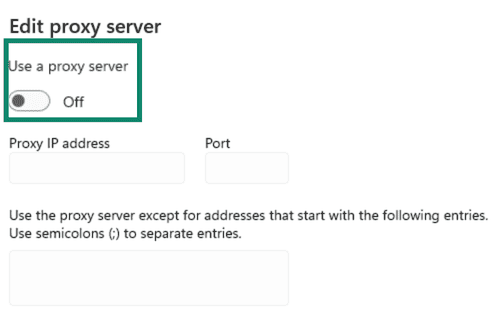
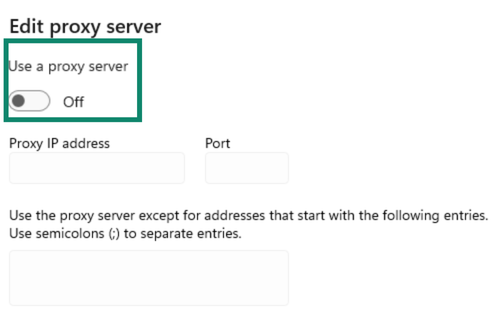
- Under Manual proxy setup, toggle Use a proxy server off.

- Click Save.
Need help? Contact the ExpressVPN Support Team for immediate assistance.
Disable proxies in Opera on Mac
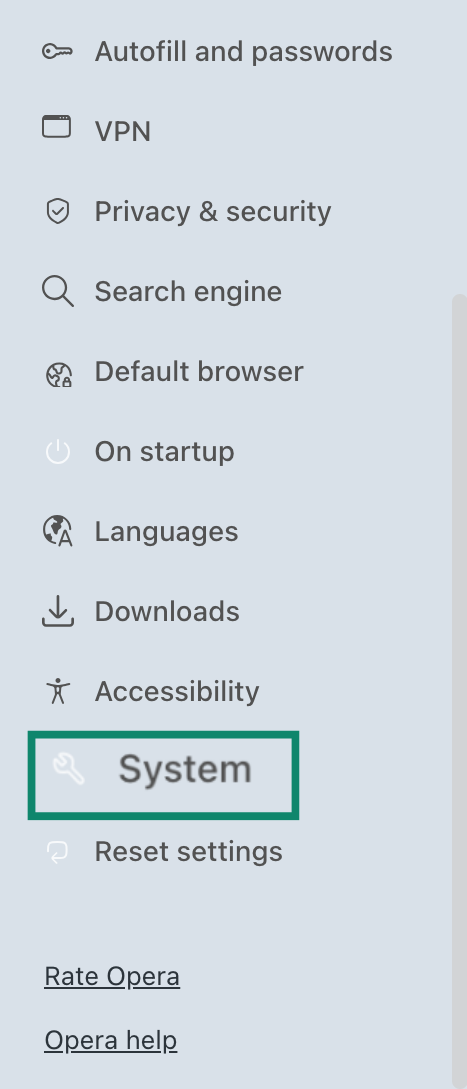
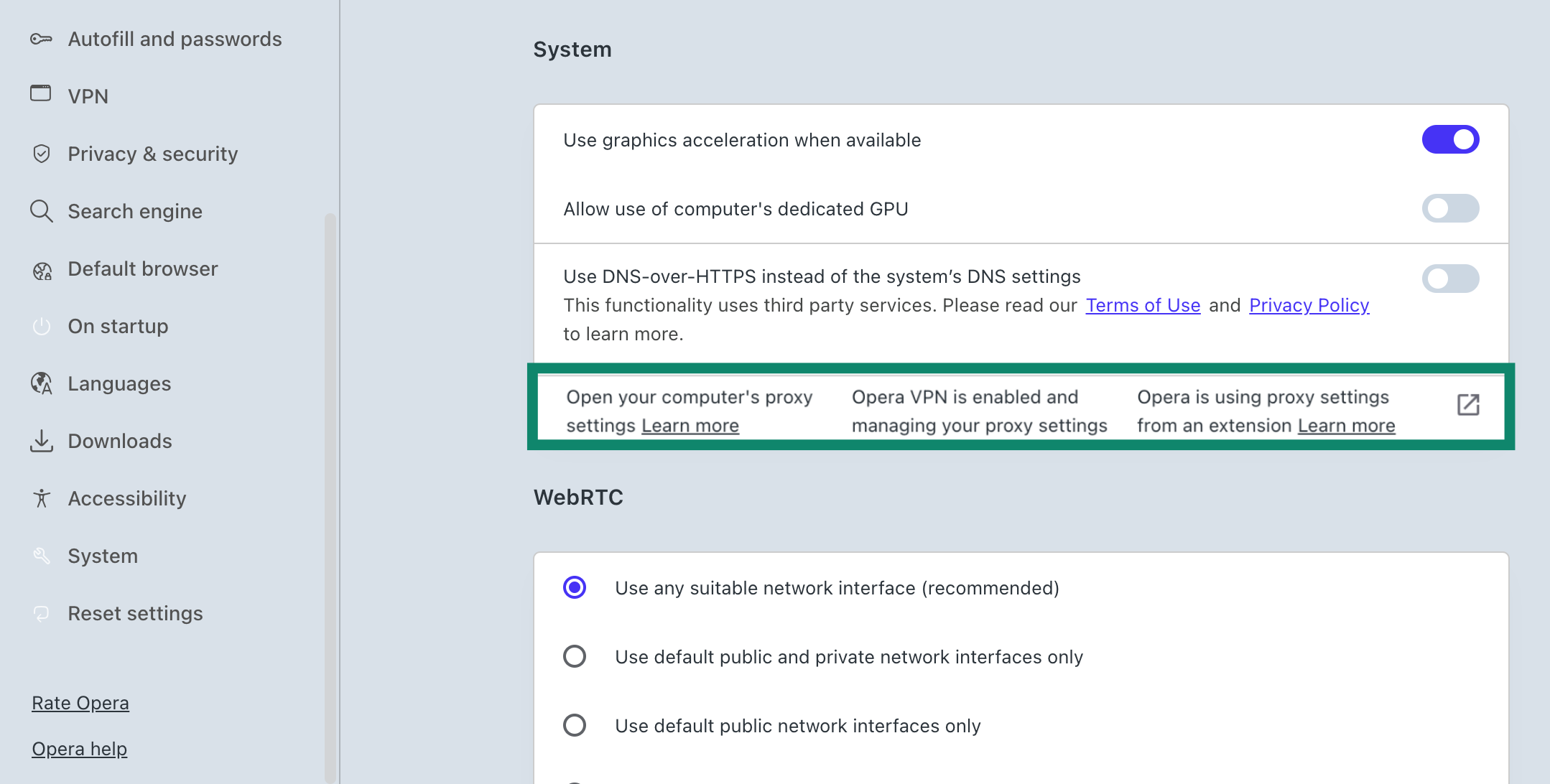
- In the Opera browser, click in the left sidebar, then click System.
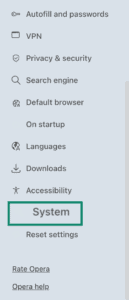

- Click Opera VPN is enabled and managing your proxy settings.
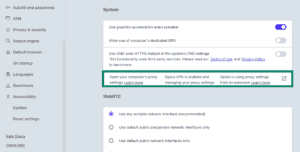

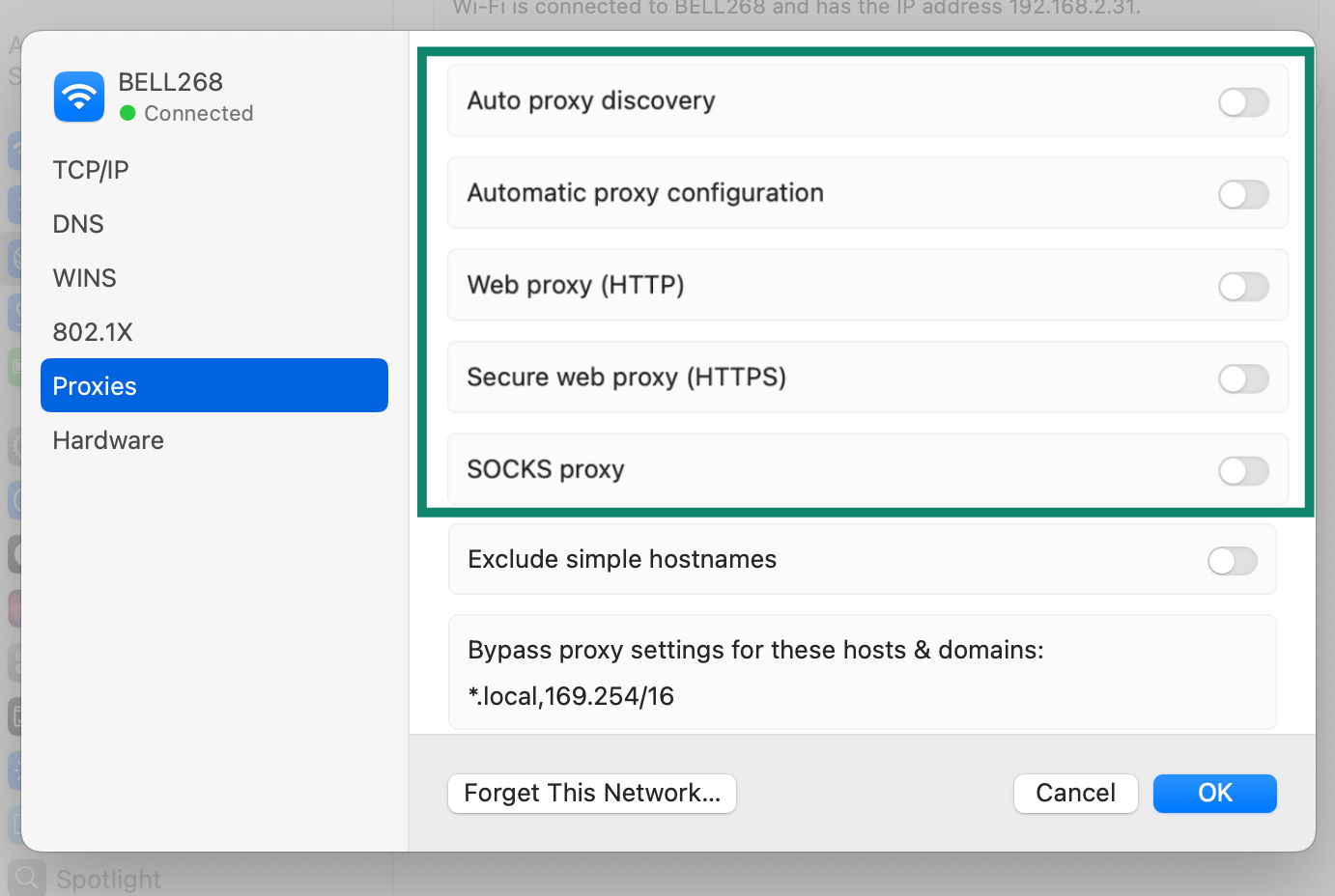
- This will open your Mac’s proxy settings. Disable any that are toggled on.
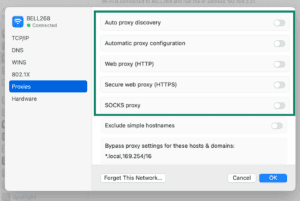

- Click OK.
Need help? Contact the ExpressVPN Support Team for immediate assistance.
Further Issues?
If you have other issues, including not being able to access certain websites and services, contact the ExpressVPN Support Team for immediate assistance.