



This guide covers common issues with Dedicated IP for Teams for both users and admins.
Jump to…
For Teams users
Can’t find the Dedicated IP location in the app
If your assigned Dedicated IP location doesn’t appear in the ExpressVPN app:
- Make sure you’re signed in to the correct ExpressVPN account: Your Dedicated IP location will only appear for the account it has been assigned to.
- Confirm that your Teams admin has assigned you a Dedicated IP location: Only admins can assign Dedicated IP locations to users.
- Give it time if it was just set up: It can take up to 1 hour for a Dedicated IP to appear in your app after an admin sets it up.
- Update the ExpressVPN app: If you’re using an older version of the app, update to the latest version and sign in again.
- Restart the app: if you’ve recently been assigned a Dedicated IP, restart the ExpressVPN app or sign out and back in.
If the location still doesn’t appear, see our guide on how to use Dedicated IP for Teams for instructions on locating and connecting to your assigned Dedicated IP.
Dedicated IP location won’t connect
If your Dedicated IP location appears in the app but will not connect, try the following:
Turn off Advanced Protection
Advanced Protection may interfere with your Dedicated IP connection. To turn it off on your device, check out the guides linked here:
- ExpressVPN app for Mac
- ExpressVPN app for Windows
- ExpressVPN app for Android
- ExpressVPN app for iOS
- ExpressVPN app for Linux
Switch to WireGuard
Dedicated IP for Teams only works with the WireGuard® protocol. If another protocol is selected, your Dedicated IP location will not connect.
To change your VPN protocol, see the guide for your device below:
- ExpressVPN app for Mac
- ExpressVPN app for Windows
- ExpressVPN app for Android
- ExpressVPN app for iOS
- ExpressVPN app for Linux
Need help? Contact the ExpressVPN Support Team for immediate assistance.
For Teams admins
Issues purchasing Dedicated IP for Teams
If you experience issues purchasing Dedicated IP for Teams through the admin dashboard, see our dedicated IP for Teams purchasing guide for step-by-step instructions. If the issue persists, contact our Support Team for assistance.
Unable to assign a location
If you are unable to assign a location to a Dedicated IP, check for the following potential issues.
Dedicated IP has not yet been purchased
You must purchase a Dedicated IP before you can assign a location. To check if you’ve bought a dedicated IP for Teams:
Go to your admin dashboard and click Dedicated IP. If you see the Add Now option, then you don’t have a dedicated IP added yet.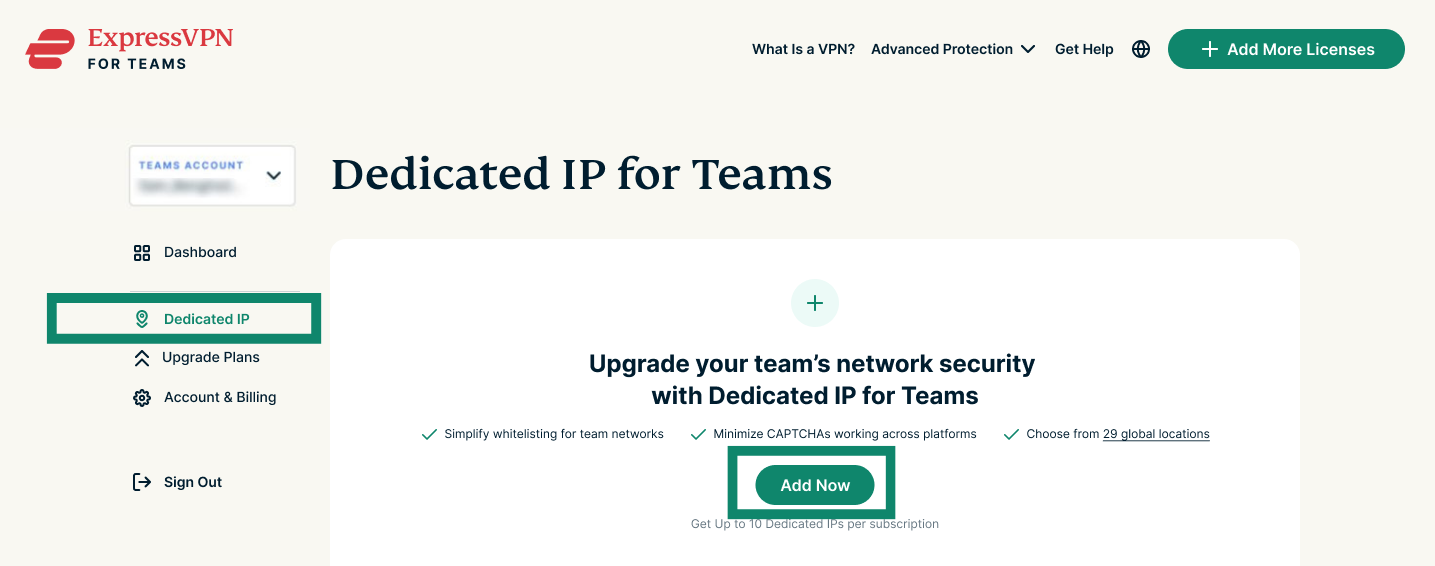
To complete a dedicated IP purchase, see our purchasing guide.
The location has already been assigned
Once a location has been assigned to a Dedicated IP, it is permanent and cannot be reassigned.
To check, go to your admin dashboard. If you see a location listed under Your Team’s Dedicated IPs, then a location has been assigned.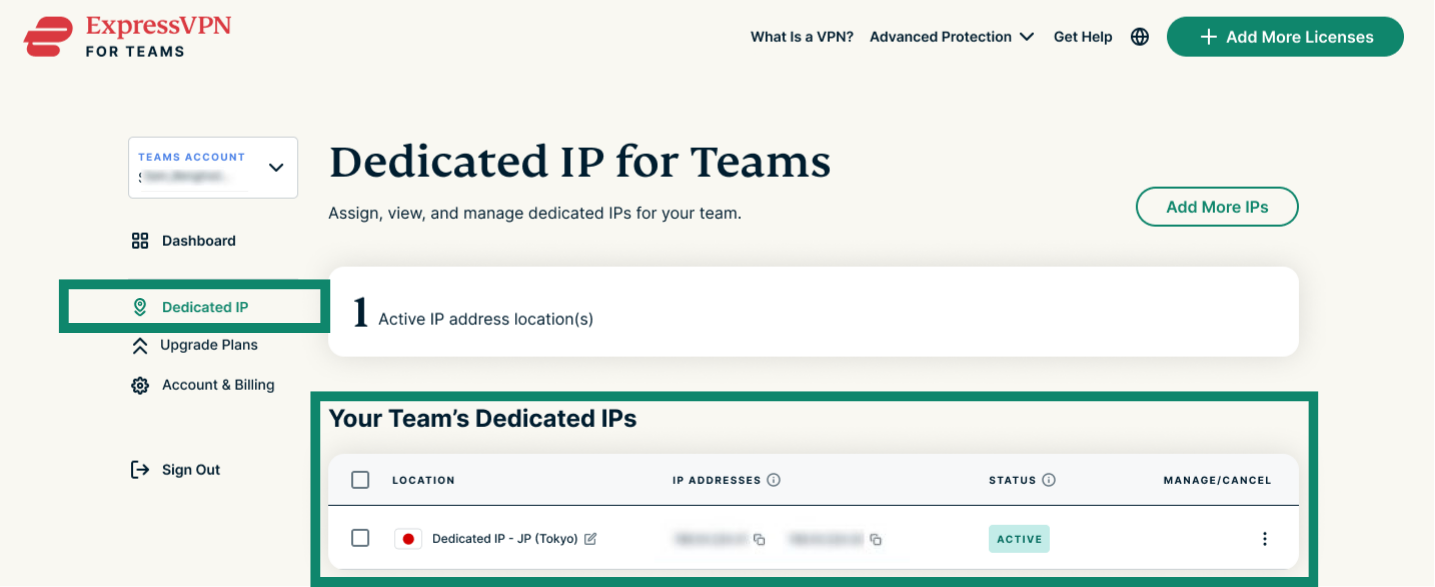
If you need a different location, you will need to purchase an additional Dedicated IP. You can do that by clicking the Add More IPs button at the bottom.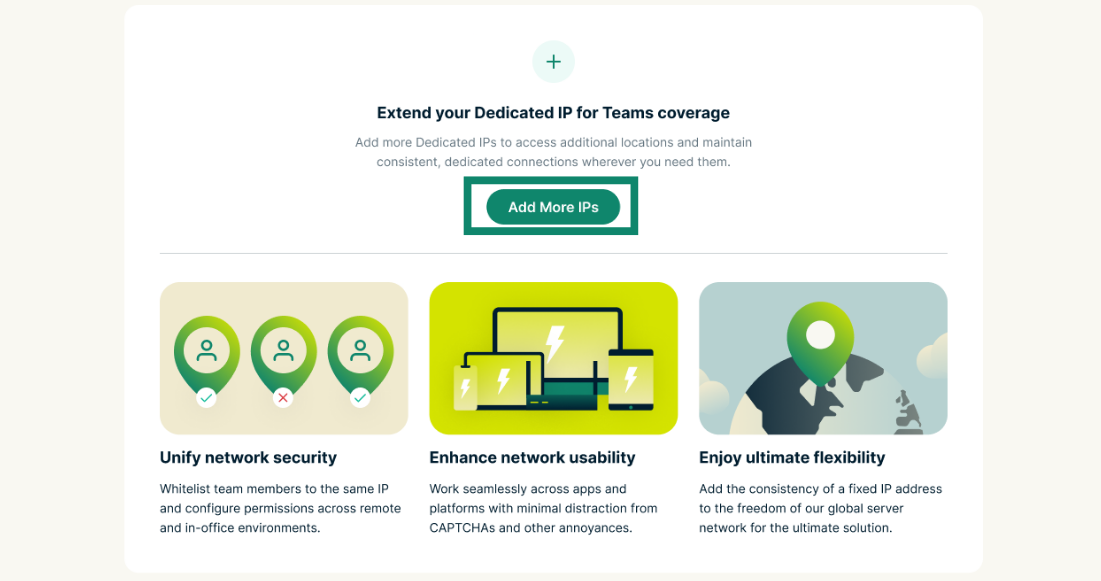
Note: You can purchase up to 10 dedicated IPs on your ExpressVPN for Teams plan.
Need help? Contact the ExpressVPN Support Team for immediate assistance.