



Dedicated IP for Teams now supports automatic provisioning, allowing Teams admins to purchase and manage the add-on directly from the admin dashboard, without contacting Support.
This guide explains how Teams admins can purchase Dedicated IP for Teams during checkout or after purchasing ExpressVPN for Teams. It also explains how to manage your Dedicated IP for Teams subscription renewal.
Jump to…
Buy Dedicated IP for Teams at checkout
Buy Dedicated IP for Teams from the admin dashboard
Turn Dedicated IP for Teams auto-renew on or off
Set up and use Dedicated IP for Teams
Buy Dedicated IP for Teams at checkout
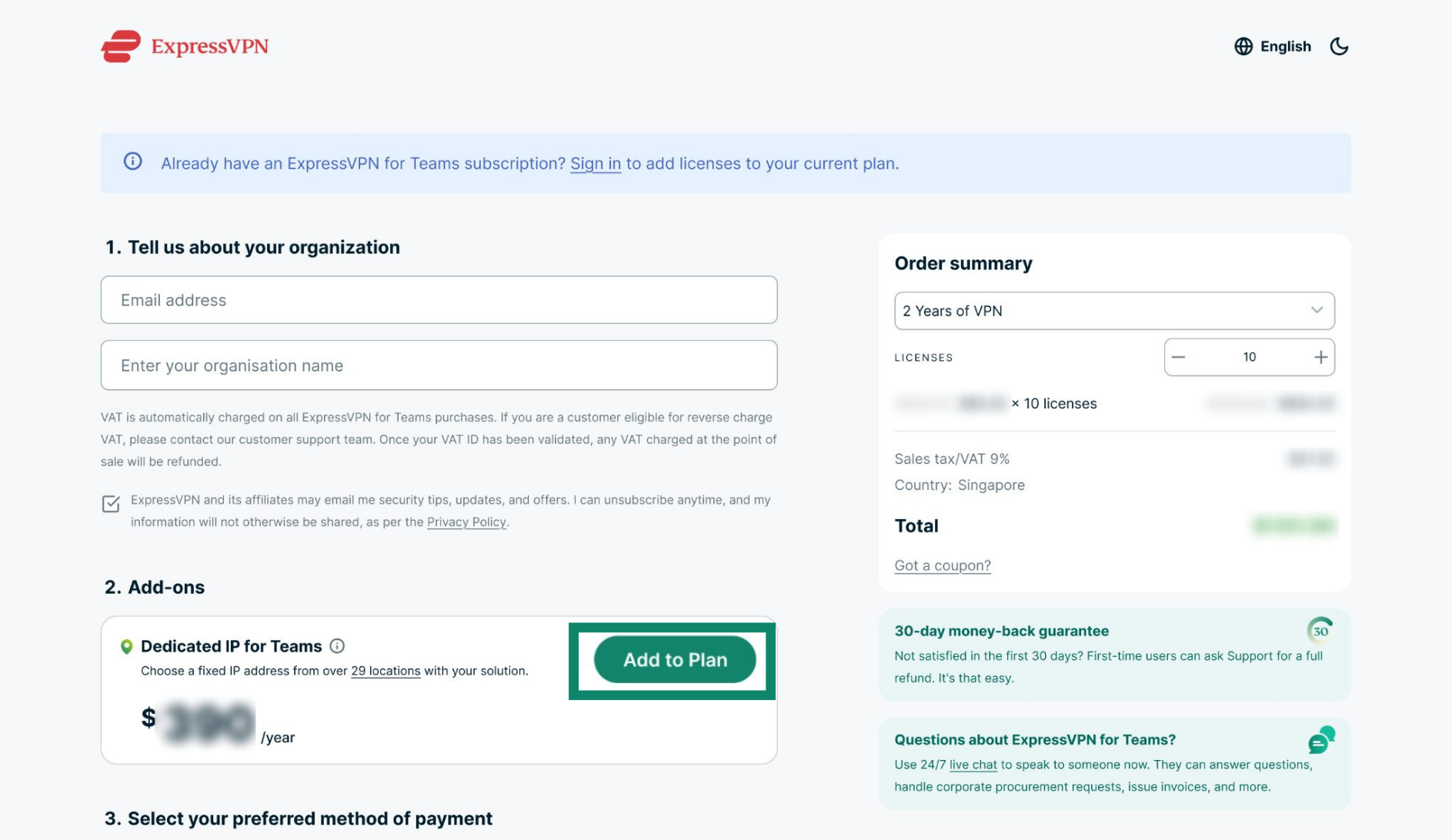
When purchasing an ExpressVPN Teams subscription, you can add Dedicated IP for Teams before completing checkout.
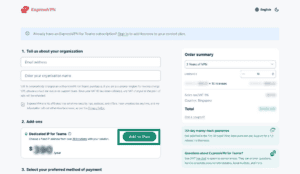
- On the ExpressVPN Teams checkout page under Add-ons, select Add to Plan next to Dedicated IP for Teams.

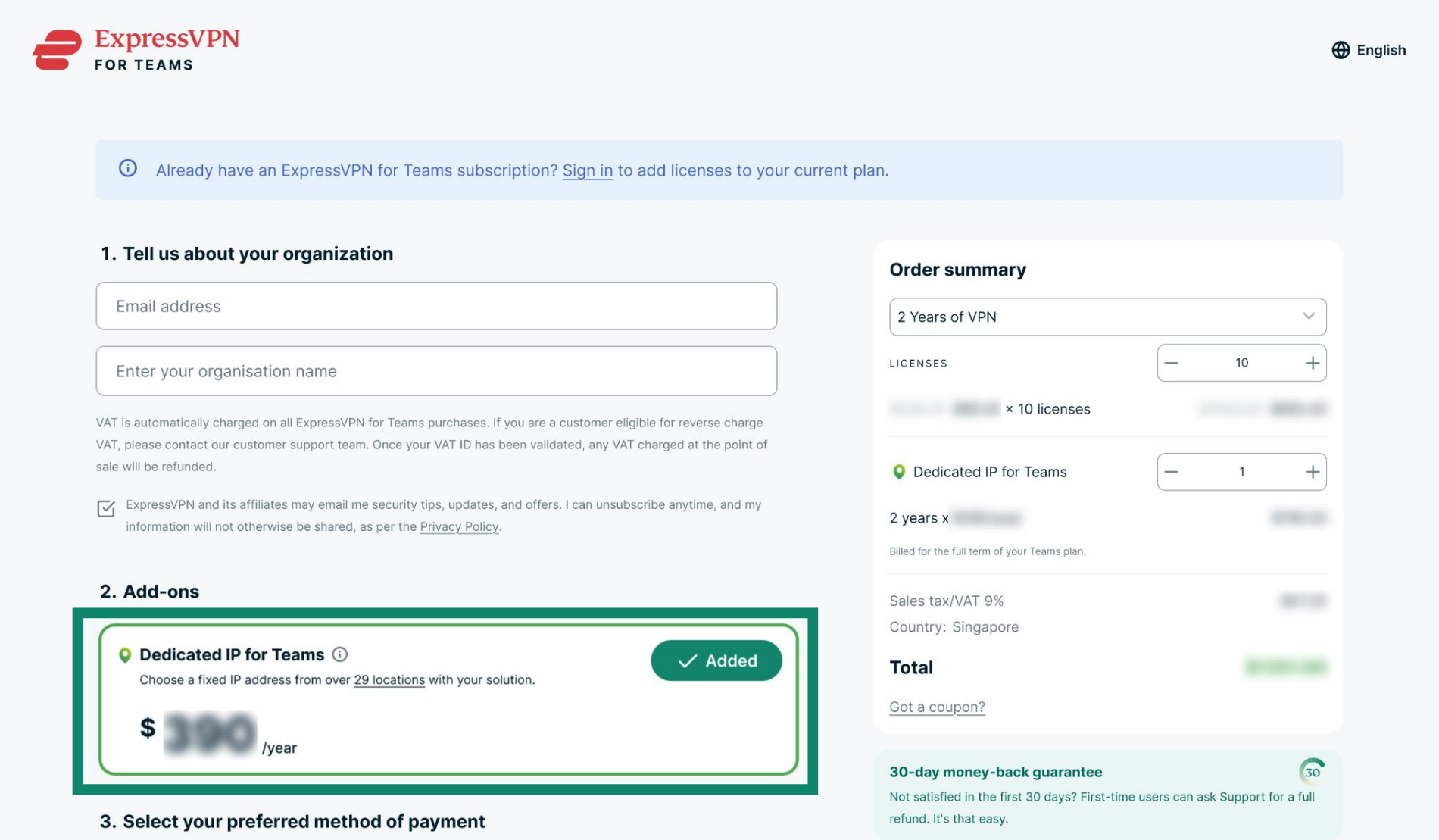
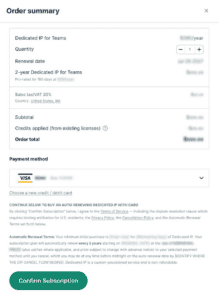
- Review the Order Summary to confirm that Dedicated IP for Teams has been added to your order.
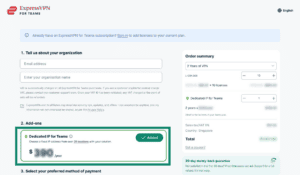

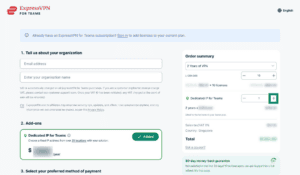
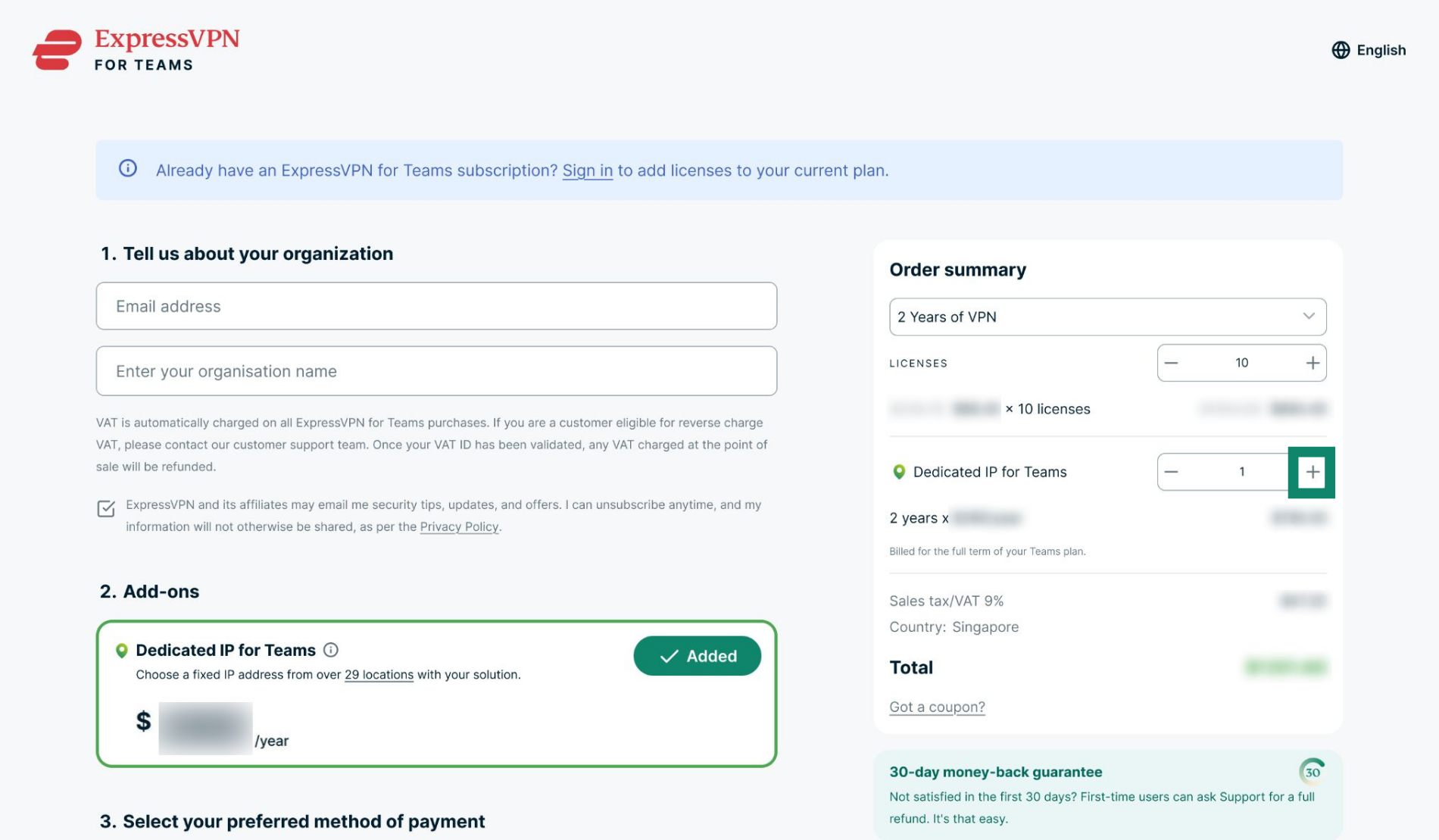
- If you want to purchase more than one Dedicated IP for Teams add-on, select the plus (+) button to increase the quantity.
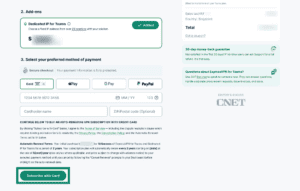
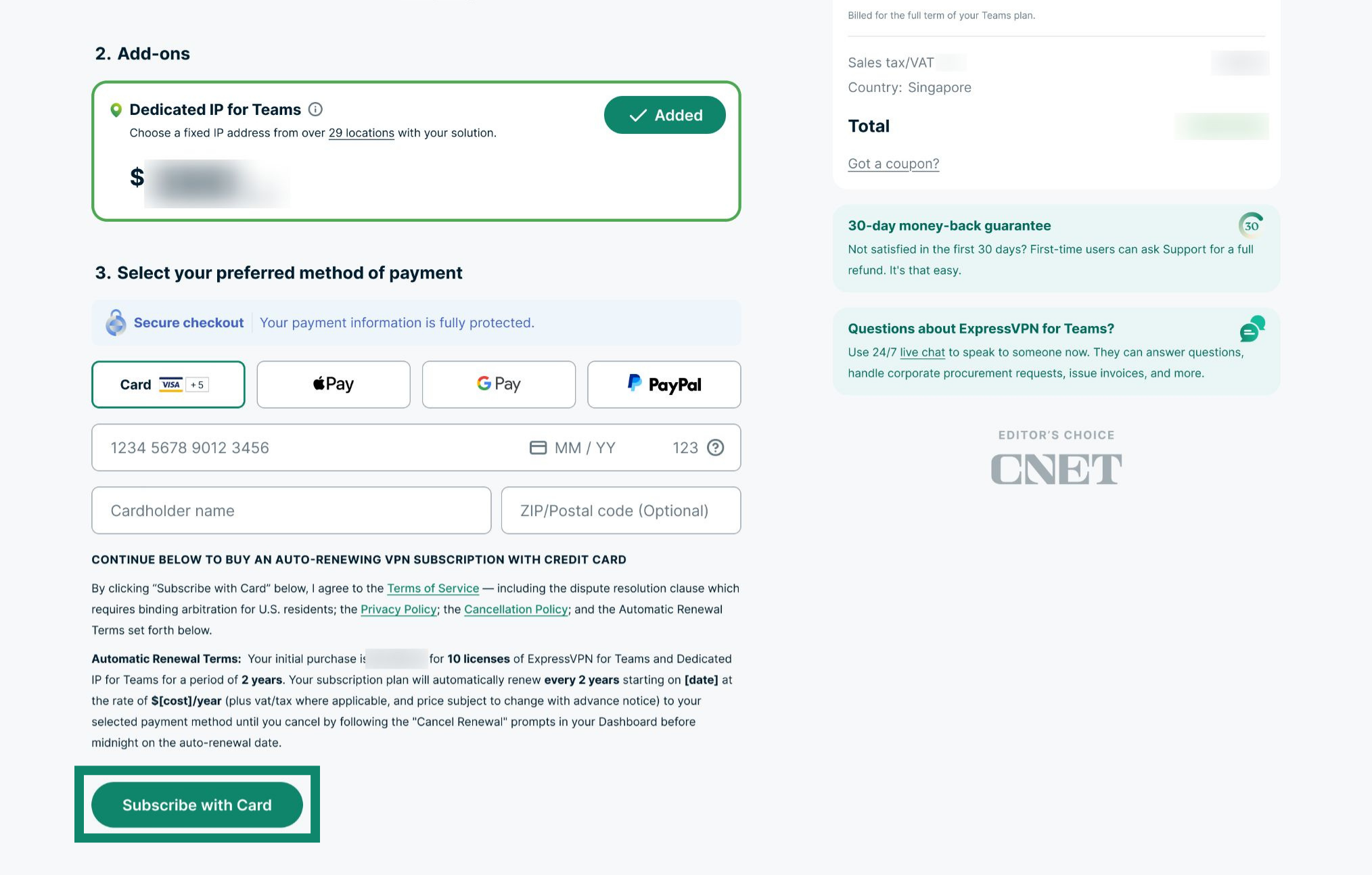
- Choose your preferred payment method, then select Subscribe with [payment method].

Need help? Contact the ExpressVPN Support Team for immediate assistance.
Buy Dedicated IP for Teams from the admin dashboard
If you already have an ExpressVPN Teams subscription, you can purchase Dedicated IP for Teams from your admin dashboard.
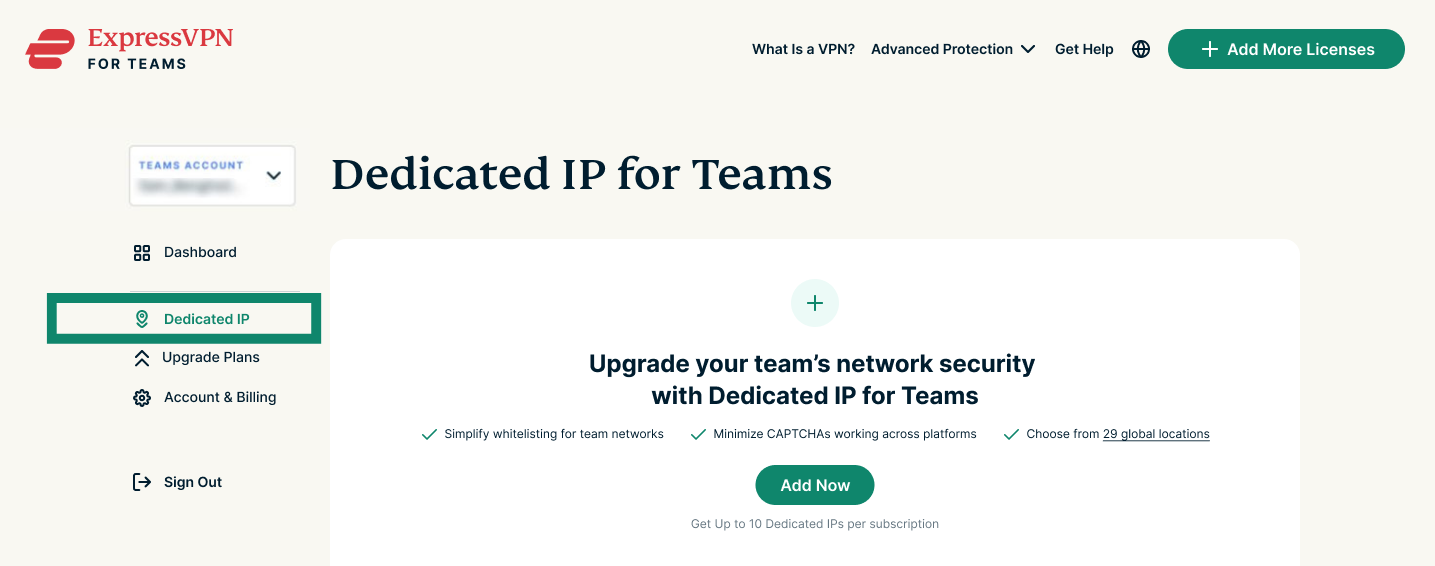
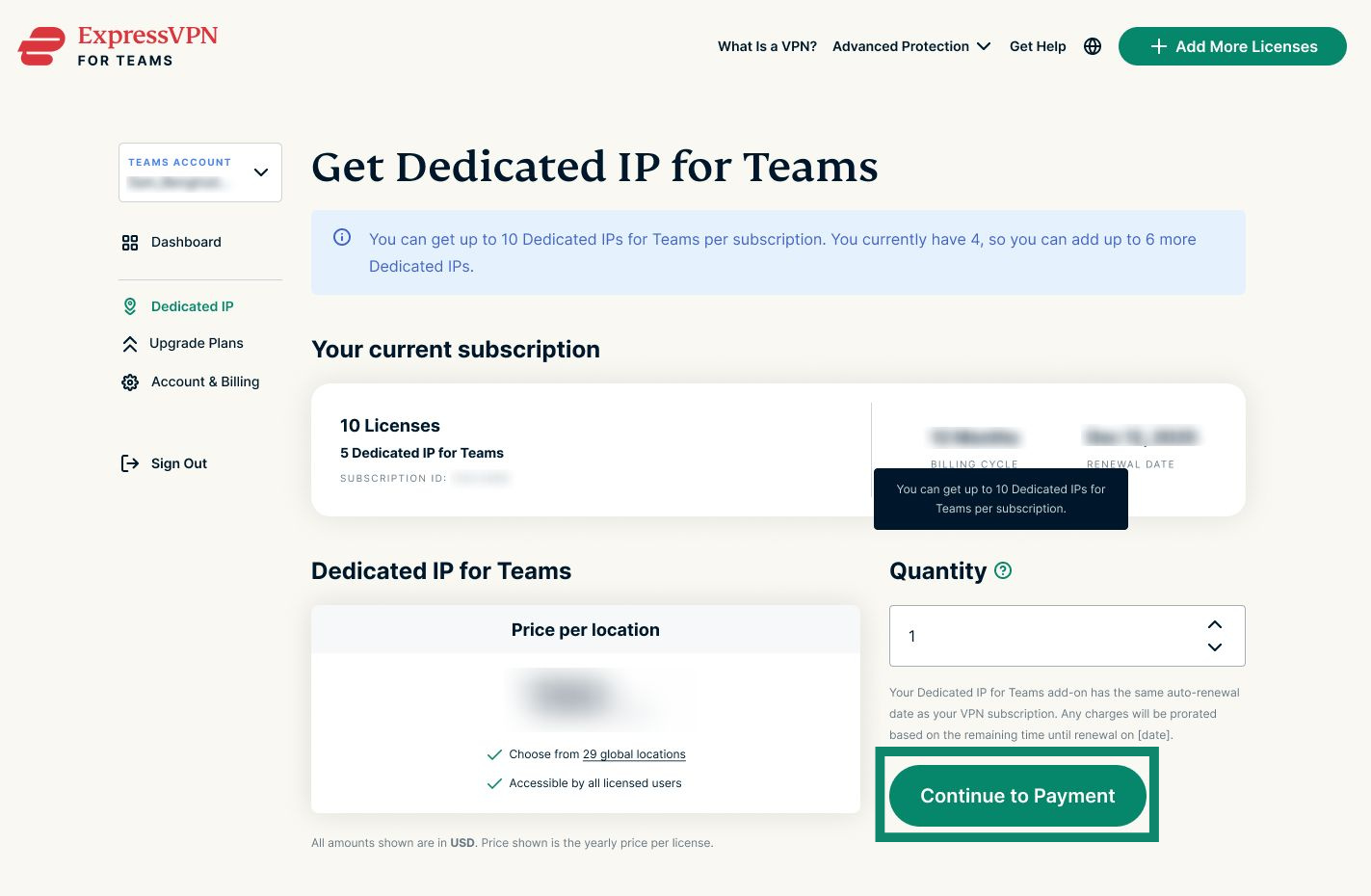
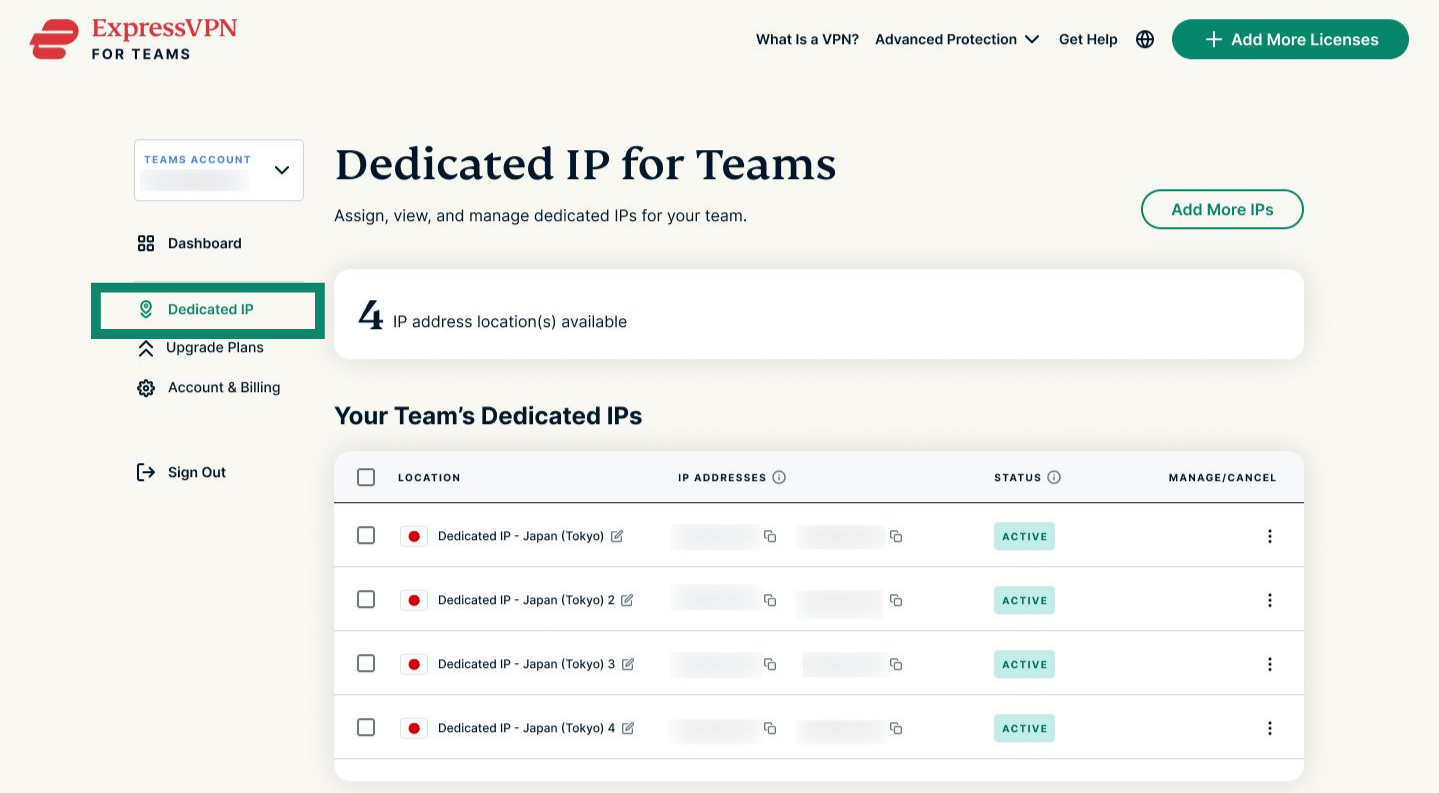
- In the ExpressVPN Teams admin dashboard, select Dedicated IP from the left-hand sidebar.
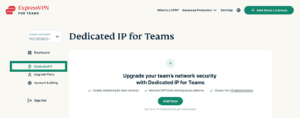

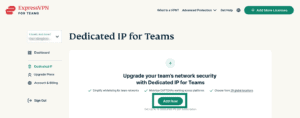
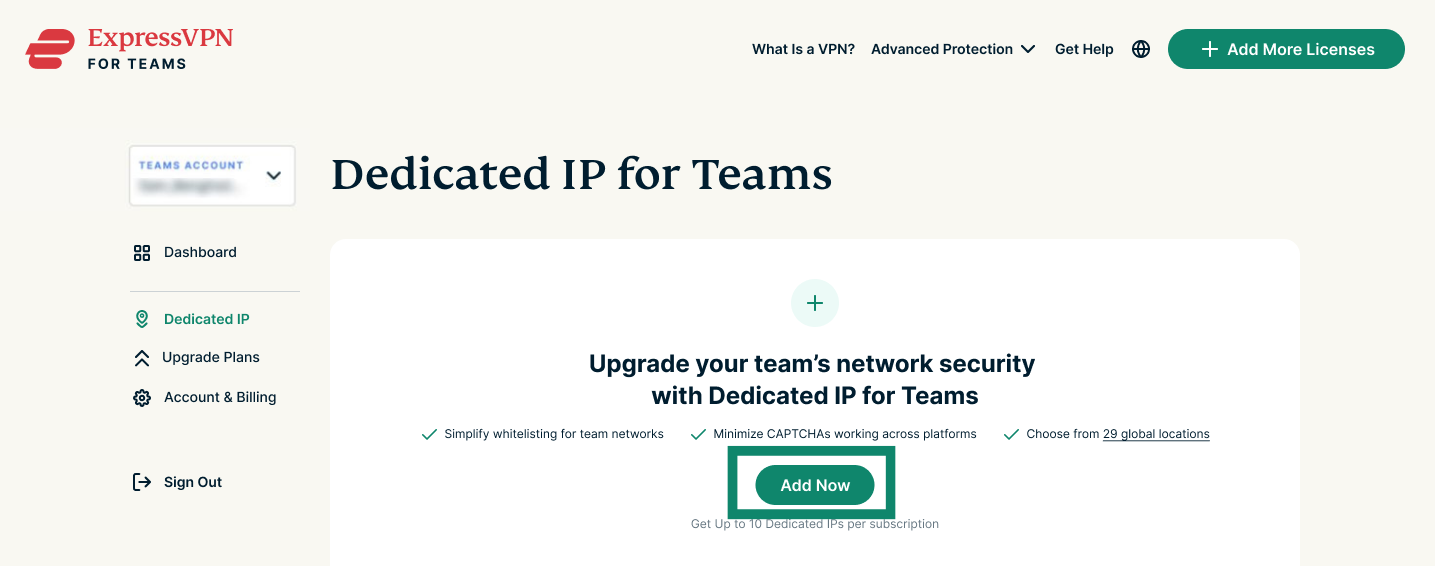
- Click Add Now.
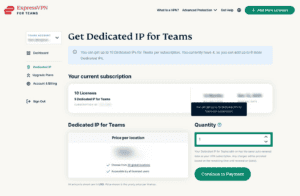
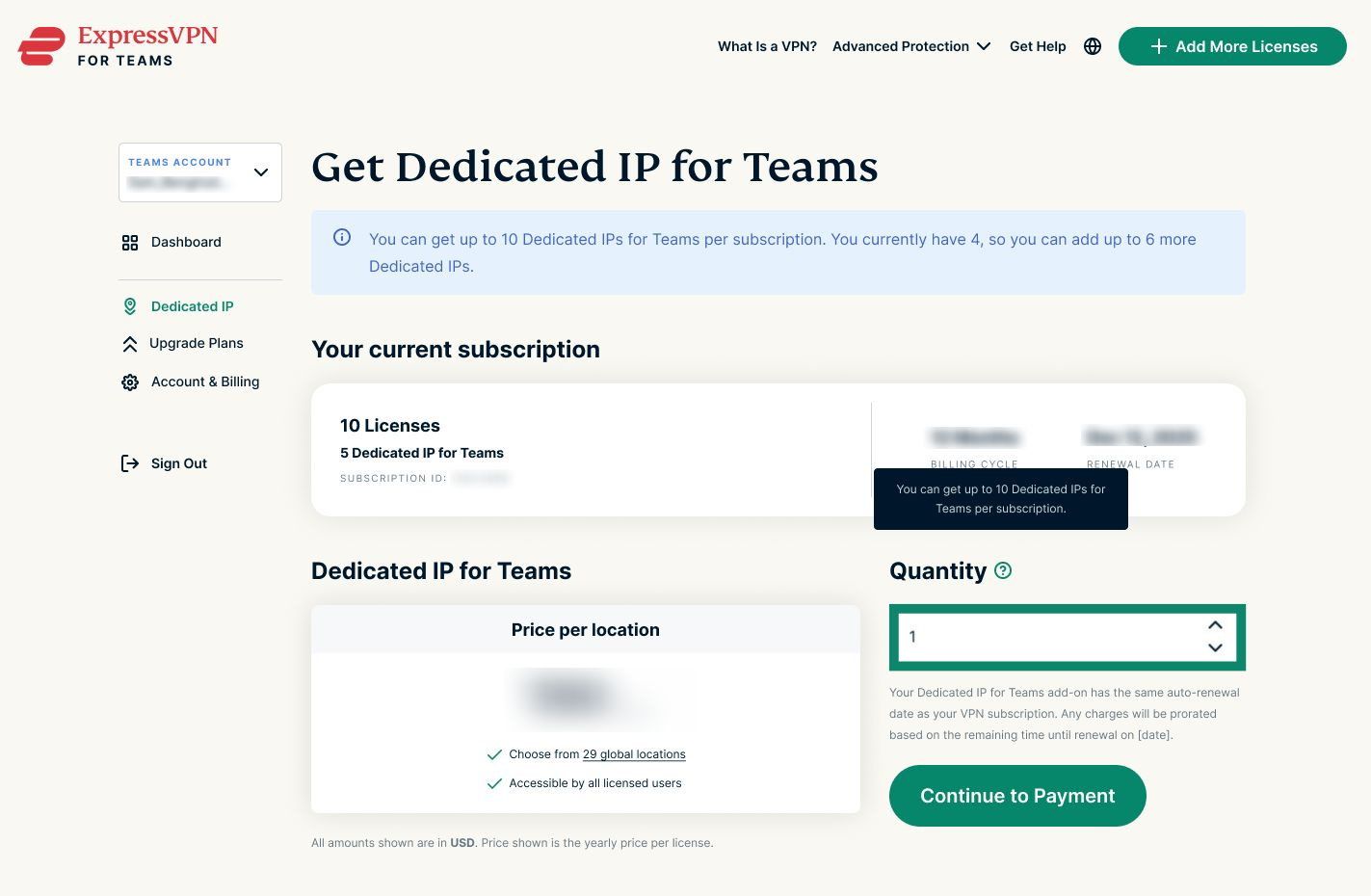
- Select the number of dedicated IPs you want to purchase. To purchase additional dedicated IPs, select the arrow (^) to increase the quantity.

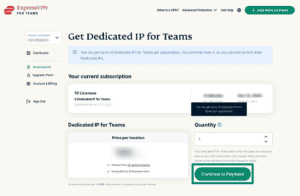
- Click Continue to Payment.
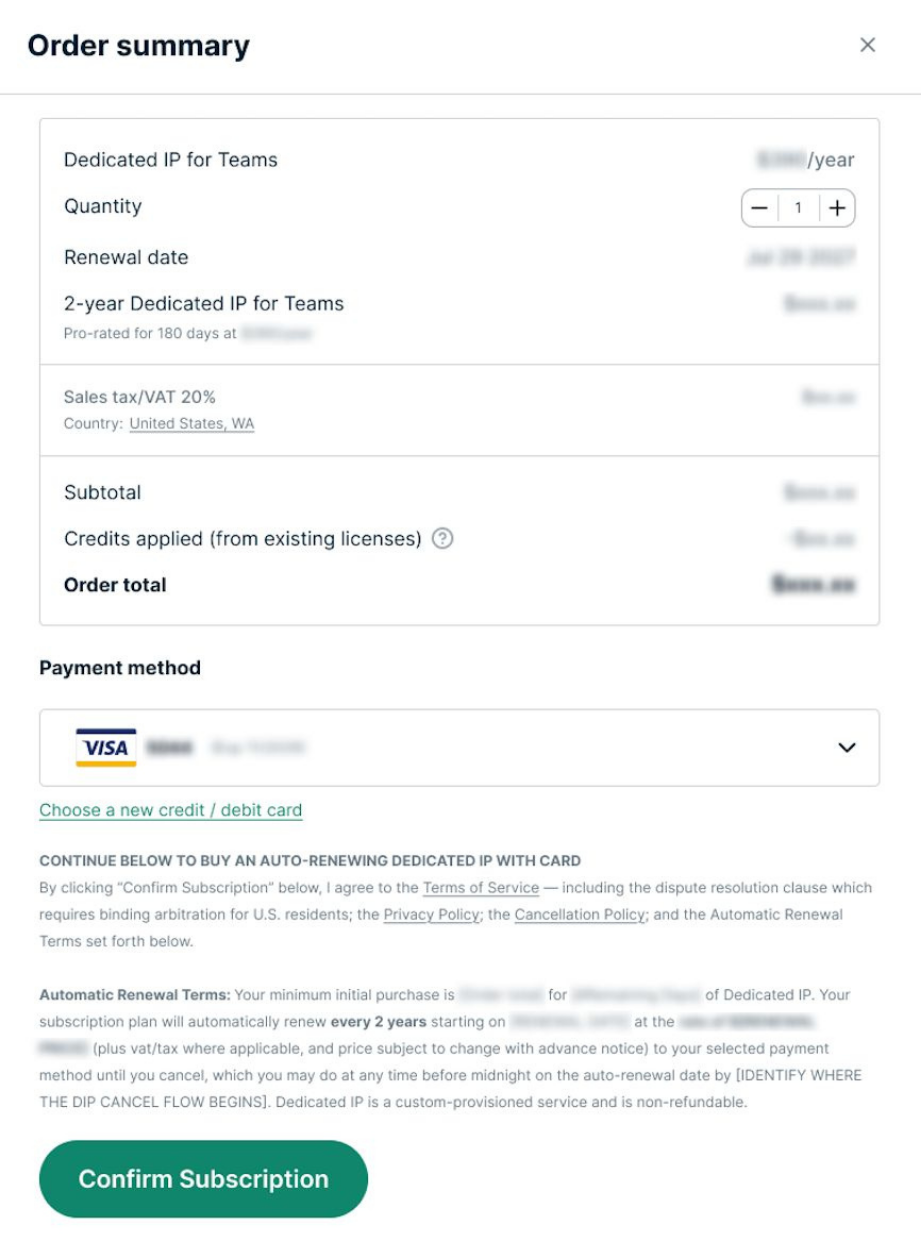
- Choose your preferred payment method and select Confirm Subscription. Your Dedicated IPs will be added to your ExpressVPN Teams subscription automatically after payment.

Need help? Contact the ExpressVPN Support Team for immediate assistance.
Turn Dedicated IP for Teams auto-renew on or off
Dedicated IP for Teams automatically renews on the same date as your ExpressVPN Teams subscription. If you no longer want it to renew automatically, you can turn off auto-renew at any time and turn it back on later if needed.
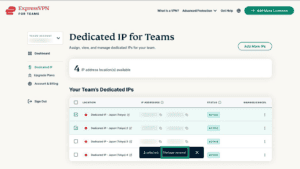
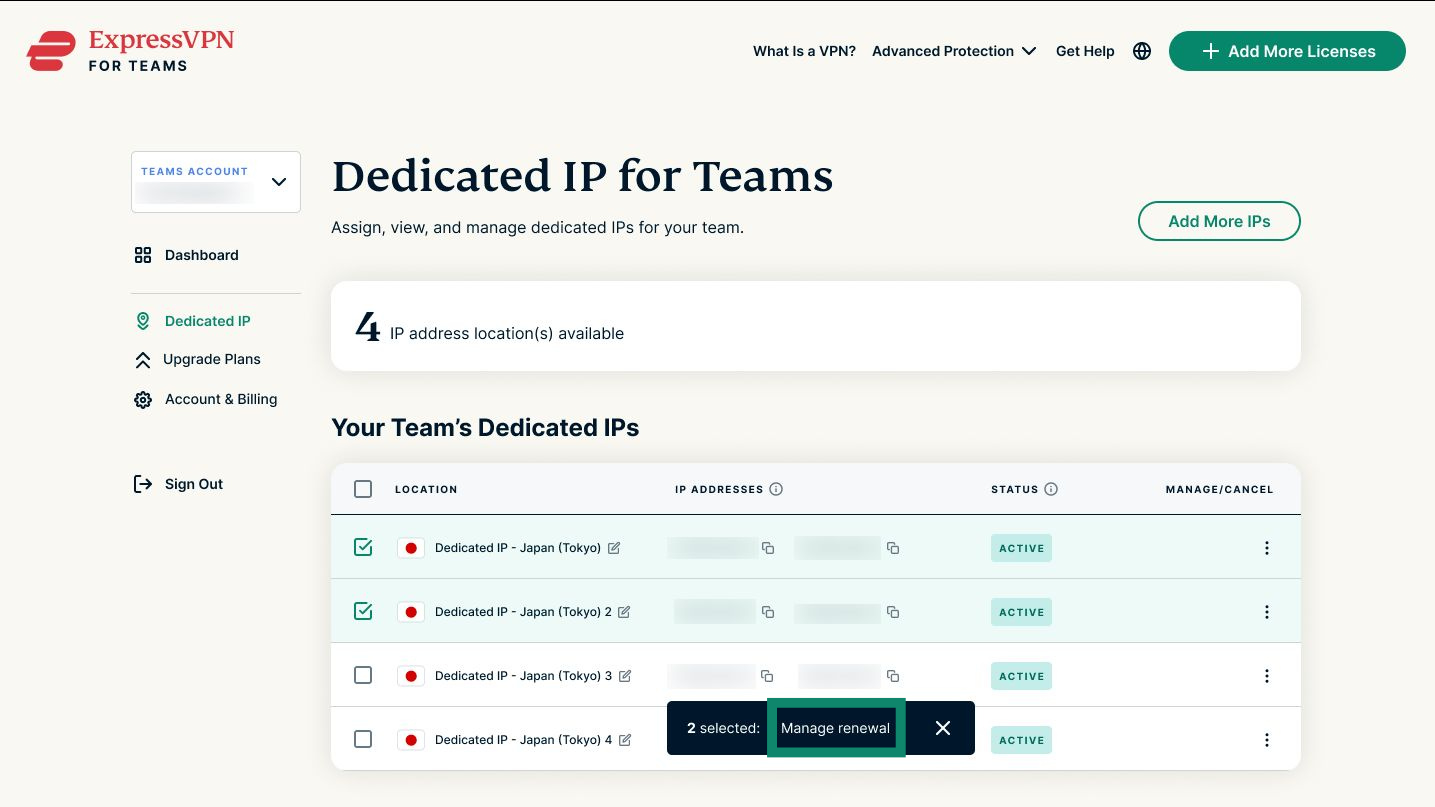
- In the ExpressVPN Teams admin dashboard, click Dedicated IP in the left-hand sidebar.
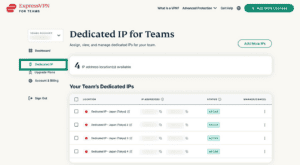

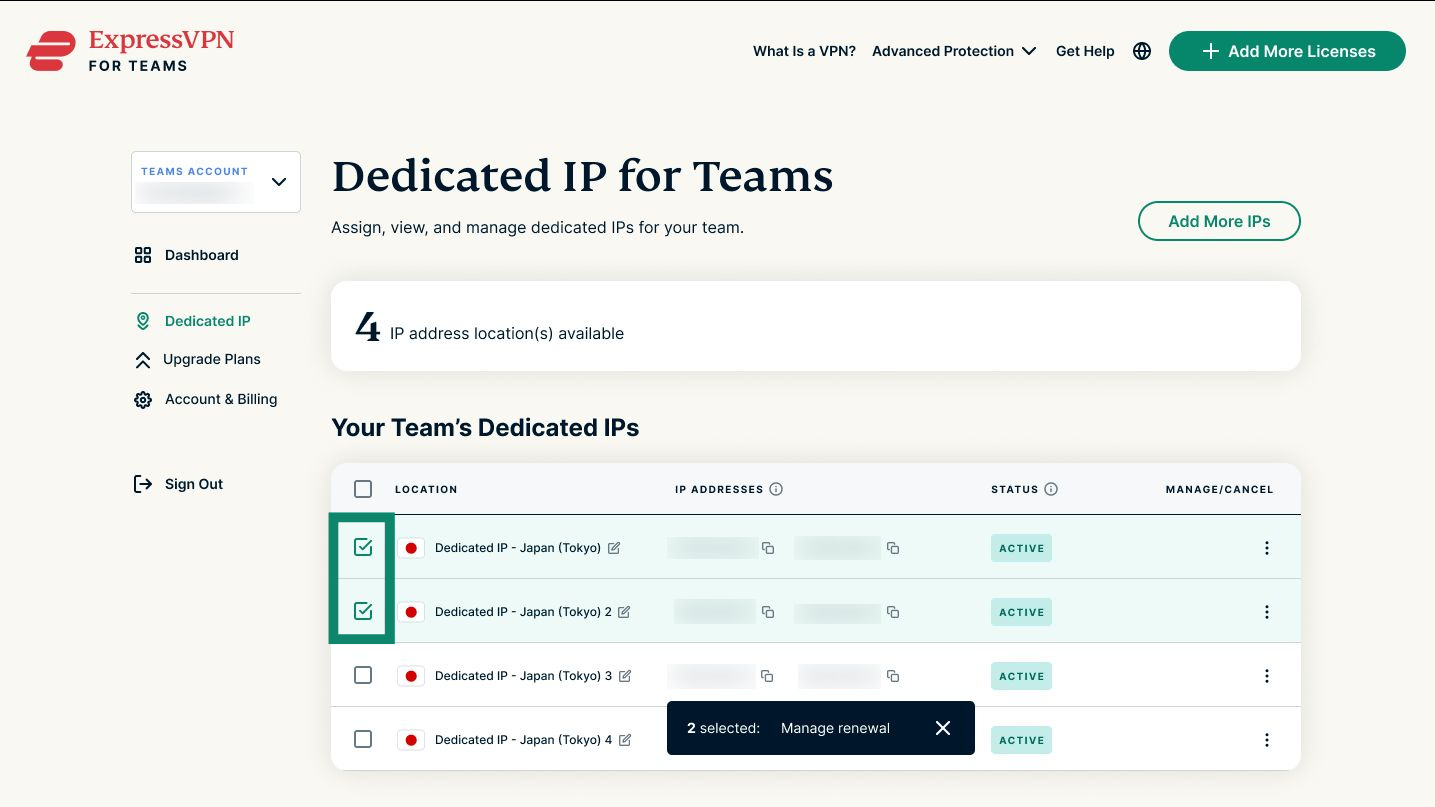
- Select the checkbox next to the dedicated IPs you want to turn off auto-renew for.
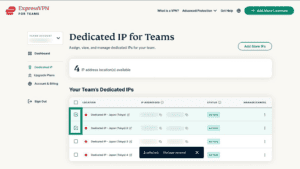

- In the pop-up banner button, click Manage renewal.
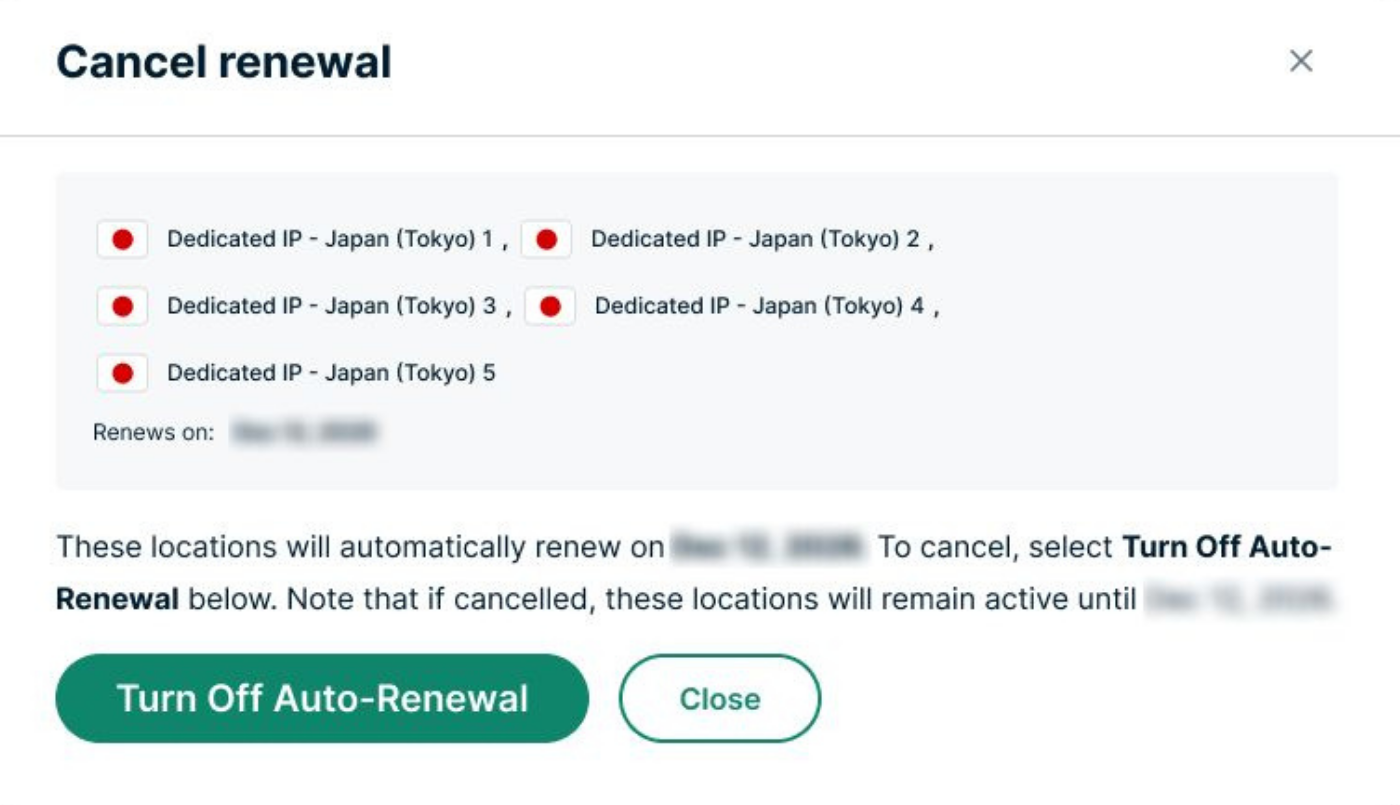
- Click Turn Off Auto-Renewal. Your changes are saved automatically.
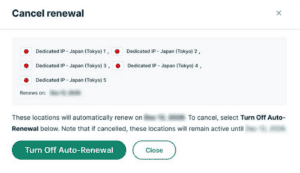

To turn auto-renew back on, follow the steps above and click Turn On Auto-Renewal instead.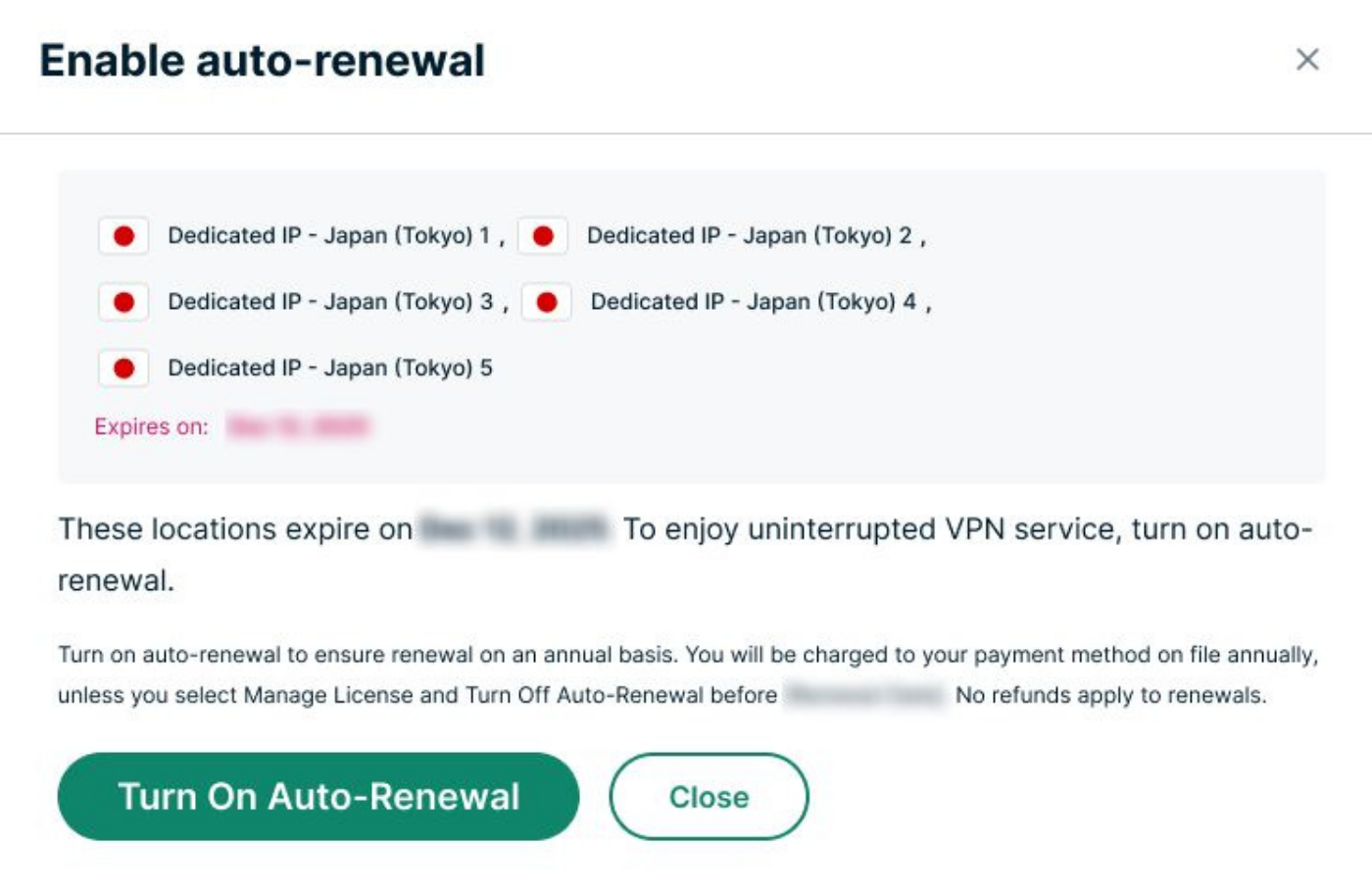
Need help? Contact the ExpressVPN Support Team for immediate assistance.
Set up and use Dedicated IP for Teams
After purchasing Dedicated IP for Teams, you must select a location before your team can use it. For instructions, see our guide on how to set up and manage Dedicated IP for Teams locations.
Need help? Contact the ExpressVPN Support Team for immediate assistance.