



Learn how to save your login details in the ExpressKeys apps and browser extension so you can use them to sign into your accounts.
Note: To import your logins in bulk from another password manager or browser, follow our guides on how to import your existing data into ExpressKeys.
Jump to…
How to save a login to the ExpressKeys app (iOS and Android)
How to save a login to the ExpressKeys browser extension (Chrome)
How to save a login to the ExpressKeys app (iOS and Android)
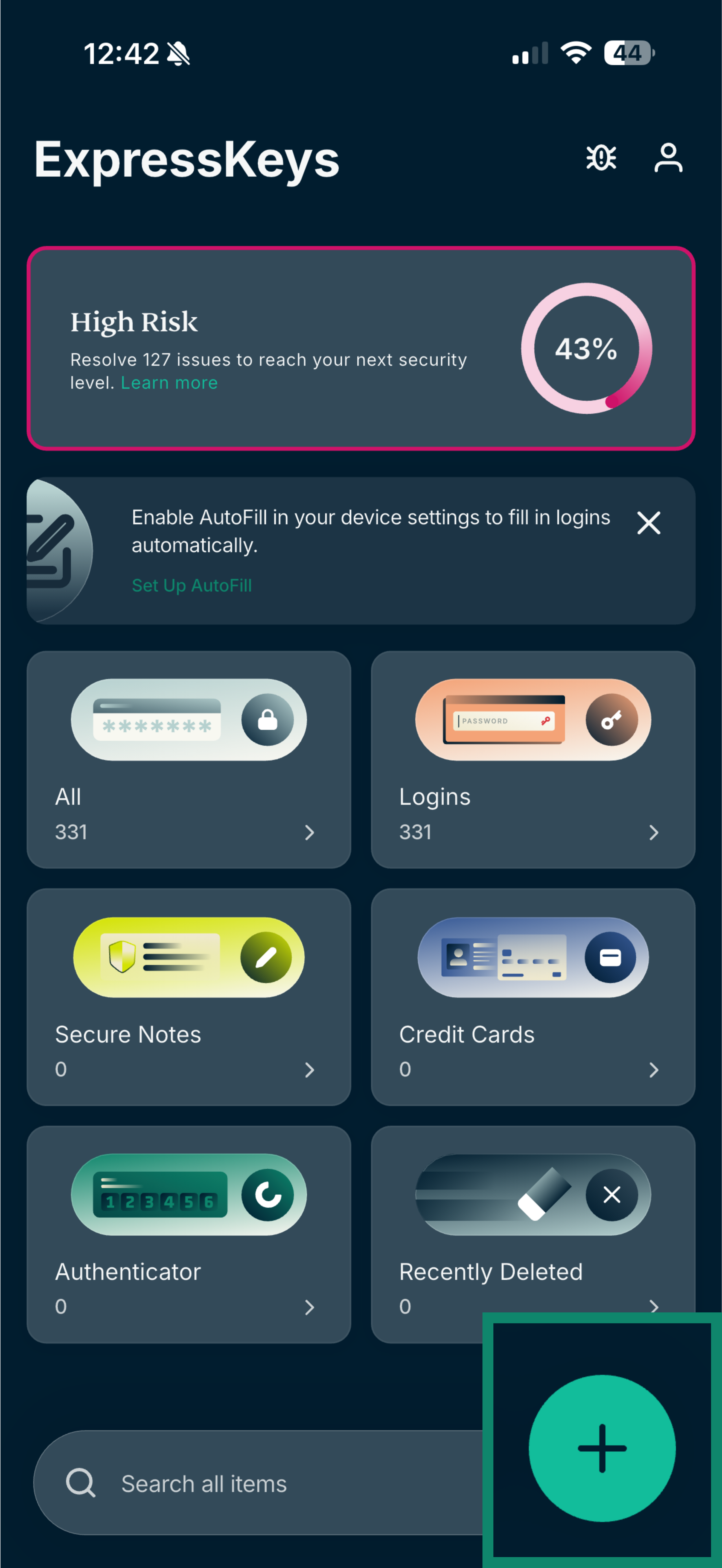
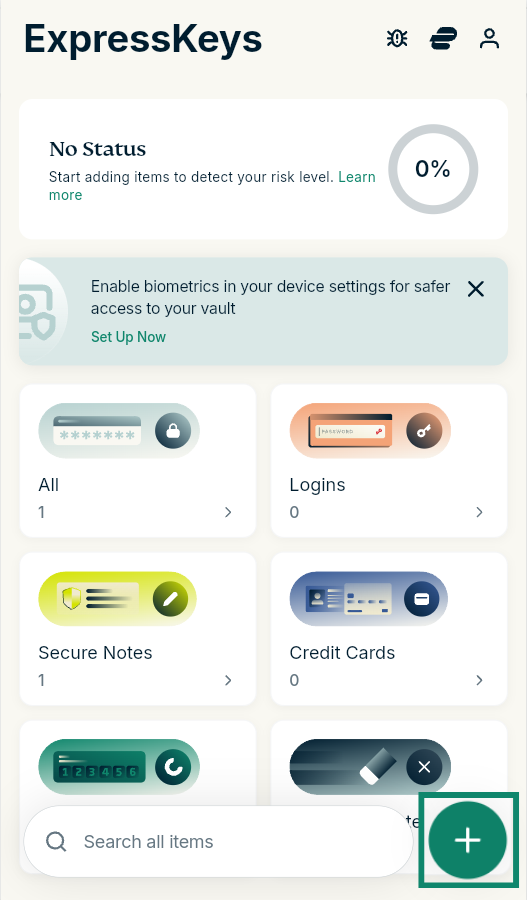
- Open the ExpressKeys app and tap the plus (

 ) icon.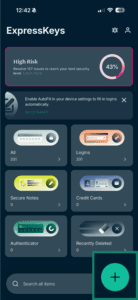

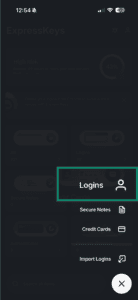
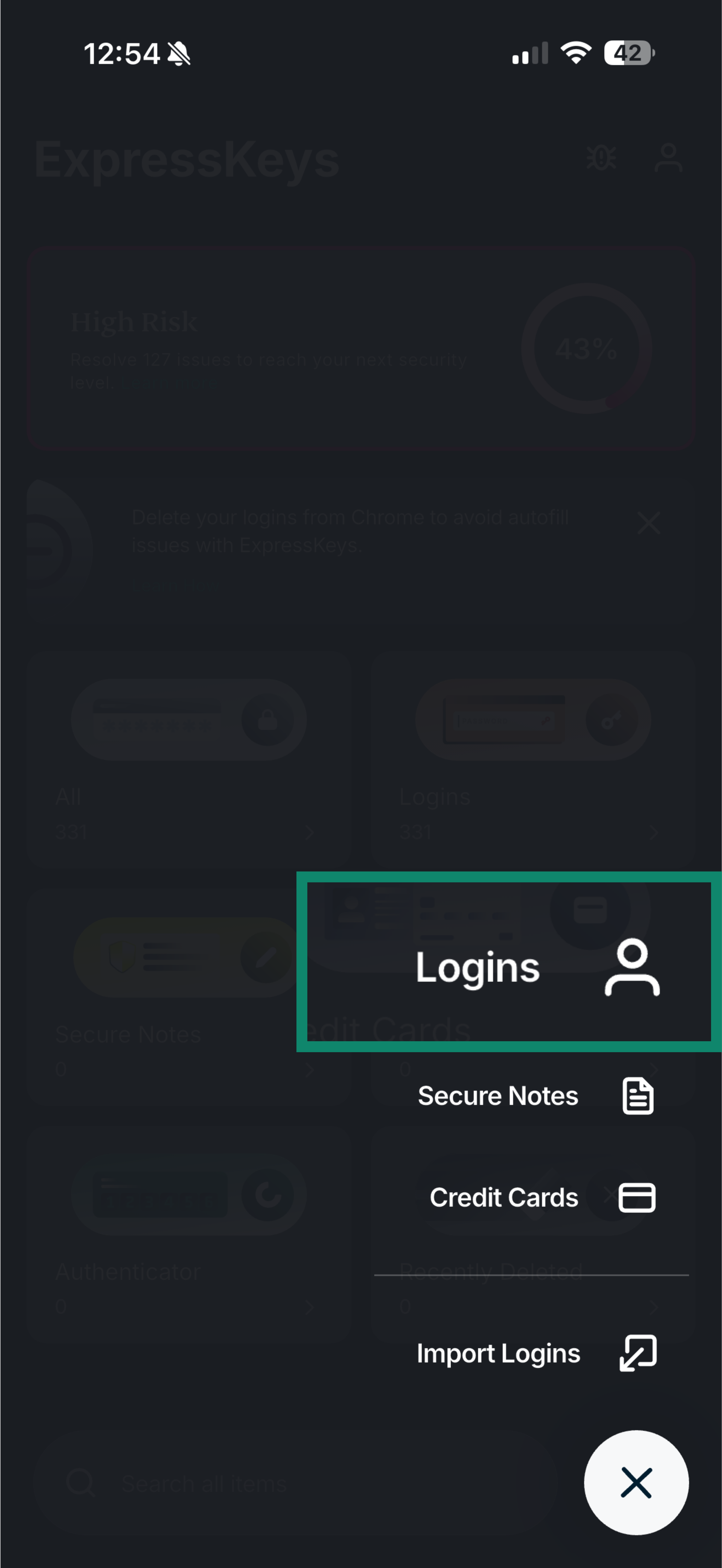
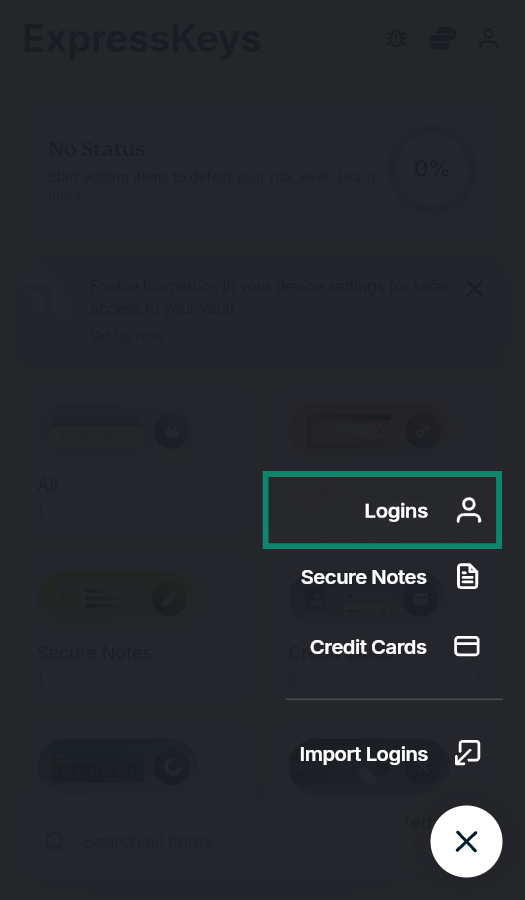
- Tap Logins.
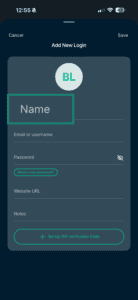
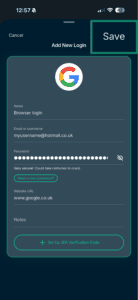
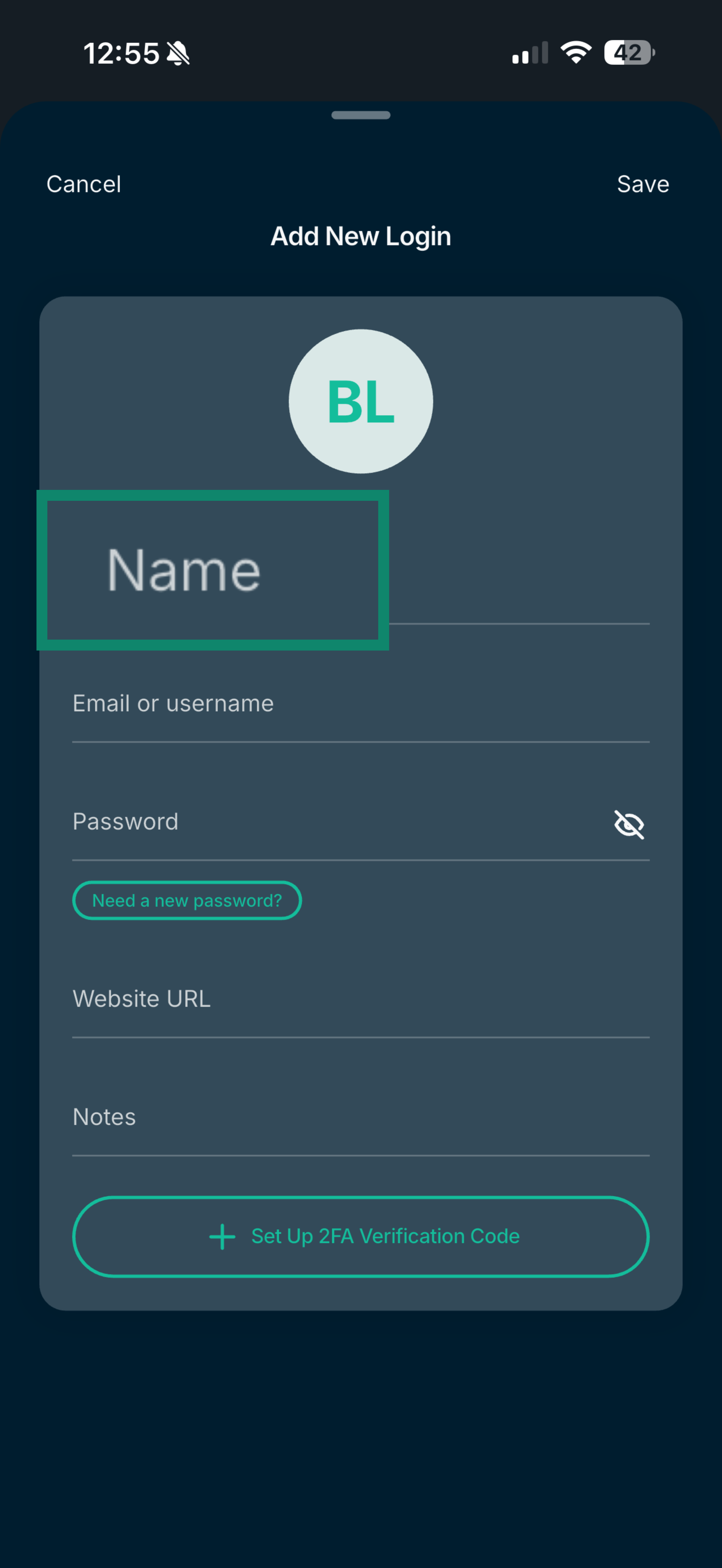
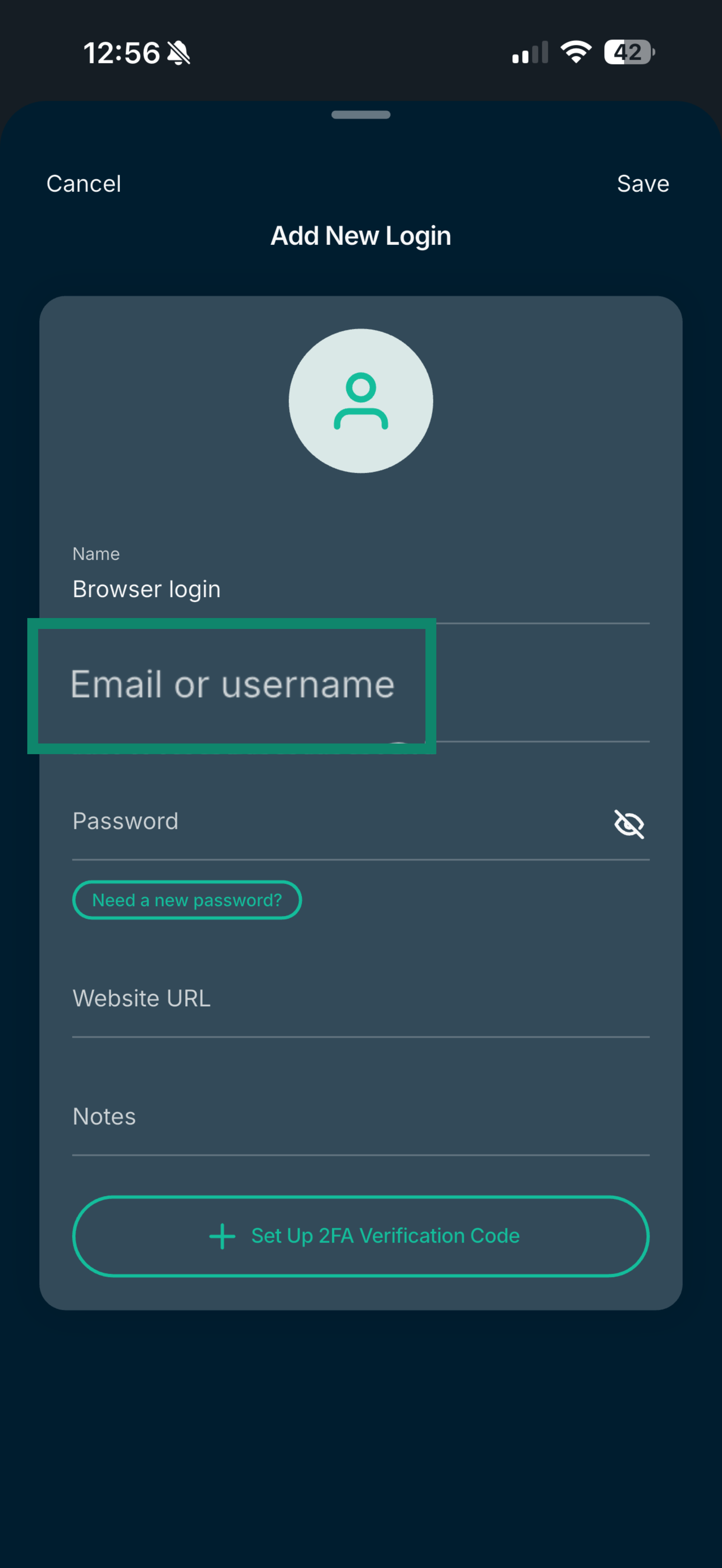
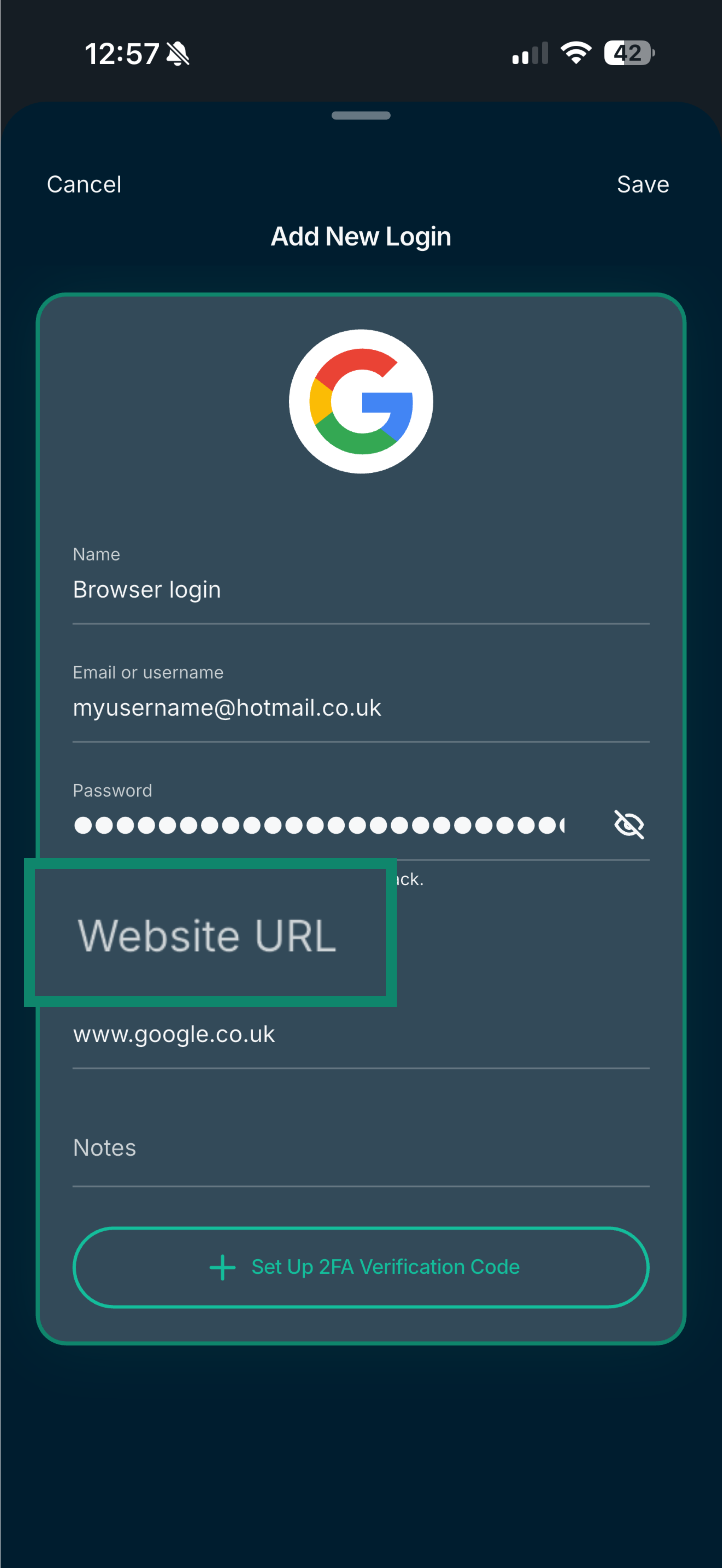
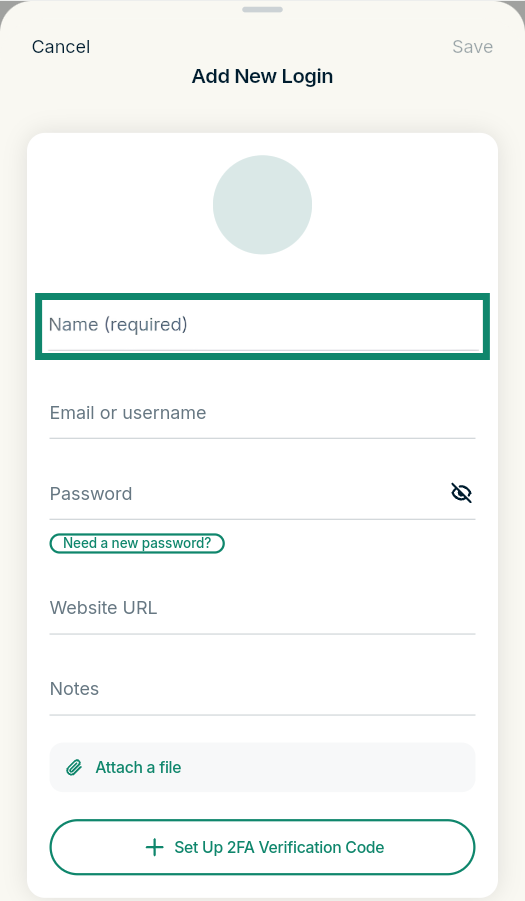
- Enter the Name of your login, e.g., browser login.
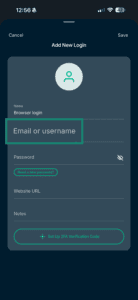
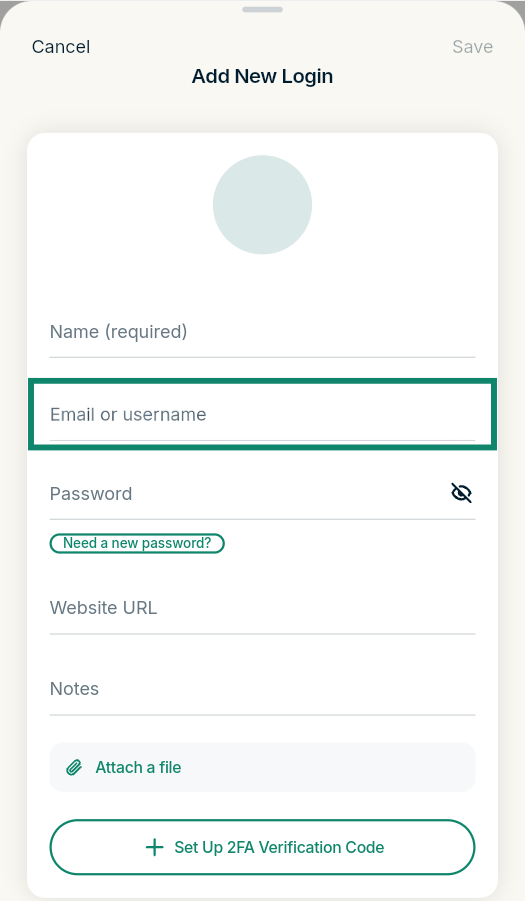
- Fill in the Email or username field.
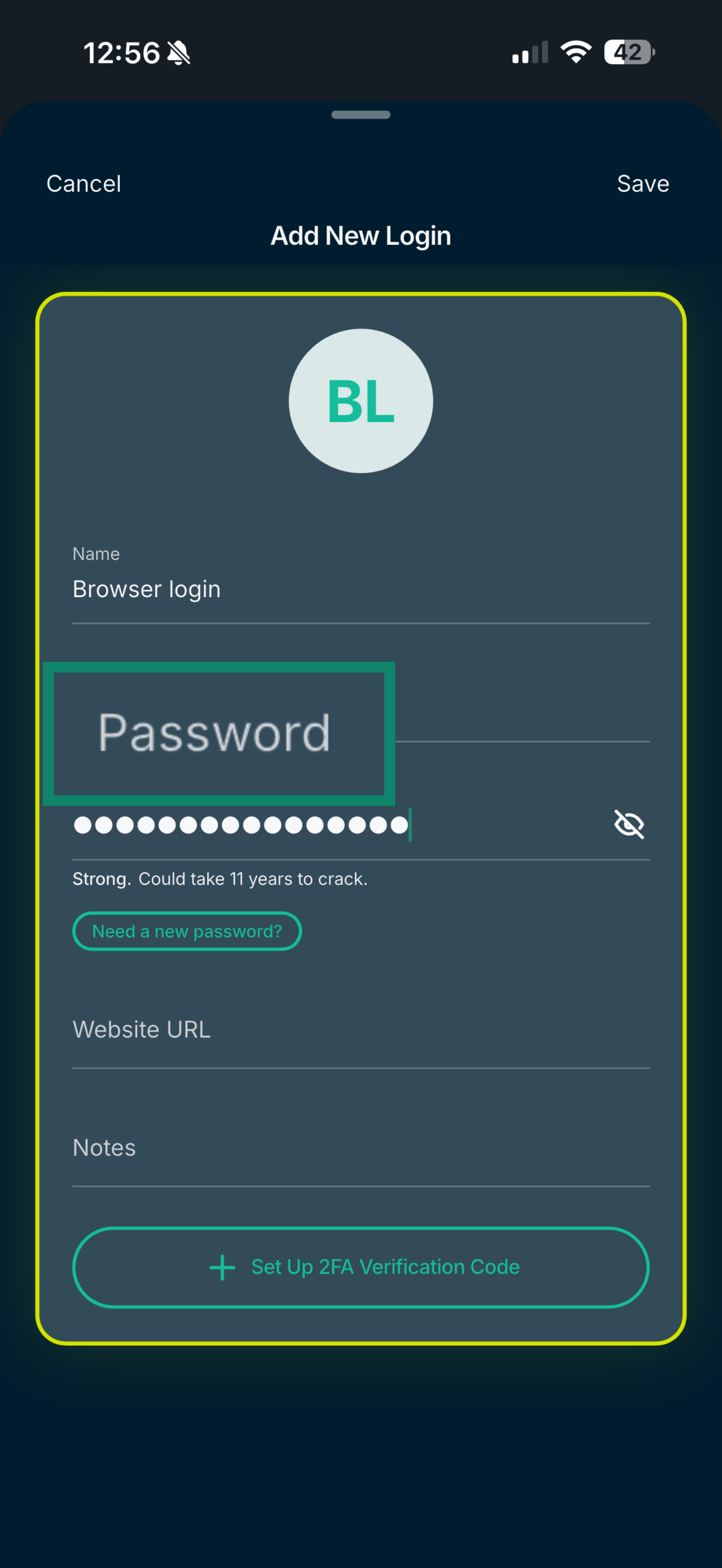
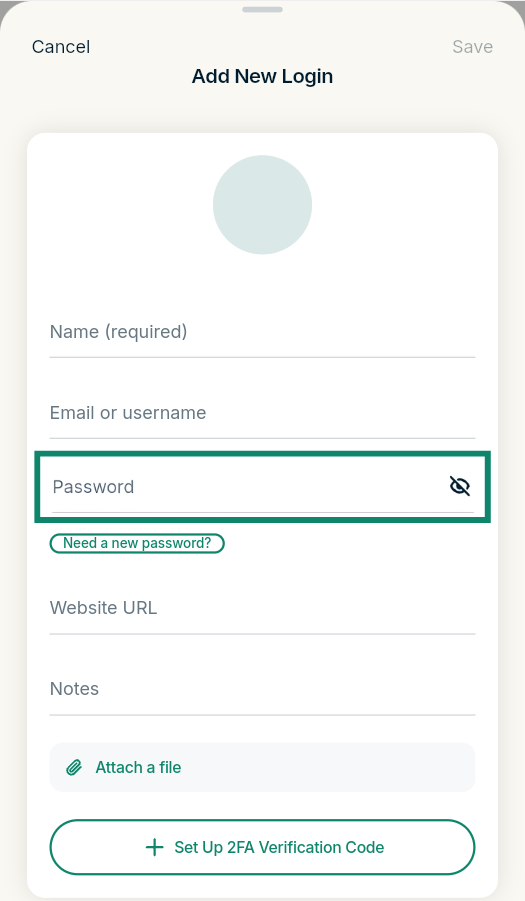
- Enter the Password.
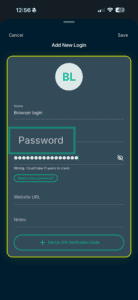
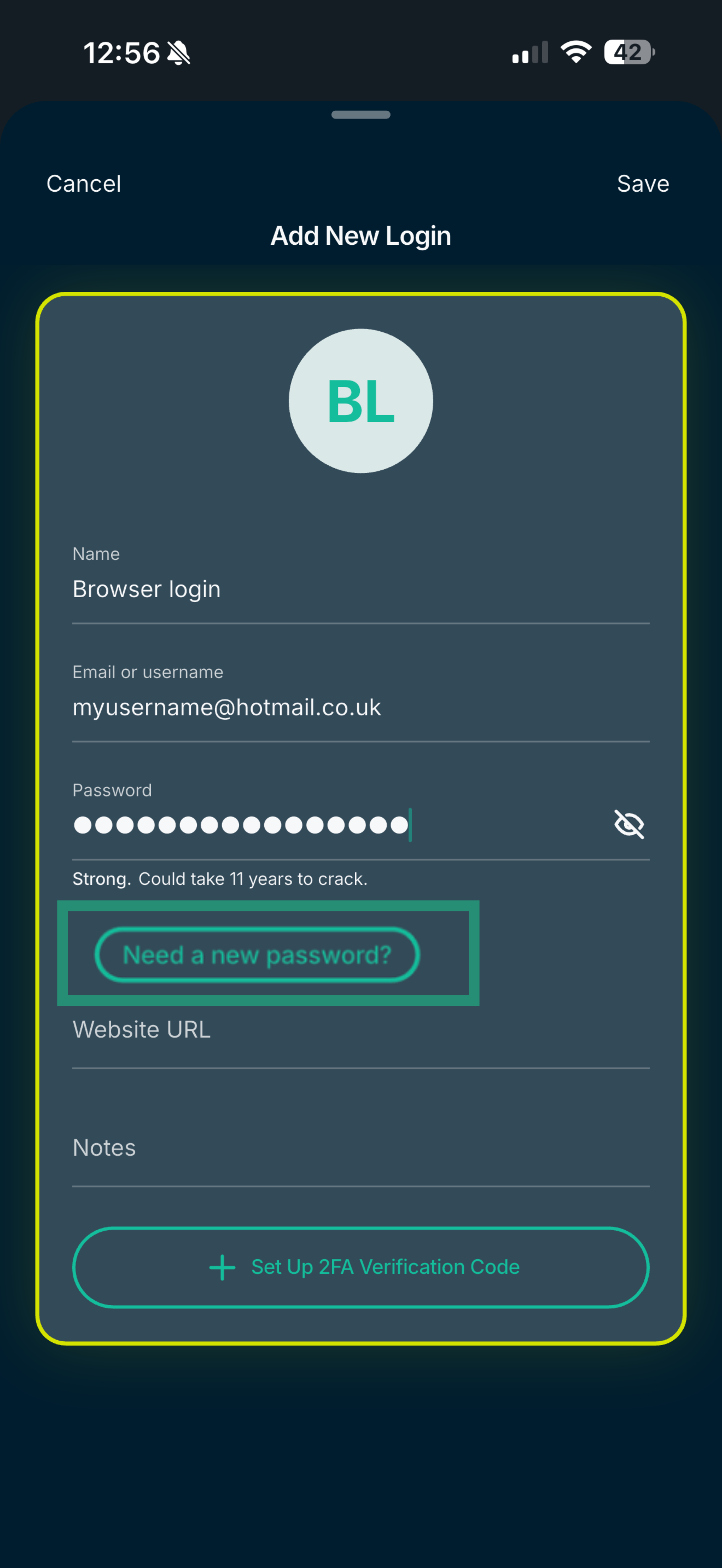
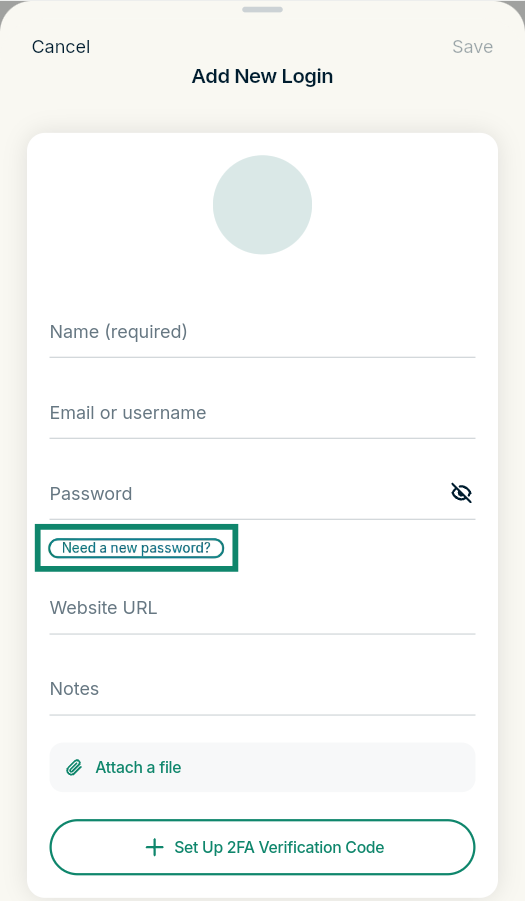
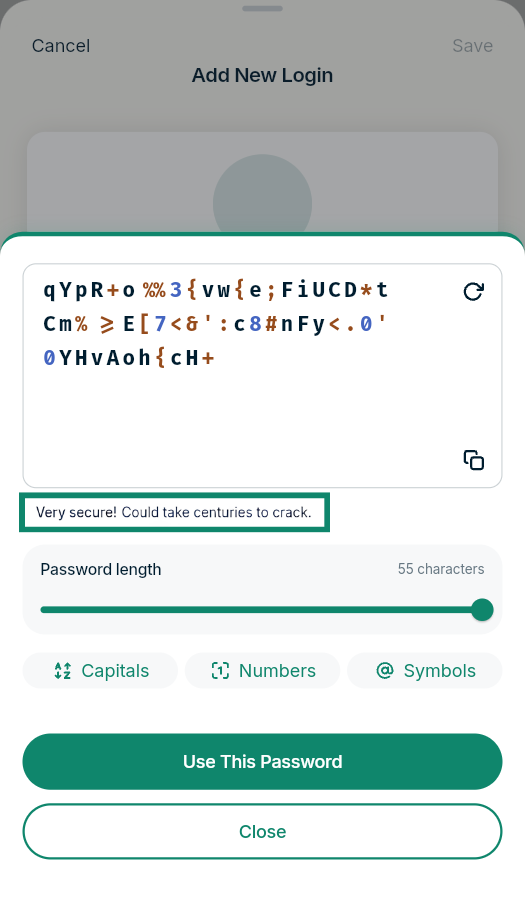
- If you want to generate a new, random password, tap Need a new password.
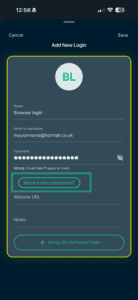
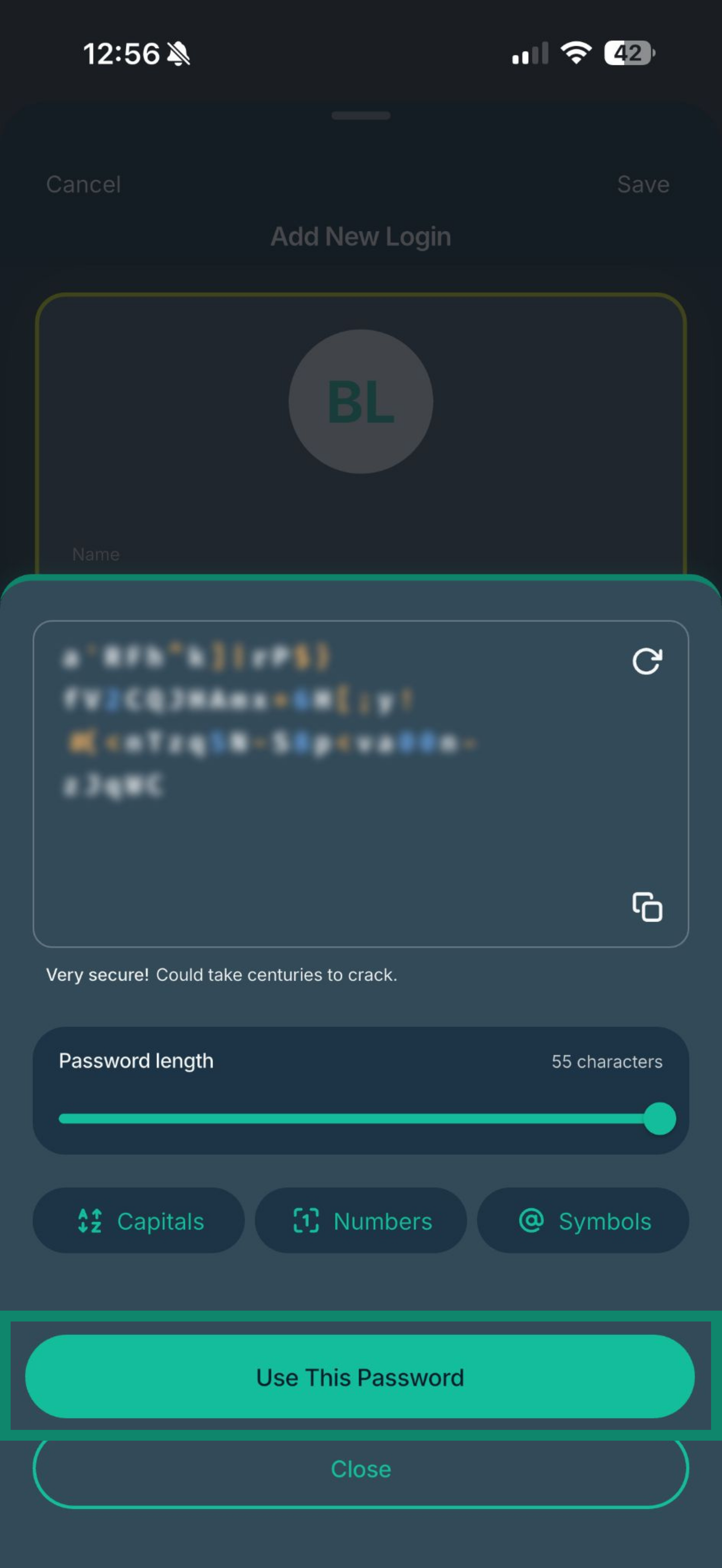
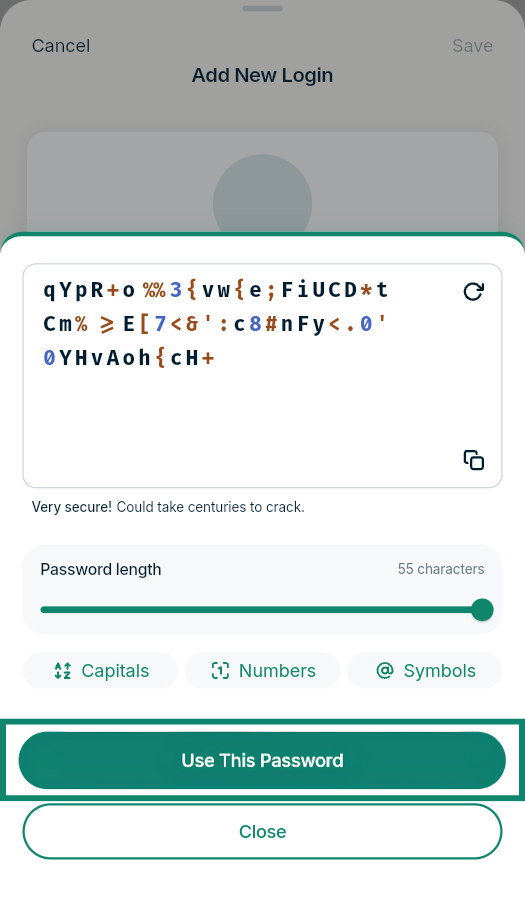
- Tap Use This Password.
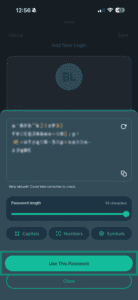
- If you want to generate a new, random password, tap Need a new password.
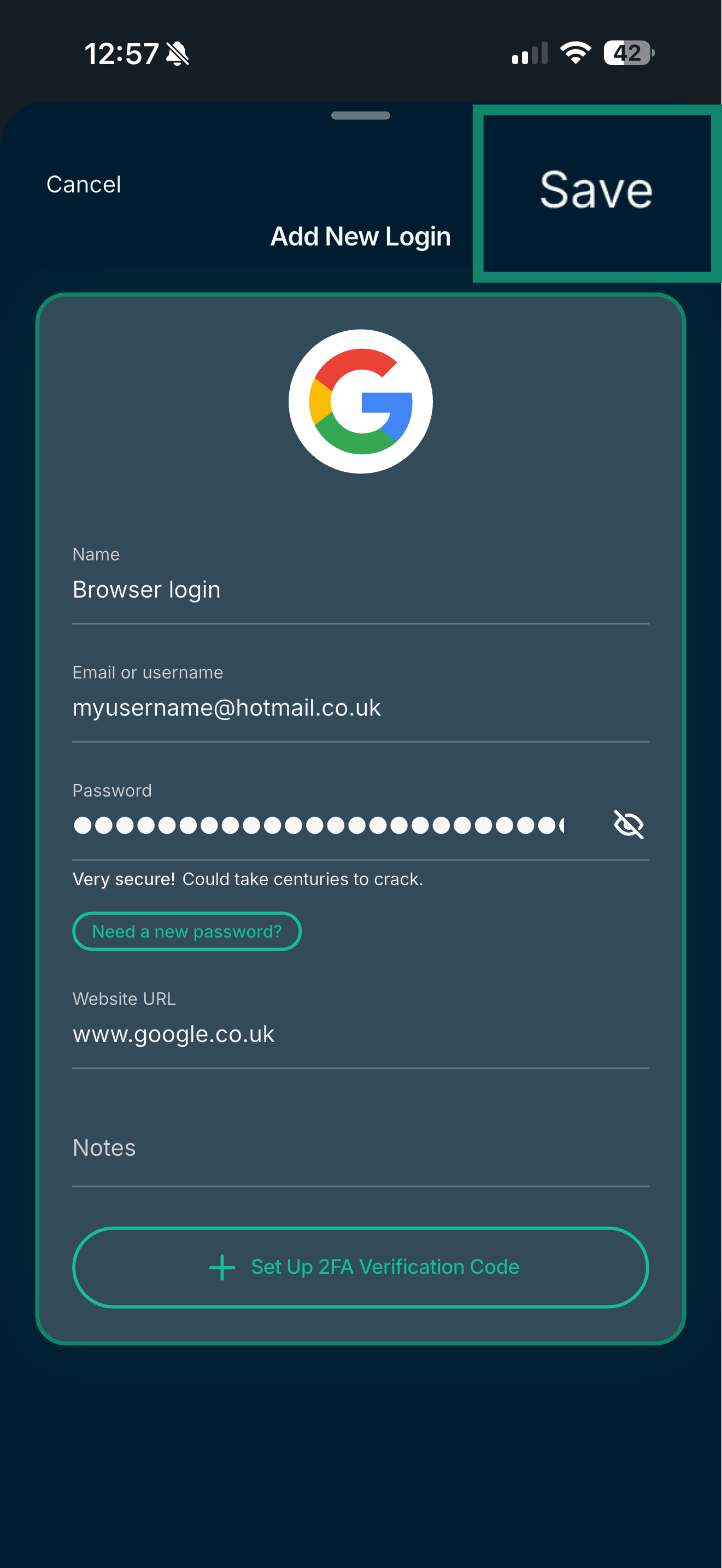
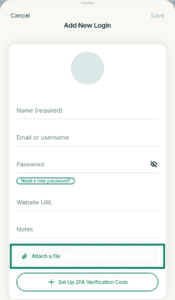
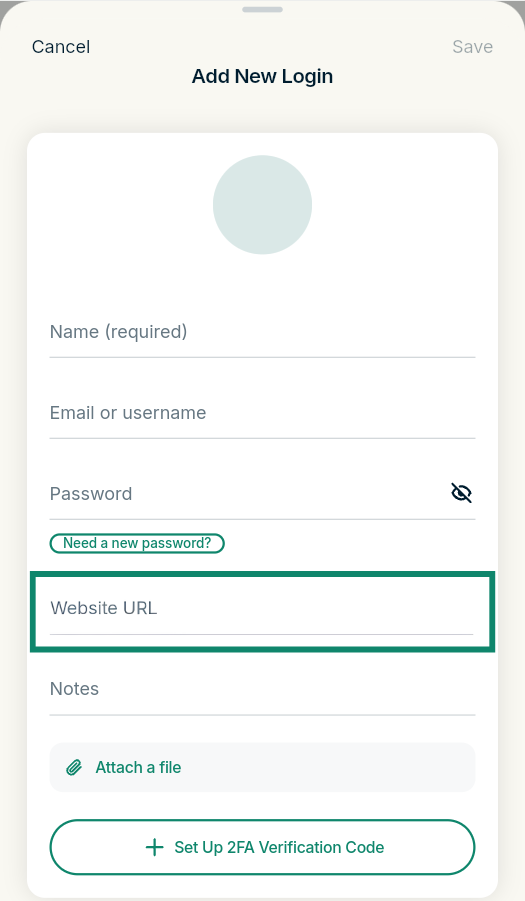
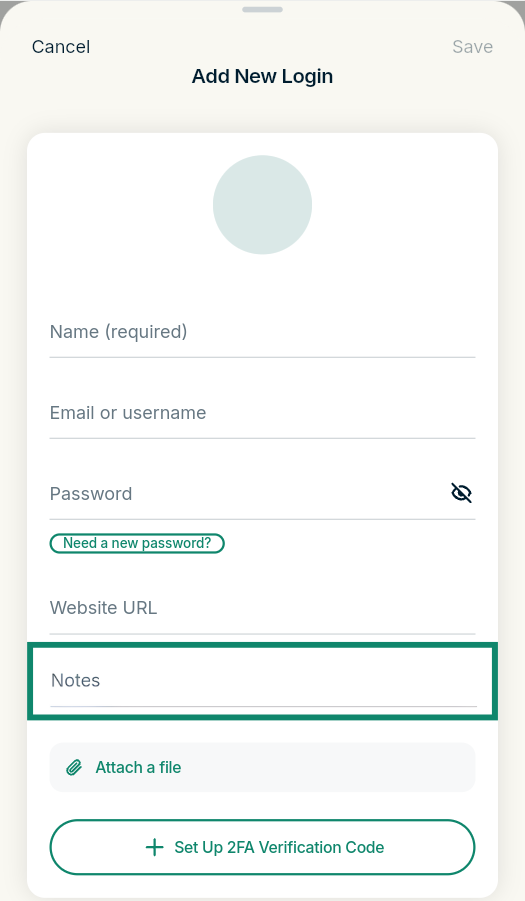
- Fill in the Website URL field and any notes you want to add about the login.
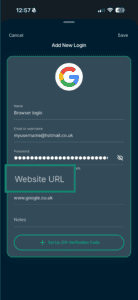
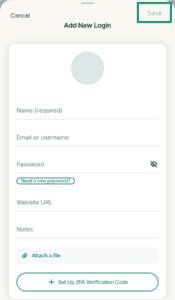
- Tap Save.
After entering your login details, you can enable autofill so ExpressKeys automatically fills in your information when you sign in to apps and websites.
You can also add and generate two-factor authentication (2FA) codes in ExpressKeys for your logins.
Need help? Contact the ExpressVPN Support Team for immediate assistance.
How to save a login to the ExpressKeys browser extension
To save a login in the ExpressKeys browser extension:
- Open ExpressKeys and unlock your vault.
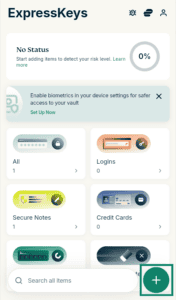
- Click the plus icon (+).

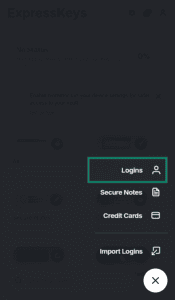
- Select Logins.

- Enter the Name of your login, for example, “bank login.”
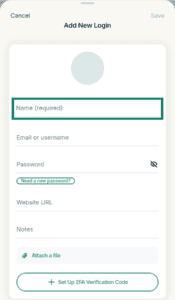
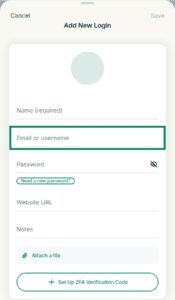
- Fill in the Email or username field.
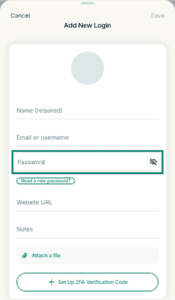
- Type in the Password.
 Optional: Generate a strong password
Under the Password field, click Need a new password? to open the built-in password generator.
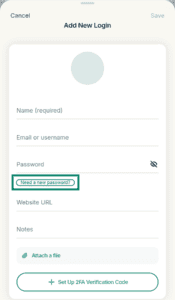 Change password settings as you like. For maximum security, change settings until you see a message saying “Very secure! Could take centuries to crack.”
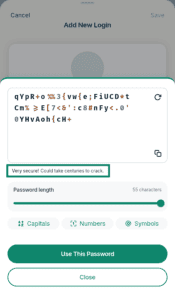 Click Use this Password.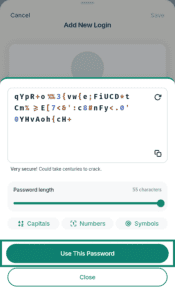
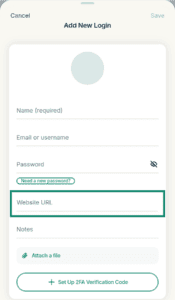
Note: Updating a password in ExpressKeys only changes the saved password in your password manager. It does not change the actual password for the website or account. To fully update your password, make sure you also change it in the account’s or website’s settings. - Enter the website address in the Website URL field.
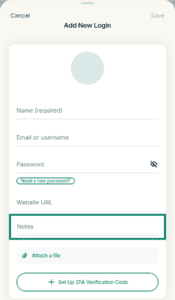
- Type in any Notes you would like to add about the login.
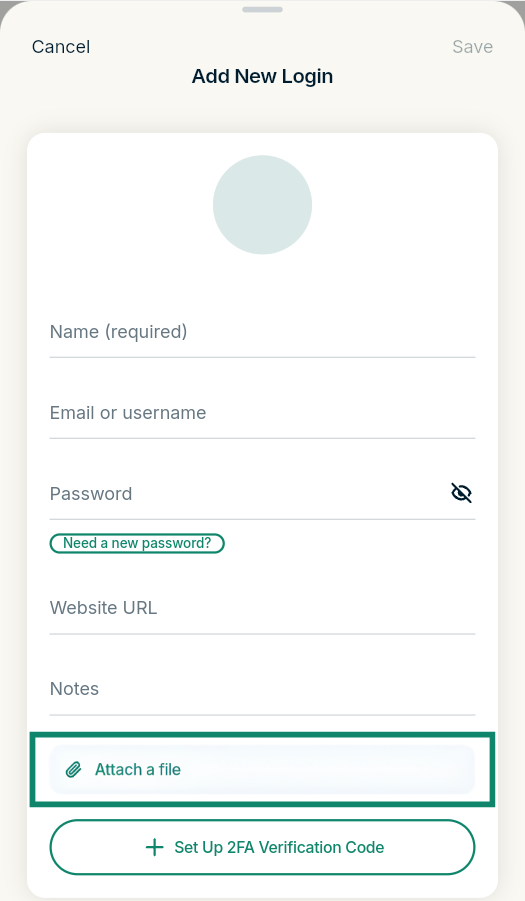
- If you would like to attach a relevant file, click Attach a file and select the desired option. You can select a photo or file from your computer.
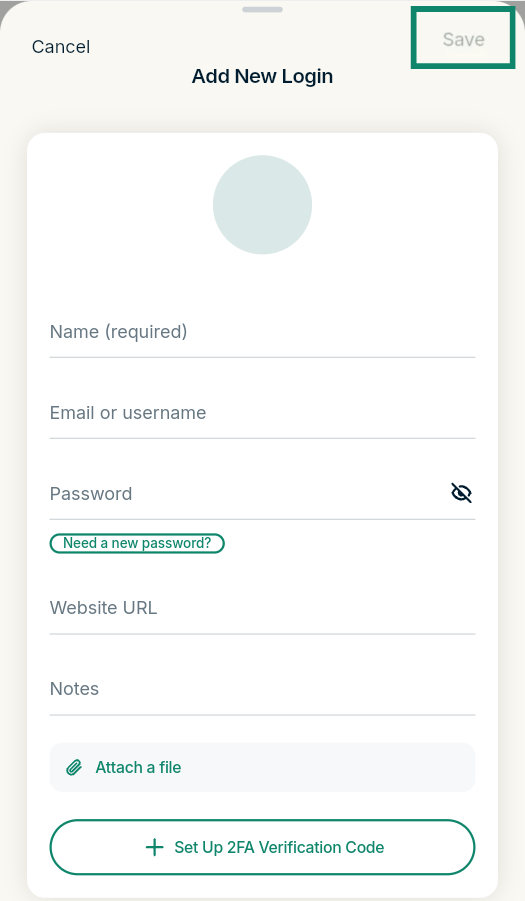
- Once finished, click Save.
Need help? Contact the ExpressVPN Support Team for immediate assistance.