



To use our apps and configurations, please sign up for an ExpressVPN account first.
This guide will show you how to find the default sign-in details for Asus, Linksys, Netgear, and ExpressVPN Aircove routers.
Jump to…
Asus
Linksys
Netgear
ExpressVPN Aircove
ExpressVPN Aircove Go
Asus
Default network name and password
You can find the default network name next to 2.4GHz SSID and 5GHz SSID on the bottom of your Asus router.
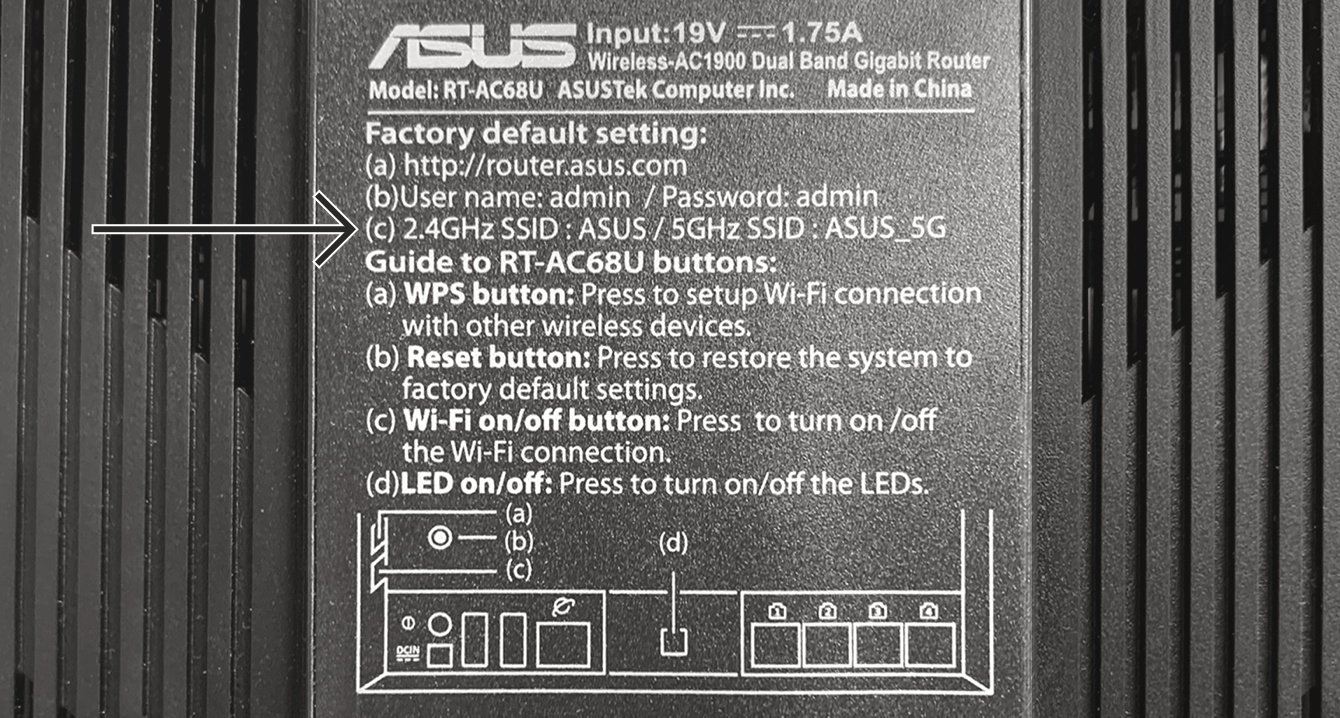
You can also find the default network password next to PIN CODE. Note that this information can appear on a separate label.

If the PIN code is not printed on your router, you can find it in your Asus router’s settings:
- To access your Asus router’s settings, go to asusrouter.com or enter 192.168.1.1 or 192.168.50.1 (for some routers) into your browser’s address bar. (If your router’s IP address was changed in the past, and you cannot remember it, you can find it in your device’s settings).
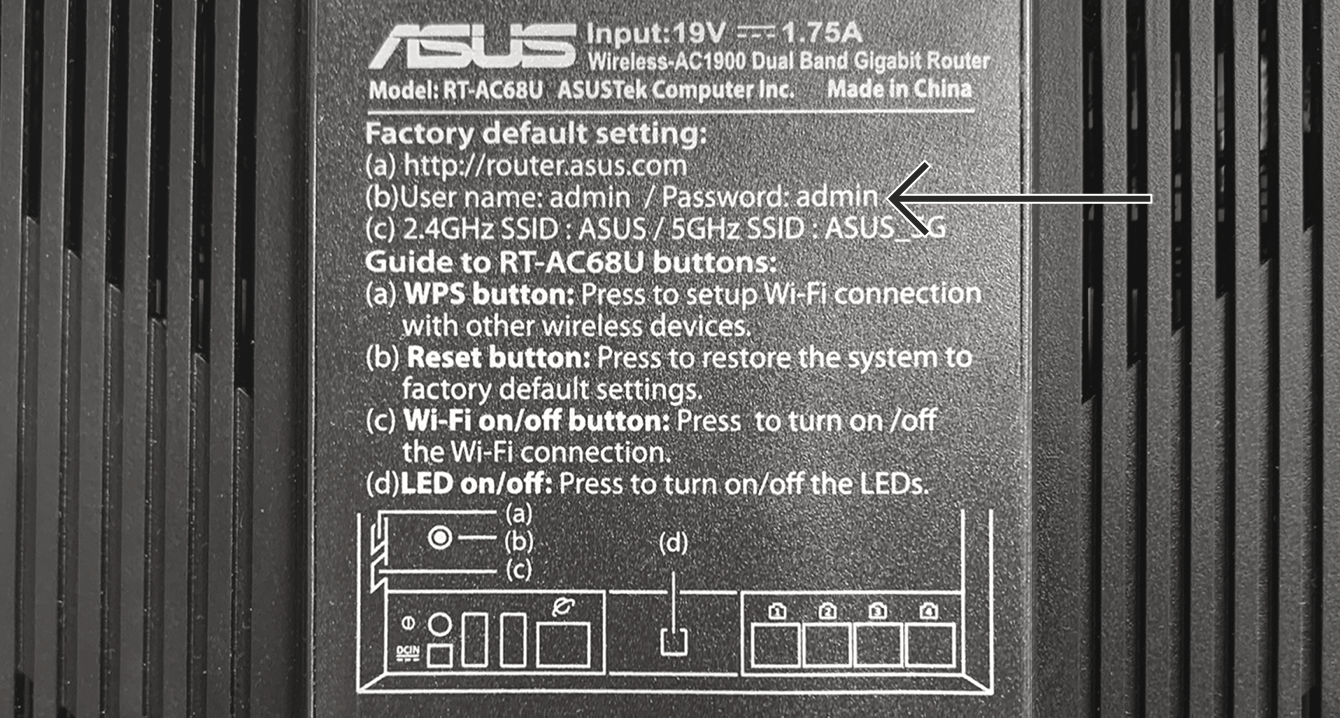
- When prompted, enter your router admin username and password to log in. You can find these on the label on the bottom of your router. If no credentials are shown on the label, the default username and password should both be admin.
- You can see the default network password under PIN code.
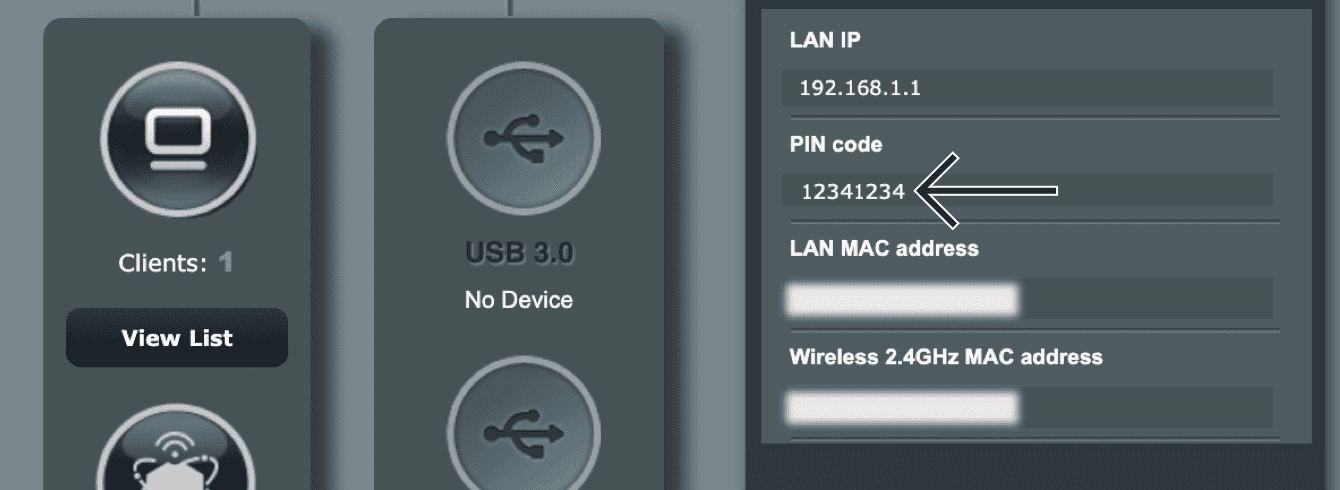
If you are unable to access your router’s settings, reset your router to factory default settings to reset your network password.
Default router admin password
To sign in to the ExpressVPN router dashboard, you will be prompted to enter your router admin password.
You can find the default router admin password on the bottom of your Asus router. If no password is shown on the label, the default password should be admin. If you’ve changed the password and don’t remember it, reset the router to factory settings. This will restore your router admin password to its default so you can log in again.
Need help? Contact the ExpressVPN Support Team for immediate assistance.
Linksys
Default network name and password
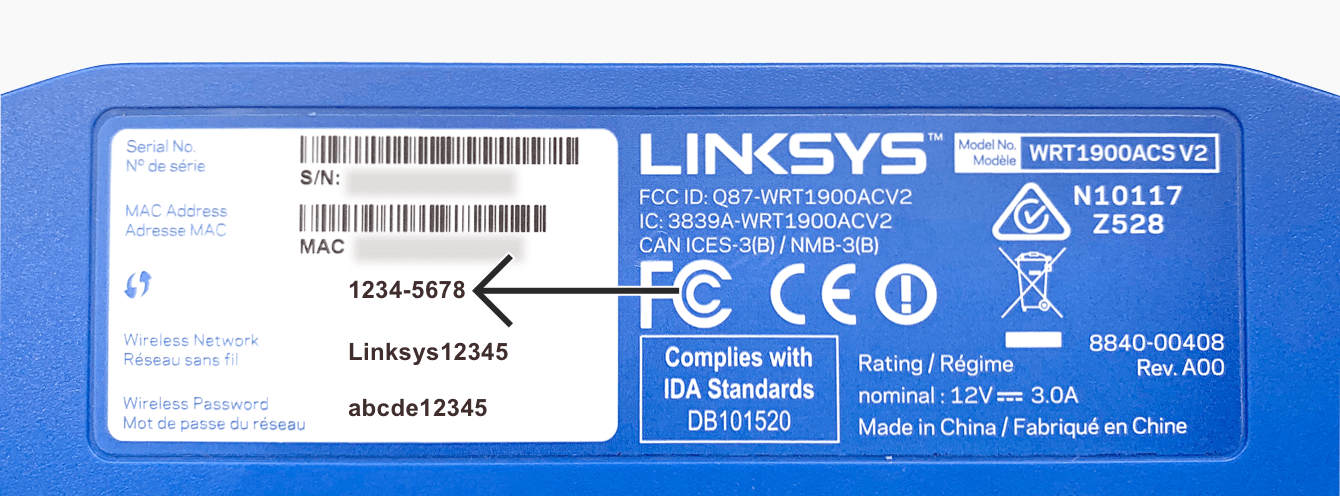
You can find the default network name next to Wireless Network on the bottom of your Linksys router.
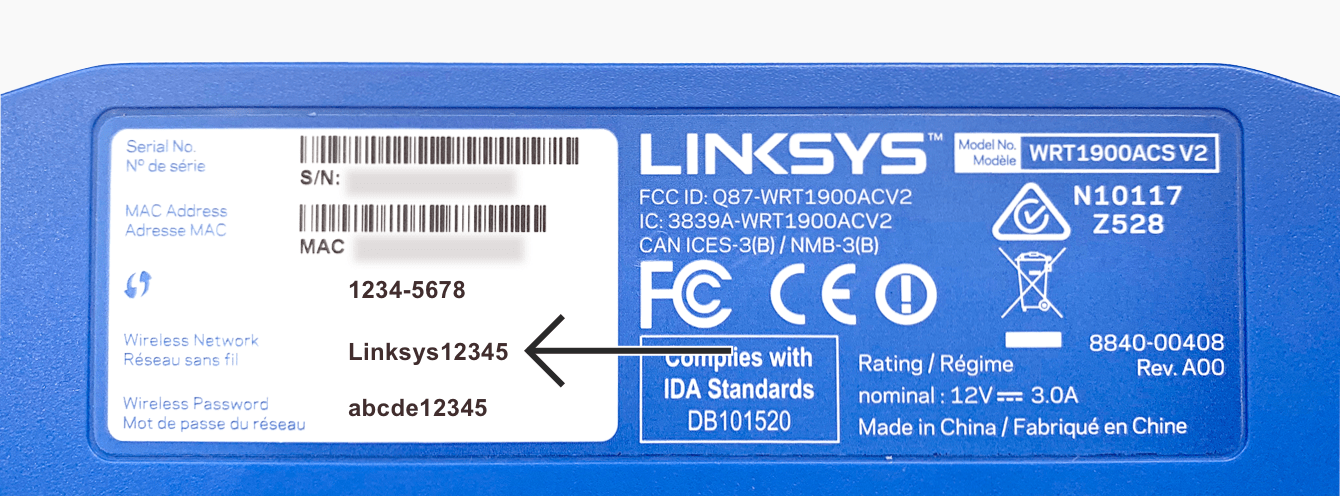
You can also find the default network password next to Wireless Password on the same sticker.
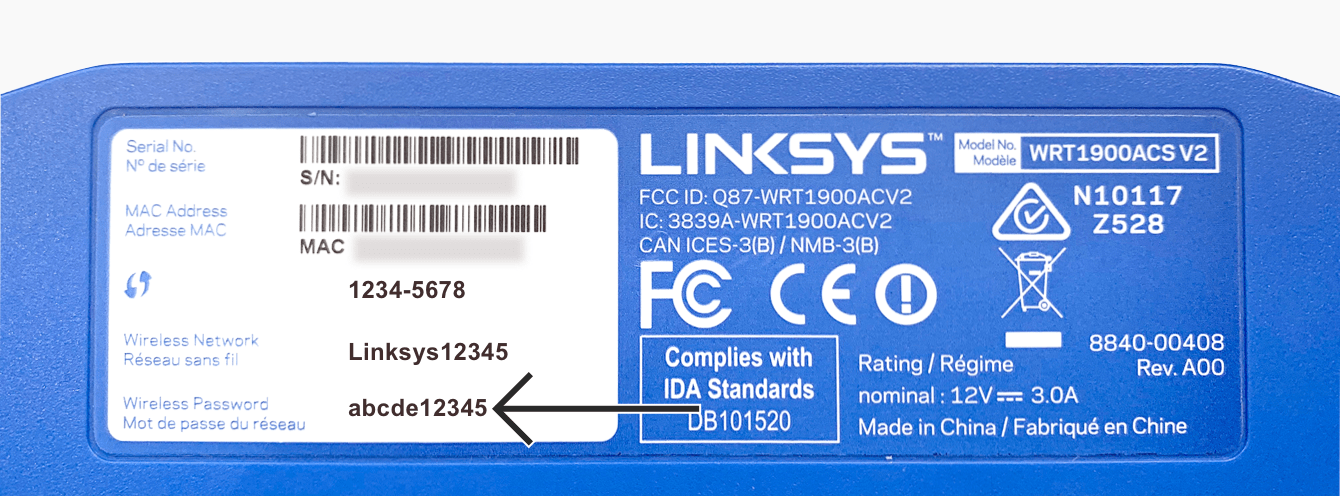
If you are unable to access your router’s settings, reset your router to factory default settings. Your network password will then revert to the default printed on the label on the bottom of your router.
Default router admin password
To sign in to the ExpressVPN router dashboard, you will be prompted to enter your router admin password.
You can find the default router admin password on the bottom of your Linksys router.
Need help? Contact the ExpressVPN Support Team for immediate assistance.
Netgear
Default network name and password
You can find the default network name below WiFi Network Name (SSID) on the bottom of your Netgear router.
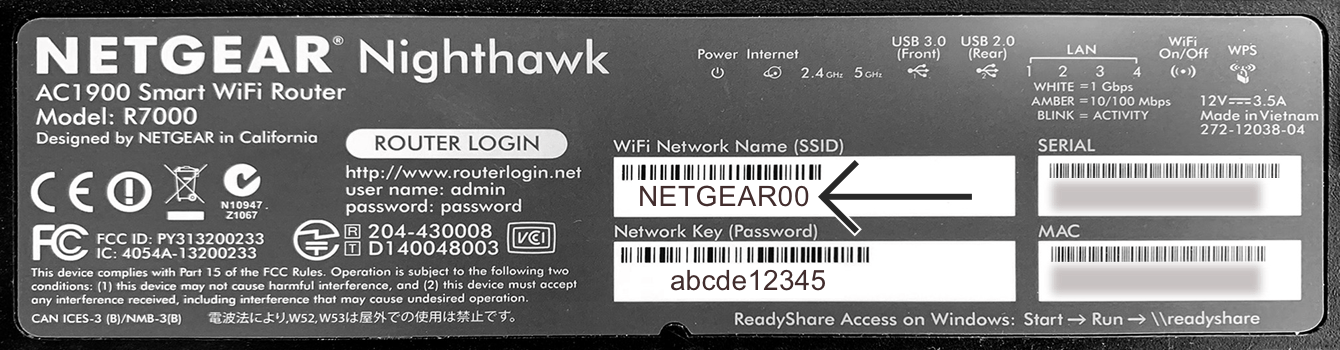
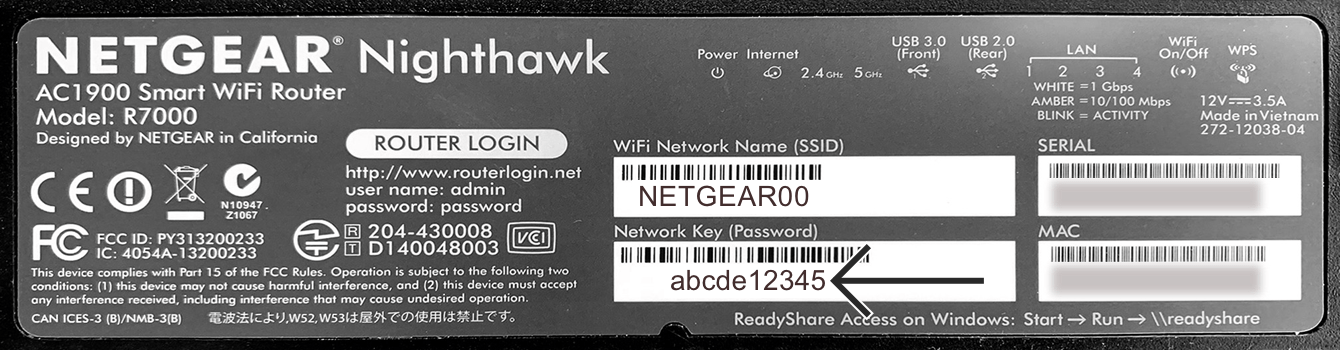
You can also find the default network password below Network Key (Password) on the same sticker.
Default router admin password
To sign in to the ExpressVPN router dashboard, you will be prompted to enter your router admin password.
You can find the default router admin password next to Password on the bottom of your Netgear router.
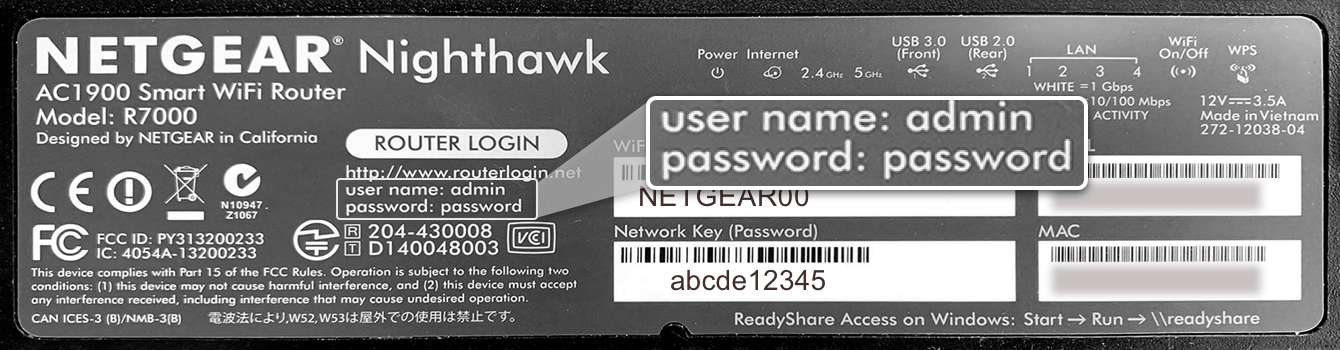
If the label doesn’t include router login information, the default username should be admin and the default password password.
If you’ve changed your admin password and can’t remember it, you can reset your router to factory default settings. After a factory reset, your router’s admin username, admin password, WiFi network name (SSID), WiFi password, and security settings will all return to their factory defaults.
Need help? Contact the ExpressVPN Support Team for immediate assistance.
ExpressVPN Aircove
You can find your default Wi-Fi name and password on the bottom of your Aircove router.

Once you login to the Wi-FI, navigate to expressvpnrouter.com to configure your router’s Wi-Fi and admin password.
Need help? Contact the ExpressVPN Support Team for immediate assistance.
ExpressVPN Aircove Go
You can find your default Wi-Fi name and password on the bottom of your Aircove Go.

Once you have connected to the Wi-Fi network, you can go to expressvpnrouter.com to configure your router’s settings.
Need help? Contact the ExpressVPN Support Team for immediate assistance.