How to transfer files from PC to PC: 6 fast and secure methods


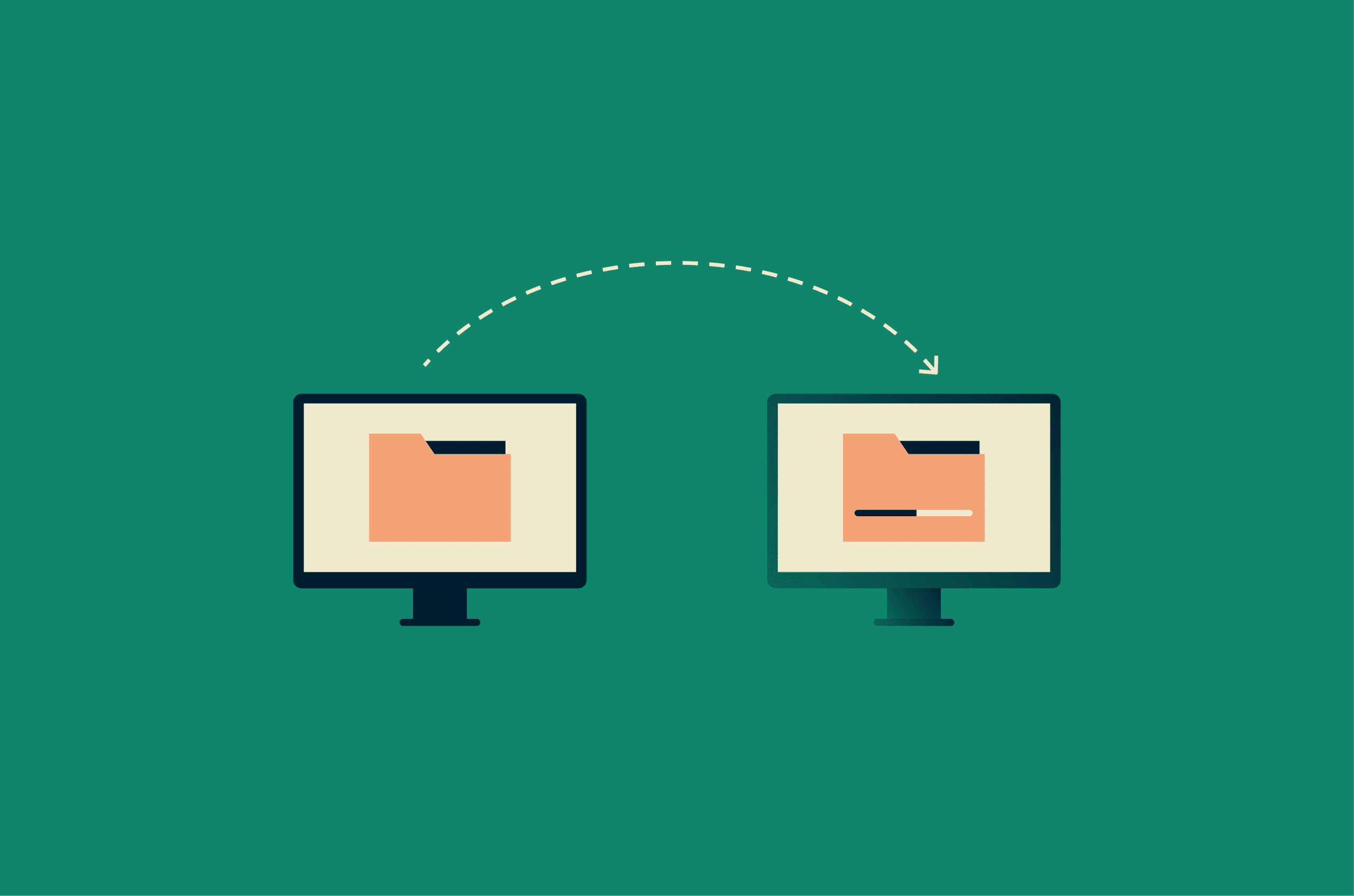
Transferring files from one PC to another doesn’t have to be slow or risky. Whether you’re moving documents, photos, or large projects, choosing the right method can save time and reduce the risk of errors or data loss.
In this guide, we’ll cover several practical ways to transfer files, from simple drag-and-drop tools to network-based solutions and cloud services. You’ll get step-by-step instructions for each method, along with tips to help you choose the right approach for your setup.
Method 1: Transfer files over a network
Network-based transfers let you move files between PCs without needing physical storage. You can use Wi-Fi, Bluetooth, or a local area network (LAN) connection to share content directly. Below are three common approaches.
Wi-Fi or Bluetooth with Nearby Sharing
Nearby Sharing is ideal for quick transfers between two PCs that are in the same room or building. It works well for documents, photos, and smaller folders when you want to avoid cables or external drives. It’s simple enough for beginners and is available for all Windows devices.
Steps:
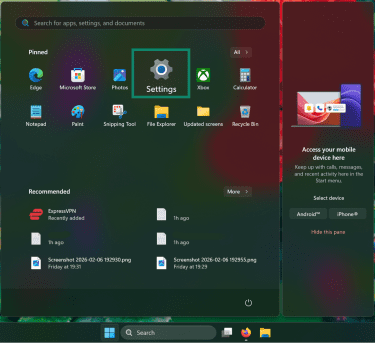
- Open the Start menu and select Settings.
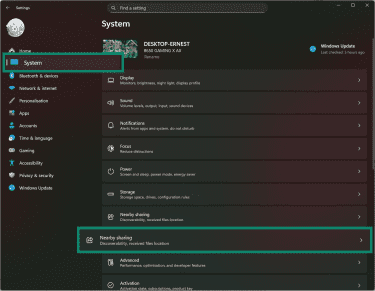
- Click System in the left sidebar, and select Nearby Sharing.
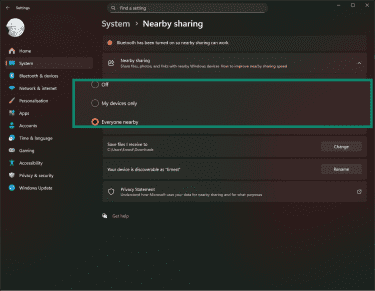
- Select the devices you want to be able to share or receive content from.
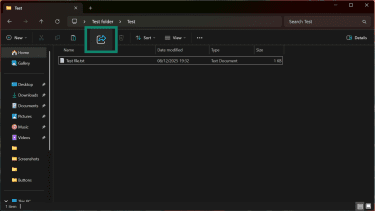
- On the sending PC, click the file you want to send and click the Share icon at the top bar.
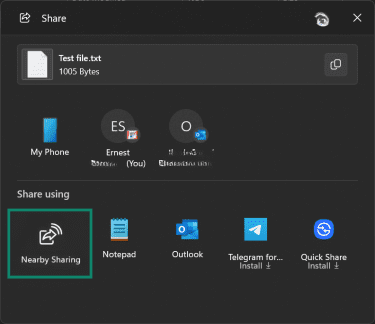
- Select Nearby Sharing from the list under Share using.
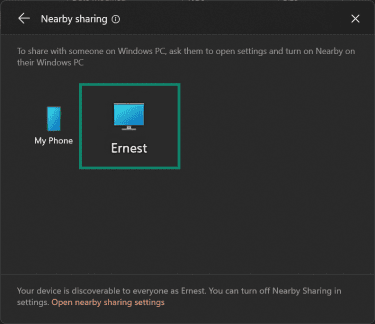
- Choose the receiving PC from the list of available devices.
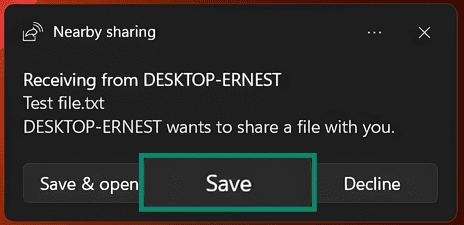
- On the receiving PC, select Save to accept the transfer request.
Tips when transferring files using Wi-Fi or Bluetooth
- Transfer speeds can be slow when dealing with many files.
- Ensure both PCs have sharing enabled and remain within range throughout the transfer.
- Using public Wi-Fi could increase your exposure to attacks, so you may want to take extra security precautions when transferring files on these networks.
LAN connection with File Explorer
Using a LAN connection works best in office or home networks where multiple PCs are connected through the same router. It’s great when you need to move large folders quickly since it uses protocols like Server Message Block (SMB) to access files stored on the same network.
Steps:
- Connect both PCs to the same network.
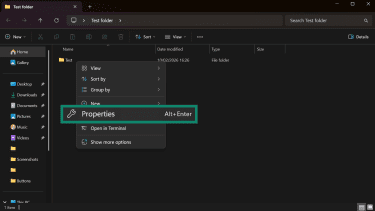
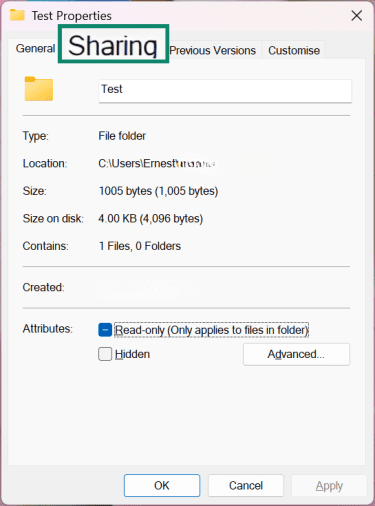
- On the sending PC, right-click the folder you want to share, select Properties.
- Go to the Sharing tab.
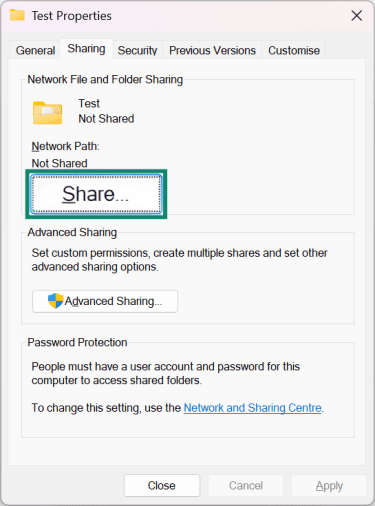
- Click the Share… button under Network File and Folder Sharing.
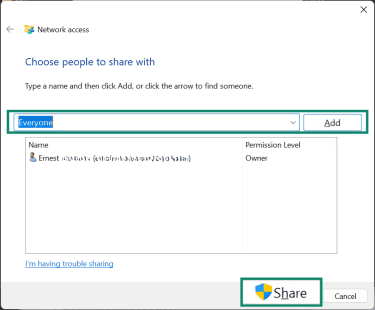
- In the Network access window’s dropdown field, select or enter the name of the receiving PC and click Add. Then click Share.
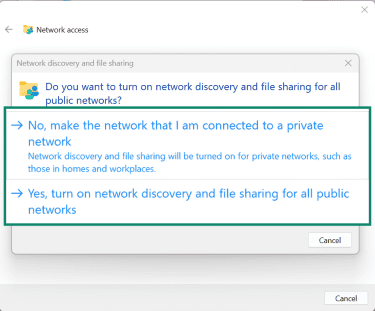
- Select the appropriate network discovery settings for your LAN. It’s highly recommended to enable file sharing only for private networks to prevent shared folders and files from being visible to others on different networks.
- On the receiving PC, open File Explorer and click Network in the left sidebar to see a list of PCs on the same network. Click the name of the sending PC to access the shared folder.
Tips when sharing files over LAN
- Use a wired connection whenever transfer speed is critical. It’s more stable than wireless because it’s less prone to interference, signal drops, or range issues, ensuring large files transfer reliably without interruptions.
- Verify Network Discovery is turned on in Windows settings if the folder doesn’t appear automatically.
- Firewalls and routers can block transfers unexpectedly. Check if the transfer requires open ports and permissions to help prevent failures and troubleshooting issues.
Method 2: Transfer files using external storage devices
Using external storage is one of the simplest and most versatile ways to move files between PCs. It works well whether you’re transferring a few documents or entire folders; all you need is a USB drive, external hard drive, or SSD with enough space for your files.
This method is perfect for users who need a quick, portable solution. It’s especially useful for moving files between PCs that aren’t on the same network or when you want a backup copy while transferring data.
Steps:
- Connect the external storage device to the sending PC.
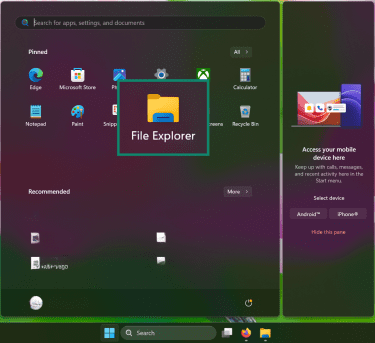
- Click the Start menu and open File Explorer.
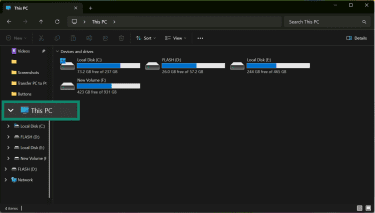
- Click on the This PC tab in the left sidebar to locate the external storage device.
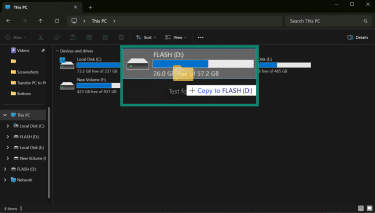
- Copy and paste or drag and drop the files you want to transfer.
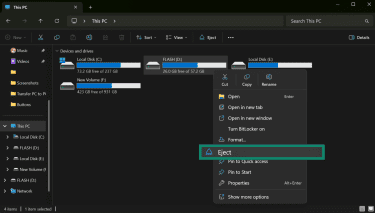
- After the file transfer, right-click the external drive. Select Eject to safely remove the external storage device from the sending PC.
- Connect the external storage and copy the files to the new PC.
Tips when transferring files using external storage
- Transfer speeds depend on the device and connection type, so older USB drives may be slow. Use USB 3.0 or higher to achieve faster transfer speeds, especially when moving large files or folders.
- Always safely eject the device to prevent data corruption or incomplete transfers.
- If you plan to reuse the portable storage, you may need to take extra steps to encrypt the flash drive to help protect sensitive information if the device is lost or accessed by others.
Method 3: Transfer files using cloud storage or web services
Cloud storage lets you move files between PCs without needing cables or physical devices. Services like Google Drive, OneDrive, Dropbox, or iCloud store your files online so you can access them from any PC with an internet connection. This method also provides a convenient backup while you transfer your data.
Cloud transfers are ideal if you want access to your files from multiple devices or locations. It works well for personal documents, photos, and smaller projects. However, transfer speed depends on your internet connection, and some services limit free storage space. It may also introduce cloud computing security concerns, like data exposure, that don’t exist with local transfers.
Steps:
- Sign in to your preferred cloud service (e.g., OneDrive, Google Drive, Dropbox) on the sending PC.
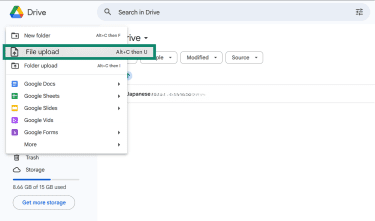
- Click on the File upload button.
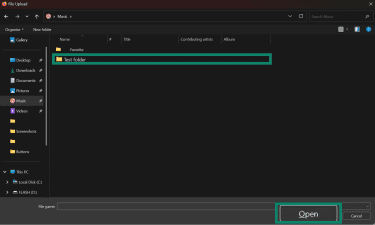
- Select the file you wish to upload and click the Open button.
- Sign in to the same cloud account on the receiving PC.
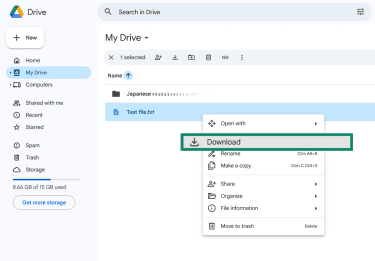
- Locate the uploaded files and download them to the desired location.
Tips when transferring files using cloud services
- Use a stable internet connection to improve upload and download speeds and reduce the chance of failed transfers.
- Enable two-factor authentication (2FA) to add an extra layer of security.
- Organize your folders before uploading to make cloud transfers smoother and easier to manage.
Method 4: Transfer files using an internal SSD (NVMe)
Transferring files using NVMe involves physically connecting a solid-state drive (SSD) from one PC to another. It’s especially fast for large amounts of data because it uses a direct connection to the system.
This method works best when upgrading or replacing a PC’s storage. It’s ideal for moving large files, entire user folders, or backups without relying on the internet or external drives. It’s also useful for tech-savvy users comfortable opening their PCs. If you prefer not to open your device, an NVMe-to-USB adapter provides a simpler alternative.
Steps:
- Remove the NVMe drive from the sending PC (or use an NVMe-to-USB adapter if you don’t want to open the PC).
- Connect the NVMe drive to the receiving PC using an available M.2 slot or the adapter.
- Open File Explorer on the receiving PC.
- Locate the connected drive and navigate to the files you want to copy.
- Copy or drag the files to the desired location on the receiving PC.
- Safely remove the drive when the transfer is complete. If you’re using an adapter, safely eject it before disconnecting. If the drive is installed internally, shut down the PC before removing it from the slot.
Tips when transferring files using NVMe
- Avoid touching the connector pins and handle the drive by its edges when installing or removing it.
- Make sure the receiving PC has enough available storage space before starting the transfer.
- If the drive contains sensitive data, consider creating a backup first to reduce the risk of data loss.
Method 5: Transfer files using email
Email is another simple way to transfer files between PCs that aren’t in the same location. It doesn’t require any extra hardware or software beyond your email account and a web browser.
Email transfers are best when you only need to move a few small files quickly. This method is perfect for personal documents, reports, or images that don’t exceed your email provider’s attachment limit. However, repeated use can clutter your inbox, and transfers also depend on internet speed.
Steps:
- Open your email client or email website on the sending PC.
- Compose a new message and attach the files you want to transfer.
- Send the email to yourself or another account you can access on the receiving PC.
- Open the email on the receiving PC.
- Download the attachments to the desired location.
Tips when transferring files using email
- Compress files into a ZIP folder if they’re close to the email attachment size limit.
- For larger files, split them into multiple emails or share a cloud storage link instead.
- Double-check that the files downloaded correctly before deleting the originals.
Method 6: Transfer files using PC migration software
If you’re replacing your computer rather than just moving a few files, dedicated PC migration tools can help transfer large amounts of data, settings, and, in some cases, applications between devices.
These tools are designed for full system setup, not quick file transfers. Some connect two PCs directly over a network or cable, while others use a backup-and-restore approach through a user account or cloud service.
Migration tools are most useful when moving to a new PC and want to bring over your files and settings, transferring entire user folders or large data sets, or reducing the need to manually copy files one by one.
However, they typically require more setup time and may not support every file type or application. For simple transfers, the methods above are usually faster and easier.
Tips when migrating files
- Make sure there’s enough space on the network location before starting the transfer. This is especially important when moving large amounts of data to avoid interruptions or incomplete transfers.
- LAN transfers are typically faster and more stable than wireless methods and less likely to be interrupted mid-transfer.
Factors to consider when choosing a file transfer method
Consider these points to pick the file transfer method that best fits your needs:
- Security needs: Determine how sensitive your files are and whether encryption or secure networks are required.
- Amount of data: Consider the size and number of files to transfer and whether the method can handle large volumes efficiently.
- Technical skill level: Choose a method that matches your comfort level with software, networks, or hardware.
- Budget: Some tools or software may require payment, while others are free but slower or less feature-rich.
- Transfer time: Think about how quickly you need the files moved and which methods are fastest for your situation.
- Portability: Decide whether you need a method that works across different locations or PCs.
- Compatibility: Ensure the method works with your operating systems, file types, and any applications involved.
- Reliability: Pick a method with a low risk of errors or interruptions, especially for critical or large files.
What you can and can’t transfer between PCs
When moving files from one PC to another, most personal files like documents, photos, videos, and music can be transferred easily. You can also move folders containing multiple files, and some applications may allow you to copy configuration files or user settings.
However, some items can’t be transferred directly. Installed programs usually need to be reinstalled on the new PC rather than copied directly. System files, certain temporary folders, and some applications with licensing restrictions can’t simply be dragged over.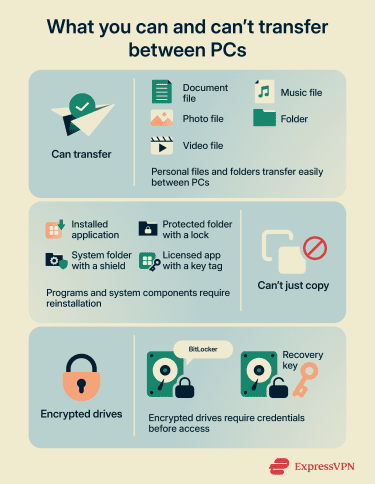
Another consideration is that files stored on encrypted drives (such as those protected with BitLocker) may require you to unlock the drive or provide the correct credentials before accessing them on another PC. If the drive isn’t unlocked, the files won’t be readable.
What to do before transferring files from PC to PC
Preparation is key to a successful file transfer. Before you start, consider the following steps:
- Organize your files: Group documents, photos, and other files into folders to make them easier to locate and avoid accidentally skipping anything.
- Verify storage space: Make sure the receiving PC or any external devices have enough free space, including for temporary files or backups during the transfer.
- Update software and prepare tools: Ensure both PCs have the latest updates and that any cables, adapters, or transfer software are ready.
- Create backups for sensitive files: Making a backup before moving files reduces the risk of accidental loss.
- Confirm file access rights: Verify that you have permission to access the files and folders you want to transfer, as some system or shared folders may require administrator rights.
- Use secure networks: Make sure you’re transferring files over private and trusted connections to protect your data.
- Check network visibility: Enabling Windows Network Discovery allows devices on the same local network to detect each other, helping you avoid connection issues before starting the transfer.
What to do after transferring files from PC to PC
Once your files have been moved, it’s important to make sure everything has been transferred correctly. Start by opening a few key documents or media files to confirm they aren’t corrupted or missing. If you transferred programs using migration software, check that the applications run correctly and that any settings were carried over as expected.
Next, organize your files on the new PC. Place them in familiar folders or directories to make it easy to locate them later. Take a moment to clean up temporary or duplicate files left on external drives or network locations. If sensitive data was involved, make sure to delete it from the old device or storage medium.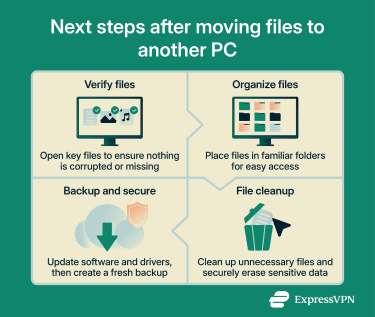
Before settling in, update software and drivers on the new PC to ensure everything works smoothly, then create a fresh backup to protect your files and settings going forward.
FAQ: Common questions about PC to PC file transfers
What’s the easiest way to transfer files from PC to PC?
What’s the safest way to transfer files between PCs?
How can I transfer files from PC to PC wirelessly?
How do I connect two PCs for file transfer?
How do I transfer large files from one PC to another?
Take the first step to protect yourself online. Try ExpressVPN risk-free.
Get ExpressVPN