Is WinRAR safe? Everything you need to know



WinRAR is a legitimate tool, but that doesn’t automatically make it risk-free. As it’s often used to open files downloaded from the internet, many users wonder whether WinRAR could expose their devices to malware or other security issues.
In practice, WinRAR itself isn’t typically the source of safety problems. Risks are more often tied to where the software is downloaded from, whether the app is kept up to date, what kinds of files are in an archive, and what gets extracted.
This guide explains how those risks work, what WinRAR doesn’t protect you from, and how to use the software safely.
What is WinRAR?
WinRAR is a file compression and extraction tool developed by RARLAB. It’s designed primarily for Windows, where it offers a full-featured graphical interface for creating, managing, and extracting archives.
It lets users package files into compressed archives to reduce file sizes, bundle multiple files into a single archive, and extract files from common formats, including RAR and ZIP files. WinRAR also supports other, less common archive types, like 7Z, TAR, ISO, BZIP2, and CAB.
On macOS and Linux, WinRAR can be used via command-line tools rather than the official WinRAR desktop app. WinRAR is also available as a mobile app for Android, making it possible to open, extract, and create archives on a smartphone or tablet.
WinRAR is used by a wide range of people, from everyday users compressing files for email or storage to IT professionals managing backups and system files. It’s even used in enterprise environments that need reliable tools for archiving and distributing large volumes of data.
WinRAR features
WinRAR includes a range of features designed to make file compression and extraction simple:
- Support for different archive formats.
- File compression to save storage space or speed up transfers.
- Splitting large archives into smaller parts.
- Tools to repair or recover damaged archives.
- Password protection and Advanced Encryption Standard (AES)-256 encryption to secure sensitive files, useful for sharing files securely.
- Virus scanning integration, which allows WinRAR to work with installed antivirus software to scan files during or after extraction.
Benefits of using WinRAR for file compression
Many people choose WinRAR because it works well with large and complicated archives. It can also open files in formats that Windows itself doesn't always support. What’s more, it offers advanced security features like encryption and works well with many versions of Windows.
Why WinRAR remains popular
WinRAR has been around for decades, and its longevity plays a role in its continued popularity. Many users already have it installed, and its interface and core behavior haven’t changed drastically over time, making it a familiar, low-friction option. Users who rely on consistent workflows benefit from tools that don’t change frequently.
Beyond familiarity, WinRAR remains popular because it makes organizing, storing, and sending files faster and more manageable. Users can pack and unpack files, compress and decompress data, create new archives, and add files to existing ones, all from a single, straightforward interface. For users who regularly download or share compressed files, WinRAR’s ease of use and intuitiveness make it a convenient solution.
WinRAR is also useful in scenarios where large files are common, like software downloads, system backups, and large media collections. Its wide format compatibility means users can open and manage many different archive types without needing multiple tools.
Is WinRAR safe to download and install?
Yes, WinRAR is generally safe to download and install as long as it’s obtained from the official source. RARLAB develops WinRAR and directly provides official installers on its website. Most risks don’t come from WinRAR itself but from fake or modified installers or updates hosted on third-party sites.
How to identify a legitimate WinRAR source
The safest way to download WinRAR is to do so directly from an official source such as rarlab.com or win-rar.com. These domains are associated with the official developer and publisher of WinRAR and reduce the risk of downloading tampered or malicious installers.
A legitimate WinRAR installer should also meet these criteria:
- The installer matches the latest version listed on the official website.
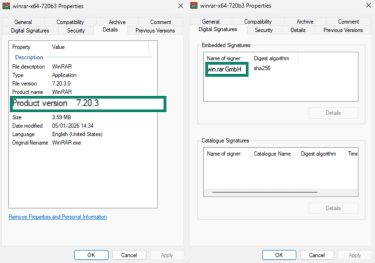
- Windows identifies the publisher as win.rar GmbH.
To find this information in the WinRAR installer, locate the installer on your device (typically in the Downloads folder), right-click the installer, and select Properties.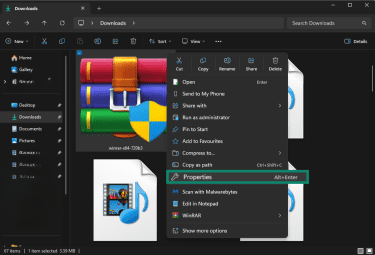
There, you can cross-reference that the product version and publisher signatures are accurate.
Note: Our screenshot shows WinRAR 7.20.3 because it’s part of the beta release series. The official site still lists 7.13 as the latest stable version.
 For extra assurance, advanced users can also verify the installer using checksums. RARLAB publishes checksum values for WinRAR releases on its website, which allow you to confirm that the file hasn’t been altered during download and detect tampering or corruption if it’s present.
How to check if your copy is authentic
Authentic software is typically digitally signed in a process known as code signing. This helps confirm who published a file and whether it has been altered since it was signed. If Windows recognizes the publisher, doesn’t flag the file as untrusted, and shows a valid signature, that’s a good sign that you have an authentic installer.
To check for a signature in your WinRAR copy, find the program in your files or on your desktop. Right-click WinRAR and choose Properties.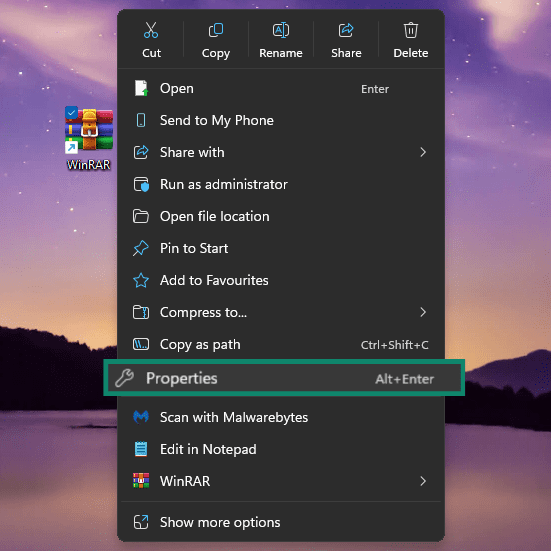
In the Digital Signatures menu, you should see the official publisher name, win.rar GmbH.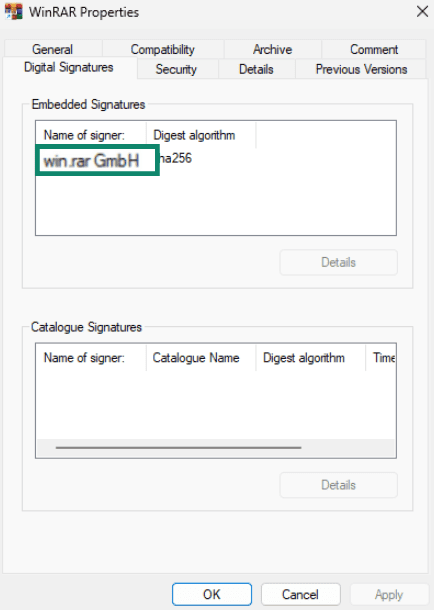
Another useful check is the program’s installation location. On Windows systems, the official WinRAR executable is normally installed in a standard program directory, such as:
- C:Program FilesWinRARWinRAR.exe
- C:Program Files (x86)WinRARWinRAR.exe
If WinRAR is running from an unusual location, like a temporary folder, hidden directory, or random subfolder, it may be worth double-checking the installer source.
Users can also look at how WinRAR behaves when it isn’t actively in use. WinRAR doesn’t normally run in the background or consume system resources when it’s idle. If you see a WinRaR process using significant CPU or memory when no files are being compressed or extracted, it’s worth checking the program’s digital signature and installation location.
Is WinRAR secure for daily use?
Yes, WinRAR is secure for daily use as long as it’s kept up to date and used alongside antivirus protection.
Like most widely used software, WinRAR has had some security vulnerabilities discovered in its history, including flaws that can allow attackers to execute malicious code when a user opens or extracts a specially crafted archive. These issues are sometimes described as remote code execution (RCE) vulnerabilities because they allow an attacker’s code to run on the victim’s machine, even though they don’t involve exploiting WinRAR as a remotely accessible service.
In some past cases, malicious archive files could trigger exploits during extraction without needing additional user interaction. These issues were publicly documented and patched through updates. Once patches were released, users who updated WinRAR were protected against those known attack methods. Note that public vulnerability disclosures are tracked through the Common Vulnerabilities and Exposures (CVE) system.
Does WinRAR contain viruses or malware?
No, WinRAR itself doesn’t contain viruses or malware when it’s downloaded from the official website. It won’t secretly install harmful components, collect personal data, or monitor your activity.
Can RAR files hide threats?
Yes, RAR files can hide malicious files, just like ZIP files or other compressed formats. Compression can make it easier for attackers or bad actors to disguise harmful programs or delay detection until the files have been extracted.
While malware usually only causes harm when a file is opened or executed, some specially crafted archives have exploited vulnerabilities at the extraction stage in the past. This makes proactive scanning and keeping WinRAR and antivirus software updated especially important.
What WinRAR doesn’t do
It’s important to be aware of WinRAR’s limitations; it’s simply a file compression and extraction tool, not a security product.
In particular, WinRAR:
- Doesn’t inspect file behavior: It won’t analyze what a file will do once it’s opened or executed.
- Doesn’t block malware execution: If a malicious file is extracted and run, WinRAR won’t stop it. While it can work with installed antivirus software to scan files during extraction, it doesn’t provide runtime protection or prevent malicious files from executing.
Best practices for using WinRAR safely
These best practices help reduce risk when working with WinRAR and compressed files.
Keep WinRAR updated regularly
Like most popular software, WinRAR receives regular updates that fix bugs and address vulnerabilities discovered over time. Outdated versions of the software can leave devices exposed to attackers who exploit security issues that have already been patched in newer releases.
WinRAR doesn’t include automatic updates, so users have to check for new versions manually and install updates themselves. As updates aren’t pushed automatically, you should also beware of pop-ups or ads claiming that “your WinRAR is outdated,” as these alerts are generally fake and may lead to unsafe downloads.
It’s also important to use the correct installer for your system. WinRAR is available in both 32-bit and 64-bit versions, and using the version that aligns with your OS helps ensure better performance and compatibility.
Scan archives before extracting
Compressed archives can contain files that aren’t safe to open or run. Scanning an archive with antivirus software before opening it helps find threats early, especially if the archive comes from a source you don't know well.
This matters most when files come from the internet, like those shared on forums, in email attachments, or on file-sharing sites, where archive files are often used to group items together.
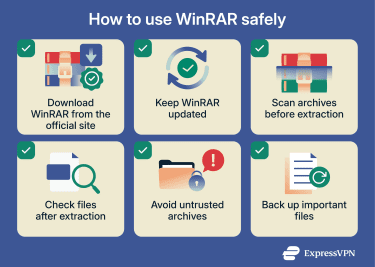
Check files after extracting
WinRAR doesn’t inspect archives for malware or viruses on its own, so it’s essential to have dedicated antivirus software that can scan the files after extraction. Real-time protection can also detect malicious programs before they run on your device.
Some malicious files are disguised to look harmless (for example, a file that appears to be a PDF but is actually an .exe). Viewing full file extensions in your OS helps you spot this. You can also extract files to a separate folder first, as this makes it easier to inspect what’s inside before running anything.
Avoid downloading RAR files from untrusted sources
Be careful about where you get files from, and look for clear indicators of legitimacy. If you weren’t expecting the file, can’t verify the sender, or the download page looks suspicious, it’s best not to open the archive.
Back up important files
Before extracting or opening large or unfamiliar archives, make sure your important files are backed up. This reduces the risk of data loss if a malicious or corrupt archive causes system issues or overwrites existing files.
Backups are especially important when handling archives related to system backups, software installers, or large media collections.
How to remove or uninstall WinRAR properly
Removing WinRAR is usually straightforward, especially on Windows, where the software installs like a standard desktop app. The step-by-step guide below focuses on Windows, as that’s where WinRAR is most commonly used.
The process for removing WinRAR on macOS or Linux uses each OS’s standard removal process.
Step-by-step guide for clean uninstallation
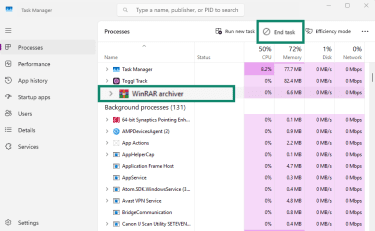
- Close WinRAR and its related processes; if WinRAR appears to be stuck or non-responsive, open Task Manager by pressing Ctrl+Shift+Esc on your keyboard, select WinRAR, and click End Task.
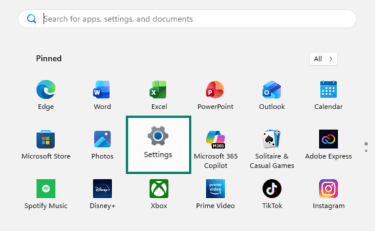
- In the Windows Start menu, open Settings.
- Go to Apps and Installed apps.
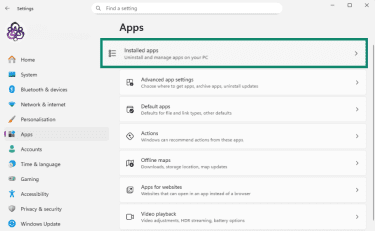
- Search for WinRAR, select it, and click the three dots. Choose Uninstall and confirm that you want to uninstall WinRAR. Follow the on-screen instructions for Windows to uninstall the software.
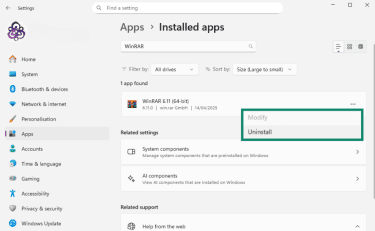
- Restart your computer to complete the removal process and clear any residual background components in memory.
What to do if you suspect a fake or modified version of WinRAR
If you believe you installed a fake, bundled, or modified version of WinRAR, take a few extra precautions:
- Run a full antivirus scan: Use reputable antivirus software to check for adware, scareware, or other unwanted programs.
- Check for leftover folders: After uninstallation, look for unusual WinRAR-related folders in locations like your user directory or temporary folders. Delete them if you’re confident they’re not legitimate.
- Reinstall from the official source: If you still want to use WinRAR, download a copy from the official WinRAR or RARLAB website and install it following the prompts.
These steps help ensure that any unwanted components are removed without putting your system at risk.
How to spot fake uninstallers or malware variants
Uninstalling WinRAR should be a simple process that you can handle through Windows’s built-in uninstall tools; there’s no need to rely on third-party uninstallers.
Be cautious if you notice any of the following during or after uninstallation:
- Prompts to install additional “cleanup,” “optimizer,” or “security” software.
- Browsers opening new tabs or redirecting you to unfamiliar websites.
- Pop-ups that warn your system is “infected” or at risk immediately after removal.
Seeing these behaviors doesn’t automatically mean your system is seriously compromised. In many cases, these signs are associated with nuisance software, adware, or scareware designed to pressure users into installing unwanted programs.
However, these behaviors aren’t part of WinRAR’s official uninstaller. If this happens, it’s best to close the window and run a full scan using antivirus software to identify and remove anything unwanted.
FAQ: Common questions about WinRAR safety
What if I downloaded WinRAR from a non-official site?
If WinRAR came from a third-party download site, there’s a higher chance it could have been bundled with unwanted software. In that case, it’s best to remove WinRAR from your device and reinstall a clean version from the official developer site.
Is it legal to use WinRAR without a license?
While WinRAR has a 40-day free trial that doesn’t automatically stop working, the expectation for continued use is that a license must be purchased under the developer’s terms.
Can WinRAR protect me from viruses inside RAR files?
WinRAR doesn’t check for or stop malware or viruses on its own. Instead, it integrates with antivirus software.
What happens if I don’t update WinRAR?
Outdated WinRAR versions can contain security vulnerabilities that have already been patched in newer releases. Attackers often focus on widely used software to exploit weaknesses, so it’s important to update WinRAR regularly to minimize the chances of this kind of attack.
Take the first step to protect yourself online. Try ExpressVPN risk-free.
Get ExpressVPN
















 Support Center
  FAQ
FAQ  VPN Setup Tutorials


