How to unlock iPhone from a carrier and switch networks


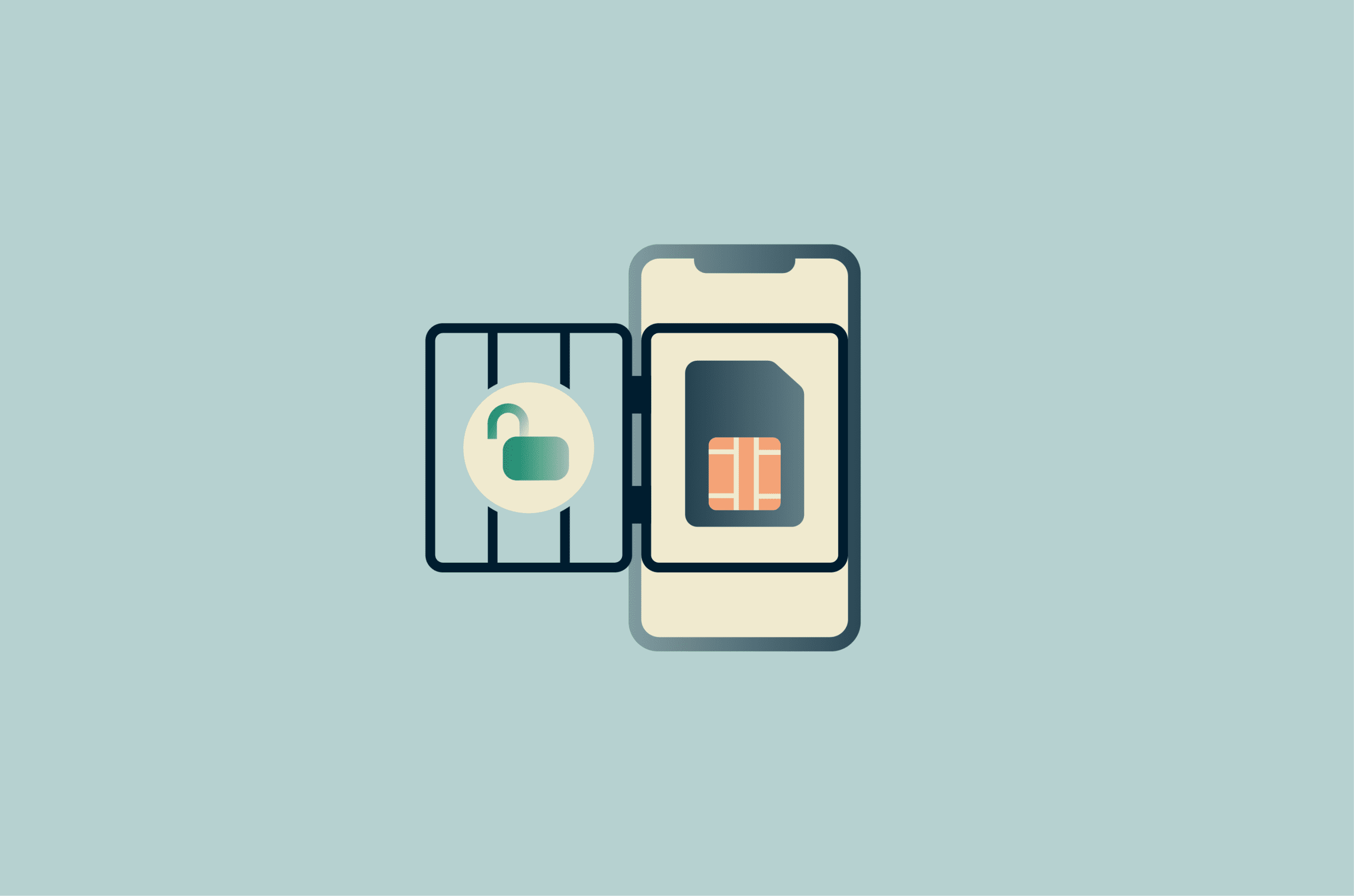
A carrier-locked iPhone can limit what should be a simple choice: using the mobile network that works best, whether that’s another carrier’s SIM or eSIM. The good news is that you can request an unlock from your carrier.
This article explains what carrier unlocking is, how to check whether your phone is locked, and how to request an unlock through your original carrier. It also covers how to switch networks, set up a new SIM or eSIM, and fix issues that can appear during the process.
What carrier unlocking means on iPhone
Carrier locking is a software-based network restriction that ties a phone to a single mobile network. When a phone is locked to a carrier, you can’t activate or use service from another carrier. Unlocking removes that restriction, allowing the device to register on any compatible network.
Unlike “jailbreaking,” which involves altering system software, carrier unlocking is a legitimate process supported by Apple and mobile carriers that doesn’t change iOS or alter the device’s system software. Instead, the carrier updates the iPhone’s lock status in Apple’s activation system, which allows the phone to accept SIM cards or eSIM profiles from other providers.
Carrier lock vs iCloud Activation Lock
Unlike a carrier lock, Apple’s Activation Lock is part of the Find My security feature. When enabled, it requires your Apple ID and password before anyone can turn off Find My, erase your device, or reactivate it. Activation Lock prevents thieves from reusing a stolen iPhone by tying the device to your Apple ID. You can enable or disable Activation Lock by turning Find My on or off in your Apple ID settings.
Why you might want to unlock your iPhone
Unlocking your iPhone gives you more control over how you use your device and allows you to:
Switch carriers for a better plan
If you’re stuck with a carrier that raises rates or doesn’t offer strong service where you live, unlocking your iPhone gives you the flexibility to switch. Many carriers now offer contracts with no long-term commitment, and some smaller providers, known as mobile virtual network operators (MVNOs), often use the same towers as the big carriers but at lower prices.
Use local SIMs for international travel
When you travel abroad with a locked phone, you usually have to rely on your home carrier’s roaming plans, which can be more expensive. Unlocking allows you to insert a local SIM card at your destination or activate an eSIM from a regional provider. This gives you local rates for calls, texts, and data.
Keep in mind that some countries require SIM registration, which involves sharing your ID when purchasing a local SIM card.
Increase resale value
Unlocked phones tend to sell for more on the secondhand market because they appeal to a wider audience. Buyers have more flexibility to choose whichever carrier suits them. When you’re ready to upgrade, an unlocked iPhone can fetch a higher price because it can be used on different networks and in different countries.
How to check if your iPhone is carrier locked
Before you can request an unlock, you need to confirm whether your phone is actually locked. There are a few easy ways to do this.
Check in Settings
The simplest way to find out whether your iPhone is locked is through the Settings app:
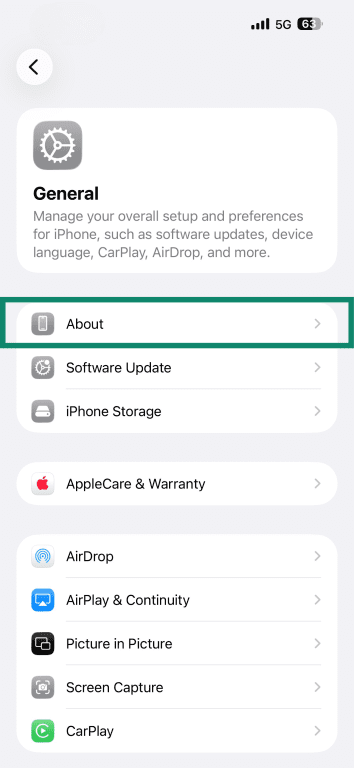
- Open the Settings app and tap General.
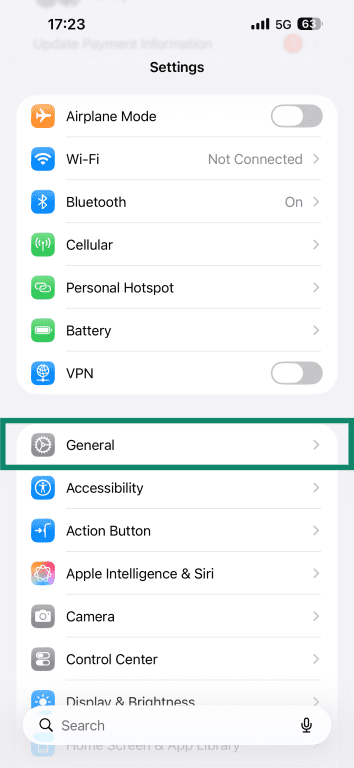
- Next, tap About.
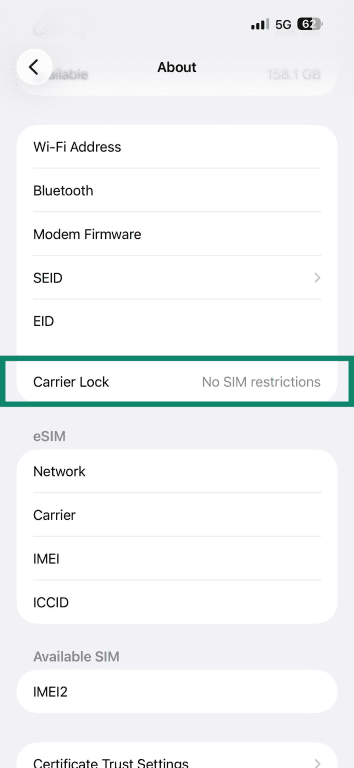
- Scroll down to Carrier Lock (Network Provider Lock on older versions of iOS). If it says No SIM restrictions, your phone is already unlocked. If it says SIM locked or lists a specific carrier, your phone is tied to that network.
Test with another SIM or eSIM
Another way to check your lock status is to insert a SIM card from a different carrier. Turn off your iPhone, remove your current SIM card, insert the new SIM card, and then turn the device back on. If the phone connects to the new network and service activates, it’s unlocked. If you see an alert that the SIM is not supported, the device is locked.
For iPhone 14 models and later in some regions, there may be no physical SIM slot, so you can test by activating an eSIM from a different carrier.
Check with your carrier using IMEI
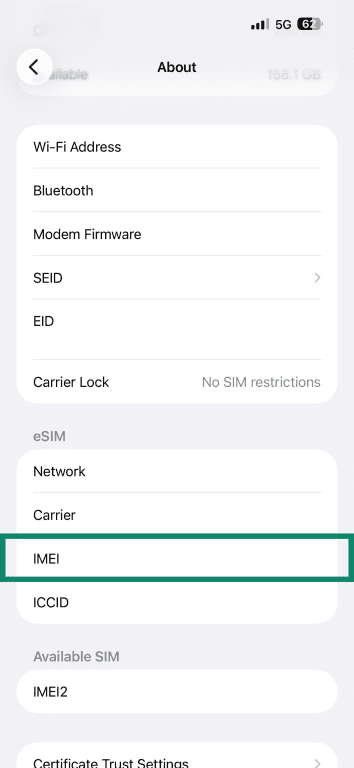
Every iPhone has a unique International Mobile Equipment Identity (IMEI) number. Some carriers provide online tools or portals that let you check unlock eligibility or the status of a request using your IMEI and unlock request number, if available. You can also call customer support, share your IMEI number, and ask them to verify your status.
To find your IMEI, go through the following steps:
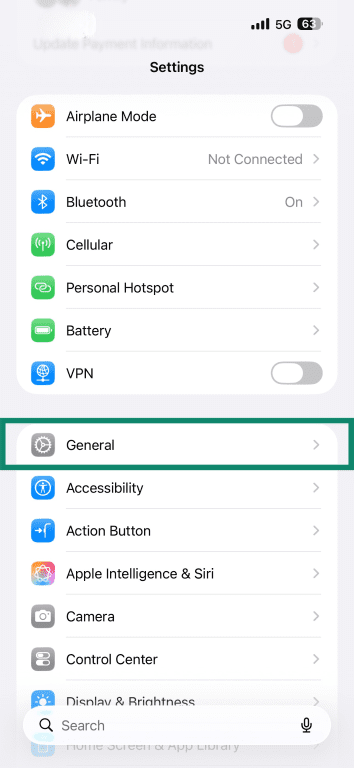
- Launch the Settings app and tap General.
- Tap About.
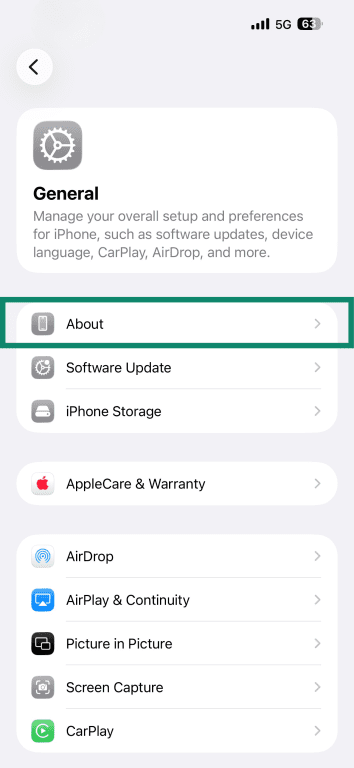
- Scroll down until you see the IMEI field.
How to unlock iPhone from your carrier
The process of unlocking an iPhone varies slightly by provider, but the general steps are similar. Before you begin, confirm that you meet the eligibility requirements. This depends on your provider, but it usually means:
- Your device must be paid off or meet the minimum time requirement on your plan.
- Your account must be in good standing.
- The phone must not be reported lost or stolen.
Note: Some carriers automatically unlock devices once these requirements are met, without requiring a request.
Request an unlock through your carrier account
Many carriers allow you to submit an unlock request through their website. You typically need the device’s IMEI number and may be asked to provide additional account or purchase details. After submitting the request, the carrier reviews the device’s eligibility and may send confirmation that the unlock has been approved.
Request an unlock by phone, chat, or store
If your carrier doesn’t offer a web form, you can request an unlock by phone, live chat, or by visiting a retail store. You’ll usually need to provide the device’s IMEI number so the carrier can verify that it meets the unlocking requirements. If the device is eligible, the representative can submit the request or confirm when the phone will be unlocked.
How to complete the unlock on your iPhone
Once your carrier approves the request, it sends the unlock through Apple’s system. Apple notes that the process may take a few days, so the change may not appear on the iPhone immediately.
If you have a SIM card from a carrier other than your current carrier, remove the current SIM card and replace it with the new SIM card. If you don’t have a new SIM, back up your iPhone, erase it, and then restore it from the backup.
How to set up an unlocked iPhone with a new carrier
Once your phone is officially unlocked, you can set it up on a new network with a physical SIM or eSIM.
Note: UI labels in the guides below may vary by region or iOS version, but the steps are typically the same.
Insert a physical SIM
To switch SIMs, eject the old card with a paperclip or SIM-eject tool and insert the new SIM from your chosen carrier. The device should detect the network and begin activating service.
This may involve updating carrier settings for the new network. To make sure the update happens, you can check in Settings > General > About. If there are any updates available, the prompt will appear here. Follow any onscreen instructions to finish the necessary installation.
Add a new eSIM
If you're activating service with a new carrier after unlocking, the method depends on what your carrier supports.
If your carrier uses a QR code:
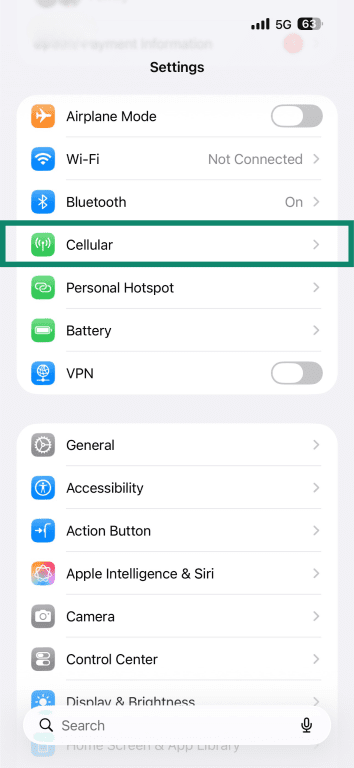
- Open Settings > Cellular.
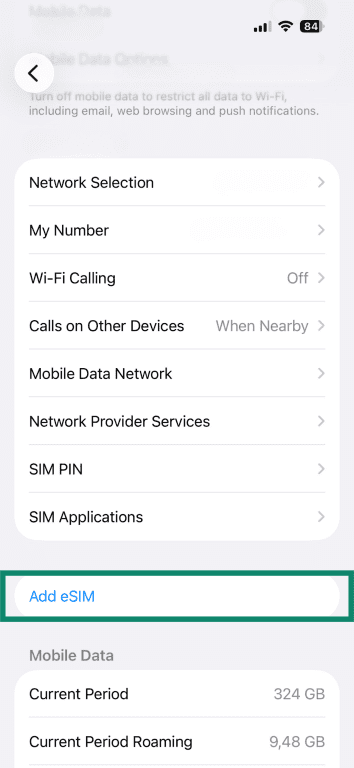
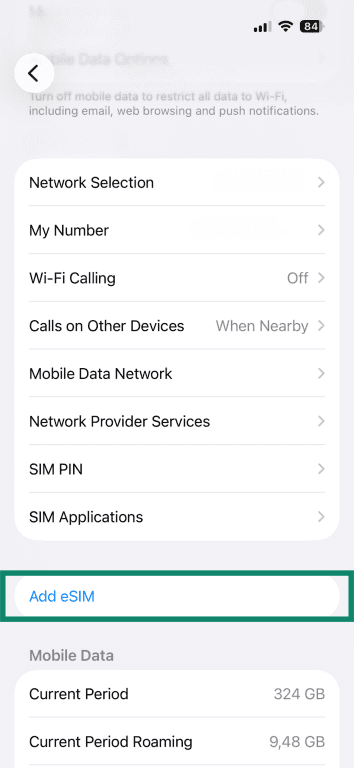
- Tap Add eSIM.
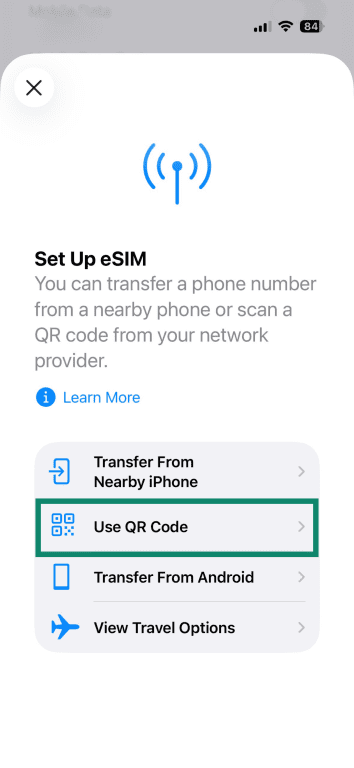
- Select Use QR code and follow the onscreen prompts to complete activation.
Other activation methods your carrier may support:
- Carrier notification: Tap the Carrier Cellular Plan Ready to Be Installed notification when it appears on your screen.
- Carrier link: Tap the link your carrier sent. When the Activate New eSIM notification appears, tap Allow.
- Carrier app: Download your carrier's app from the App Store and follow the in-app instructions.
If the new plan replaces the one on your physical SIM, remove the physical SIM. You may need to restart your iPhone to complete activation.
Transfer an existing eSIM from another iPhone
If you’re upgrading to a new iPhone, you can move your eSIM, or even turn your physical SIM into an eSIM, using eSIM Quick Transfer if your carrier supports it. To make this work, ensure that both devices are signed in with your Apple Account, your previous iPhone is unlocked with the device passcode, both devices are nearby with Bluetooth enabled, and both iPhones are running iOS 18.4 or later.
- Go to Cellular settings on the new iPhone, and tap Add eSIM.
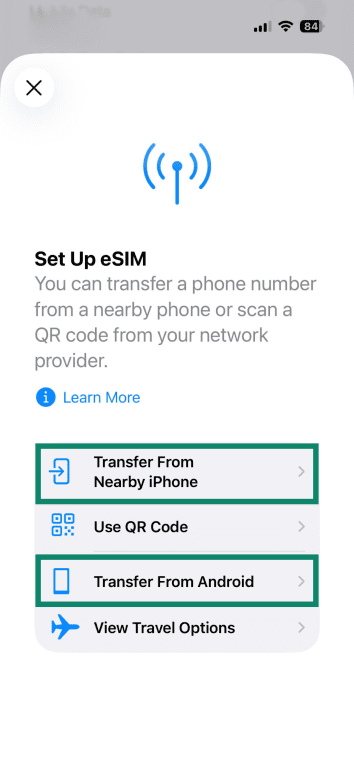
- Choose a cellular plan to transfer from another iPhone. If you don't see a list of numbers, tap Transfer From Nearby iPhone. If your carrier supports it, you can also select Transfer from Android if you’re moving from an Android device.
- Follow the instructions on your previous iPhone or Android device and wait for the cellular plan to activate. Your previous SIM is typically deactivated when the plan activates on your new iPhone.
If a banner appears saying Finish Setting Up Your Carrier's Cellular Plan, tap it and you'll be redirected to your carrier's webpage to complete the transfer.
Configure cellular data and APN if needed
In most cases, your iPhone automatically receives the correct Access Point Name (APN) settings when it registers on a network. But if mobile data isn’t working, you may need to adjust your APN settings using the information supplied with the SIM card.
To do that, follow these steps:
- Open Settings and select Cellular.
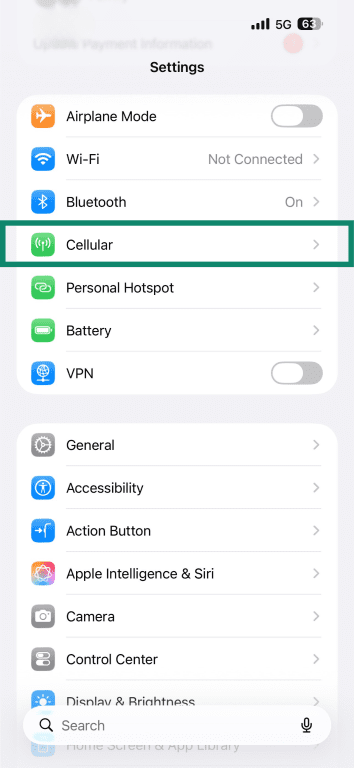
- Tap on Cellular Data Options.
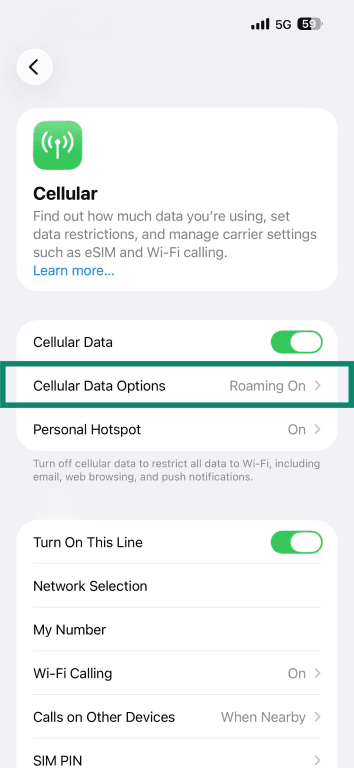
- Enter the APN details provided by your carrier.
Confirm calls, texts, data, iMessage, and FaceTime
After activation, place a test call, send a text, and try loading a webpage to make sure everything is working. If iMessage or FaceTime doesn’t activate automatically, open Settings > Messages or FaceTime and check the activation status.
Note that activation may take some time and might require restarting your device.
Switching carriers without a new SIM card
If your iPhone and carrier support eSIMs, you may be able to switch carriers entirely without touching a physical SIM card.
eSIM carrier switching options
iPhones can store multiple eSIMs, and you can switch between stored plans at any time by going to Settings > Cellular (or Mobile Data) and selecting the line you want to use.
You can have two eSIMs active at the same time on supported iPhone models. This is especially useful if you travel regularly, as you can preload a plan for each destination and switch between them with minimal setup after you arrive. It’s also convenient when moving between carriers, as it lets you confirm the new plan is working before removing the old one.
Removing an old eSIM plan safely
If you no longer need a plan, you can remove its eSIM profile from your device:
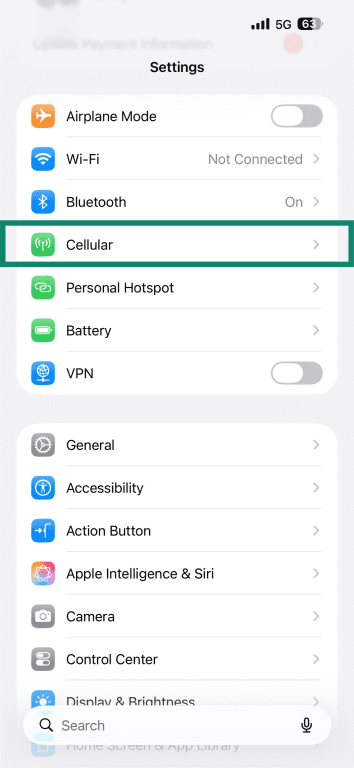
- Open Settings > Cellular.
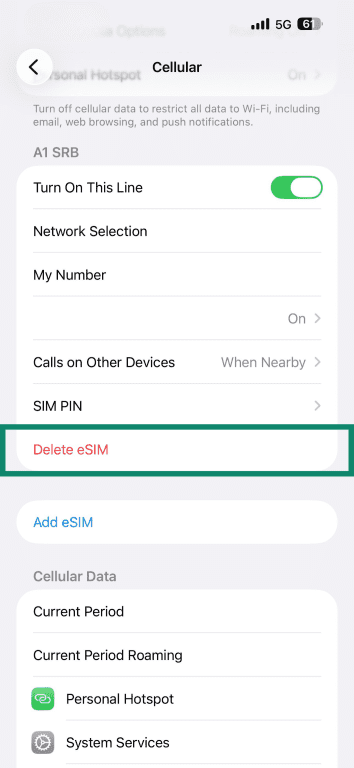
- Select the plan you want to remove and tap Delete eSIM.
- Confirm the deletion by tapping Delete eSIM. If you want to reactivate this line later, contact the carrier to get activation instructions.
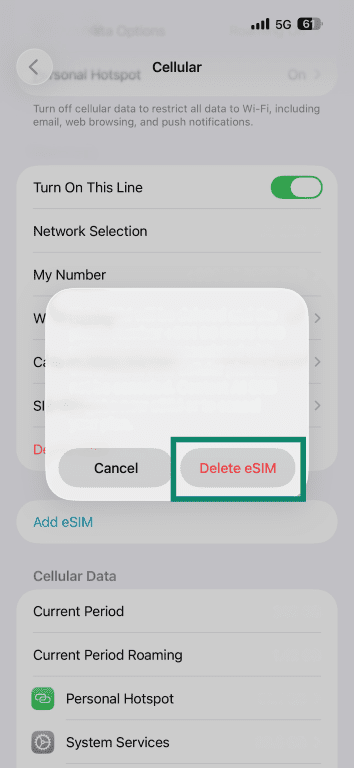
Keep in mind that removing an eSIM from your device doesn’t automatically cancel your service. If you want to stop billing, contact your carrier and cancel the plan directly.
Troubleshooting carrier unlock problems
You might encounter errors during the unlock process or after switching carriers. Here’s how to troubleshoot common issues.
SIM not supported or invalid SIM
If your iPhone displays “SIM Not Supported” or “Invalid SIM” after inserting a new card, the phone may still be locked, or your request hasn’t been processed by the carrier yet. First, double-check that your unlock request was approved. Then try these steps:
- Ensure you have an active service plan with the new carrier and that the SIM card is properly inserted.
- Restart your iPhone, then check for a carrier settings update (Settings > General > About). If an update is available, install it.
- Remove and reinsert the SIM card. If possible, test with another SIM card to rule out a faulty card.
- If the error persists, contact your carrier; they may need to resend the unlock authorization or update your IMEI in their system.
iPhone still shows SIM restrictions
Sometimes the iPhone still reports as SIM-locked even after the carrier approves the unlock. Connect to Wi-Fi, restart your iPhone, and check for a carrier settings update. If the carrier processed the unlock but your phone doesn't recognize it, back up your iPhone, erase it, and then restore from that backup.
No service after switching carriers
After activating a new SIM or eSIM, you may see “No Service” or “SOS only.” Try the following:
- Toggle Airplane Mode on and off.
- Go to Settings > Cellular and ensure your new plan is set as the default for data and voice.
- Make sure you’re in an area with coverage. If you’re traveling, enable Data Roaming.
Activation errors after an update or restore
If you see “Unable to Activate” or “Activation Lock” after updating or restoring your iPhone, there may be a network or software issue. Common causes include connectivity problems, outdated iOS software, or server issues. To resolve:
- Connect to a stable Wi-Fi network and check Apple’s system status page to ensure activation servers are up
- Remove and reinsert your SIM card or try a different SIM.
- Force restart your iPhone.
- If the issue continues, back up your iPhone, erase it, and then restore from that backup. You can do this through Finder on a Mac or iTunes on a Windows PC.
If none of these steps work, visit an Apple Store or authorized service provider, or contact your carrier.
FAQ: Common questions about unlocking an iPhone from a carrier
Is it legal to unlock an iPhone from a carrier?
Does unlocking an iPhone erase your data?
How long does carrier unlocking take?
Can Apple unlock my iPhone?
Can I unlock an iPhone that is still being financed?
Can I unlock a blacklisted or reported-stolen iPhone?
Will an unlocked iPhone work worldwide?
Take the first step to protect yourself online. Try ExpressVPN risk-free.
Get ExpressVPN