How to turn off Meta AI on Facebook and take control of your privacy



Meta AI is built into Facebook, Instagram, WhatsApp, and Messenger, where it can appear in search, chats, feeds, and other app features. Depending on the app and region, it may also power comment summaries, message summaries, image tools, and AI suggestions.
While these features can be useful, not everyone wants AI built into their everyday social media experience. This guide shows how to limit Meta AI on Facebook, Instagram, and WhatsApp, and how to reduce the amount of information shared with AI features.
What is Meta AI?
Meta AI is a generative AI assistant developed by Meta. Like other AI tools such as ChatGPT and Google Gemini, it uses a large language model (LLM), a system trained on large amounts of data to generate human-like responses. This allows it to answer questions and carry out tasks.
It’s available through the Meta AI app and website. Meta expanded it across Instagram, WhatsApp, Facebook, and Messenger in April 2024, where it can work as a chat assistant, search tool, and content-generation feature.
Within these apps, Meta AI can answer questions, offer local recommendations, help create or edit images, generate captions, and summarize certain content where the feature is available.
Read more: How AI chatbots work, and what that means for your privacy.
Why do people want to turn Meta AI off?
Although Meta AI can be useful, some users may prefer to limit its use due to questions about transparency, privacy, and data security.
Transparency and control
Meta states that it trains its AI model on a mix of publicly available data, licensed data, and information from Meta products and services. This can include public Facebook and Instagram posts, as well as information people share when interacting with Meta AI.
Meta also says it uses privacy reviews, filtering, evaluations, and other safeguards to reduce privacy and safety risks. Even so, some users may want more control over how their information is used for AI improvement or training.
Privacy concerns
Meta AI can process different types of information, including text, audio, images, and video, depending on the app, feature, and user interaction.
On WhatsApp, regular personal messages and calls remain end-to-end encrypted (E2EE), and Meta AI can only access messages shared with it or invoked through AI features. If WhatsApp or other Meta apps are connected through Accounts Center or Meta Account, some account-level information or connected experiences may be used across Meta services, but personal WhatsApp chats remain private.
On Instagram, when you or others use Meta AI features for messages or content in chats, messages from the past 30 days may be shared with Meta AI for context. In group chats, this can also happen when another member uses the AI feature.
More broadly, Meta’s Privacy Policy says it may share certain information with advertisers, partners, vendors, service providers, and researchers, including reports and aggregated or de-identified information.
Security risks
AI-related security risks aren’t unique to Meta. AI systems can introduce new data handling and security challenges, especially when AI agents are given access to tools, internal systems, or workflows.
This can lead to unintended data exposure from system errors, flawed recommendations, or inadequate access controls. In March 2026, reports said an internal Meta AI agent provided incorrect troubleshooting guidance, exposing sensitive company and user data to unauthorized employees for about two hours. Meta said no user data was mishandled externally and quickly contained the issue.
Can you fully turn off Meta AI?
Meta doesn't provide a single setting to fully remove Meta AI across Facebook, Messenger, Instagram, and WhatsApp. Some AI features remain built into the app interface, even if you mute or avoid the assistant.
However, you can limit interactions with Meta AI and reduce some information sharing. For example, you can mute the Meta AI prompts where available, delete or avoid AI chats, reset AI conversations, and turn off certain features, such as comment summaries or content suggestions, where the app provides those controls.
You can also review your profile visibility settings and, where available, submit an objection or a privacy rights request regarding how Meta uses certain information for generative AI.
Note: Meta AI is integrated across Facebook, Messenger, Instagram, and WhatsApp, but controls can vary by app, region, and feature. Muting, deleting, or resetting Meta AI in one place may not remove or change every AI feature across all Meta apps.
How to turn off Meta AI on Facebook
AI is built into several Facebook features. Here’s what each one does and how to disable or limit them.
How to disable Ask Meta AI on Facebook
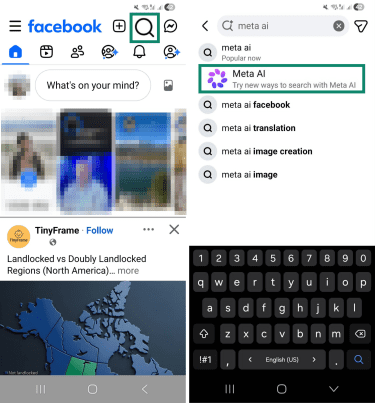
Ask Meta AI may appear in the Facebook search bar and can open an AI chat or show AI generated reponses when you enter a query. You can mute it to limit AI responses, though this does not fully remove Meta AI from Facebook.
- In your Facebook app, tap Search, type "Meta AI," and select the Meta AI icon.
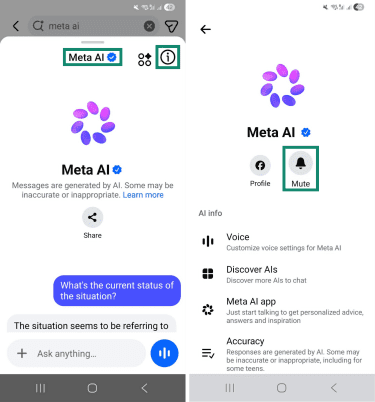
- Tap the i symbol at the top, then tap Mute.
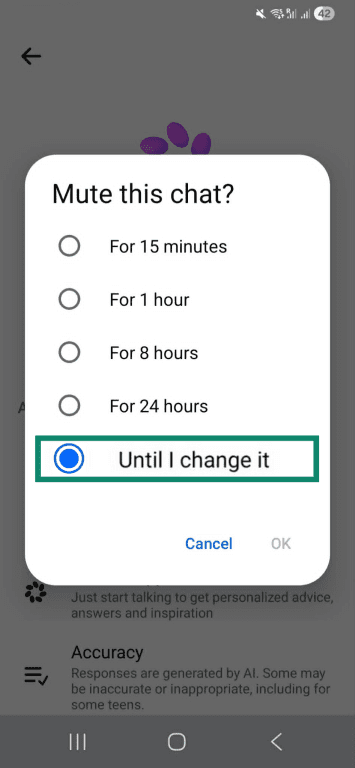
- Select Until I change it and select OK.
How to turn off AI comment summaries on Facebook
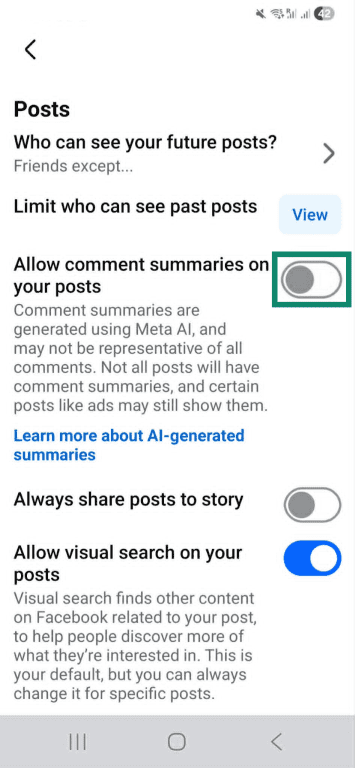
AI comment summaries can create a short overview of what people are saying in the comments on eligible posts. Turning this setting off stops Meta AI from generating comment summaries on your posts.
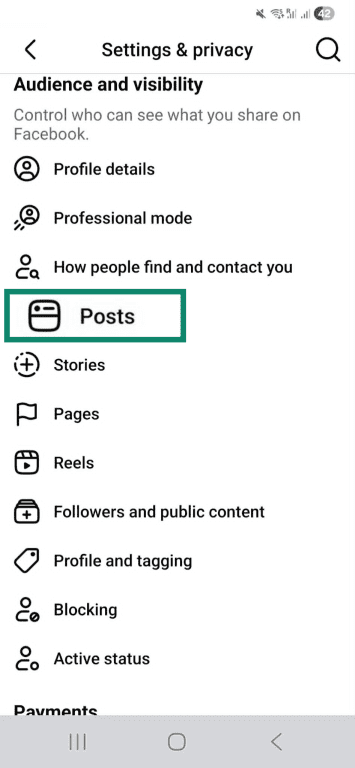
- Open your Facebook Menu. Under Settings & Privacy, go to Settings.
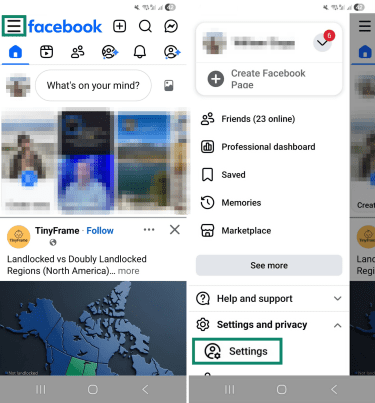
- Tap Posts under Audience and visibility.
- Turn off Allow comment summaries on your posts.
How to limit Meta AI in Messenger chat
You can reset Meta AI chats, mute notifications, or remove the chat from your inbox.
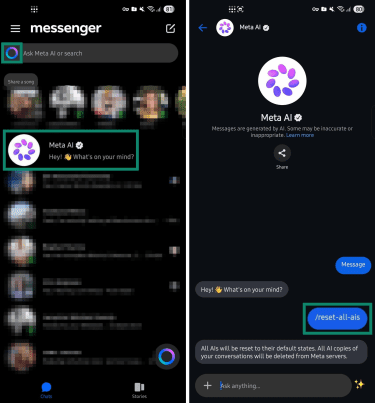
- Open the Messenger app and find the Meta AI chat. If it’s not in your messages, tap the Meta AI circle logo or search for Meta AI in the top search bar.
- Open the chat and type /reset-all-ais to reset AI chats in that app. Resetting an AI deletes its copy of messages and chat details, while your copy remains.
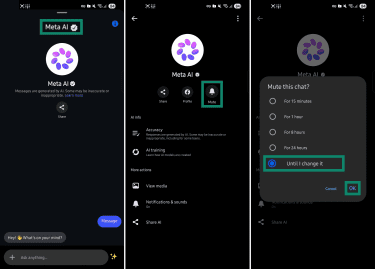
- Tap Meta AI at the top of the chat, then tap Mute. Select Until I change it, then tap OK.
- Exit the chat, then long-press it and tap Archive (or Archive thread) or Delete to remove it from your inbox.
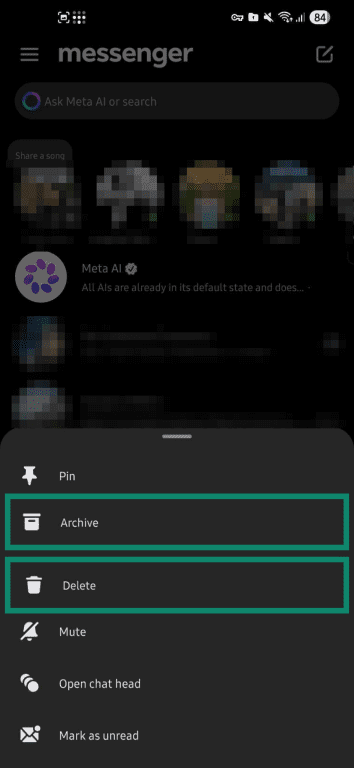
Note: Archiving or deleting the chat helps avoid direct interactions with Meta AI, but it does not fully disable Meta AI in Messenger. In group chat, messages may be shared with Meta AI when someone uses AI features in the chat, depending on the app and feature.
How to manage Meta AI privacy settings on Facebook
Setting your posts to a non-public audience can reduce the amount of public Facebook content that may be used to train Meta’s generative AI models. However, this doesn't affect information you share directly with Meta AI or all other data uses under Meta’s policies.
- Open the Facebook menu and go to Settings.
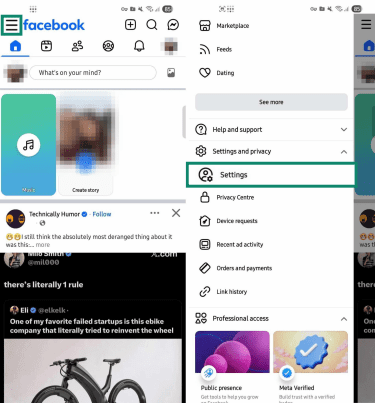
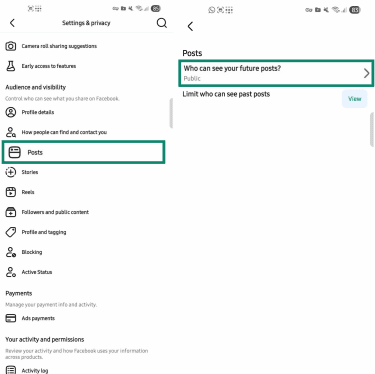
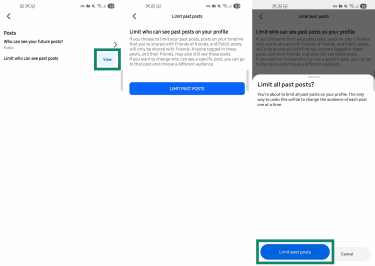
- Under Audience and visibility, tap Posts > Who can see your future posts?
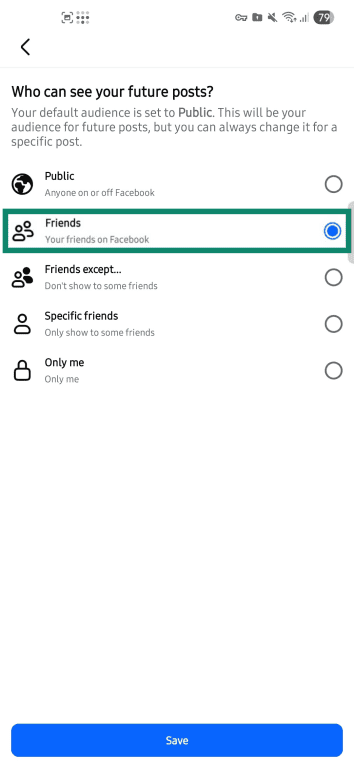
- Select Friends or another option other than Public, then tap Save.
- Go back to Posts and open Limit who can see past posts, then tap the Limit past posts button. Tap Limit past posts again to confirm.
How to limit Meta AI on Instagram
Instagram lets you mute Meta AI chats and reset AI conversations, although this won’t fully remove Meta AI from search, direct messages, prompt suggestions, or AI writing tools in captions and comments.
How to mute or reset Meta AI on Instagram
You can mute the Meta AI assistant to reduce notifications and reset previous AI chats, but this doesn't remove Meta AI from Instagram.
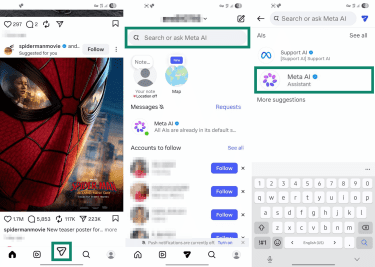
- Open Instagram and tap the Search icon, then tap the Meta AI icon in the search bar. If you don’t see it there, open Direct Messages, tap the search bar, and select Meta AI Assistant.
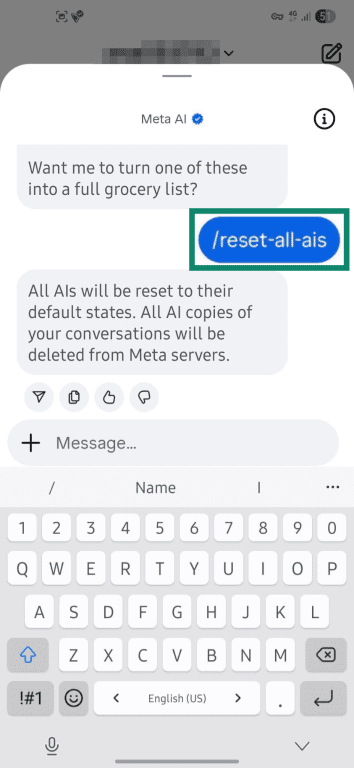
- Send /reset-all-ais to reset AI chats on Instagram. This deletes the AI’s copies of messages and saved details, while your copies remain.
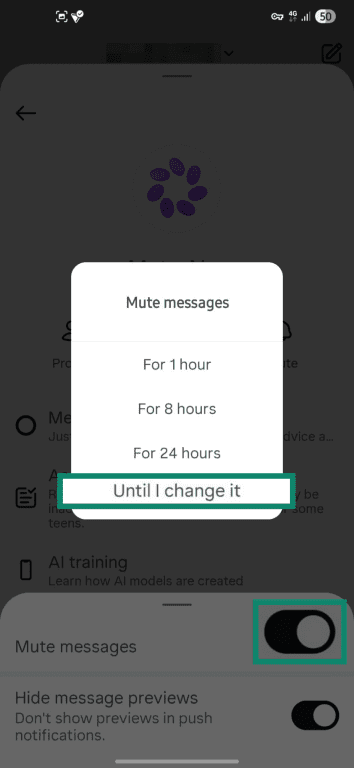
- Tap the Information (i) icon, then tap Mute.
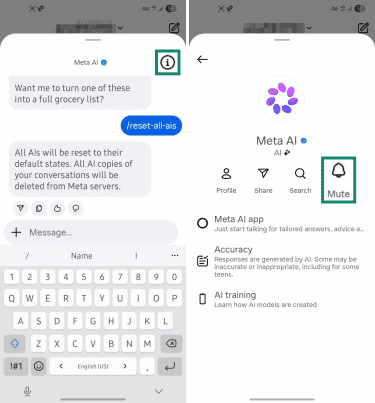
- Enable Mute messages and select Until I change it.
How to manage Meta AI privacy settings on Instagram
Switching to a private account limits who can see your photos, videos, stories, and other content to approved followers. It can also reduce how much public Instagram content may be used to train Meta’s generative
- Tap your profile at the bottom, then the menu (hamburger) icon in the top right.
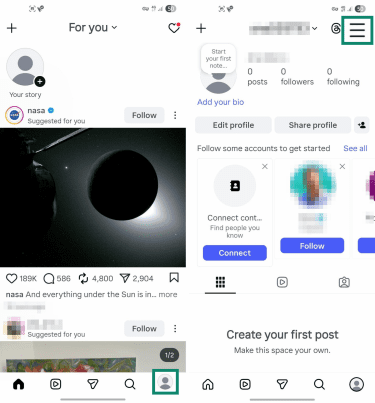
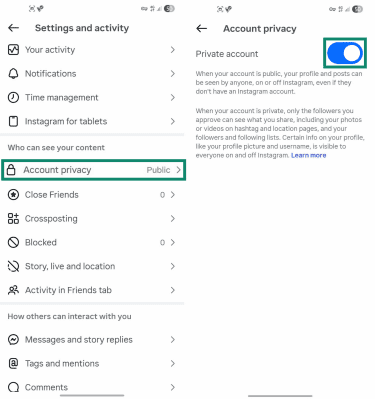
- Go to Account privacy and enable Private account.
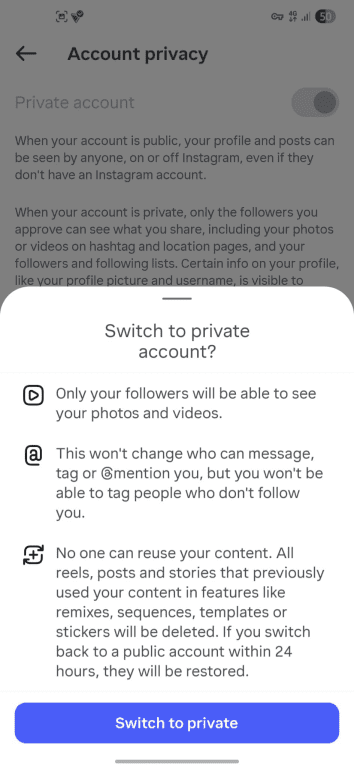
- Tap Switch to private to confirm.
How to limit Meta AI on WhatsApp
WhatsApp handles Meta AI differently from some other Meta apps. Personal chats remain E2EE, and Meta AI responds only when used directly.
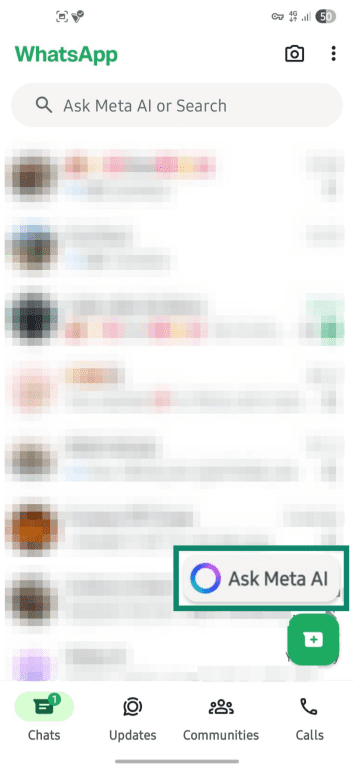
Meta AI may be available through the search bar, a shortcut, or a chat, depending on your app version and region. You may not be able to remove every Meta AI entry point, but you can mute notifications, reset AI chats, and archive or delete the conversation.
How to remove Meta AI from WhatsApp chats
- Tap the Meta AI icon (or Ask Meta AI icon) near the bottom of your screen.
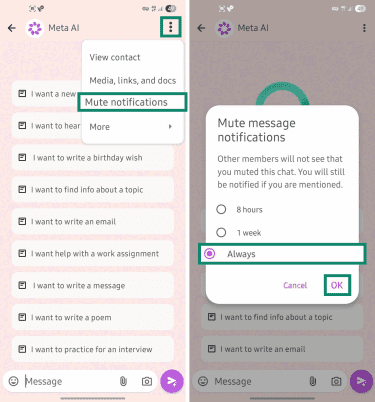
- Go to Settings (three vertical dots) > Mute Notifications. Select Always, then OK.
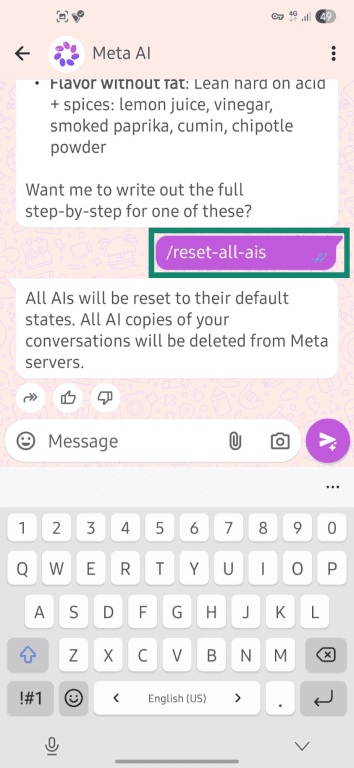
- Send /reset-all-ais to reset AI chats on WhatsApp. This removes the AI’s stored version of the chat and any saved details, while your messages stay visible to you.
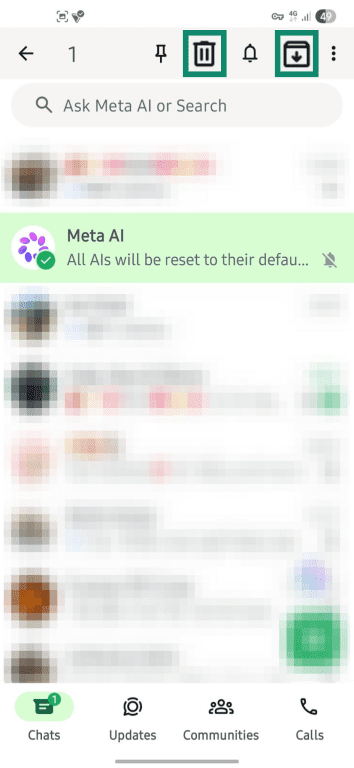
- Select the Meta AI chat with a long press, then Archive or Delete it to remove it from your chat list.
How to manage Meta AI privacy settings on WhatsApp
On WhatsApp, Meta AI can read messages that mention @Meta AI or messages people choose to share with it. To prevent Meta AI from being used in a specific chat, turn on Advanced chat privacy.
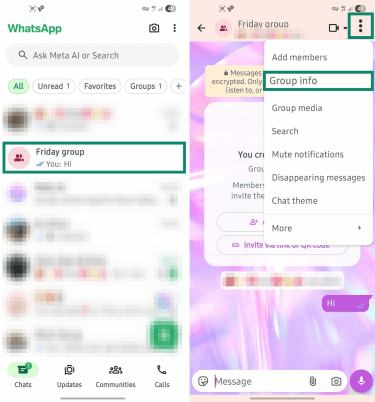
- Open a chat where you want to limit Meta AI use. Next, go to Settings (three vertical dots) > Group info (for group chats) or View contact (for individual chats).
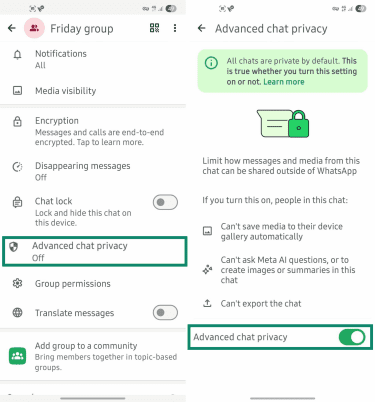
- Scroll down, and tap Advanced chat privacy, then enable the option at the bottom.
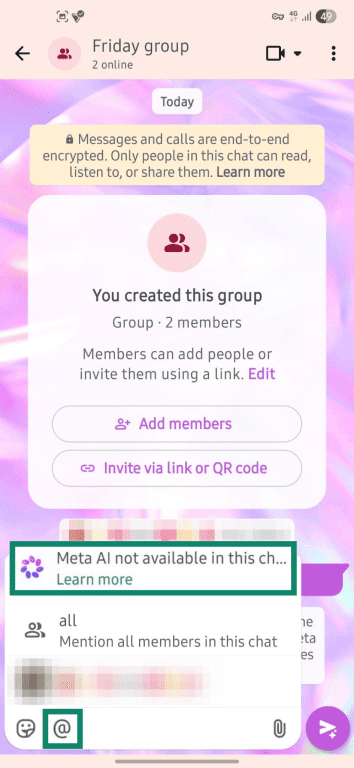
- Return to the chat and type @ to test the change. You should see a pop-up saying Meta AI not available in this chat.
How to opt out of Meta AI training
Meta may use public posts, comments, and interactions with Meta AI to train and improve its AI models. Private messages with friends and family are not used for AI training unless someone shares them with Meta AI.
Users in some regions can object to certain uses of their information for AI training, but the available options depend on local privacy laws. An objection doesn’t necessarily delete information or stop all processing, as Meta may still process data to provide its service, meet legal obligations, or for other permitted purposes.
In the E.U. and the U.K., the General Data Protection Regulation (GDPR) gives people the legal right to certain processing of their personal information, particularly when it's based on legitimate interests. You can submit an objection request through your Facebook, Instagram, or Meta account. The request applies to the account you’re logged into and any accounts linked through the same Accounts Center.
In other regions, including the U.S., controls may be more limited. Users may still be able to submit privacy rights requests, but the same legal protections may not apply.
Meta may review some privacy rights requests based on the account, region, and type of request. The outcome can depend on local privacy laws and the information provided.
Read more: How to protect your creative work from AI training.
Steps to object to Meta’s AI training
To submit an objection, follow these steps:
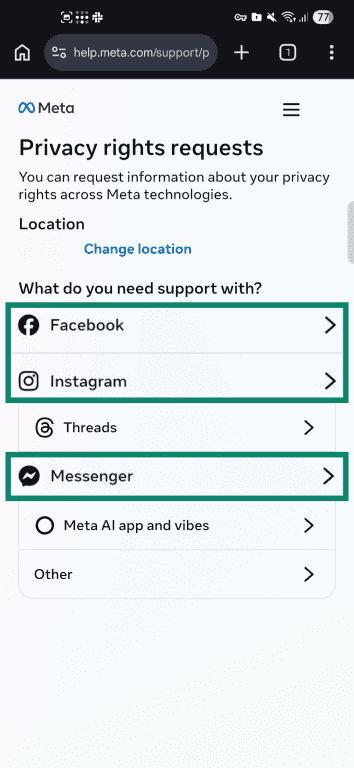
- Visit Meta’s Privacy Rights Request channel.
- Select the relevant Meta product or account. If you need to limit data use across multiple apps, you’ll have to repeat the steps for each one individually.
- Tap How can I object to the processing of my information and select your objection (for example, I want to object to the use of my information for Meta AI).
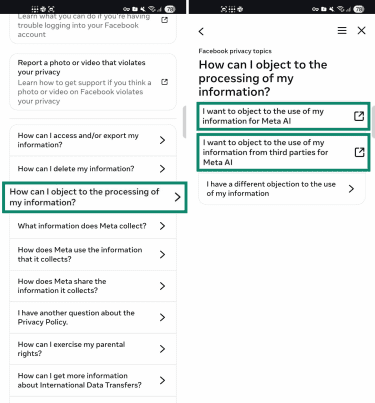
- Fill out the form using the email tied to your account. You’ll have to provide a reason and any additional details for your objection. When you’re done, tap Submit to send your request.
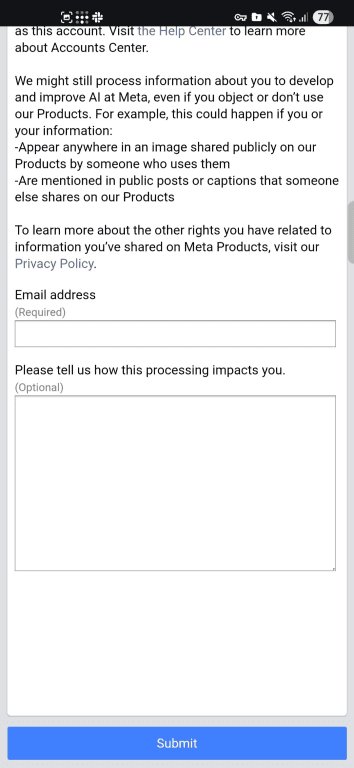
Note: In GDPR regions, users may also have separate rights to request access, correction, deletion, or restriction of processing, depending on the circumstances. Use Meta’s privacy rights tools or local data protection authority guidance for those requests.
How to protect your privacy while using Meta AI and other AI tools
A few privacy practices can help you control how AI platforms use your data.
- Opt out of AI training: Some AI tools may, by default, use prompts, responses, or feedback to train or improve models. Check each platform’s privacy policy and data controls. Some services let you disable data use for model improvement in account settings.
- Limit personal data sharing: Information shared with an AI tool may be stored, reviewed, or used to improve the model, depending on the provider’s settings and policies. Avoid entering sensitive work information, personal data, images, or documents unless the tool is approved for that use. Even when providers de-identify data, anonymization may not eliminate all re-identification risks.
- Limit personalization and third-party data: You can reduce some data collection by disabling third-party cookies, managing app permissions, and modifying your ad preferences. On Facebook and Instagram, for example, go to Account Center > Your information and permissions > Your activity off Meta technologies to review or disconnect activity that other businesses and organizations share with Meta.
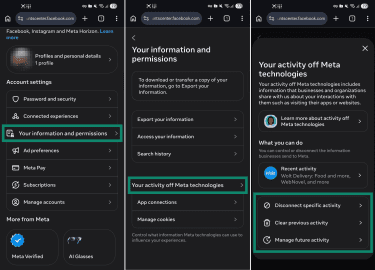
- Track AI policy and security updates: Provider AI policies and data processing practices can change over time, which can affect how they collect and use your data. Keeping up with provider updates and relevant security alerts can help you take action, such as changing settings, updating passwords, or securing accounts after a breach.
- Opt for private AI tools: For tasks involving sensitive information, consider tools with stronger privacy controls. ExpressAI encrypts chats in secure enclaves and doesn't use conversations to train AI models.
- Use a virtual private network (VPN): A VPN encrypts your internet connection and masks your IP address from websites and networks, which can reduce some location- and network-based tracking. Some apps, like ExpressVPN, also include tracker-blocking tools. However, a VPN doesn't stop AI tools from processing information you enter or account activity while logged in.
FAQ: Common questions about turning off Meta AI
Why can’t I completely remove Meta AI from Facebook?
Does opting out stop Meta AI from appearing in my apps?
Can Meta use my posts to train AI?
Does turning off Meta AI improve privacy?
Take the first step to protect yourself online. Try ExpressVPN risk-free.
Get ExpressVPN
















Comments
Thank you for getting rid of AI, it’s going to be a dreadful future.