How to ping an IP address


Ping is one of the easiest ways to check if your device can reach another computer, server, or website. It shows you if a connection is working and how long it takes for data to travel back and forth, which can help you detect issues when your connection feels sluggish.
In this guide, we’ll explain what the ping command does, how it works, and why it’s useful for troubleshooting. We’ll also show you how to ping an IP address on Windows, macOS, and online, and what the results really mean.
What is a ping command?
The ping command is a test that sends a request to another device and waits for a reply. It’s often the first step in diagnosing connectivity issues.
How does ping work in a network?
Ping works by sending a small test packet from your device to a target IP address and waiting for a reply. It uses the Internet Control Message Protocol (ICMP) to send what’s known as an echo request and listens for an echo reply.
If a reply comes back, it means the target is reachable and responding. The time it takes for that round trip is measured in milliseconds (ms), showing how fast the connection is. A quick response means a stable connection, while a long delay or no reply could indicate congestion, filtering, or a network problem.
Why would you need to ping an IP address?
Pinging an IP address is one of the quickest ways to see if your computer, router, or a remote server is causing connectivity issues.
Network administrators sometimes ping IP addresses to measure delay and identify packet loss across large networks. For everyday users, it can be helpful for figuring out why a site won’t load, whether a virtual private network (VPN) or home network is slowing the connection down, or seeing how well a game might perform online.
Ping is also useful for:
- Troubleshooting network issues: If a device doesn’t reply, it could mean it’s offline, blocked by a firewall, or misconfigured.
- Testing latency and stability: Higher ping often means network congestion or routing problems.
- Checking Domain Name System (DNS) resolution: When you ping a domain name, it shows whether your device can translate it into an IP address using nameservers.
- Monitoring uptime: Automated tools can use ping to track when servers or websites go down.
- Diagnosing local vs. external problems: If you can ping your router but not an external site, the issue is likely outside your home network.
Is it legal to ping any IP address?
Pinging an IP address is generally legal. An IP address is public information, and a basic ping only checks whether a device responds. It does not access, modify, or interfere with the device. However, legality can change if the activity causes harm, such as sending excessive requests that disrupt a system or contribute to a denial-of-service attack.
How to ping an IP address on Windows
Step 1: Open the command prompt
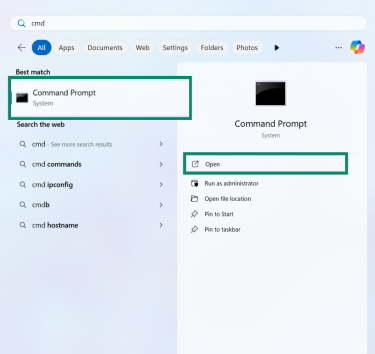
- Click the Start menu and type cmd in the search bar.
- Select Command Prompt and press Open.
Step 2: Enter the ping IP address command
- Type the word ping, followed by a space and the IP address or domain you want to test.
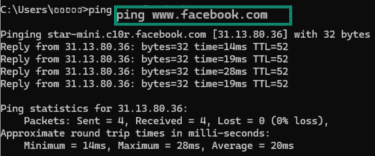
- Set parameters to customize the test if needed:
- -n sets the number of ping attempts (for example, -n 5 runs five tests).
- -t keeps pinging until you stop it manually with Ctrl + C.
- -4 or -6 forces ping to use IPv4 or IPv6.
- -w sets the time-out in ms (for example, -w 1000 waits one second for a reply).
Tip: Enter these after the IP address or URL, e.g, www.example.com -n 5.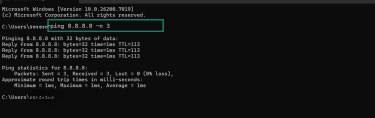
- Press Enter to see your results. We’ll help you interpret the results below.
How to ping an IP address on macOS
Step 1: Open the Terminal
- Open Finder and go to Applications > Utilities >Terminal. Or use Launchpad or Apps to search for Terminal.

Step 2: Enter the ping IP address command
- Type the word ping, followed by a space and then the IP address or website you want to test, then press Return.
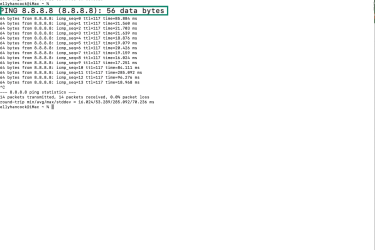
- If you only want to send a specific number of ICMP packets, type ping -c [number] [address].
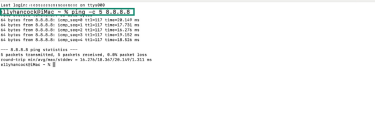
- You can also add other parameters to your test if needed. Add these using the same format as above: ping [parameter] [number] [address]:
- -4 or -6 forces ping to use IPv4 or IPv6.
- -W sets the time-out per packet in seconds, for example, -W 1 waits one second for a reply.
- -t sets the packet’s time to live (TTL).
- -s changes the packet size in bytes.
- -i adjusts the interval between pings
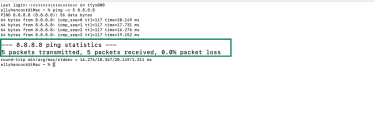
- To end the test, press Control + C on your keyboard. By default, macOS keeps pinging until you stop it. When you stop the test, macOS displays a summary of your results. We’ll help you interpret the results below.
How to ping an IP address online
If you don’t want to use Command Prompt or Terminal, you can run a ping test directly from your browser.
Using free online ping tools
Many websites offer free ping services that show whether a server is reachable, but these tests don’t run from your device. The site performs the ping from its own servers and displays the results in the browser. This can confirm whether a destination is reachable, but it doesn’t reflect connectivity from your own network:
- An online tool might show ~30ms because its server is physically close to the target.
- Your home connection might show ~150ms because your packets travel through a different internet service provider (ISP) path.
- Another site might show ~100ms because its server sits somewhere else on the network.
Here’s how to ping an IP address using a free online tool:
- Go to a trusted ping website, such as Ping.eu or DNSChecker.org.
- In the search box, type the domain name or IP address you want to test.
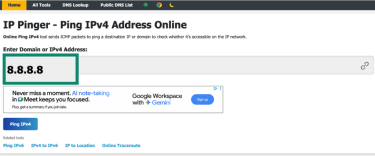
- Click Go, Start, or Ping IPv4/IPv6 to begin the test.
- Wait for the results to appear. You’ll typically see each ping reply listed with its response time (ms) and whether any packets were lost.
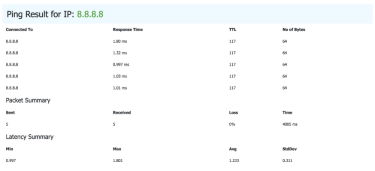
Limitations of online tools vs. Terminal or Command line ping
| Online ping tools | Terminal/Command line ping | |
| Ease of use | No setup needed; runs in any browser | Requires opening a terminal or command prompt |
| Test location | Runs from the tool’s remote server | Runs from your own device and network |
| Accuracy | May not reflect your real connection | Shows your exact latency and packet loss |
| Customization | Limited options and usually fixed number of packets | Supports multiple parameters (count, timeout, IPv4/IPv6, continuous ping) |
| Firewall/block detection | Can’t detect local issues | Helps identify local or router-level blocks |
| Privacy | Your IP is visible to the tool provider | All tests run locally without sharing data |
Using the ping command from your desktop’s terminal gives you much more control. The results reflect your exact connection path, which makes local ping tests far more useful for diagnosing slow speeds or connectivity drops.
If you just want to know whether a website is online, an online tool works fine. But if you need to troubleshoot your network or a VPN connection, it’s better to use a terminal-based ping test.
Understanding ping results
Each line on the ping results gives information about how fast and reliable the connection is, and whether data is getting lost along the way.
What does a ping response include?
Here’s what you’ll usually see in a ping result:
- Reply from [address]: Shows that the target device received the request and sent a reply.
- Bytes: Displays the size of the test packet that was sent.
- Time: Tells you how long the packet took to travel to the target and back, measured in ms.
- Time to live (TTL): Shows how many network points, or “hops,” the packet passed through before it expired.
When the test ends, you’ll also see a summary with the number of packets sent, received, and lost, alongside the minimum, maximum, and average response times.
Common metrics explained: Latency, TTL, packet loss
Latency
Latency is the time it takes for data to travel from your device to the target and back, measured in ms. Lower latency means a faster, more responsive connection. A delay of under 50ms is excellent for most online activities, while anything above 300ms can feel slow or cause lag when streaming or video calling. Usually, a delay of over 100ms is too slow for gaming and can cause your gameplay to stutter.
Time to live (TTL)
TTL measures how many hops a packet can travel through before it expires. Each router or server it crosses reduces the TTL value by one, which limits how far the packet can go. The network then discards the packet when the value reaches zero to stop it from looping endlessly.
A low TTL often means the destination sits farther away or the packet took a longer, more complex route, which might be causing a slow connection. However, a consistent TTL shows that packets are following a stable and efficient path, so it likely isn’t affecting your connection speed.
Packet loss
Packet loss occurs when your device sends data but doesn’t get all the packets back. Occasional loss can happen when the network is busy, but frequent loss usually means you have a weak Wi-Fi connection, a faulty router, or an issue with your ISP. Even a small percentage of loss can cause noticeable issues, like frozen video calls or interrupted downloads.
How latency affects network performance
Latency isn’t the same as internet speed. Although you might have a fast download rate, if latency is high, your connection can still feel slow or unresponsive.
Low latency keeps your connection feeling smooth. Web pages load quickly, video calls stay in sync, and online games react instantly. When latency rises, those activities can lag or freeze, making even simple tasks feel delayed.
The physical distance between your device and the server usually has the biggest impact on latency, because the farther data has to travel, the longer it takes to return. Other factors can also have an influence:
- Network congestion: When several people share the same connection or a network becomes overloaded, packets have to queue before being sent. This delay increases the time it takes for each response to come back.
- Wi-Fi interference: Wireless signals can be interrupted by nearby devices, walls, or other networks. This interference can cause packet loss or retransmissions, adding extra delay.
- Routing paths: ISPs sometimes send data along indirect or crowded routes. Each extra hop adds processing time, so even a small change in route can increase overall latency.
Improving your ping results
Even if your ping test doesn’t fail, your results might not be what you’re expecting. Sometimes, ping tests can reveal slow or inconsistent results. Here are some steps to help improve your ping.
What to do if your ping is too high
If the time values in your ping results are too high, try the following:
- Restart your router or modem: A reset can often remove temporary congestion or routing problems.
- Switch from Wi-Fi to Ethernet: Wireless interference adds delay, especially in crowded environments.
- Move closer to your router: Walls, floors, and appliances can increase latency over Wi-Fi.
- Disconnect other devices: Sharing bandwidth with other devices can increase load and push your ping higher.
- Test a different server or IP: The issue may be with the destination rather than your network.
- Try a VPN server closer to you: A nearby VPN location can sometimes reduce latency if your ISP routes traffic poorly.
Fixing slow or inconsistent ping results
If your ping has high jitter and jumps up and down, try these steps:
- Run a local ping first: Ping your router (e.g., ping 192.168.1.1) to see if the issue starts inside your network.
- Check for background downloads: Software updates, cloud backups, or large downloads can cause spikes.
- Change your Wi-Fi channel or band: 5GHz offers lower interference but shorter range, while 2.4GHz travels farther but can be more congested.
- Restart or update your network adapter: Outdated drivers or temporary faults can affect stability.
- Test without a VPN: Some VPN servers block ICMP or route traffic differently, which may affect ping.
- Try another network: Run the same test on mobile data or a hotspot to see whether your ISP is causing more jitter.
Troubleshooting ping failures
If your ping test doesn’t return any replies, it doesn’t always mean your internet is down. Ping errors can happen for many reasons, including firewalls, wrong addresses, or unreachable networks.
Common error messages and what they mean
- Request timed out: This message appears when your device sends the ping, but doesn’t get a reply in time. It usually means the target device or website isn’t responding, possibly because it’s offline, busy, or blocking ping requests through a firewall. It can also happen if there’s too much network congestion or if packets are lost along the way.
- Unknown host: The unknown host error means your device couldn’t resolve the name of the target system into an IP address. Essentially, it couldn’t find where to send the ping. This often happens because of a typo in the domain name, a misconfigured DNS setting, or a temporary issue with the DNS server.
- Destination host unreachable: This message appears when your device sends a ping but can’t reach the destination. The failure usually happens somewhere between your computer and the target. In most cases, the issue comes from a local problem, like a loose cable or a router that’s offline. However, it can also mean the destination is part of a network your device can’t access. If your computer is on a different subnet without a valid route to the target, the request won’t go through.
- General failure: A general failure message often means a problem on your device, not the network itself. It often appears when something blocks ping requests before they even leave your computer. Usually, this can happen if your network adapter is turned off, a VPN interrupts the routing process, or a firewall prevents ICMP traffic from going out. You can try restarting your adapter or disabling the firewall to help you check where the issue starts.
Learn more: Is another person on your network using your IP address? See why this error occurs and how to fix it.
Advanced troubleshooting techniques
If ping tests keep failing or show inconsistent results, you can run a few deeper checks to help you find the cause.
Checking firewall and router settings
On Windows
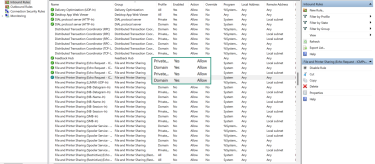
Windows can block ping replies through its firewall. Ping works by sending small test signals between devices, which are controlled through a firewall rule under File and Printer Sharing. If this rule is turned off, your device won’t respond to ping tests even though the network itself is working normally.
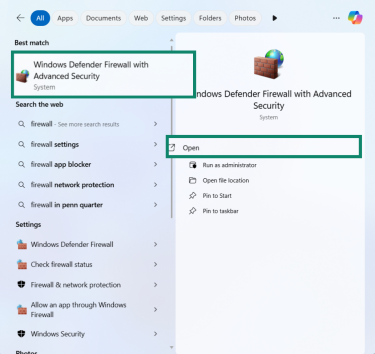
- Open the Start menu, find Windows Defender Firewall with Advanced Security, and click Open.
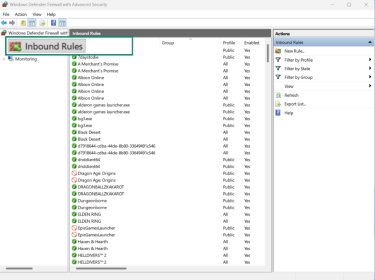
- In the left sidebar, choose Inbound Rules.
- Scroll through the list and look for entries called:
- File and Printer Sharing (Echo Request – ICMPv4-In)
- File and Printer Sharing (Echo Request – ICMPv6-In)
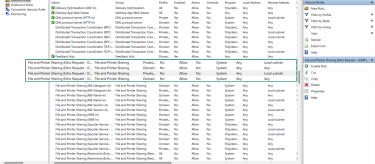
- Make sure the rule for your network type (Private/Public) shows Yes under Enabled.
On macOS
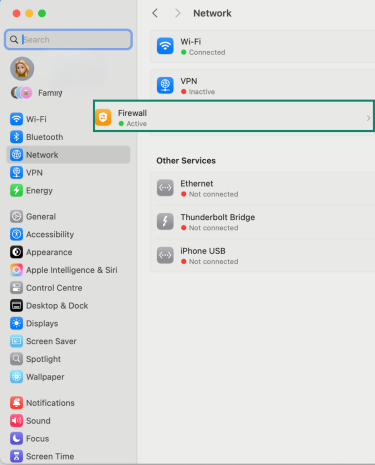
MacOS can also block ping replies when its firewall is turned on. The firewall filters incoming ICMP traffic, including the echo requests that ping uses. If it blocks these requests, your device doesn’t respond to ping tests, so the test can look like the connection has failed even though the network is working normally.
- Open System Settings and go to Network.
- Select your active Firewall connection.
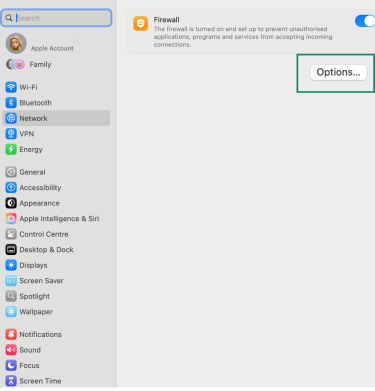
- Click the Firewall Options button.
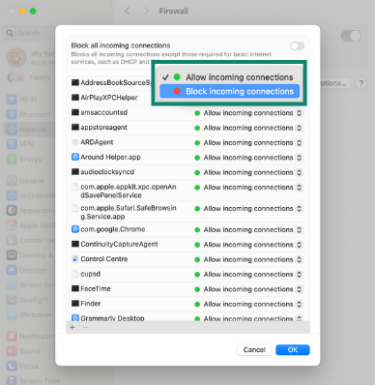
- Check whether any rules are set to Block incoming connections for network diagnostics or ICMP requests.
Check your router settings
- Open your browser and log into your router’s admin panel (usually found at an address like 192.168.0.1 or 192.168.1.1).
- Look for sections labeled Security, WAN settings, or Advanced settings.
- Find any options referring to ICMP, ping, or Block anonymous requests.
- If ping replies are disabled, temporarily enable them to test connectivity, then disable them again.
If you still don’t receive replies, check whether VPN software or antivirus tools are interfering with network traffic, as some security programs block ICMP requests by default. You can also test from another network, such as a mobile hotspot, to see whether it’s a local issue or caused by your ISP.
Using traceroute for deeper diagnostics
If ping shows delays or packet loss, running traceroute can show you where the problem occurs along the path. While ping checks whether a destination responds, traceroute maps the exact route your data takes to reach it.
If you can see where the connection slows down or stops at each hop, you can usually pinpoint the cause of your issue. For example, a sudden jump in response time or asterisks (*) can indicate where delays are.
Run traceroute on Windows
- Open the Start menu and type cmd to open Command Prompt.
- Type tracert, followed by a space and the website or IP address you want to test (for example, tracert example.com).
- Press Enter.
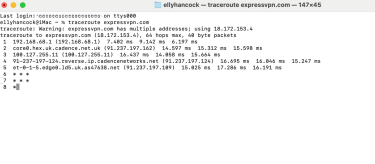
- Wait for the test to finish. Each line in the results shows a hop, the response time in ms, and the IP or domain name of the router.
Run traceroute on macOS
- Open Launchpad, then Utilities, and Terminal.
- Type traceroute, followed by the website or IP address you want to trace (for example, traceroute expressvpn.com).
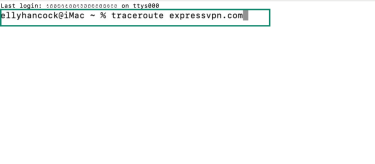
- Press Return to start the test.
- Wait for the results. Each line shows a hop your data travels through, along with its response time. Asterisks mean that the hop didn’t reply, which is normal for some routers that block traceroute requests. But if you see multiple asterisks, it can mean there’s an issue.
Other uses for the ping command
You can also use ping to test your network or keep an eye on connection stability over time. If you want to check whether specific ports are open, you’ll need to use ping alternatives.
How to check port availability with ping alternatives
The ping command shows whether an IP address, device, or server is reachable, but it doesn’t tell you if a specific network port is open. A port is a digital doorway that lets certain types of traffic pass through.
Usually, web browsers use port 80 or 443, email uses port 25 or 587, and other services each have their own. If a port is closed, the application or service that relies on it can’t connect, even if the device responds to ping.
To test whether a port is open, you can use other built-in tools or trusted online services:
On Windows
- Open Command Prompt.
- Type telnet [hostname or IP] [port number], then press Enter.
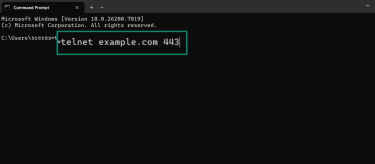
- For example, telnet example.com 443 checks if HTTPS (port 443) is open.
- If the connection is successful, the screen will clear or show a connected message. If it fails, the port is likely closed or blocked by a firewall.
On macOS or Linux
- Open Terminal.
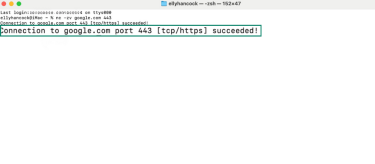
- Type nc -zv [hostname or IP] [port number] (for example, nc -zv google.com 443).
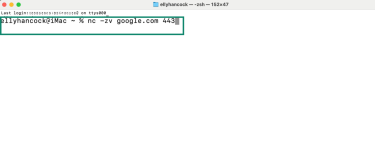
- A “succeeded” or open message means the port is accessible. If you see connection refused or timed out, the port is closed or filtered.
Online tools
If you prefer not to use the command line, you can test ports through browser-based services such as YouGetSignal or PortChecker.co. These tools scan from an external server, so they can show whether a port is accessible from outside your network.
If a port appears closed, your router or firewall might be blocking it for security. You can try enabling port forwarding or temporarily adjusting firewall rules to confirm, but always revert settings afterward to keep your system protected.
How to ping your own IP address
You can also use ping to test your own device or local network. This helps confirm that your computer’s network adapter and connection to the router are working properly.
Check your local connection
- Open Command Prompt (Windows) or Terminal (macOS).
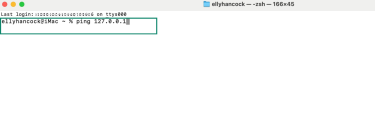
- Type ping 127.0.0.1 and press Enter. This loopback address checks whether your device can send and receive data internally.
- Watch the live replies:
- You should see lines like: 64 bytes from 127.0.0.1: icmp_seq=1 ttl=64 time=0.12 ms, which is your round-trip time. For loopback, expect tiny numbers (typically 0.1–0.5 ms) and very little variation.
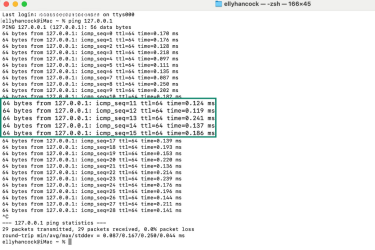
- If you’re using macOS, remember to press Control + C to end the test.
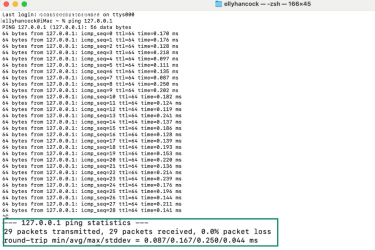
- When the test is finished, you’ll see a line with your results, including the packets transmitted, packets received, and packet loss.
How to monitor network stability over time
Ping can show how steady your connection is over time. When you keep ping running for a few minutes, the responses build a picture of how your network behaves under normal conditions and during slowdowns.
If each reply comes back quickly and the times stay consistent, your network is performing well. But if responses vary or some packets don’t return, it suggests something is interfering with your connection. Occasional spikes in response time are normal, but constant fluctuations can mean congestion, weak Wi-Fi, or interference from nearby devices.
Tracking ping results over longer periods helps you see patterns that short tests can miss. For instance, you might notice higher latency in the evening when more people use the network, or short drops that match your router’s automatic resets.
For ongoing monitoring, specialized tools such as PingPlotter and Obiko can automate these checks. They log response times and packet loss over hours or days and present the results as charts or heat maps. You can then use these heat maps to spot recurring problems and track performance changes. They can also help you see whether moving your router or switching networks actually improves stability.
Does a VPN affect ping results?
A VPN can change how your connection behaves, and that includes your ping results. A VPN routes your traffic through its own servers, so you might see small differences in speed, latency, or how your device connects to websites.
Can a VPN increase ping time?
A VPN increases ping time because it adds an extra step to your connection. Instead of sending data directly to a website, your device first routes it through a VPN server, which encrypts your data before continuing to the destination.
The location of the VPN server you connect to usually has the biggest impact on your ping. Typically, the farther away it is, the longer your data takes to reach it and return. For example, if you’re in the U.K. and connect to a server in New York, it will take your data longer to travel to that server and back than if you connect to a server in the U.K.
The encryption process can add another delay, since your device and the VPN server need to secure and decrypt your data before sending it on. These steps usually add only a few ms of delay, but they can slightly increase latency.
However, a VPN doesn’t always slow things down. If your ISP routes traffic inefficiently or throttles certain types of data, a VPN can sometimes reduce ping. This is because a VPN can direct your traffic along a faster, less congested path.
Why some VPNs block ping requests
Some VPNs block ping requests to protect their servers and users from potentially harmful traffic. Although the ICMP data packets that ping uses to test connectivity are harmless on their own, they can also show that a device or server is active.
Cybercriminals sometimes exploit this by sending large numbers of ping requests (known as ping sweeps or ICMP floods) to scan networks or overwhelm them with data. To prevent that, many VPN providers configure their servers to ignore ICMP packets entirely. This stops automated scans from discovering active VPN servers and helps reduce the risk of denial-of-service (DoS) attacks.
If your ping tests fail when you’re connected to a VPN, it doesn’t necessarily mean the connection is broken. The VPN’s firewall is likely blocking ICMP traffic in the background, so your ping requests never get a reply. The VPN still routes your data normally, but you just can’t use ping to measure latency while the block is active.
How to test ping with and without a VPN
Testing ping with and without a VPN helps you see how the VPN affects your connection speed and stability.
To compare results, first disconnect from the VPN and test your baseline ping. Note the average response time and any packet loss.
Next, test your ping while connected to the VPN. Follow these steps:
- Connect to a VPN server that’s close to your location first.
- Repeat the same ping test to the same destination.
- Compare the average times.
- A small increase (10–30ms) is normal.
- Large jumps in latency or missing replies might indicate a slow or congested VPN server.
It’s also a good idea to connect to a server farther away, such as in another country, and run the same test. Usually, longer distances increase ping times, but results should still stay consistent if the network path is stable.
FAQ: Common questions about ping
How do I ping 192.168.1.1 from the Command Prompt?
To ping from Command in Windows, open Command Prompt, type ping 192.168.1.1, and press Enter. That address usually belongs to your router. If you get replies, your computer can reach your local network.
What does the ping command return?
Ping tells you if a connection works and how fast it is. Usually, ping results list the time each packet takes to travel back and forth, the number of packets lost, and the time to live (TTL) value, which shows how many network points the data passed through.
How can ping help in troubleshooting?
Ping helps you see where a connection fails. If you can reach your router but not a website, the problem is likely with your internet service provider (ISP). If you can’t ping anything, the issue is probably with your device or local network.
What’s the difference between ping and traceroute?
Ping checks if a device or website responds and measures how long each packet takes to return. It gives you an overall picture of speed and reliability. Traceroute maps the route that data takes to reach the destination. It lists every stop along the way and shows how long each one takes to respond. If ping shows slow or missing replies, traceroute can help you see where the delay or failure is happening.
Can I ping a website instead of an IP address?
Yes. When you ping a website, your device uses Domain Name System (DNS) to find the site’s IP address, then sends the ping to that address. The results show whether your system can reach the site’s server and how long it takes to get a response.
If the website blocks ping requests, you might not get a reply even though the website is online. You can troubleshoot the connection in other ways, such as running a traceroute test to see where the connection stops.
Take the first step to protect yourself online. Try ExpressVPN risk-free.
Get ExpressVPN

















 Support Center
  FAQ
FAQ  VPN Setup Tutorials


