How to make your Facebook account private


Facebook doesn’t have a single “make my account private” button. Instead, you can control your privacy through several settings that affect who can see your posts, profile details, photos, and activity. This guide shows you exactly what and how to change so only the people you choose can view your information.
Why Facebook privacy matters
Facebook privacy matters because other users beyond your intended audience, including those who aren’t your friends on the platform and even people outside of Facebook, may be able to see, save, and share your posts and personal information. Photos, comments, and profile details don’t stay private unless you limit who has access to them.
Your older posts may also resurface through timeline browsing, tagged content, comments, and shares. Plus, with more information available, it’s easier for bad actors to create more convincing Facebook cloning accounts.
Benefits of making your Facebook account private
Setting stricter privacy controls brings several practical benefits:
- Less publicly available profile information: By narrowing what’s visible on your profile, such as connections, photos, and activity, you reduce how much information is available to others.
- Defined audience for your content: Privacy settings let you decide exactly who can see your posts, photos, stories, and profile details, rather than relying on default or public visibility.
- Lower public discoverability: Restricting visibility limits how your profile and activity appear to non-friends, including in Facebook search and on publicly accessible areas of the platform.
- Reduced visibility of historical activity: You can limit access to older posts that were previously public, preventing past content from remaining broadly accessible to strangers.
- Greater control over how others interact with your profile: Tagging, timeline review, and sharing controls allow you to manage whether posts involving you appear on your profile and who can share your content further.
Step-by-step guide to making your Facebook account private
Facebook’s privacy controls, including settings for profile visibility, posts, tagging, searchability, and contact options, are spread across several sections. Each area affects how others see your information, so reviewing them individually is the most reliable way to adjust your overall privacy level on the platform.
How to access Facebook privacy settings
Facebook’s privacy controls settings are all under Settings and privacy, where you can adjust audiences, profile visibility, and contact options.
Accessing settings on iPhone and Android devices
For this guide, we used an iPhone to take the screenshots, but the menu is identical on iOS and Android devices.
- In the Facebook app, tap Menu in the bottom-right corner.
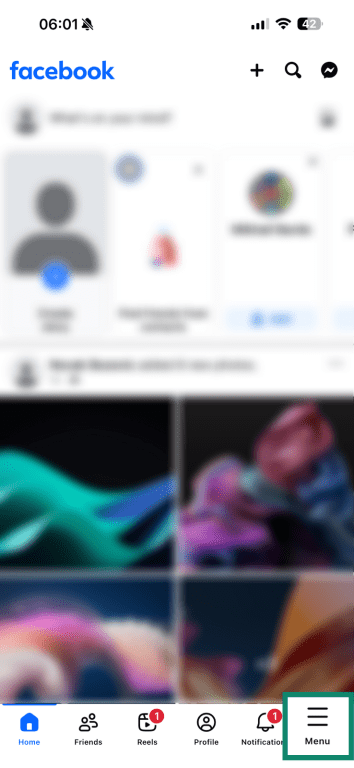
- Scroll down, select Settings and privacy, and then tap Settings.
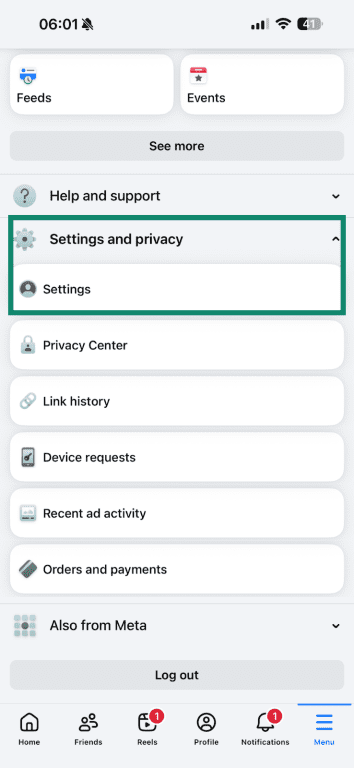
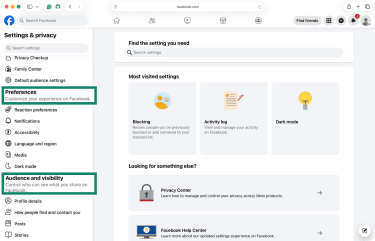
- Under Preferences and Audiences and visibility, you’ll find a range of options to adjust your privacy settings.
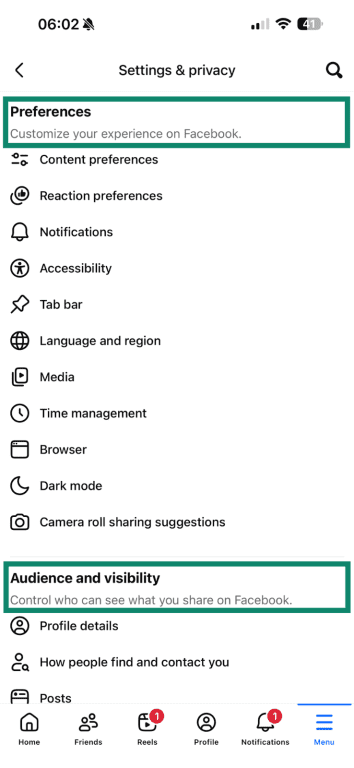
Accessing settings on a desktop or laptop
- In your Facebook account, click your profile icon and select Settings & privacy.
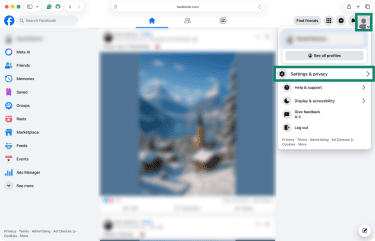
- Pick Settings.
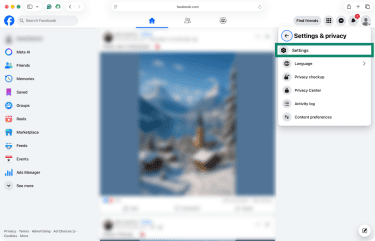
- In the left-hand sidebar, you’ll find various privacy options under Preferences and Audience and visibility.
How to adjust profile visibility
Facebook profile visibility control tools let you decide who can see your posts, photos, and profile details.
Locking your Facebook profile
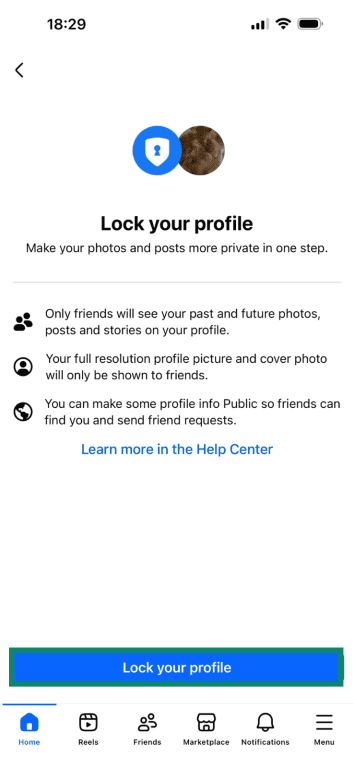
Facebook’s Profile Lock applies a broad set of privacy restrictions at once. When enabled, it limits the visibility of posts, photos, stories, and personal details to your friends. It also prevents non-friends from seeing your profile, cover photo, and older content.
If you’re in one of the supported countries, here’s how to activate Facebook’s Profile Lock:
- Go to your Facebook profile and tap the three dots next to Edit profile.
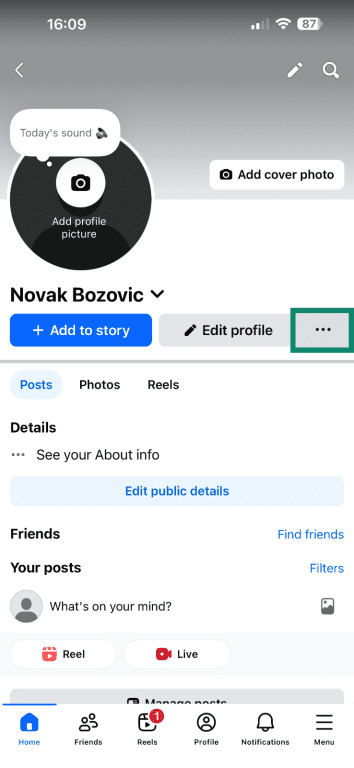
- Select Lock profile.

- Review the summary and confirm by tapping on Lock your profile.
Hiding your profile from search results
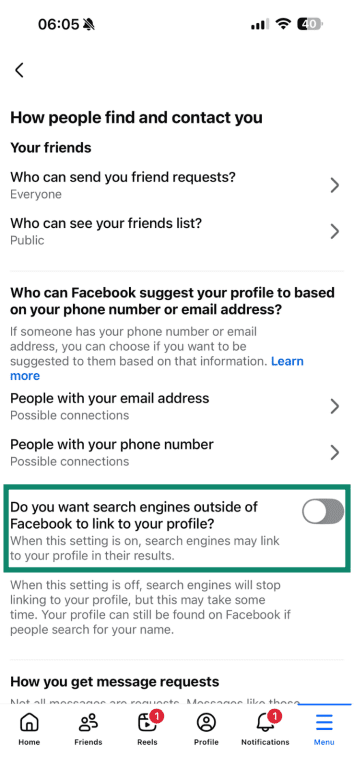
Facebook allows you to refine who can look you up using your email and phone number. You can also turn off the option that lets search engines outside Facebook link to your profile.
Here’s how to hide your profile from search results:
- Go to Settings, then under Audience and visibility, select How people find and contact you.
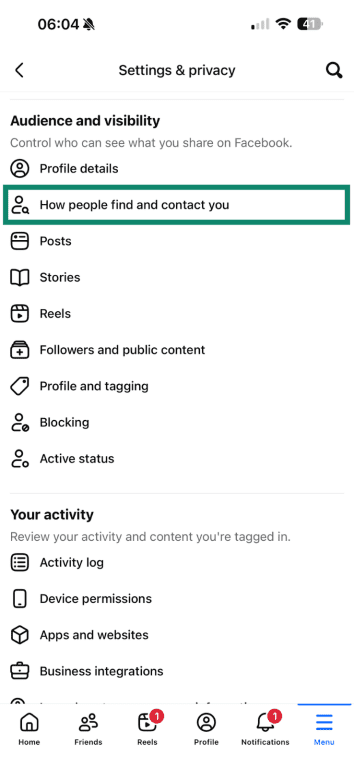
- Scroll down to Who can Facebook suggest your profile to based on your phone number or email address?
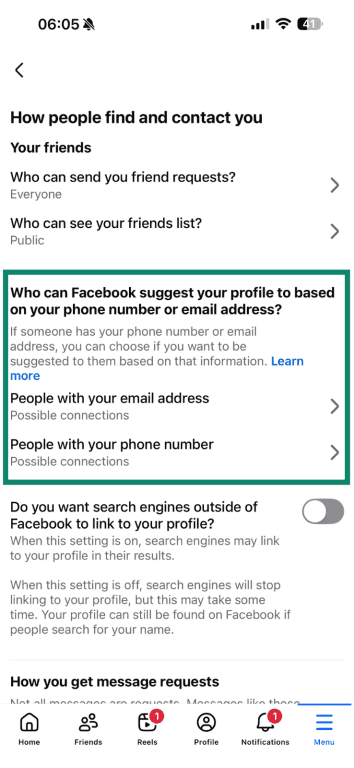
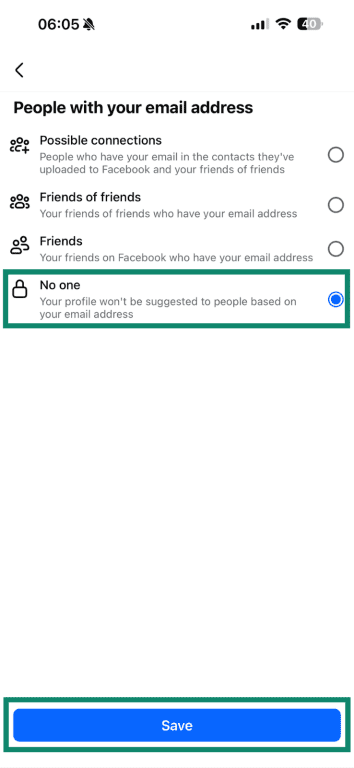
- Pick People with your email address and set it to Friends or No one. Tap Save.
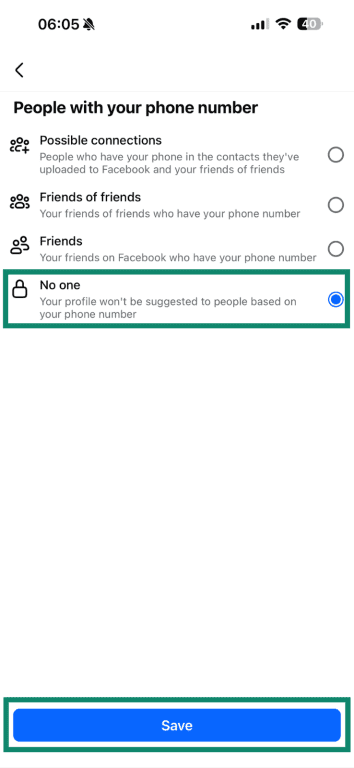
- Pick People with your phone number and set it to Friends or No one. Save your changes by tapping on Save.
- Disable the switch next to Do you want search engines outside of Facebook to link to your profile?
How to control who can contact you
Facebook provides tools that determine who can send you friend requests, who can message you, and how message requests are handled. Adjusting them helps limit unsolicited contact and reduce how often unfamiliar users can reach your inbox or send requests. The steps are the same on mobile and desktop.
Changing friend request settings
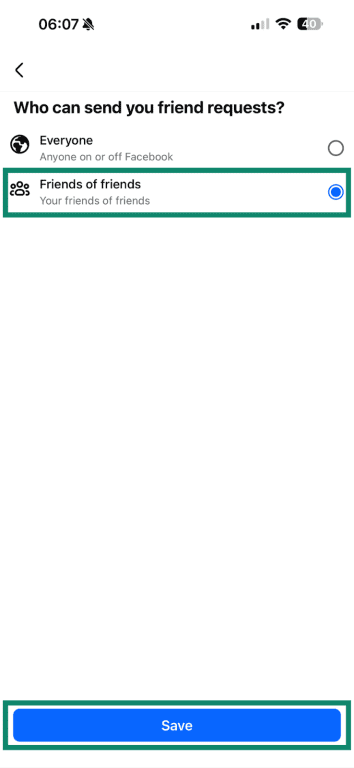
Facebook allows you to choose whether everyone or only friends of friends can send you friend requests. Setting this to Friends of Friends reduces unsolicited requests and limits profile visibility to unfamiliar users. Here’s what you need to do:
- Under Settings, scroll down to Audience and visibility and tap How people find and contact you.
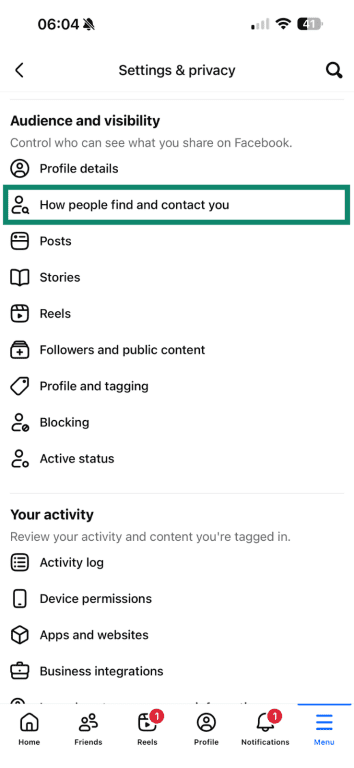
- Tap on Who can send you friend requests?
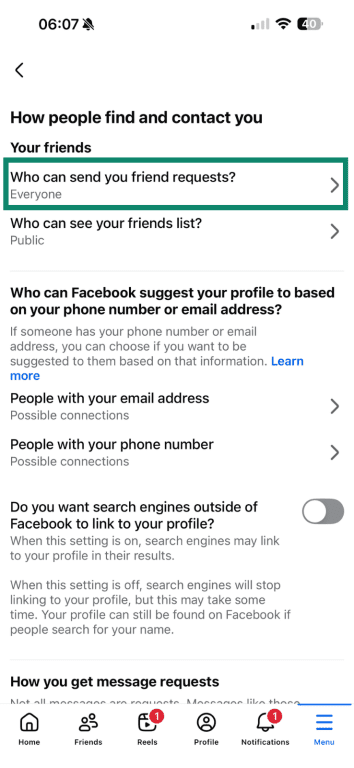
- Select Friends of friends, then tap Save.
Blocking messages from strangers
Facebook gives you granular control over how you get messages from strangers, friends, pages you follow, and more. In all those cases, you can choose not to get messages, which helps eliminate unwanted interaction.
- In Settings, scroll to Audience and visibility and tap on How people find and contact you.
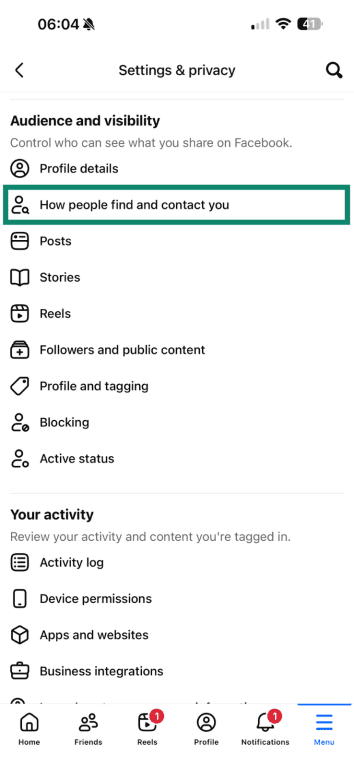
- Scroll down to the How you get message requests segment. Find the following items: For people with your phone number and For others on Messenger or Facebook and tap on those, one by one.
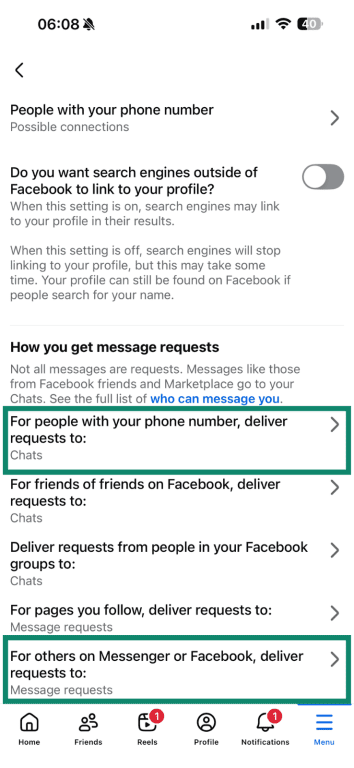
- Choose Don’t receive requests if you want to block those types of notifications and tap Save.
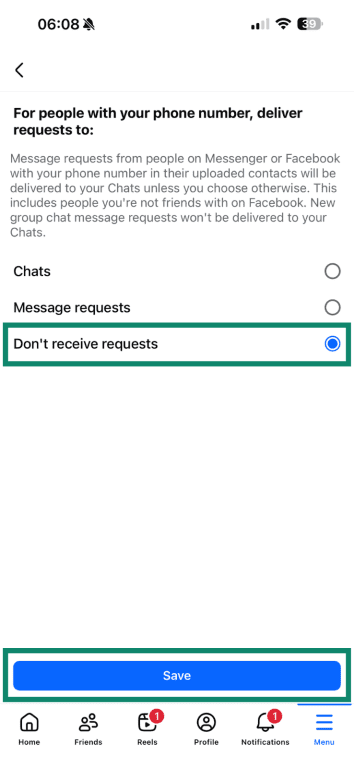
You can also do the same for other categories, such as For friends of friends on Facebook, Deliver requests from people in your Facebook groups, and For pages you follow.
How to manage your friends list
You can also control who can view your friends list and how tags involving your profile are handled. These tools help limit visibility of your social circle and prevent tagged posts from appearing on your profile without review. You can follow the same steps on mobile and desktop.
Making friends list private
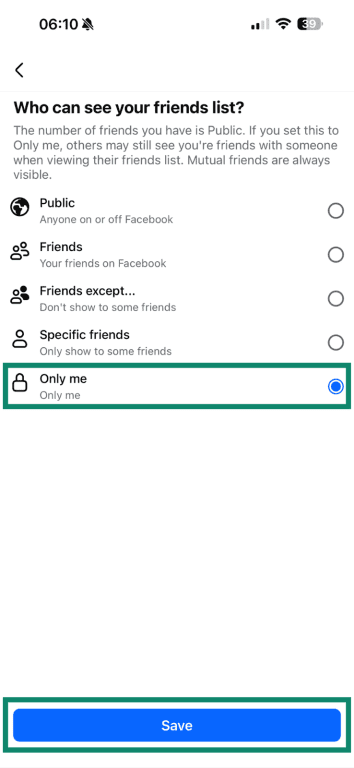
Your friends list is visible by default, but Facebook allows you to restrict it so that only selected audiences can view it. Limiting access to this list helps prevent unfamiliar users from browsing your connections and using your network to learn more about you.
- In Settings, scroll down to How people find and contact you.
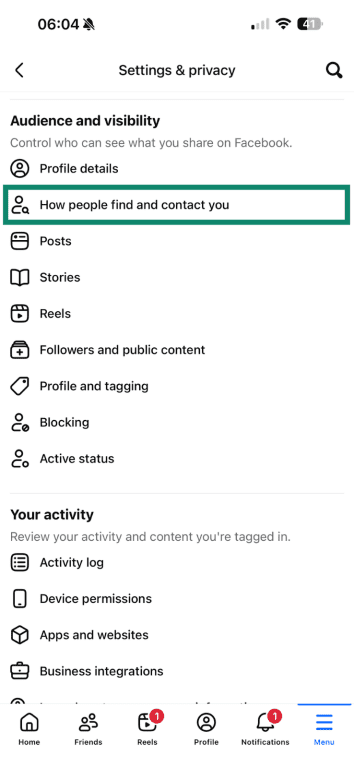
- Pick Who can see your friends list?
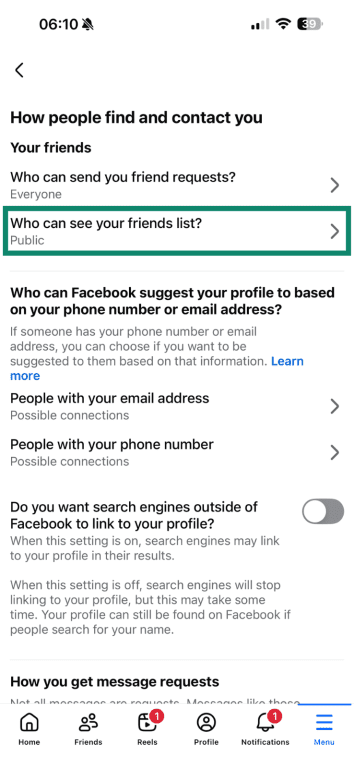
- Select Only me to make your friends list private, then tap Save.
Preventing others from tagging you
Facebook doesn’t allow you to block all tags. However, it provides review tools that let you approve posts before they appear on your profile. These options let you adjust Facebook timeline and tagging settings so tagged posts are reviewed first.
Key tagging settings include:
- Review posts you’re tagged in before they appear on your profile: This lets you approve each tagged post before it’s made public.
- Review tags people add to your posts: This lets you approve tags that others add to content you already created and posted.
- Choose who can see posts you’re tagged in: This controls the visibility of tagged posts on your Facebook profile.
Here are the steps to prevent others from tagging you on Facebook:
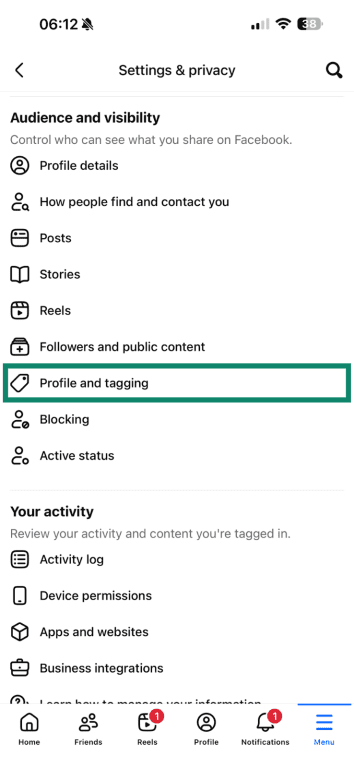
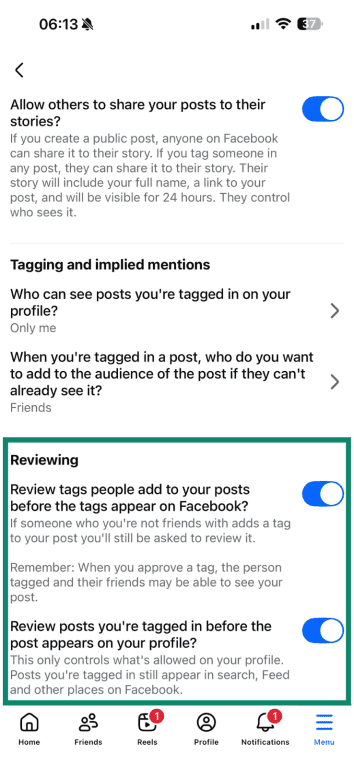
- In Settings, scroll to Audience and visibility and choose Profile and tagging.
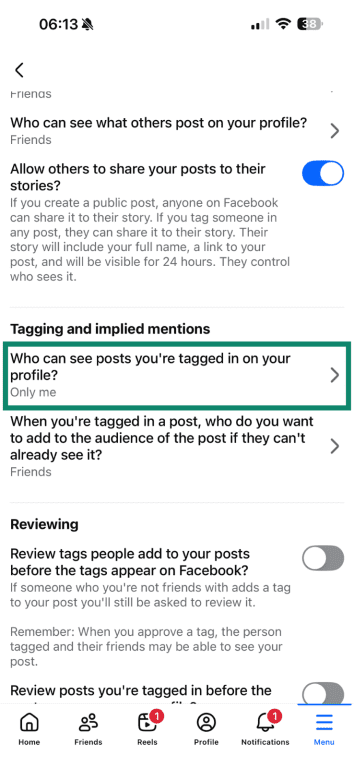
- Under Tagging and implied mentions, select Who can see posts you’re tagged in on your profile? and pick Friends or Only me.
- Select When you’re tagged in a post, who do you want to add to the audience of the post if they can’t already see it? and set this option to Friends or Only Me.
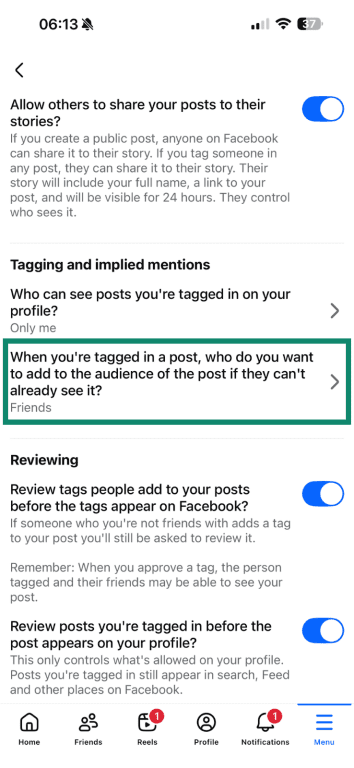
- Under Reviewing, you’ll see two options: Review tags people add to your posts before the tags appear on Facebook? and Review posts you’re tagged in before the post appears on your profile? Enable both of these options.
How to make posts and photos private
Making a Facebook account more private involves adjusting who can see new posts, narrowing the audience for older posts, and reviewing photo album settings. Facebook uses separate controls for each of these, so it’s helpful to go through them one by one. You can follow these steps on both mobile and desktop.
Limiting audience for new posts
New posts use the audience defined in your privacy settings, unless you change it manually using the audience selector. Adjusting the default audience lets you control who sees your Facebook posts going forward.
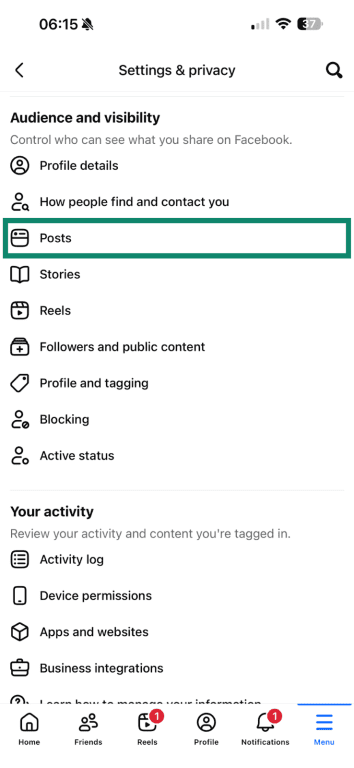
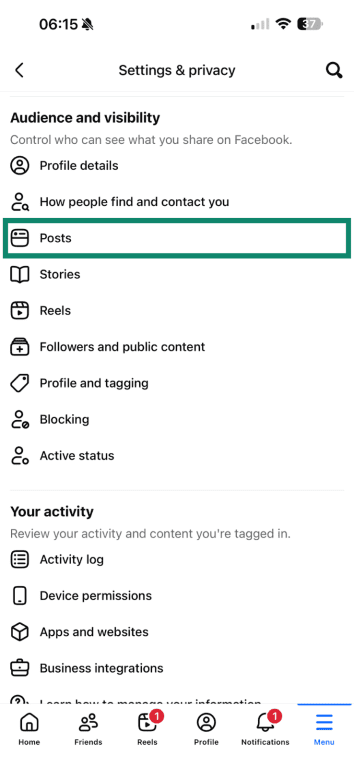
- In Settings, scroll down to Audience and visibility and tap Posts.
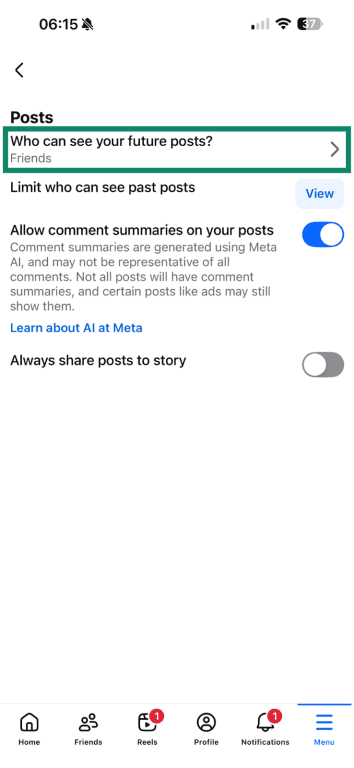
- Tap Who can see your future posts?
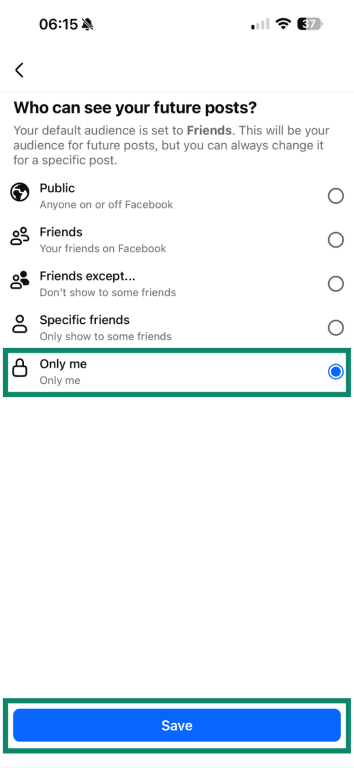
- You can choose Friends, Friends except…, Specific friends, or Only Me, depending on how private you want future posts to be. Finish by tapping Save.
Making past posts more private
Facebook allows you to limit older post’s visibility to just your Facebook friends. Note that if you want to hide individual posts or further limit their visibility, you’ll have to change their audience one-by-one.
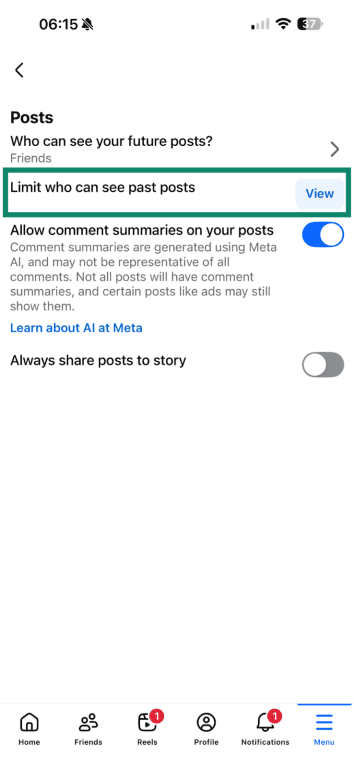
- In Settings, scroll to Audience and visibility and tap Posts.
- Tap View (or Limit past posts) next to Limit who can see past posts.
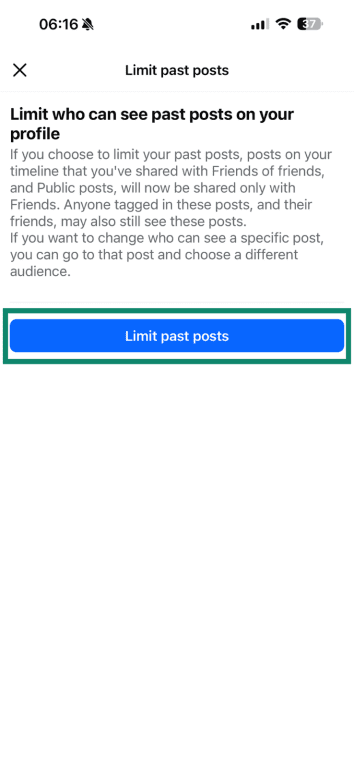
- Review the explanation and tap Limit past posts.
Creating custom privacy lists
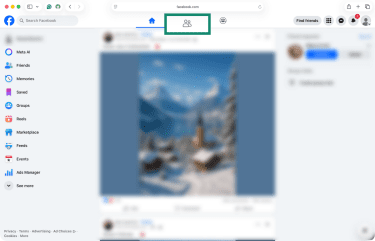
Custom friend lists give you more granular control over who can see what you post on your Facebook wall. Once you create these groups, it’s easy to just select that as your audience for individual posts. Note that creating custom friend lists is available only on Facebook’s website (there’s no such option in the Facebook app). You’ll need to do the following:
- Select the Friends tab at the top of the window.
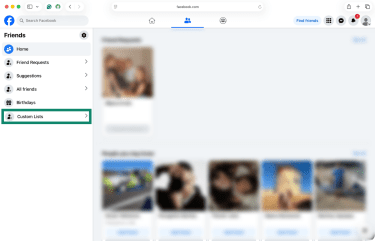
- In the left sidebar, pick Custom Lists.
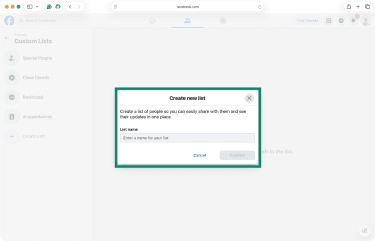
- By default, Facebook allows you to add people to your close friends, restricted, and acquaintances groups. To create your own list, click Create List. Enter a name for your custom list and click Confirm.
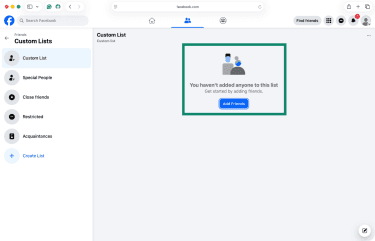
- You can now start adding people to your list using the Add Friends button.
Settings photo albums to private
Photo albums have their own privacy settings, separate from the default audience for new posts. Adjusting them helps control who can view your older photos that may not appear in the main feed anymore.
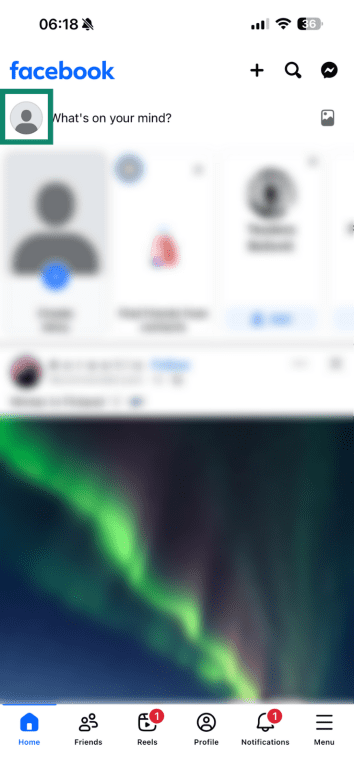
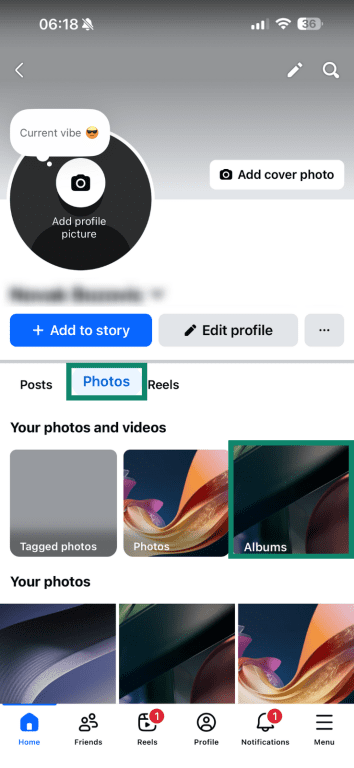
- Open the Facebook app and tap on your profile icon/photo.
- Tap Photos and select Albums just below.
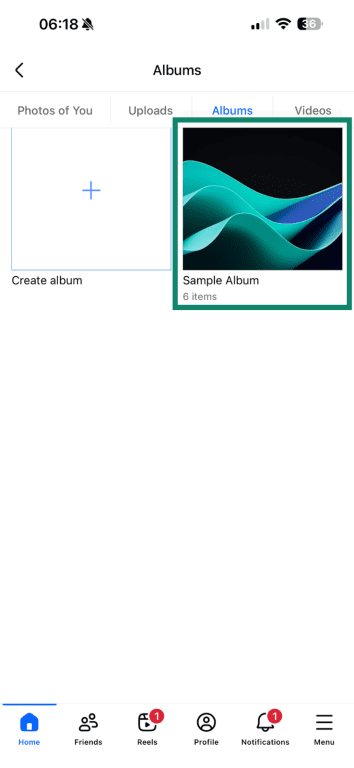
- Select the album whose privacy you wish to adjust.
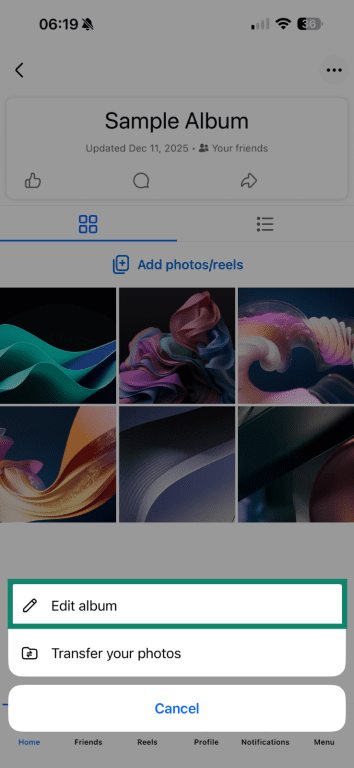
- Tap the three-dot icon (top-right corner) and pick Edit album.
- Select Friends (the default option on Facebook).
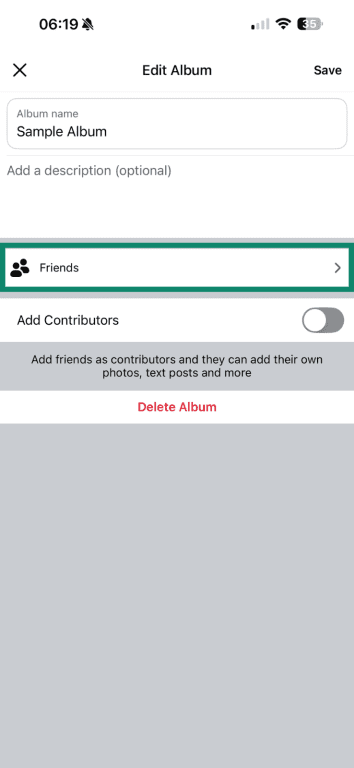
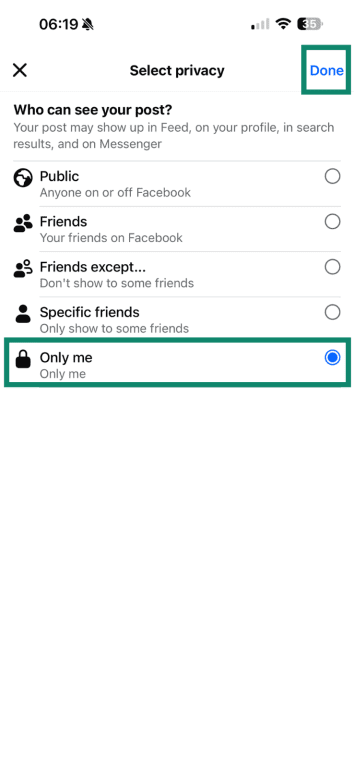
- Pick a custom audience or make the album private (pick Only me), and tap Done.
How to manage ads
Meta uses your activity on its platforms, as well as information it receives from advertisers, apps, and websites that share data with Meta, to personalize ads. Some of this data is aggregated or deidentified, and users can control parts of how this information is used for ad personalization through their ad settings
Adjusting Facebook ad preferences
You can’t turn off Facebook ads entirely, but you can reduce how tightly they’re tailored to your interests, profile details, and activity.
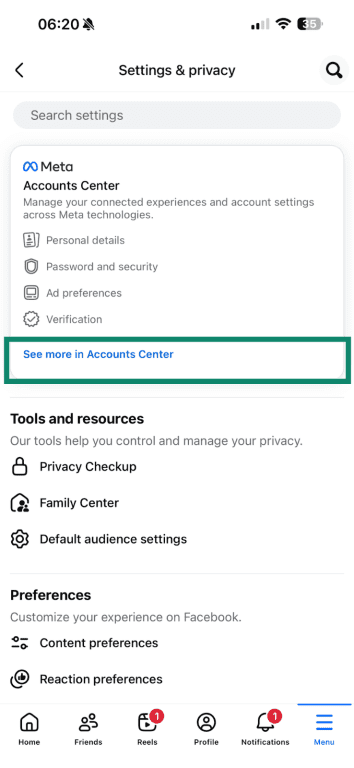
- In Settings, tap See more in Accounts Center.
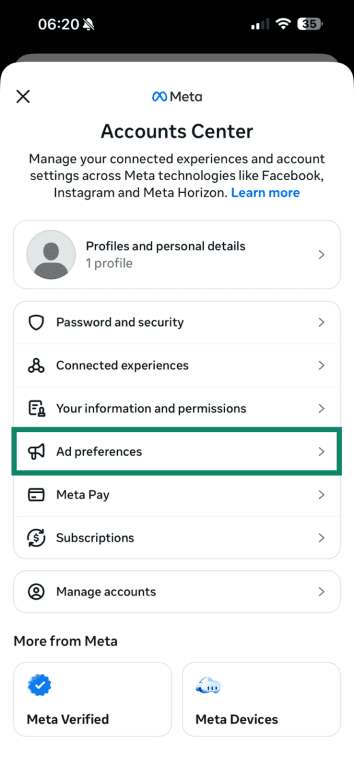
- Scroll down and select Ad preferences.
- You should now be on the Customize ads tab, where you can pick Ad topics.
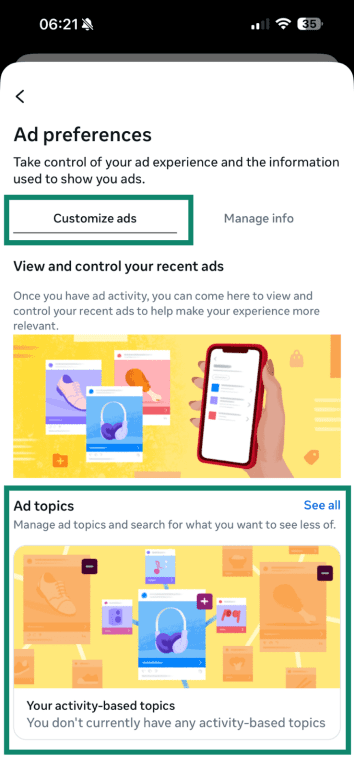
- Using the Ad topics panel, you can reduce or hide specific sensitive or repetitive topics.
- Switch to the Manage info tab and review the following options: Categories used to reach you, Activity information from ad partners, and Audience-based advertising.
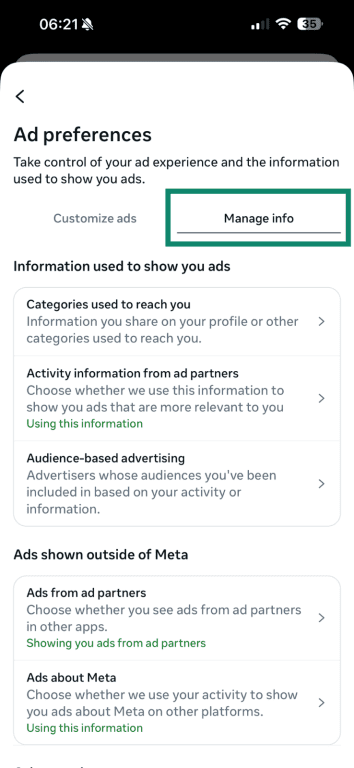
- All three of those options will be filled with different information for different Facebook users (based on your specific interests), so it’s worth inspecting them closely.
Limiting Facebook data collection across the web
You can also choose whether you wish to see ads from Meta and ad partners in other apps.
- In Ad preferences, select the Manage info tab.
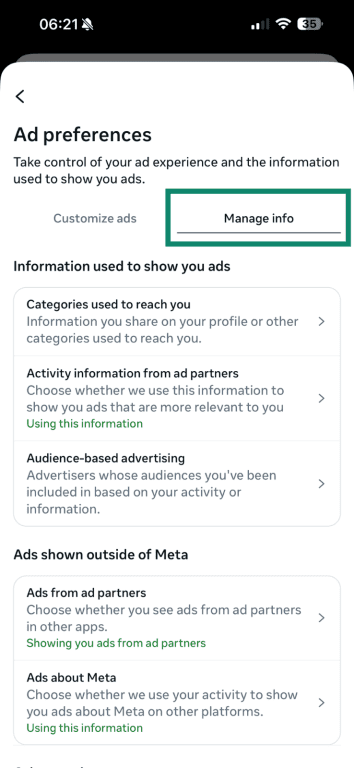
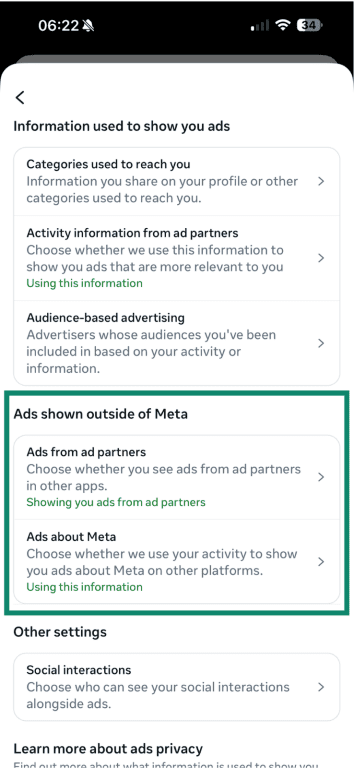
- Scroll to the section named Ads shown outside of Meta. You’ll see two options here: Ads from ad partners and Ads about Meta. Go through each option to disable ads related to your Facebook activity across other apps and the web.
How to enhance account security
Stronger security settings help protect your Facebook account from unauthorized access and misuse. Two tools are especially helpful here: two-factor authentication (2FA) and Facebook’s Privacy Checkup. They work alongside your privacy settings to keep your account harder to break into and easier to review.
Turning on 2FA
2FA adds an extra step when you log in. After entering your password, you confirm the login using a temporary code, an authentication app, or a security key. This makes it harder for someone to sign in with just a stolen password.
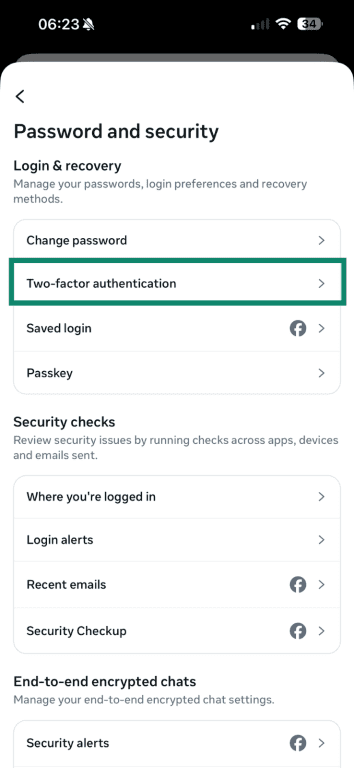
- In Accounts Center, go to Password and security.
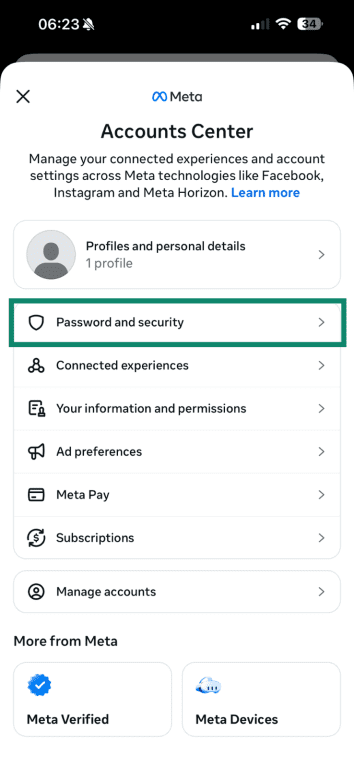
- Tap Two-factor authentication (under Login & recovery).
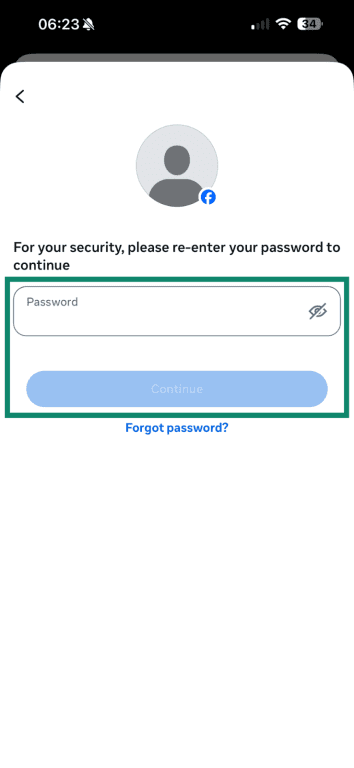
- Enter your password.
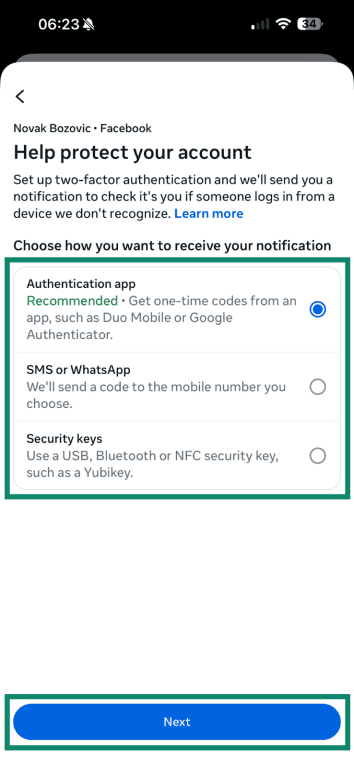
- Choose between using an authentication app, SMS/WhatsApp, or security keys. When you pick a suitable option, tap Next.
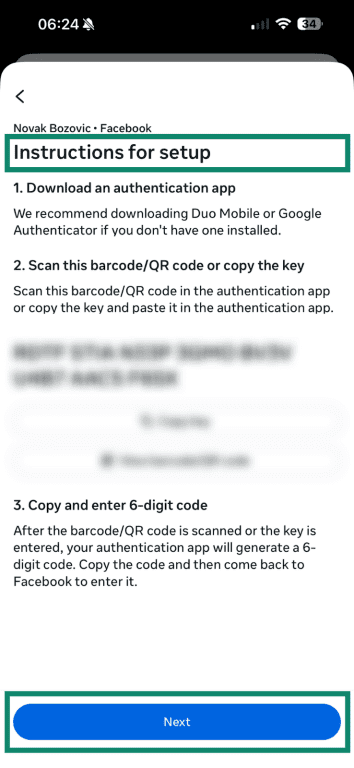
- You’ll now see the instructions on how to enable 2FA based on the method you picked in the previous step. Tap Next to finalize the procedure.
Using the Facebook Privacy Checkup tool
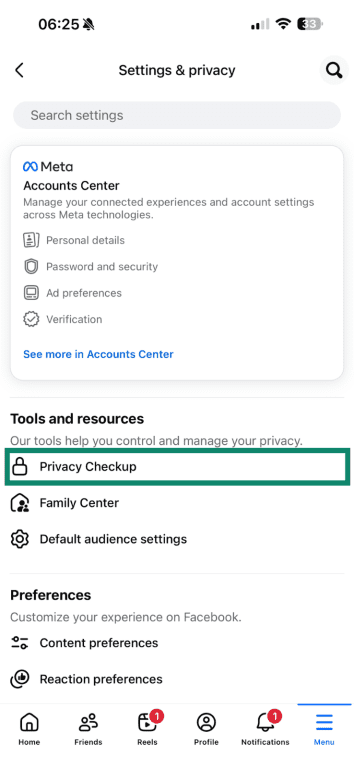
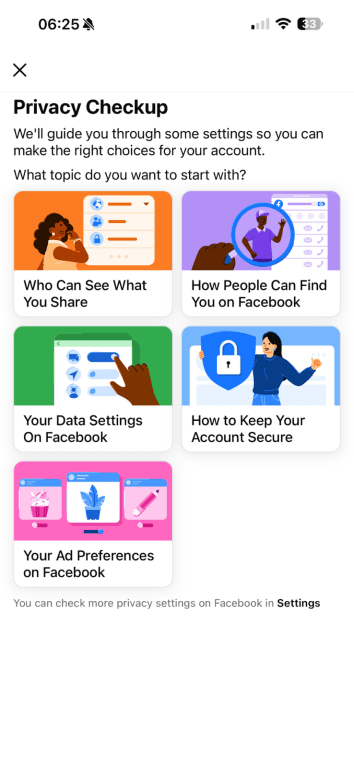
Facebook’s Privacy Checkup tool groups key privacy and security options into a short guided review. It highlights who can see your information, how people can find you, and how your account is secured. Running it periodically is a quick way to confirm that everything still matches your preferences.
- In Settings, tap Privacy Checkup.
- Work through each section, including who can see what you share, how people can find you on Facebook, and options related to security and login alerts.
Should you use a VPN with Facebook?
Using a virtual private network (VPN) makes sense when you’re connecting to Facebook on untrusted public networks (such as cafés, airports, or hotels) or on restricted work or school networks that block or monitor access to social media.
A VPN encrypts the traffic between your device and the VPN server, which prevents your internet service provider (ISP) or network admin from seeing you’re accessing Facebook.
However, a VPN doesn’t change what Facebook itself can see inside the app or website and should be viewed as protection against network-level risks.
FAQ: Common questions about making your Facebook account private
How do I make my Facebook completely private?
It’s not possible to make a Facebook account completely private, but privacy settings can be set very strictly. For example, you can limit past posts, lock down your friends list, restrict who can find you via phone or email, adjust tagging, and tighten photo album audiences.
Can I hide my Facebook profile from everyone?
Not entirely. Your name and certain basic profile elements remain visible at all times. What you can do is strip down profile details, restrict posts and photos, and turn off search engine linking so your profile is very hard to discover or browse.
How do I stop people from sending me friend requests?
Go to Who can send you friend requests? and change it to Friends of Friends. That blocks contacts from people with no mutual friends. For even fewer unsolicited contacts, tighten who can look you up using your phone number and email and adjust message request settings.
How do I lock my Facebook profile?
If Lock Profile is available in your country, open your profile, tap/click the three dots, and select Lock Profile. This automatically applies a strict set of privacy settings. If you don’t see the option, you can manually mimic it by tightening profile, post, and tagging settings.
How can I prevent my photos from being seen?
Set your default post audience to Friends or Only me, then review your existing photo albums and change their audience to a small group or Only me. For anything highly sensitive, it’s best to store it outside Facebook or delete it from your account.
Is it possible to hide my account from search engines?
Yes. In How people find and contact you, turn off the option that lets search engines link to your profile. This stops new indexing, but older cached results may take time to disappear as search engines refresh their data.
What does the Facebook Privacy Checkup tool do?
Privacy Checkup walks you through key settings for who can see your posts, how people find you, and how your account is secured. It doesn’t add new features, but it gives you a quick way to confirm your main privacy and security choices in one place.
How do I change privacy settings for individual posts?
Use the audience selector icon on the post. You can adjust this when you create a post or afterward, which is useful if you want to tighten a specific post without changing your global defaults.
What happens when I make my account private?
Your profile, posts, photos, tags, and friends list become visible to a much smaller audience, and it’s harder for strangers to find and contact you. Your account still works as normal for people who are in your chosen audience.
Can Facebook still collect data from private accounts?
Yes. Privacy settings control what other people see, not what Facebook itself collects. Facebook still logs in-app activity and may receive data from partner ad networks, as well as other apps and sites that use its tools.
Can Facebook still track you if your account is private?
Making an account more private changes who can see posts, profile details, friends lists, and tags on the platform. It doesn’t prevent Facebook from collecting data that’s needed to run the service or personalize features, such as the news feed and ads.
Take the first step to protect yourself online. Try ExpressVPN risk-free.
Get ExpressVPN