How to identify a Dropbox spam email quickly


Dropbox scam emails typically exploit a sense of urgency to provoke impulsive reactions. They may appear as notifications about shared files, password resets, or account access. One wrong click can result in compromised credentials and, in some cases, malware infections if a malicious file is downloaded or executed.
This article explains how to spot a Dropbox spam email. It breaks down the most common warning signs of a Dropbox phishing email and shows how fake Dropbox notifications differ from real ones. It also highlights the steps to take if you get a suspicious email.
What is a Dropbox spam email?
A Dropbox spam email is a fraudulent message that often appears to be from Dropbox or someone legitimately sharing a file through the service, when it's actually sent by a scammer hoping the recipient will click a link, enter their credentials, or download something malicious.
Key warning signs of a Dropbox phishing scam
Dropbox email impersonations often follow clear patterns. These are some of the main red flags that appear across most of these scams:
- Suspicious sender address: Scammers use email addresses that look official at first glance but include extra words, numbers, or misspellings to imitate a real sender.
- Incorrect branding: The email uses logos or names that look slightly wrong.
- Poor writing quality: The message contains grammar mistakes, awkward phrasing, or inconsistent formatting. However, with AI now able to produce polished, professional-sounding text, it’s becoming harder to rely on writing quality alone to spot a scam.
- Unexpected file activity: The email claims someone shared a document or updated a file when the recipient doesn’t expect any recent Dropbox activity, the file in the email doesn’t appear on the “Shared” page, or the file is shared by a stranger.
- Urgent call to action: The message pushes the reader to act immediately by claiming account problems, security risks, or expiring access.
- Unfamiliar links: The email includes buttons or links that lead to websites outside the official Dropbox domain. These links often open fake login pages designed to steal credentials.
- Requests for sensitive data: The message asks for a password, verification codes, or payment details. Legitimate Dropbox emails will never ask for passwords or verification codes. While billing emails may link to the official Dropbox website, they will never ask you to submit sensitive information directly through the email or through third-party links.
- Customer service phone numbers: The email includes a support phone number and asks the reader to call for help. Scammers sometimes use fake numbers to continue the attack and pressure users into sharing passwords or payment details.
Below is an example of a Dropbox spam email with common phishing red flags highlighted, including an unverified domain, poor writing, and a fake customer service phone number: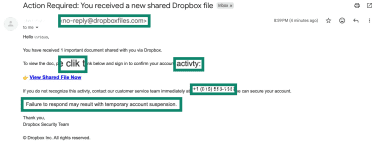
Common fake emails users encounter
Phishing emails often imitate familiar Dropbox alerts to persuade targets that action is required. Some common fake notifications include:
- Shared file alerts: The message states that a friend or colleague shared a file with the recipient and includes a link to view or download it. This malicious file request mimics Dropbox’s genuine shared-file notifications but the link leads to a malicious page rather than a real Dropbox file. Note that some scams may link to Dropbox-hosted files that contain embedded links leading to harmful sites.
- Order confirmations: Some phishing emails may falsely claim that a purchase or subscription was made, although this type of impersonation is less common for Dropbox-themed scams. These messages aim to spark concern and prompt the victim to click to view the fake invoices or receipts.
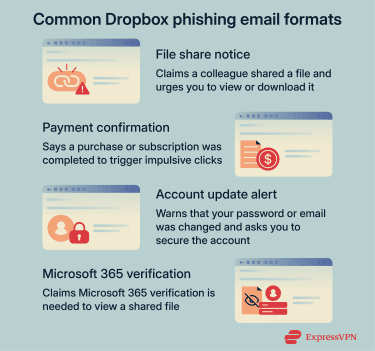
- Password or email change notifications: The alert warns that account credentials or contact details were recently changed. This pressures the recipient into clicking a link to secure the account, only to be taken to a fraudulent login page.
- Microsoft 365 credentials requests: Some phishing emails claim that access to a shared document requires Microsoft 365 verification, even though Dropbox never requires Microsoft credentials to view shared files. These messages redirect recipients to fake sign‑in pages designed to steal email credentials.
Why Dropbox accounts are valuable to attackers
Dropbox accounts can hold a mix of personal and professional files and often integrate with business workflows, making them attractive targets.
Attackers seek these accounts because they can store files that may reveal credentials, sensitive documents, or connections to other platforms used for work or personal matters.
Beyond this, recipients and email filters often treat Dropbox-style notifications as trustworthy, making it easier for malicious emails that mimic them to evade defenses.
Access to shared files or account controls can serve as a stepping stone for deeper intrusion into systems once attackers obtain valid credentials.
How attackers use malicious links in emails
Rather than linking directly to harmful sites, attackers may sometimes link to Dropbox-hosted files that appear legitimate but contain secondary links to credential-harvesting pages or malware delivery sites.
This two-stage approach can increase the chance that email filters and recipients will trust the initial link because it points to Dropbox’s legitimate domain.
If the target opens the hosted file and clicks the embedded link, they get redirected to a malicious endpoint designed to steal their login details.
Attackers sometimes disguise these links in fraudulent shared folder invites. They may also pair them with urgent language or familiar branding so you're less likely to examine the link or email before clicking.
How to verify a Dropbox email
Dropbox phishing emails usually look urgent, reference shared files, or ask for login details, but a few careful checks can help reveal their true nature. This is why it's important to understand the typical signs of a genuine Dropbox email.
Steps for safely verifying a Dropbox email
Before acting on an email that looks like it's from Dropbox, follow these practical checks to confirm authenticity:
- Inspect full email headers: Open the full header view in the mail client to see the real sending address. Compare the address against legitimate Dropbox domains.
- Check for Gmail’s blue checkmark: In Gmail, some legitimate Dropbox emails may display a blue checkmark next to the sender's name, indicating that Google has verified the sender’s identity. Please note that, while helpful, this indicator isn’t present on all genuine Dropbox messages.
- Look out for consistent branding: Confirm that the email uses Dropbox’s typical layout, official logo, and professional grammar.
- Hover over links without clicking: Move the cursor over any link to see its destination URL. If the link doesn't go to a recognized Dropbox domain, treat it as suspicious.
- Skip direct links: Instead of clicking links in the message, open a new browser window and go to the official Dropbox website or account to check for alerts or needed actions.
- Confirm with the sender: If the email claims someone shared a file, contact the supposed sender directly through a separate communication channel (like a text, call, or another verified email) to confirm.
Below is an example of an authentic Dropbox email with common green flags highlighted, including a verified domain, Gmail’s blue checkmark, consistent branding, and a clear purpose: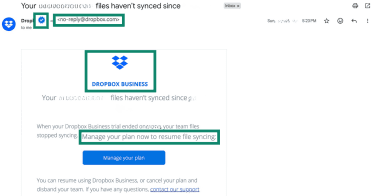
Protecting yourself from Dropbox spam emails
Dropbox scam emails continue to evolve, using polished designs, realistic file alerts, and familiar branding to evade detection. Real protection comes from following best practices to reduce exposure, limit damage if a mistake happens, and secure access on risky networks.
Common cybersecurity prevention strategies
The best way to tackle Dropbox phishing is to prevent it. Simple technical safeguards and routine checks create multiple barriers that can help protect you from scam emails.
- Use strong, unique passwords: Create a complex password that uses a mix of upper- and lowercase letters, numbers, and symbols for Dropbox and all other accounts. Never reuse the same password across services, and consider getting a password manager to generate and save passwords.
- Enable two-factor authentication (2FA): Add an extra step beyond a password to log in. If your credentials are exposed, this would make it harder for the attackers to gain access to your account.
- Keep software updated: Make sure your email apps, antivirus tools, and browsers are up to date so you have the latest built-in protection.
Handling a suspected phishing attempt
Preventive measures against phishing aren’t 100% effective. Even with preventive measures and caution in place, some malicious messages can still reach inboxes and appear real at first glance.
At that point, knowing what to do in the aftermath helps contain the threat, protect accounts and data, and support proper recovery and reporting.
Handling a suspected phishing attempt quickly and correctly reduces the chance of harm.
Immediate steps to take
Before interacting with any suspicious email, follow these initial actions to reduce the chance of exposure to malware, credential theft, or other threats:
- Stop interaction right away: Don’t click any links, open attachments, or reply to the email.
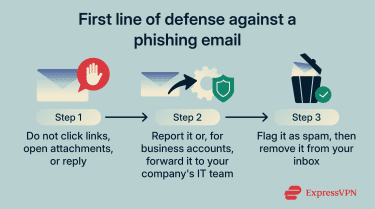
- Forward the email for investigation: If you have an IT or security team, send them the entire message. Reporting helps track phishing attempts and prevents others from falling victim.
- Mark the email as spam and delete it: Use the email client’s spam or phishing reporting feature to flag the message. Then delete it from the inbox to avoid accidental clicks in the future.
What to do if you clicked a malicious link
Clicking a malicious link can happen even with caution. Following the necessary steps can minimize harm and reduce the chance of broader compromise:
- Avoid entering any credentials: If the link launched a page asking you to log in, stop and close the tab.
- Run a full malware scan: Use a reputable antivirus to scan the device. Modern tools can detect and remove threats if a malicious file was downloaded or opened after clicking the link.
- Reset critical passwords and enable extra security: Change the password for any account that may have been compromised and activate 2FA to add an extra layer of protection against unauthorized logins.
- Monitor for unusual activity: Watch accounts for unexpected logins or transactions. Early detection of suspicious behavior can prevent further damage.
How to report the email to Dropbox and the authorities
Reporting phishing emails helps Dropbox take action, such as disabling malicious content or blocking abusive accounts. To report it to Dropbox, forward the entire suspicious email to abuse@dropbox.com or submit it through Dropbox’s spam, fraud, or phishing reporting page.
You could also consider reporting the email to law enforcement or anti‑phishing organizations, such as the Federal Trade Commission (FTC) in the U.S. or the Anti‑Phishing Working Group (APWG), an international non-profit coalition of cybercrime experts.
FAQ: Common questions about Dropbox spam emails
How can I tell if a Dropbox email is real?
A real Dropbox email comes from a verified Dropbox domain, such as dropbox.com or dropboxmail.com, and will not ask for sensitive data or pressure you into taking certain actions. Be sure to view the full email headers to confirm the actual sender address.
Why am I suddenly getting many Dropbox spam emails?
A surge in spam emails can occur when the address appears in data leaks, ends up on mailing lists, or during large, widespread phishing campaigns.
Why is Dropbox sending me emails?
Dropbox sends legitimate emails about account activity, such as shared files, security alerts, plan or billing updates, and device sign-ins.
How can I stop Dropbox phishing attempts?
You can stop Dropbox phishing attempts by not clicking links in unexpected or suspicious-looking emails. It also helps to look out for common red flags, such as misspelled or unverified Dropbox domains and poor grammar in the message.
What should I do if I interact with a suspicious email?
One way to handle a suspicious email is to ensure you don’t click any links or open any attachments. Report the email, mark it as spam, and delete it. If you click a link or download an attachment in the email, avoid entering your credentials, scan your devices for malware, and reset any passwords for accounts that may have been exposed.
Can Dropbox emails contain viruses or malware?
Official Dropbox emails don’t contain malware or harmful attachments. However, phishing emails impersonating Dropbox can include links or attachments that attempt to install malware on a user’s device.
Can Dropbox be used to host phishing or malware files?
Attackers can use Dropbox links and shared files to deliver malicious downloads or to host documents containing links that redirect users to phishing pages hosted elsewhere. Threat actors may abuse the service to make scams look real, so legitimate-looking links and files still require scrutiny before interaction.
Take the first step to protect yourself online. Try ExpressVPN risk-free.
Get ExpressVPN








 Support Center
  FAQ
FAQ  VPN Setup Tutorials


