What is browser hijacking? How it works and how to stop it


When a browser keeps redirecting to unexpected websites or floods the user with pop-up ads, it could signal the presence of browser hijacking software.
This can disrupt the browsing experience, and while often more annoying than dangerous, browser hijackers can expose the target to unwanted tracking.
This post explains what browser hijacking is, how it works, and how to remove browser hijackers. It also covers helpful tips for preventing hijacking in the first place.
What is browser hijacking?
Browser hijackers are pieces of malware or grayware that interfere with a browser without consent. They typically come from malicious links, visiting infected websites, or are bundled with legitimate software downloads.
Bad actors use hijacking software to redirect searches and serve annoying ads to the victim. In some cases, it's used to track the user's online activity.
What can browser hijackers do?
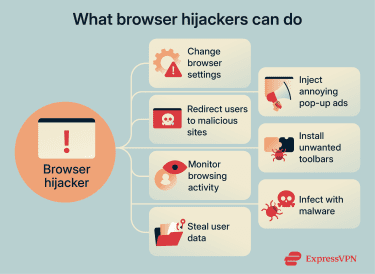
Depending on what the cybercriminal wants to achieve, browser hijackers can manipulate browsers to generate profit, collect data, or expose the target to further attacks:
- Change browser settings: They can reset a homepage, default search engine, or new tab page without permission.
- Redirect users to other sites: Hijackers often force a browser to open fake or ad-filled websites instead of the pages the user intended to visit.
- Monitor search habits: They can track browser activity, including sites visited, search queries, and clicks, to build a profile of the target's behavior.
- Steal sensitive information: Some hijackers bundled with additional malicious components can capture login details, banking information, or credit card numbers.
- Inject ads: In some cases, they pump ads into webpages, adding pop-ups, banners, or sponsored links that weren’t originally there.
- Install unwanted toolbars: Extra extensions or toolbars are sometimes used to generate ad revenue, track activity, or redirect searches, all while cluttering the browser and slowing it down.
- Install other malware: In more serious cases, a hijacker can serve as a gateway to another type of malware, such as spyware or ransomware.
How browser hijackers work
Browser hijackers often end up in browsers by tricking users into installing them.
They get installed when the target clicks a malicious link, opens a harmful email attachment, or visits an infected website that pushes a fake download or software update.
Another common method is the use of spoofed browser extensions. Hijackers may pretend to be useful tools, such as search helpers or video downloaders. Once installed, they request broad permissions that let them change browser settings, redirect searches, and inject ads.
Hijackers also spread through potentially unwanted programs (PUPs). These are bundled with freeware, shareware, adware, or grayware. During installation, users might inadvertently accept extra downloads, toolbars, or changes to their search engine by hastily clicking through the setup screens.
Once active, most browser hijackers work by redirecting search results to their own pages to earn advertising revenue when the target clicks. Many also track browsing behavior and may sell that data to third parties.
Some hijackers are subtle, making small changes, such as adding a new toolbar. Others are more noticeable, causing suspicion with the constant flood of unwanted ads or page redirects.
Risks of browser hijacking
Browser hijackers primarily disrupt browsing behavior and privacy. More serious outcomes, like ransomware and identity theft, are possible, but they usually require additional steps or separate threats.
1. Activity tracking
Browser hijackers can log the websites the user visits, searches they make, and links clicked. This data could then be used to build a detailed digital profile of the victim's habits and interests.
They can use that to target the user with more ads or push specific redirects.
The constant tracking and sharing of the target's data may increase exposure to scams and could provide the attackers with the data needed for personalized phishing and spear phishing attacks.
2. System performance issues
Extra extensions, background scripts, and constant redirects consume memory and processing power. Pages may take longer to load, tabs can freeze, and the browser may crash more often.
If the malware is installed at the system level, it can also affect the device's overall performance, not just the browser.
In both cases, hijackers can even interfere with startup processes, causing the browser or system to launch more slowly.
3. Malware
Some browser hijackers may serve as gateways for other types of malware, making this among the more serious browser hijacking risks.
Once a hijacker gains control of the browser, it can easily redirect the user to infected websites or trigger drive-by downloads of more malware, such as spyware, keyloggers, or even ransomware that locks the target's files until the attacker is paid to decrypt them.
4. Financial loss
Financial loss can happen when browser hijackers redirect the target to fake shopping sites or payment pages designed to collect credit card details. Other sites might push ads for scams or fake subscription offers that charge recurring fees without providing anything in return.
If a hijacker steals login credentials, attackers could potentially access the user's financial data or shopping accounts to make unauthorized transactions or purchases.
5. Identity theft
When a browser hijacker collects enough personal information, especially when paired with other malware or granted overly broad permissions, it can enable identity theft. Stolen data may include email logins, saved passwords, names, addresses, or payment details.
Cybercriminals can use this information to impersonate the target, reset accounts, or open new services in their name.
Learn more: How to prevent identity theft
How to prevent browser hijacking
These cybersecurity best practices can help keep your browser and device safe from hijackers.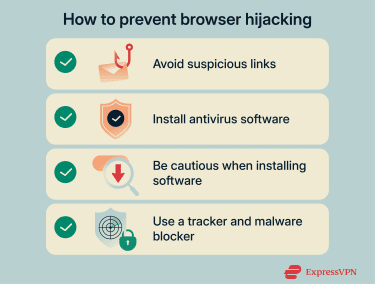
- Avoid opening suspicious links: Many hijackers spread through malicious links in unsolicited emails and messages. Phishing emails often create urgency, promise prizes, or claim the device or account is at risk to lure the target into clicking a link.
- Install an antivirus program: Trusted antivirus software can identify and block browser hijackers, malicious extensions, and bundled threats before they're installed. It can also scan devices for malware linked to the hijacker.
- Be cautious when installing software: Free and low-cost software often includes optional add-ons that change the user's homepage or search engine. Always choose custom or advanced install options, read permission requests carefully, and decline any extras you don’t need.
- Block harmful domains and trackers: Tools like ExpressVPN’s Threat Manager stop devices from communicating with known malicious websites. It’s available to all ExpressVPN subscribers, with extra features like tracker blocking for Advanced and Pro subscriptions.
Learn more: The safe browsing guide: 21 ways to protect yourself online
How to remove a browser hijacker
Browser hijackers don't disappear on their own. If you suspect you have one, here are some ways to get rid of it.
Use an antivirus
A reliable antivirus offers the fastest way to remove a browser hijacker. These tools scan your system for known malware signatures and suspicious behavior. A full system scan checks all the places hijackers often hide, like browser extensions, startup items, background processes, and hidden files.
After the scan, the antivirus flags malware along with any related adware or trackers. You can remove or quarantine these threats right away.
Many antivirus tools also detect altered browser settings and help restore the homepage, default search engine, and extensions.
Note: Some hijackers are classified as PUPs, so you may need to turn on PUP detection in your antivirus settings for removal.
Manual browser hijacker removal steps
If you don’t have access to an antivirus, you can remove the browser hijacker manually.
This guide shows the steps for Google Chrome. The process might vary slightly between browsers, but the idea is the same.
Change your default pop-up and redirect permissions
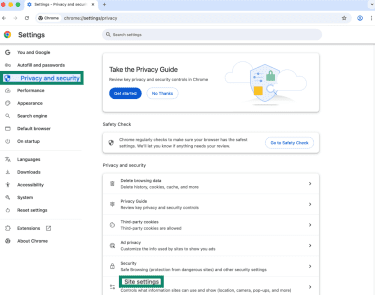
Chrome lets you adjust which sites are allowed to serve you pop-up ads or redirect you to other sites. To change these settings,
- Click the three-dot menu and select Settings.
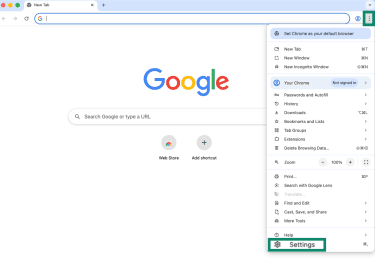
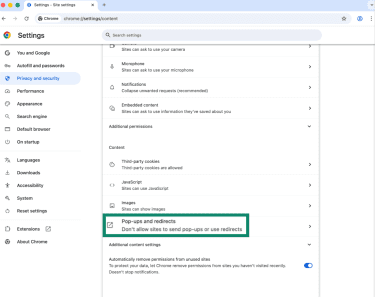
- Go to Privacy and security > Site settings.
- Choose Pop-ups and redirects.
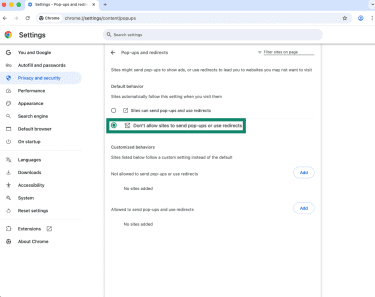
- Adjust your settings.
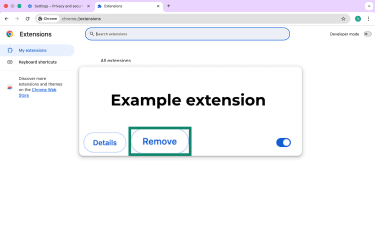
Remove suspicious extensions
Browser hijackers often install themselves as extensions because these can change search settings, inject ads, and read browsing activity. Here's how to manage your extensions:
- Click the three-dot menu and select Extensions > Manage Extensions.
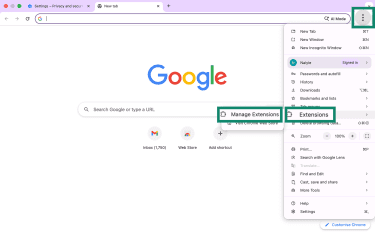
- Carefully review the list of extensions. Click Remove on any suspicious extensions you don't recognize.
Reset browser settings
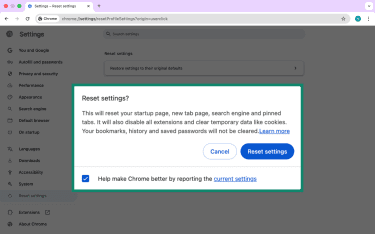
Resetting Google Chrome settings restores the browser to its default settings, removing changes made by browser hijackers without deleting your personal data.
It restores your homepage, default search engine, pinned tabs, and startup behavior while disabling extensions.
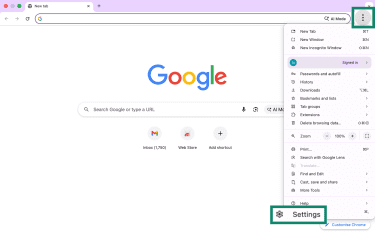
- In Google Chrome, click the three-dot menu in the top-right corner. Then, select Settings.
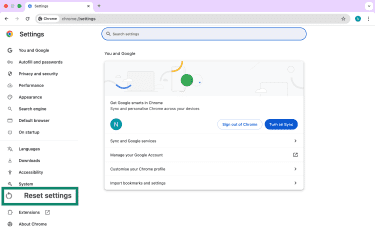
- In the left sidebar, click Reset settings.
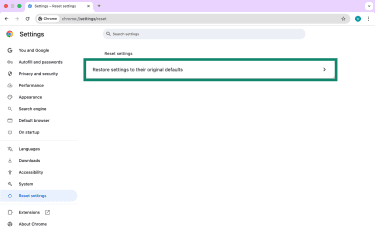
- Choose Restore settings to their original defaults.
- Confirm by clicking Reset settings.
Clear cache, cookies, and DNS cache
Some browser hijackers or related malware may rely on cached data, cookies, or poisoned Domain Name System (DNS) entries to keep redirecting you even after you remove extensions. Clearing all three cuts off that persistence. This is not strictly required after resetting Chrome, but it may be for other browsers.
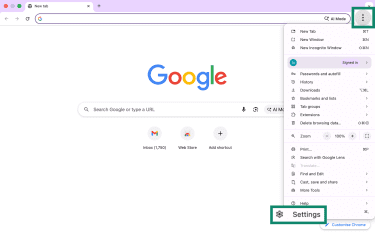
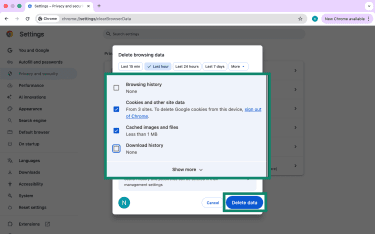
- Click the three-dot menu and select Settings.
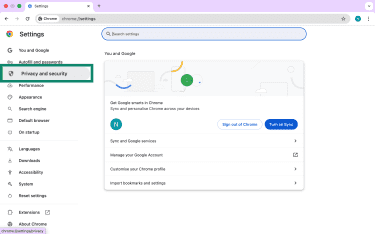
- Go to Privacy and security.
- Click Delete browsing data (or browsing history).
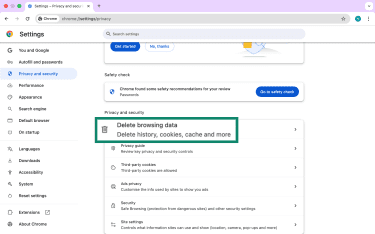
- Check Cookies and other site data and Cached images and files. Select "All time" as the time range. Then, click Delete data.
What to do if removal fails
If the browser hijacker is still there, it may mean the threat is bundled with other malware.
If it’s operating at the system level and antivirus software can’t remove it, you can try resetting your device to factory settings or restoring from a clean backup. If this doesn't work, it's worth consulting a cybersecurity expert.
FAQ: Common questions about browser hijackers
How do I know if I have a browser hijacker?
Signs you have a browser hijacker include unwanted changes to your homepage or default search engine, unfamiliar toolbars or extensions appearing, search pages redirecting you to fake sites, or an increase in pop-up ads. Slower browser performance and tabs opening on their own are also common signs.
Can you remove a browser hijacker manually?
Yes, in some cases, you can remove browser hijackers manually by resetting browser settings, clearing cache and cookies, and uninstalling suspicious extensions. However, manual removal may fail if the hijacker operates at the system level or arrives bundled with other malware. In those cases, antivirus tools or a full system reset may be necessary.
What causes browser hijacking?
Browser hijacking usually happens if the user installs malicious extensions. This can occur when clicking harmful links, opening infected email attachments, or installing freeware bundled with hidden add-ons. Hijackers often rely on users clicking through installation screens without reviewing permissions.
Can antivirus software stop hijackers?
Yes, often antivirus tools can detect browser hijackers, malicious extensions, and bundled threats through signature-based and behavior-based scanning. Some hijackers are flagged as potentially unwanted programs (PUPs), which may require enabling PUP detection in your antivirus settings.
Tools like ExpressVPN’s Threat Manager can also help by blocking your device from communicating with known malicious and tracking domains, limiting a hijacker’s ability to redirect traffic, load ads, or send collected data out of your network.
Take the first step to protect yourself online. Try ExpressVPN risk-free.
Get ExpressVPN





 Support Center
  FAQ
FAQ  VPN Setup Tutorials


