



To use our apps and configurations, please sign up for an ExpressVPN account first.
This tutorial will show you how to set up the ExpressVPN Meta Quest app.
The ExpressVPN Meta Quest app is compatible with Meta Quest 3S, Meta Quest 3, Meta Quest Pro, and Meta Quest 2.
The ExpressVPN app for Meta Quest provides full-device VPN protection, protecting traffic across your browser and apps.
Jump to…
Download the VPN app
Set up the VPN app
Connect to a VPN server location
Disconnect from a VPN server location
Choose a different VPN server location
Switch to a different VPN protocol
Block ads, trackers, and harmful sites
Use split tunneling
Set up auto-connect
Speed test
Change app appearance
View Protection Summary
Uninstall the app
Download the VPN app
To download the ExpressVPN app on your Meta Quest:
- Press the Meta button on your right Touch controller to open the universal menu.
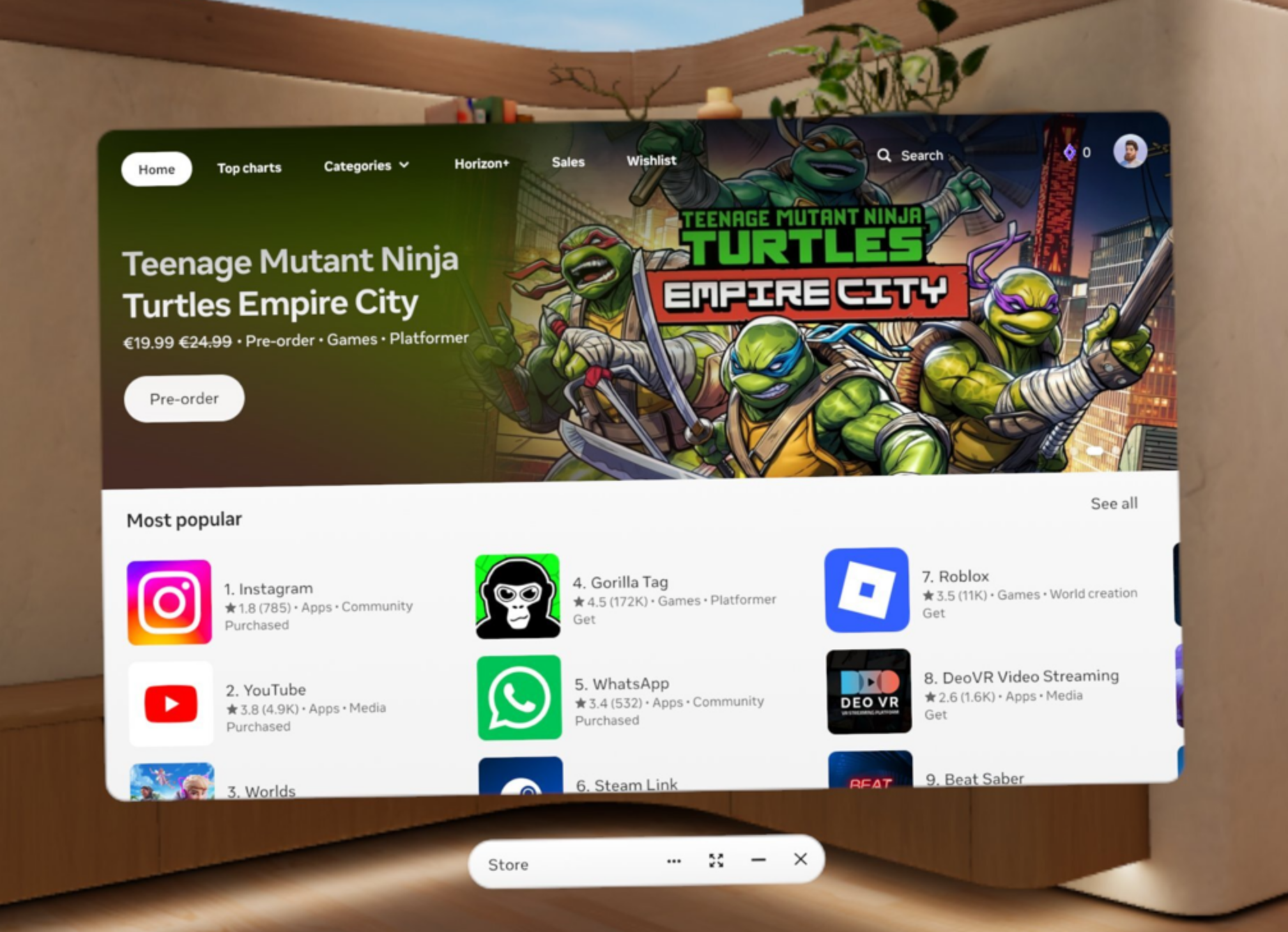
- Select the Meta Horizon Store.

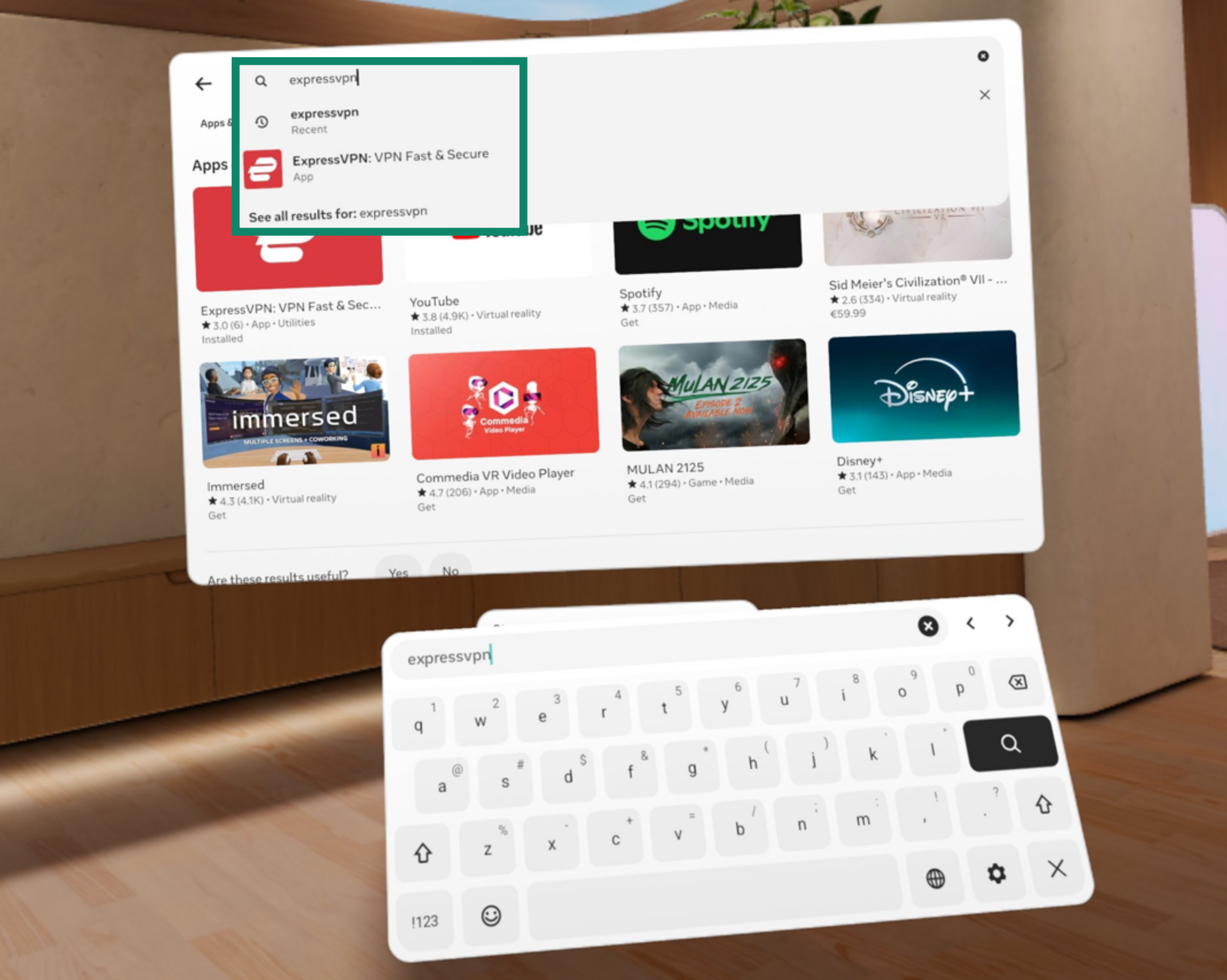
- Search for ExpressVPN.


- Select ExpressVPN: VPN Fast & Secure.

- Select Download.


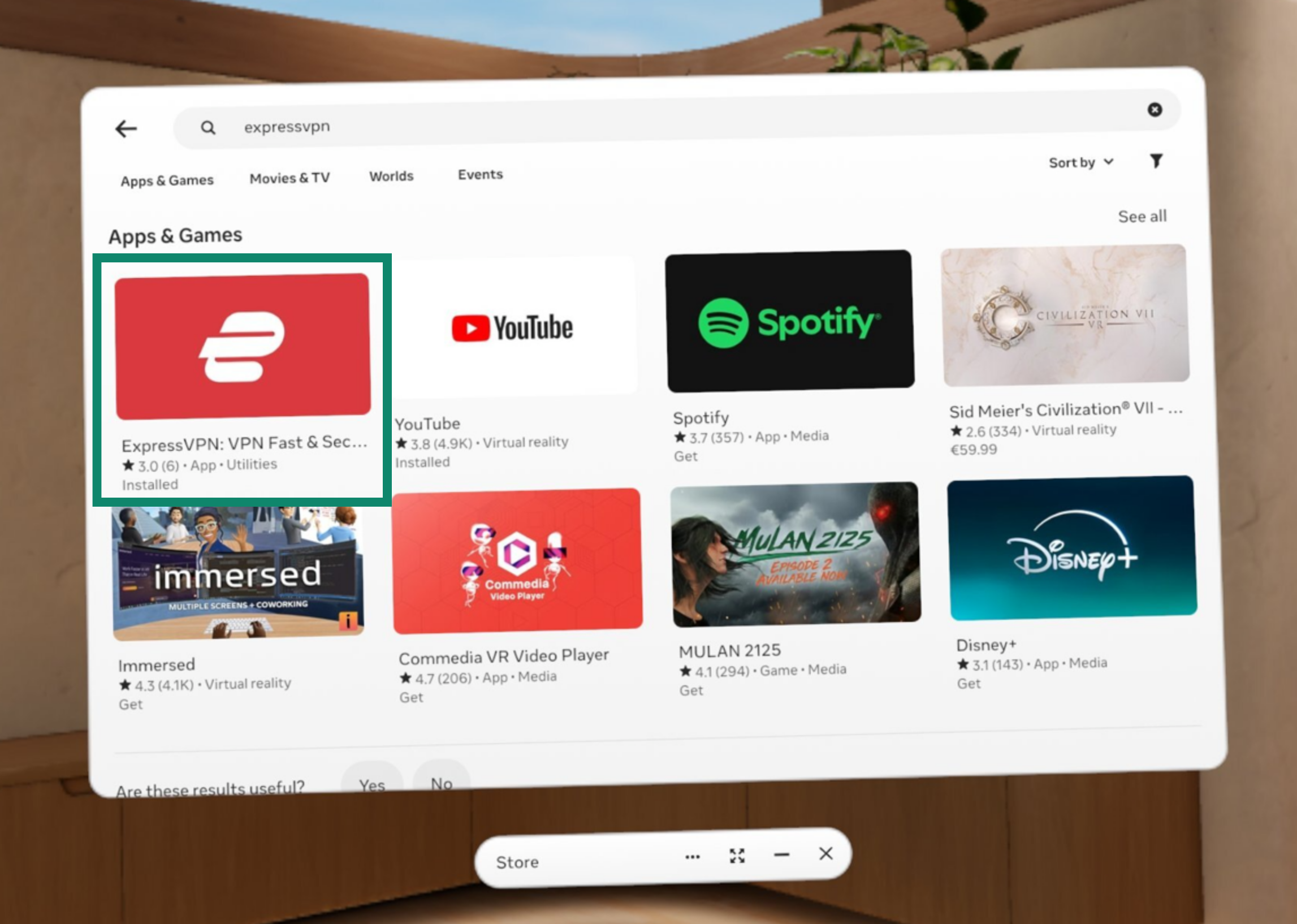
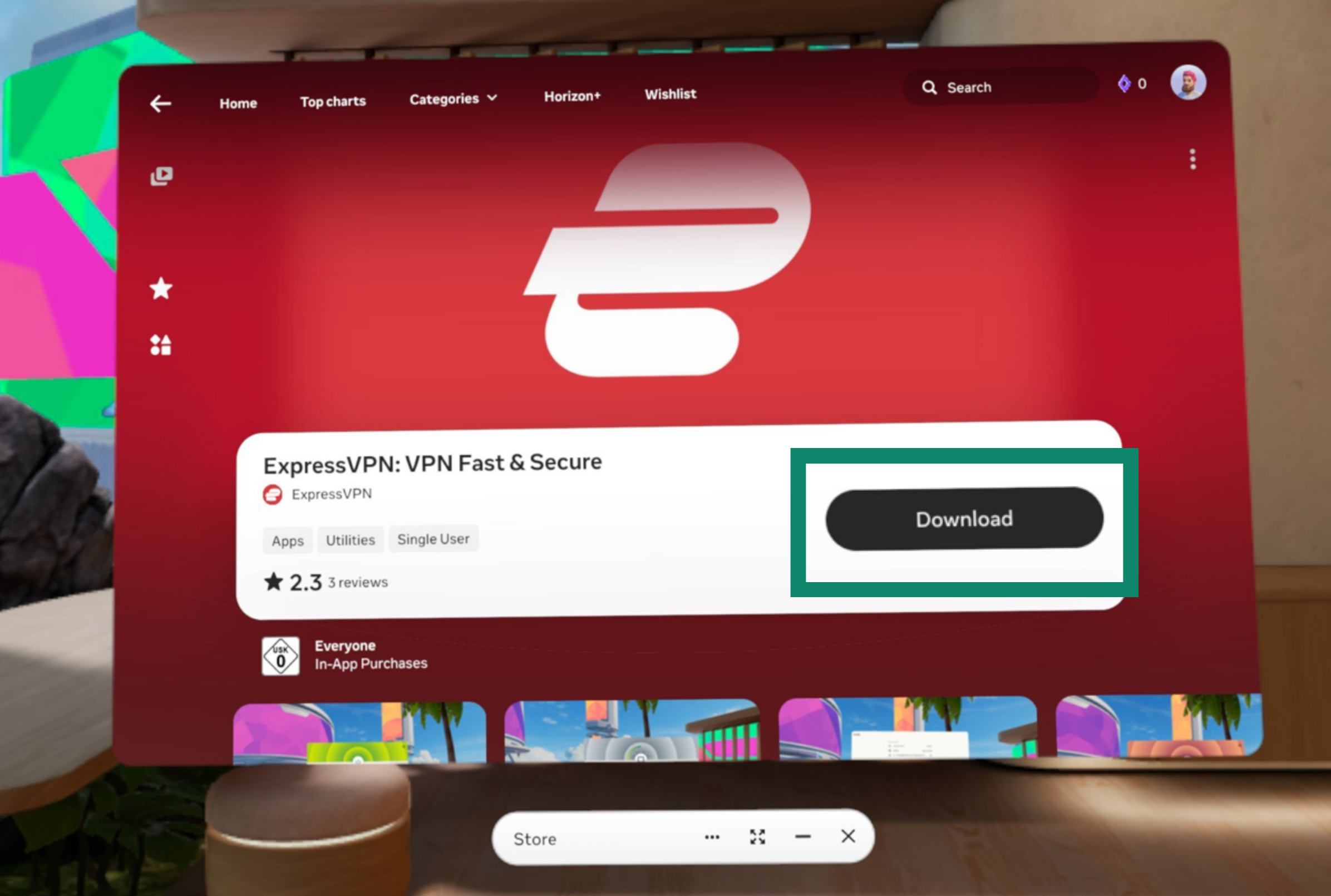
Once downloaded, the ExpressVPN app will automatically install and appear in your Library.
Need help? Contact the ExpressVPN Support Team for immediate assistance.
Set up the VPN app
To set up the ExpressVPN app on Meta Quest:
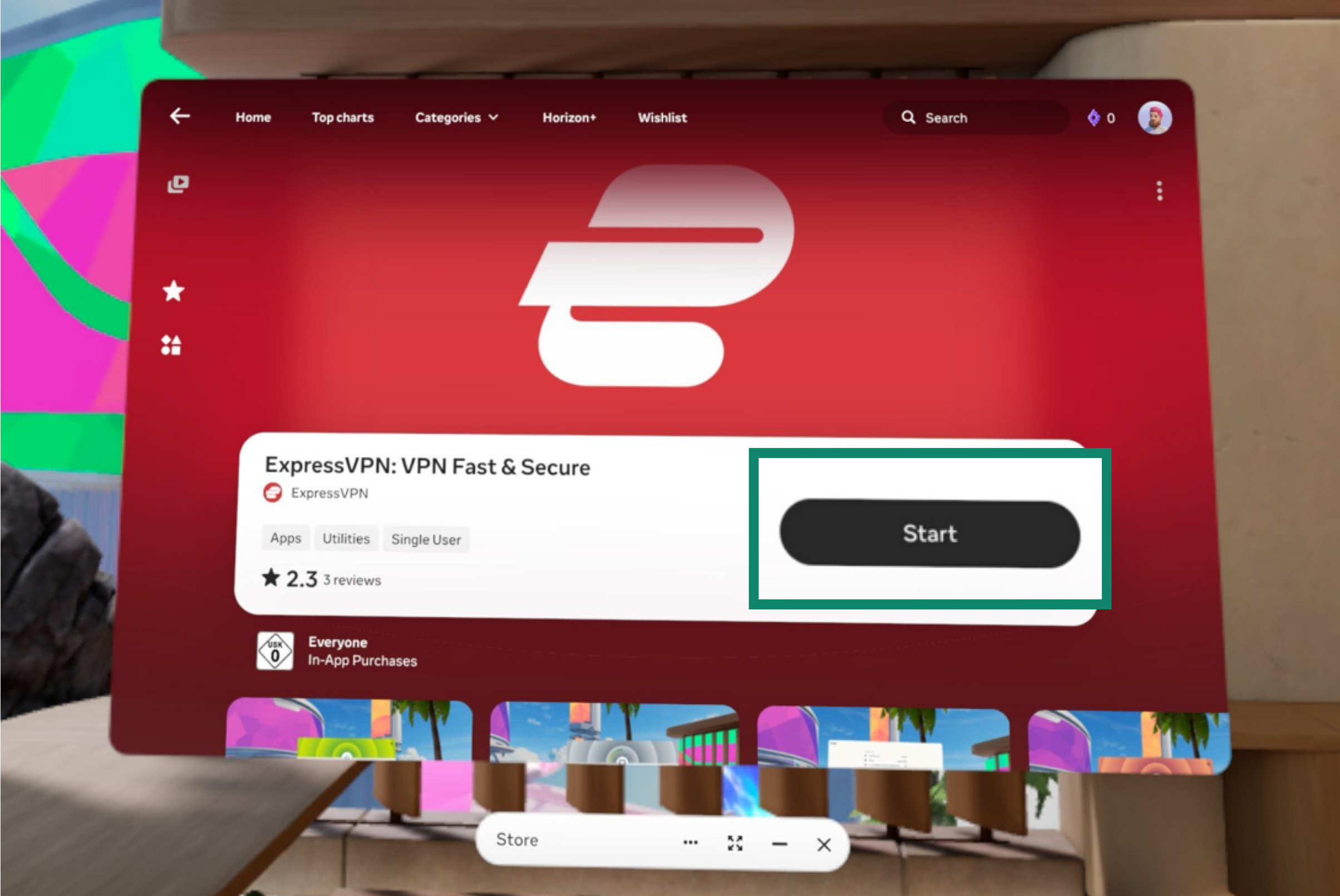
- Select Start to open the app.


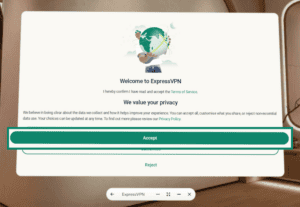
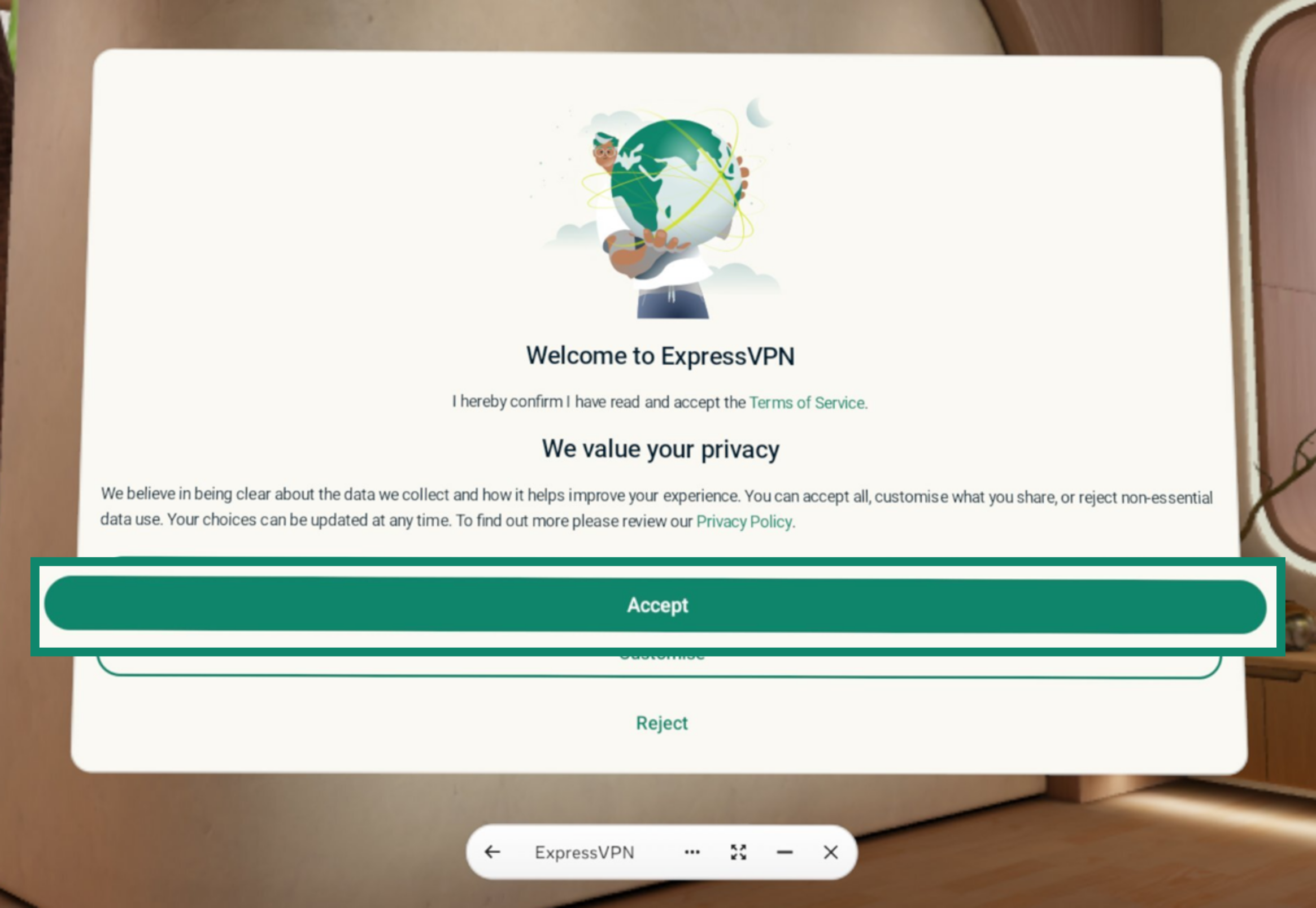
- The app will ask you to read and accept the ExpressVPN Terms of Service and choose what level of data you share. Select your preference to continue.

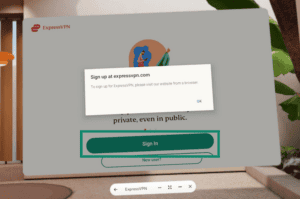
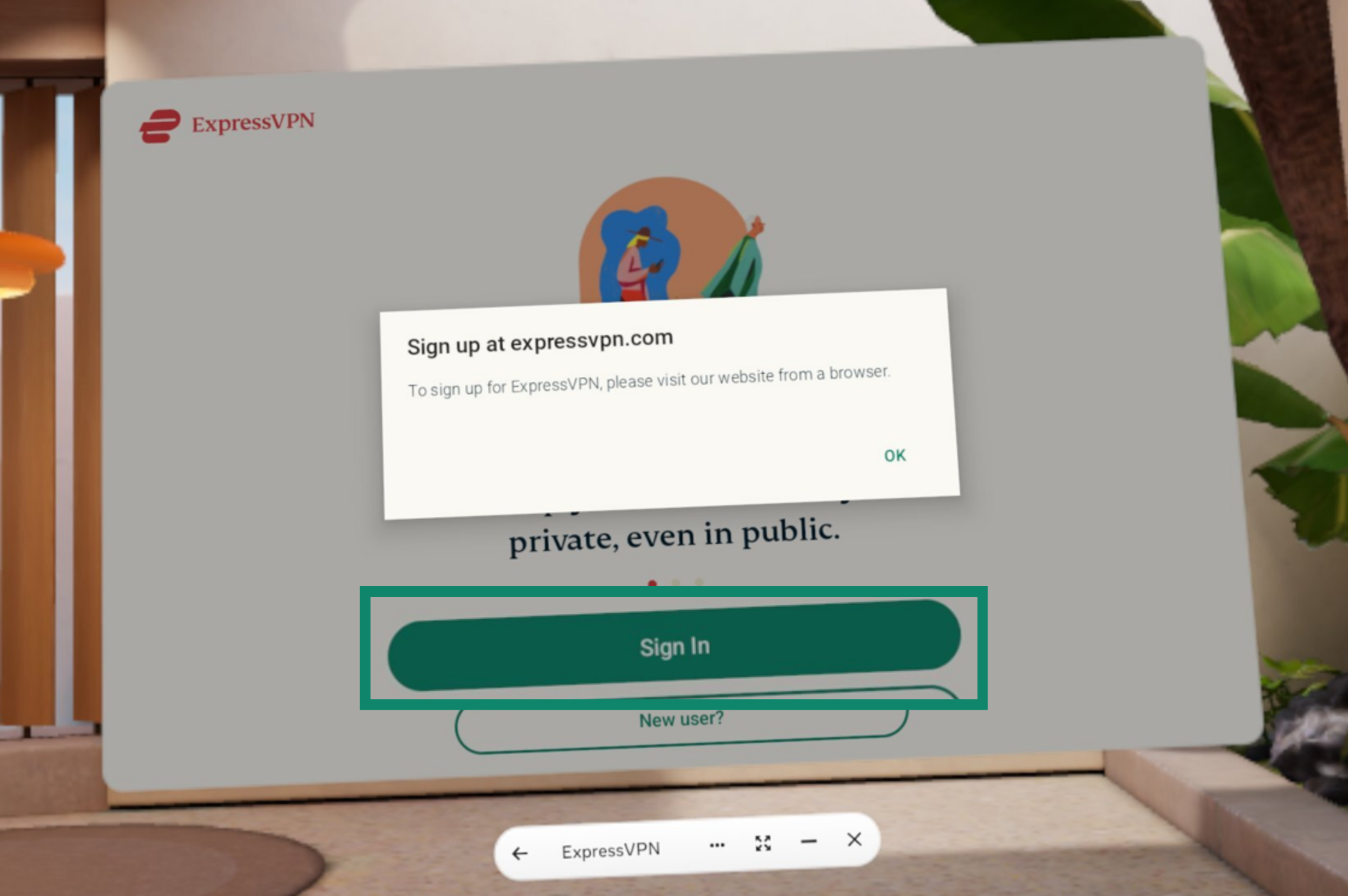
- Select Sign In. (If you have yet to sign up for an ExpressVPN account, you can do so by visiting this page.)

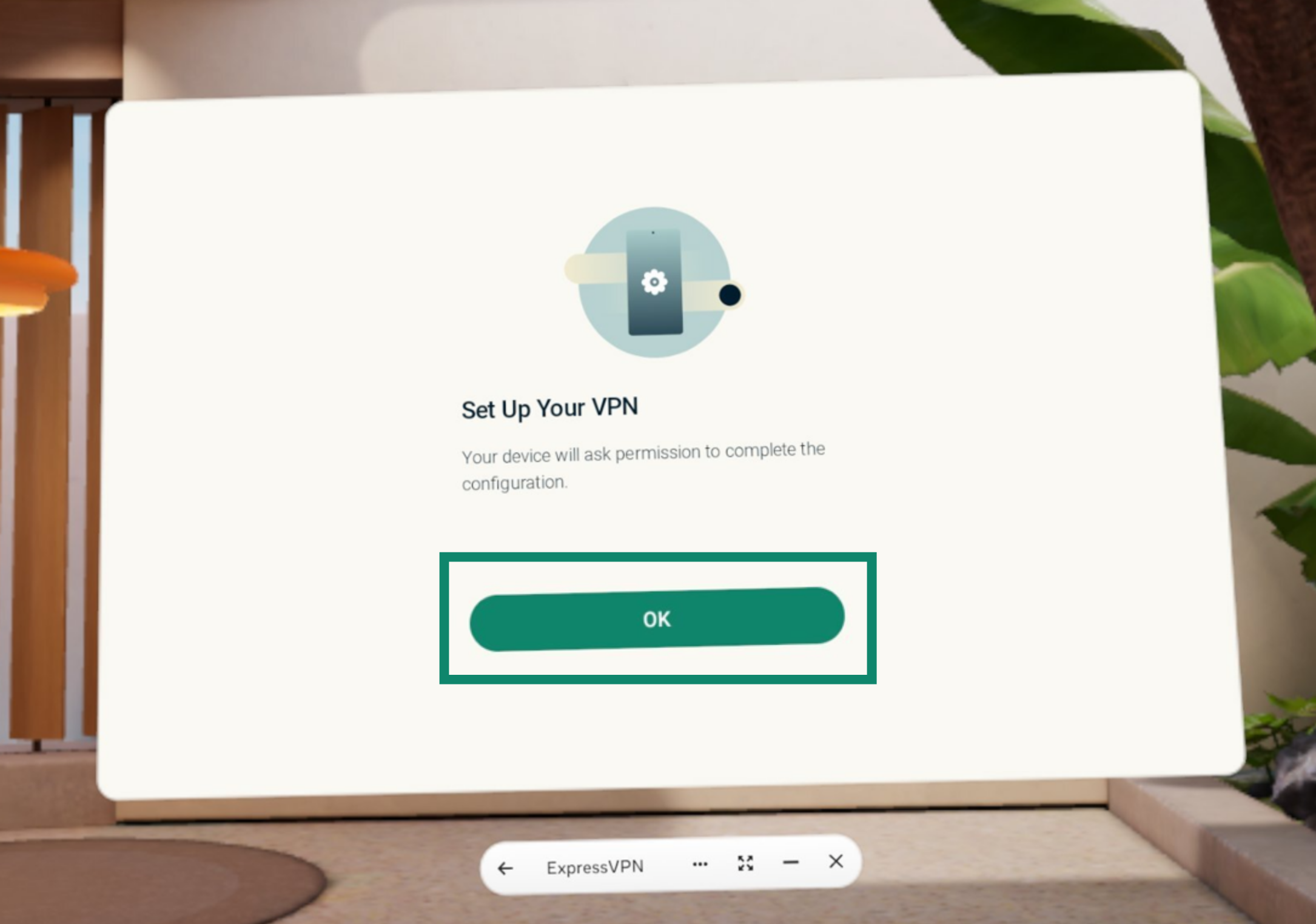
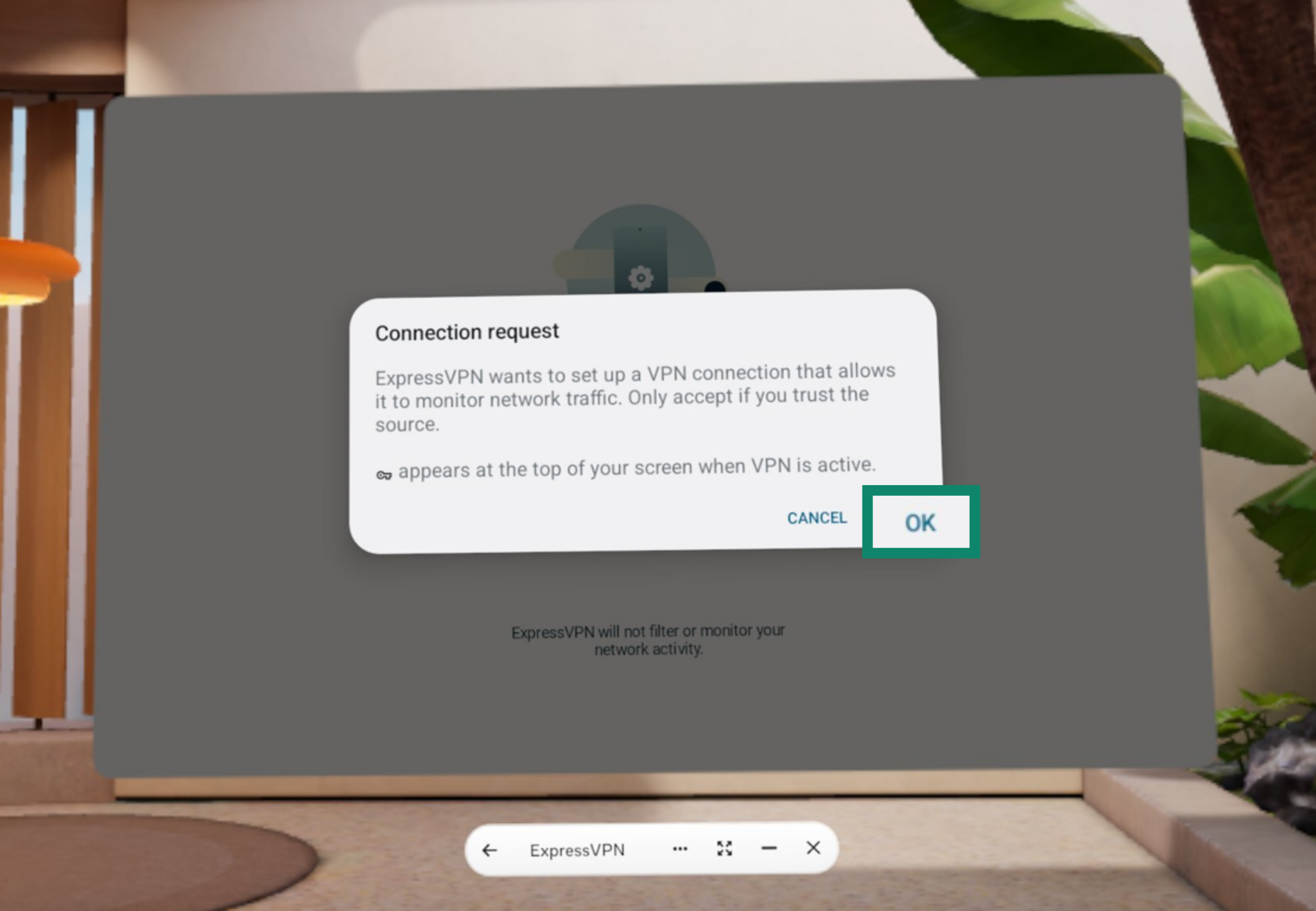
- You will be prompted to set up your VPN and approve connection requests by ExpressVPN. Select OK.
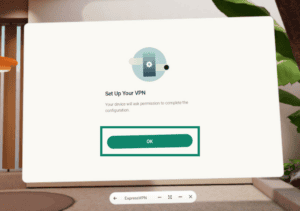

- Select OK again.


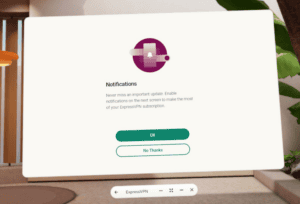
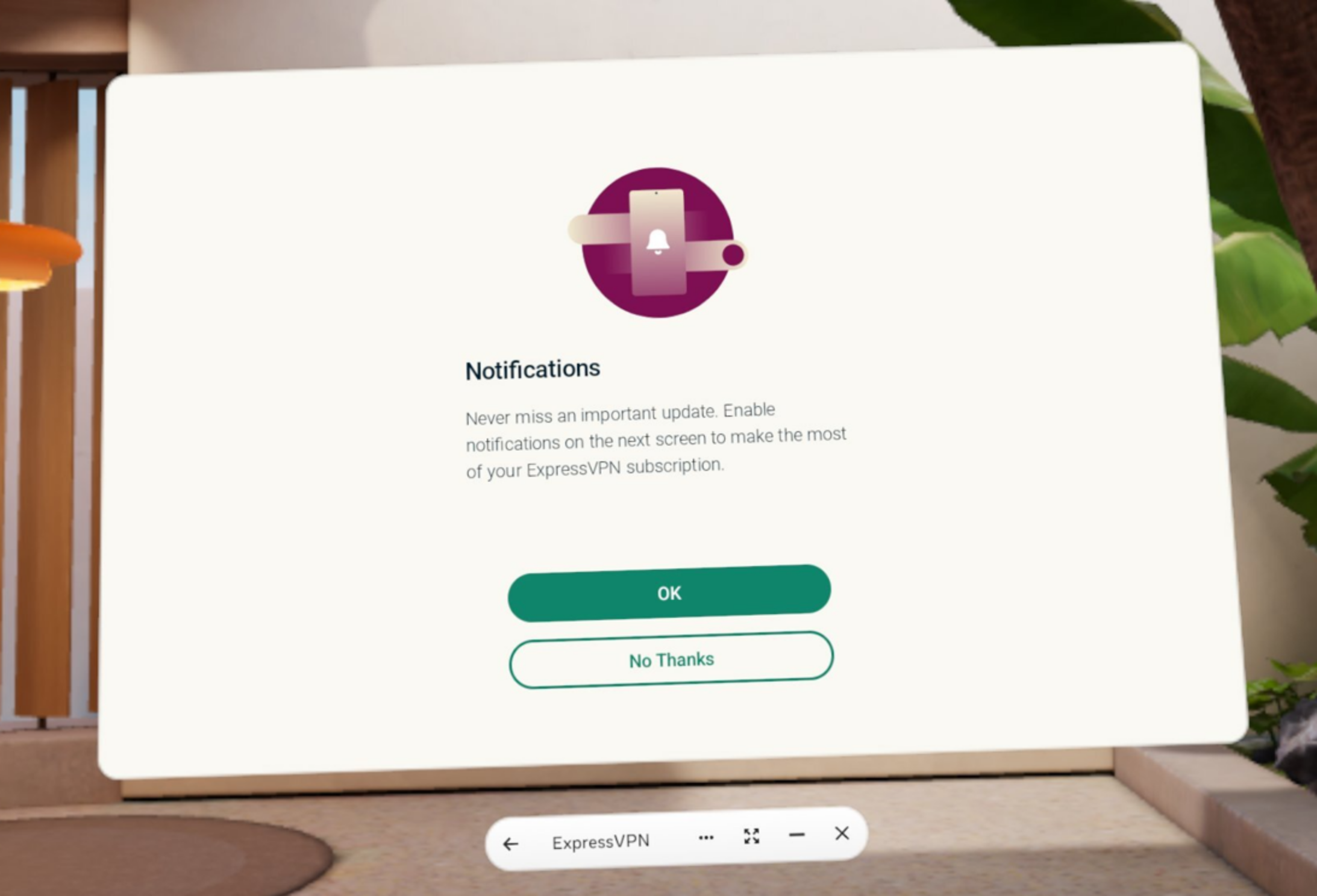
- You will be asked whether you want the ExpressVPN app to send you notifications. Select your preference to continue.

You have successfully set up the VPN and can now connect to your preferred VPN server location.
Need help? Contact the ExpressVPN Support Team for immediate assistance.
Connect to a VPN server location
To connect to a VPN server location:
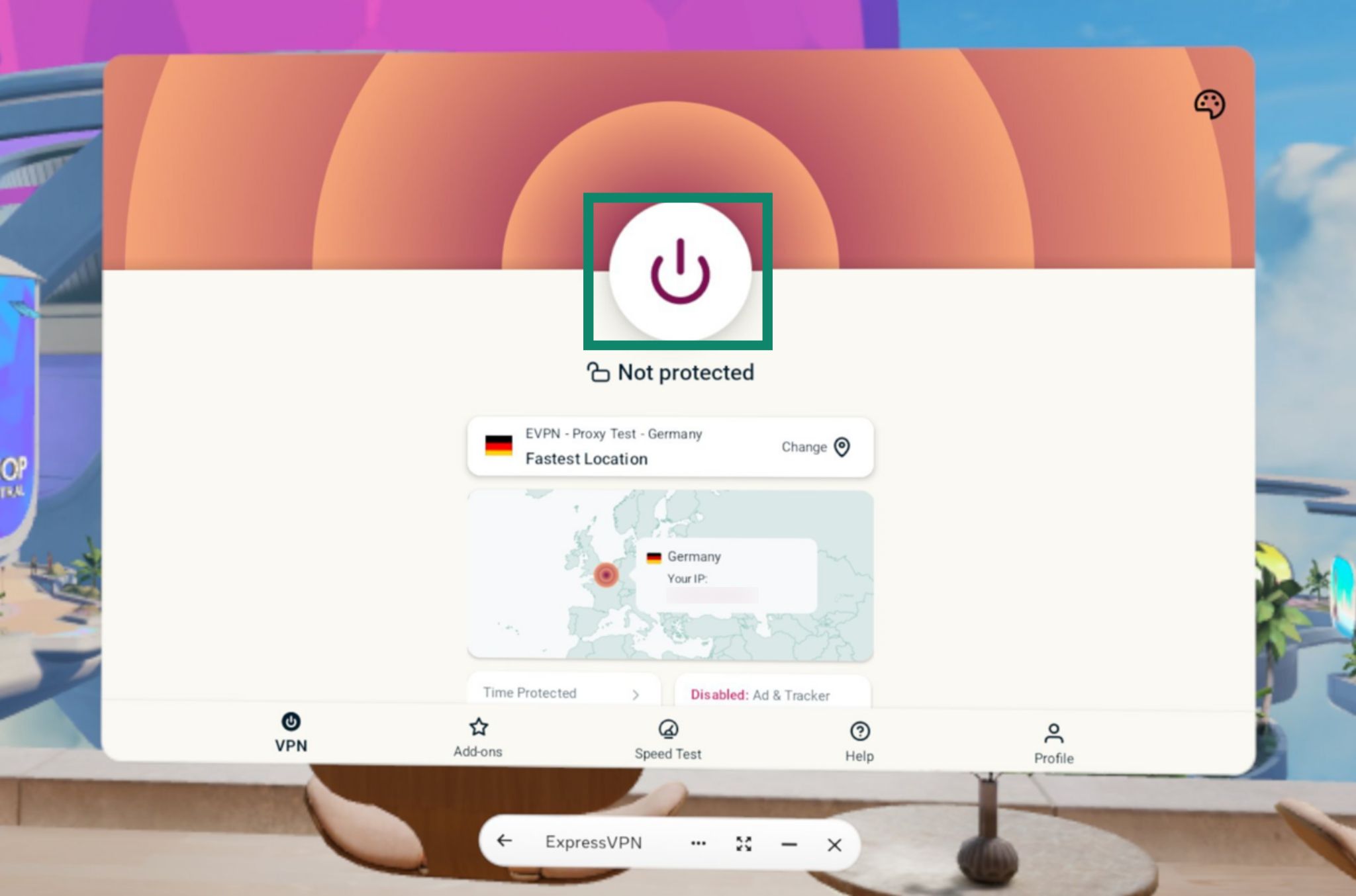
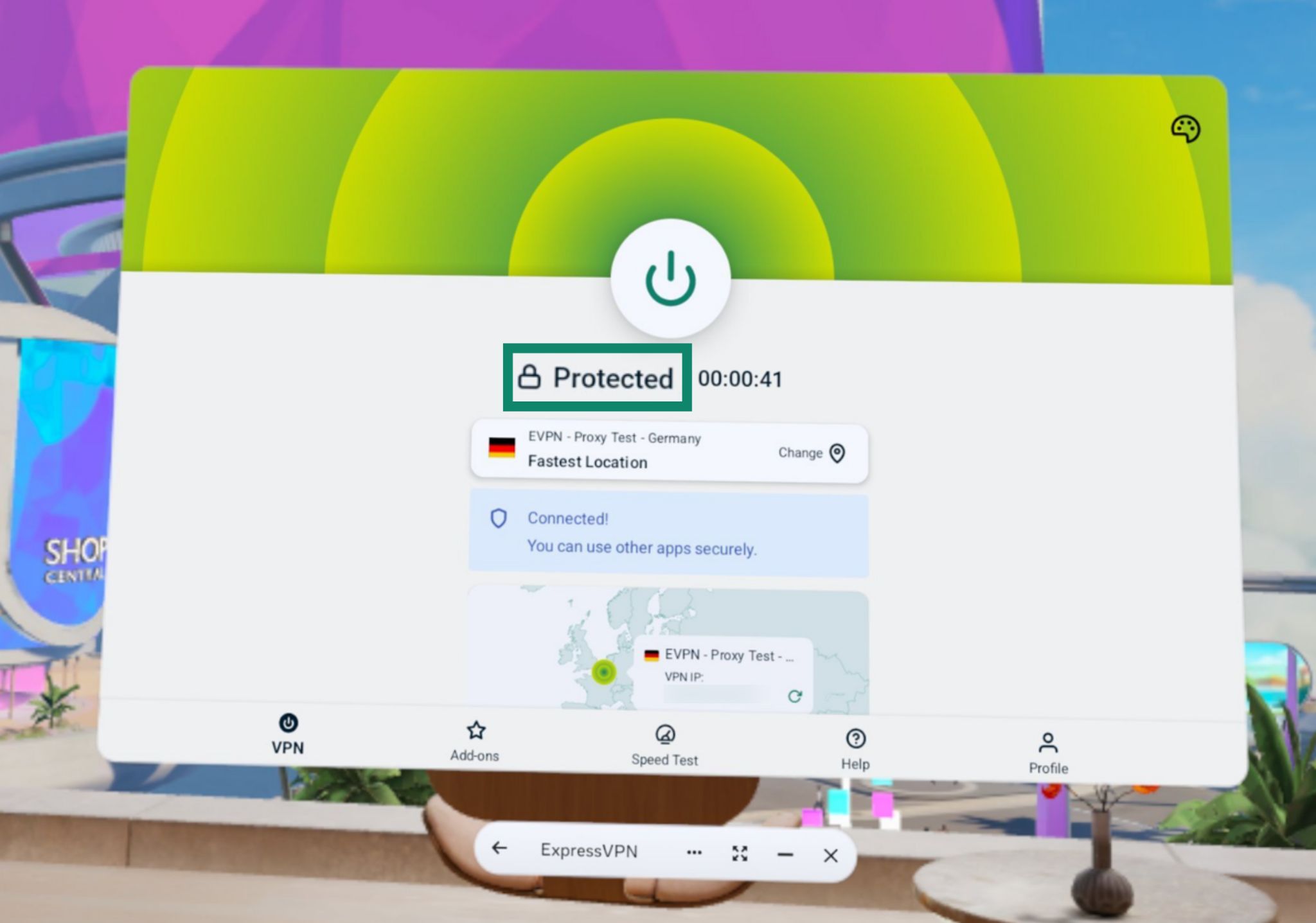
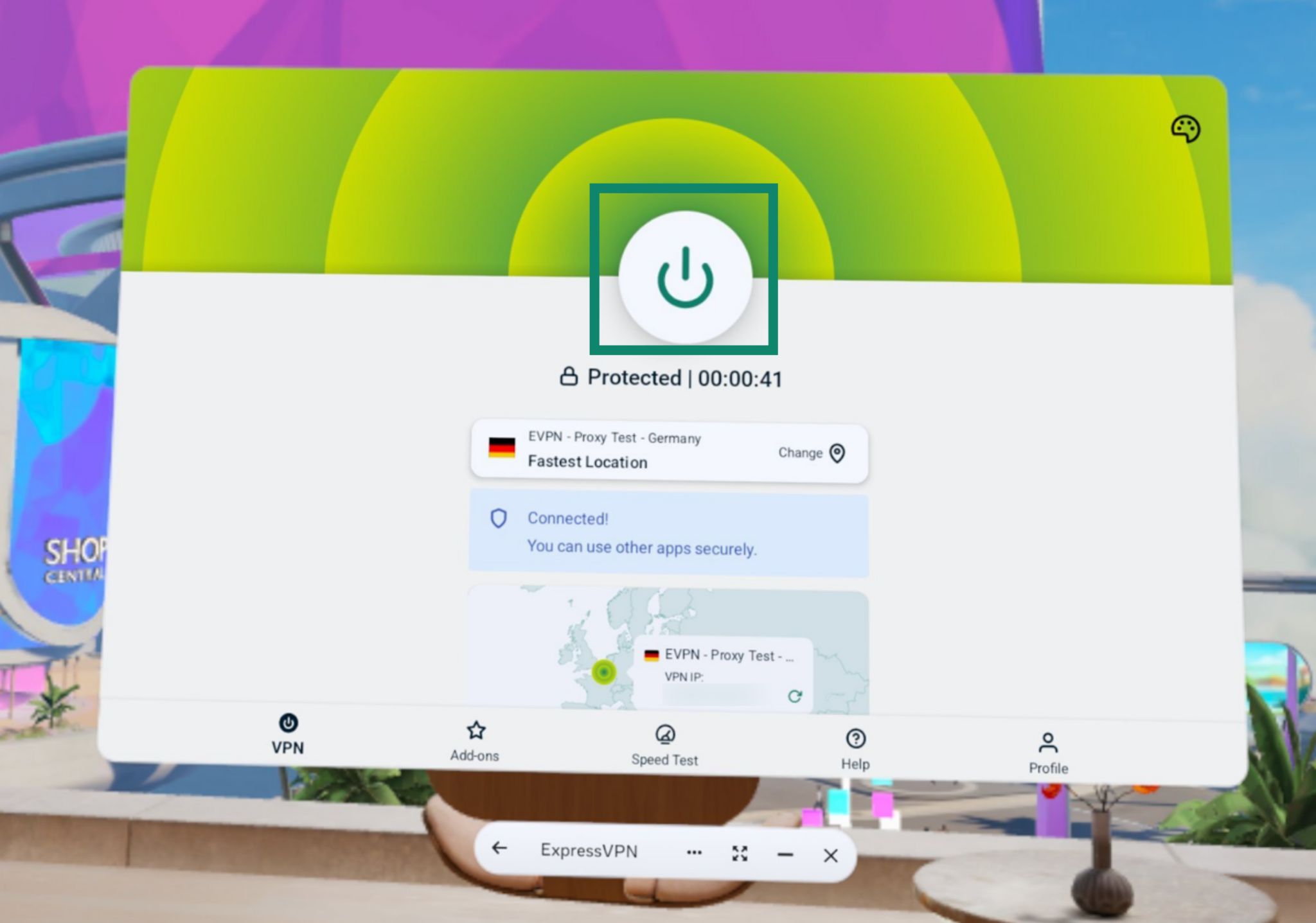
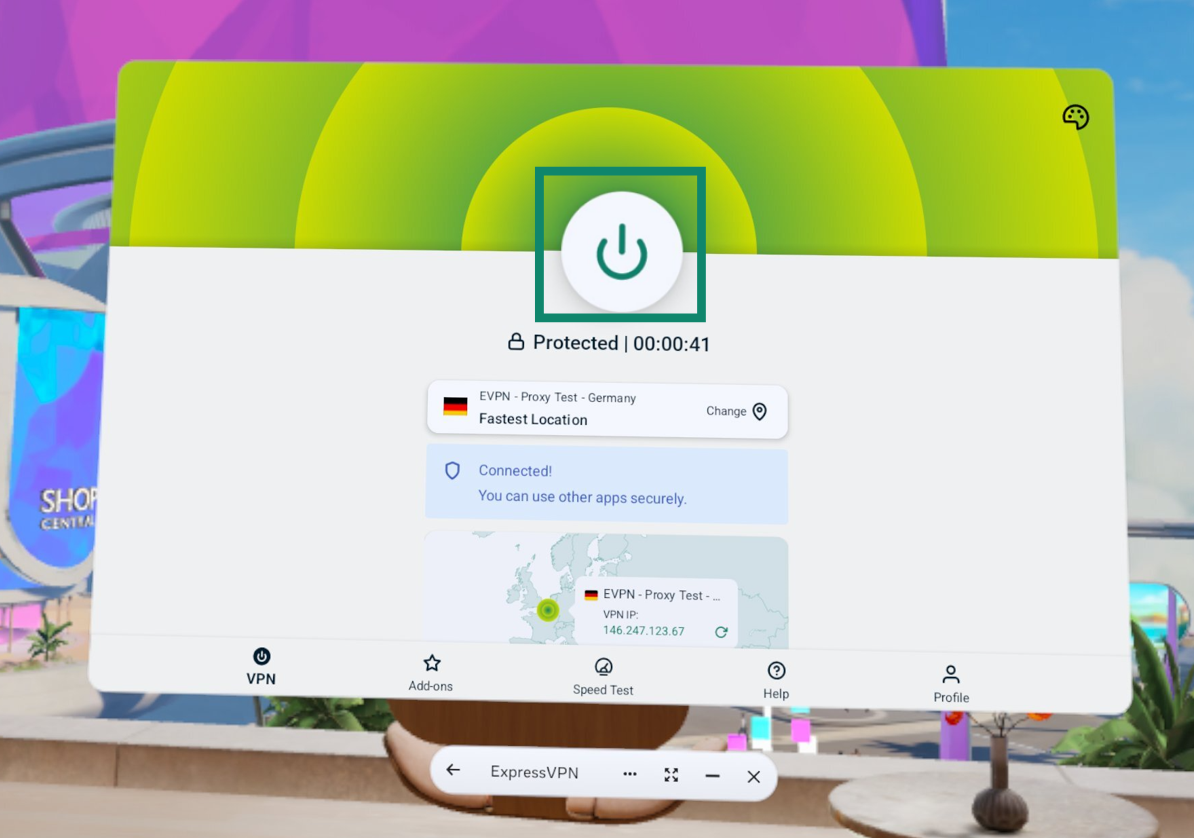
- On the VPN tab, select . By default, ExpressVPN will suggest the location that provides the optimal experience for you, called Fastest Location.


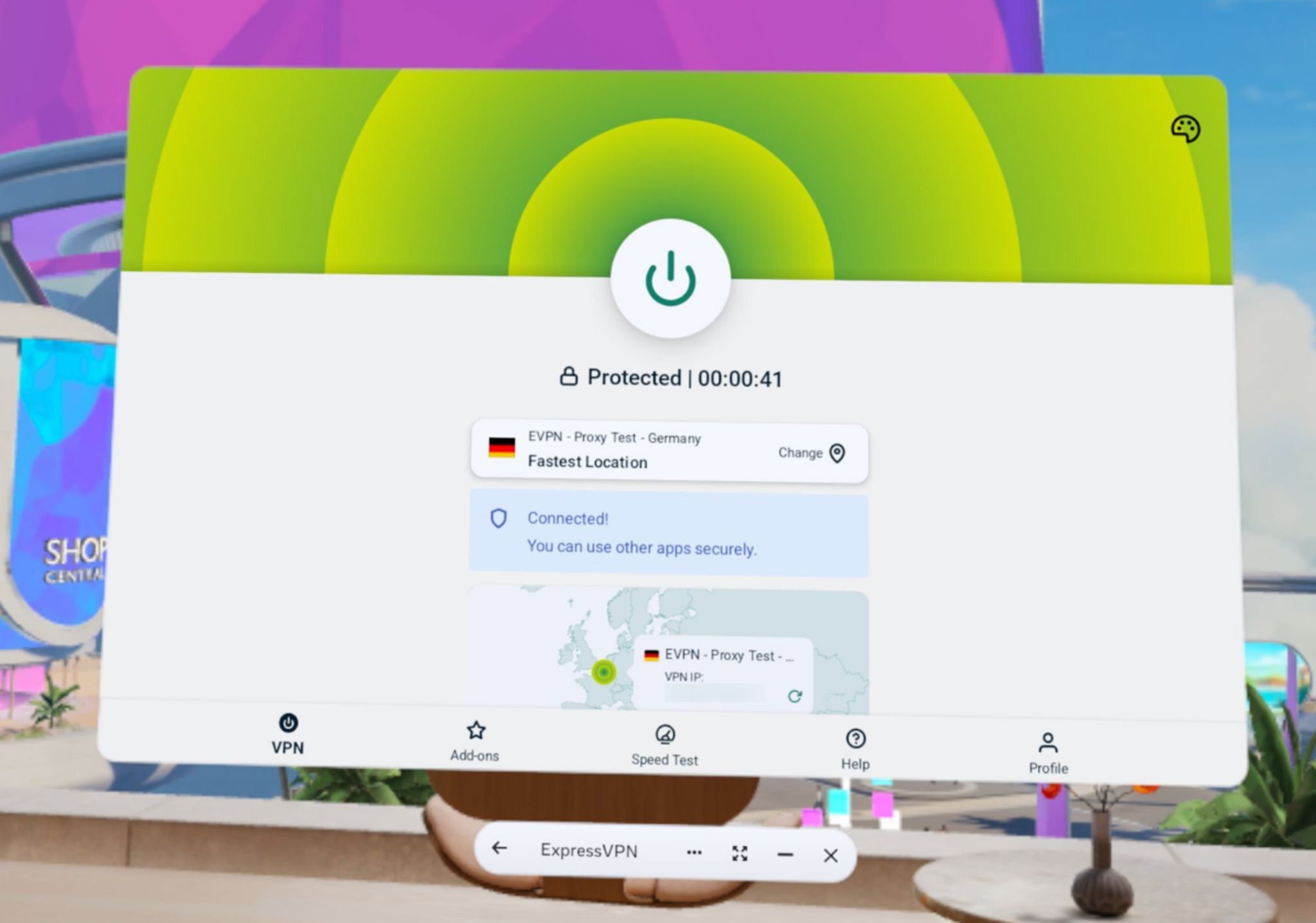
- Once you see the Protected message on the app screen, you can start using the internet with added privacy and security.

Note: The number of devices you can connect to the VPN at the same time depends on the subscription tier you chose at checkout:
- Basic: 10 devices at the same time.
- Advanced: 12 devices at the same time.
- Express Pro: 14 devices at the same time.
Need help? Contact the ExpressVPN Support Team for immediate assistance.
Disconnect from a VPN server location
To disconnect from your current VPN server location:
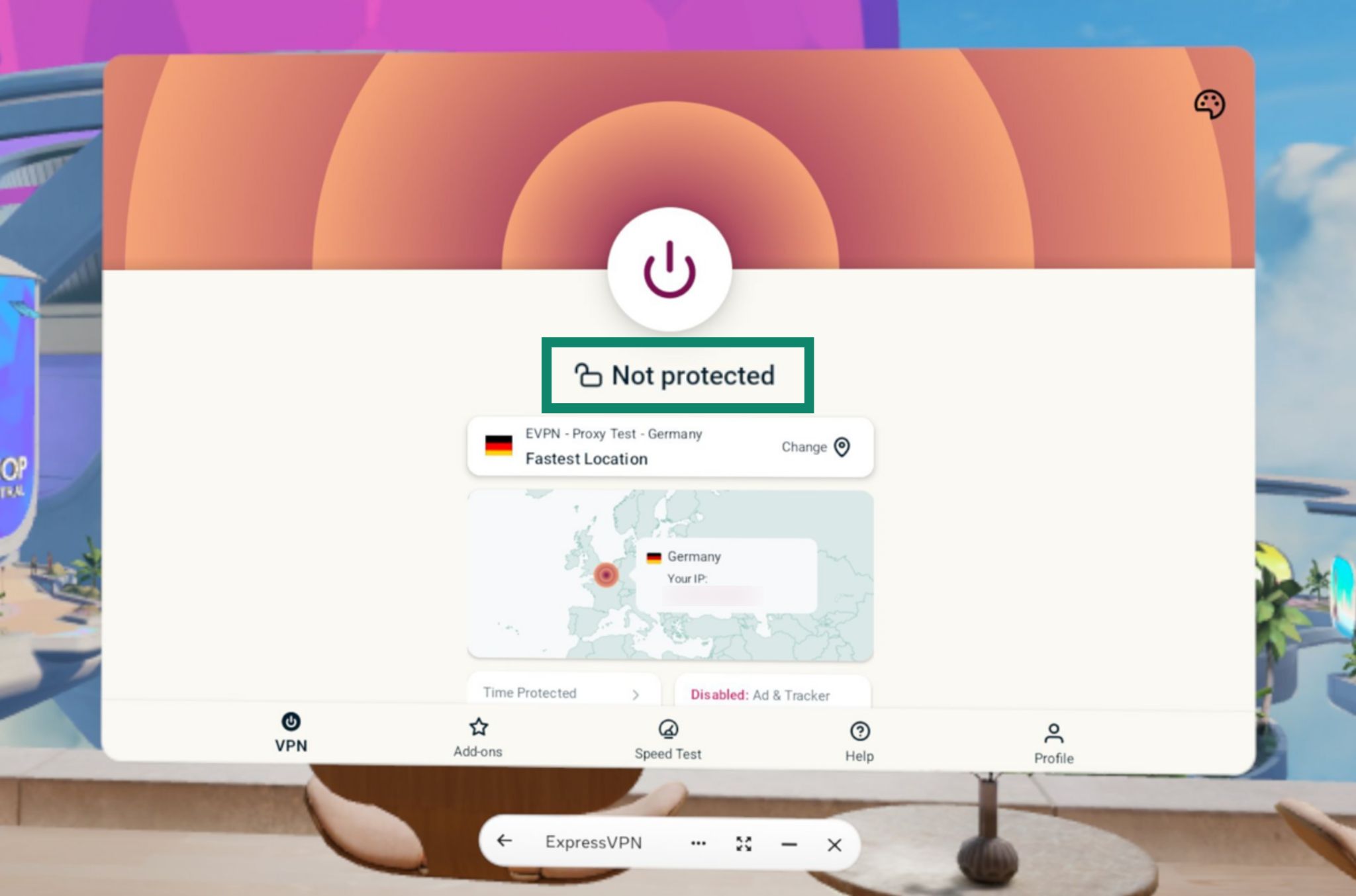
- On the VPN tab, select

 .
.
- You will know you are disconnected when you see the Not protected message.

Need help? Contact the ExpressVPN Support Team for immediate assistance.
Choose a different VPN server location
To choose a different server location:
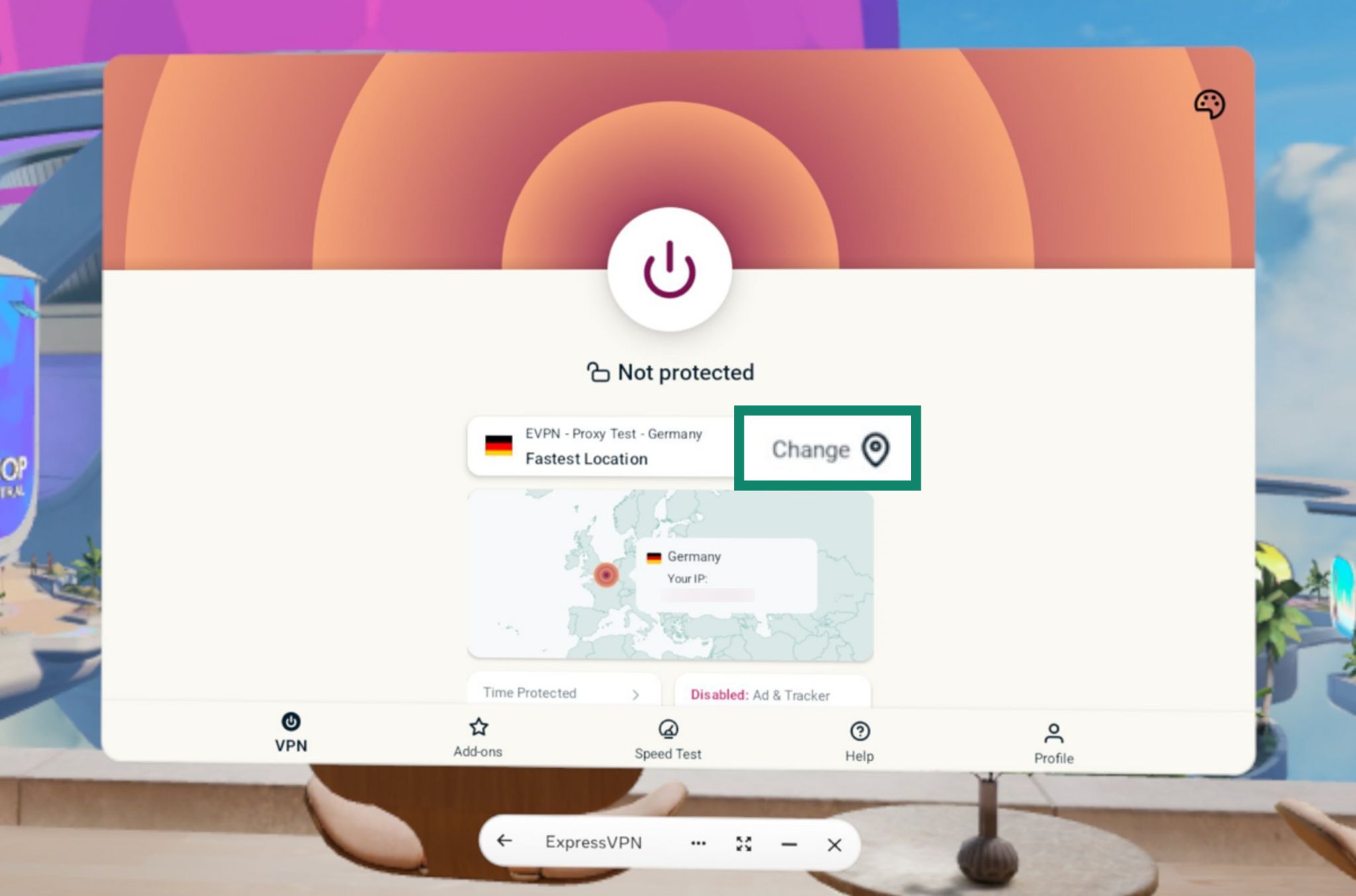
- On the VPN tab, select Change to browse more VPN locations.

- A list of server locations will appear. Scroll through the list or select the Search icon to find the location you want to connect to.

- Select your desired server location. ExpressVPN will automatically connect you to your chosen location.
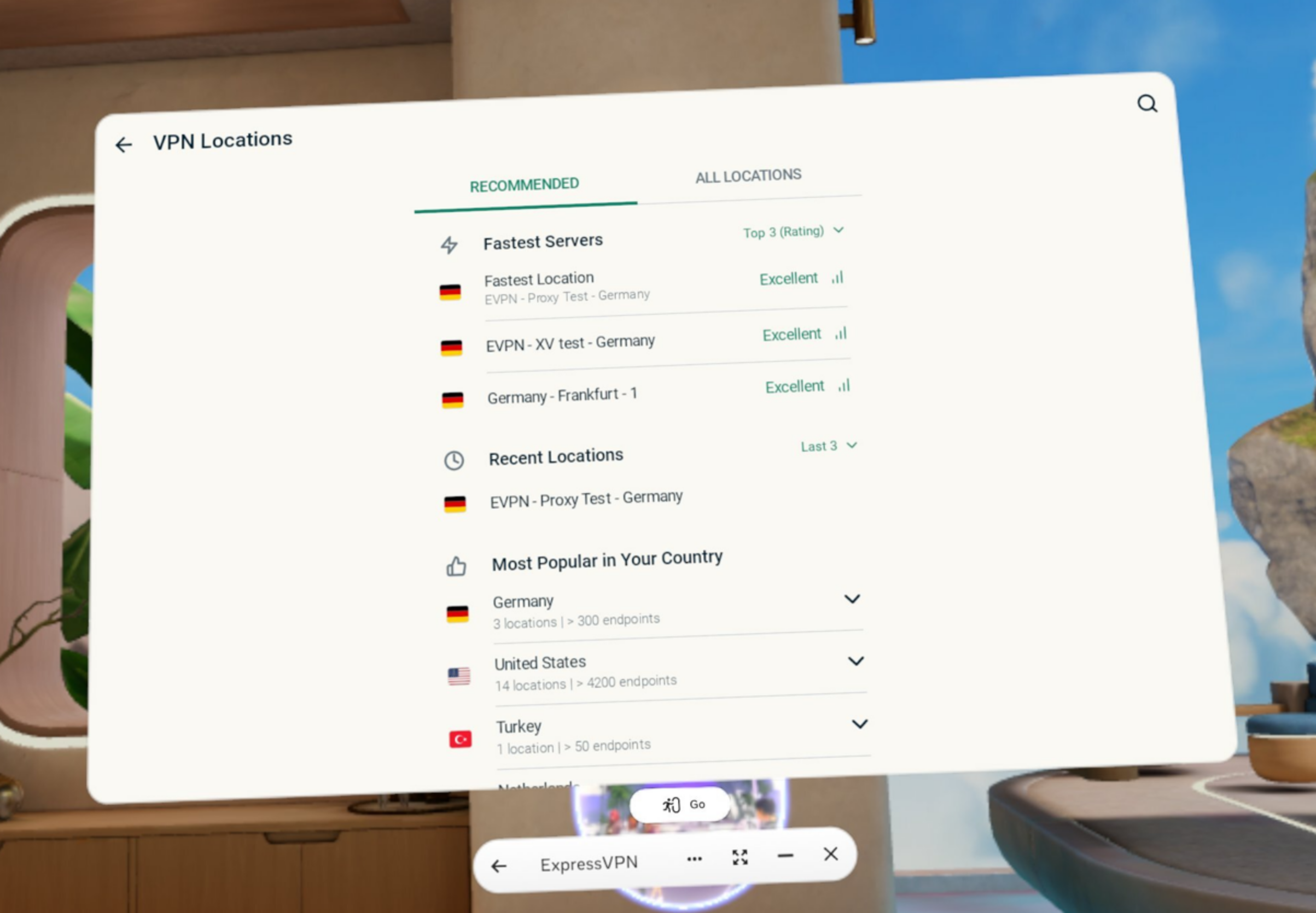
The list of VPN locations features two tabs: RECOMMENDED and ALL LOCATIONS.
The RECOMMENDED tab includes three sections:
- Fastest Servers: a list of up to five of the fastest servers based on your current location.
- Recent Locations: a list of up to five of the most recent server locations you connected to.
- Most Popular in Your Country: the server locations most often used by other ExpressVPN users in your country.
The ALL LOCATIONS tab lists VPN server locations by region. You can expand and collapse the lists by selecting  and
and  .
.
Need help? Contact the ExpressVPN Support Team for immediate assistance.
Switch to a different VPN protocol
Important: Disconnect from the VPN before switching to another protocol.
VPN protocols are how your Meta Quest connects to a VPN server. For the best experience, ExpressVPN recommends using the Automatic protocol option. This is selected by default and automatically picks the protocol most appropriate for your network.
In some cases, switching to a different protocol may help you achieve faster connection speeds.
To switch to a different VPN protocol:
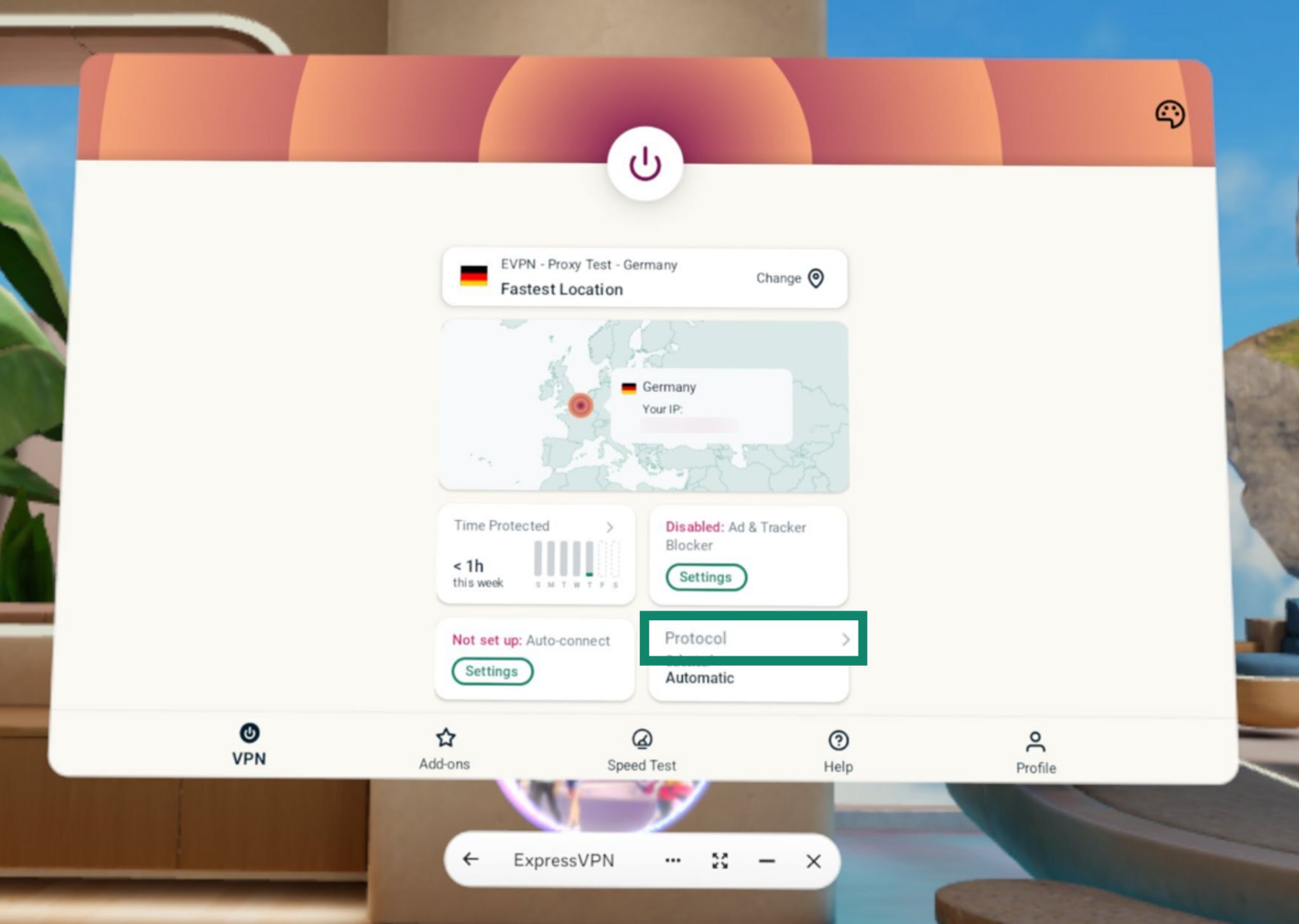
- On the VPN tab, select Protocol.


- Select the protocol you want to use.
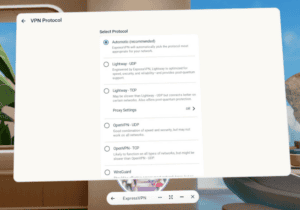

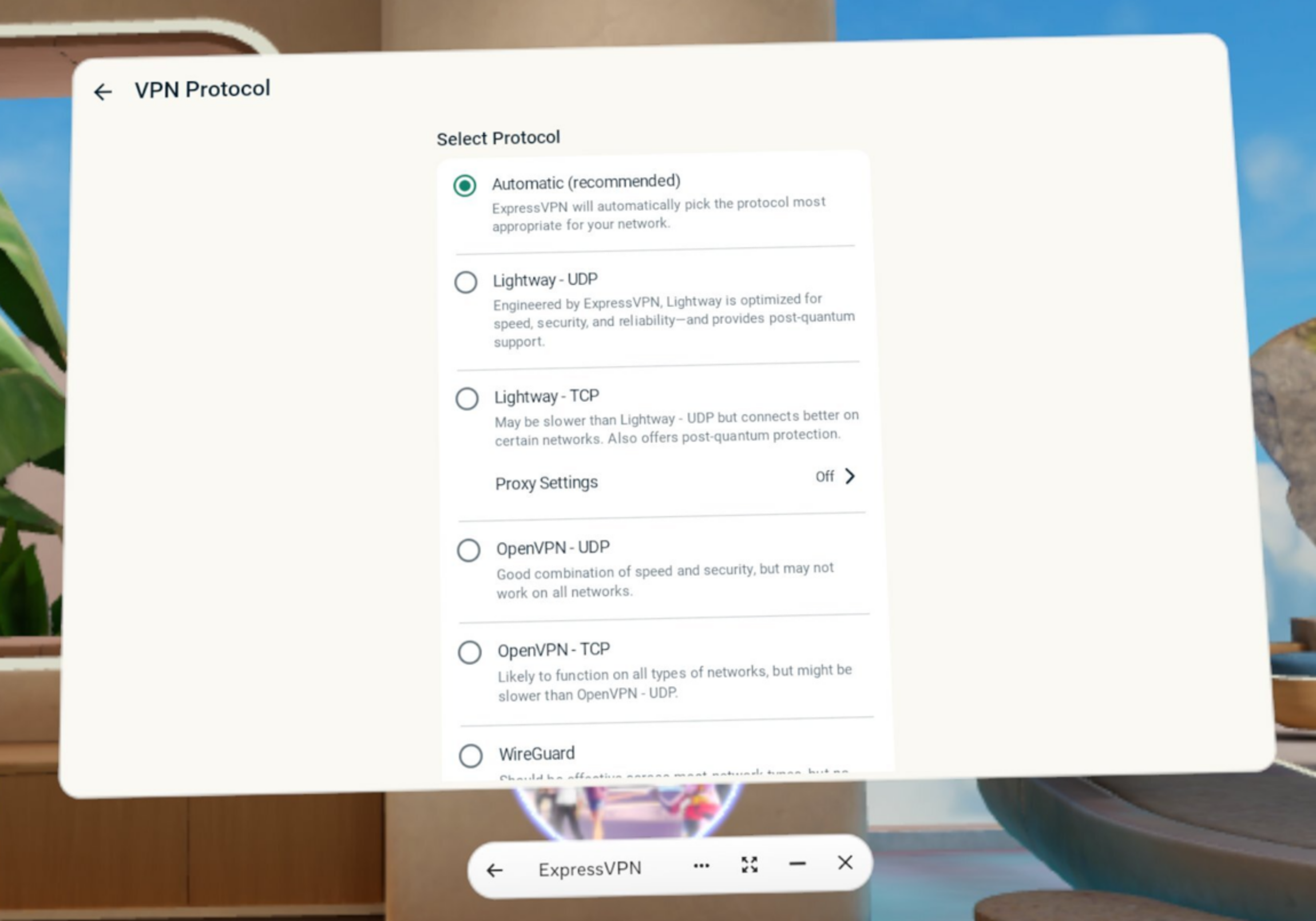
Note: If you choose OpenVPN – UDP, OpenVPN – TCP, or WireGuard, the app will ask if you are sure you want to connect using that protocol. Select CHANGE ANYWAY to continue to connect using your chosen protocol.
Need help? Contact the ExpressVPN Support Team for immediate assistance.
Block ads, trackers, and harmful sites
You can block ads, trackers, malicious sites, and adult content from within the ExpressVPN app.
Many of the apps and websites you visit keep a record of and share your activity with third-party companies. This information is often used to serve you more targeted ads and content.
ExpressVPN’s advanced protection features prevent all apps and websites you visit on your device from communicating with the third-party companies in our open-source blocklists.
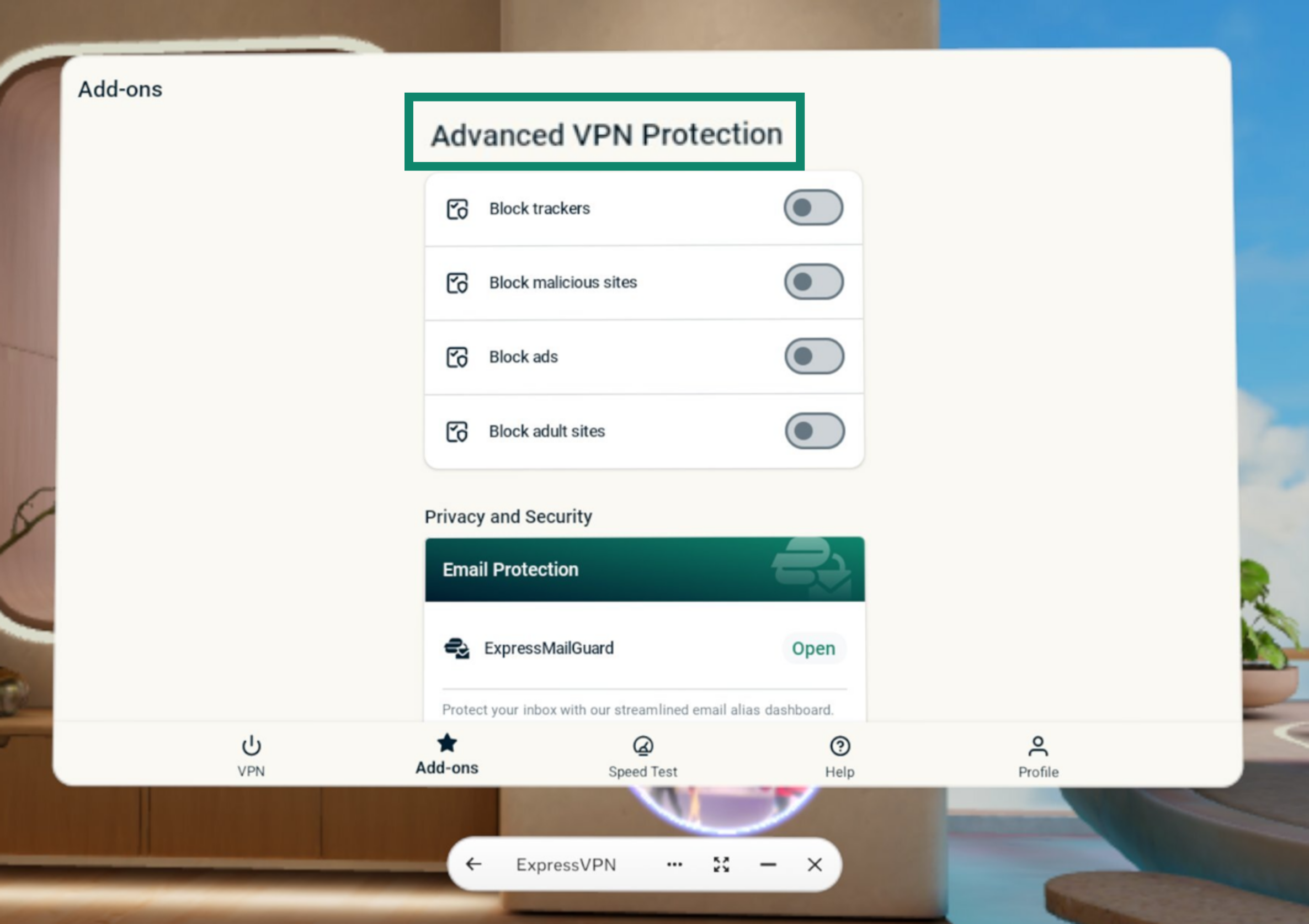
Advanced protection features are disabled by default. To enable them:
- Connect to the VPN.
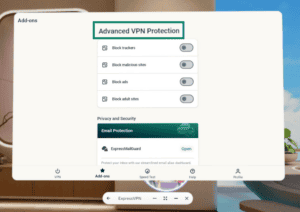
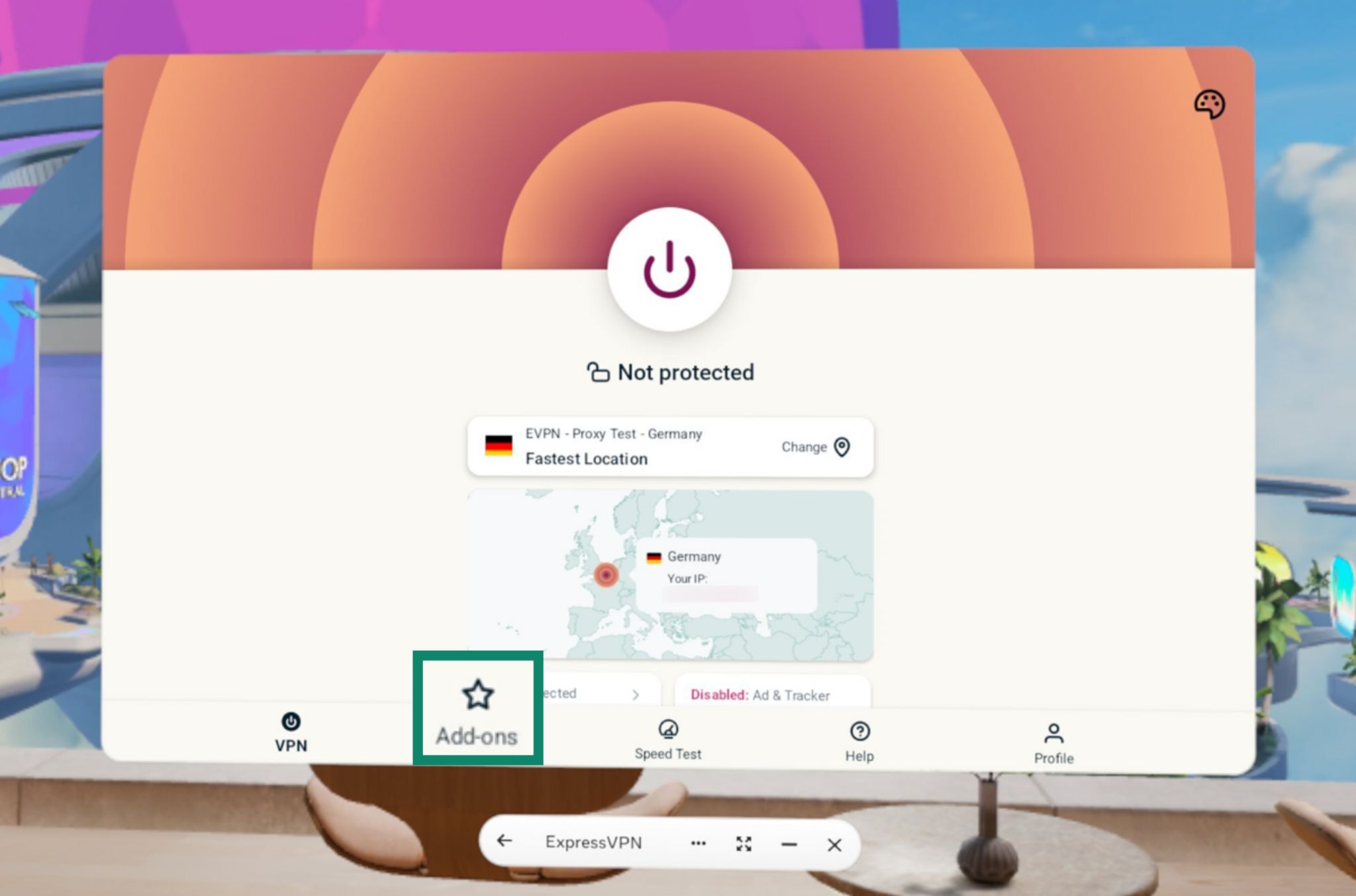
- Select the Add-ons tab.

- Under Advanced VPN Protection, toggle the settings on/off as you see fit.

Read more about ExpressVPN’s advanced protection features.
Need help? Contact the ExpressVPN Support Team for immediate assistance.
Use split tunneling
Split Tunneling lets you choose which apps use the VPN and which apps don’t when you are connected to ExpressVPN.
By default, all apps use the VPN when you connect to a VPN server location. To set up split tunneling rules for different apps on Meta Quest:
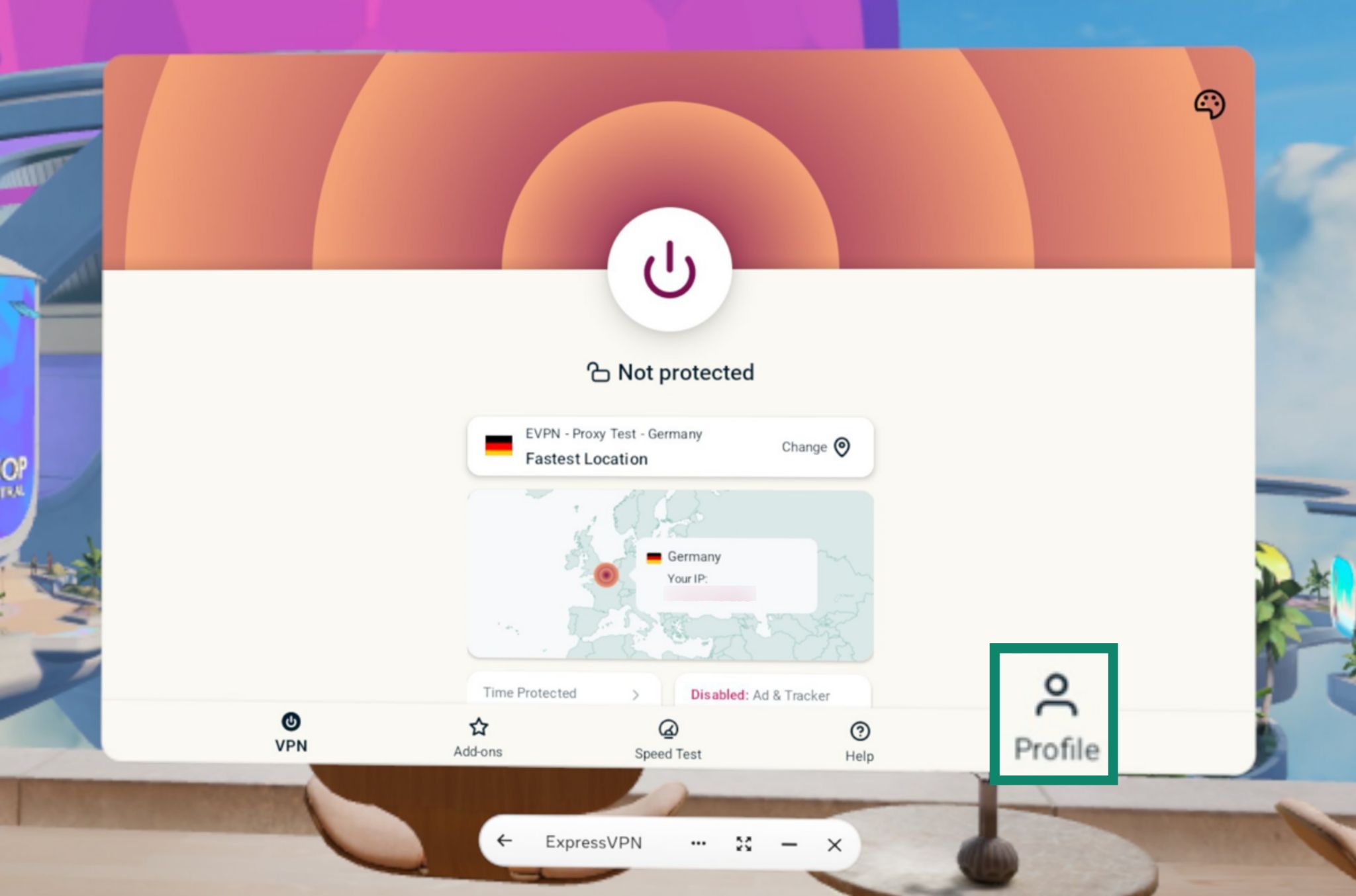
- Select the Profile tab.

- Under Settings, select Split Tunneling.

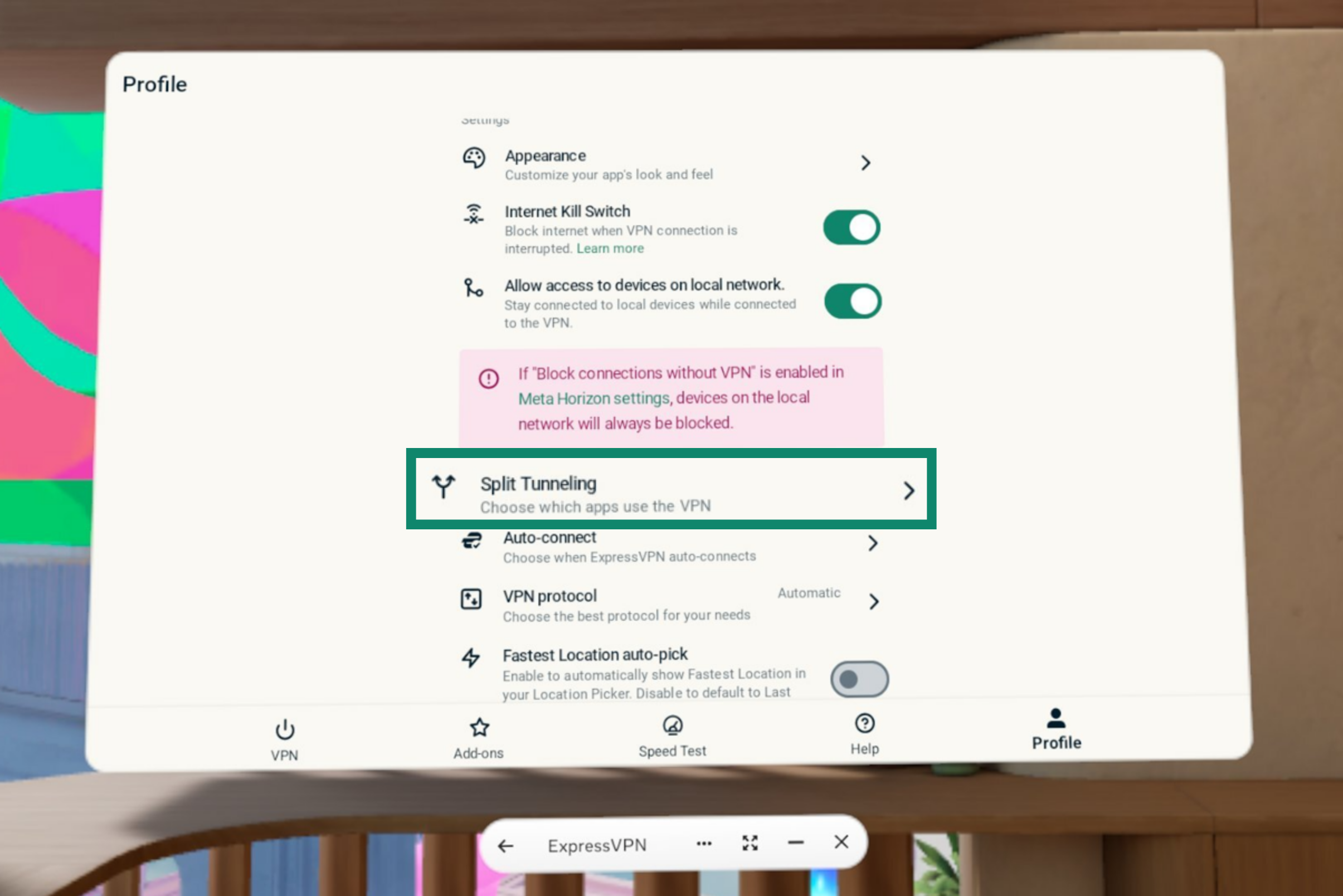
Here you have three options:
- All apps use the VPN
- Do not allow selected apps to use the VPN
- Only allow selected apps to use the VPN
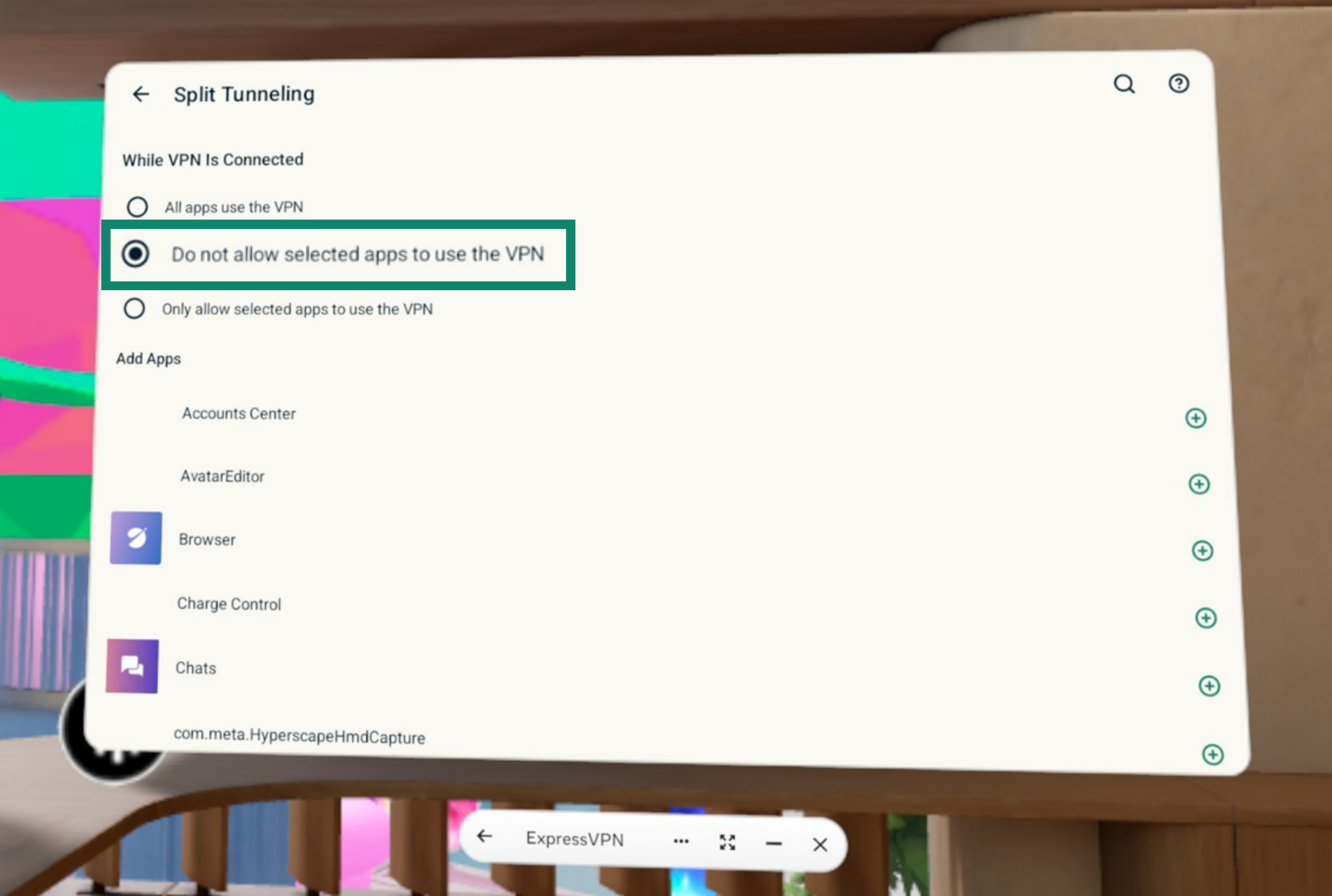
Do not allow selected apps to use the VPN
To prevent selected apps from using the VPN:
- Select Do not allow selected apps to use the VPN.
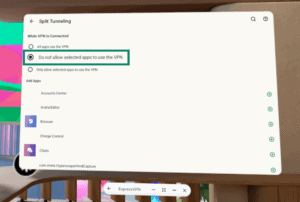
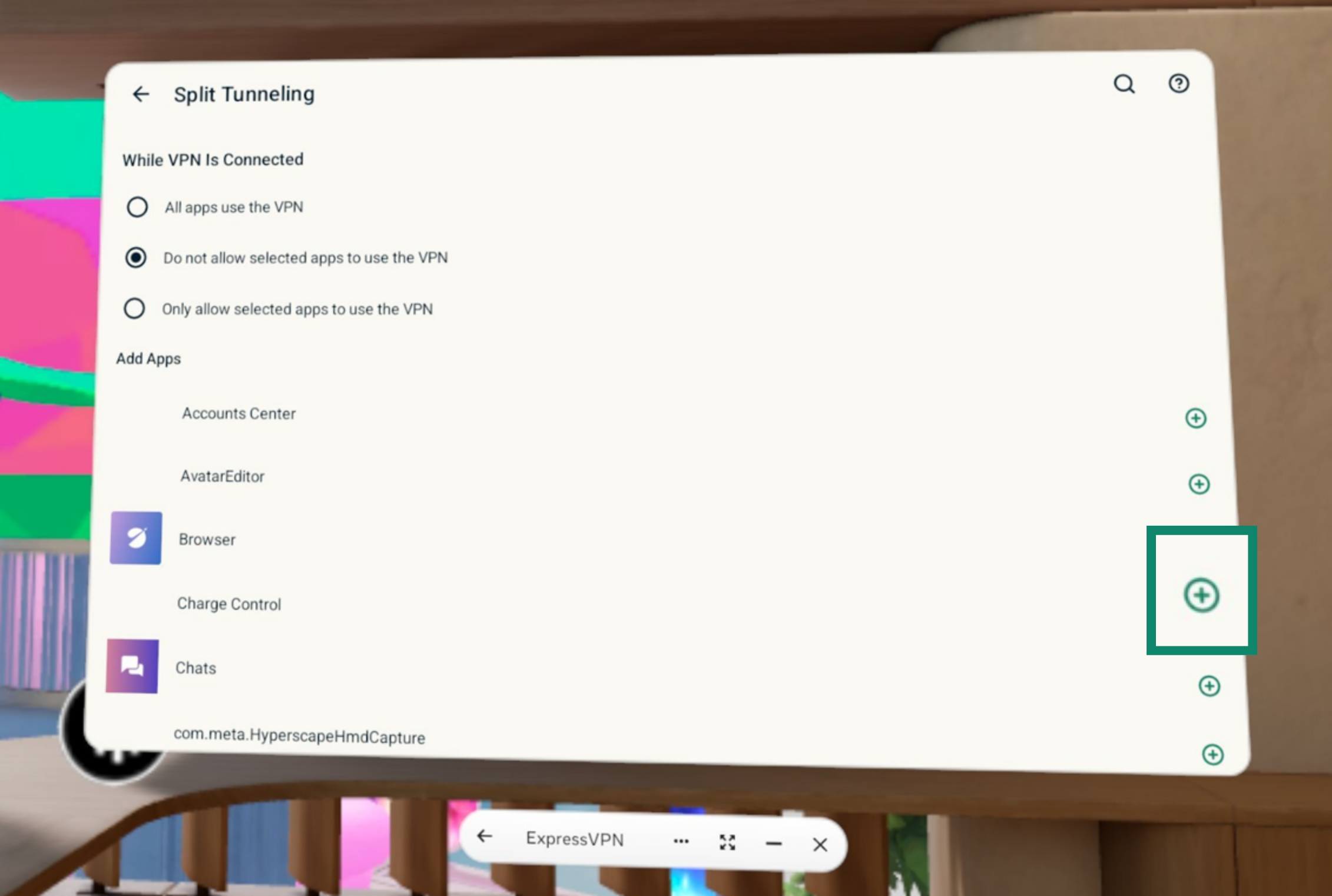
- A list of apps on your Meta Quest will appear. To prevent an app from using the VPN, select
 next to the app. The app will be added to the Select Apps list.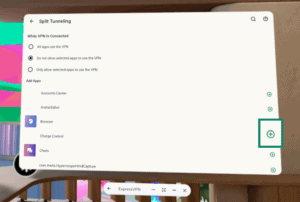
- To remove apps from the Select Apps list, select
 next to the app you want to remove.
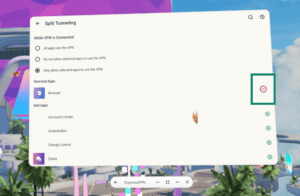
Only allow selected apps to use the VPN
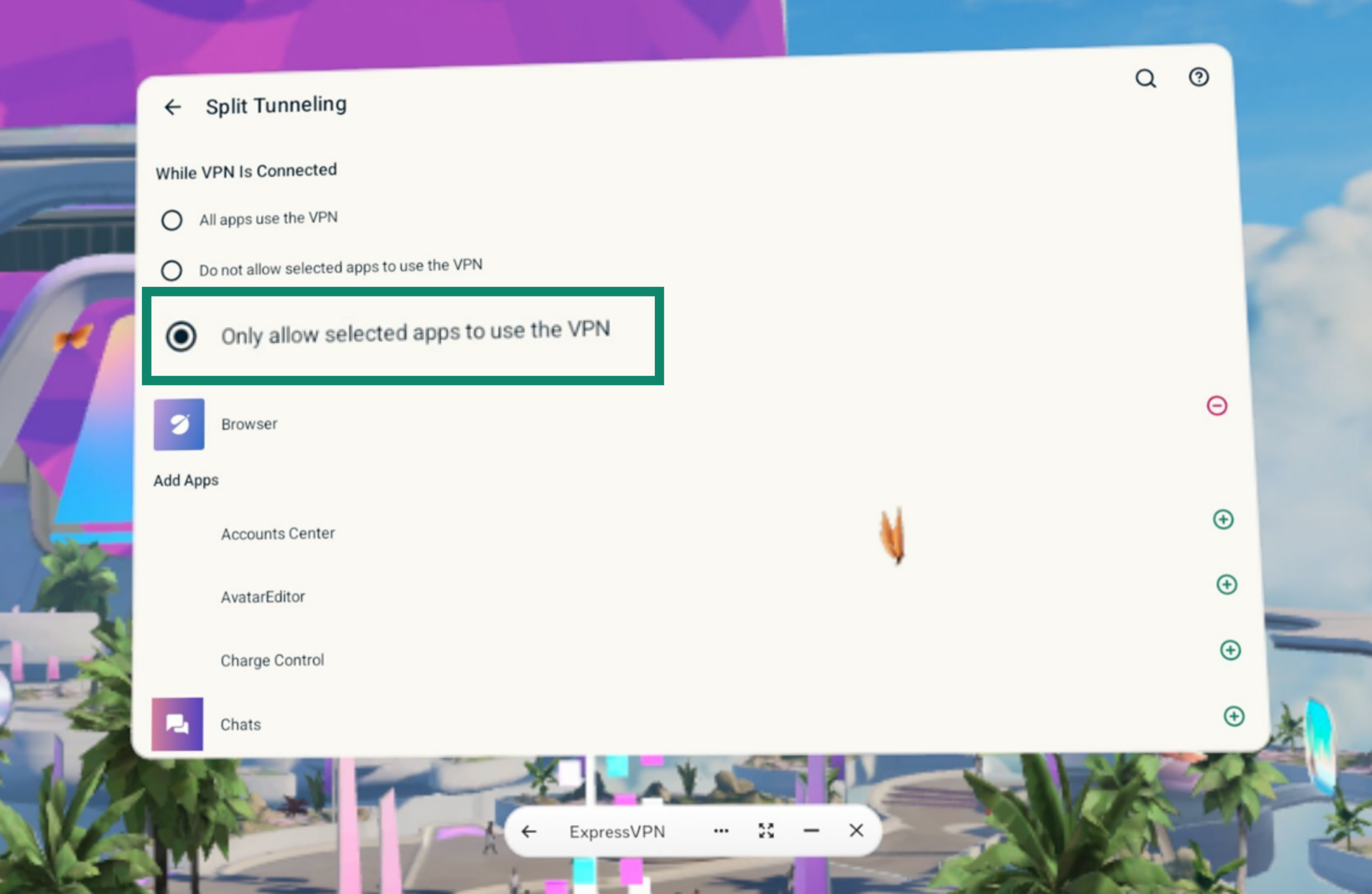
To allow only selected apps to use the VPN:
- Select Only allow selected apps to use the VPN.

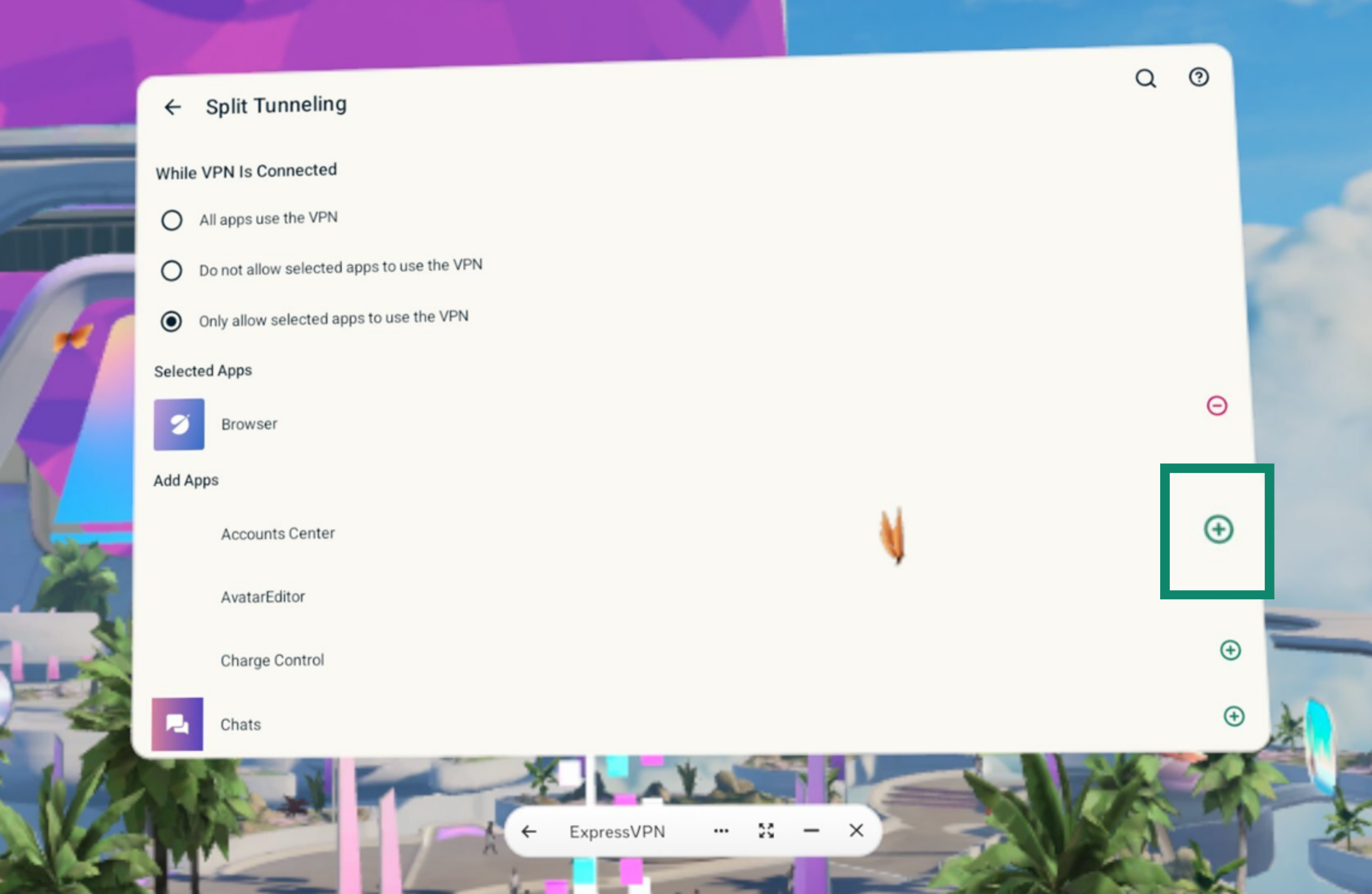
- A list of apps on your Meta Quest will appear. Select next to the app you want to use the VPN. The app will be added to the Select Apps list.
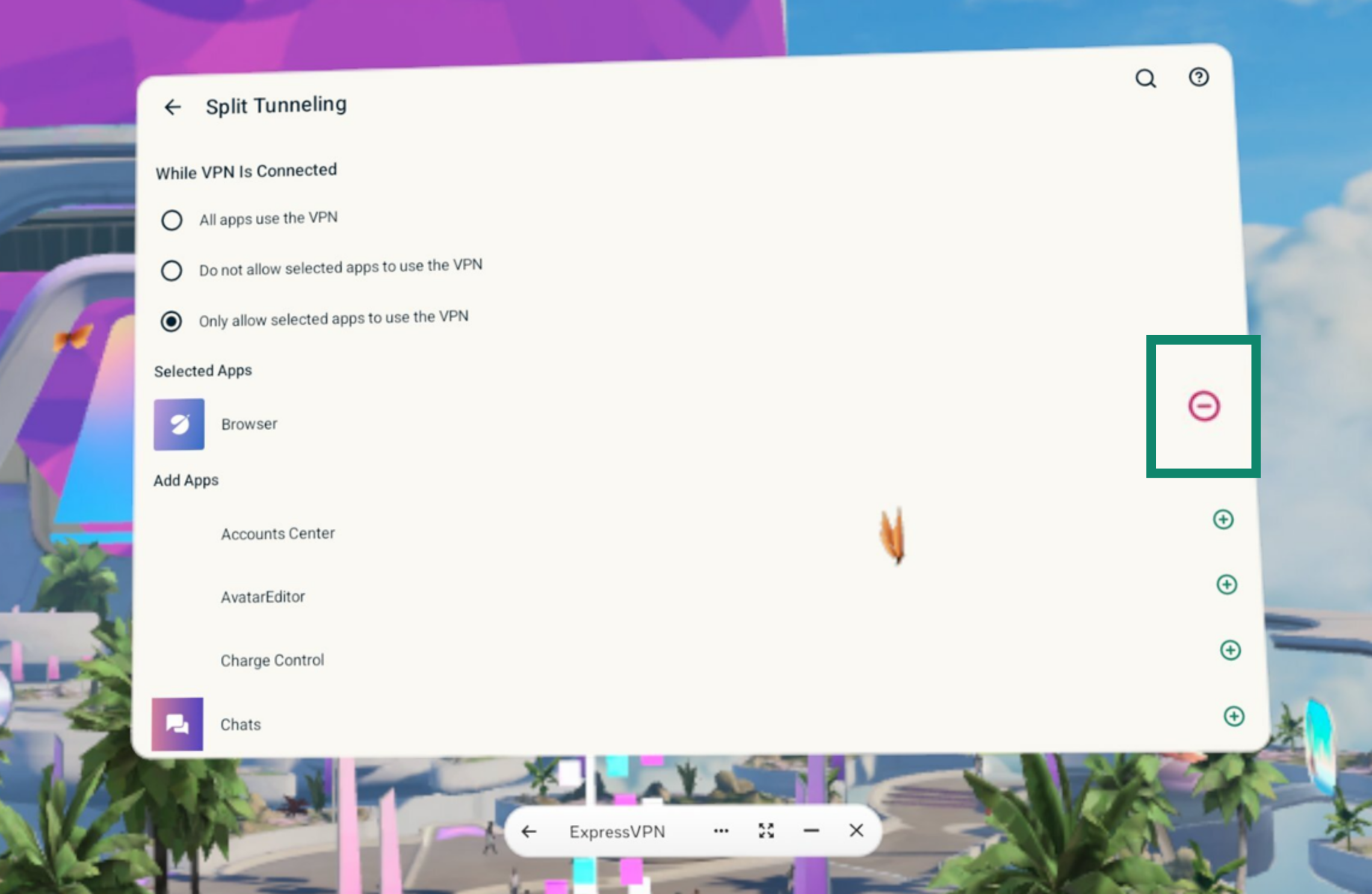
- To remove apps from the Select Apps list, select next to the app you want to remove.
Note: If you enabled “Block non-VPN traffic” in your Meta Horizon settings, only the apps you select through this menu will be able to use the internet. All other apps will be permanently blocked unless you add them to this list.
Need help? Contact the ExpressVPN Support Team for immediate assistance.
Set up auto-connect
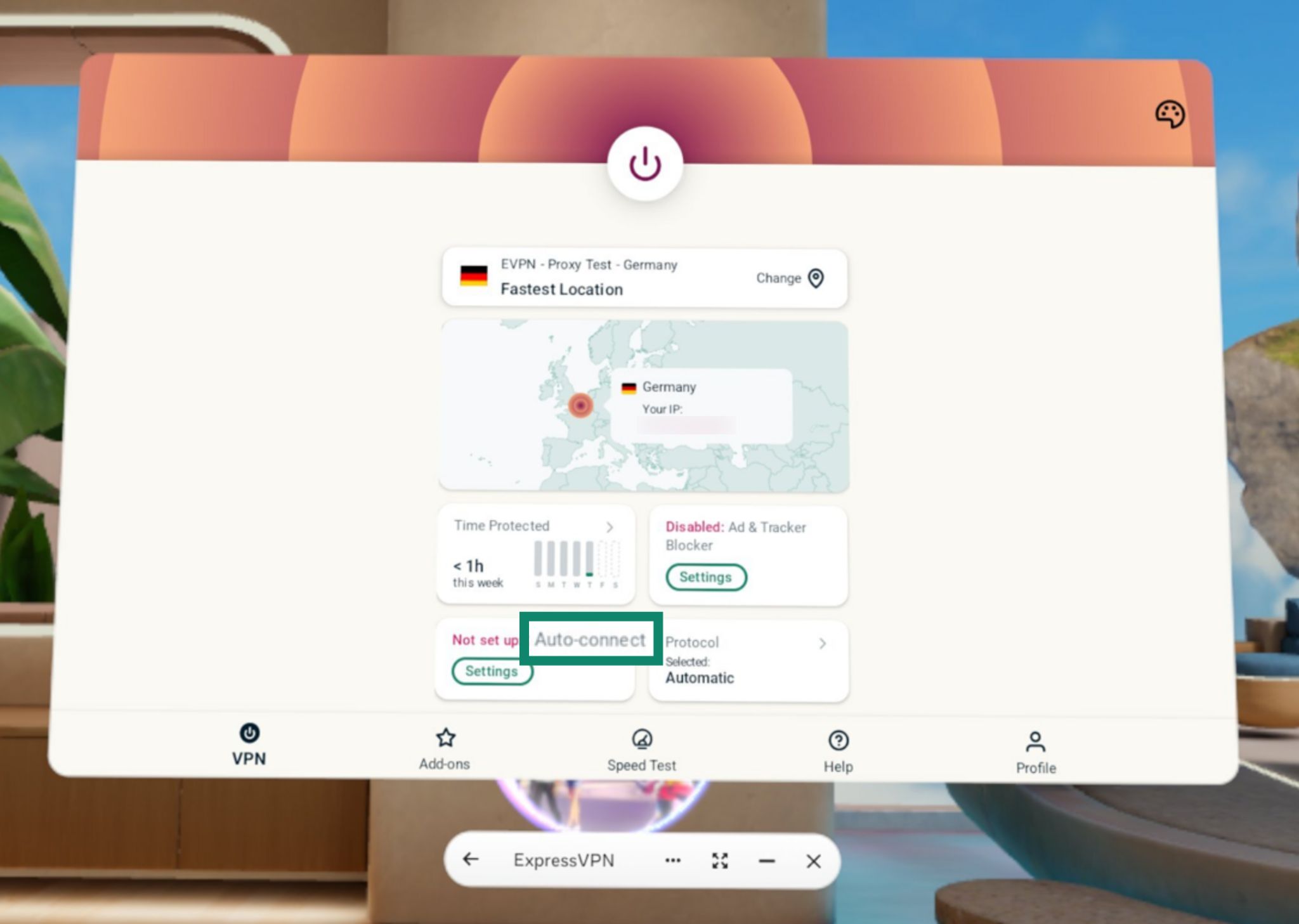
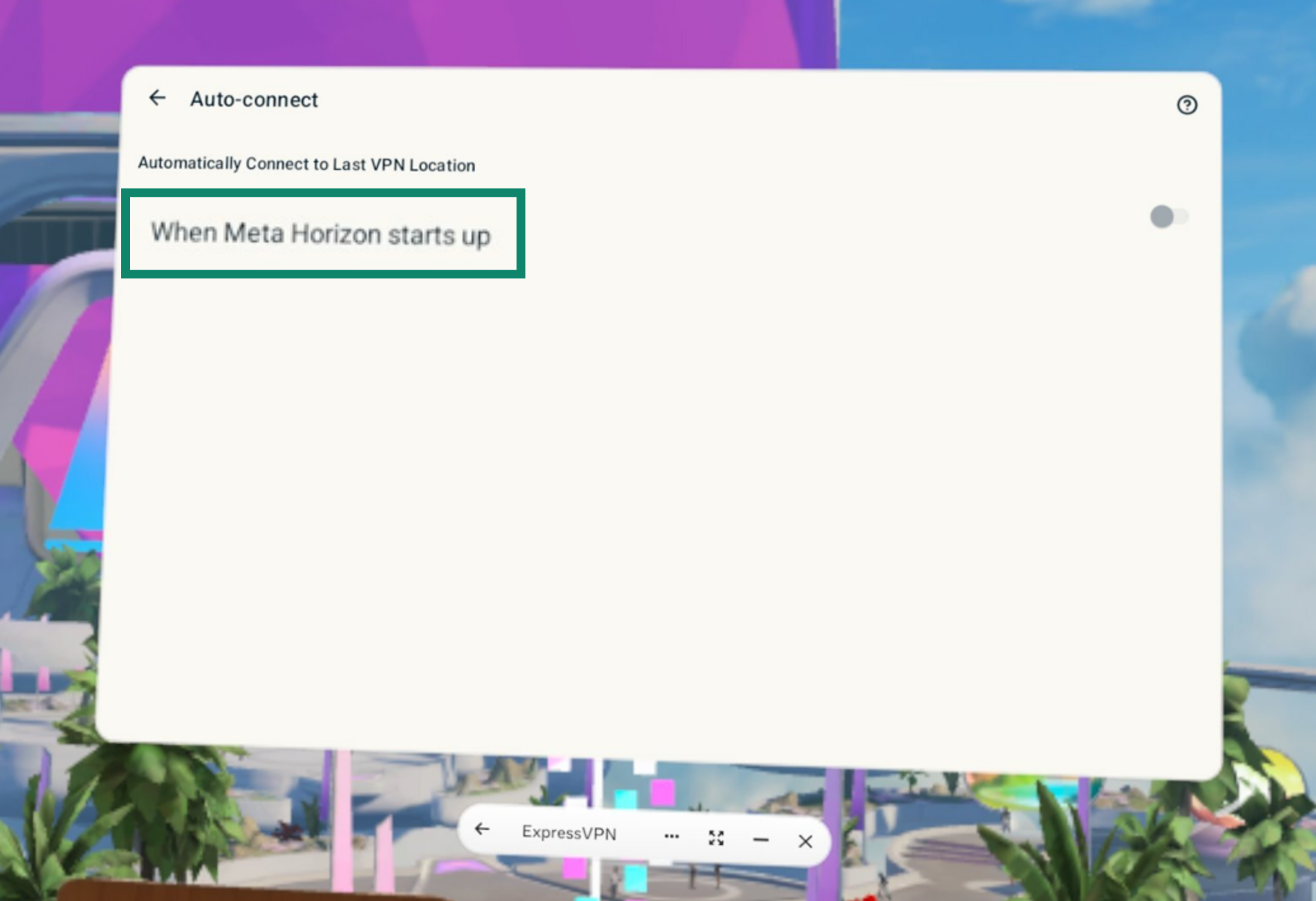
You can set up the ExpressVPN app for Meta Quest to automatically connect to the last VPN location you were using when you turn on your Meta Quest.
To adjust your auto-connect settings:
- On the VPN tab, select the Auto-connect widget.

- Select When Meta Horizon starts up to toggle auto-connect on/off.

Need help? Contact the ExpressVPN Support Team for immediate assistance.
Speed test
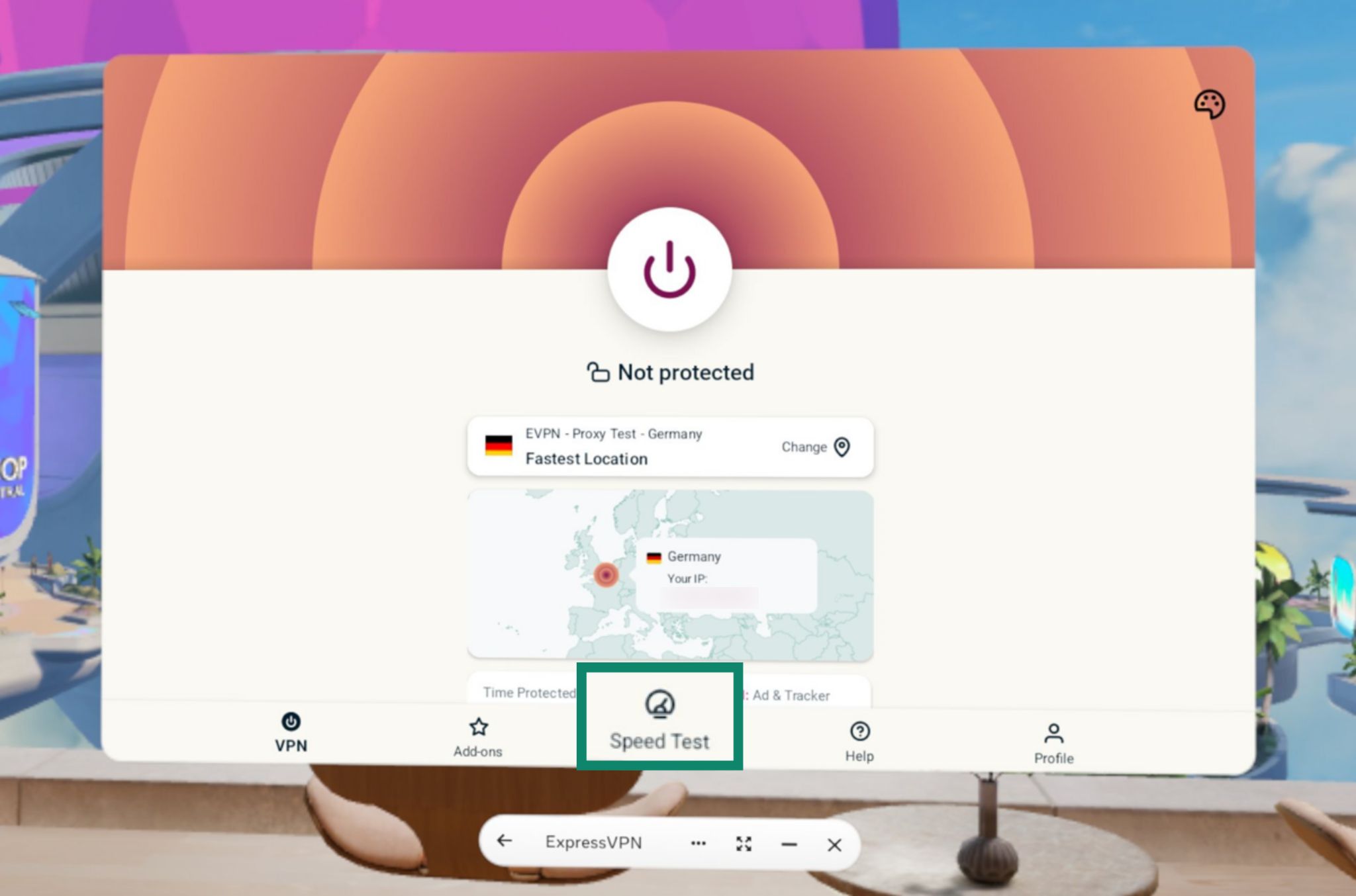
You can run a speed test within the ExpressVPN app. Here you can compare the speed of your current VPN location versus the speed of your internet service provider (ISP).
To run a speed test:
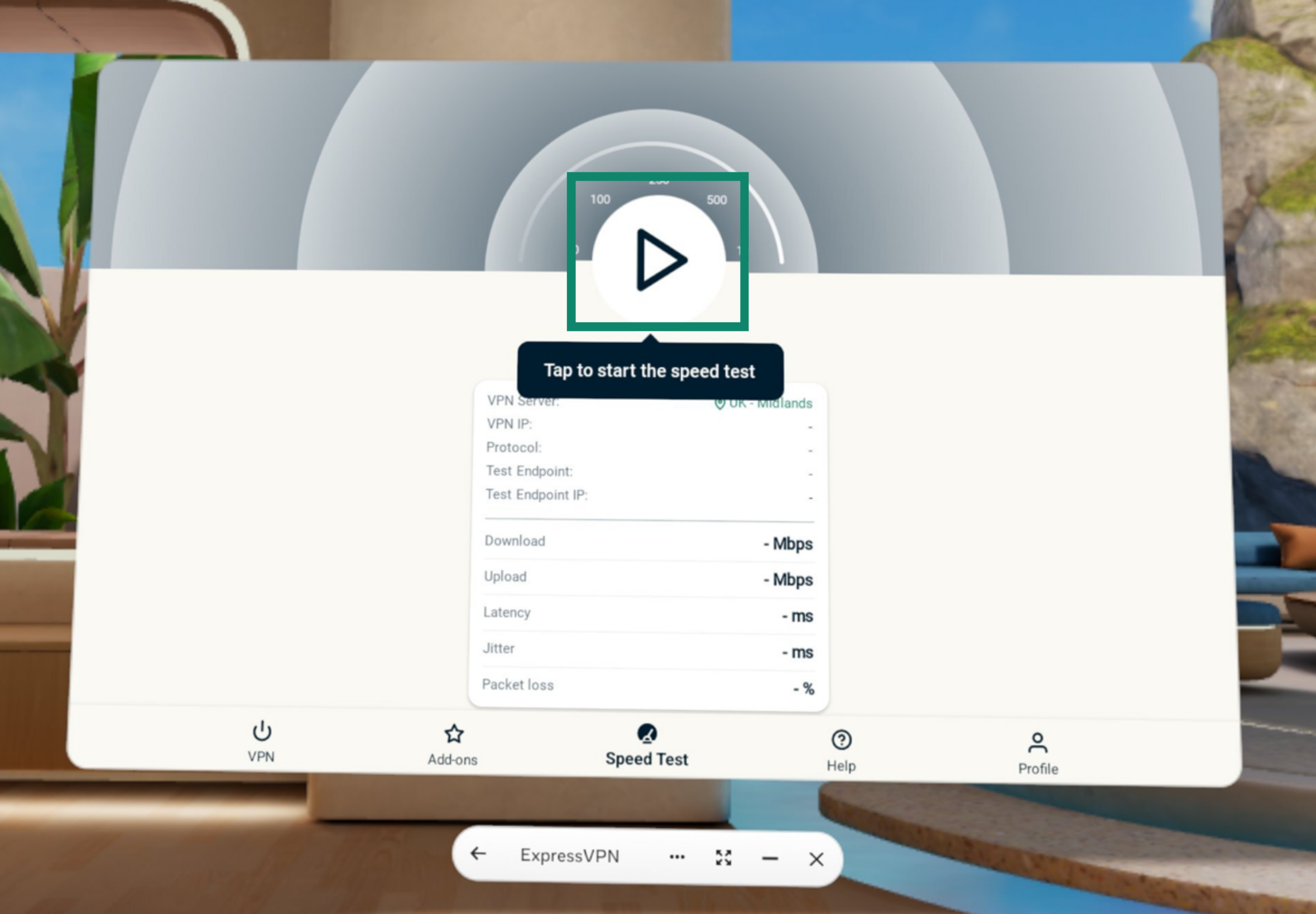
- Select the Speed Test tab.

- Select the play button to start the speed test. It will take a few minutes to finish.

Read more about ExpressVPN’s in-app speed test.
Need help? Contact the ExpressVPN Support Team for immediate assistance.
Change app appearance
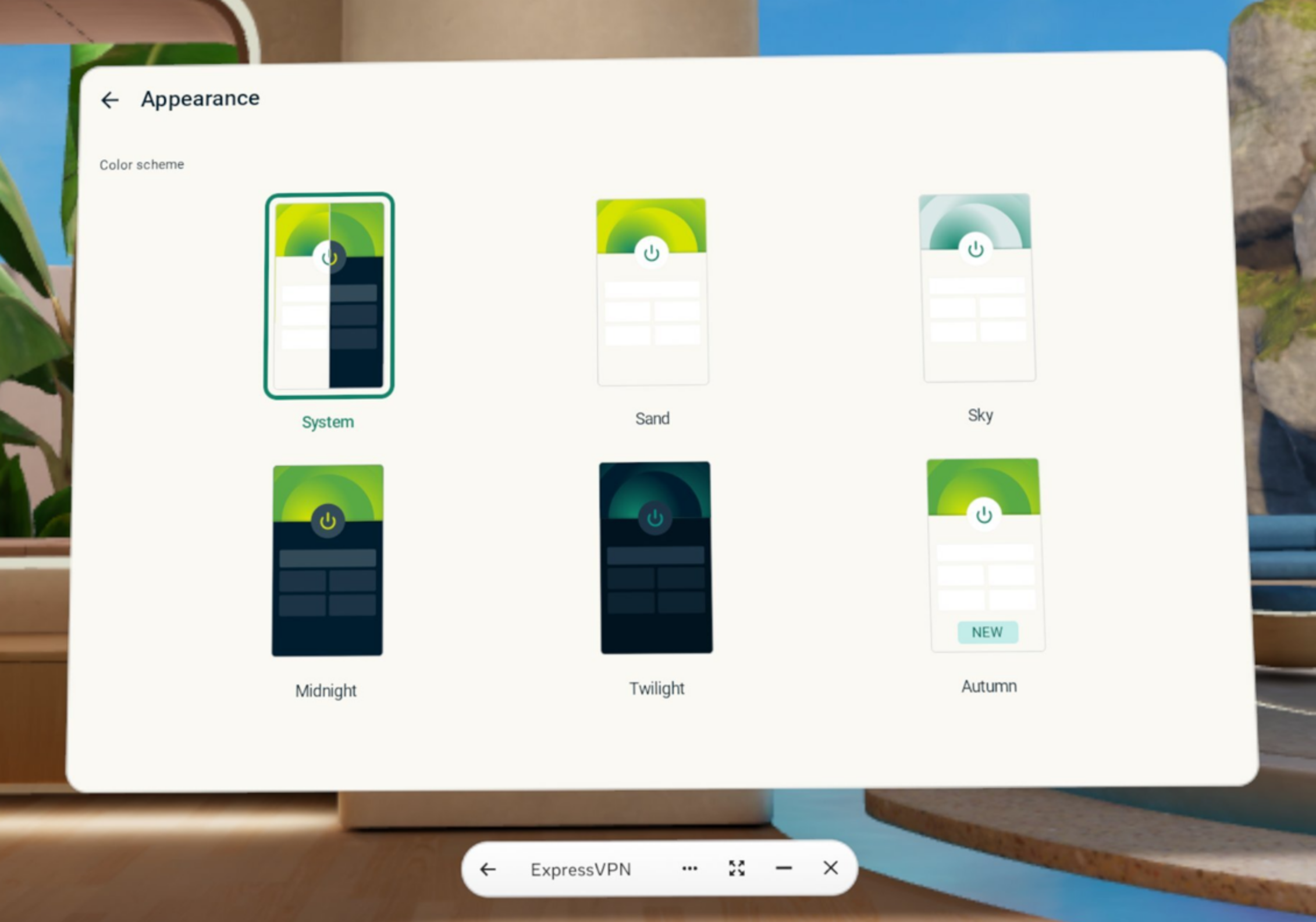
You can change the color scheme of the app to suit your preferences.
To change the color scheme of the ExpressVPN app:
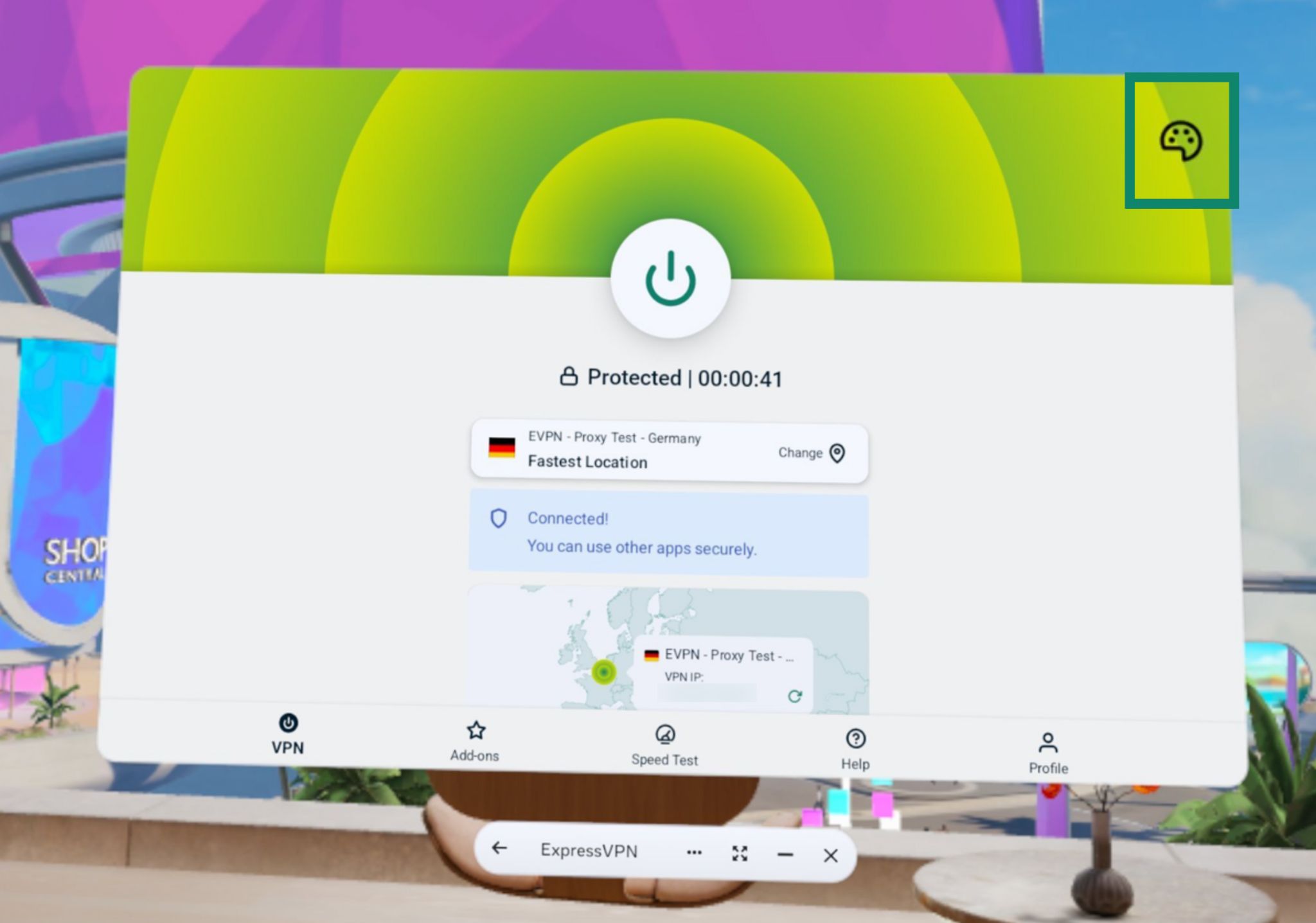
- On the VPN tab, select the color palette icon in the top-right corner of the app.
- Select the color scheme you want to use. The app color scheme will change immediately.

Need help? Contact the ExpressVPN Support Team for immediate assistance.
Protection Summary
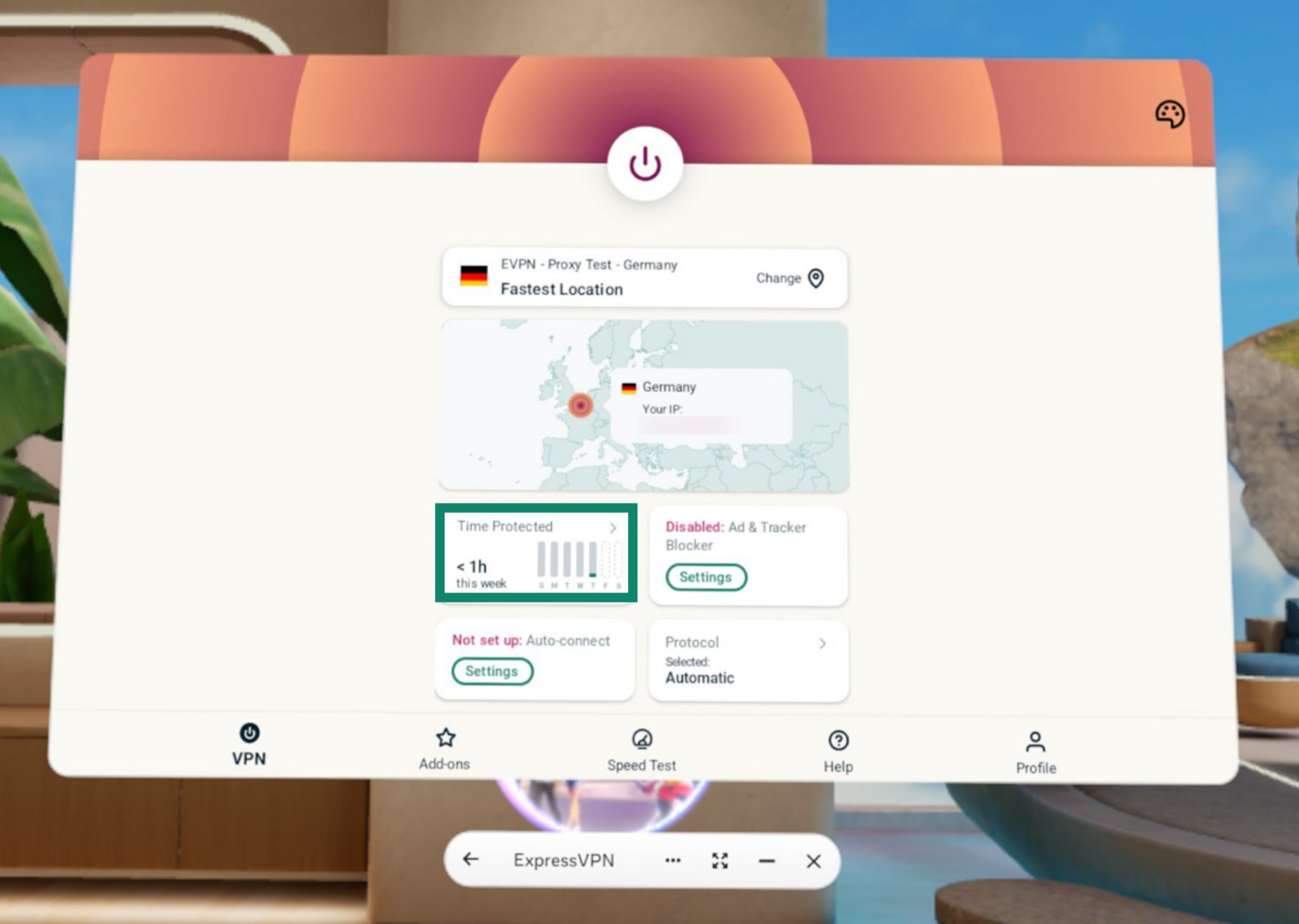
Protection Summary is a section on the VPN tab that provides an overview of your app use.
Important: Your connection information in Protection Summary is completely private. It is stored only on your device and never sent to ExpressVPN.
Protection Summary is enabled by default. To disable/re-enable:
- On the VPN tab, select the Time Protected widget.

- Toggle Protection Summary on/off.
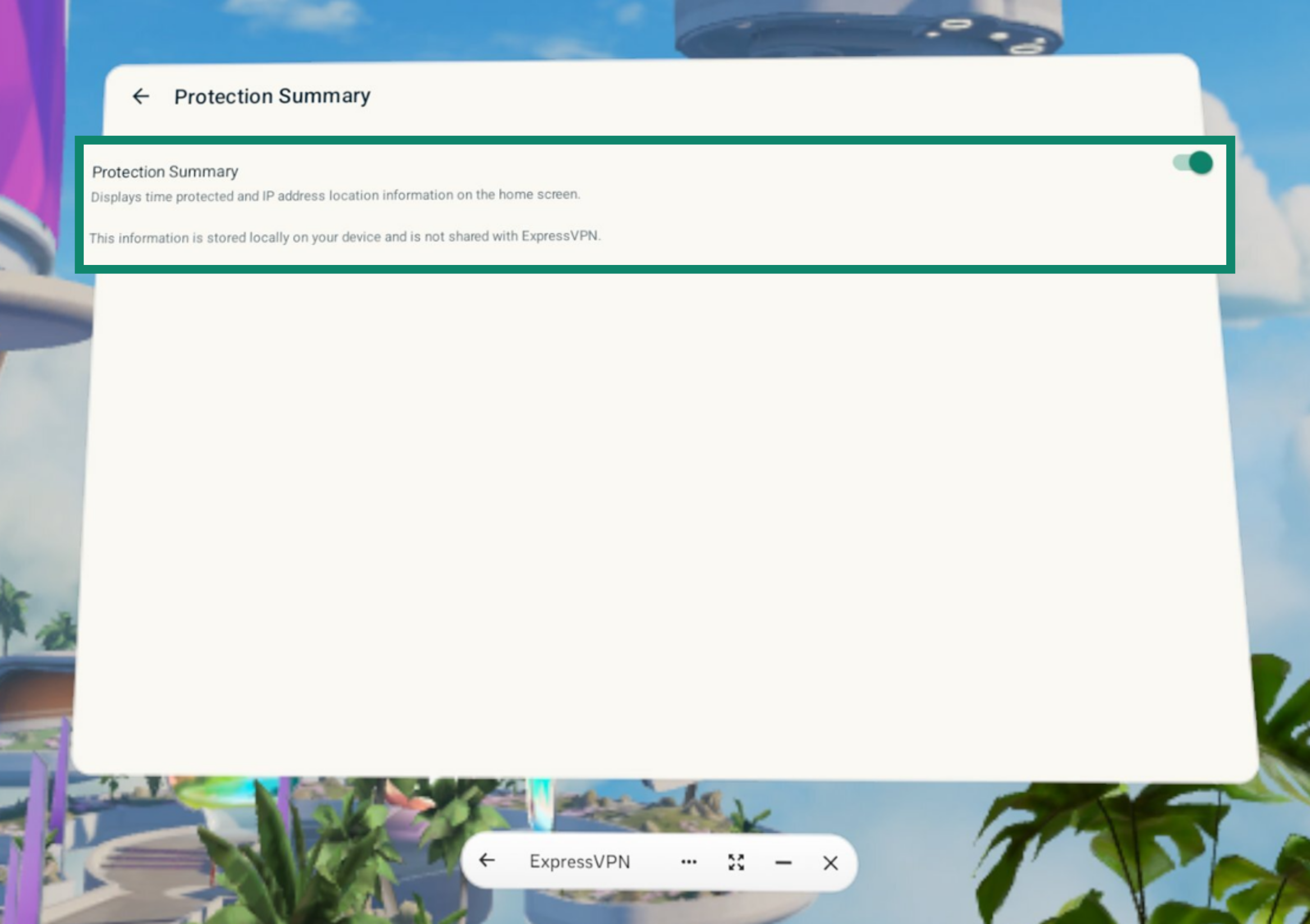
Note: If you are toggling Protection Summary off, the app will ask if you are sure. Select CONTINUE to confirm that you want to toggle it off. Your Protection Summary stats will be deleted from your device.
Need help? Contact the ExpressVPN Support Team for immediate assistance.
Uninstall the app
To uninstall ExpressVPN from your Meta Quest:
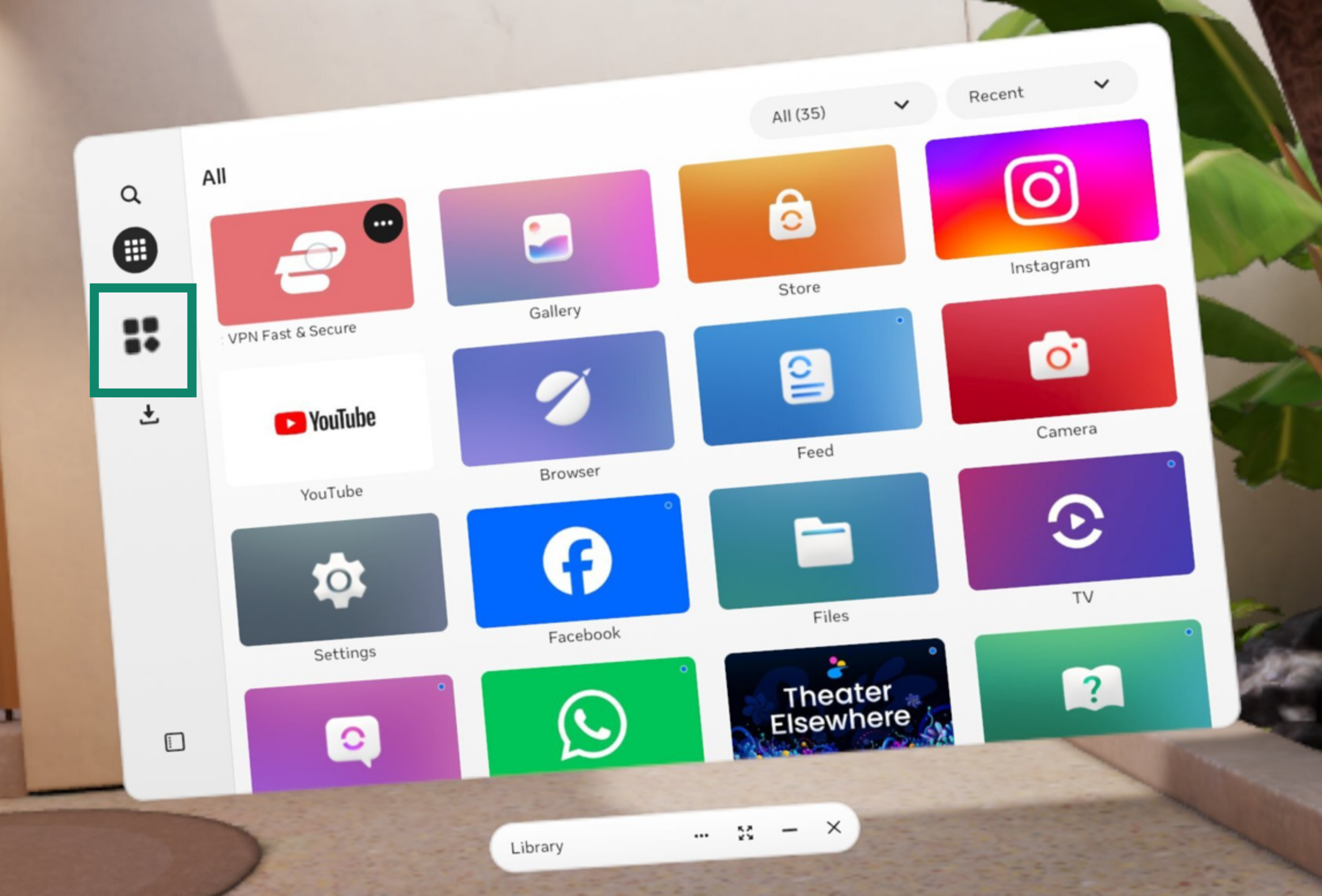
- Press the Meta button on your right Touch controller to open the universal menu.
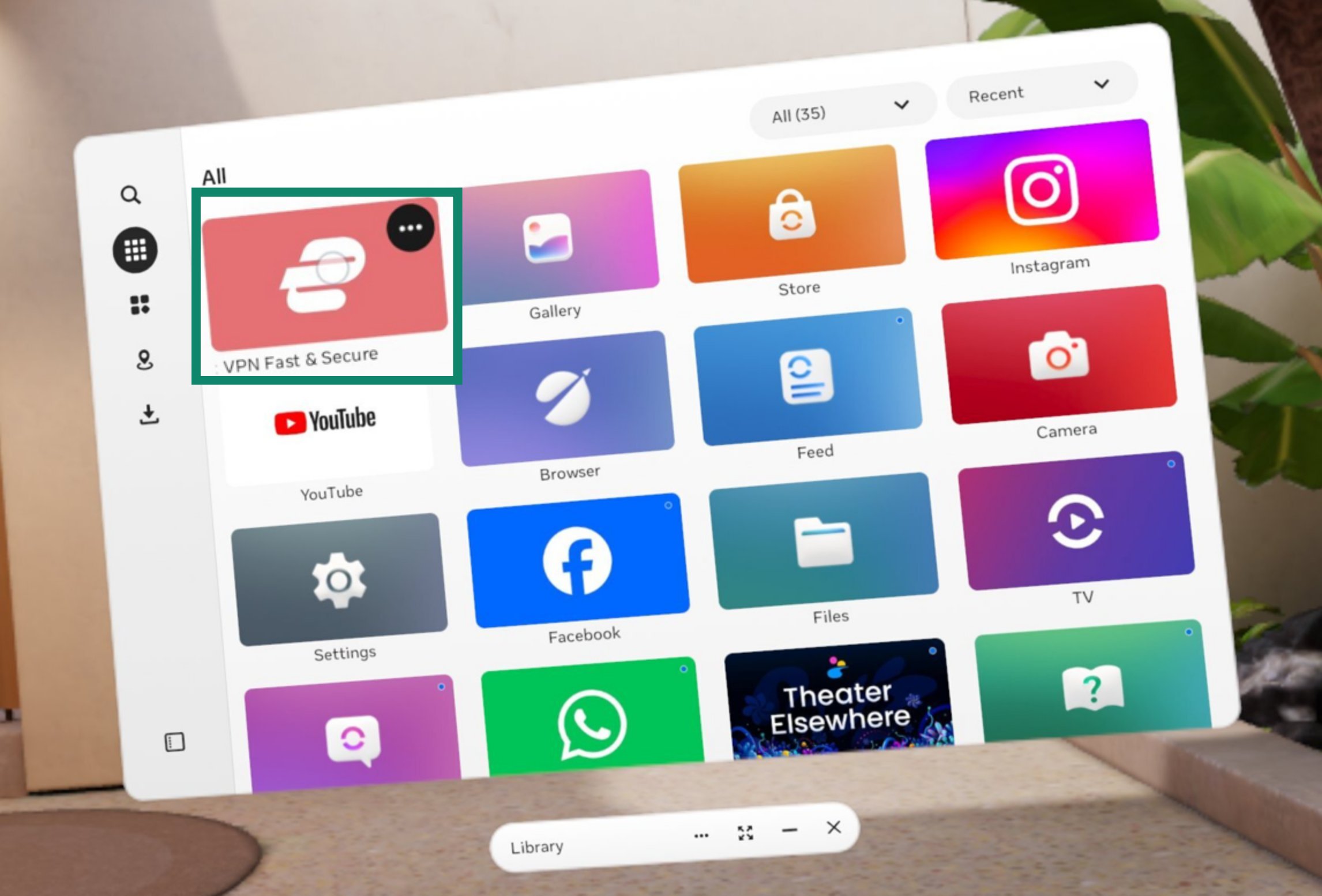
- Select App library.

- Find and hover over the ExpressVPN app.
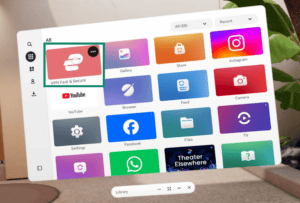
- Select Options (⋯).


- Select Uninstall.


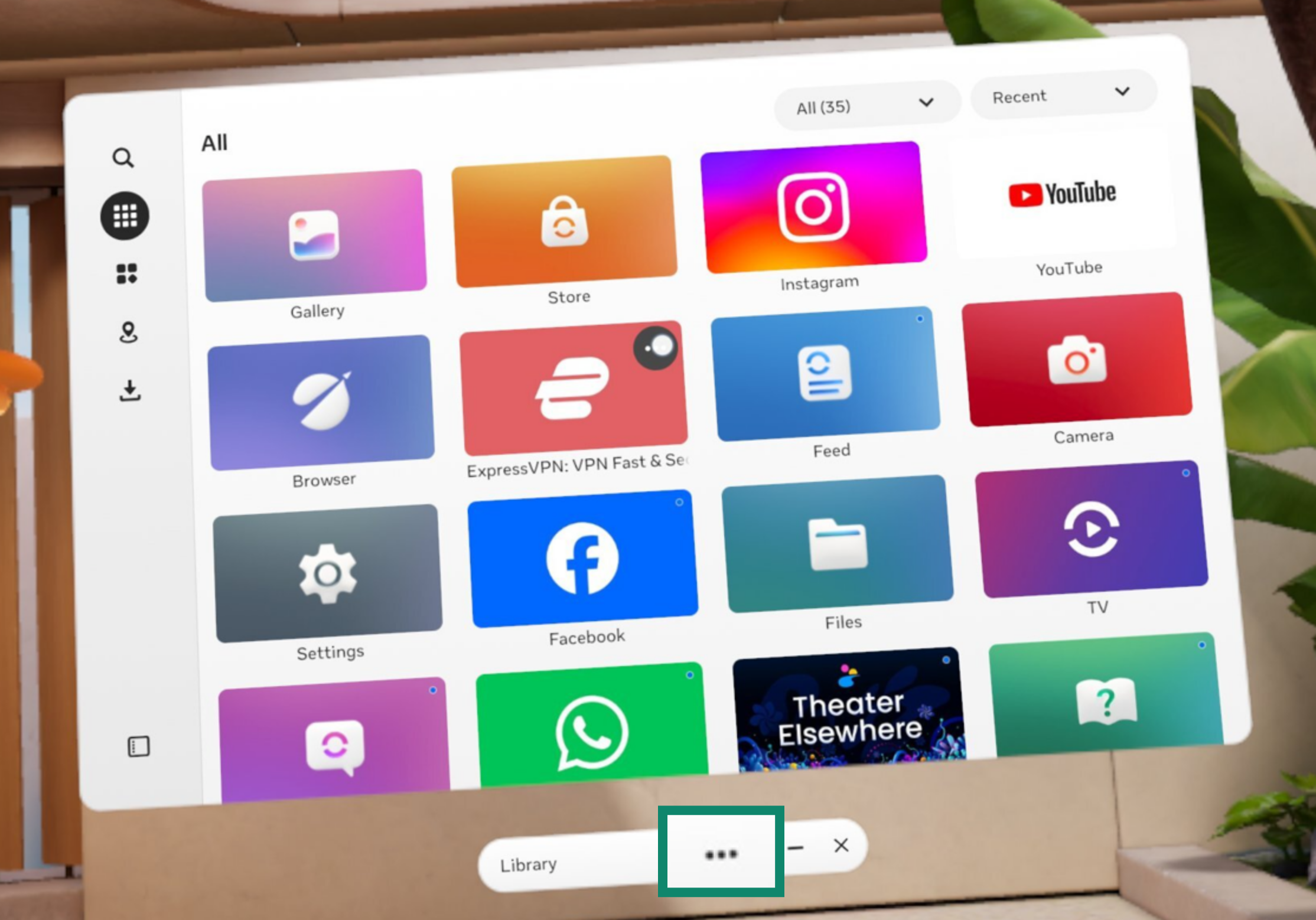
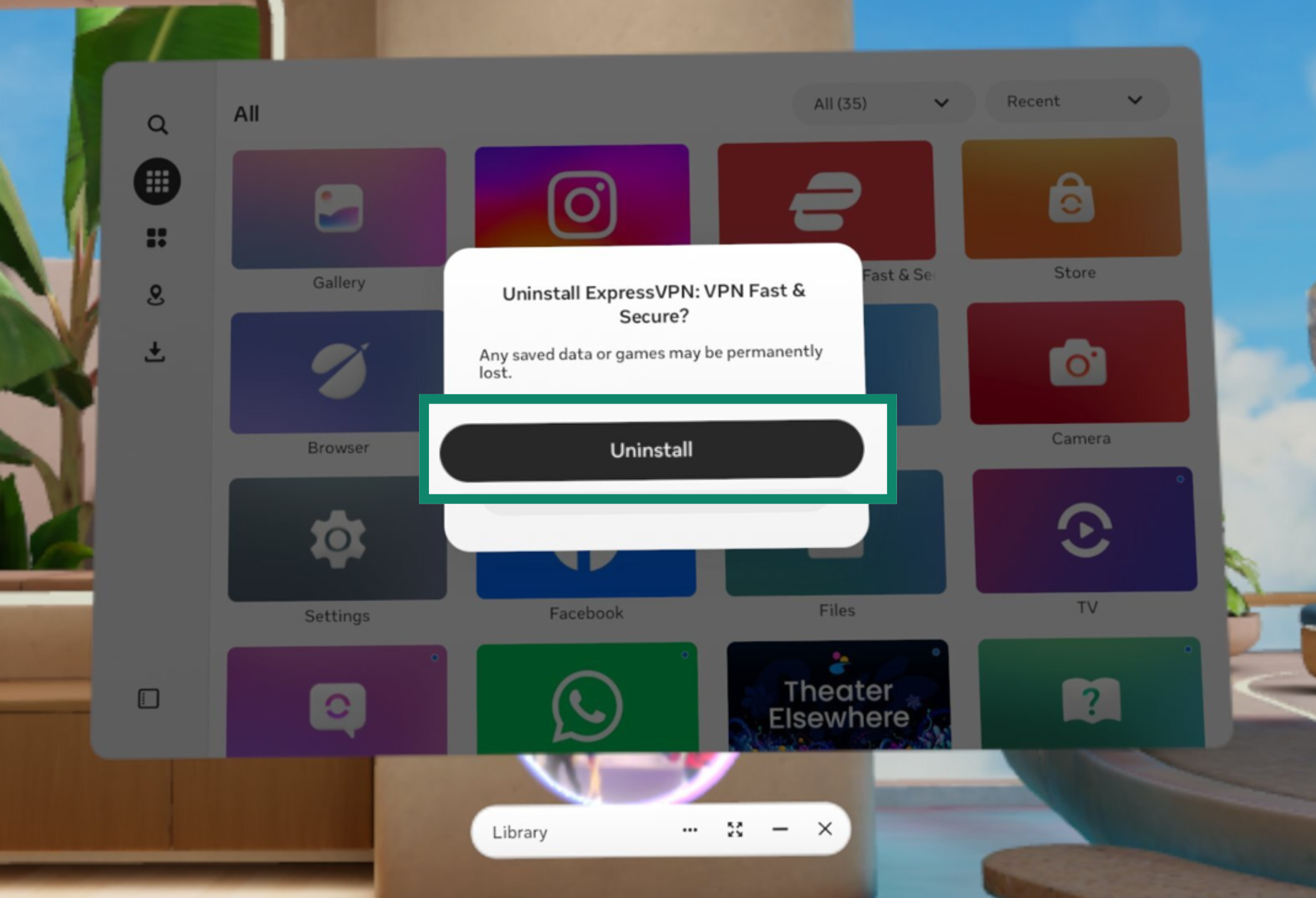
The app is now uninstalled from your Meta Quest.
Need help? Contact the ExpressVPN Support Team for immediate assistance.