





To use our apps and configurations, please sign up for an ExpressVPN account first.
This guide will show you how to set up and use the ExpressVPN browser extension on Meta Quest devices.
The ExpressVPN browser extension for Meta Quest is compatible with Meta Quest 3S, Meta Quest 3, Meta Quest Pro, and Meta Quest 2.
It works as a full proxy-based VPN and is designed to protect browser traffic only.
Jump to…
How to download and set up
Connect to a server location
Disconnect from a server location
Choose a different server location
Connect on browser launch
Additional privacy and security features
Smart Routing
How to use dark mode
How to uninstall
How to download and set up
To download the ExpressVPN hybrid browser extension on Meta Quest:
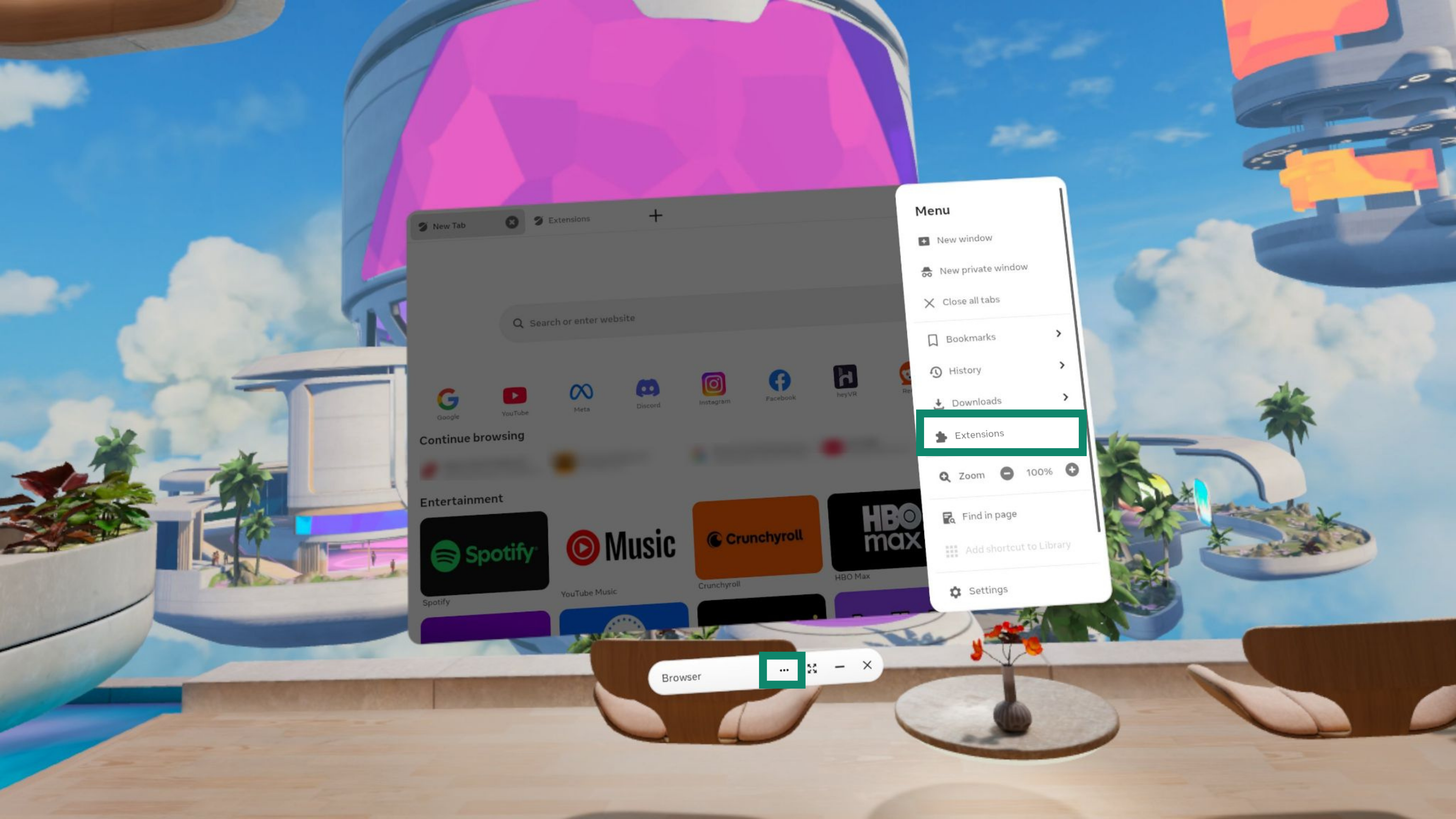
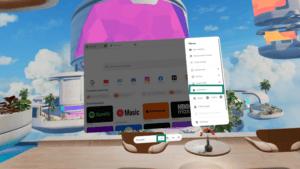
- On your Meta Quest, open the Meta Quest Browser.
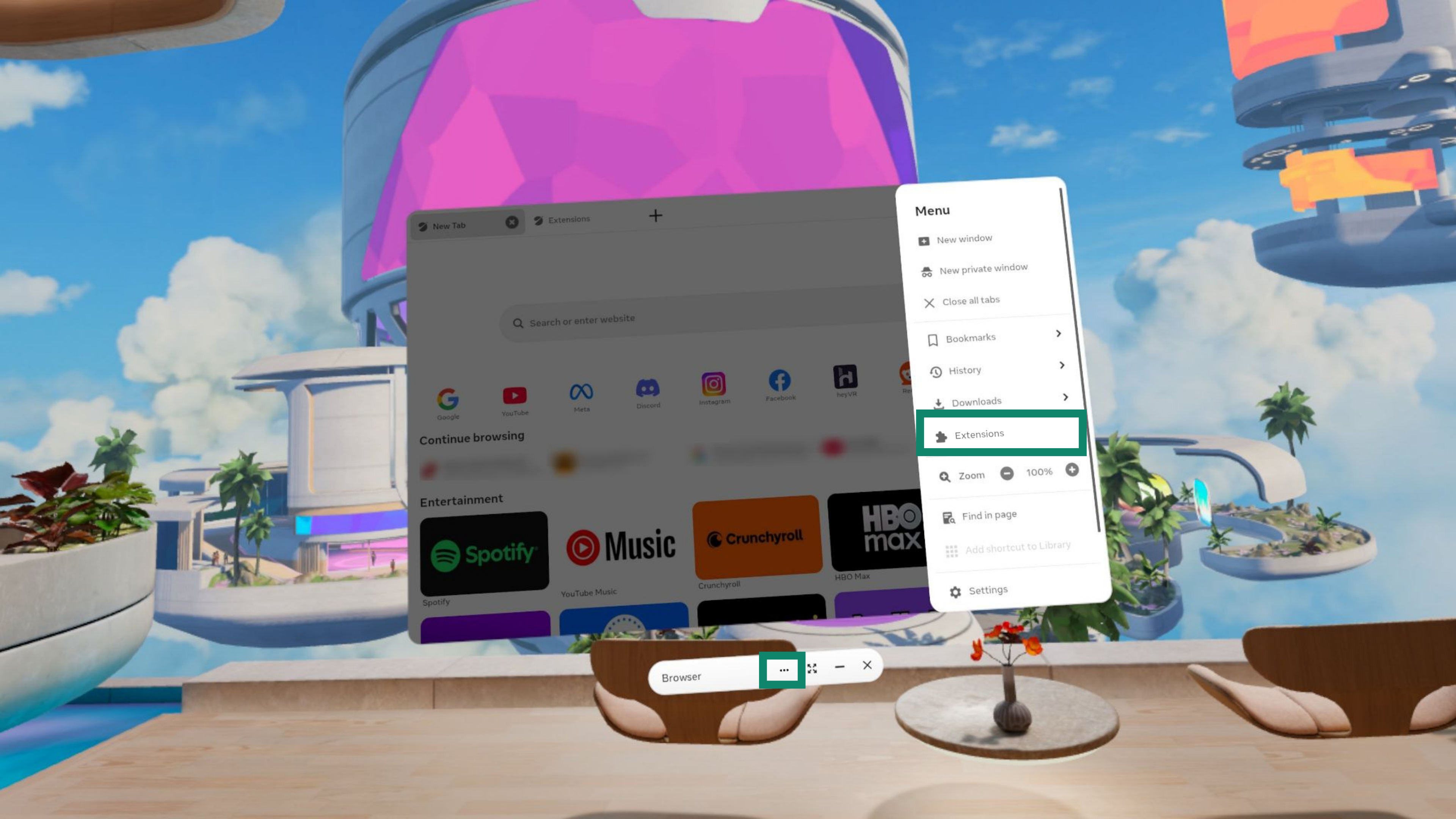
- Select

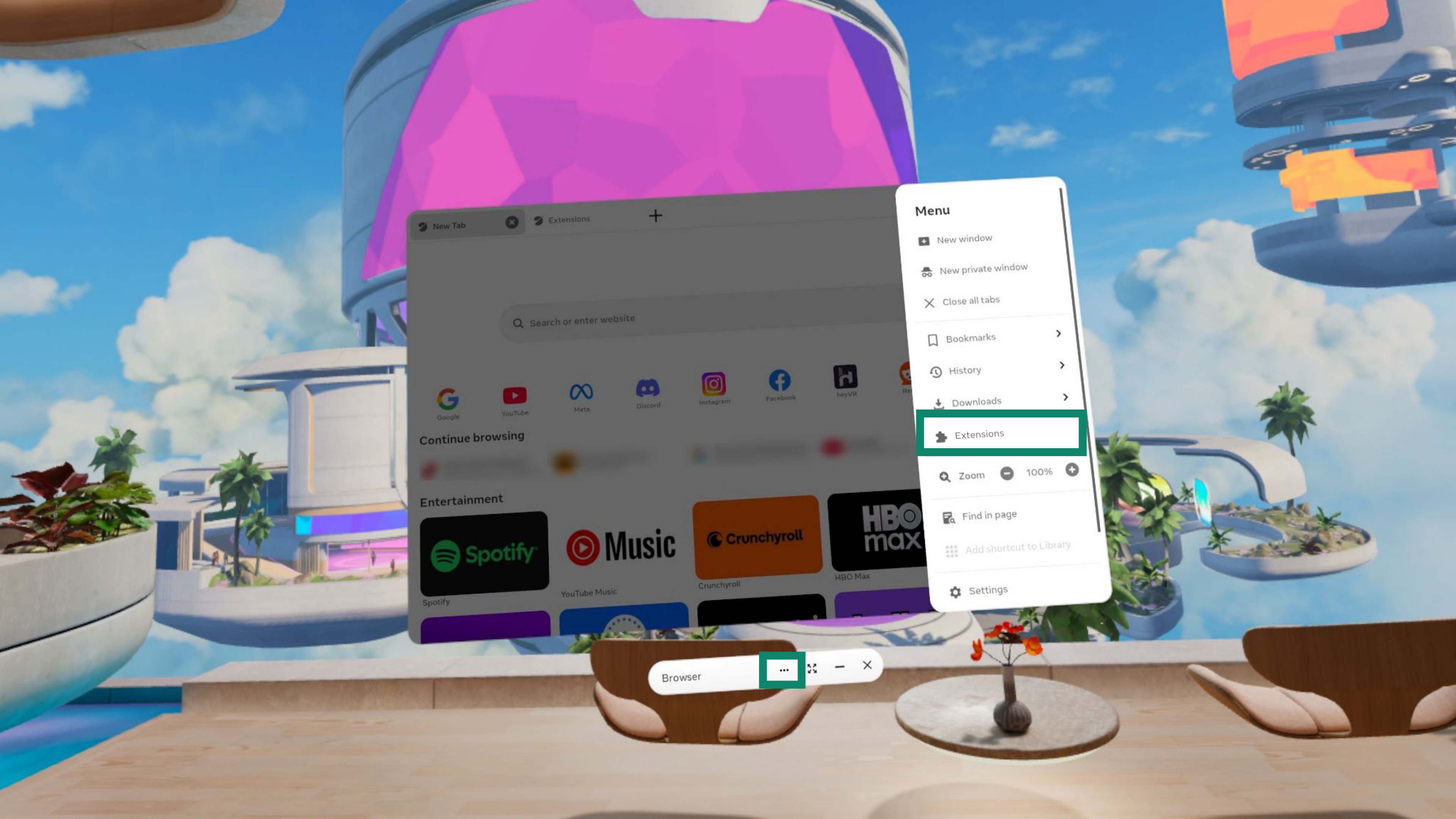
 Options and then Extensions.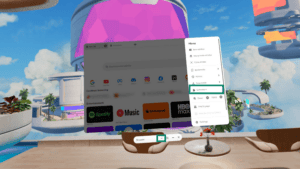

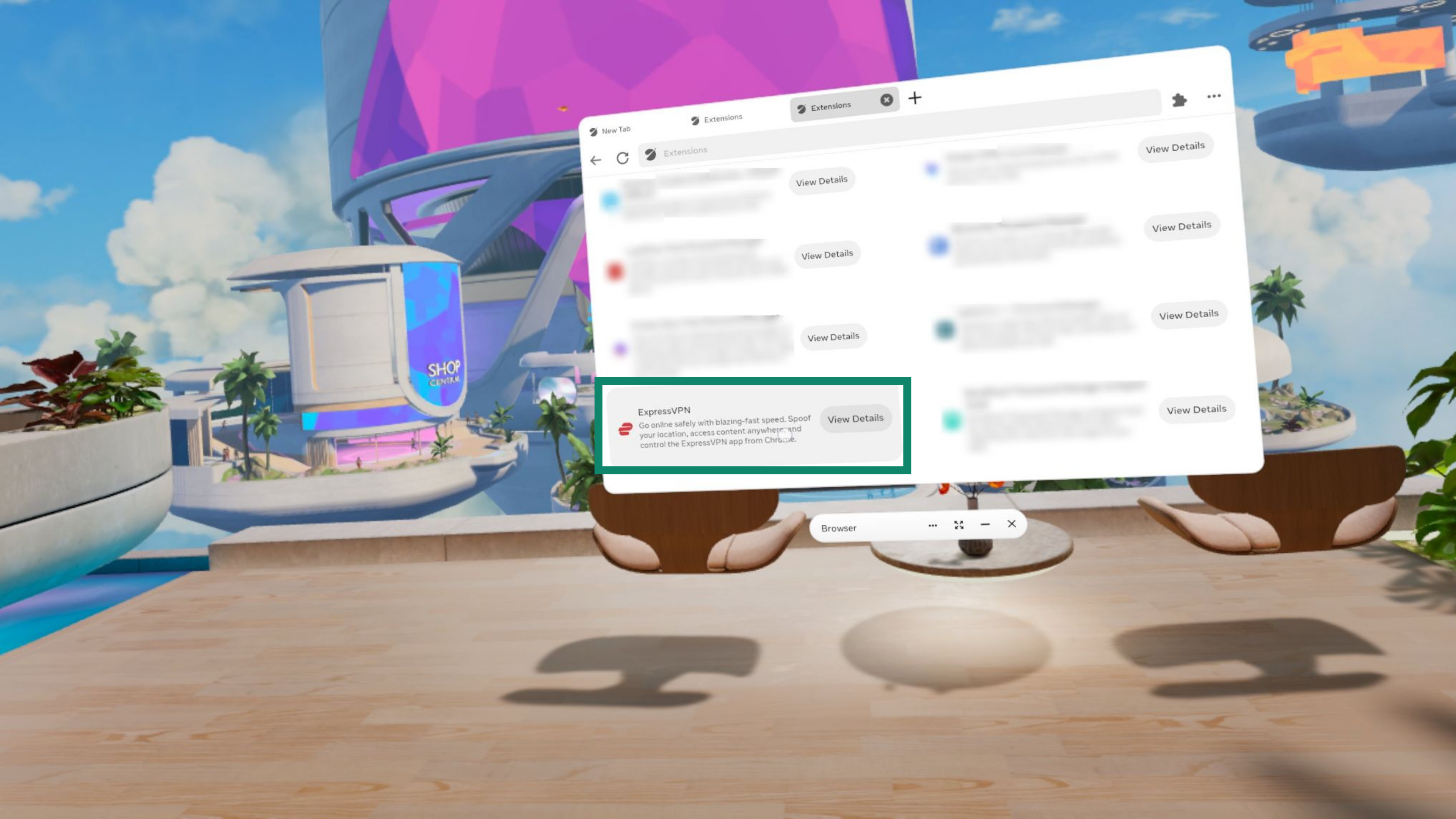
- Scroll down to Available to Install and next to ExpressVPN, select View Details.
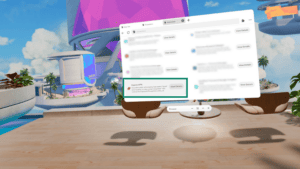
- Select Install.
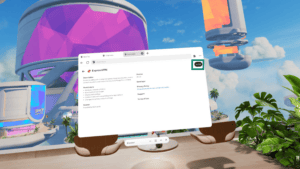
- Review device permissions and select Add extension.
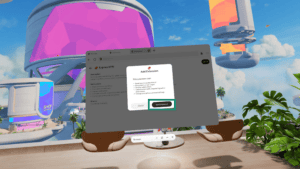
- Once installed, you will be asked whether you want to share crash reports and usability diagnostics. Choose your preference, then select Save Preferences.
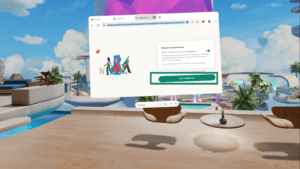
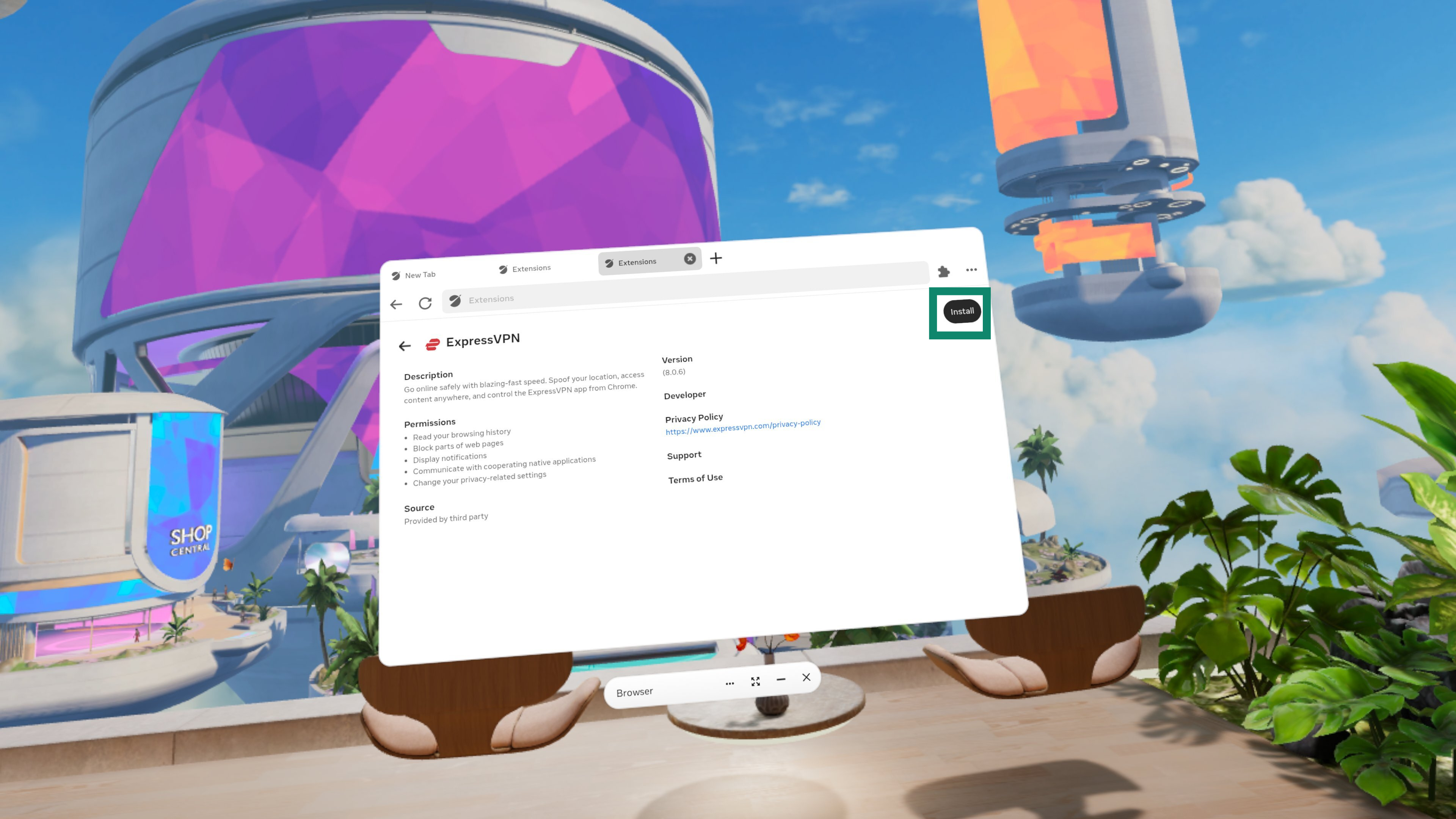
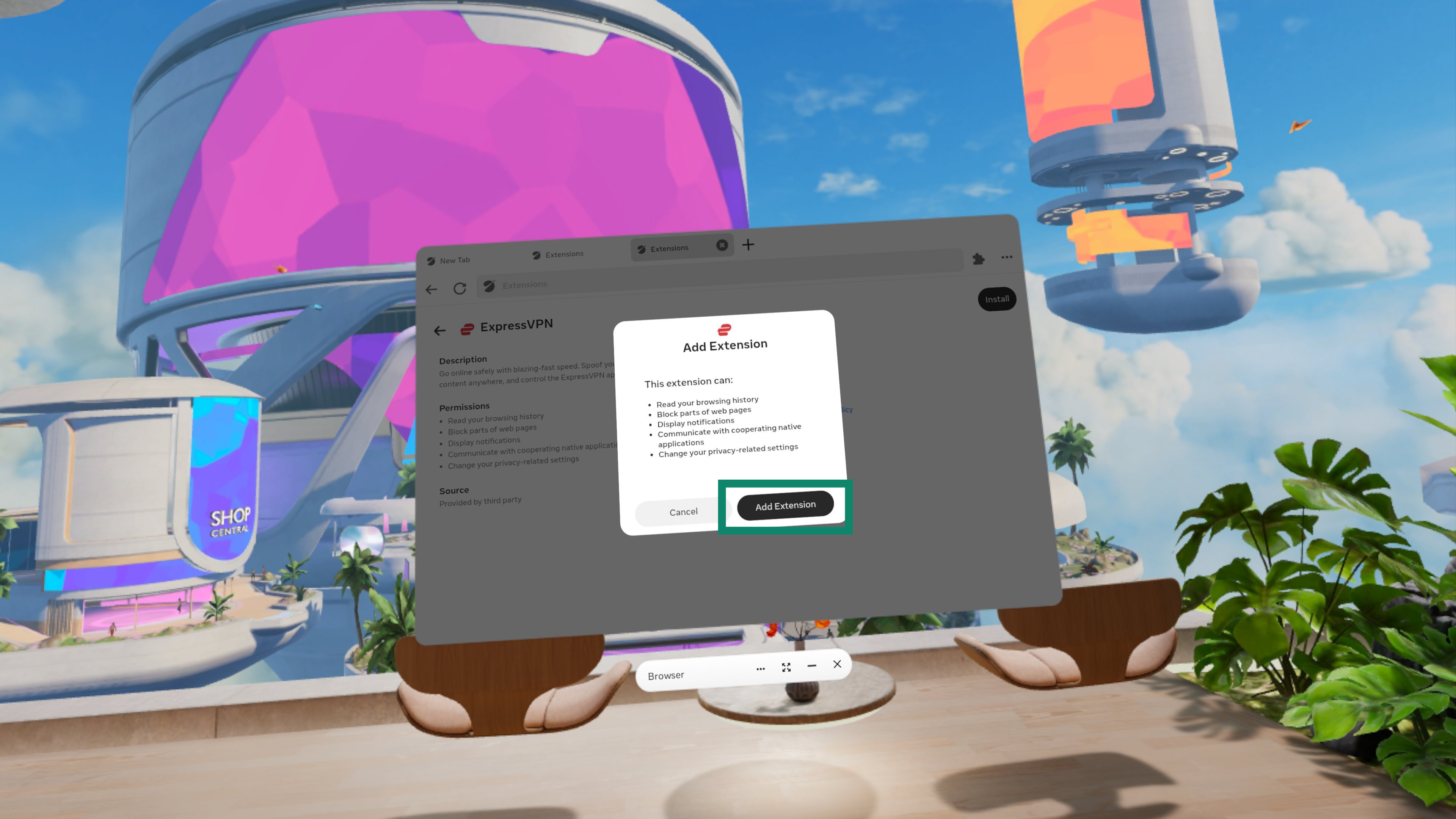
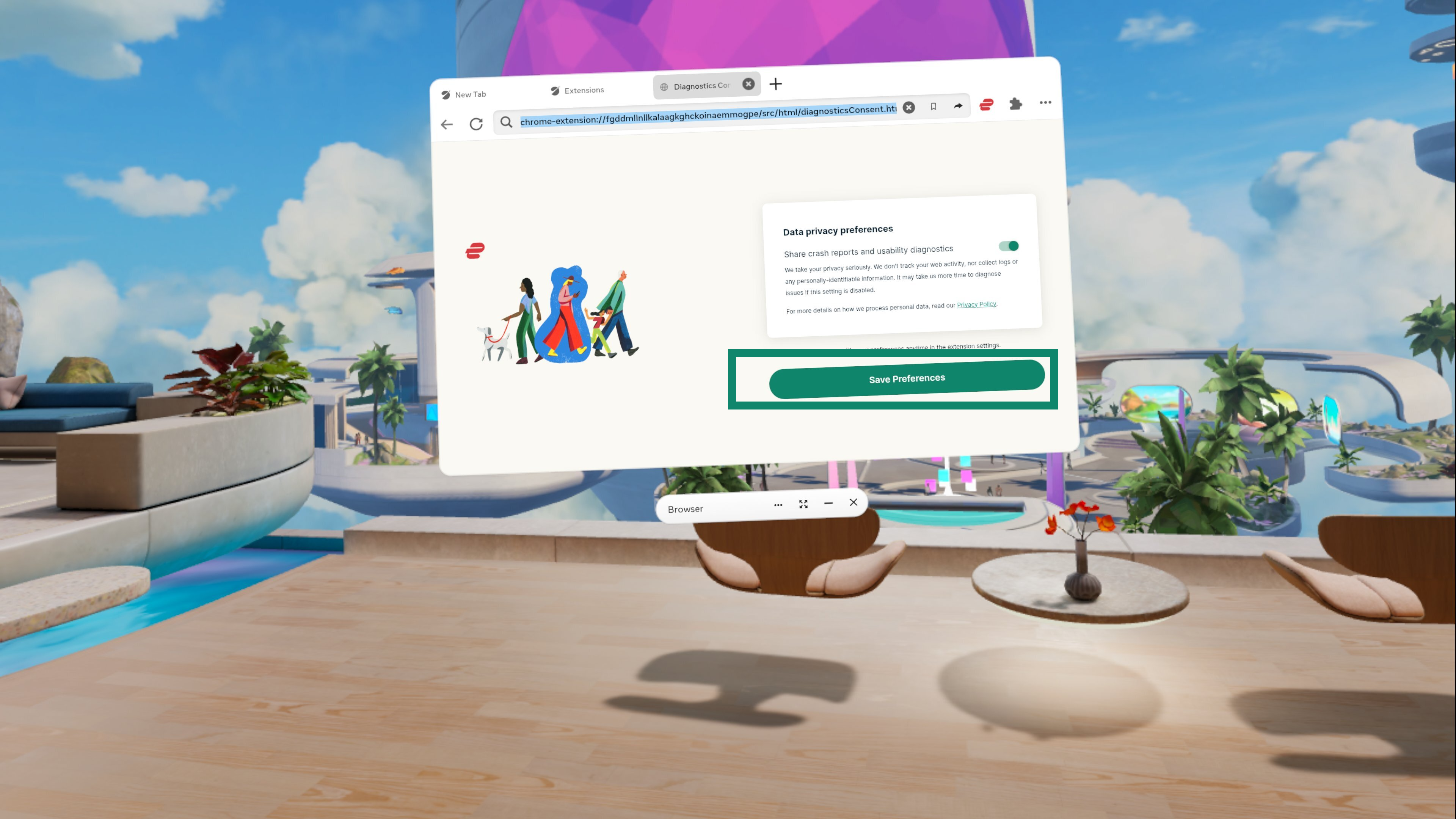
You have successfully added the ExpressVPN browser extension to your Meta Quest device.
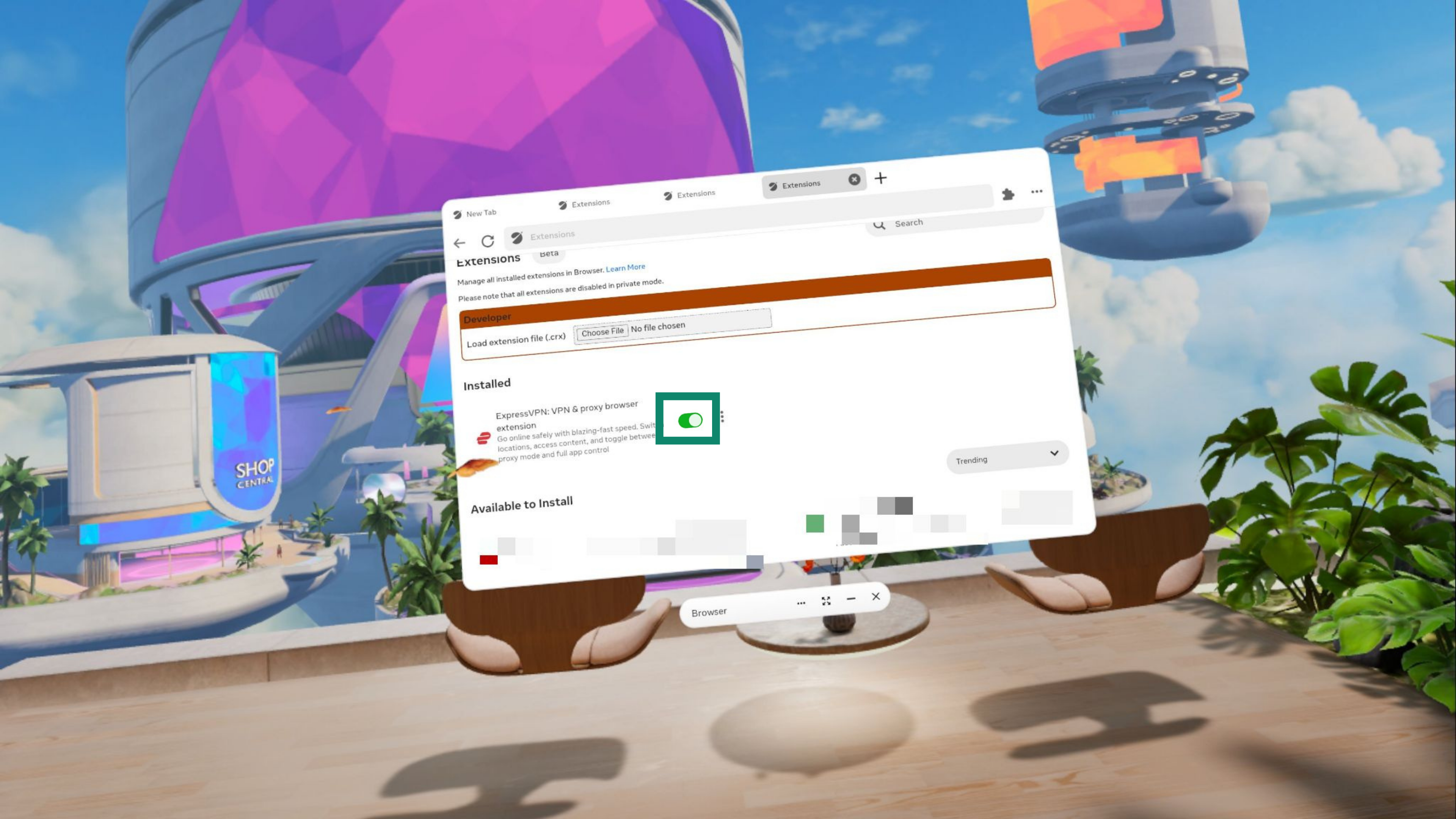
To enable or disable the ExpressVPN browser extension, select the toggle next to the extension to toggle it on or off.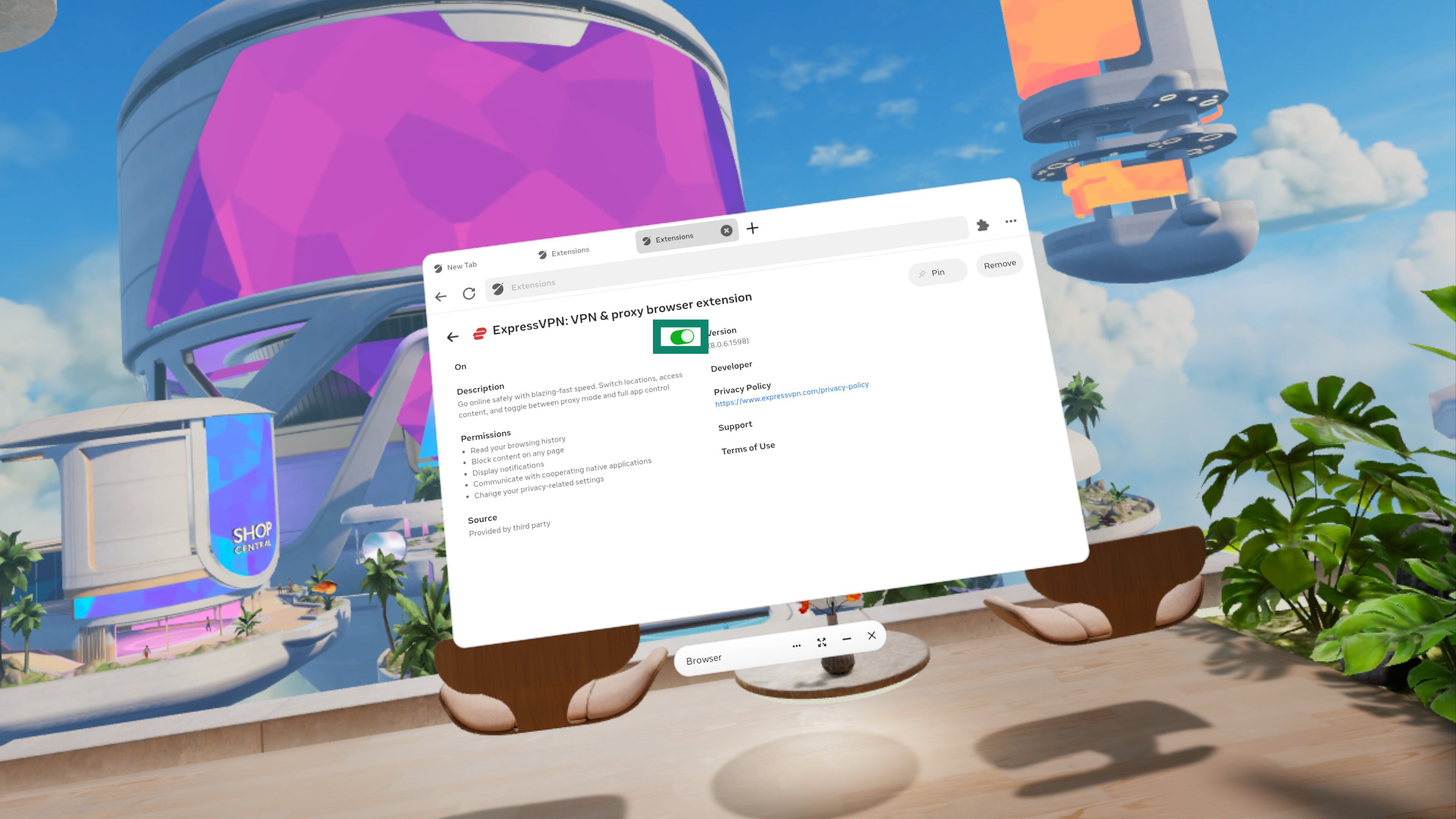
Need help? Contact the ExpressVPN Support Team for immediate assistance.
Connect to a server location
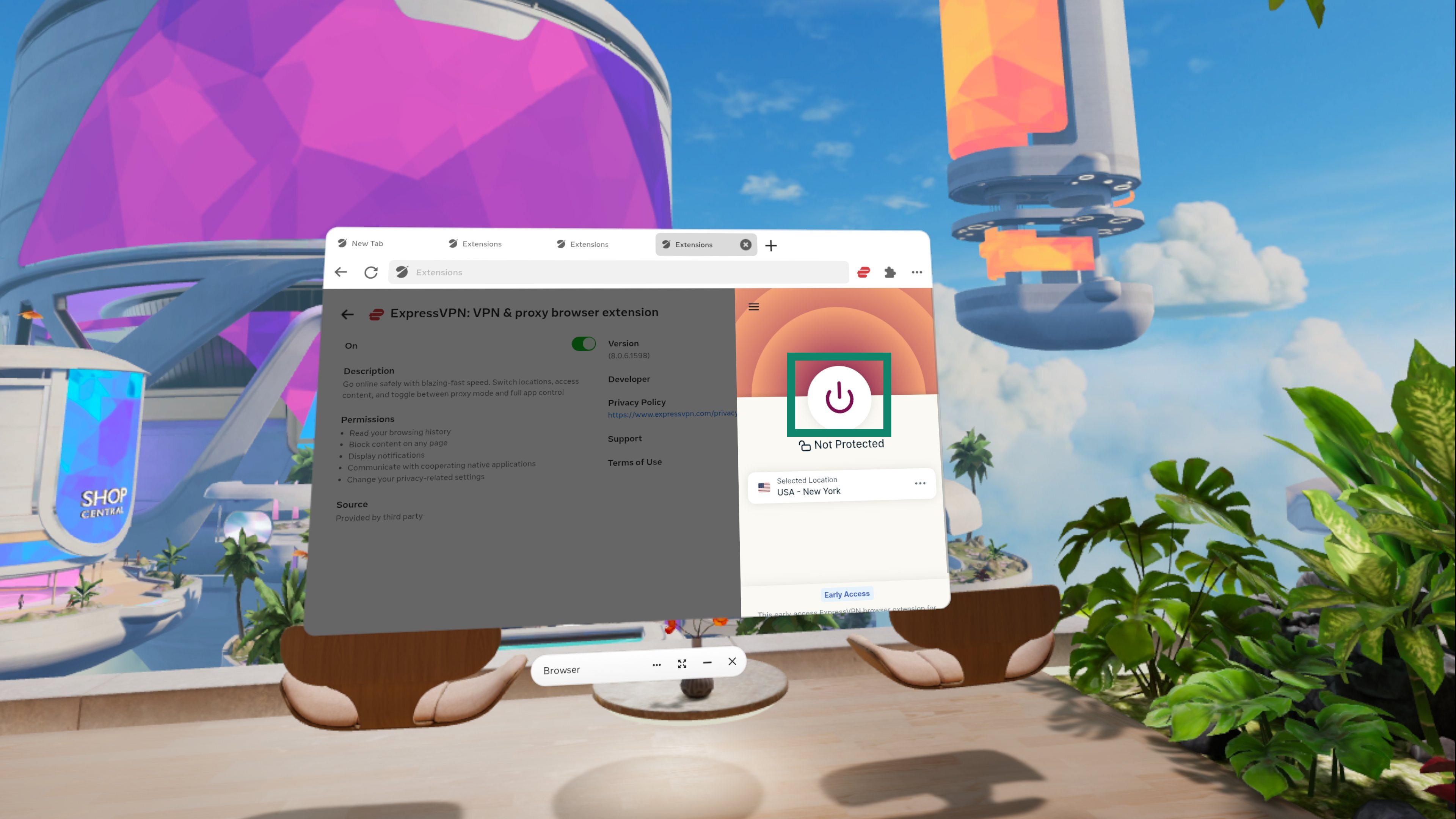
To connect to a VPN server location:
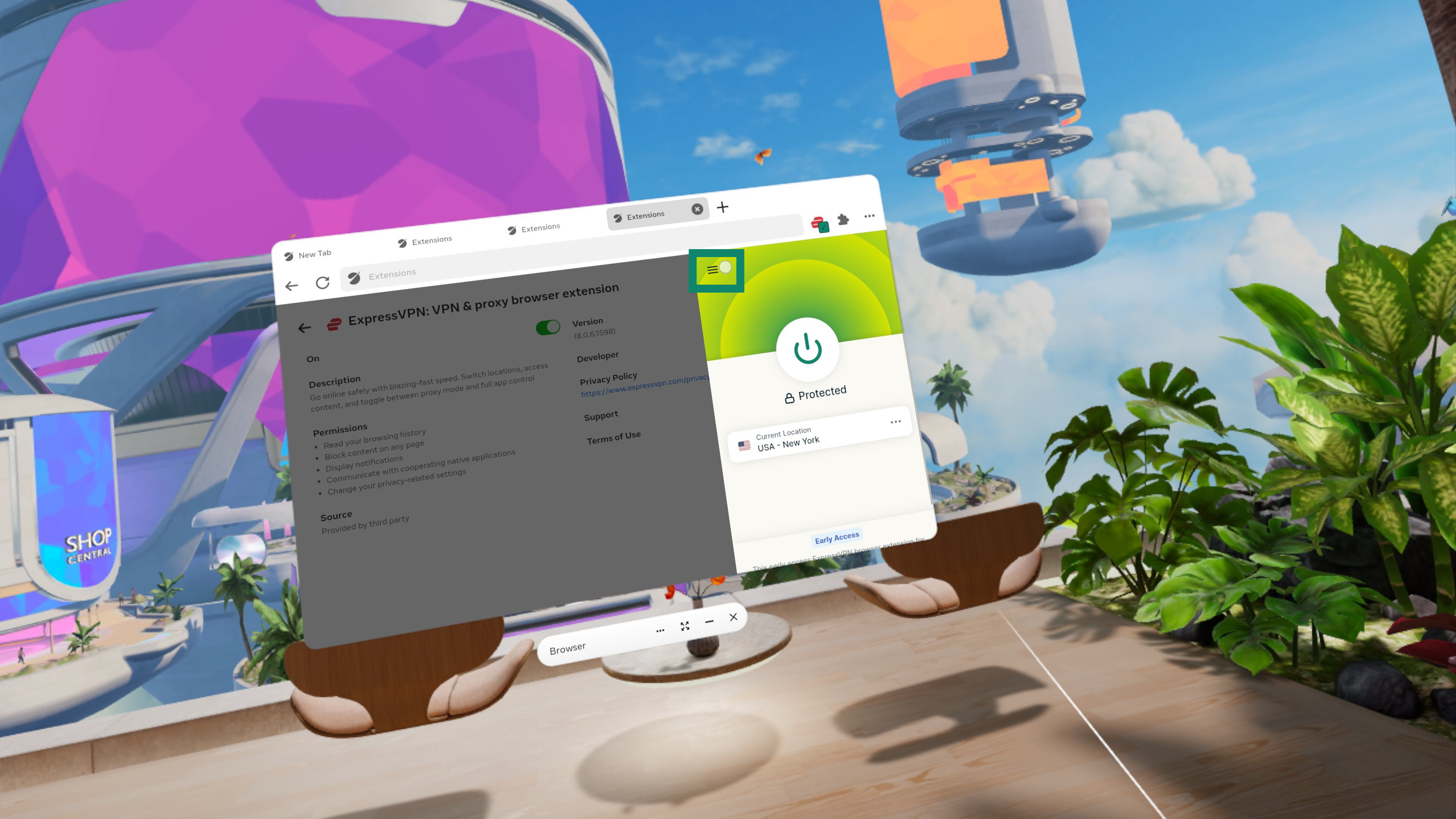
- Select
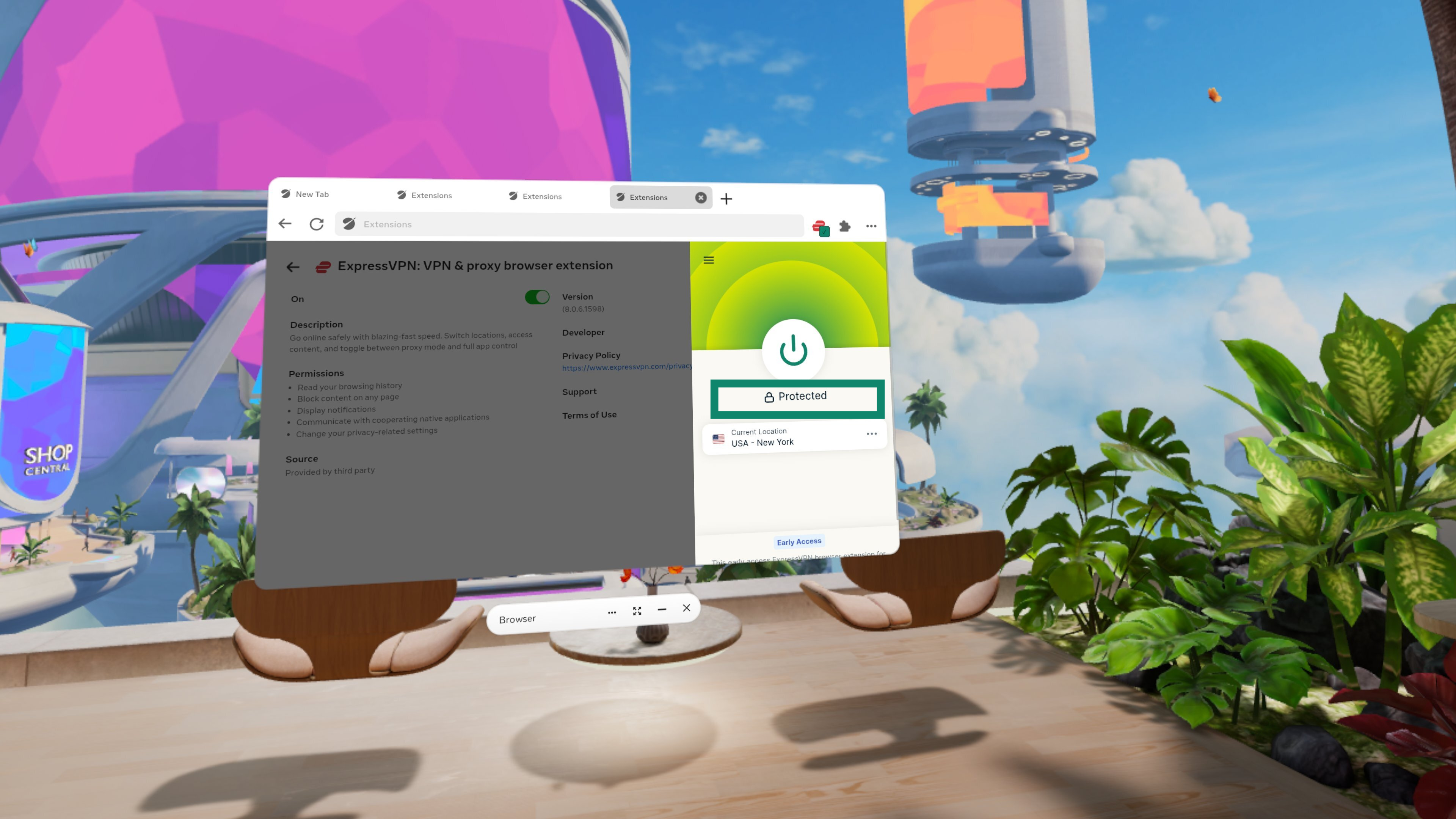
 . By default, ExpressVPN will suggest the location that provides the optimal experience for you.
- Once the app says Protected, you can begin surfing with freedom and security!
Need help? Contact the ExpressVPN Support Team for immediate assistance.
Disconnect from a server location
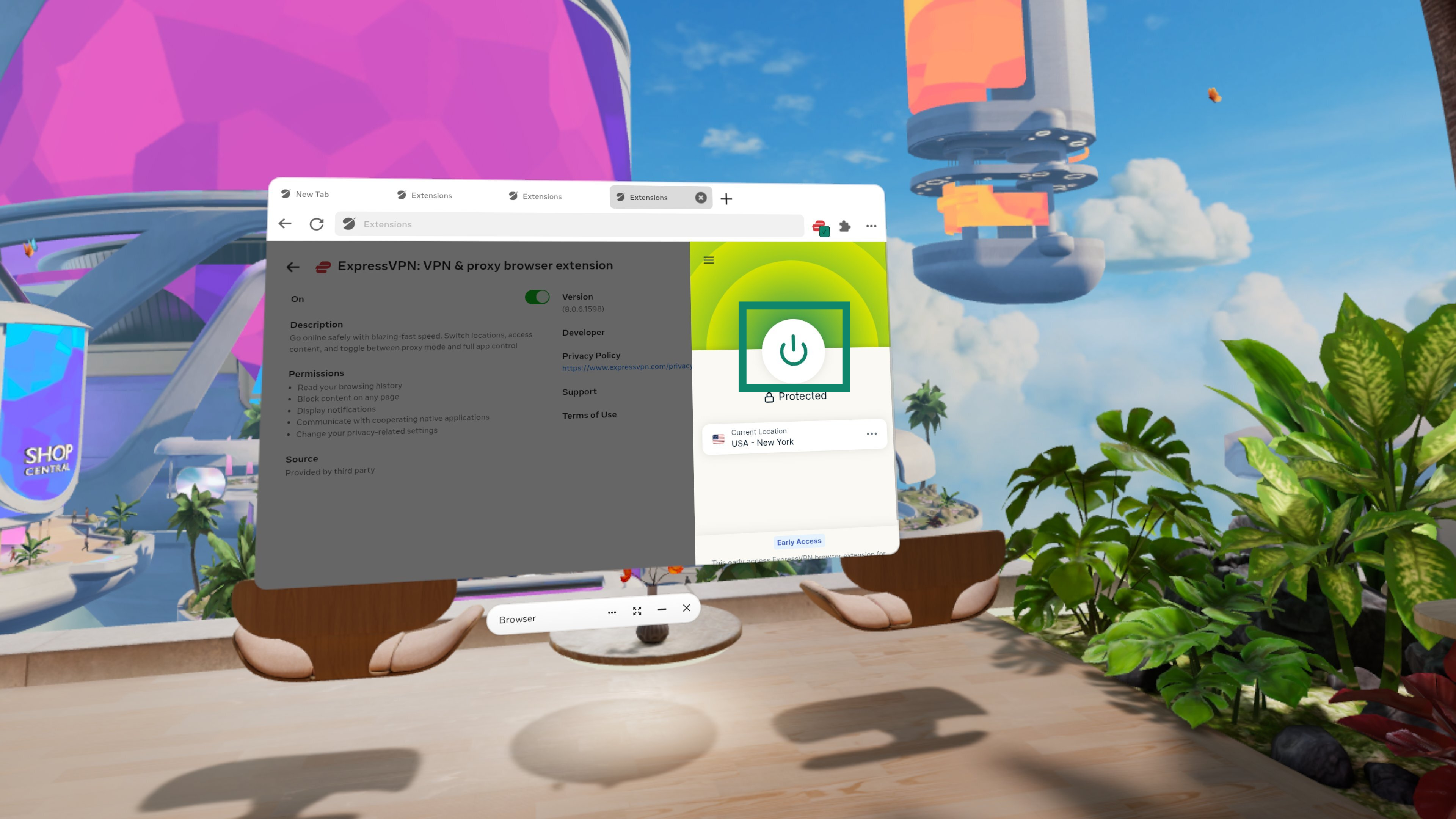
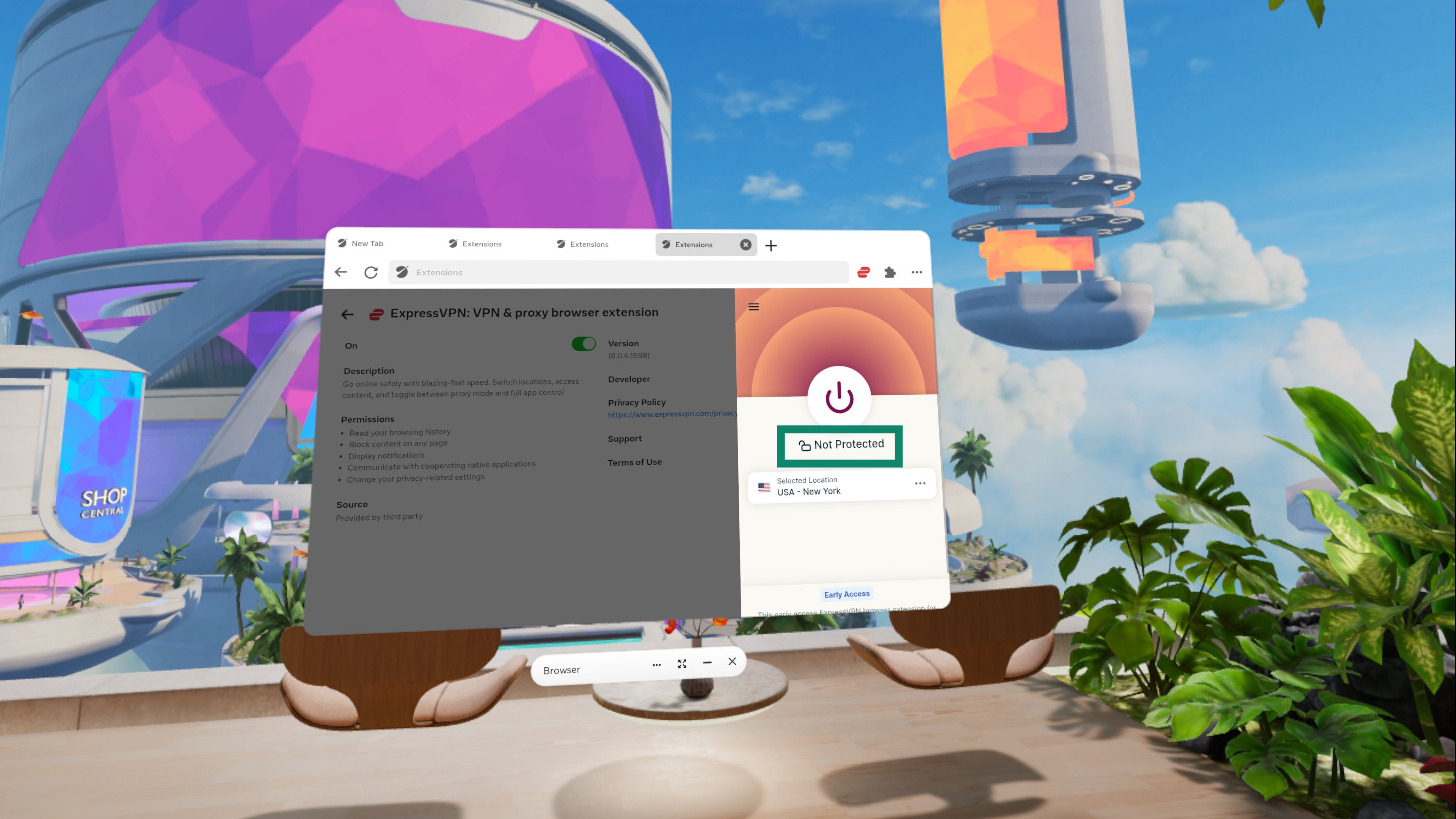
To disconnect from the VPN server location:
- Select .
- You will know you are disconnected when the screen says, Not Protected.
Need help? Contact the ExpressVPN Support Team for immediate assistance.
Choose a different server location
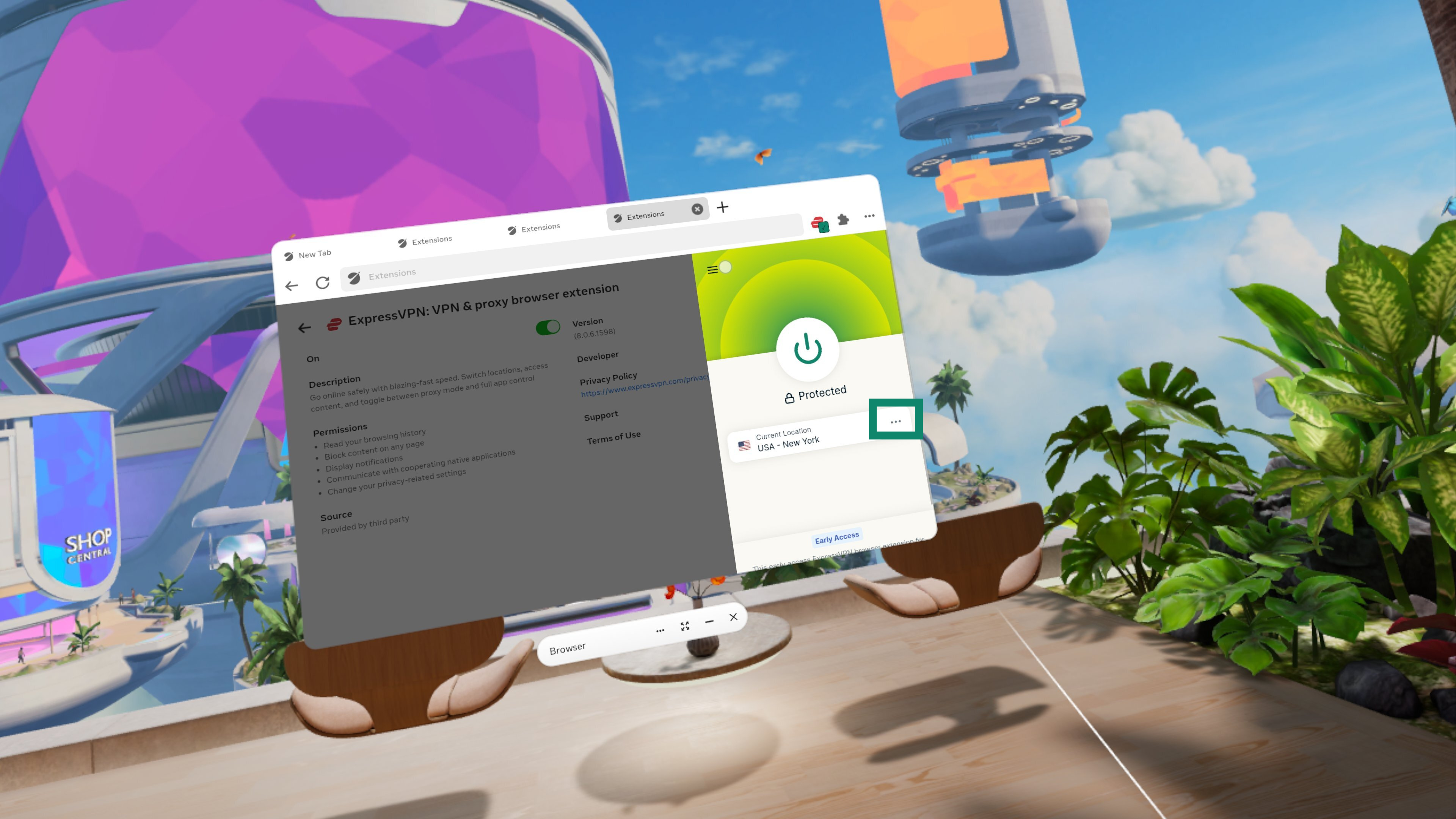
To choose a different VPN server location:
- Next to your currently selected server location, select .
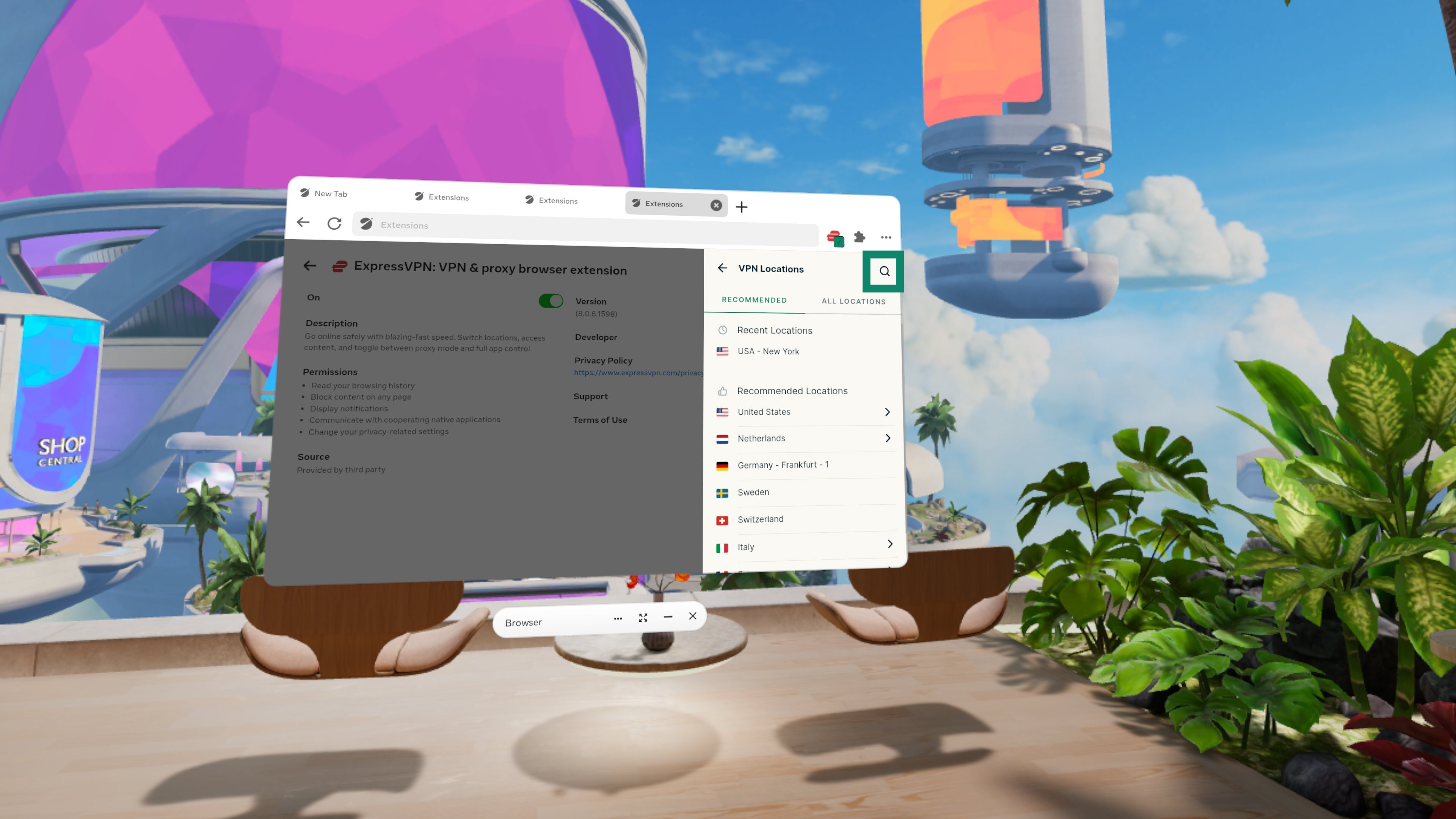
- A list of server locations will appear. Scroll through the list or select
 to find a specific location.
- Select your desired server location and ExpressVPN will automatically connect you to your chosen server location.
The list of VPN locations features two tabs: RECOMMENDED and ALL LOCATIONS.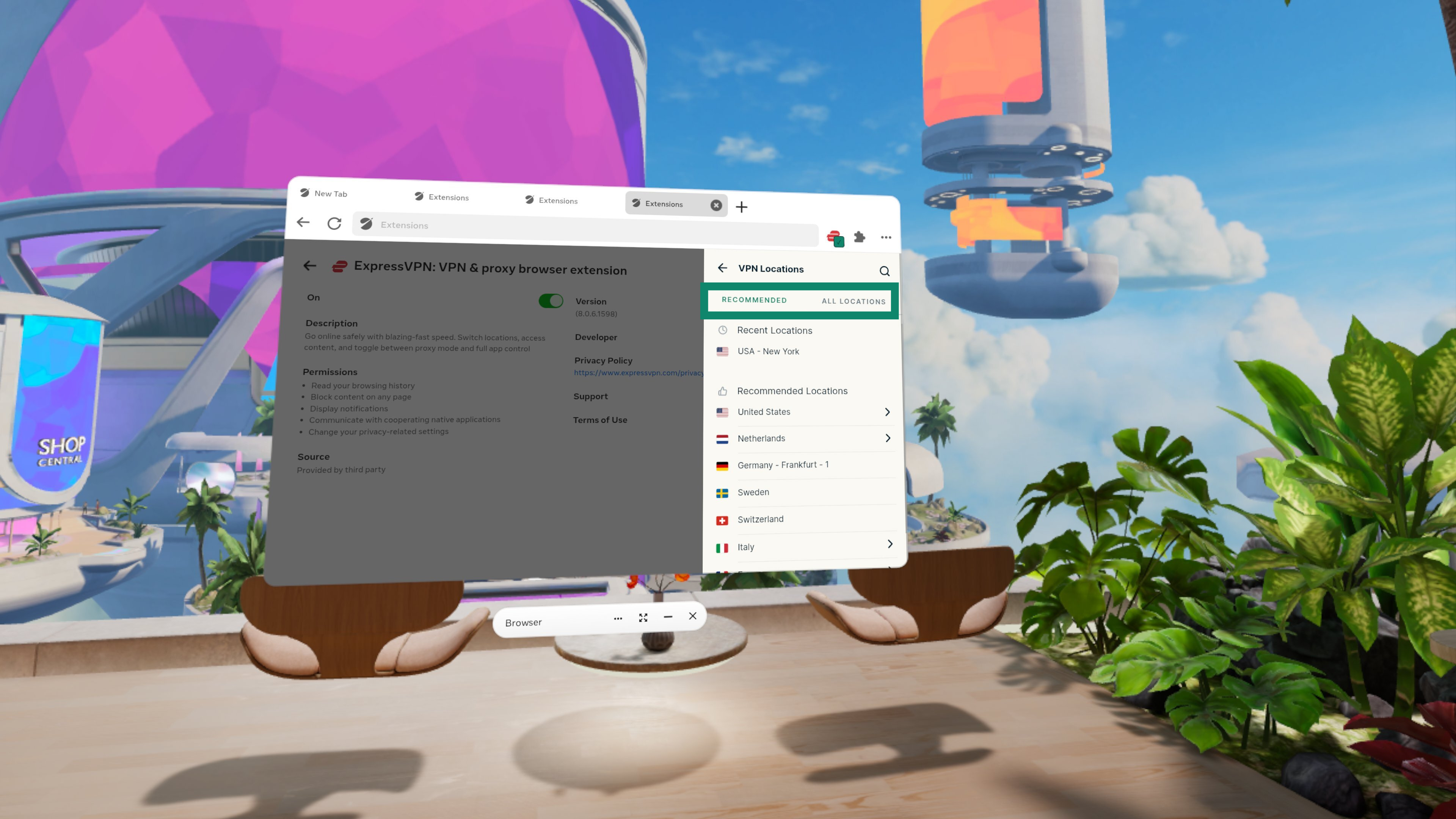
The RECOMMENDED tab includes two sections: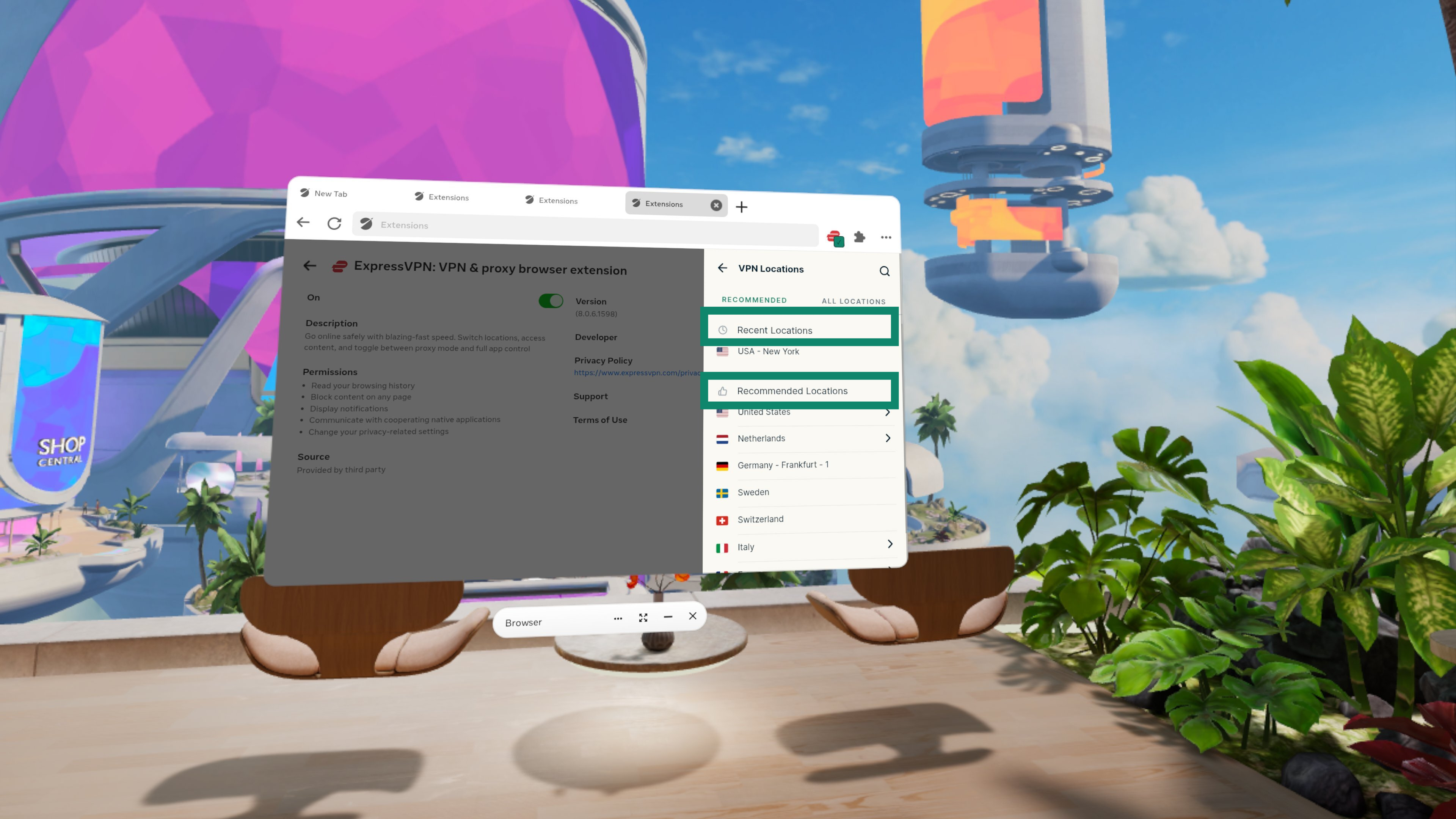
- Recent Locations: A list of up to five of the most recent server locations you have connected to.
- Recommended Locations: A list of other server locations that we recommend for you using metrics such as download speed, latency, and distance.
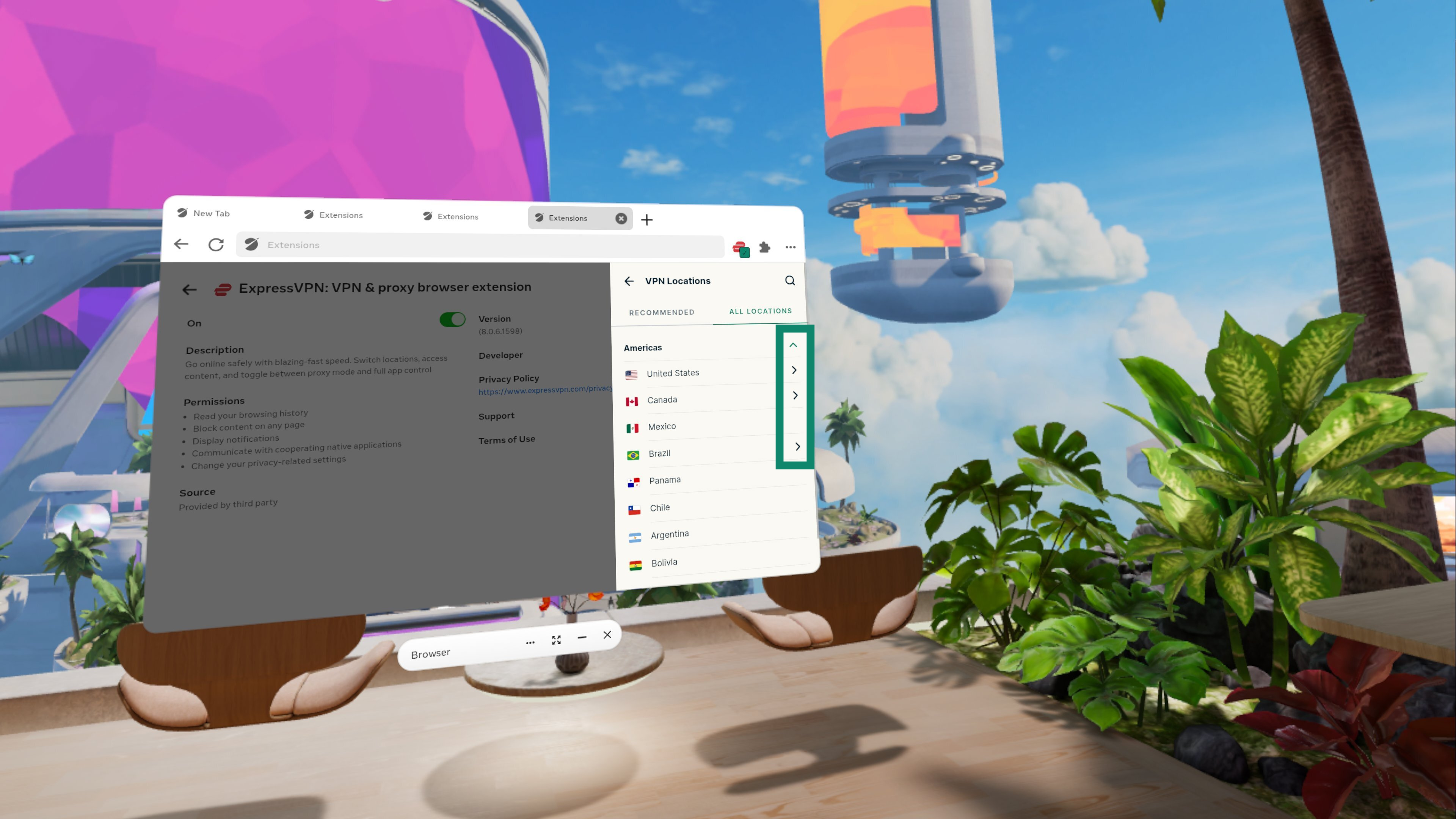
The ALL LOCATIONS tab lists all VPN server locations by region (Europe, South America, etc.). You can expand and collapse the lists by clicking  or
or  .
.
Need help? Contact the ExpressVPN Support Team for immediate assistance.
Connect on browser launch
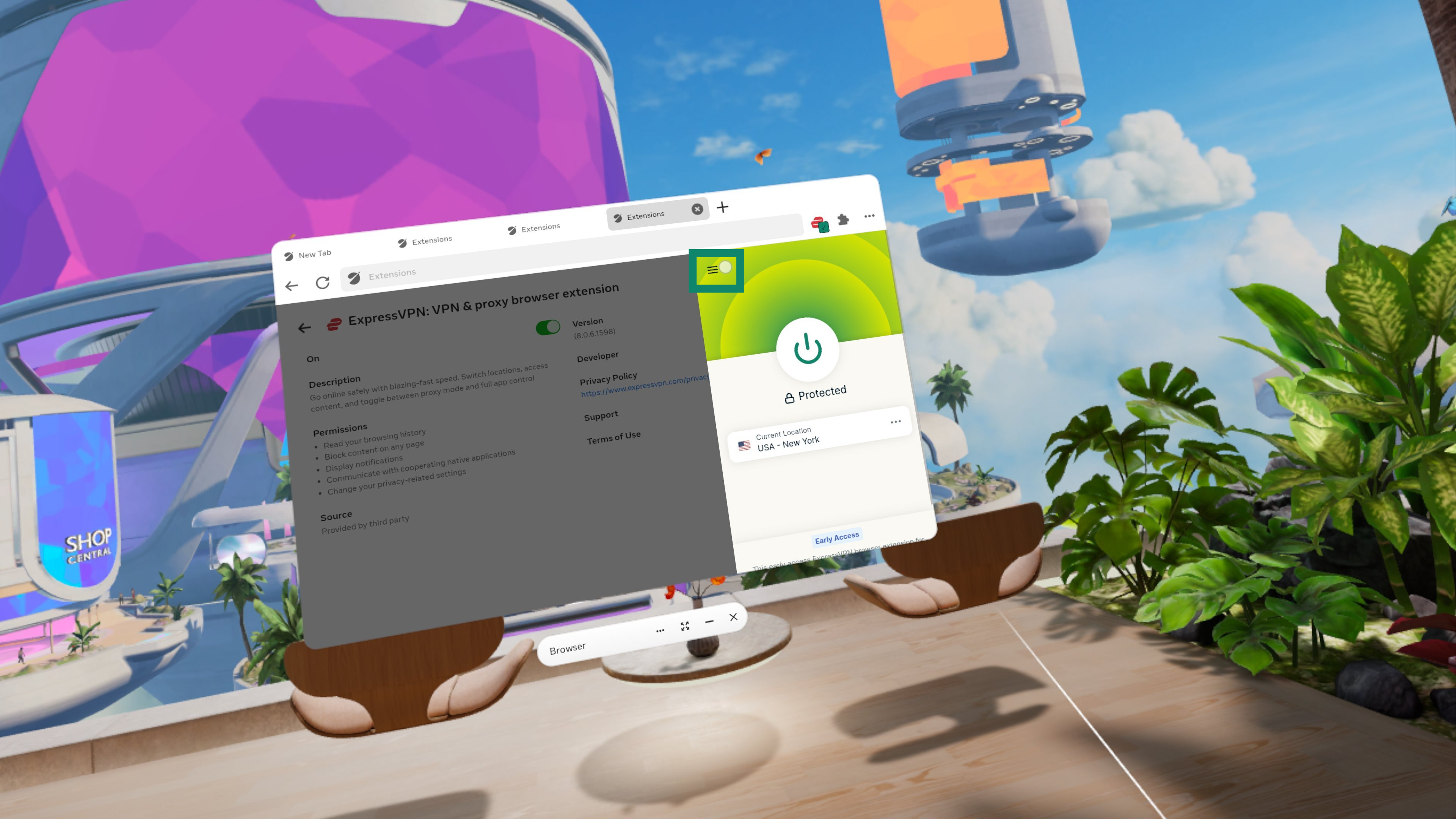
You can automatically connect to your last used VPN server location on browser launch. To turn on this feature:
- Open the browser extension and select
 .
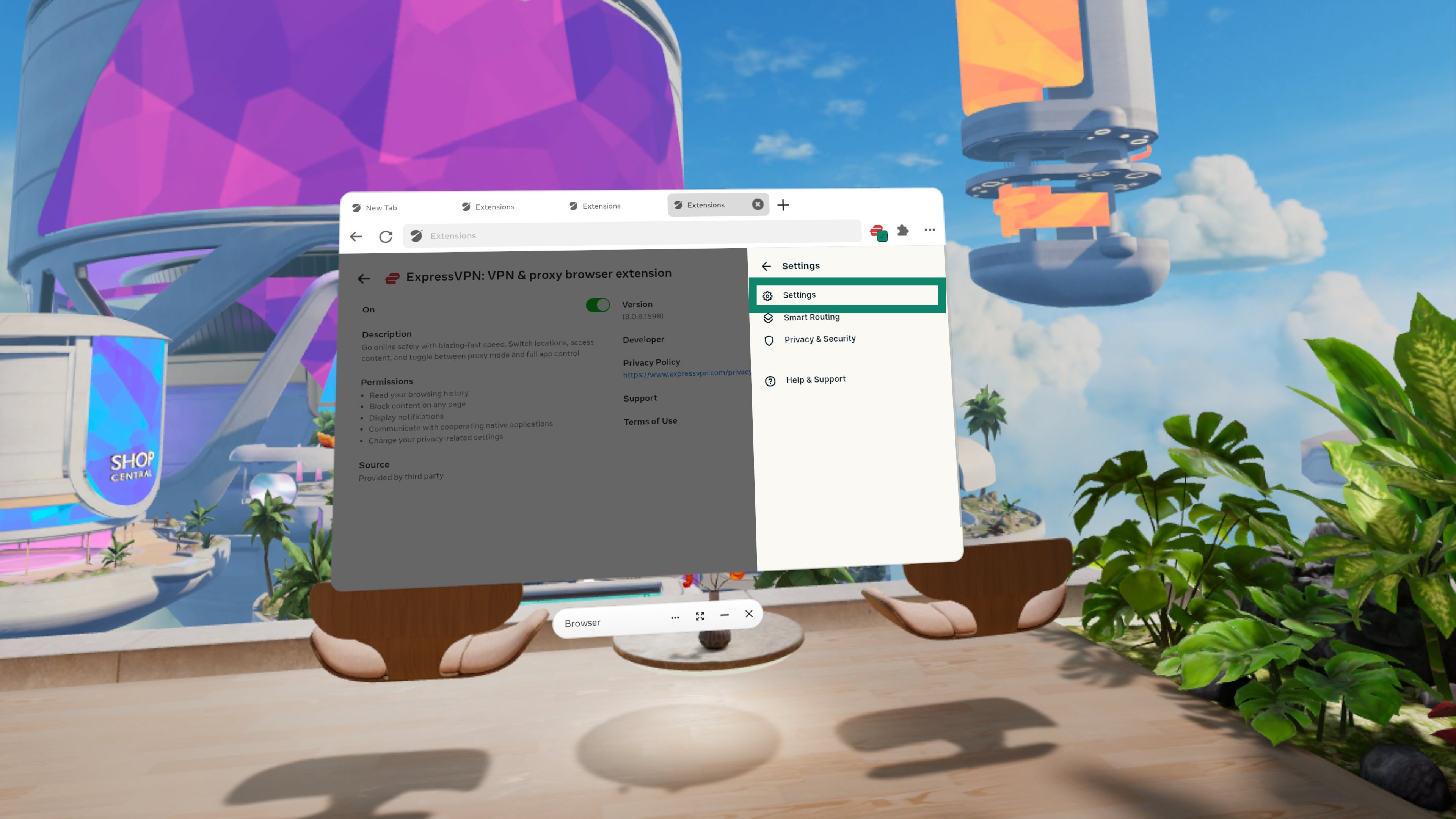
.
- Select Settings.
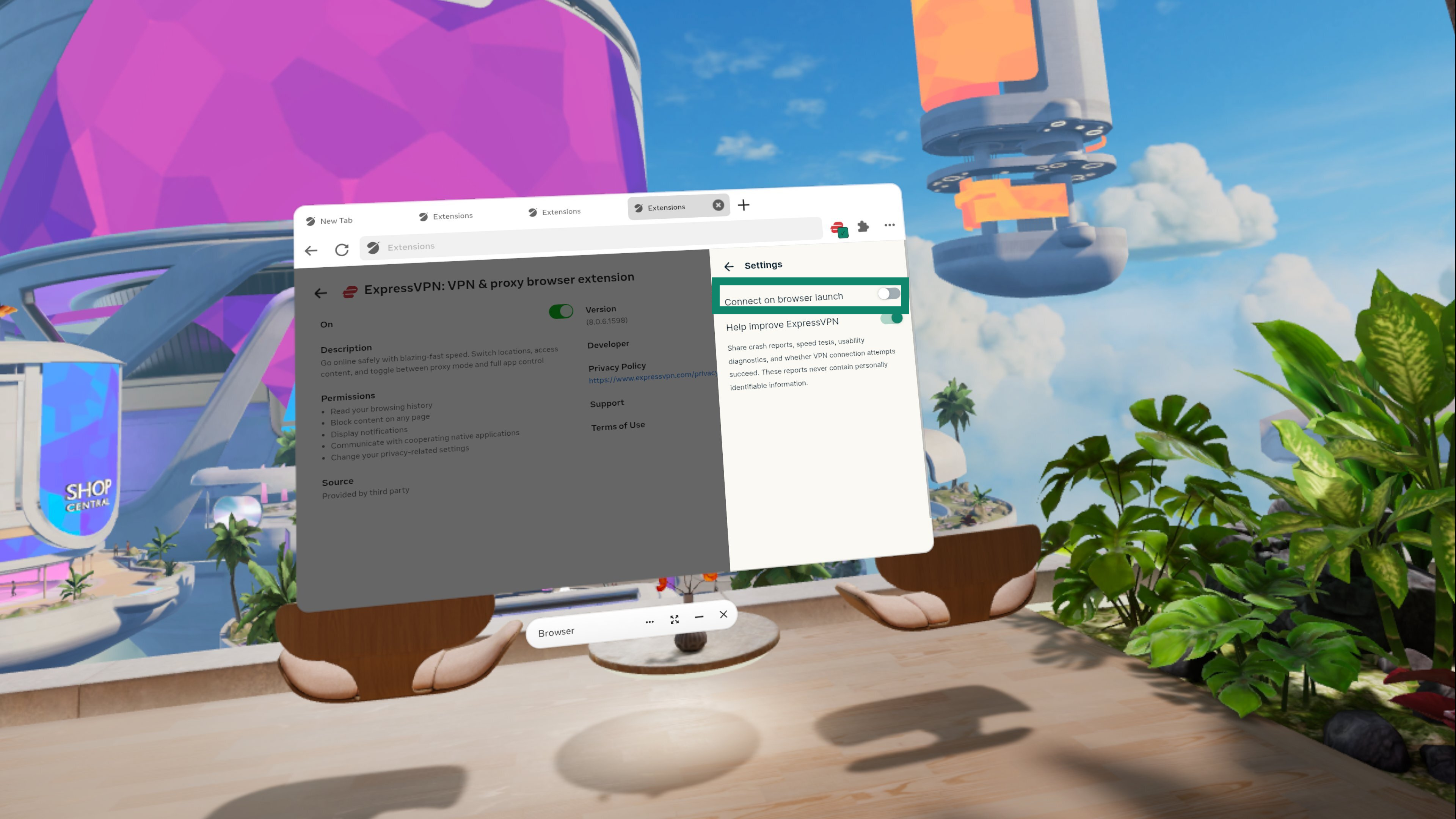
- Toggle on Connect on browser launch.
Need help? Contact the ExpressVPN Support Team for immediate assistance.
Additional privacy and security features
The ExpressVPN browser extension for Meta Quest includes additional features to improve your privacy and security.
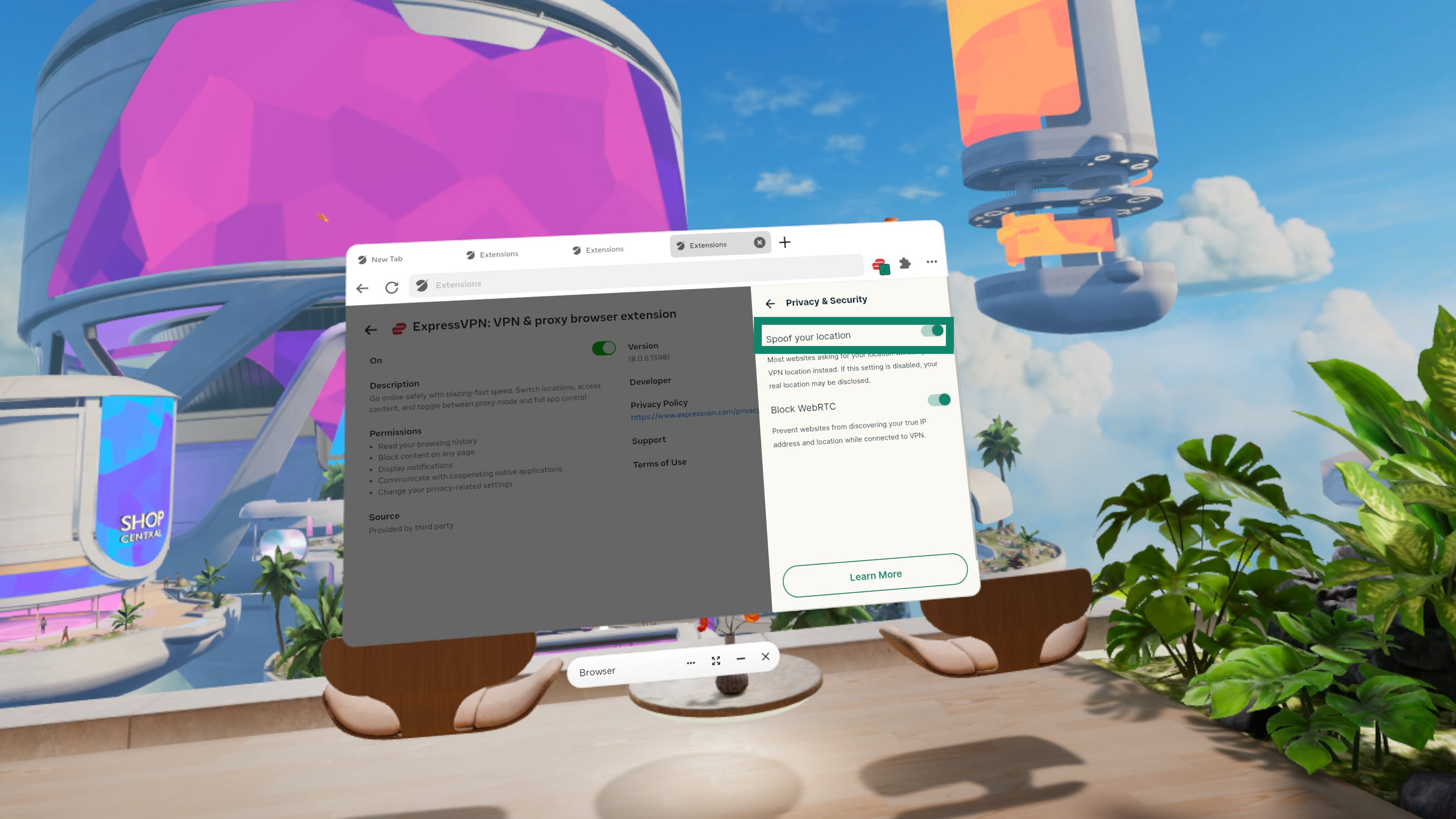
Spoof your location
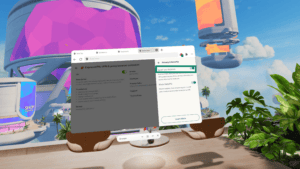
Prevents HTML5 geolocation from revealing your physical location on most sites when you are connected to ExpressVPN. It is enabled by default.
To enable/disable location spoofing:
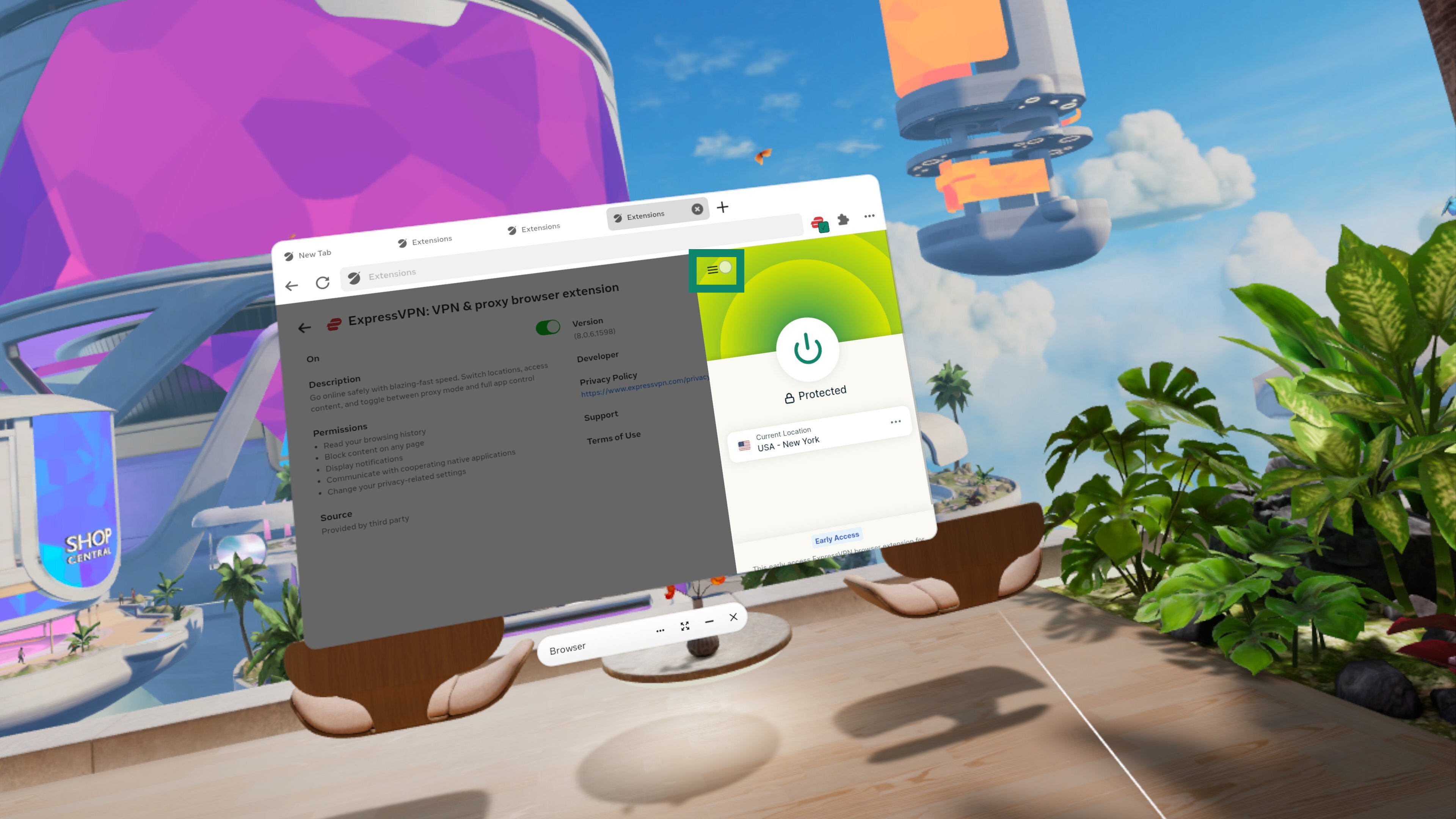
- Open the browser extension.
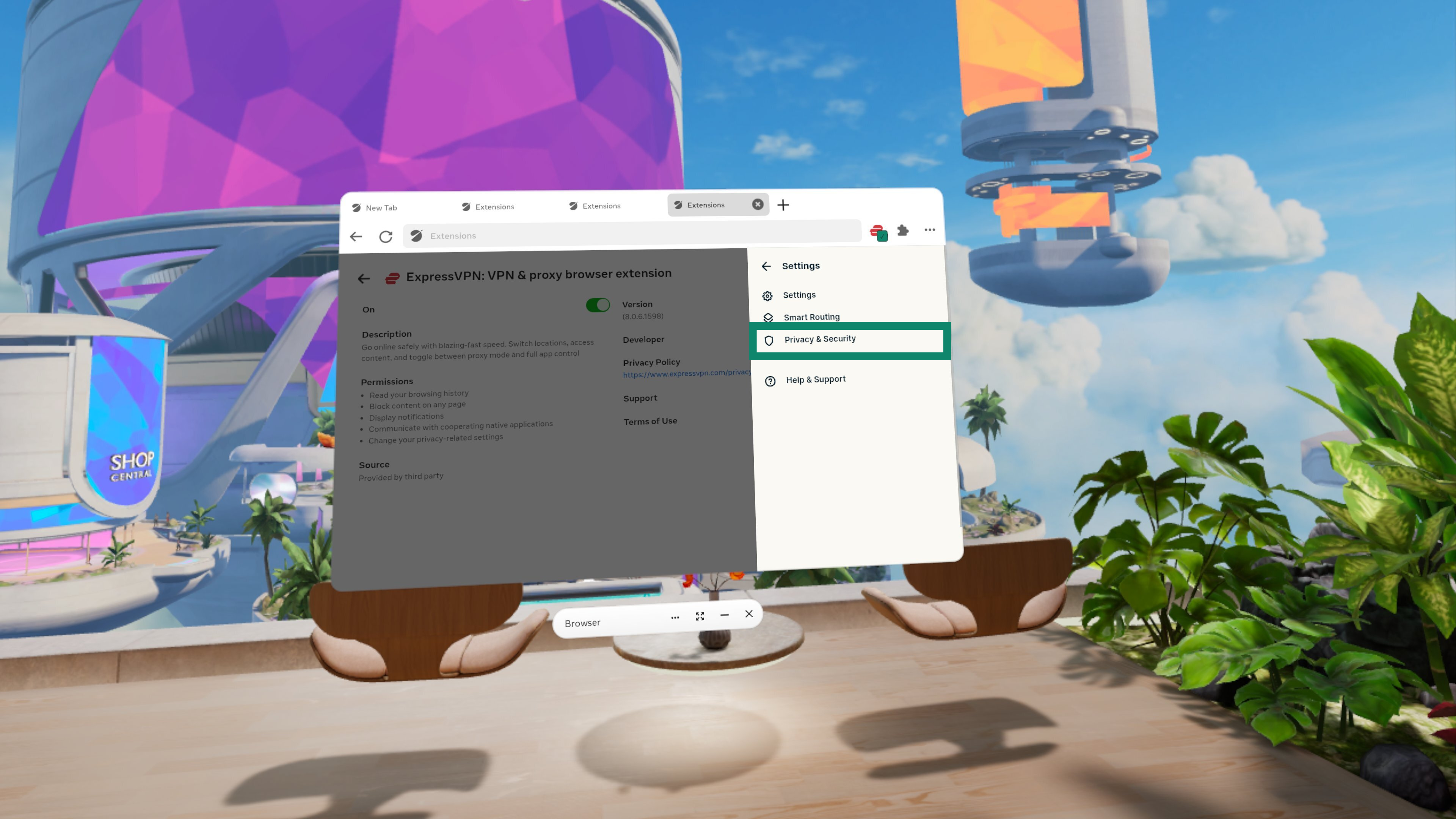
- Select .
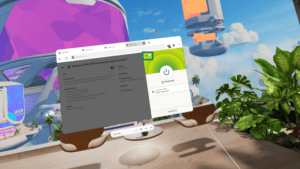
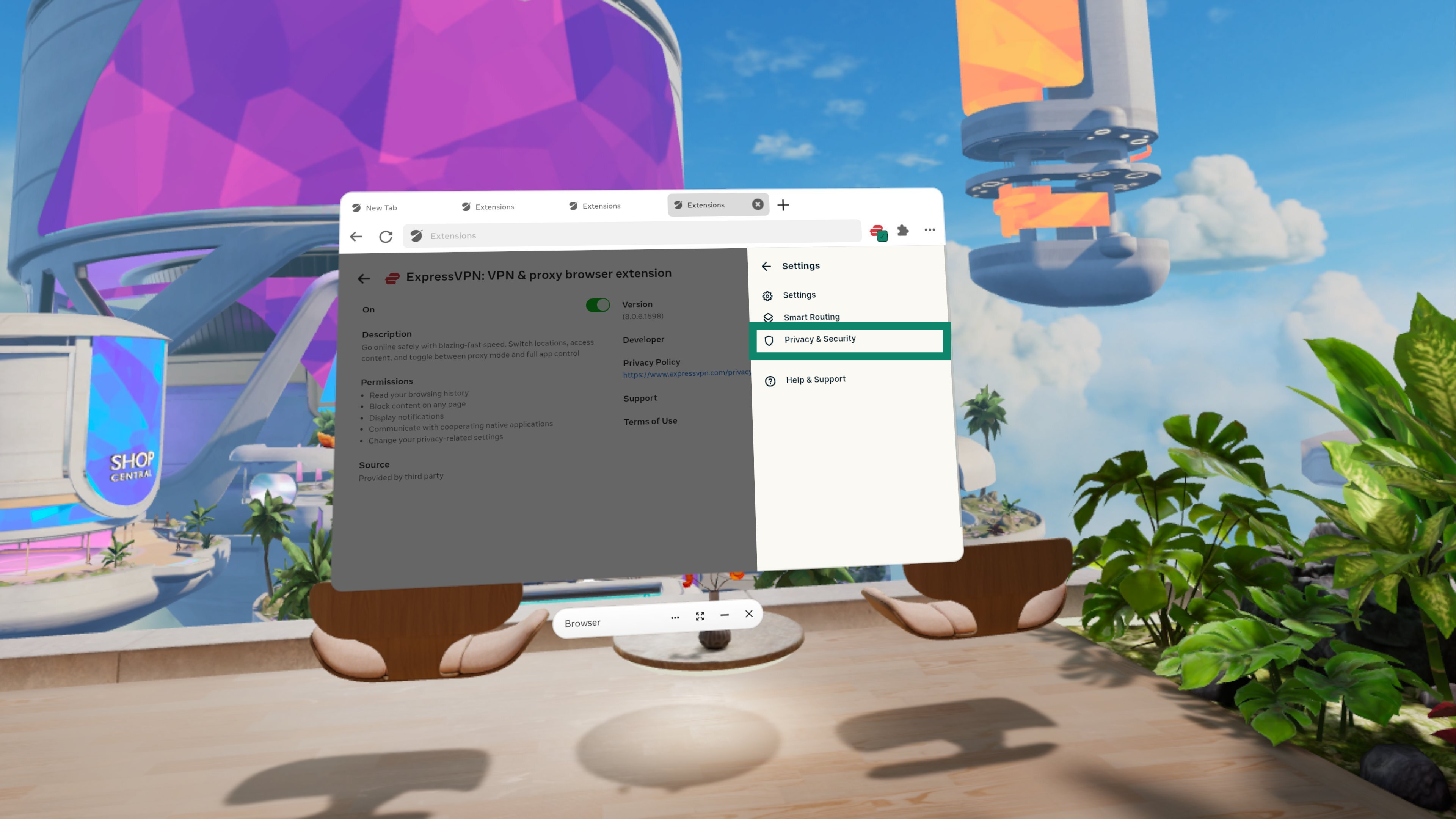
- Select Privacy & Security.
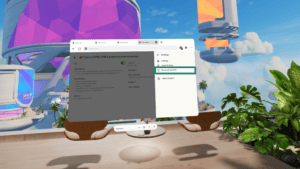
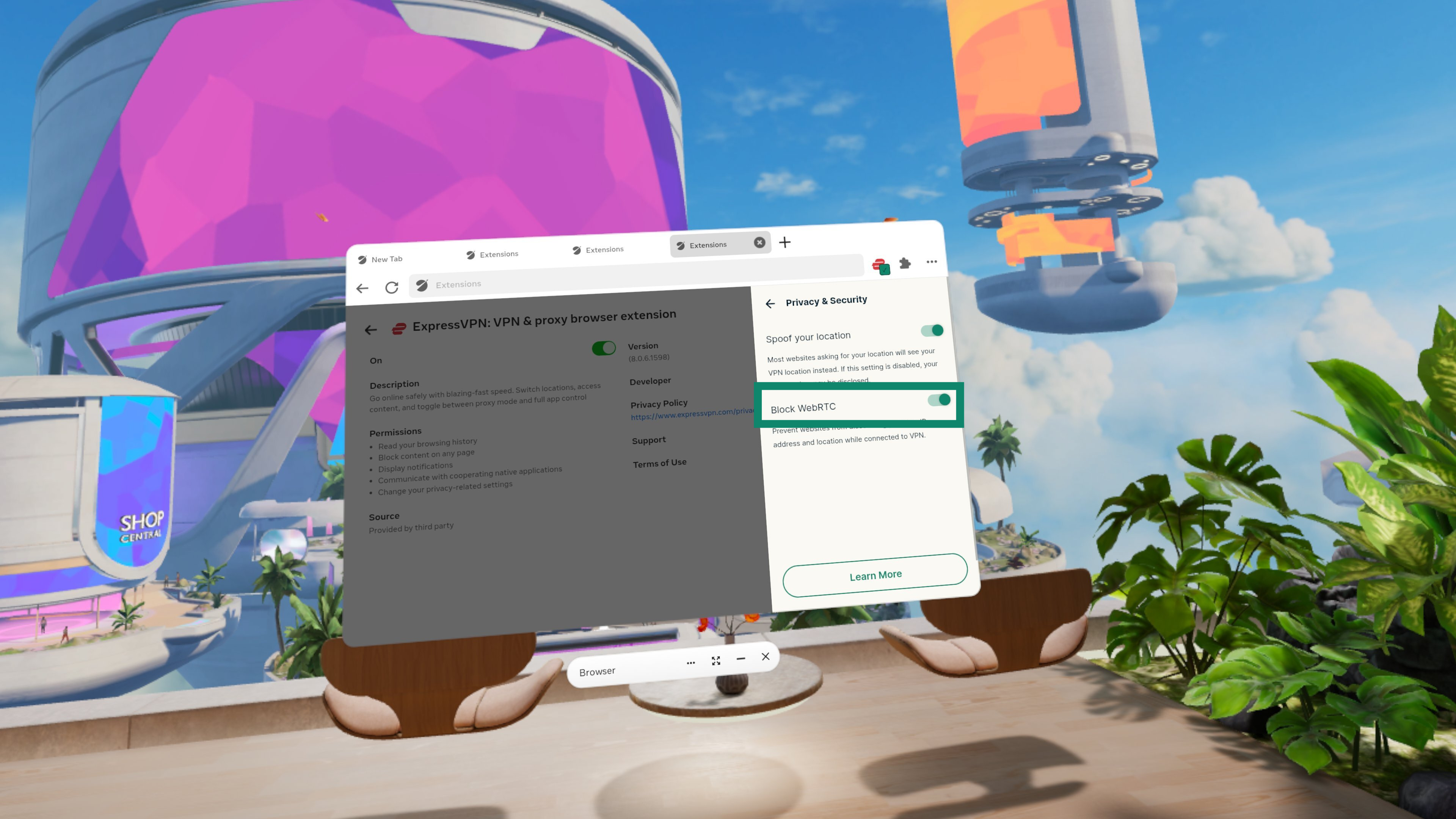
- Toggle Spoof your location on/off.
Block WebRTC
This will obscure your IP address from WebRTC leaks and ensures your browser will use the same network path for media as for normal web traffic. It is enabled by default.
To enable/disable the blocking of WebRTC:
- Open the browser extension and select .
- Select Privacy & Security.
- Toggle Block WebRTC on/off.
Need help? Contact the ExpressVPN Support Team for immediate assistance.
Smart Routing
You can use Smart Routing to customize your ExpressVPN extension to fit your browsing habits. These shortcuts will be saved even if you close your browser and quit the extension.
You can find a detailed guide on how to use Smart Routing here.
Need help? Contact the ExpressVPN Support Team for immediate assistance.
How to use dark mode
To use the dark color theme, set your Meta Quest device to use dark mode. The browser extension’s dark mode will be enabled accordingly.
Need help? Contact the ExpressVPN Support Team for immediate assistance.
How to uninstall
To uninstall the browser extension:
- On your Meta Quest, open the Meta Quest Browser.
- Select Options and then Extensions.
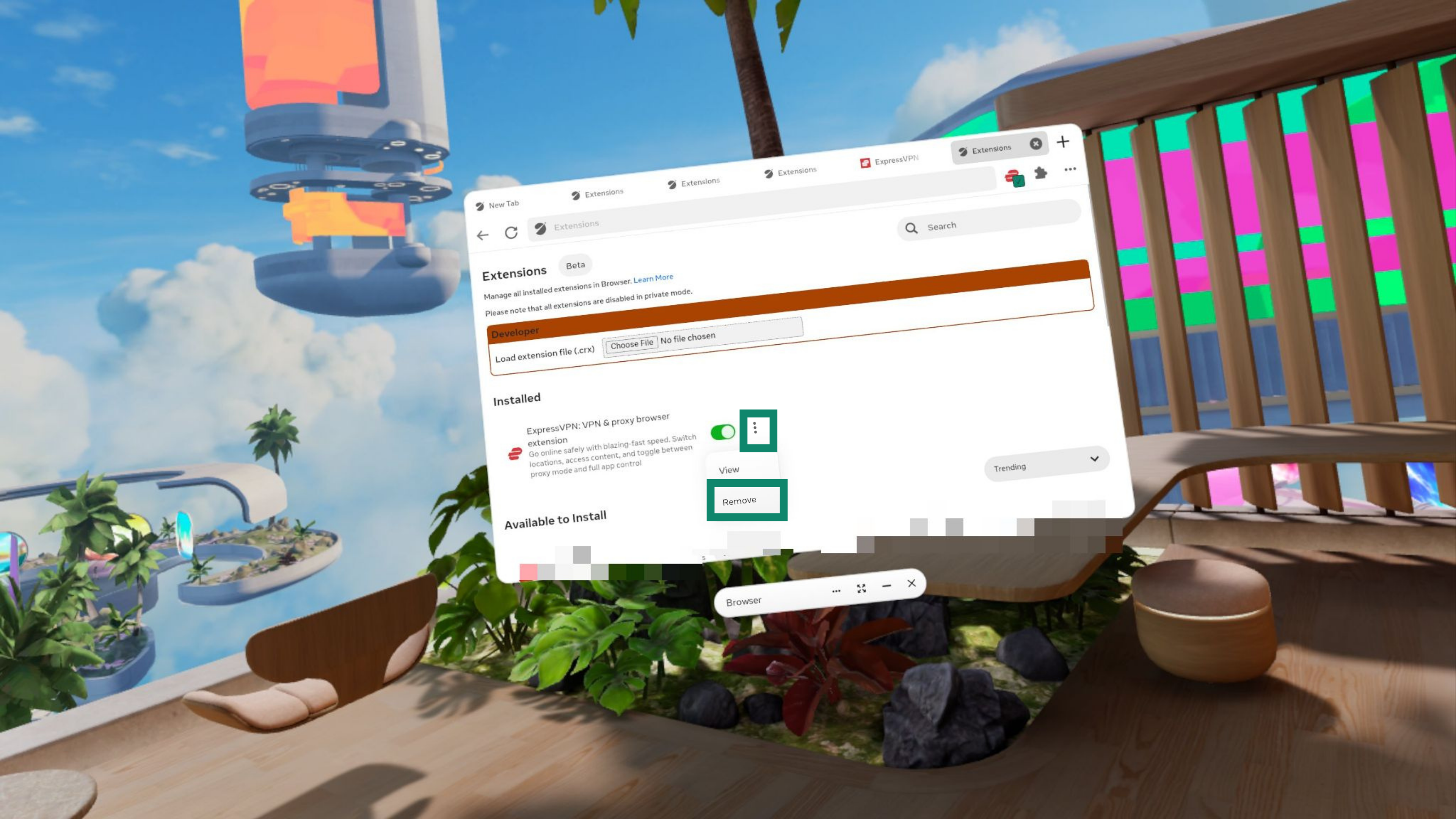
- Find the ExpressVPN browser extension under Installed, click the three dots next to it, and select Remove to permanently remove it from the browser.
If you do not want to fully remove the ExpressVPN browser extension, you can disable it.
To disable the browser extension:
- On your Meta Quest, open the Meta Quest Browser.
- Select Options and then Extensions.
- Find the extension you want to remove and select the toggle next to the extension to toggle it off.
Need help? Contact the ExpressVPN Support Team for immediate assistance.