



This guide shows you how to enable the ExpressVPN Android app’s Auto-connect feature.
Auto-connect keeps your traffic protected by automatically connecting to the VPN when joining a new network including public Wi-Fi. By default, the Auto-connect is disabled.
Jump to…
Enable the Auto-connect feature
Mark networks as “trusted” (or “untrusted”)
Disconnect the VPN when joining a trusted network
Disable auto-connect
Enable the Auto-connect feature
- On the VPN tab in the ExpressVPN Android app, tap Not set up: Auto-connect.
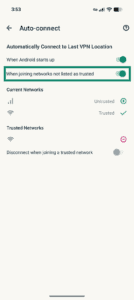
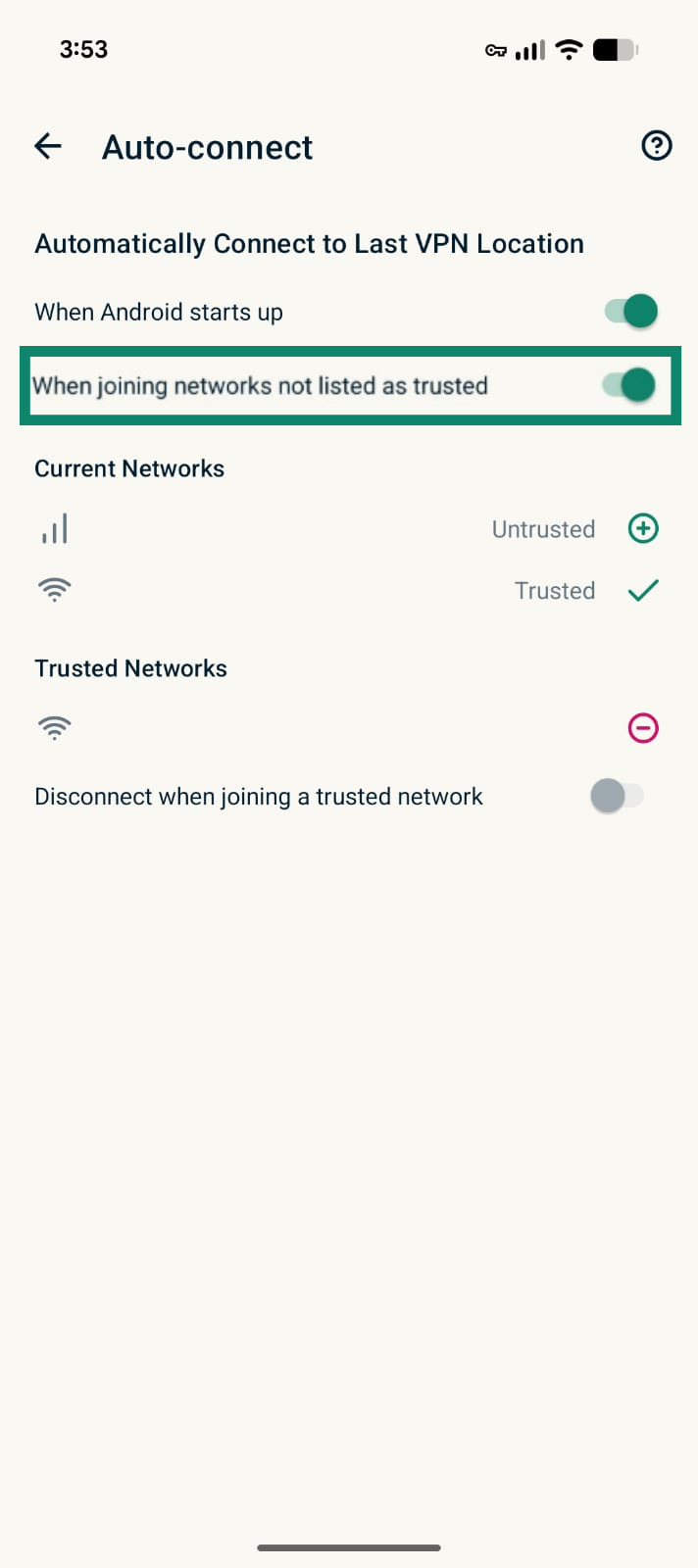
- Toggle When joining networks not listed as trusted on.

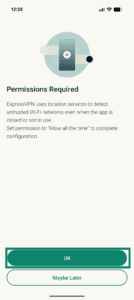
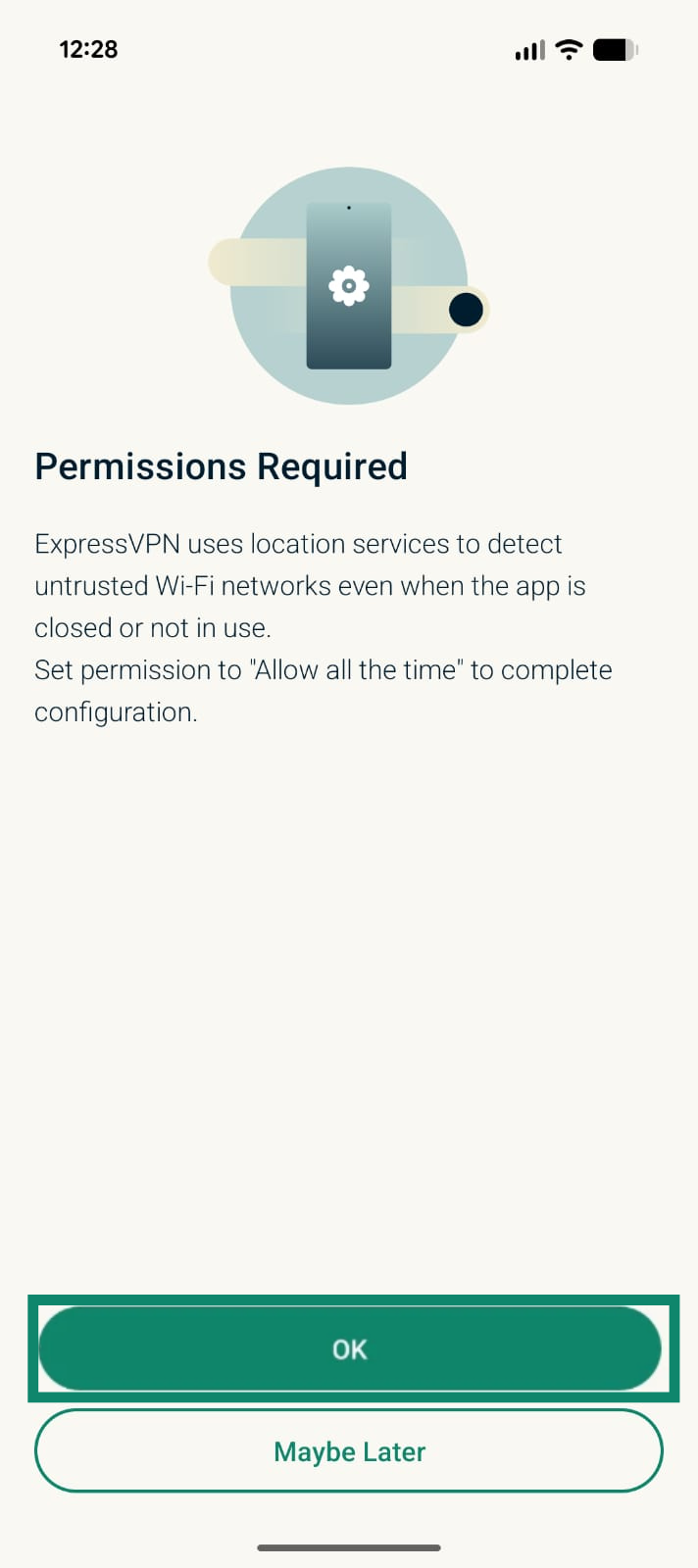
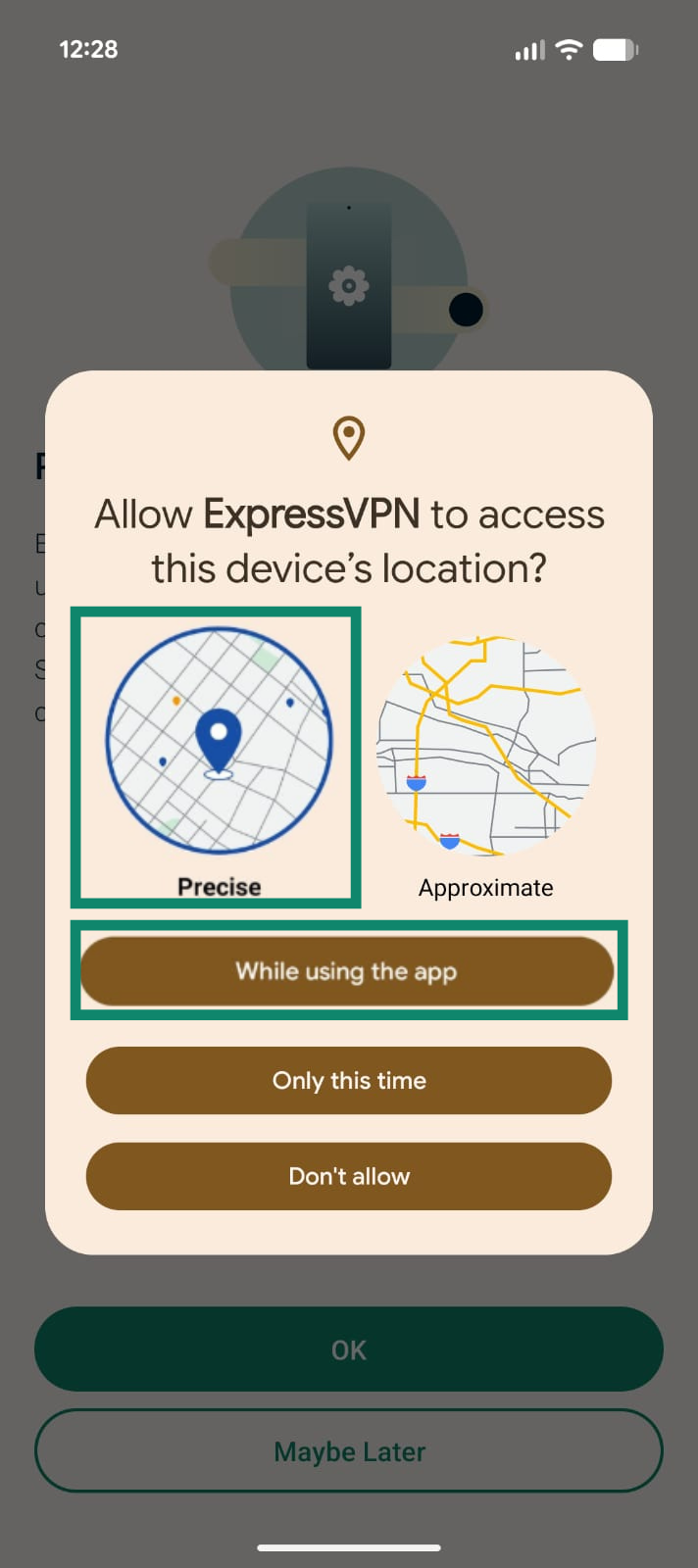
Android 10 and above require location permissions to allow the detection of untrusted networks. If you are on Android 10 or above, you will be asked to give permission to the app to be able to use the Auto-connect feature.
- In the Permissions required screen, tap OK.
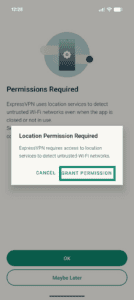
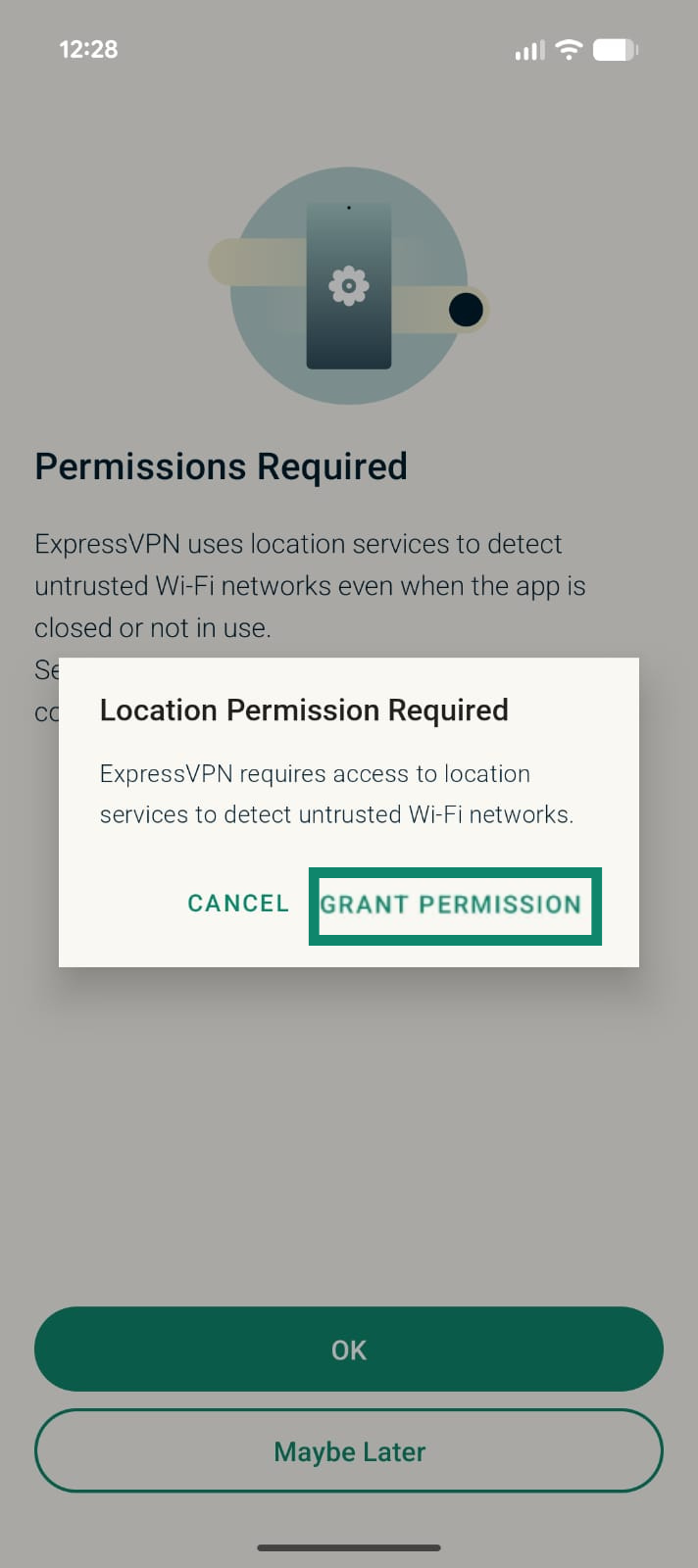
- In the Location Permissions Required prompt, tap GRANT PERMISSION.
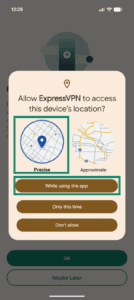
- Pick Precise. Then tap While using the app.
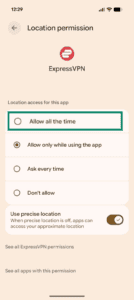
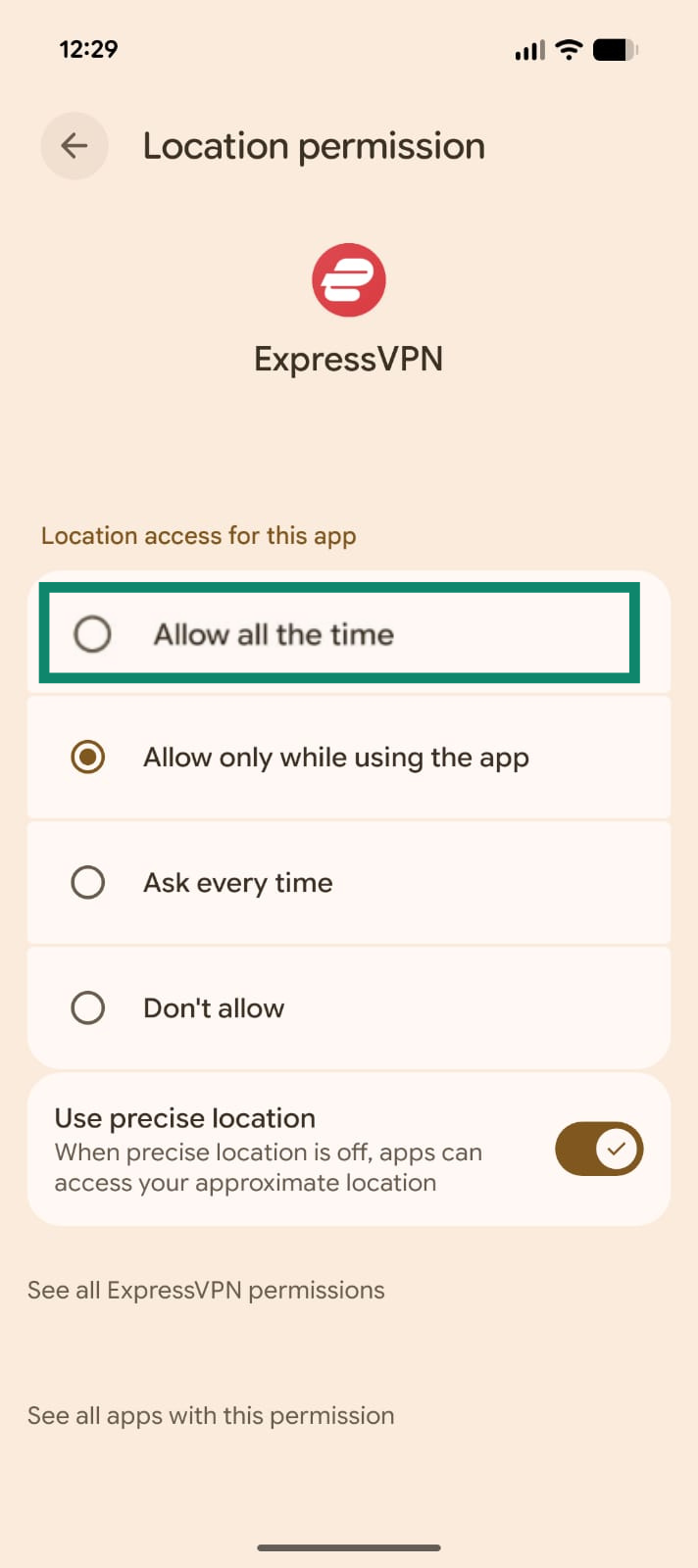
- A message will display saying ExpressVPN needs location permission all the time. Follow the prompt to the next screen, and select Allow all the time
The behaviors of the VPN Auto-connect feature
When enabled, the Auto-connect feature keeps your traffic protected in the following ways:
- Auto-connect marks any new networks you join as “untrusted” to give you full VPN protection.
- You will automatically connect to the VPN when joining an “untrusted” network
- You will remain connected to the VPN when switching to another “untrusted” network and when joining a network you have marked as “trusted”
Keep the VPN off when joining a network you trust
If you want to keep the VPN off when joining a network you trust (e.g., your home network), you can mark the network as “trusted” in the app settings and disable the VPN for “trusted” networks.
Step 1. Mark networks as “trusted” (or untrusted)
You can mark networks as “trusted” or “untrusted” after enabling auto-connect.
- On the VPN tab in the ExpressVPN Android app, tap Auto-connect.
- Your active networks will appear under Current networks. By default, they are marked as “untrusted.” To mark them as “trusted,” tap

 .
.
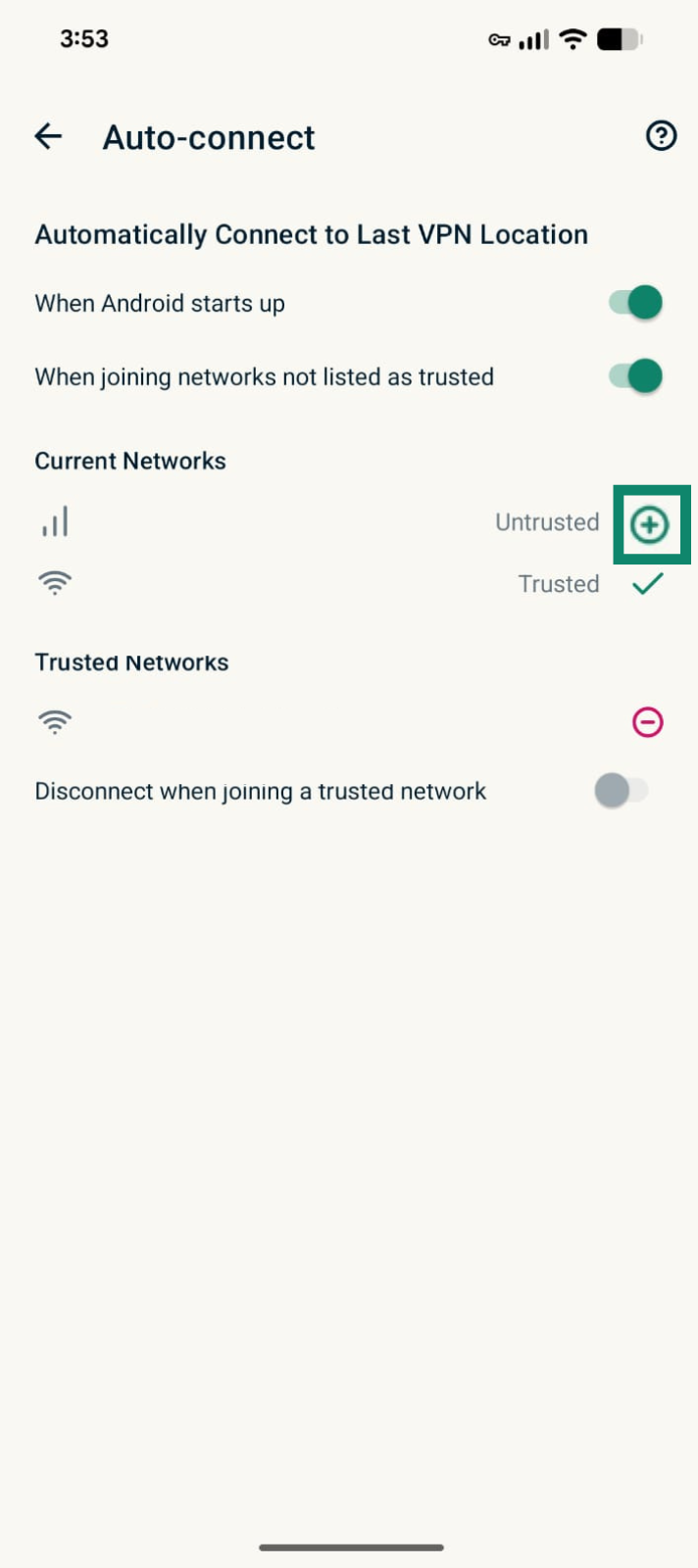
If you want to mark them as “untrusted” in the future, next to the network that appears under Trusted Networks, tap  .
.
2. Turn off VPN for trusted networks
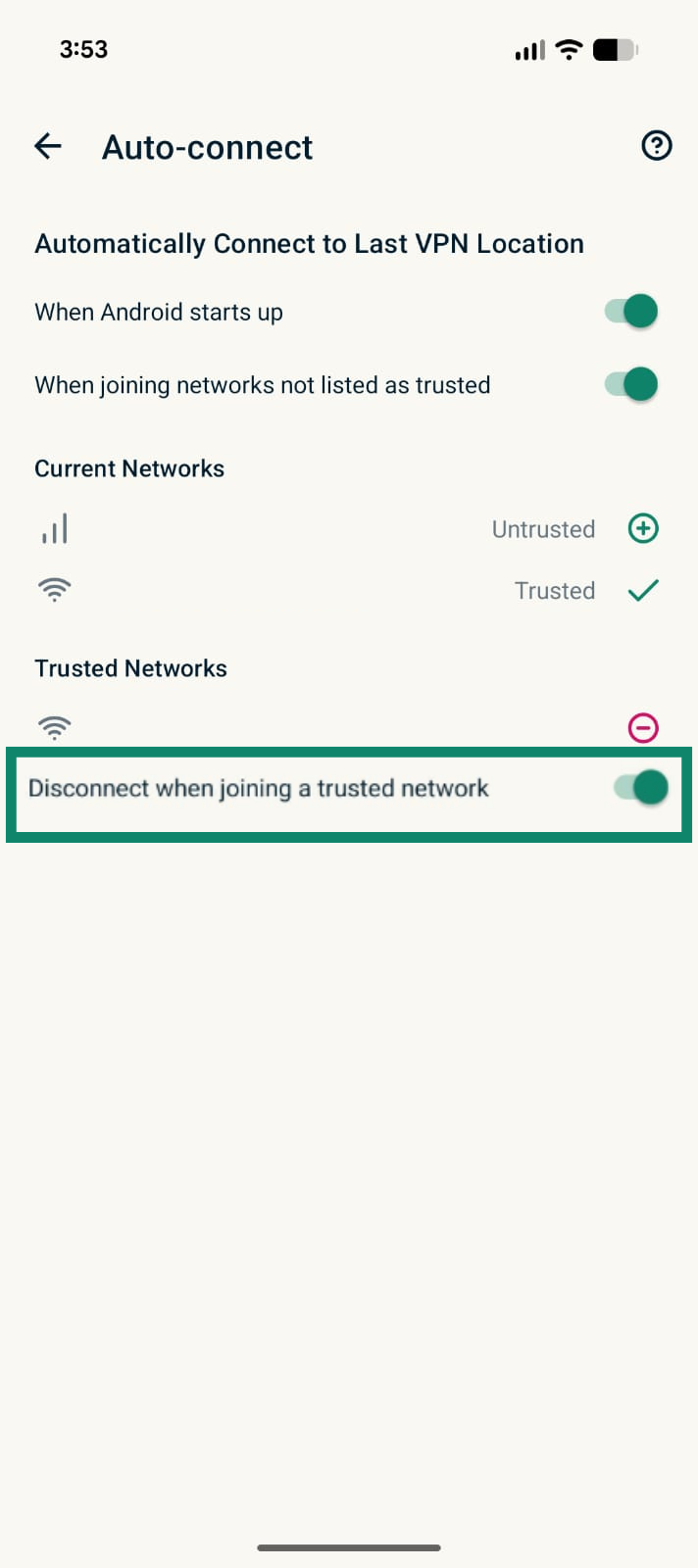
- On the VPN tab in the ExpressVPN Android app, tap Auto-connect.
- Toggle Disconnect when joining a trusted network on.
Need help? Contact the ExpressVPN Support Team for immediate assistance.
Disable the Auto-connect feature
- On the VPN tab in the ExpressVPN Android app, tap Auto-connect.
- Toggle When joining networks not listed as trusted off.
Need help? Contact the ExpressVPN Support Team for immediate assistance.