



If you can’t find a certain VPN server in the ExpressVPN app, follow the troubleshooting steps below. These steps apply to the ExpressVPN apps for Windows, Mac, Android, iOS, and Linux.
Note: If the server is visible in the app but you are experiencing connection issues, please follow our VPN connection troubleshooting guide instead.
Jump to…
Search for the server location manually
If you do not see a server location scrolling through the server list, try searching for it manually. The steps are the same on all ExpressVPN apps.
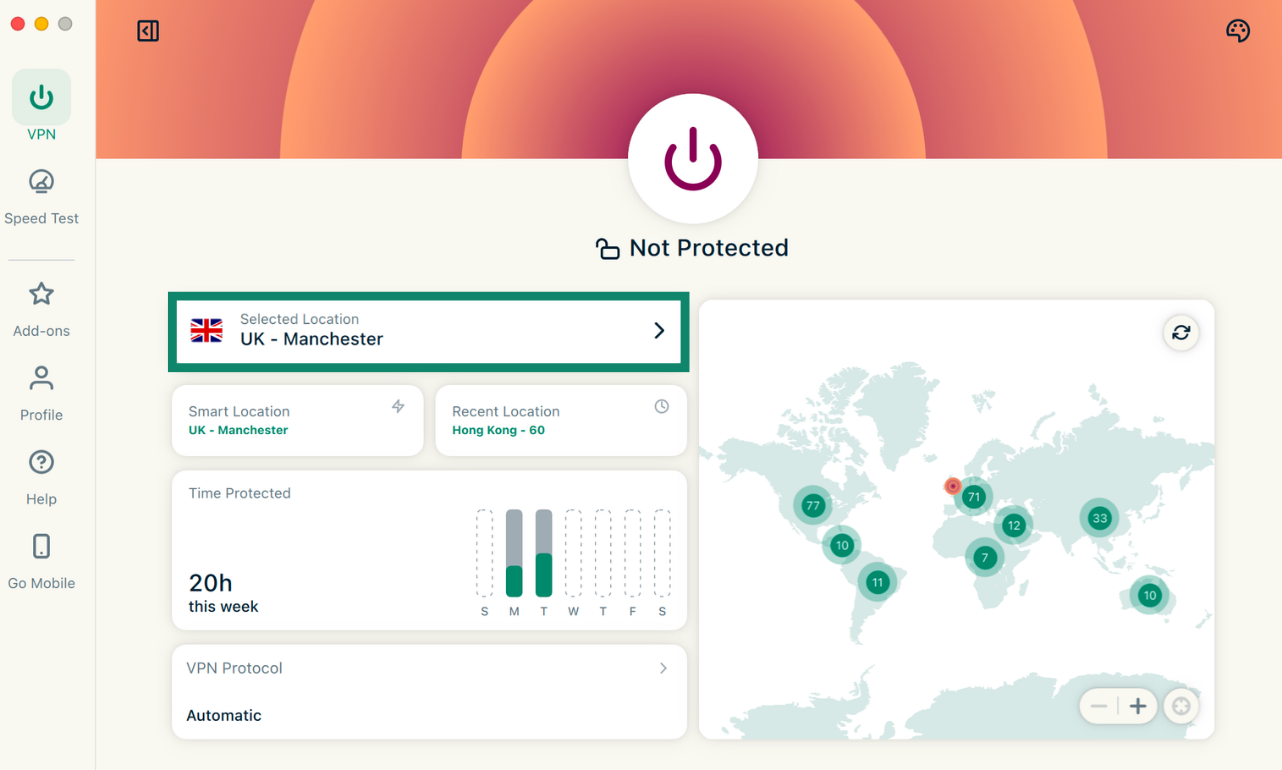
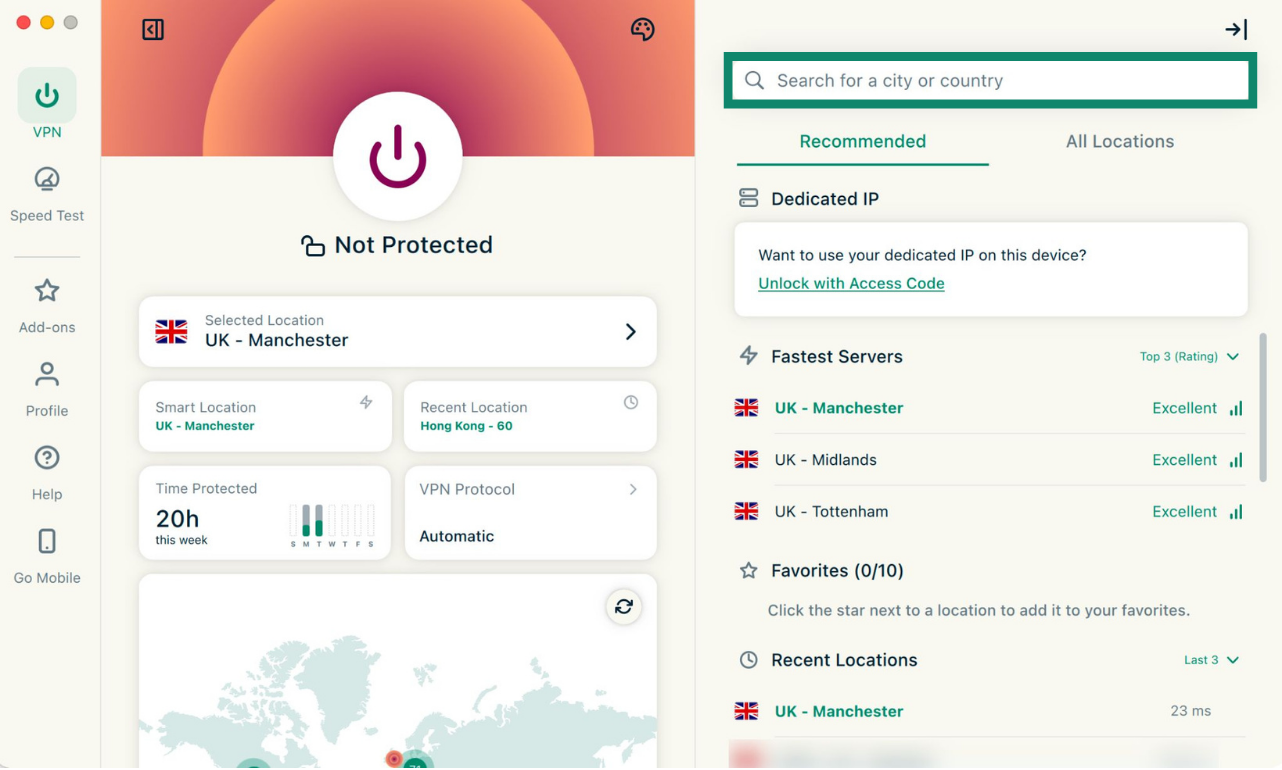
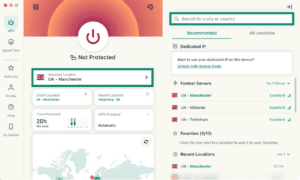
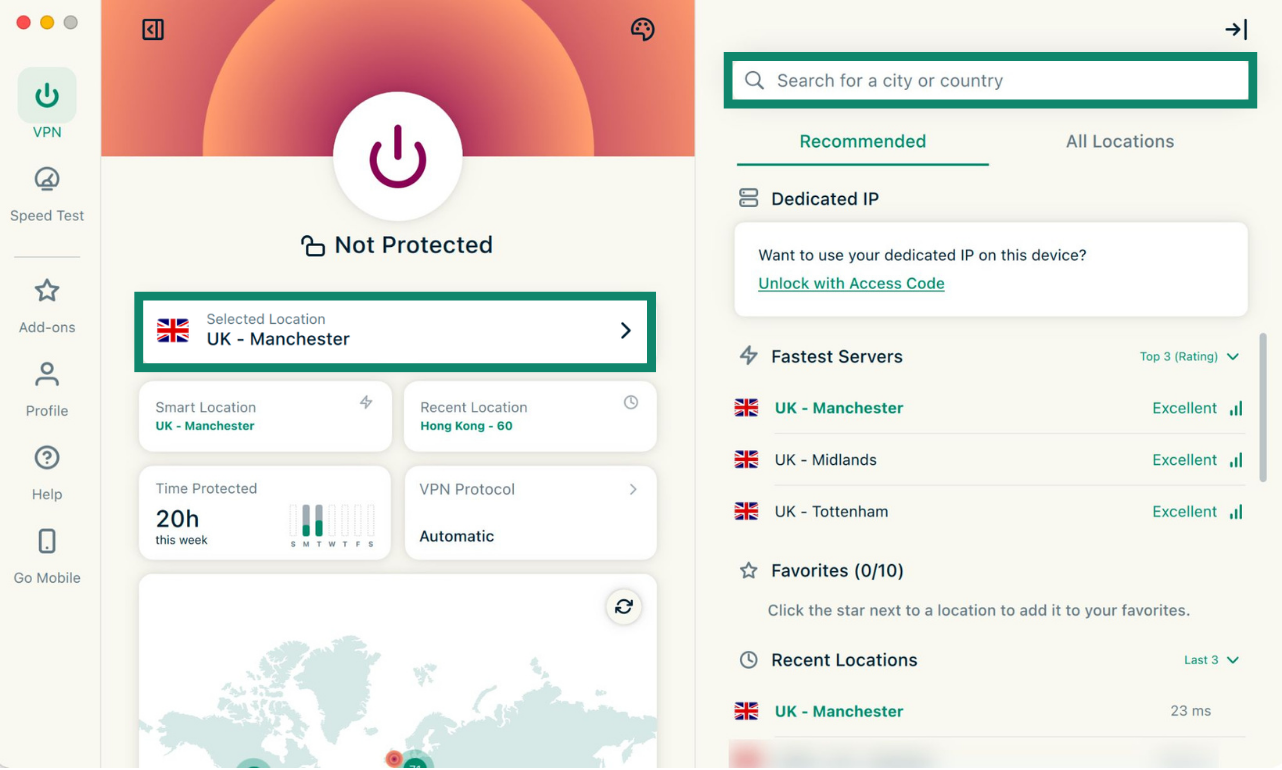
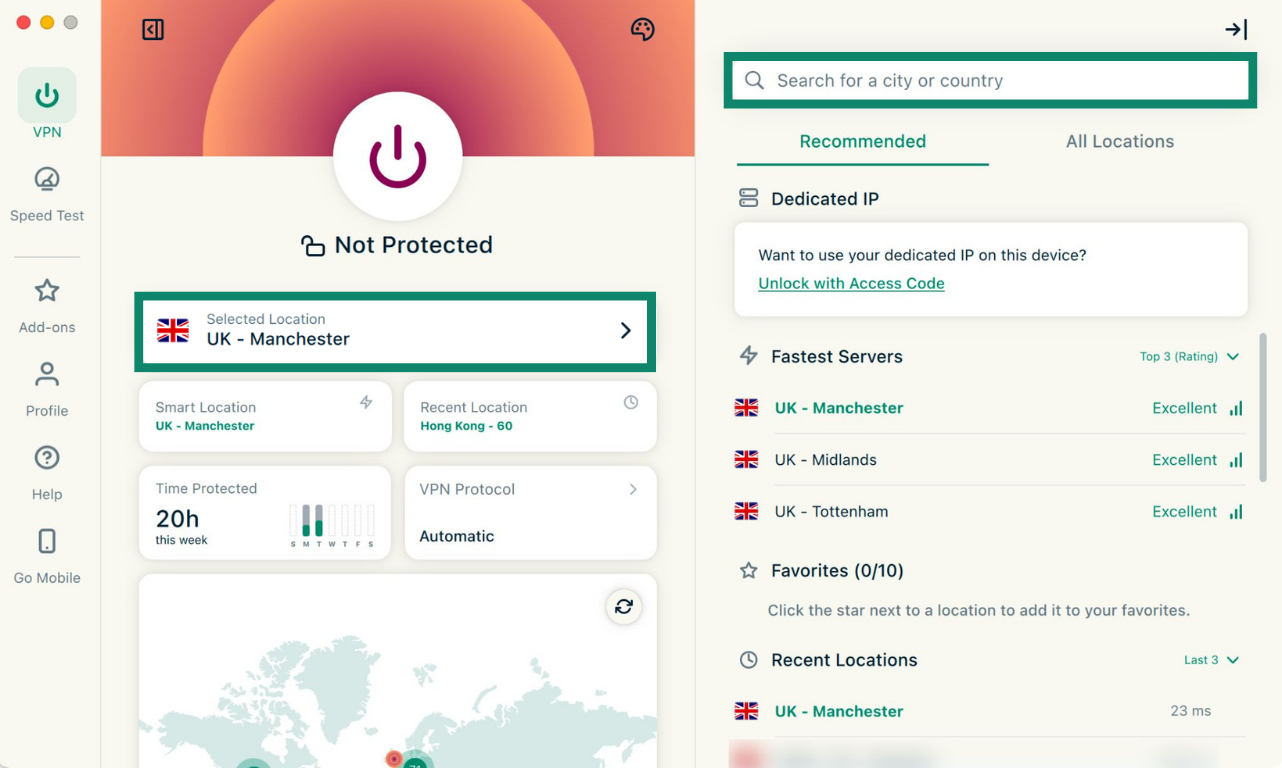
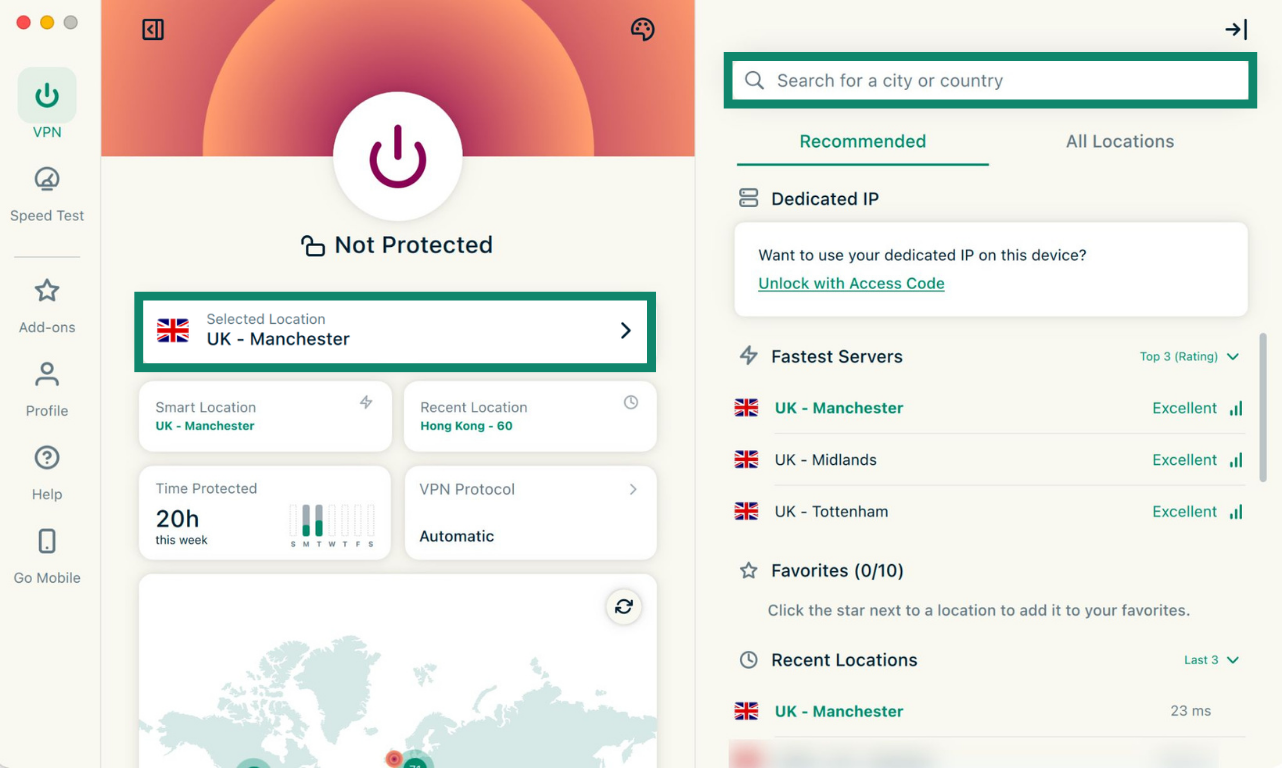
- Open ExpressVPN and click Selected Location to open the server list.


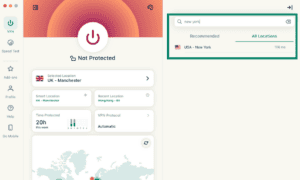
- Use the search bar to find the server location you’re looking for.
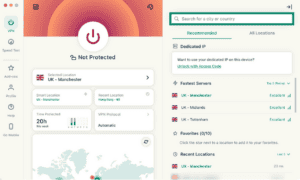
- If the server location appears, select it.
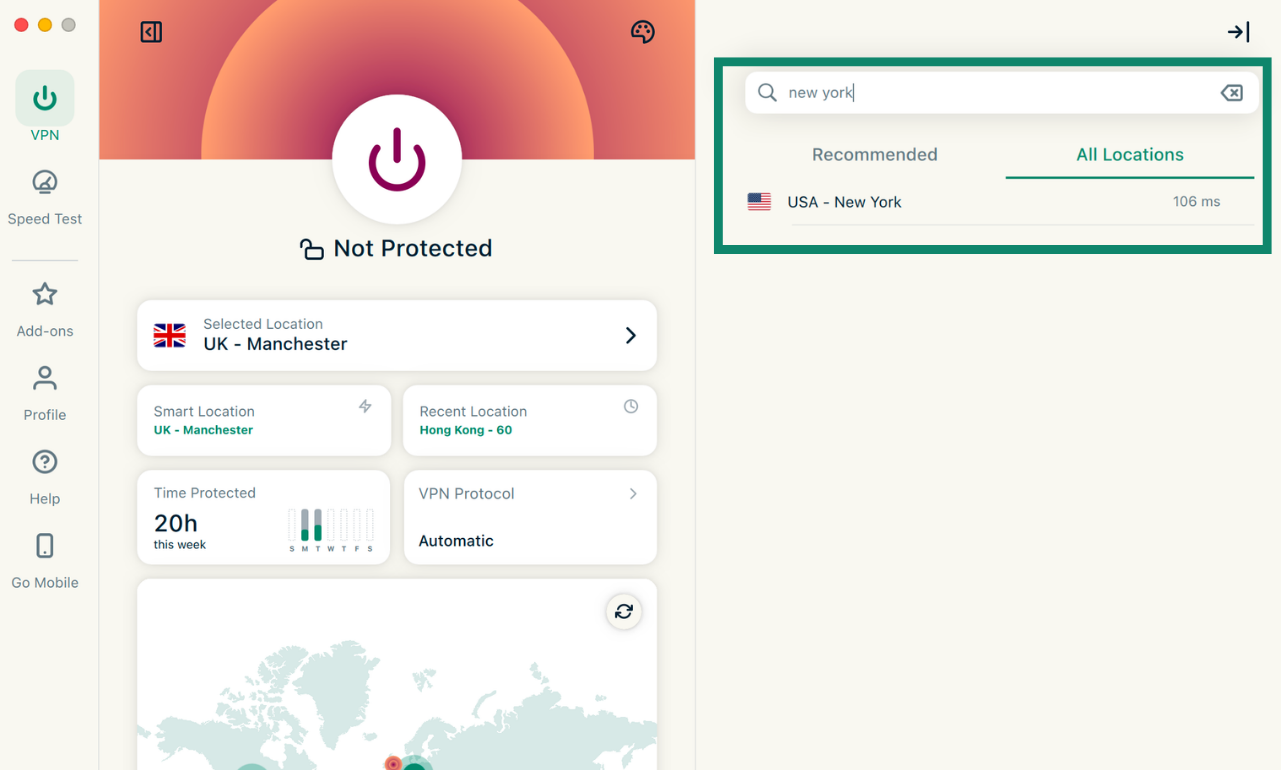
If it still does not appear, continue to the next step.
Check the VPN protocol
Not all server locations are available with every VPN protocol, so your selected protocol may affect which locations appear in the app. To see which locations are available with the different protocols, refer to the ExpressVPN server list.
To check your VPN protocol:
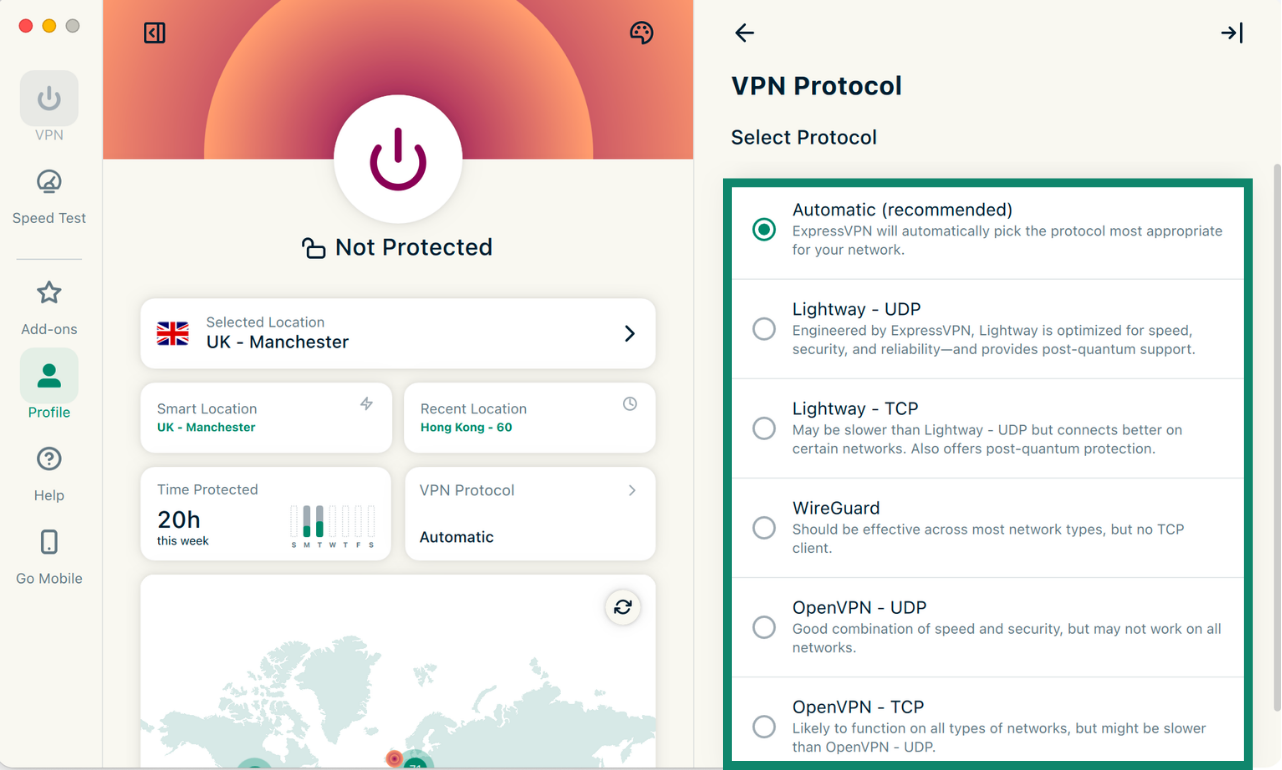
Open ExpressVPN and look for the VPN Protocol widget. Underneath, it will list the protocol the app is using. The steps are the same on all ExpressVPN desktop and mobile apps.
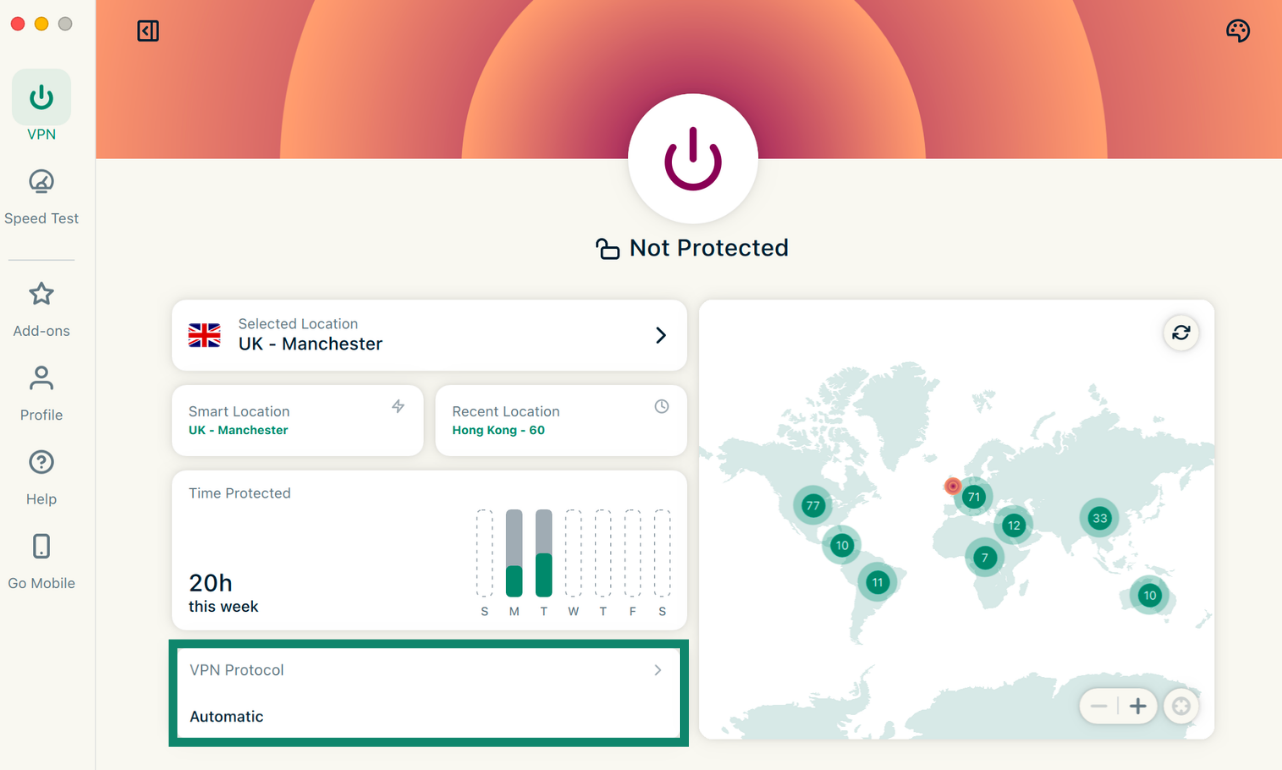
To change your VPN protocol:
- Select the VPN protocol widget and select the protocol from the list to change it.
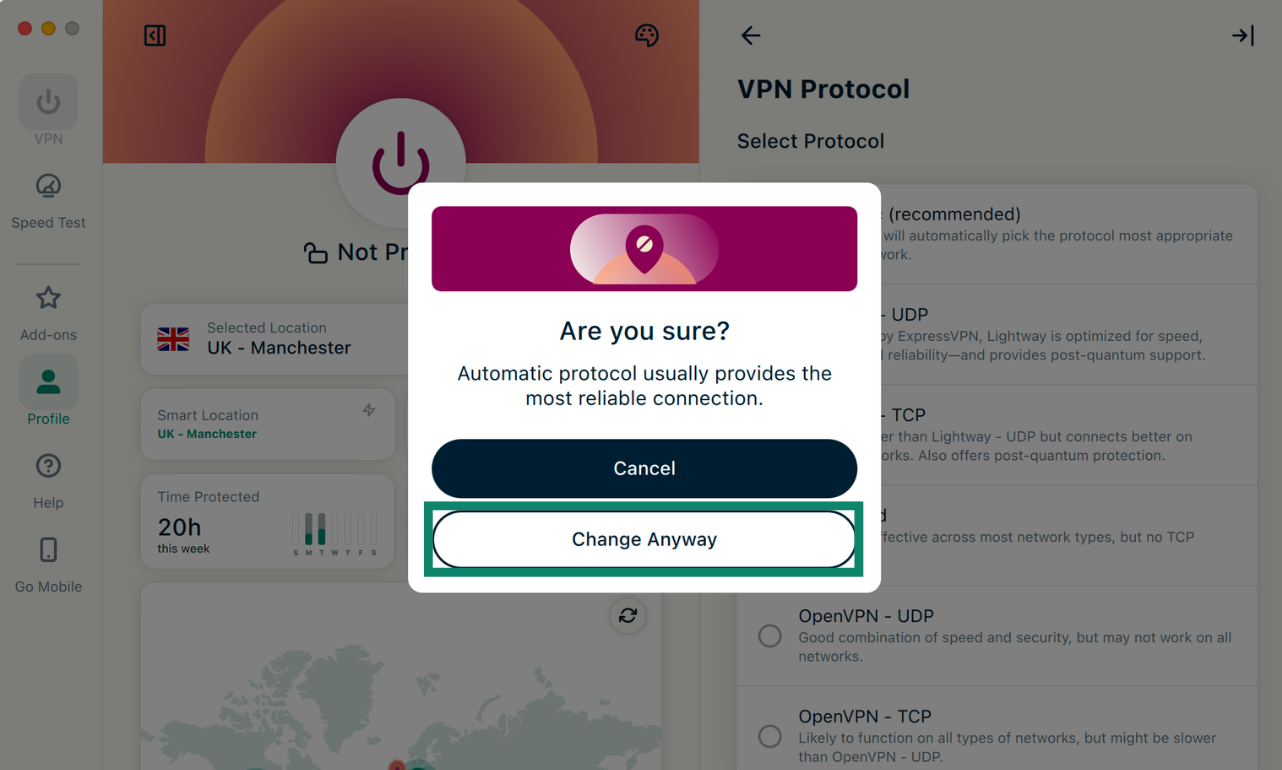
- If you see a pop-up, select Change Anyway.
- On the app dashboard, click Selected Location to open the server list, and use the search bar to find the server location.
If the location should be available with the selected protocol but still does not appear, continue to the next step.
Update the ExpressVPN app
A server location may not appear if you’re using an outdated version of the ExpressVPN app. Check that your app version is up-to-date before continuing. You can find out the latest version of the app for each device in the ExpresVPN release notes:
- ExpressVPN for Windows
- ExpressVPN for iOS
- ExpressVPN for Mac
- ExpressVPN for Android
- ExpressVPN for Linux
You can then check what version your app is currently using following the steps below. Note that the steps are the same on all ExpressVPN apps.
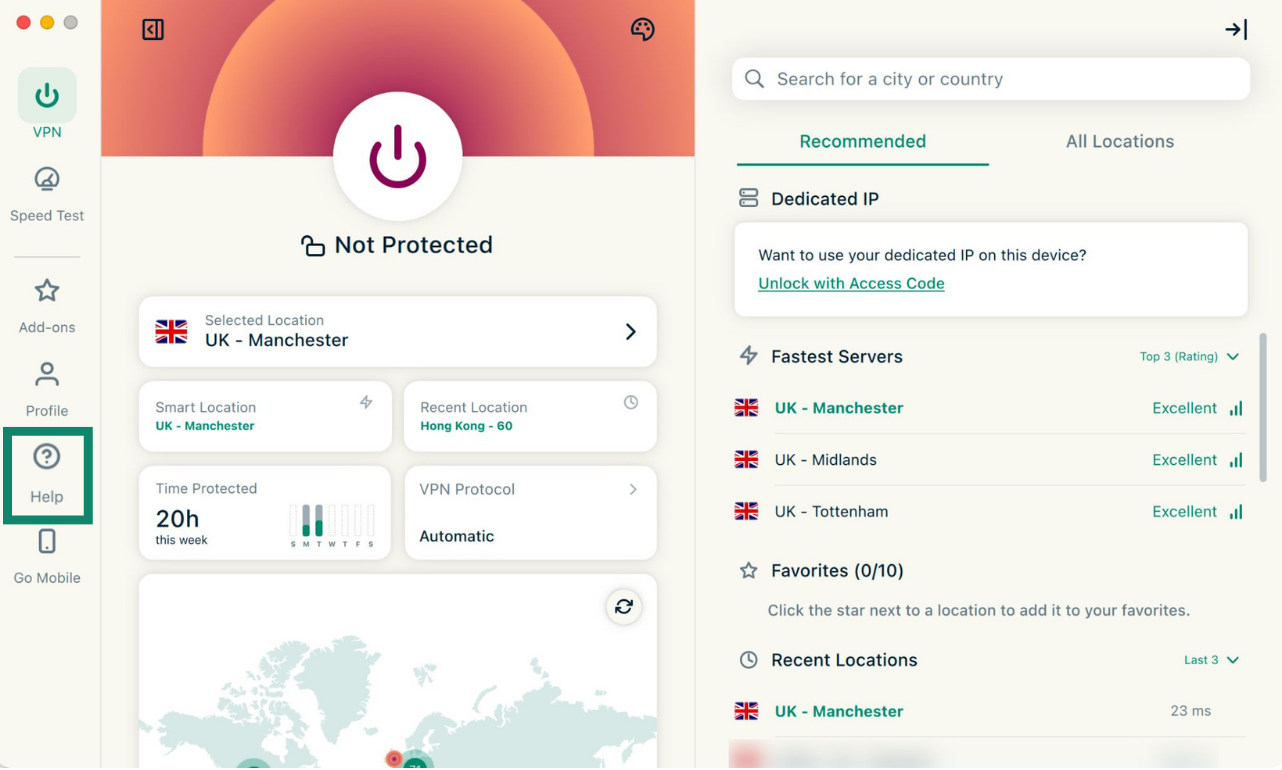
- Open ExpressVPN and click Help.
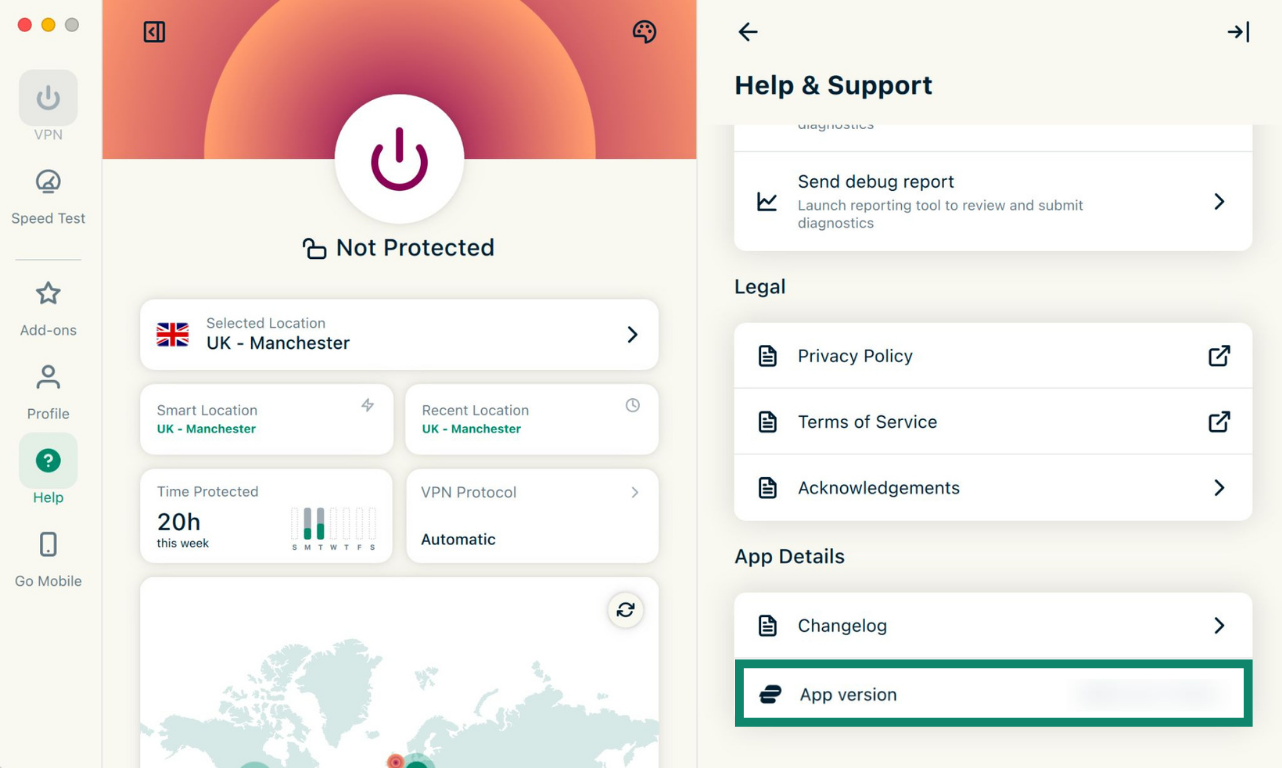
- Under App Details, look for App version and make sure you’re using the latest version.
If there is an update available, you should see a pop-up banner in the app when you open it (and are logged in). To update the app, either click on the pop-up banner or visit the ExpressVPN download page directly and download the latest version for your device.
Once done, open the ExpressVPN app, click Selected Location to open the server list, and search for the server location via the search bar.
If the location still doesn’t appear, move to the next step.
Restart ExpressVPN and your device
Restarting the ExpressVPN app and your device can help refresh the server list. To fully close the app, follow the steps for your device:
- Windows: Right-click the ExpressVPN icon near the clock and choose Exit or Quit. If that does not work, open Task Manager with Ctrl + Shift + Esc, select the ExpressVPN app, and choose End task.
- macOS: Select the VPN app and choose Quit, or press Command + Q. If the app gets stuck, press Option + Command + Esc and force-quit it.
- Android: Open Recent apps and swipe the VPN app away. For a stronger restart, go to Settings > Apps > ExpressVPN > Force stop.
- iOS: Swipe up from the bottom to the middle of the screen to open the App Switcher. For iPhones with a physical Home button, double-click the Home button instead. Then swipe the VPN app upward to close it.
- Linux: Open the VPN app’s menu from the system tray or top bar and select Quit or Exit. If there’s no Quit or Exit option, use System Monitor to find the ExpressVPN app and choose End Process. If that does not work, use the Kill Process option instead.
Then, reopen the app. Click Selected Location to open the server list, and search for the server location using the search bar.
If the location still doesn’t appear, try restarting the device. Before you restart it, make sure you disconnect from the VPN. When you reopen the app, search for the server location via the search bar again.
Contact the ExpressVPN Support Team
If you still cannot find the server location after trying all the above troubleshooting steps, contact the ExpressVPN Support Team for assistance.