



If you can’t connect to the internet, it is possible that you are using a proxy server. This guide will show you how to disable proxy settings in Firefox.
A proxy server is an intermediary between your computer and the internet. It is often used to hide your real location and helps you access websites that would otherwise be blocked. However, proxies do not offer the same privacy protections as a VPN. If you are using ExpressVPN, there is no need to run a proxy on top of the VPN connection.
Jump to…
Disable proxy settings on Windows
Disable proxy settings on Mac or Linux
Disable proxy settings on iOS
Disable proxy settings on Android
Disable proxies on Windows
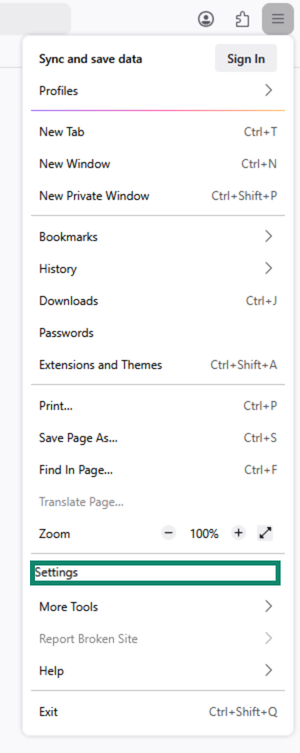
- In the Firefox browser, click

 in the top-right corner. Select Settings.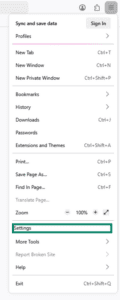

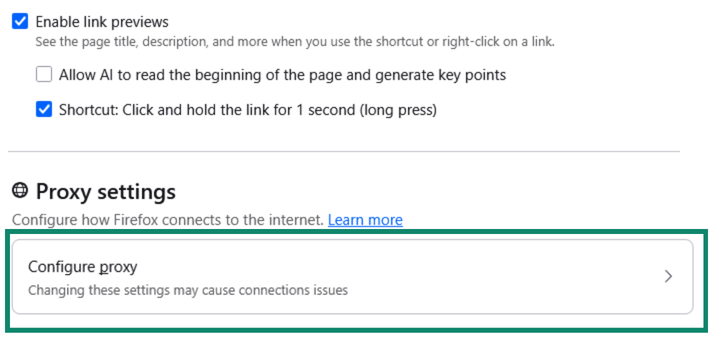
- In the General section, scroll down to Proxy Settings. Select Configure proxy.
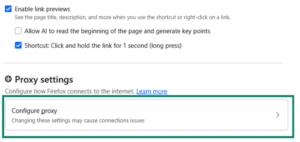

- Select either No proxy or Auto-detect proxy settings for this network.


- Click OK.
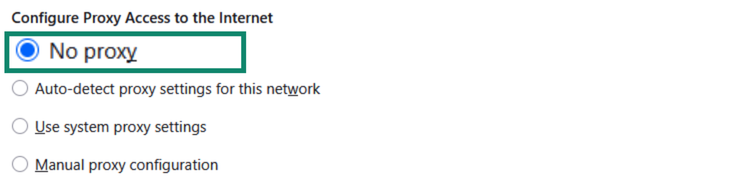
Need help? Contact the ExpressVPN Support Team for immediate assistance.
Disable proxies on Mac or Linux
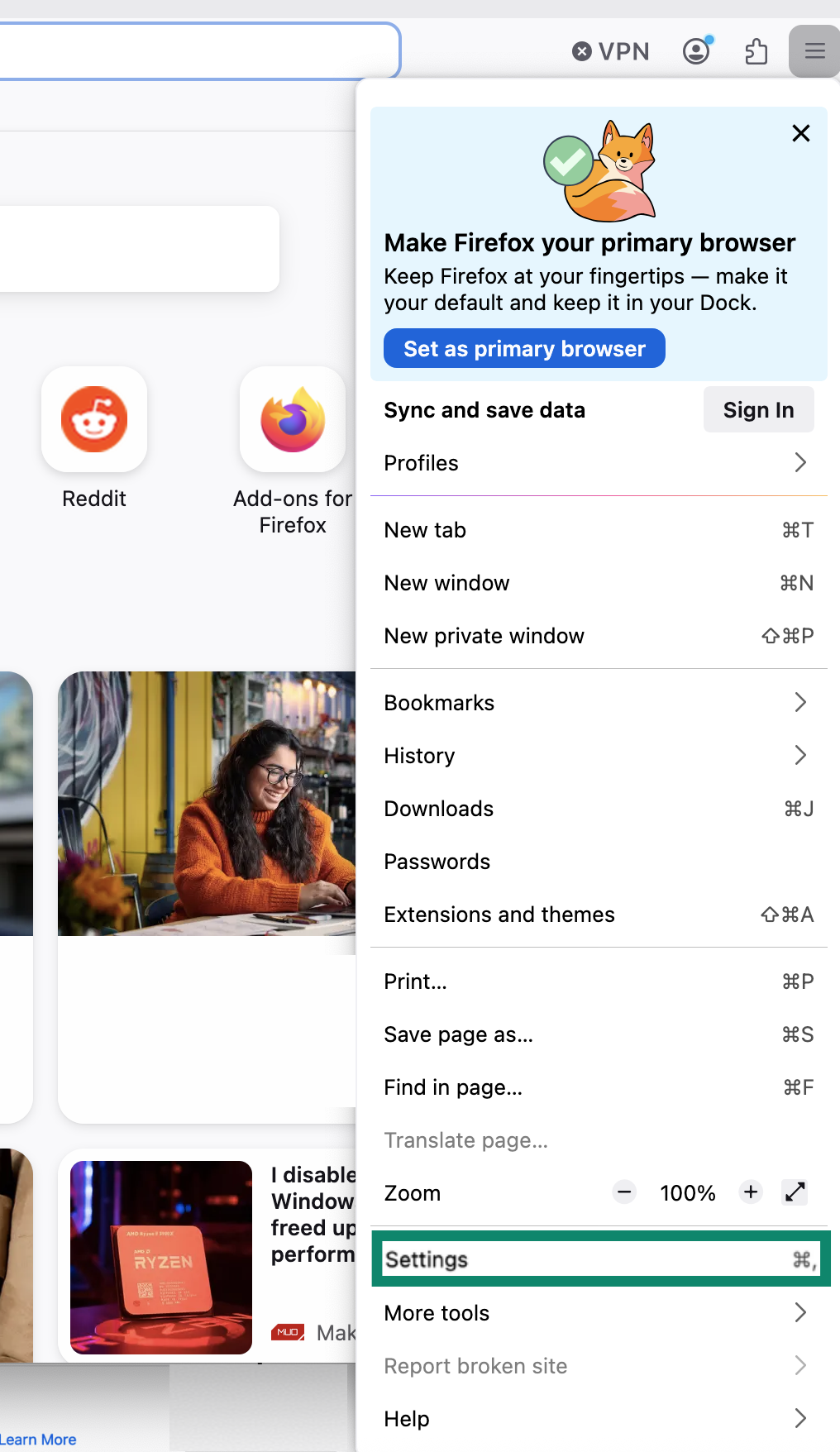
- In the Firefox browser, click in the top-right corner. Select Settings.
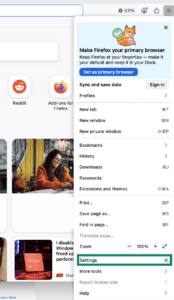

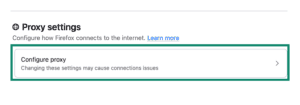
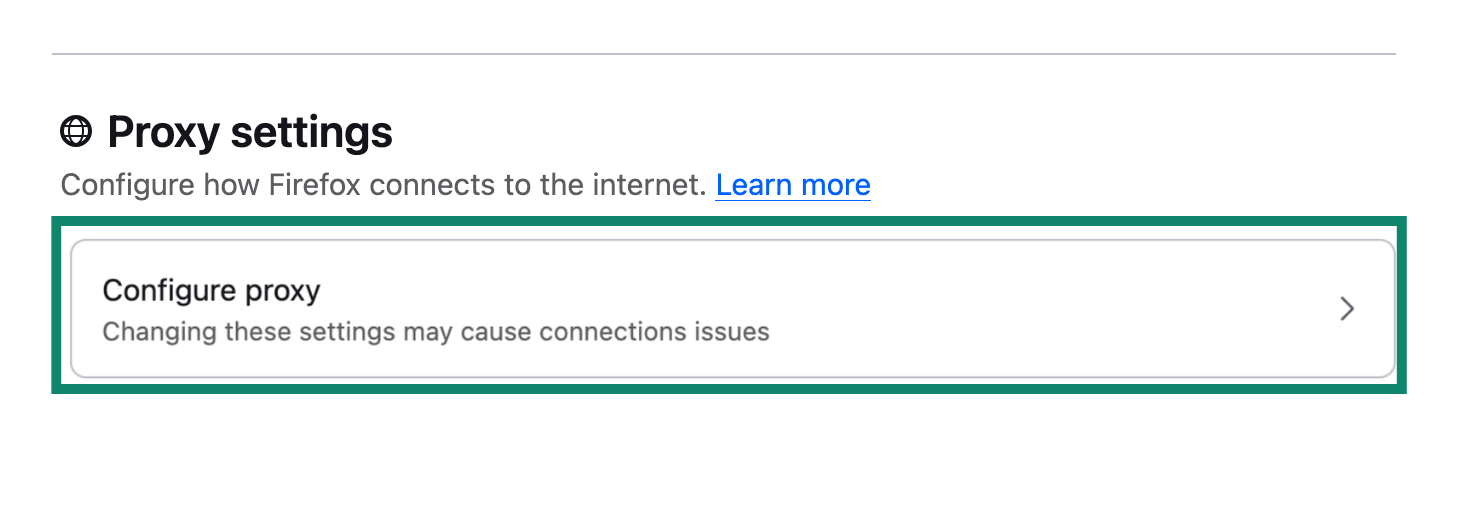
- In the General section, scroll down to Proxy Settings. Click Configure proxy.

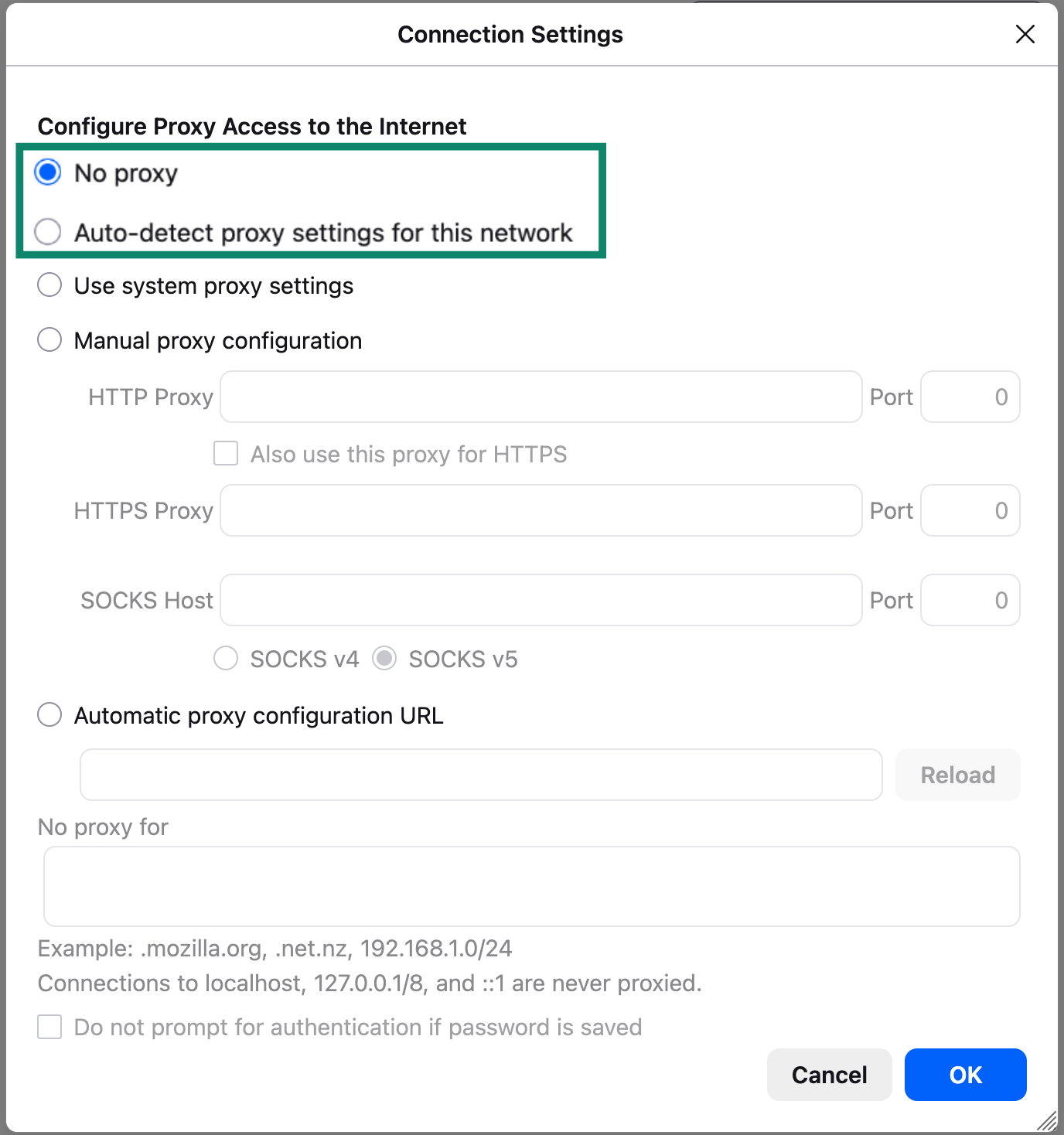
- Select either No proxy or Auto-detect proxy settings for this network.
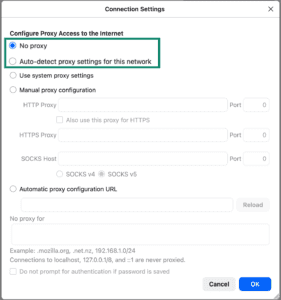

- Click OK.
Need help? Contact the ExpressVPN Support Team for immediate assistance.
Disable proxy settings on your iOS
When your iOS device is connected to a Wi-Fi network, you are using the network’s proxy server to access the internet. Follow these steps to disable the proxy settings on your device.
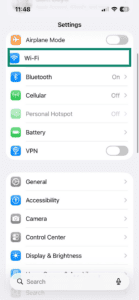
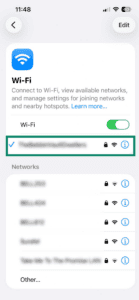
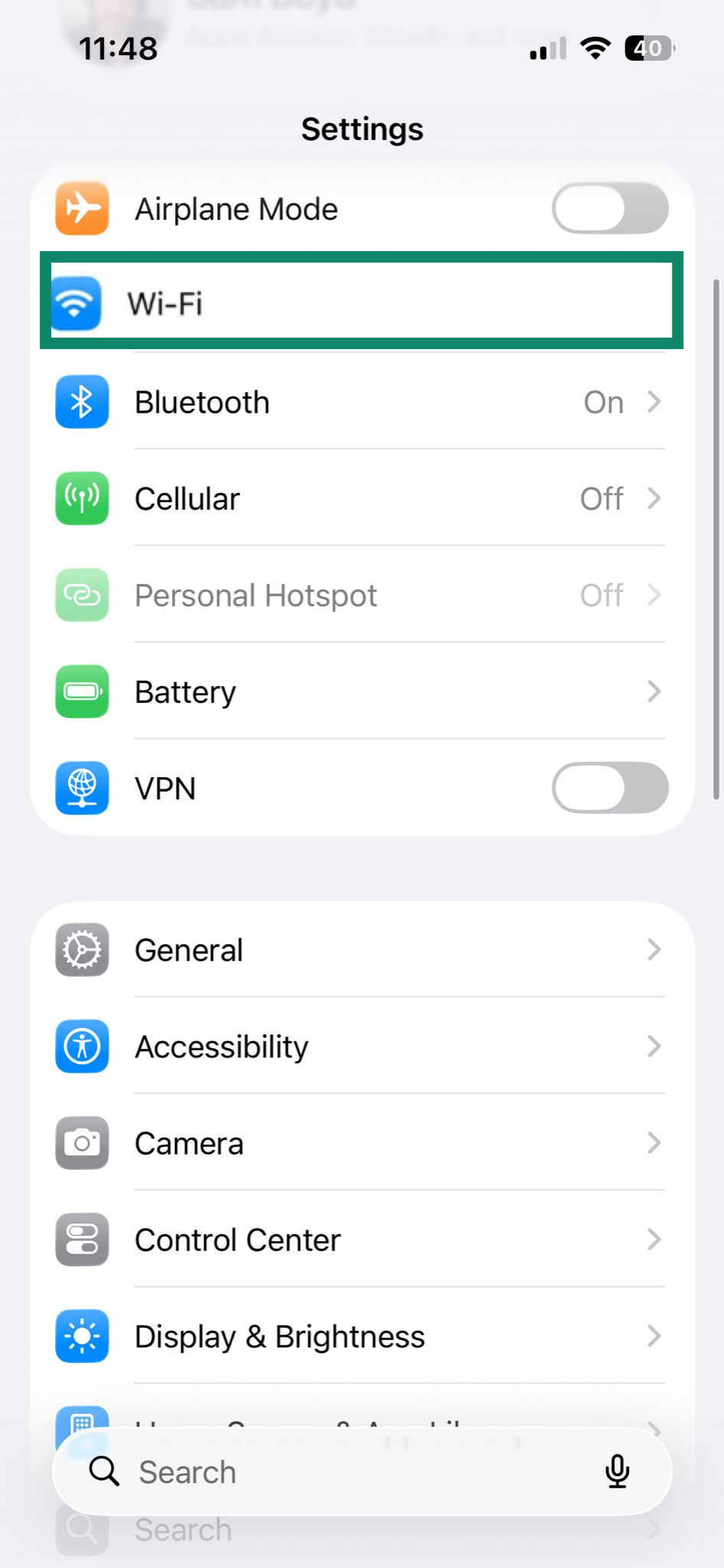
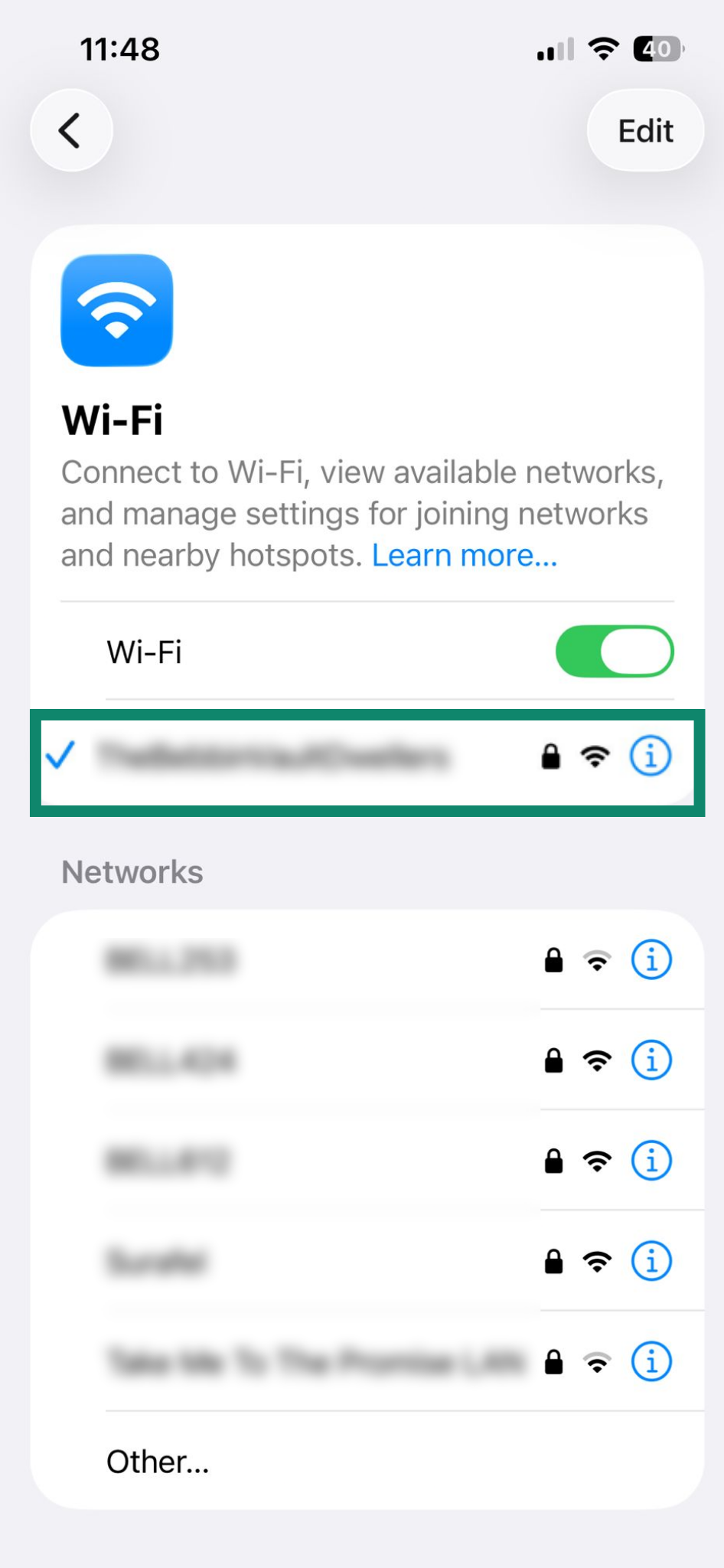
- On your iOS device, open Settings. Tap Wi-Fi.

- Select your current active Wi-Fi network.
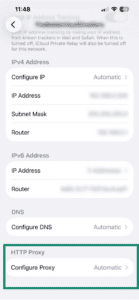
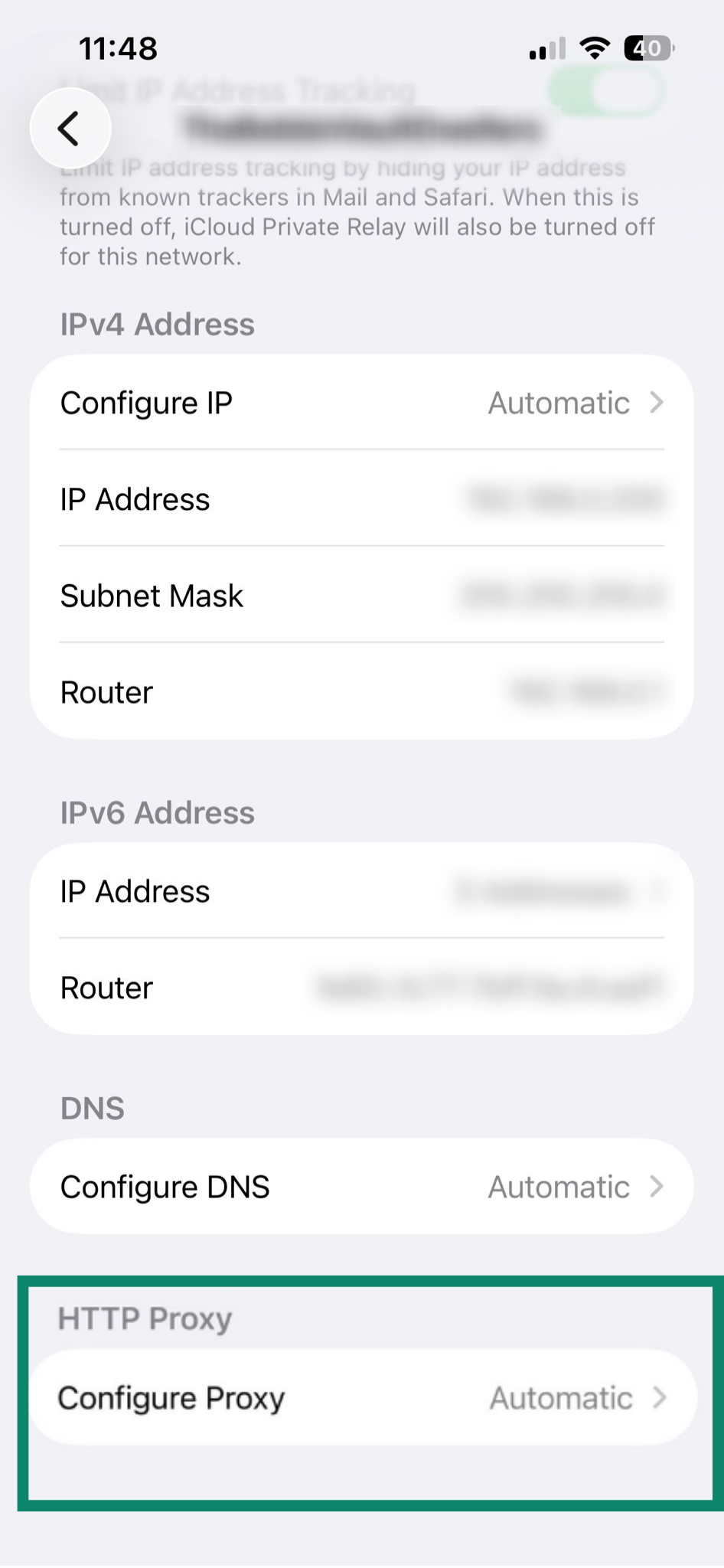
- Scroll down to HTTP PROXY. Tap Configure Proxy.
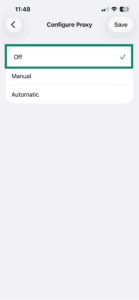
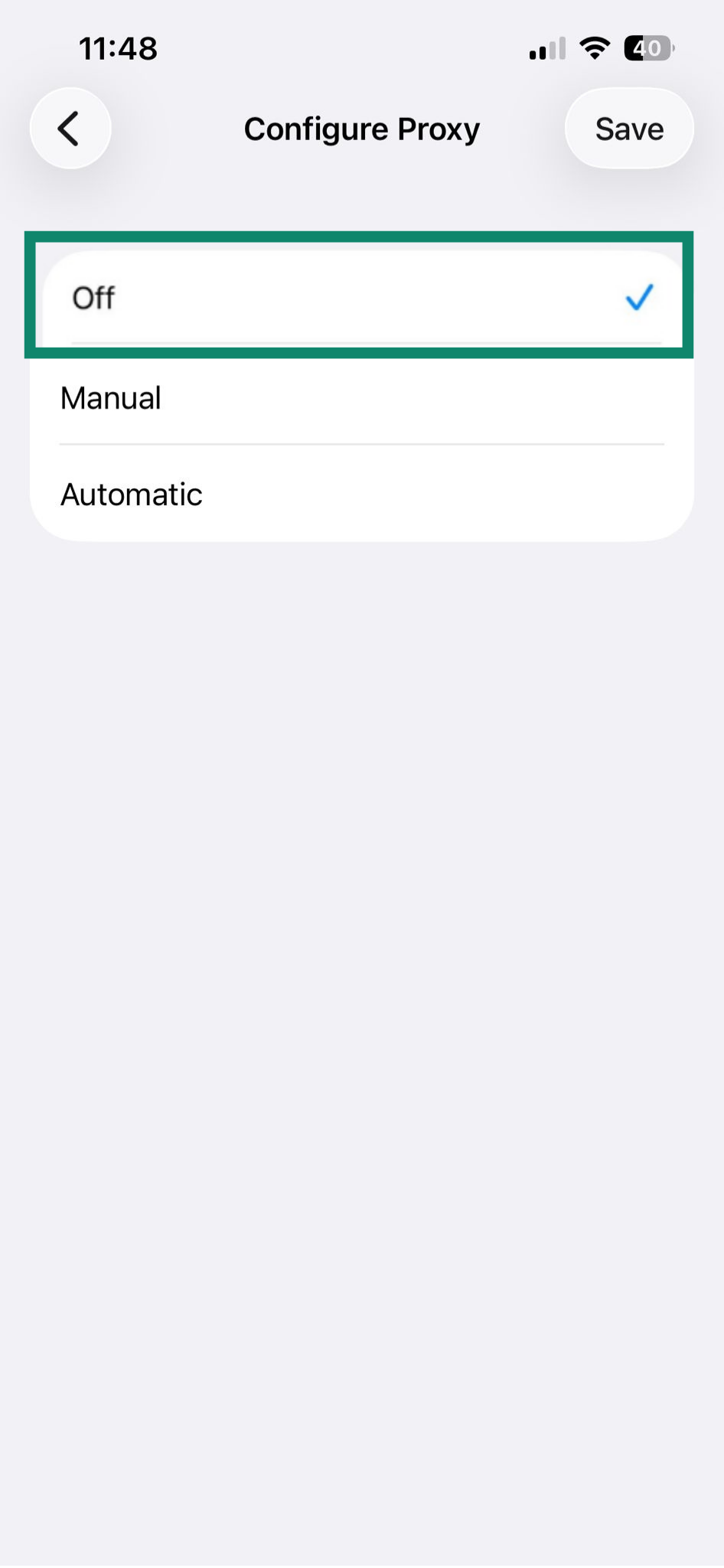
- Tap Off > Save.
Need help? Contact the ExpressVPN Support Team for immediate assistance.
Disable proxy settings on Android
When your Android device is connected to a Wi-Fi network, you are using the network’s proxy server to access the internet.
Follow these steps to disable the proxy settings on your Android device.
Note: Steps may vary slightly depending on your Android device and version.
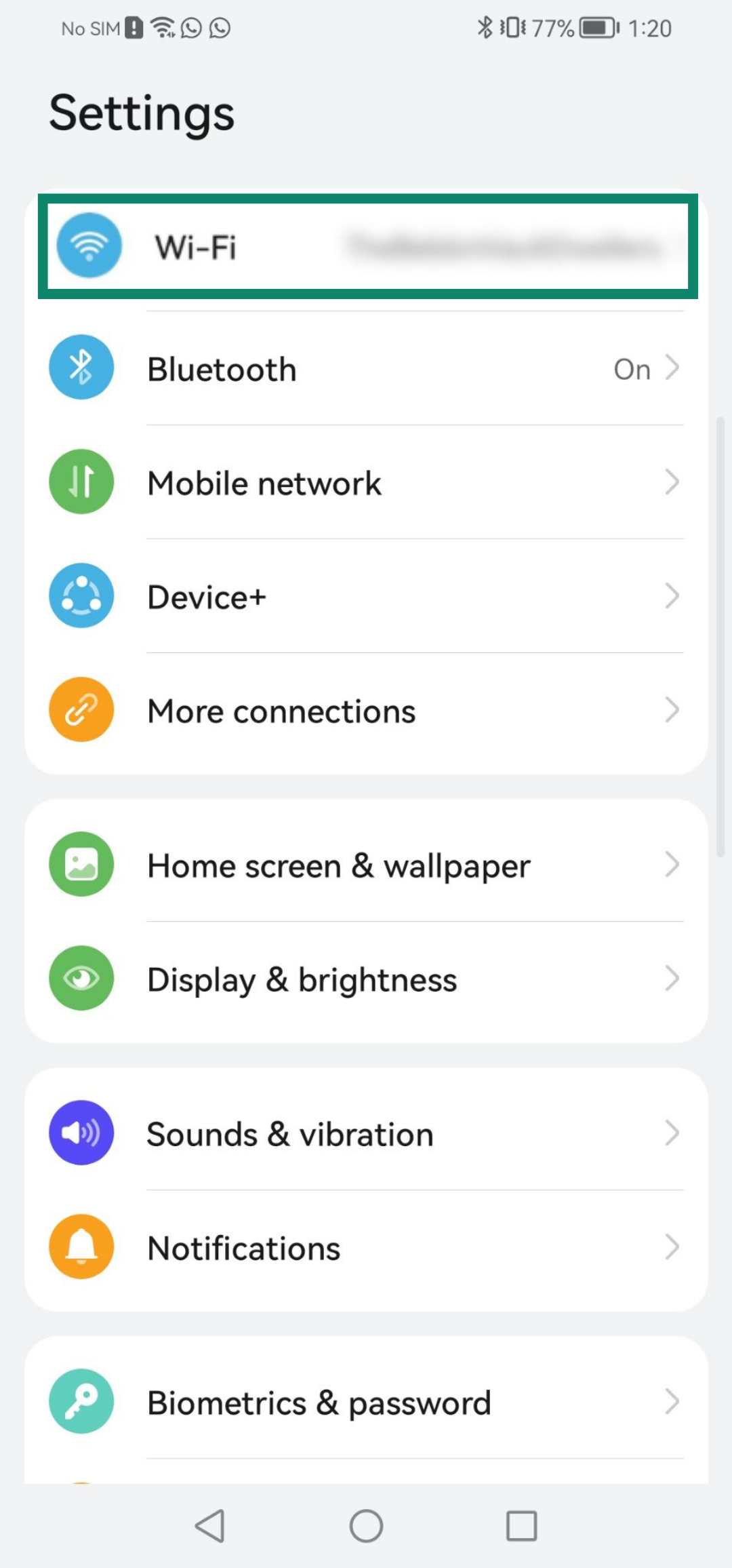
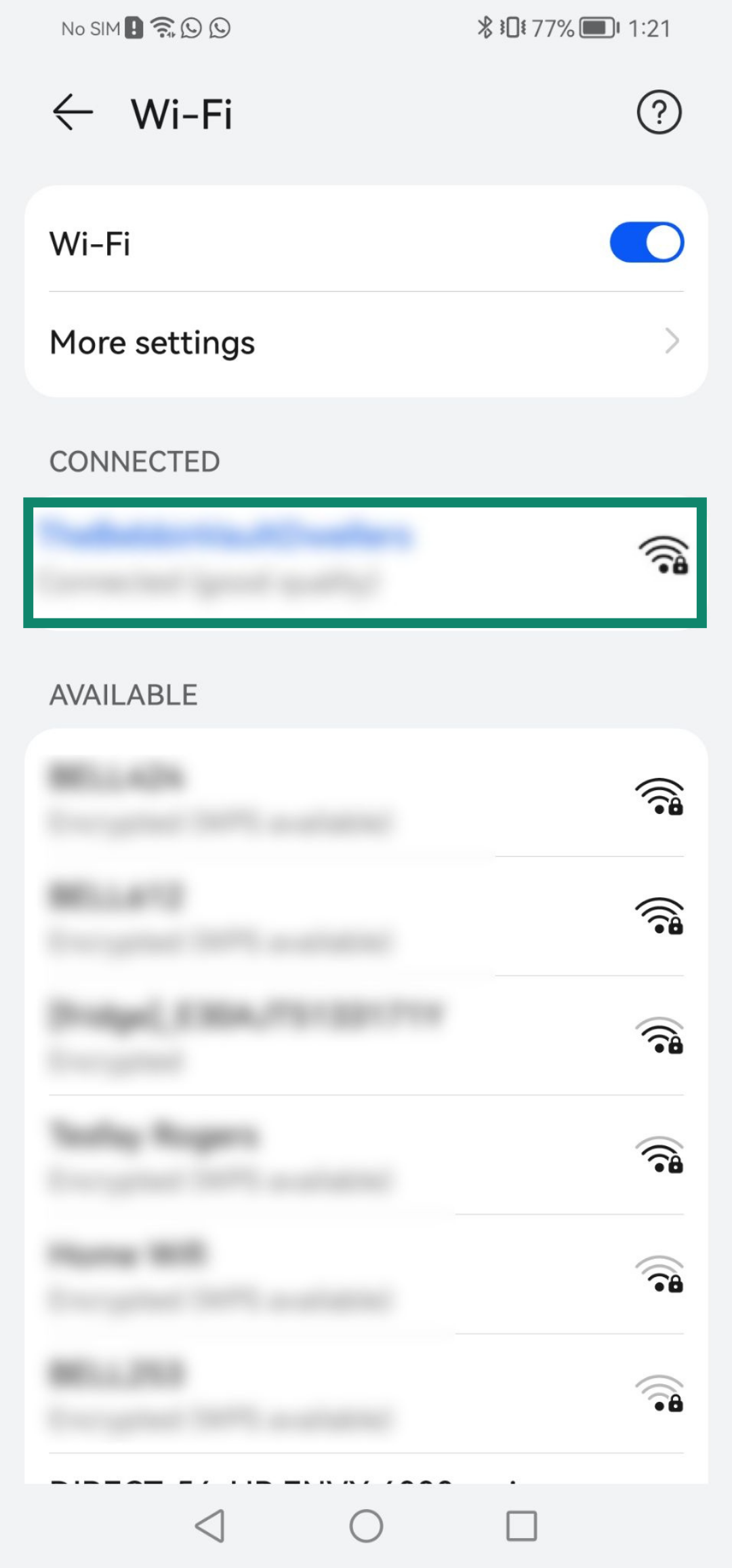
- Go to Settings > Wi-Fi.
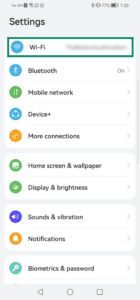

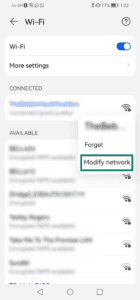
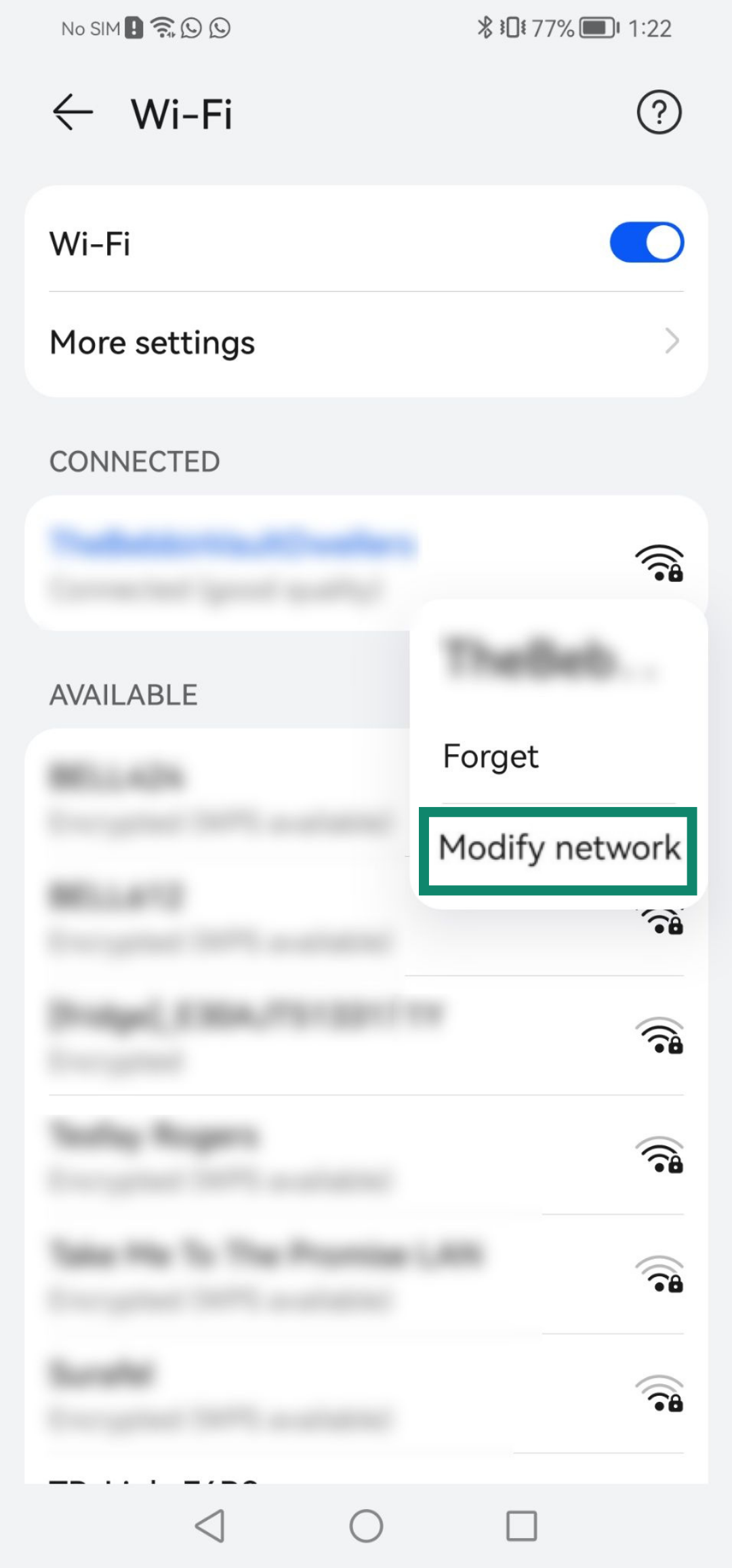
- Long-press your current active Wi-Fi network.
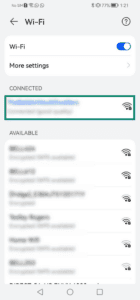
- Tap Modify network.
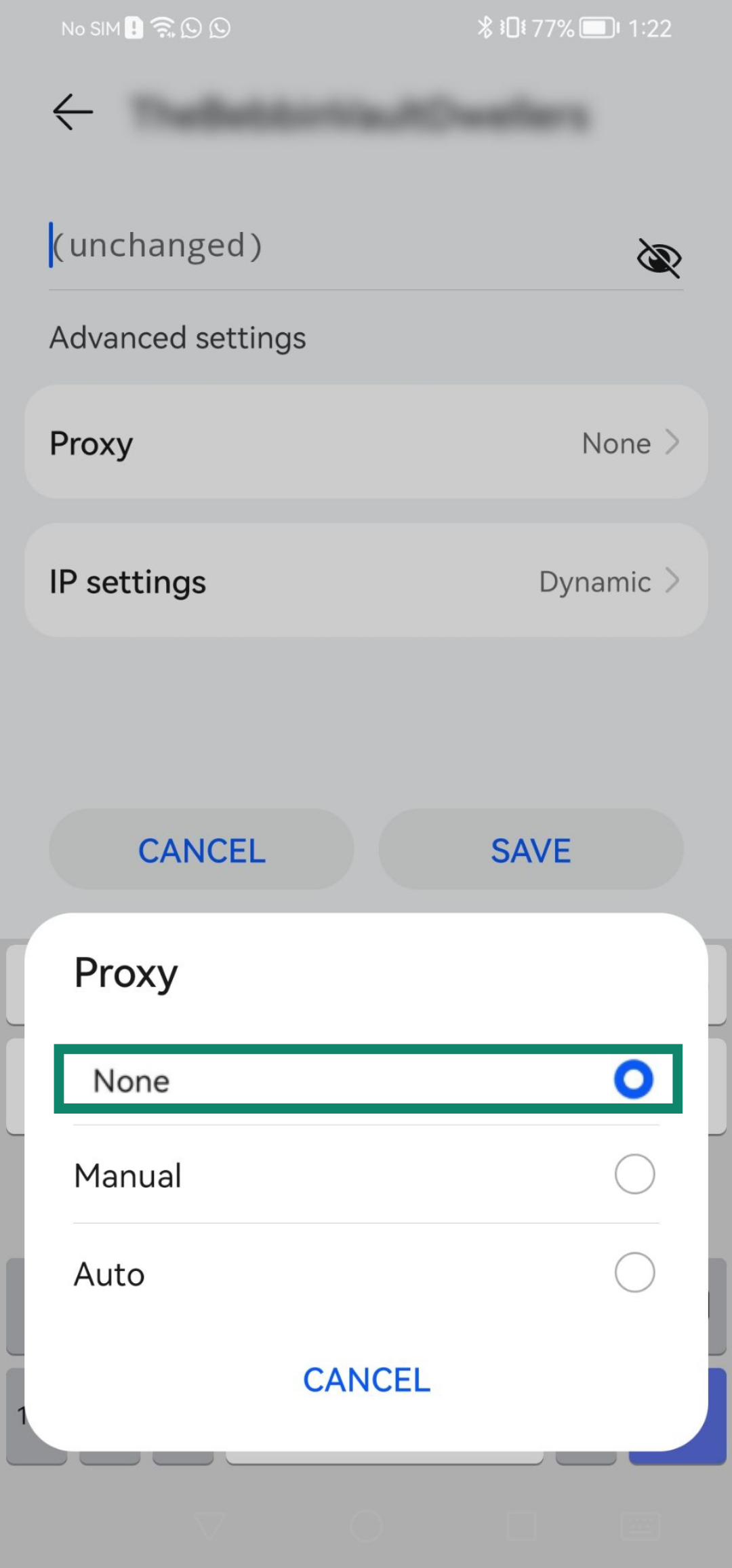
- Tap Proxy > None.
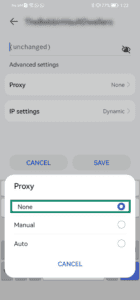
- Tap Save.
Need help? Contact the ExpressVPN Support Team for immediate assistance.