If you can’t send emails while connected to ExpressVPN, the VPN might have blocked your email client’s TCP port 25, which is used to transfer emails between mail servers.
To resolve the issue on desktop or Android, you can adjust your settings in the ExpressVPN app.
Jump to…
Allow access to the local network on desktop
Exclude your email app from connecting to the VPN (desktop)
Exclude your email app from connecting to the VPN (Android)
Contact ExpressVPN Support
Allow access to the local network on desktop
If you’re using the ExpressVPN app on desktop, you should allow access to your local network first. This ensures your email app can communicate with devices and services on your network while connected to the VPN.
If you’re using ExpressVPN on Android, you don’t need to change this setting. The ExpressVPN Android app allows local network access by default. You can skip to excluding your email app from connecting to the VPN on Android.
To allow access to the local network on desktop:
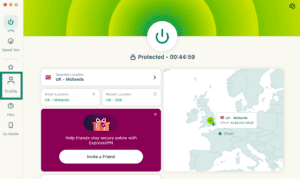
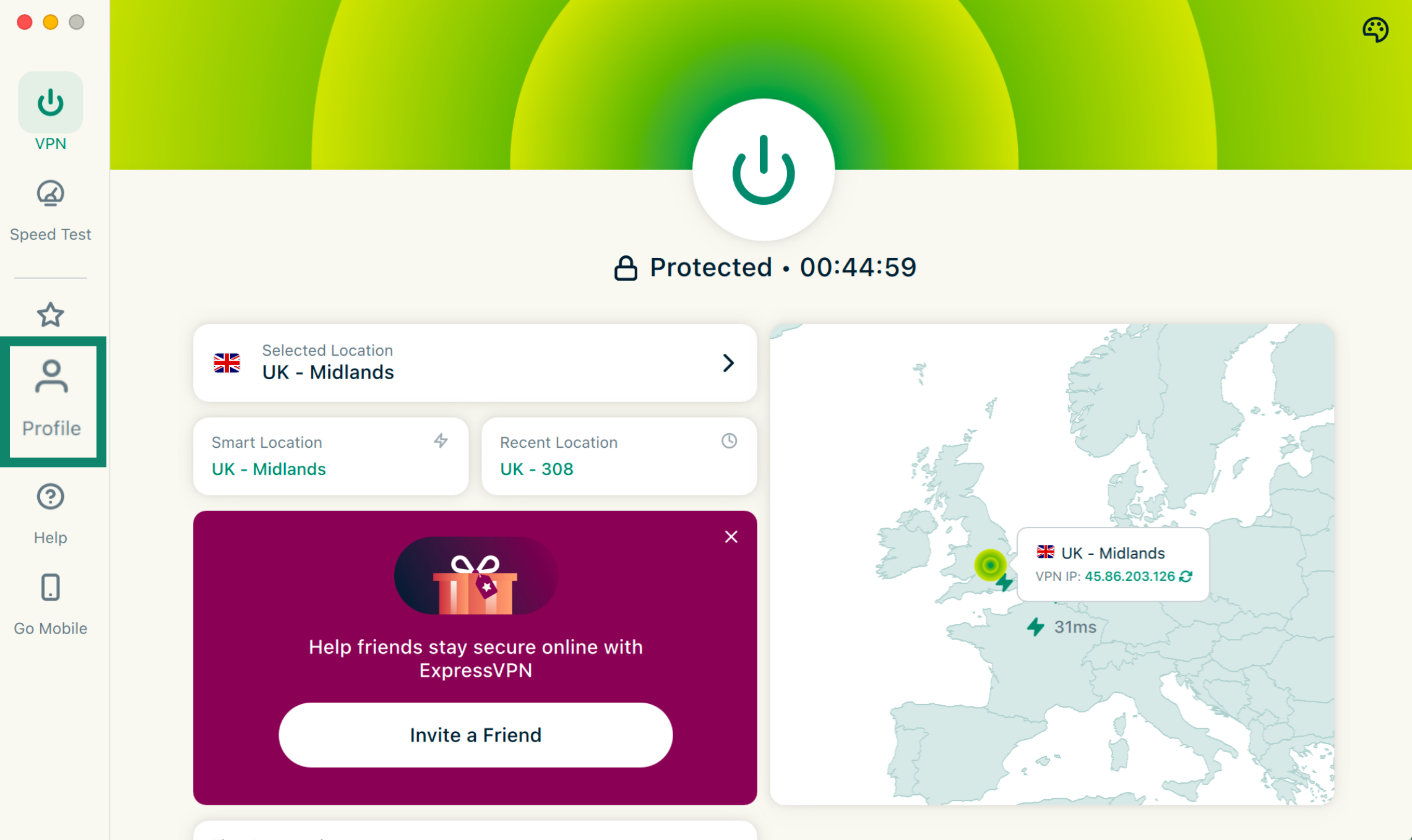
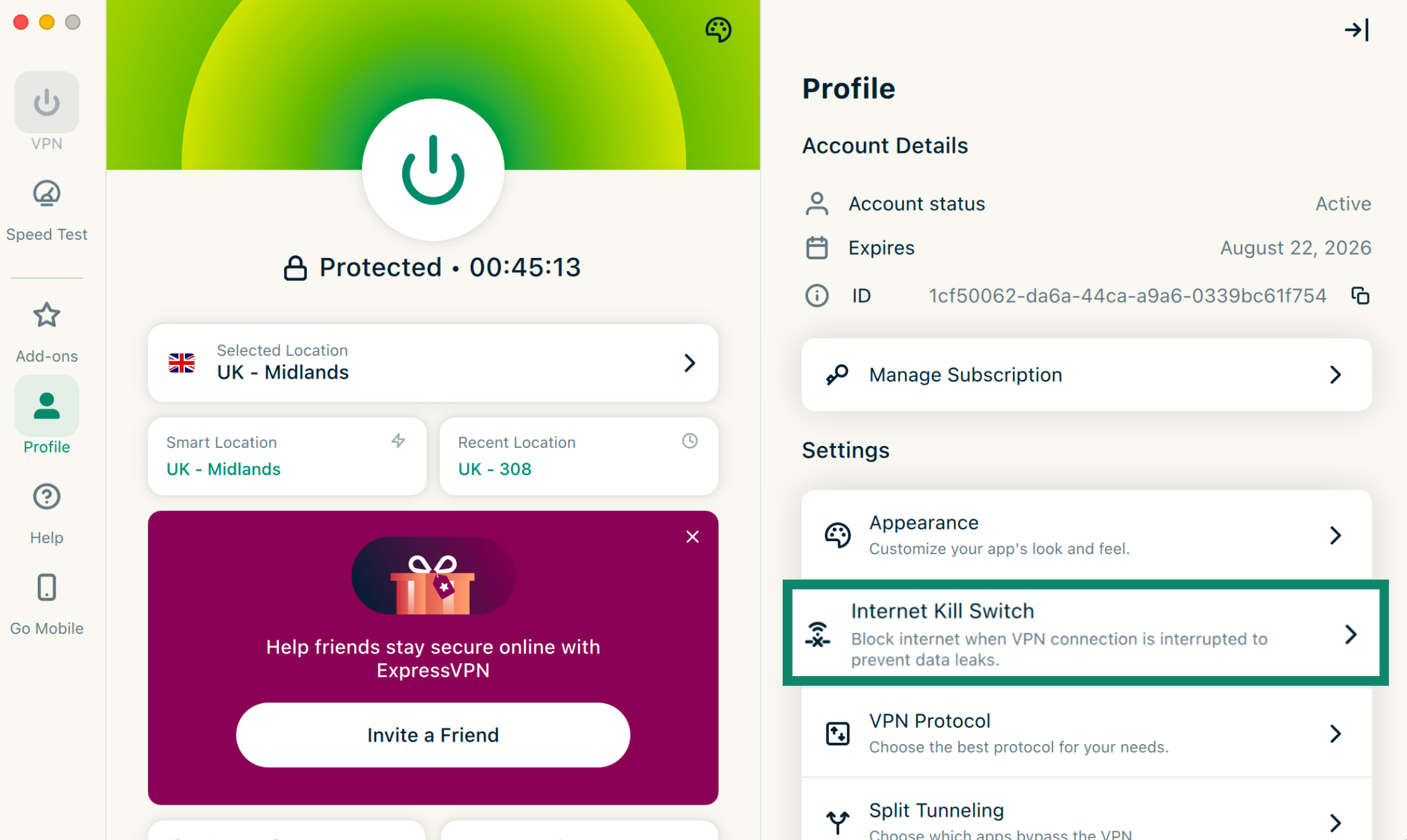
- On the ExpressVPN apps for Windows, Mac, or Linux, click the Profile tab.

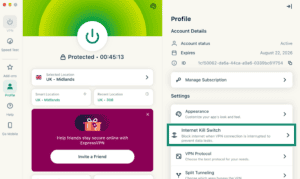
- Under Settings, click Internet Kill Switch.

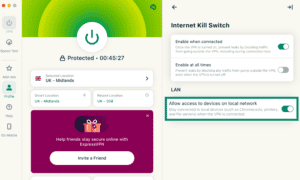
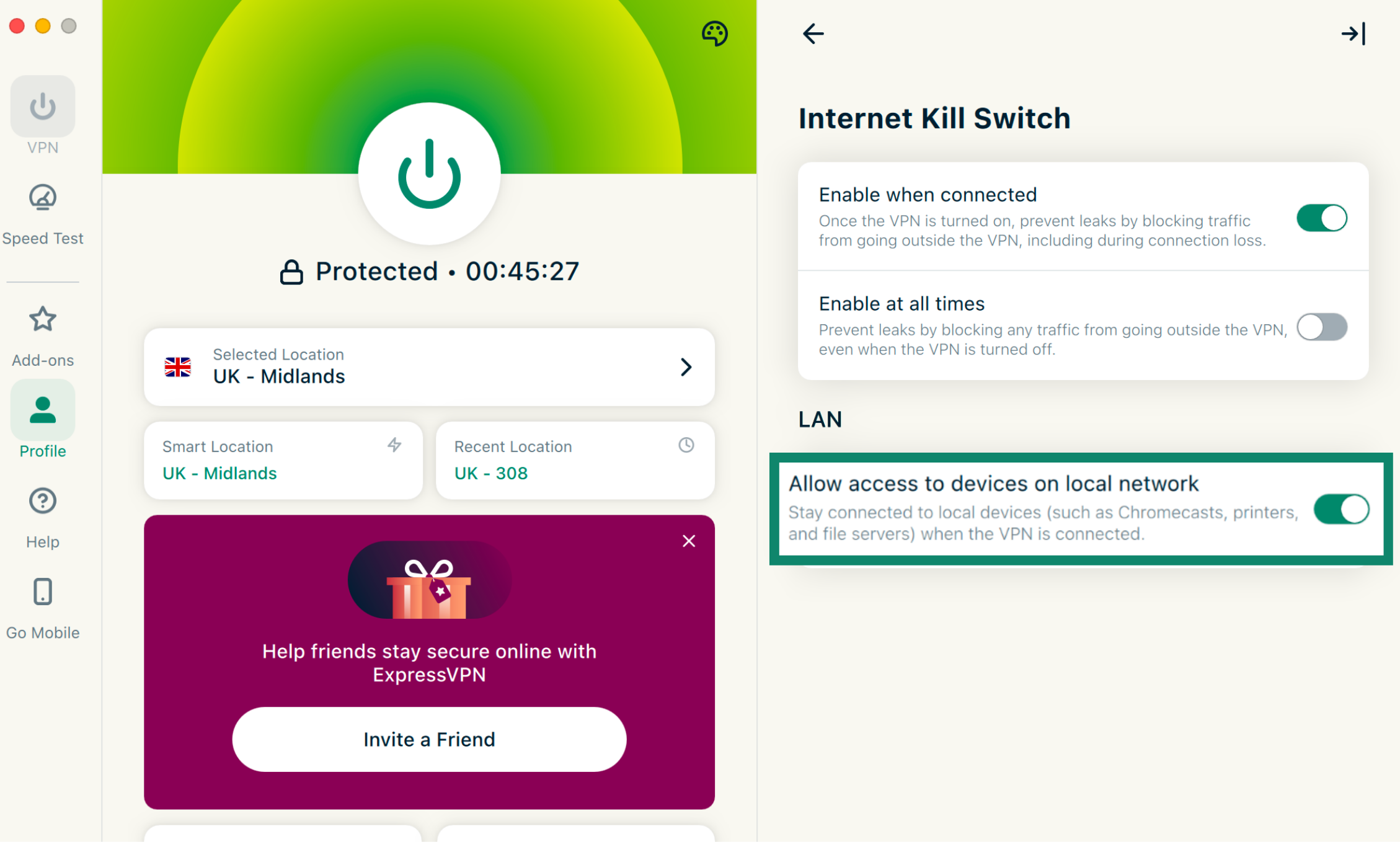
- Under LAN, click Allow access to devices on local network to toggle on.

Need help? Contact the ExpressVPN Support Team for immediate assistance.
Exclude your email app from connecting to the VPN (desktop)
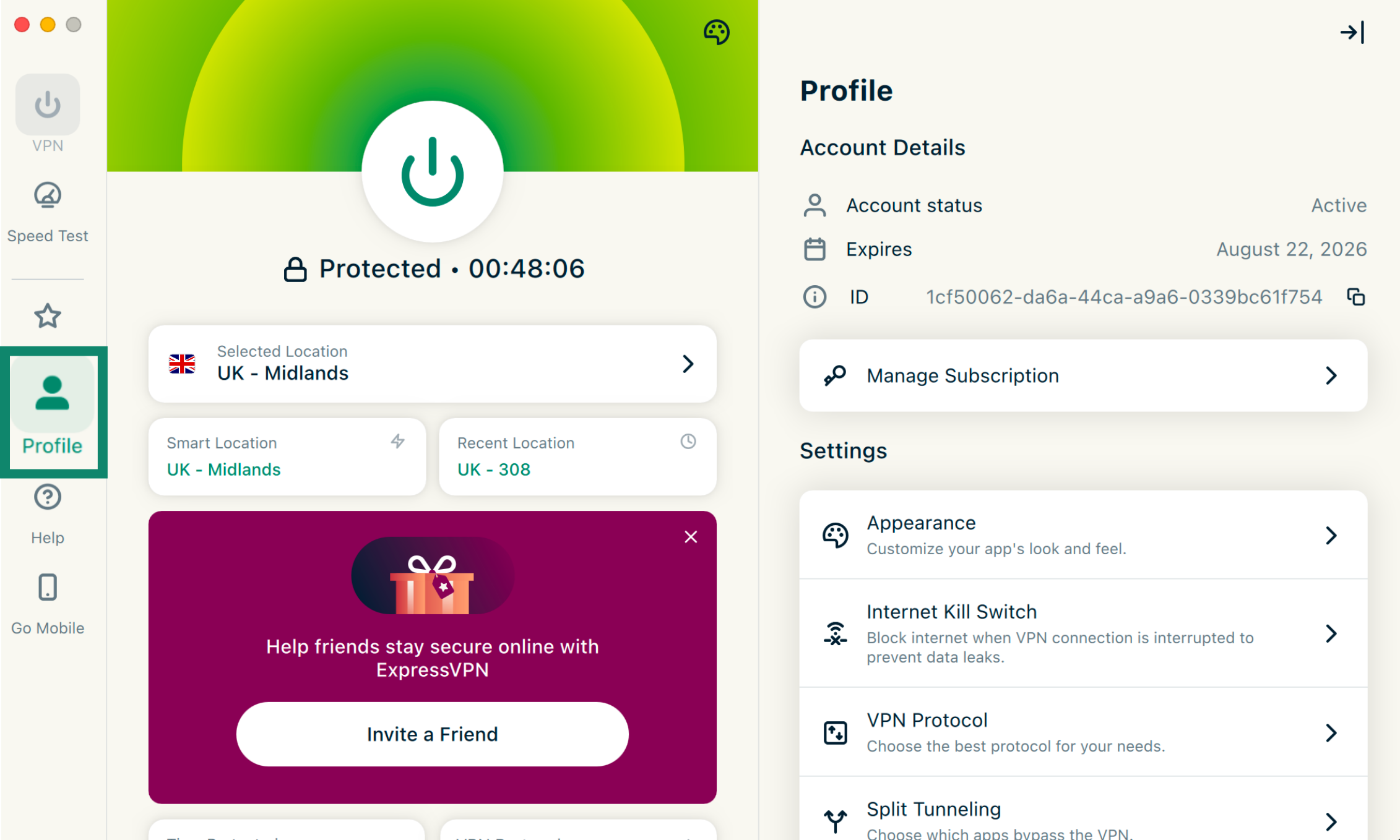
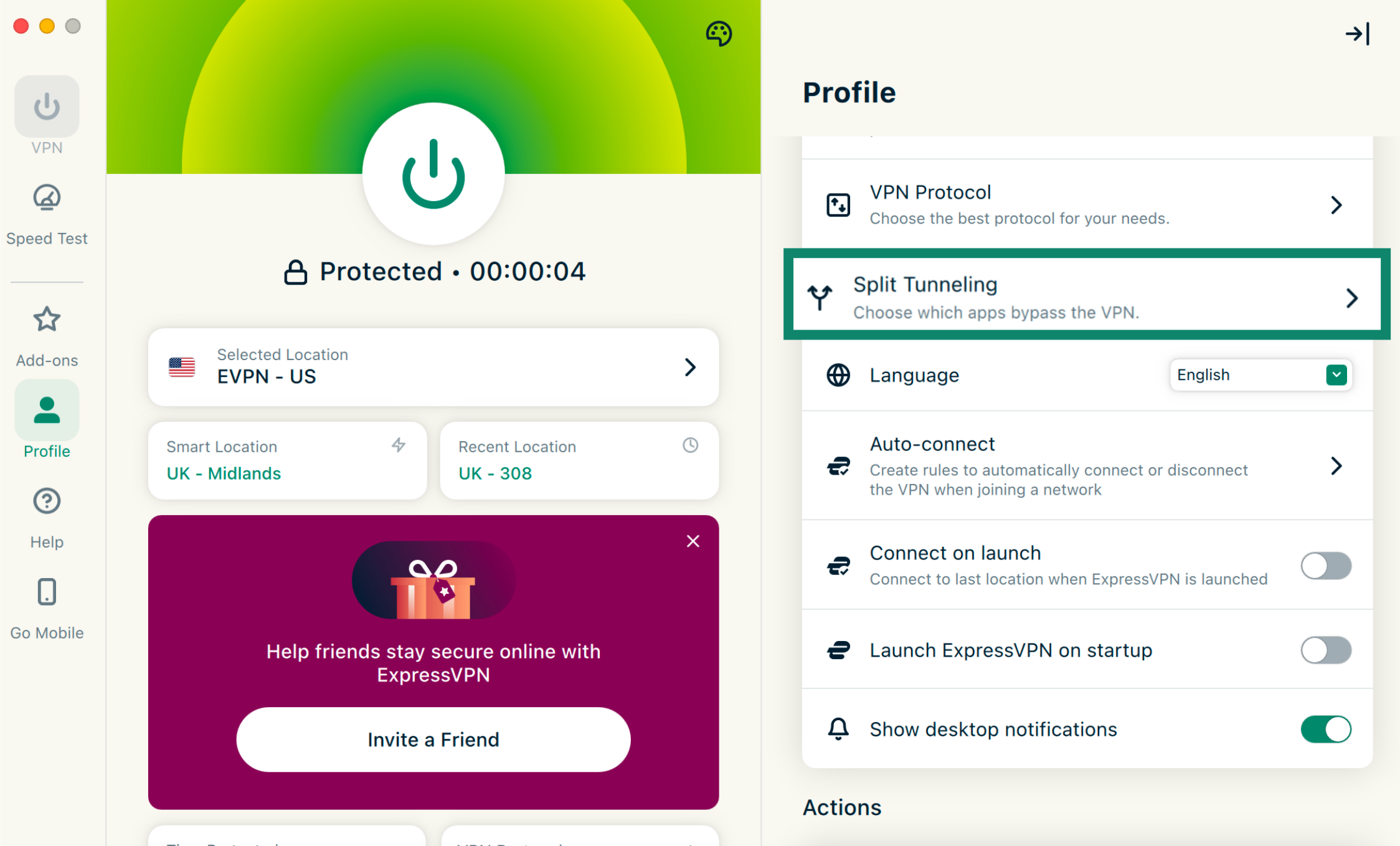
Once you’ve allowed local access, you can use ExpressVPN’s split-tunneling feature to exclude your email app from connecting to the VPN on desktop. To do so:
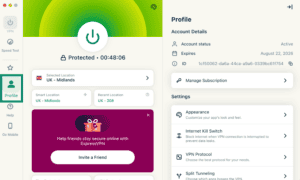
- On the ExpressVPN apps for Windows, Mac, or Linux, click the Profile tab.

- Click Split Tunneling.
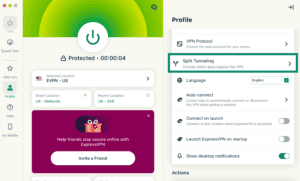

- Toggle Enable Split Tunneling on.
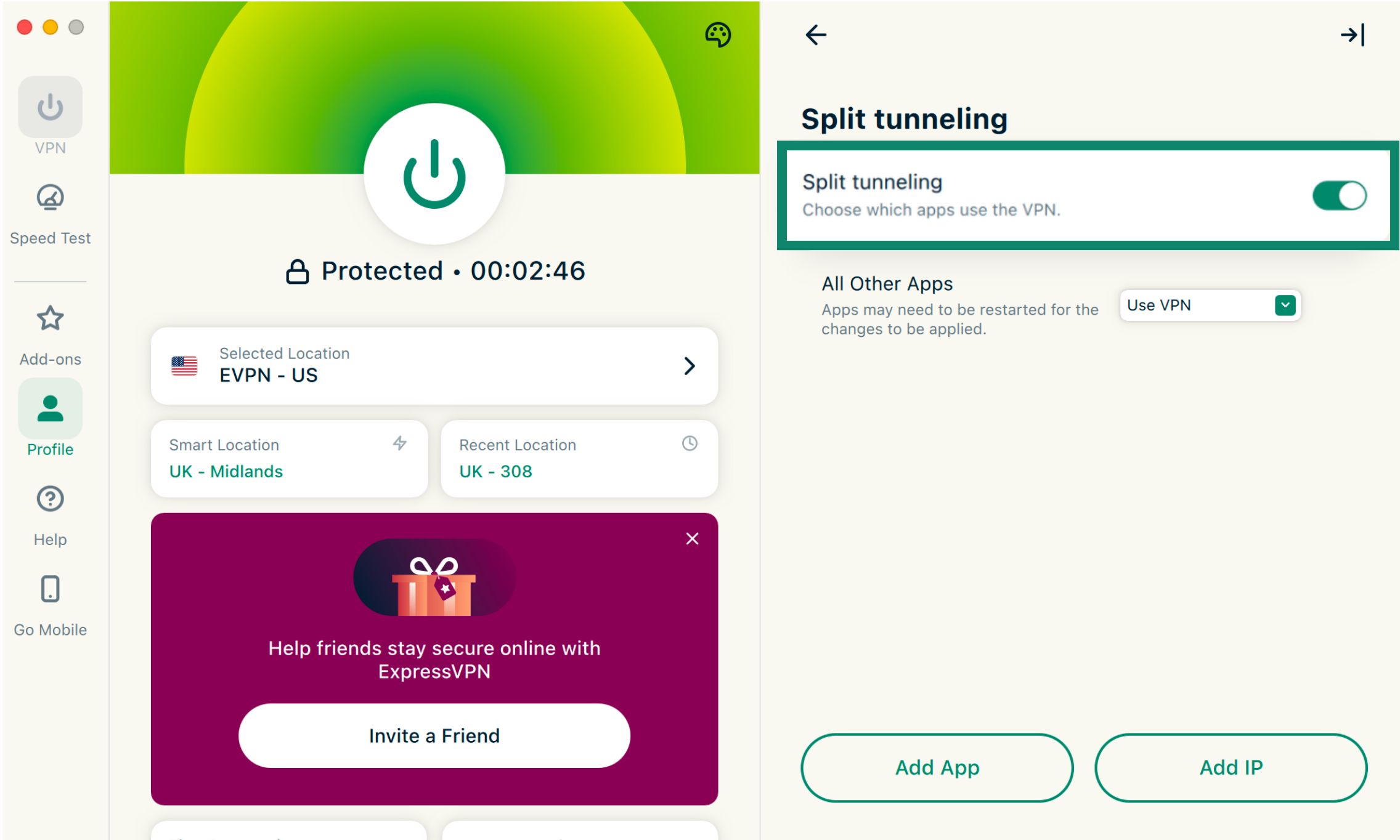
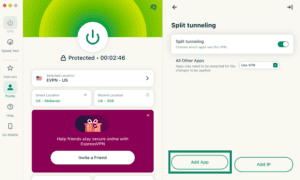
From there, you can add your email app and set up a rule for it bypass the VPN:
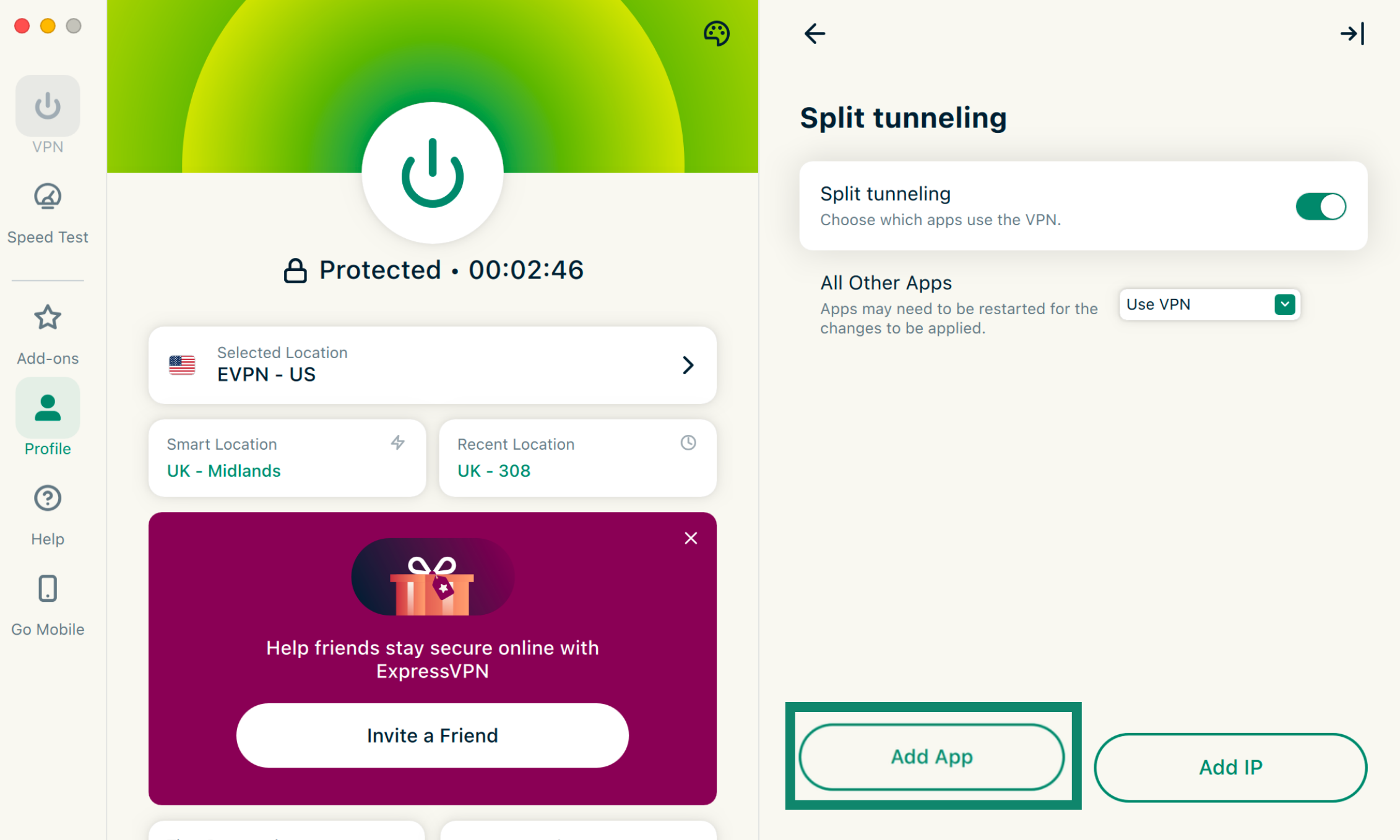
- Click Add App.
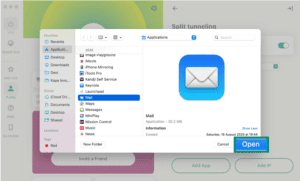
- Select your email app and click Open.
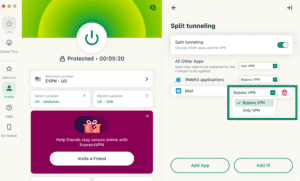
- Click the dropdown next to the app you just added and select Bypass VPN.
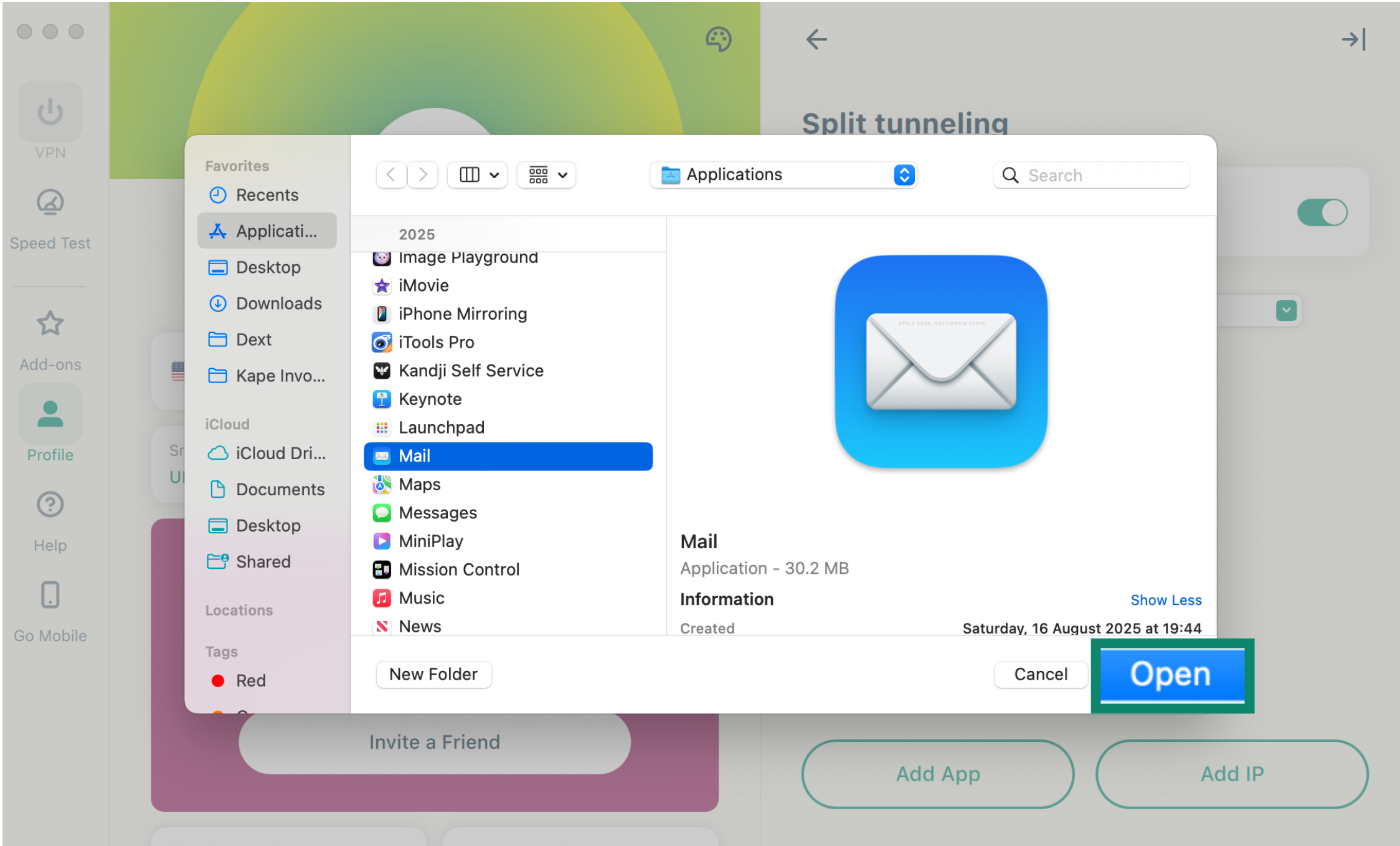
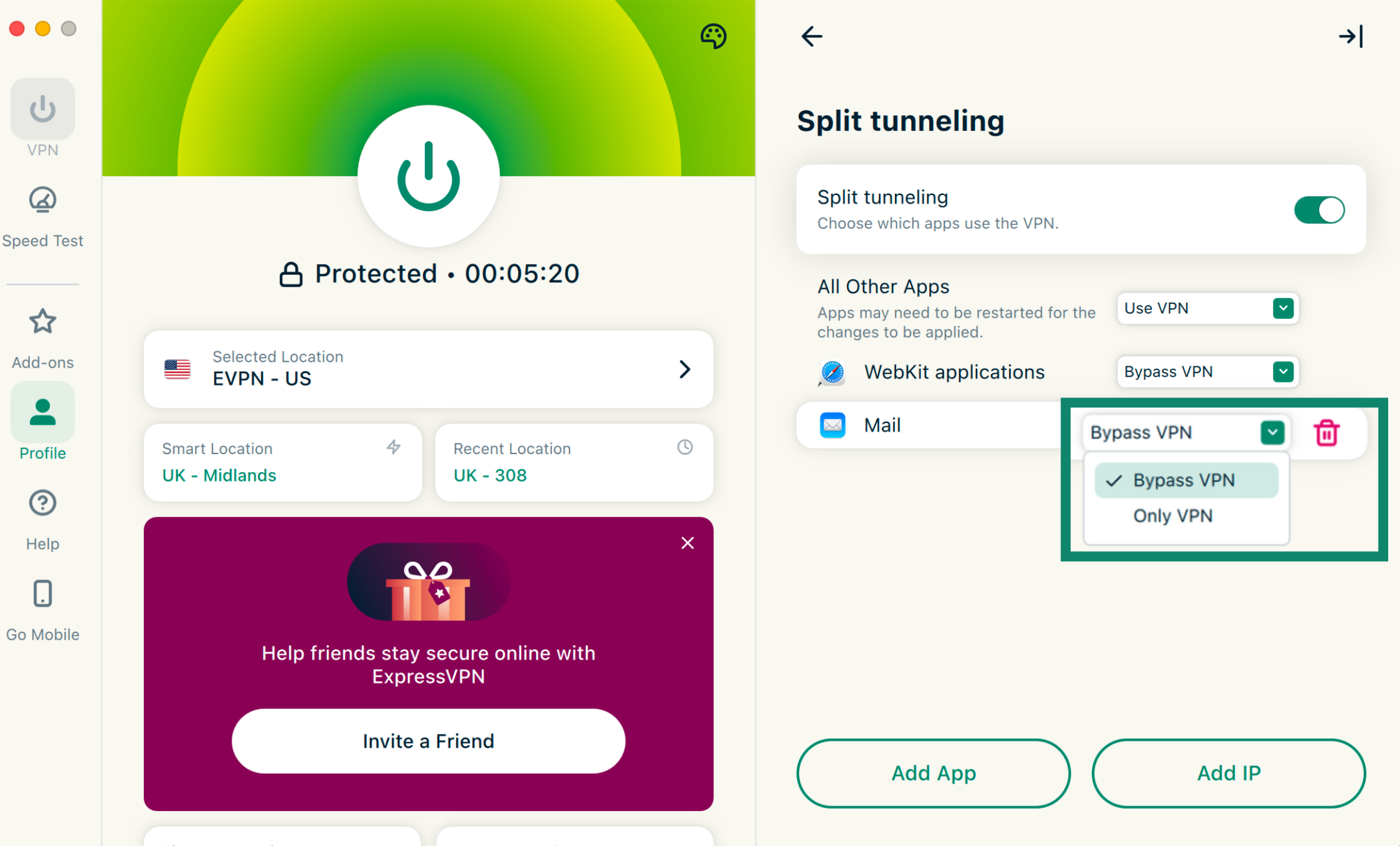
Need help? Contact the ExpressVPN Support Team for immediate assistance.
Exclude your email app from connecting to the VPN (Android)
To exclude your email app from the ExpressVPN app on Android:
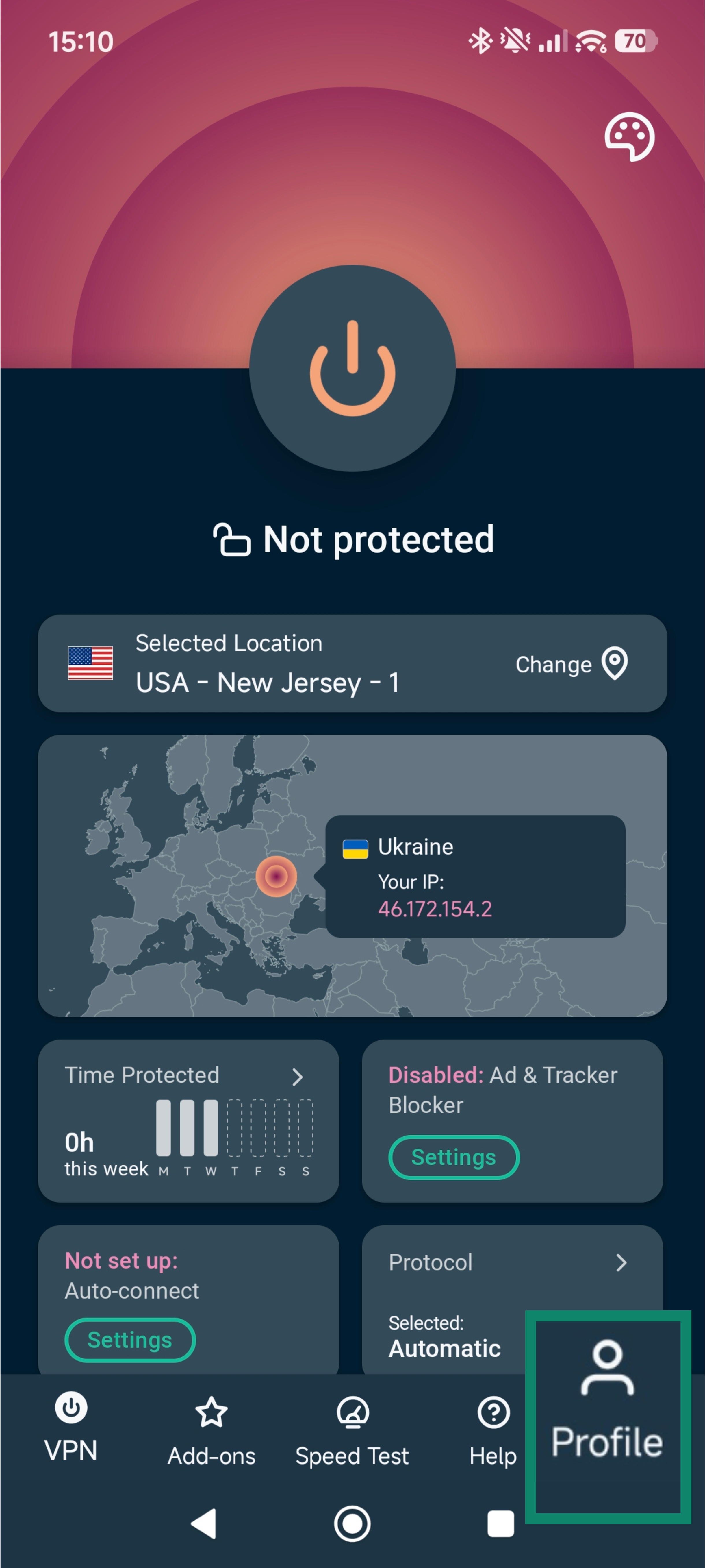
- Open the ExpressVPN app and tap the Profile icon.
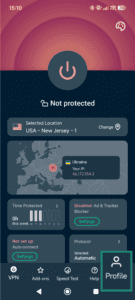

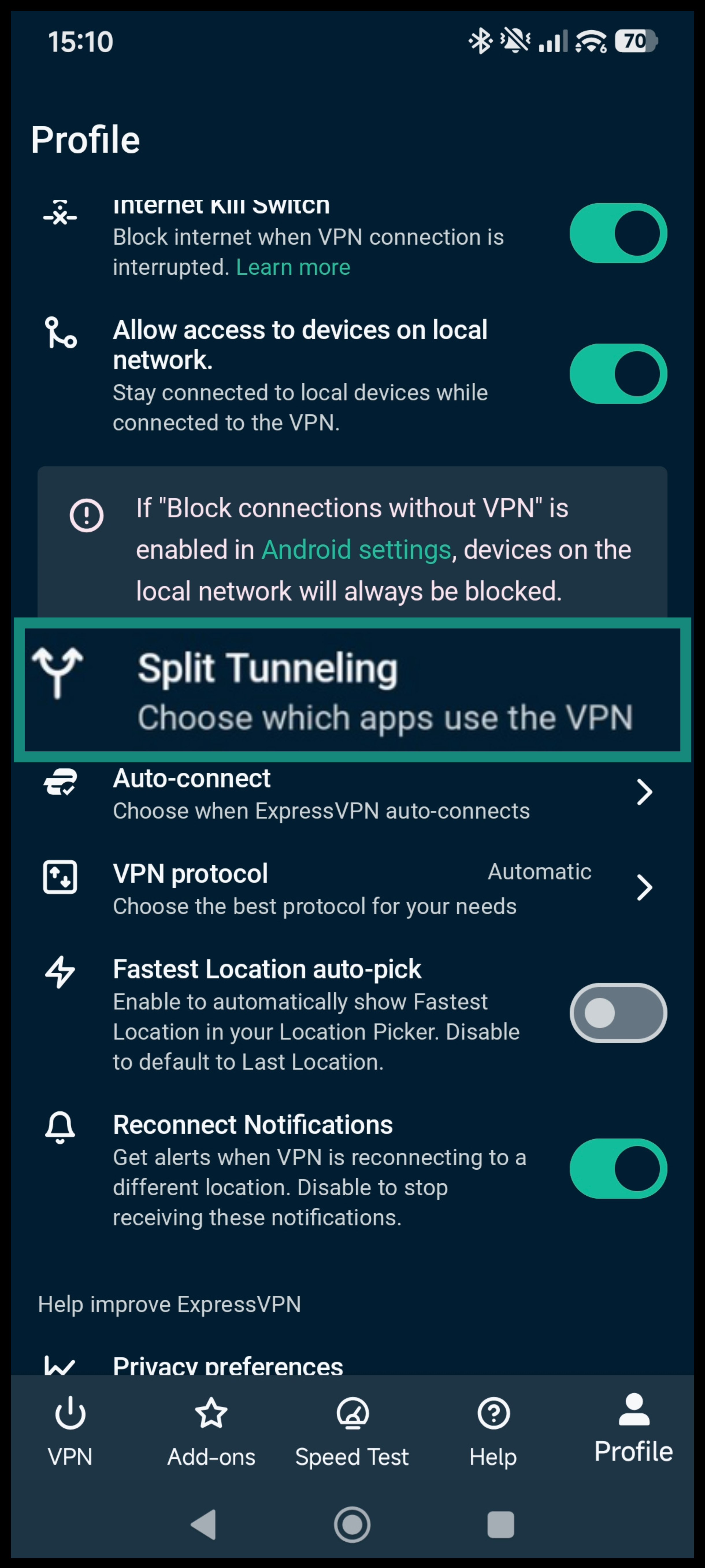
- Scroll down and select Split tunneling.
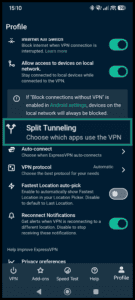
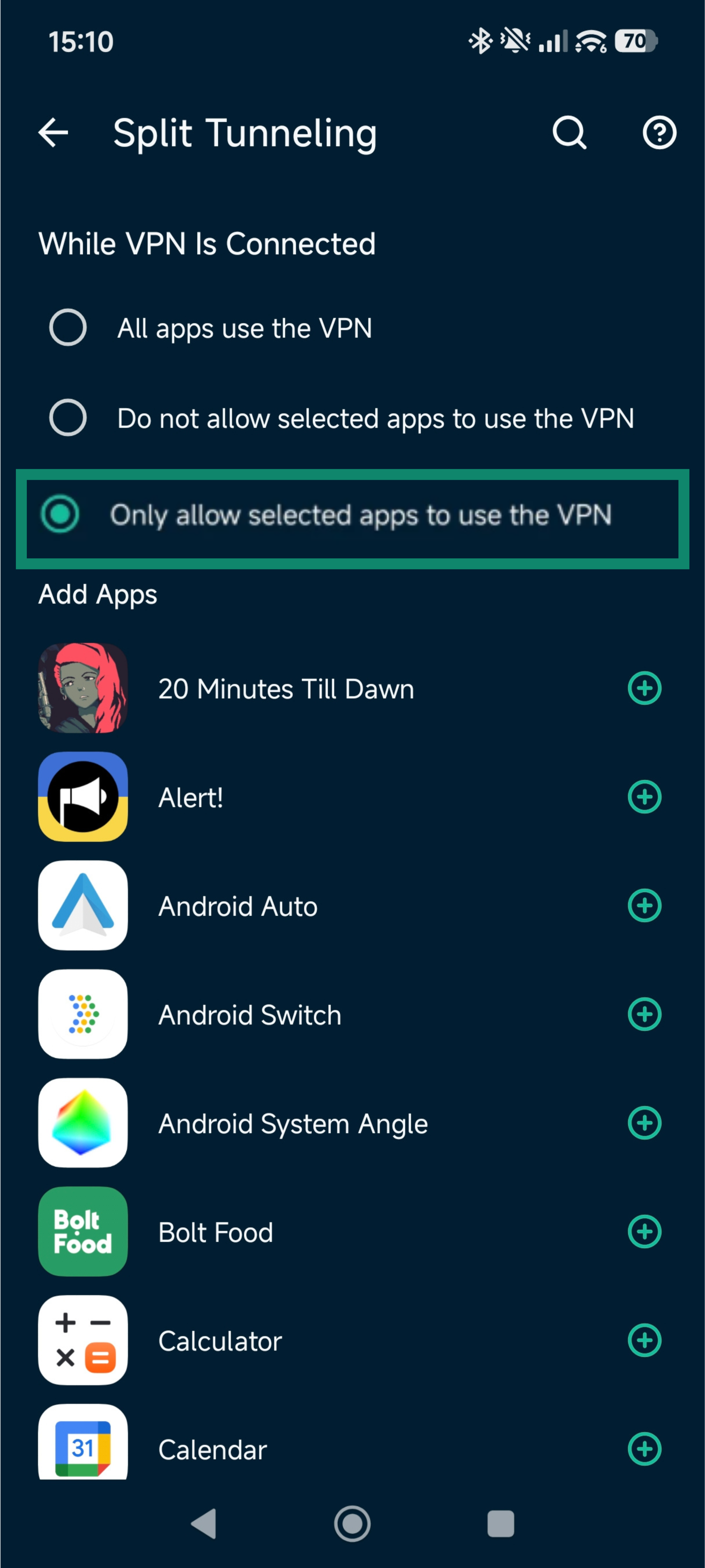
- Select Only allow selected apps to use the VPN.
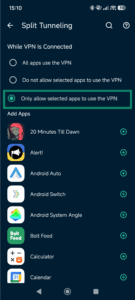
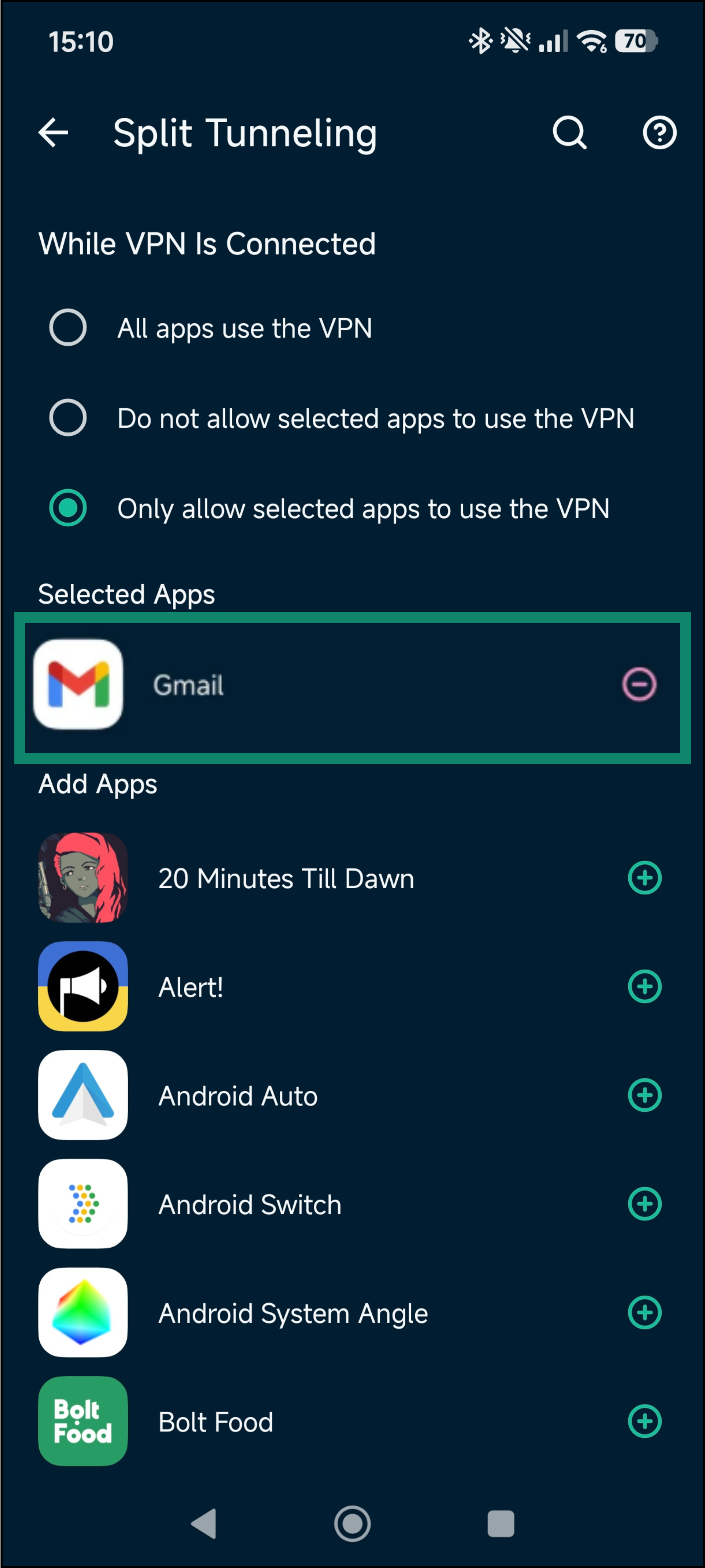
- Select your email app (for example, Gmail) from the list of apps.
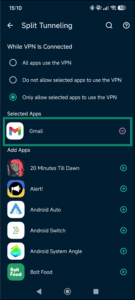
- Tap the back arrow to apply the change.
Need help? Contact the ExpressVPN Support Team for immediate assistance.
4. Contact ExpressVPN Support
If the issue persists, you may need to:
- Update to the latest version of your email app.
- Change your outgoing port number from 25 to 587.
- Disconnect from ExpressVPN to access your email. This may be necessary if you’re using your ISP’s email server and it blocks email traffic coming from outside of its own network.
Need help? Contact the ExpressVPN Support Team for immediate assistance.