Expressvpn Glossary
User Account Control (UAC)

What is UAC?
User Account Control (UAC) is a Windows security feature that helps prevent unauthorized system changes by requiring approval before admin-level actions can run. It exists to reduce the risk of malware or unintended programs making administrative changes without explicit user approval.
How User Account Control (UAC) works
UAC runs most applications with standard user privileges by default, even when an account has administrative rights. When a process attempts an action that requires elevated permissions, such as installing software or changing system settings, Windows interrupts the request and displays a UAC prompt to confirm or authorize the change.
The prompt depends on the type of user requesting the change. Standard users are prompted to enter an admin password, whereas administrators see a yes/no prompt.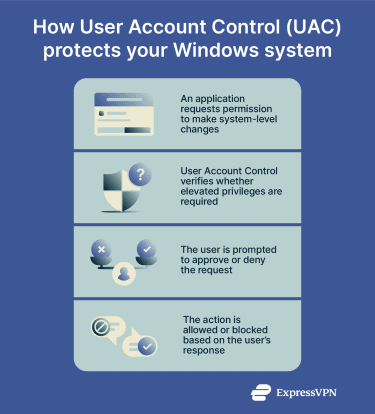
Common actions that trigger a UAC prompt
UAC prompts appear when Windows detects actions that could impact system settings or affect all users. Here are some examples of actions that can trigger a prompt:
- Installing or uninstalling software that modifies protected directories.
- Changing system settings such as firewall configurations, drivers, or device manager settings.
- Editing Windows registry keys, such as HKEY_LOCAL_MACHINE (HKLM) or HKEY_CLASSES_ROOT (HKCR), which affect all accounts on a system.
- Modifying user account permissions, such as promoting a user to an administrator or disabling existing account privileges.
- Running apps with elevated privileges.
UAC levels and settings
Windows UAC includes several notification levels that control how often prompts appear and how disruptive they are:
- Always notify: Prompts for any app that tries to install software or make system changes, and for changes to Windows settings.
- Notify me only when apps try to make changes (default): Prompts when apps request admin permissions, but not when Windows settings are changed by an administrator.
- Notify me only when apps try to make changes (don’t dim the desktop): Same as the default level, but without the secure desktop dimming effect.
- Never notify: Disables UAC prompts, allowing administrative changes without confirmation.
Benefits of User Account Control (UAC)
UAC provides several security and usability benefits, including:
- Protects against malware and unwanted software: UAC requires confirmation before administrative actions run, which can stop unwanted programs from making system-level changes.
- Reduces risk of unauthorized system changes: Without UAC, unknown apps could trigger installs, modify drivers, or update Windows security settings.
- Helps prevent privilege escalation: UAC keeps most processes in standard mode and only grants elevated access after approval.
- Encourages safer user behavior: UAC prompts make sensitive changes more deliberate and reduce accidental approvals.
- Provides visibility into high-risk actions: UAC highlights system-level changes that would otherwise occur silently, increasing transparency into risky operations.
Limitations of UAC
Microsoft classifies UAC as a defense-in-depth feature rather than a security boundary. This means UAC bypasses on their own don’t have a guaranteed servicing path and may be addressed only at Microsoft’s discretion through broader platform changes or future Windows releases, particularly when they contribute to violations of other defined security boundaries.
Beyond these servicing limitations, UAC also has practical constraints that attackers can leverage and that can impact usability:
- Some malware can still run without elevation: Many malicious actions can occur within standard user permissions.
- Frequent prompts can disrupt workflows: High sensitivity settings may lead to prompt fatigue.
- Not all actions trigger prompts: Some system changes may occur without a UAC prompt depending on Windows settings and trusted processes.
Further reading
- Cybersecurity lessons: A PATH vulnerability in Windows
- How to control internet access at home
- What is a digital footprint and how can I manage it?